How to create a Work order for Line Maintenance Shop
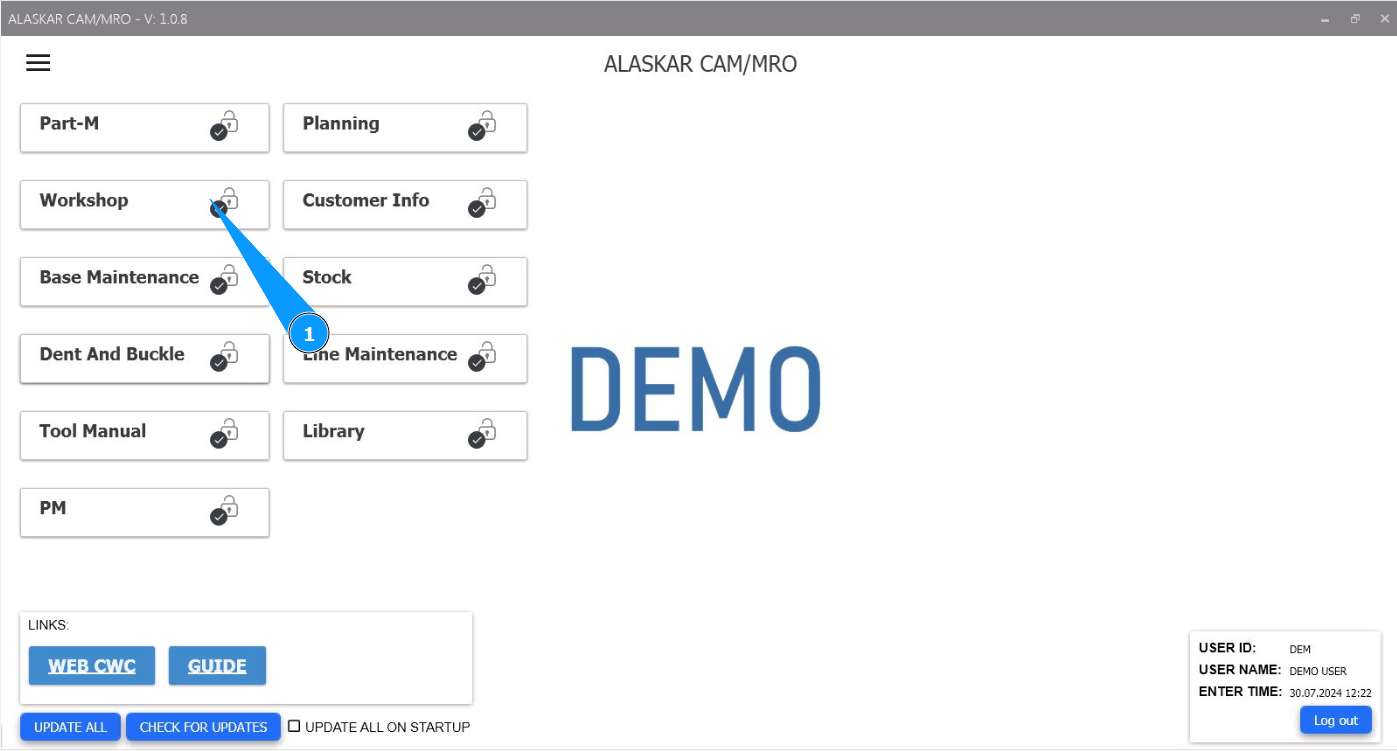
1. In order to create a work order for Line maintenance (Line Maintenace Shop WO), go to the module "Workshop".
2. Then go to the tab "WO".
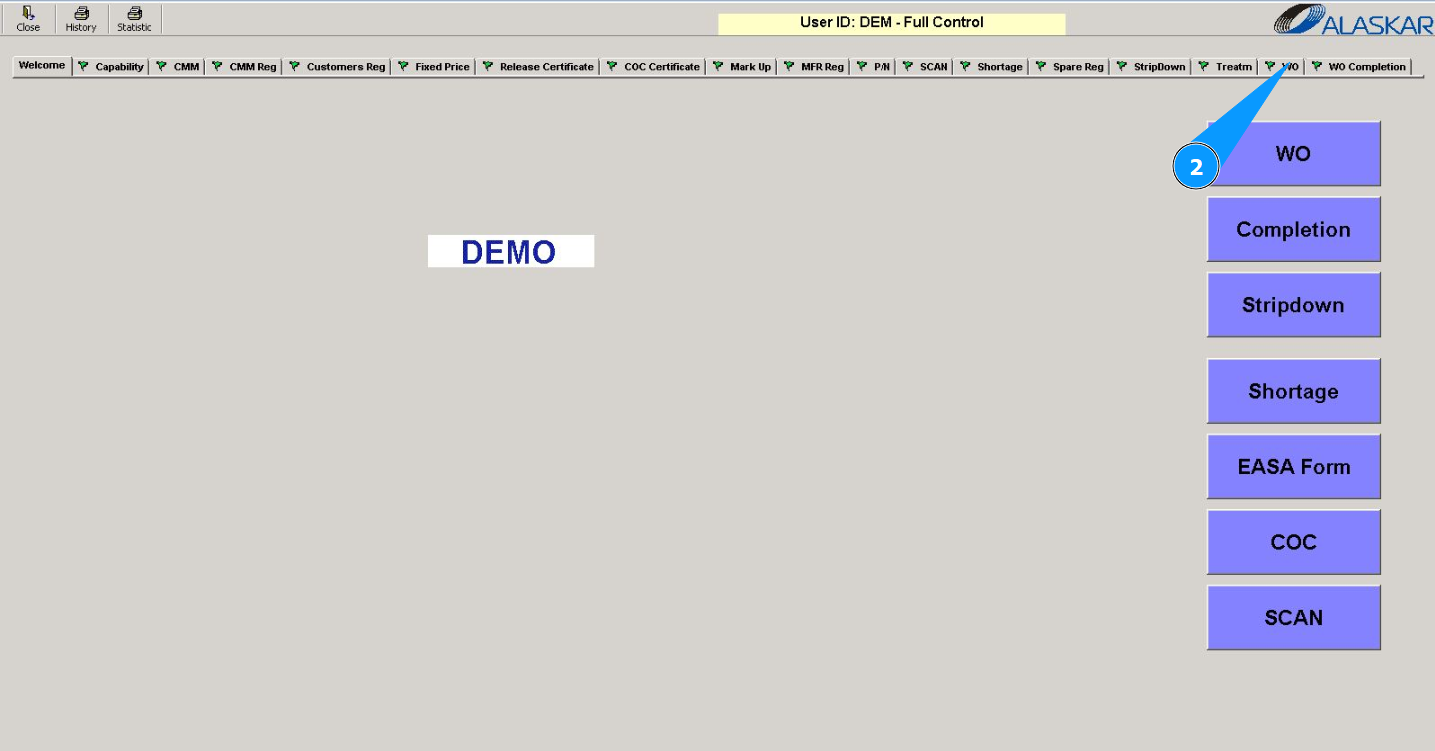
Note: Creating a Line Maintenace Shop WO is possible from the tab "WO" or via using the submodule "WO".
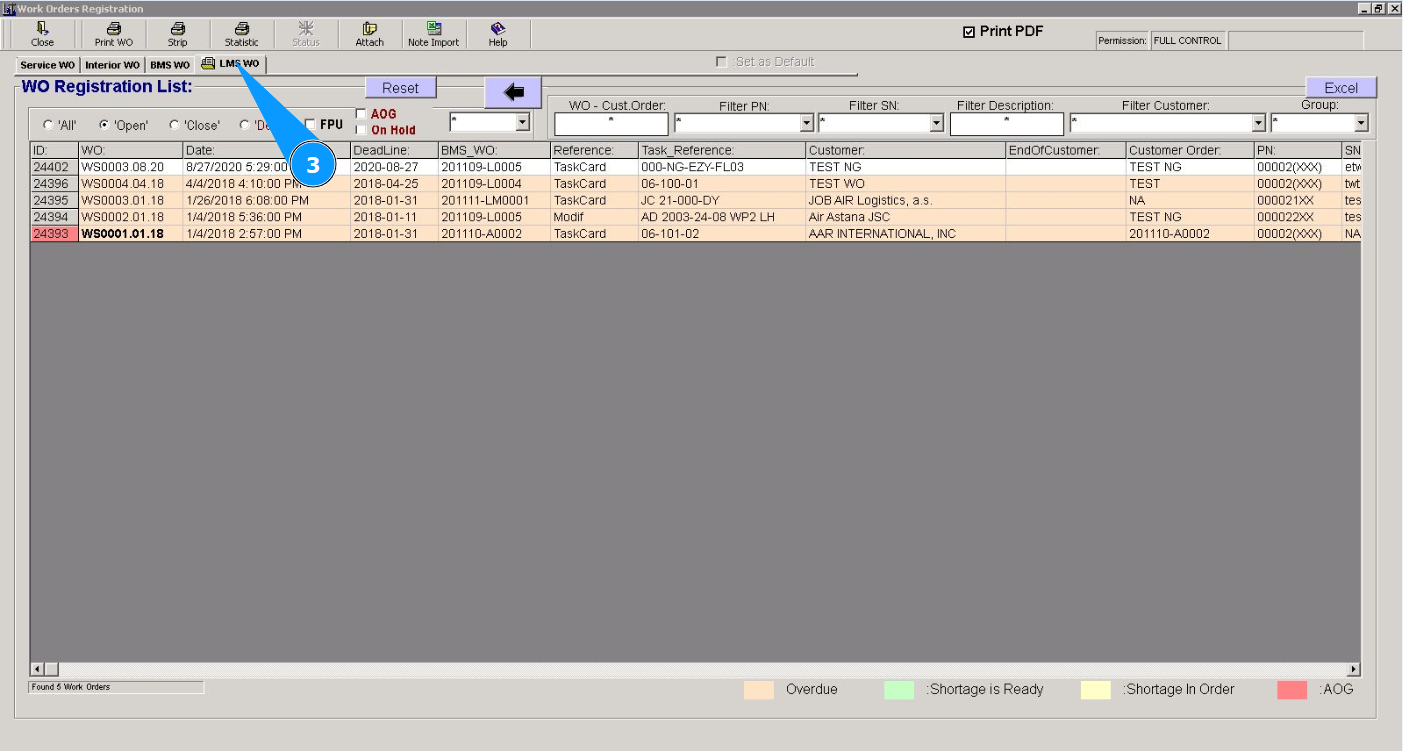
3. Then go to the tab "LMS WO".
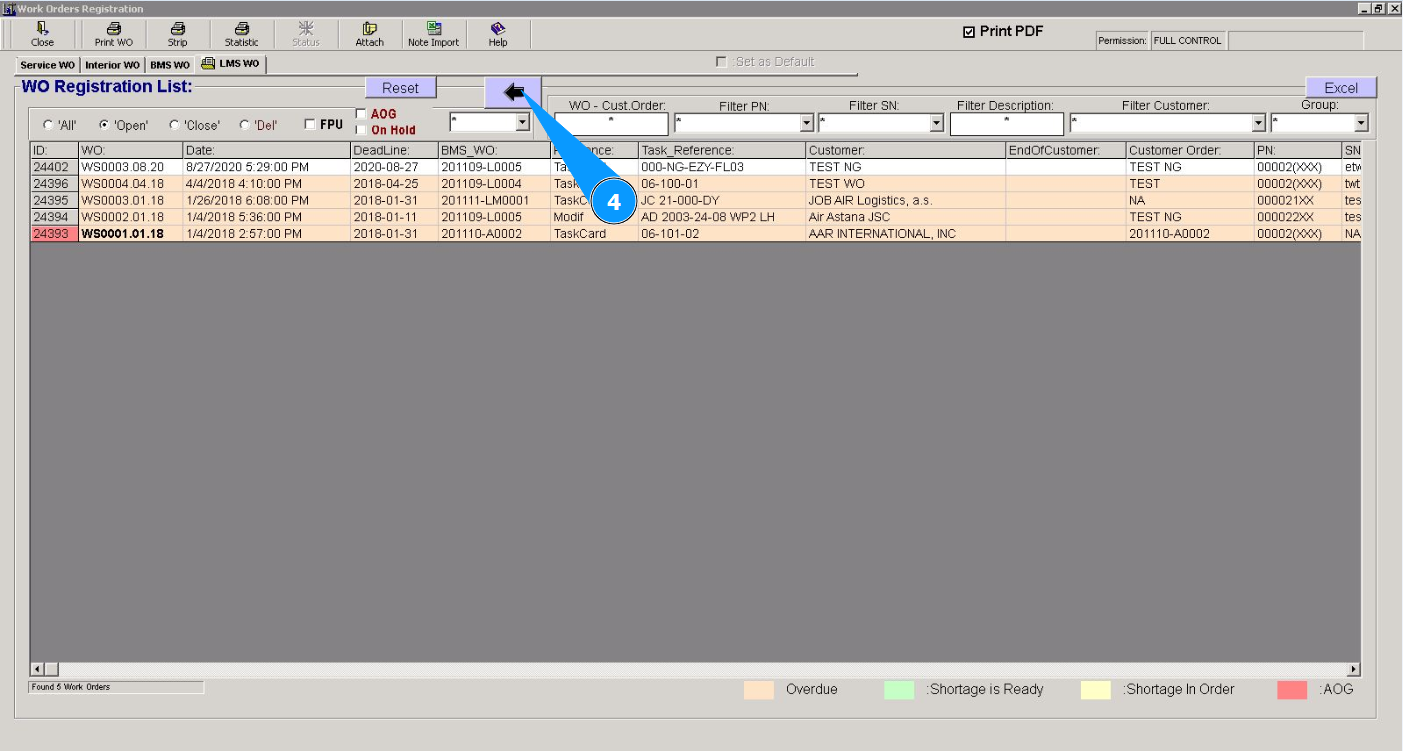
4. Click on the button with arrow to open the Line Maintenace Shop WO creation editor.
5. The creation date of Line Maintenace Shop WO is set to today's date by default. If necessary, change it in the calendar. Note: The work order number will be created automatically by the program.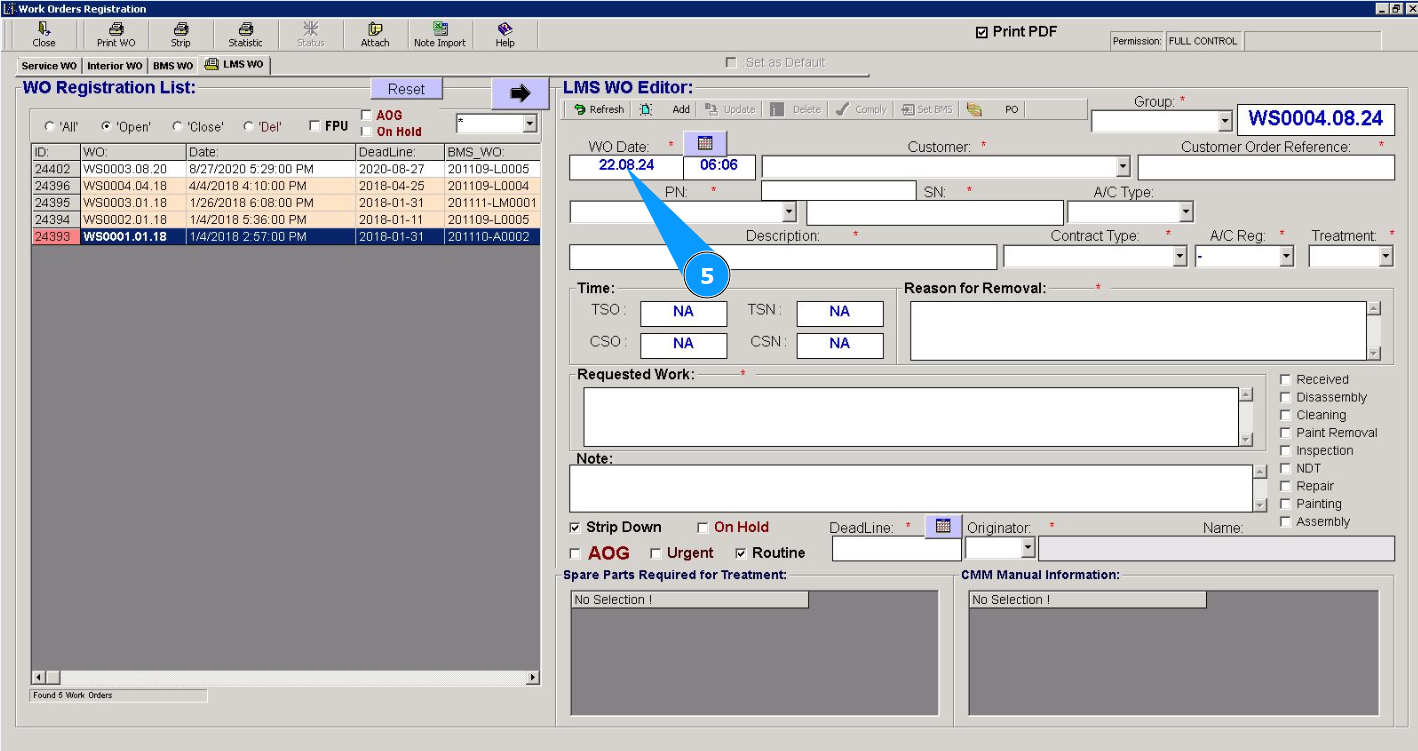
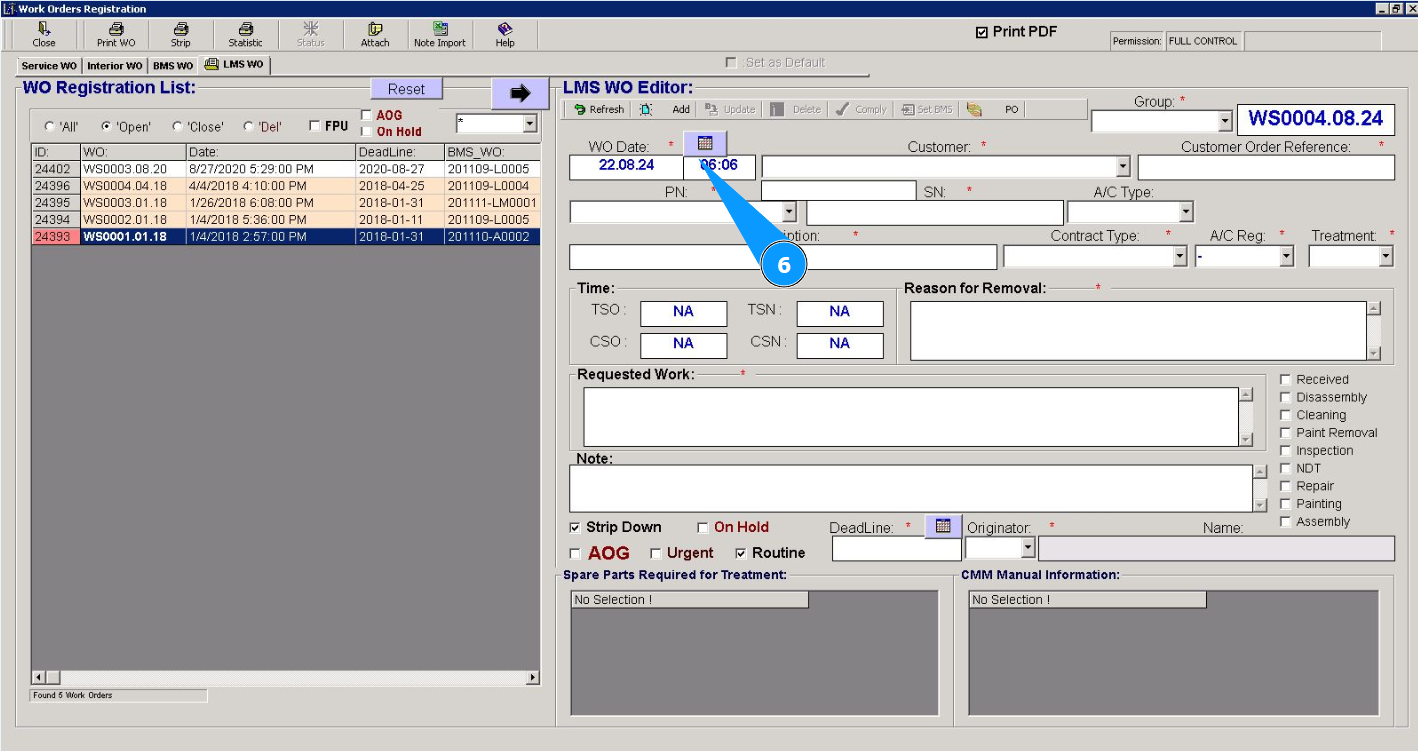
6. Enter the time when the work order was created.
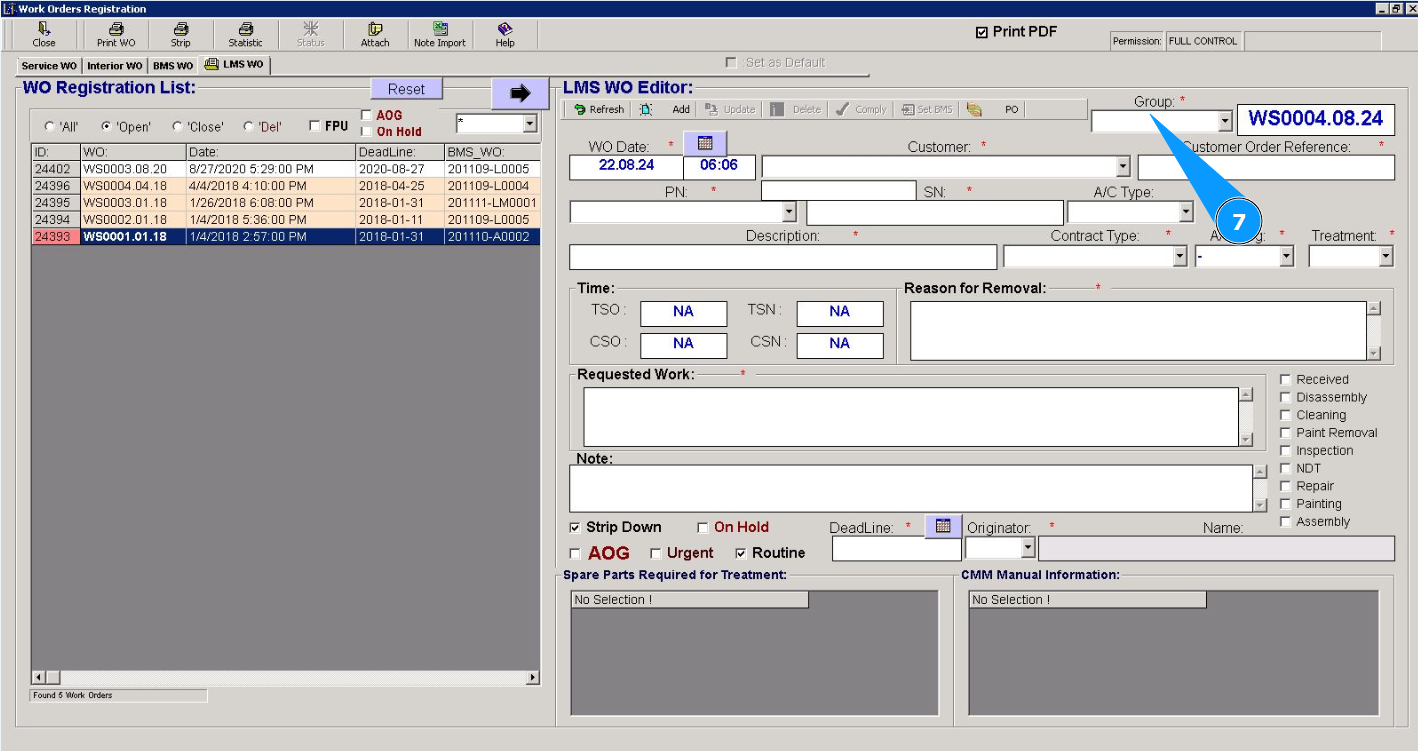
7. Select the work order group from the dropdown list in the field "Group".
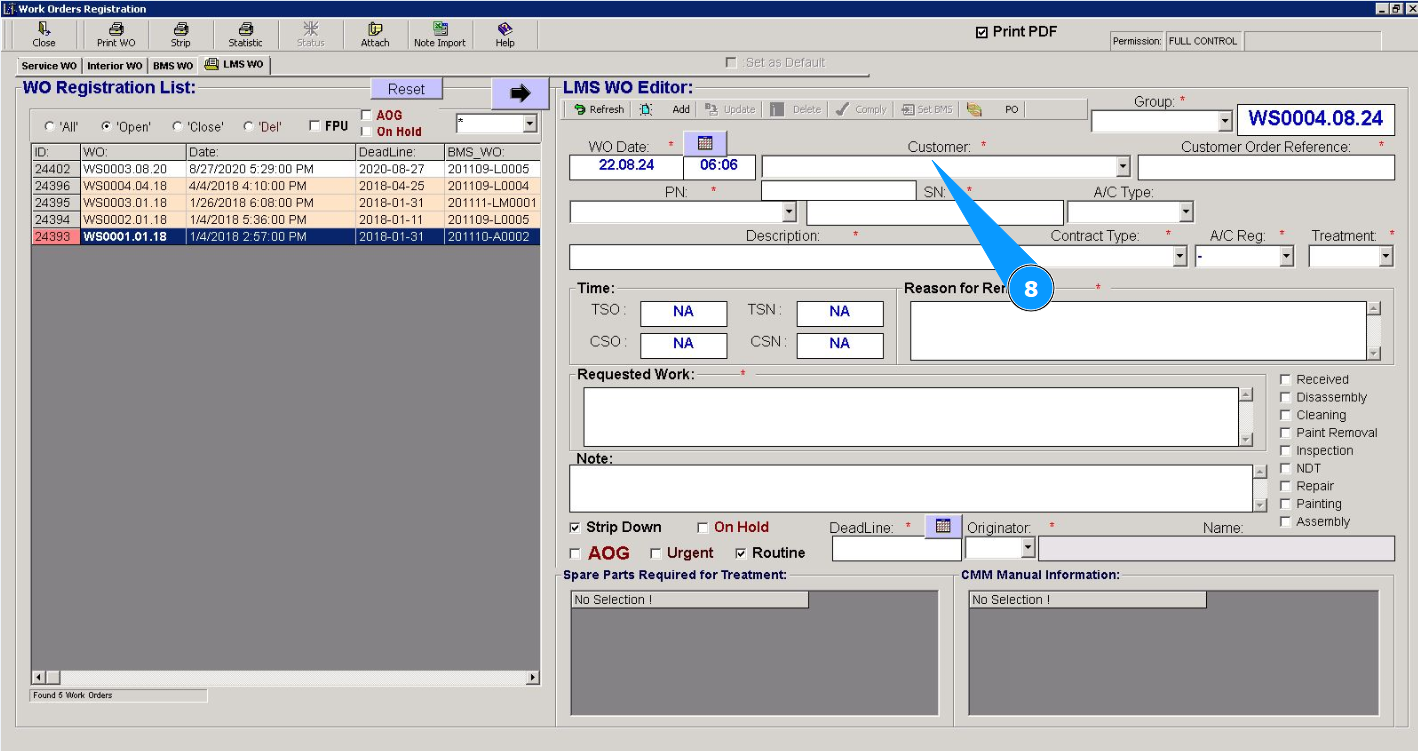
8. Select the company name from the dropdown list in the field "Customer".
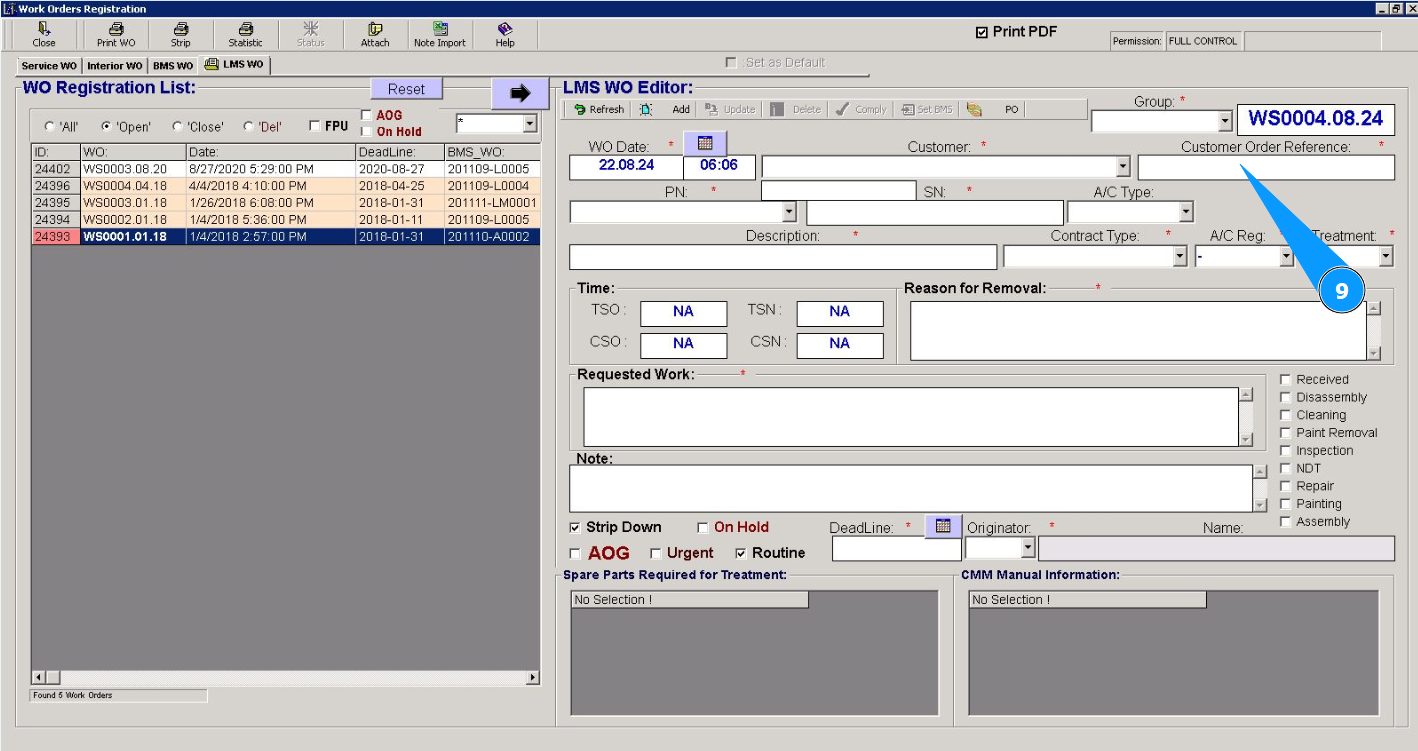
9. Enter a reference to the request number or customer order number in the field "Customer Order Reference".
10. Select from the dropdown list the part number of the component to perform the work in the field "PN". Note: The description of the selected component will be entered by the program automatically in the field "Description".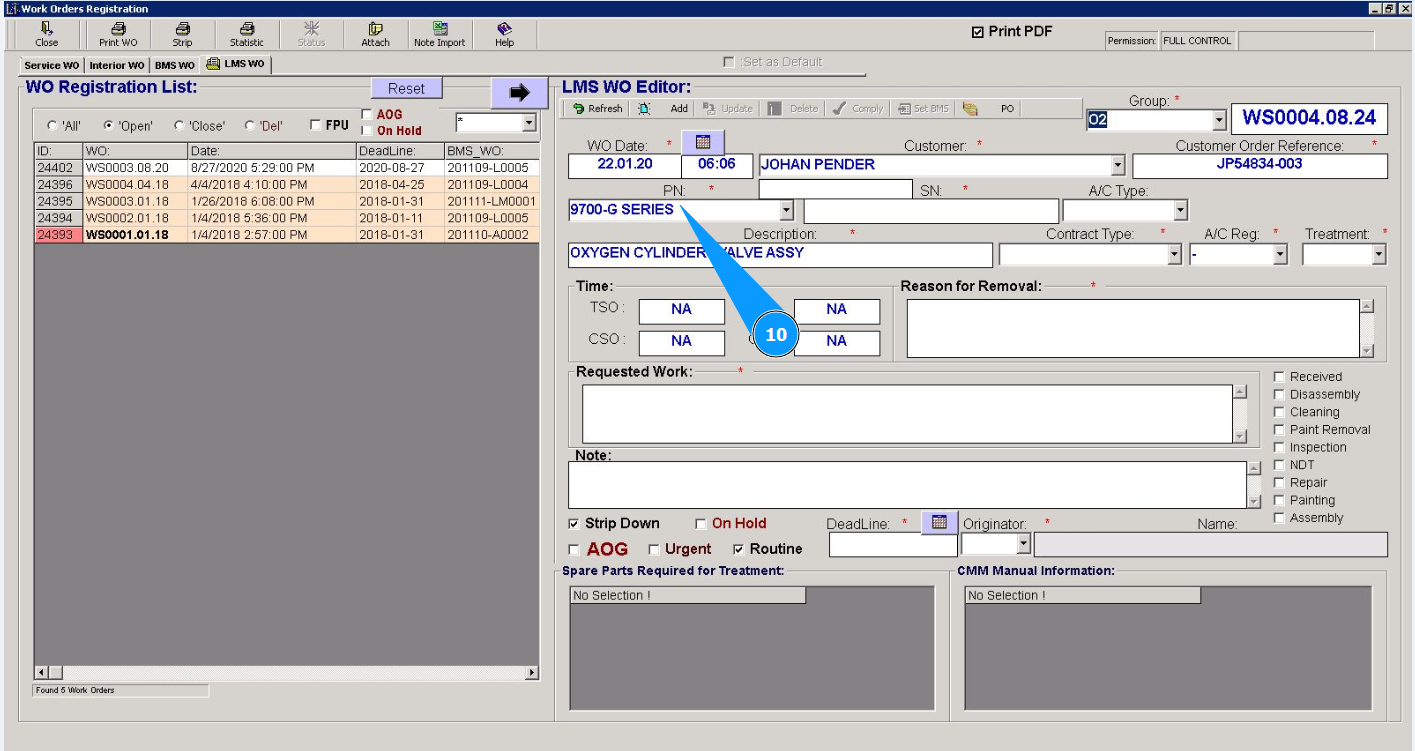
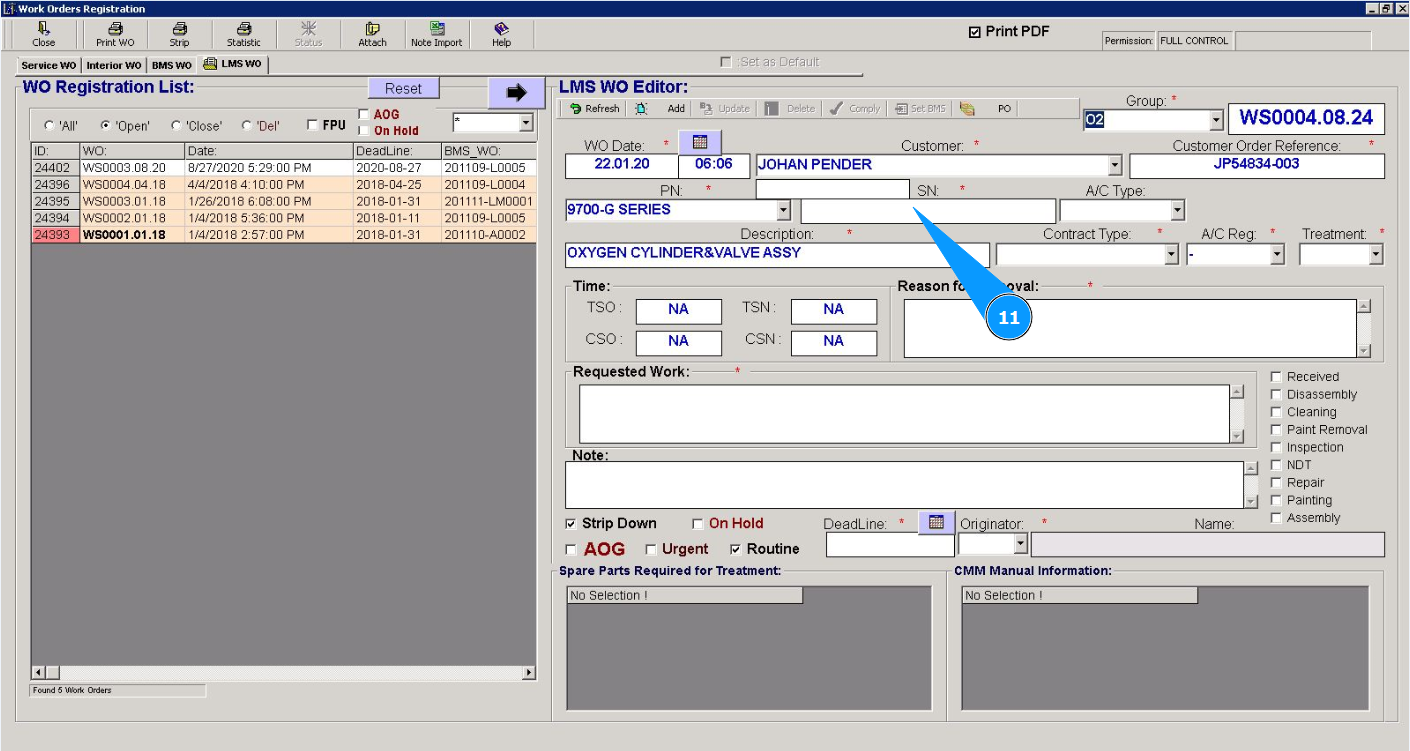
11. Enter the serial number of the component to perform the work in the field "SN".
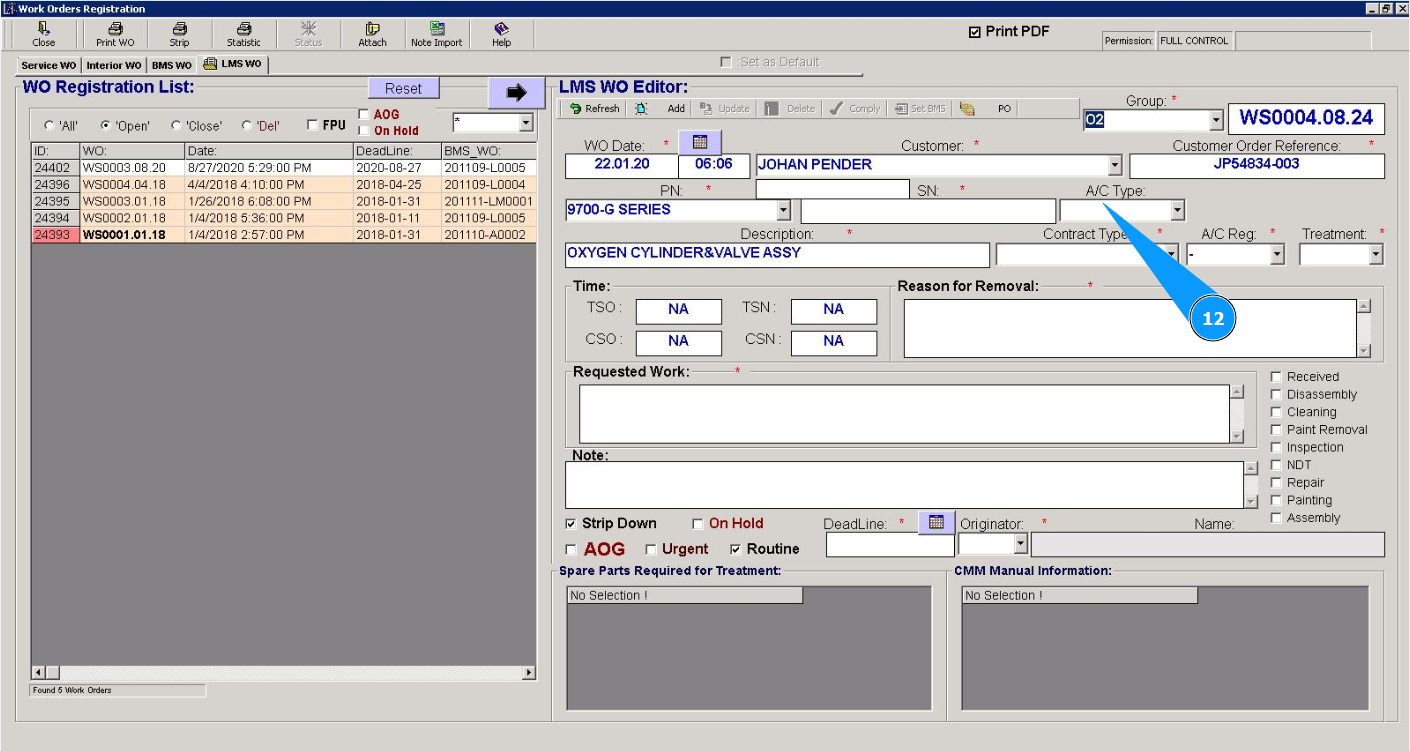
12. Select the aircraft type from the dropdown list in the field "A/C Type.
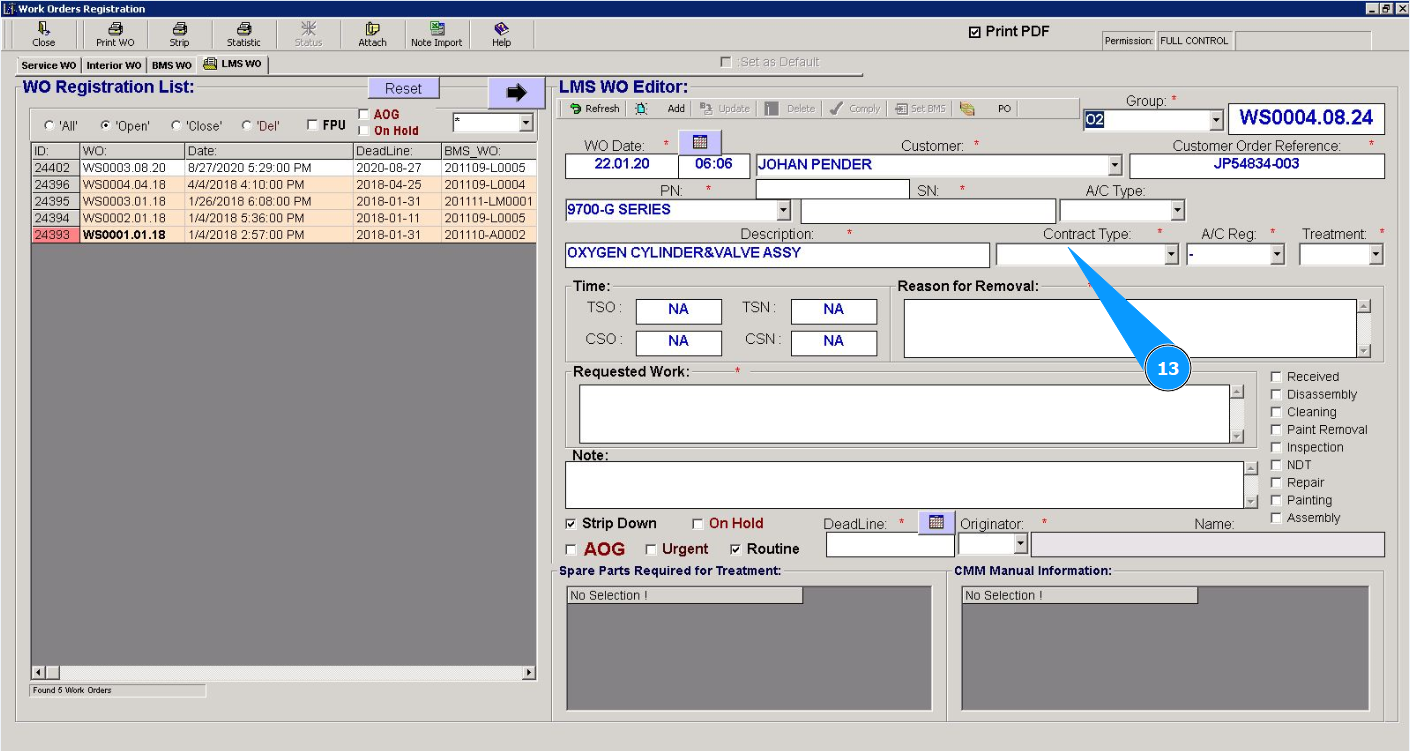
13. Select the contract type from the dropdown list in the field "Contract Type.
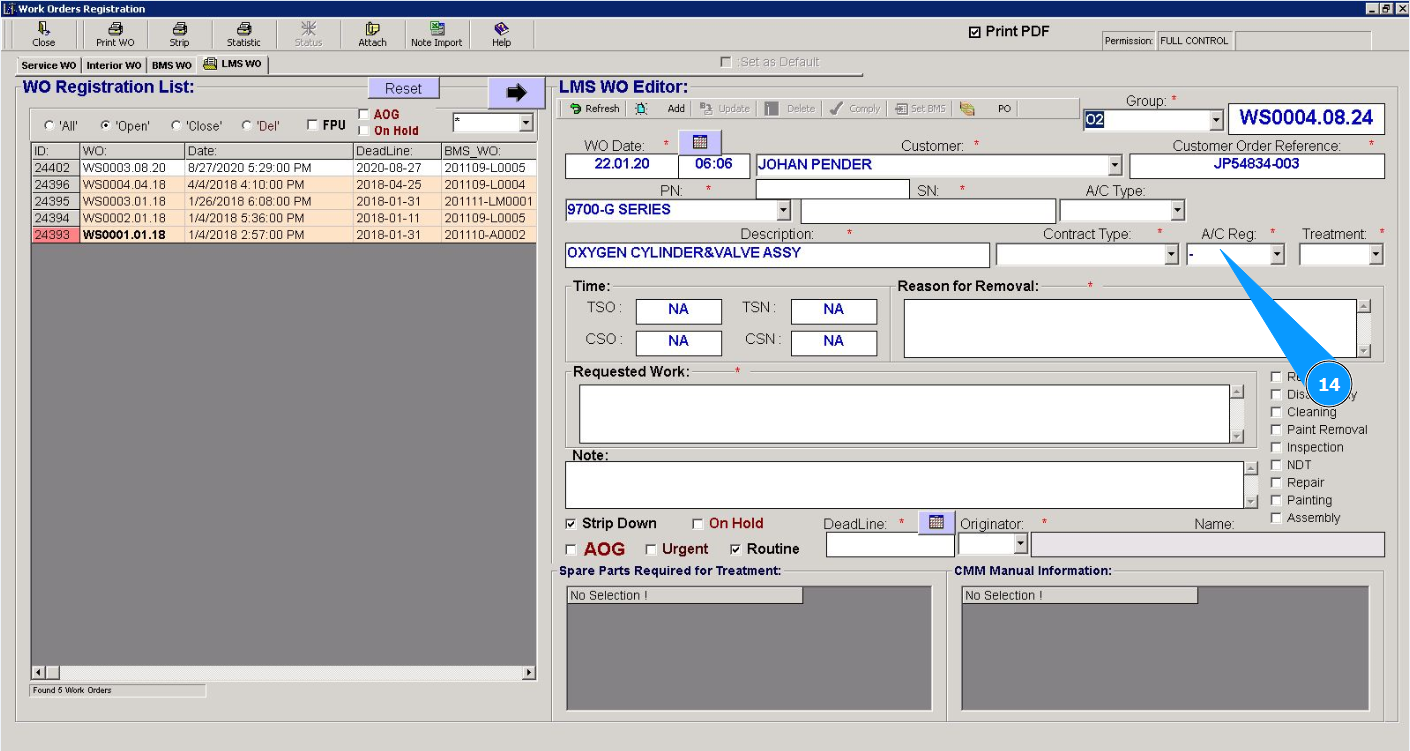
14. Select the aircraft registration number from the dropdown list in the field "A/C Reg..
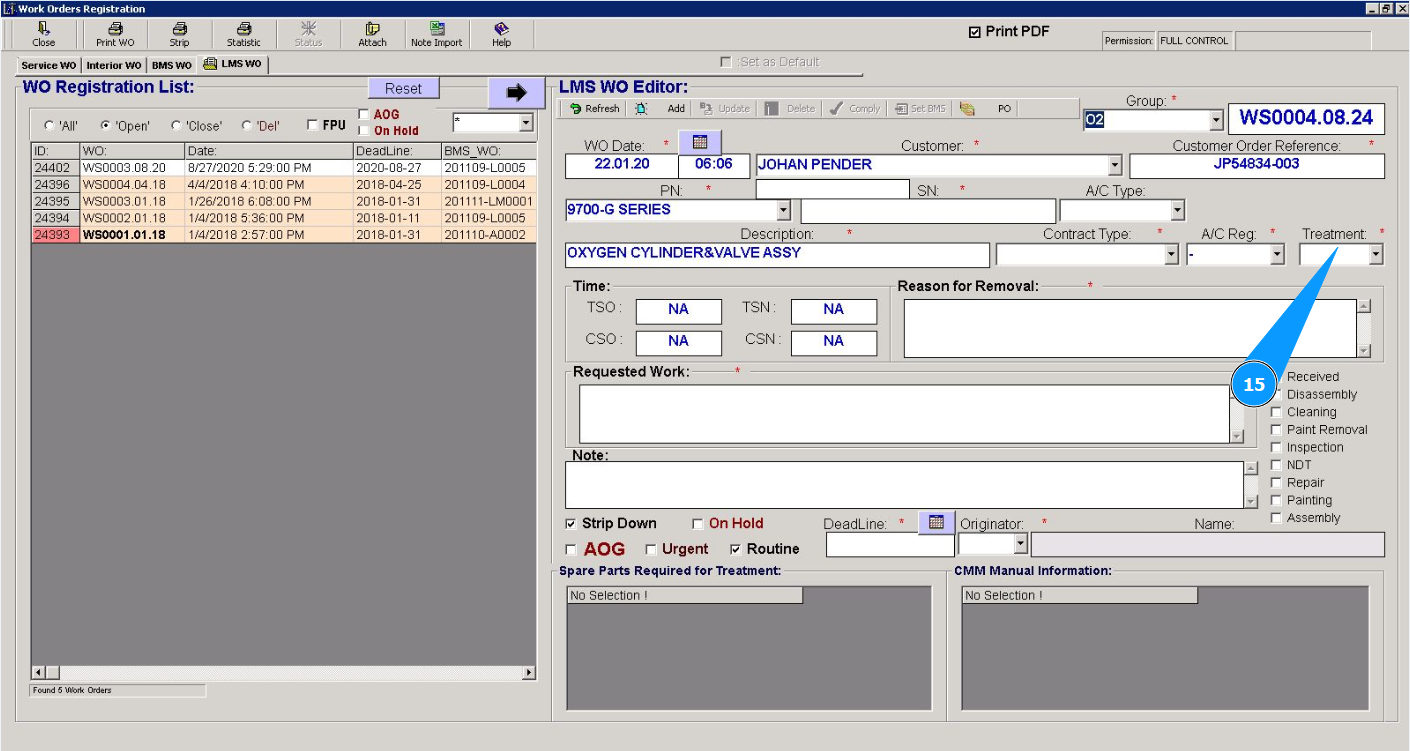
15. Select the required type of work from the dropdown list in the field "Treatment.
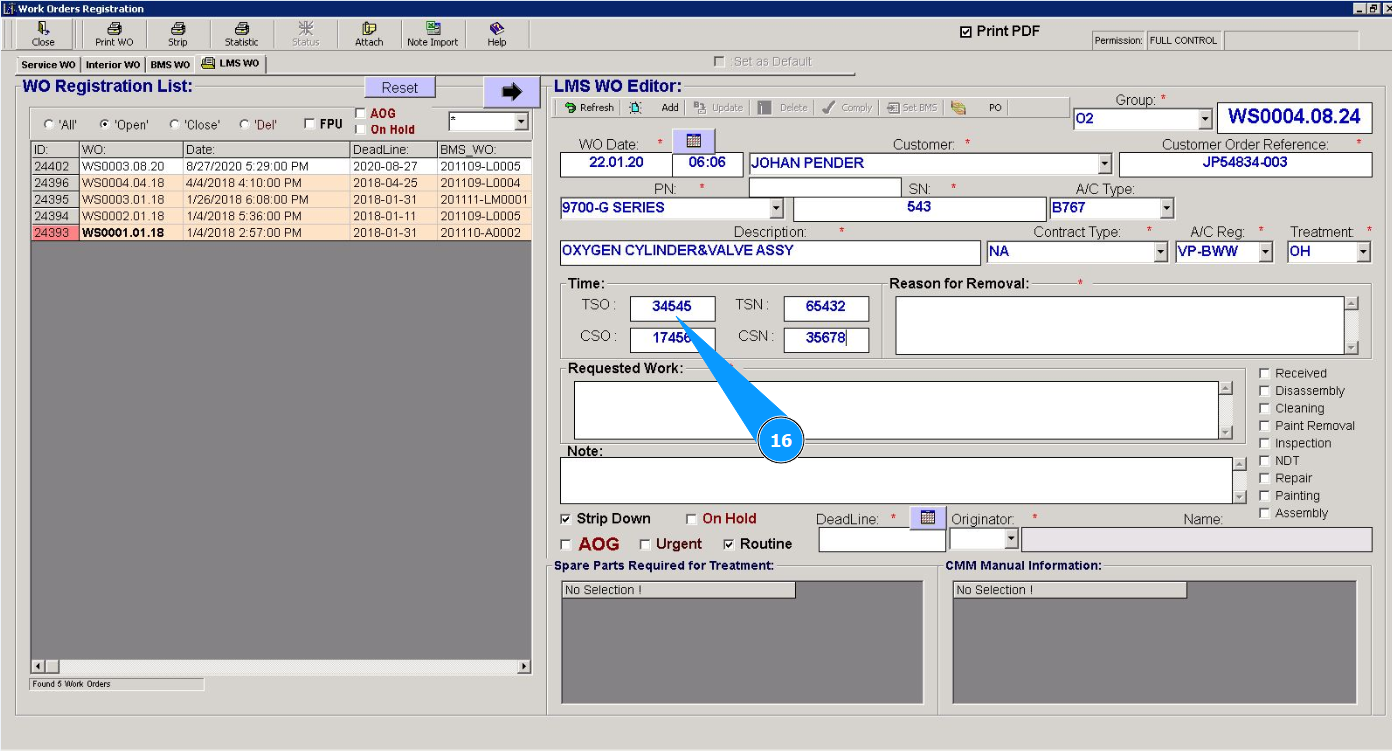
16. If necessary, enter the operating time of the component since the last overhaul in hours in the field "TSO".
17. If necessary, enter the operating time of the component since the last overhaul in cycles in the field "CSO".
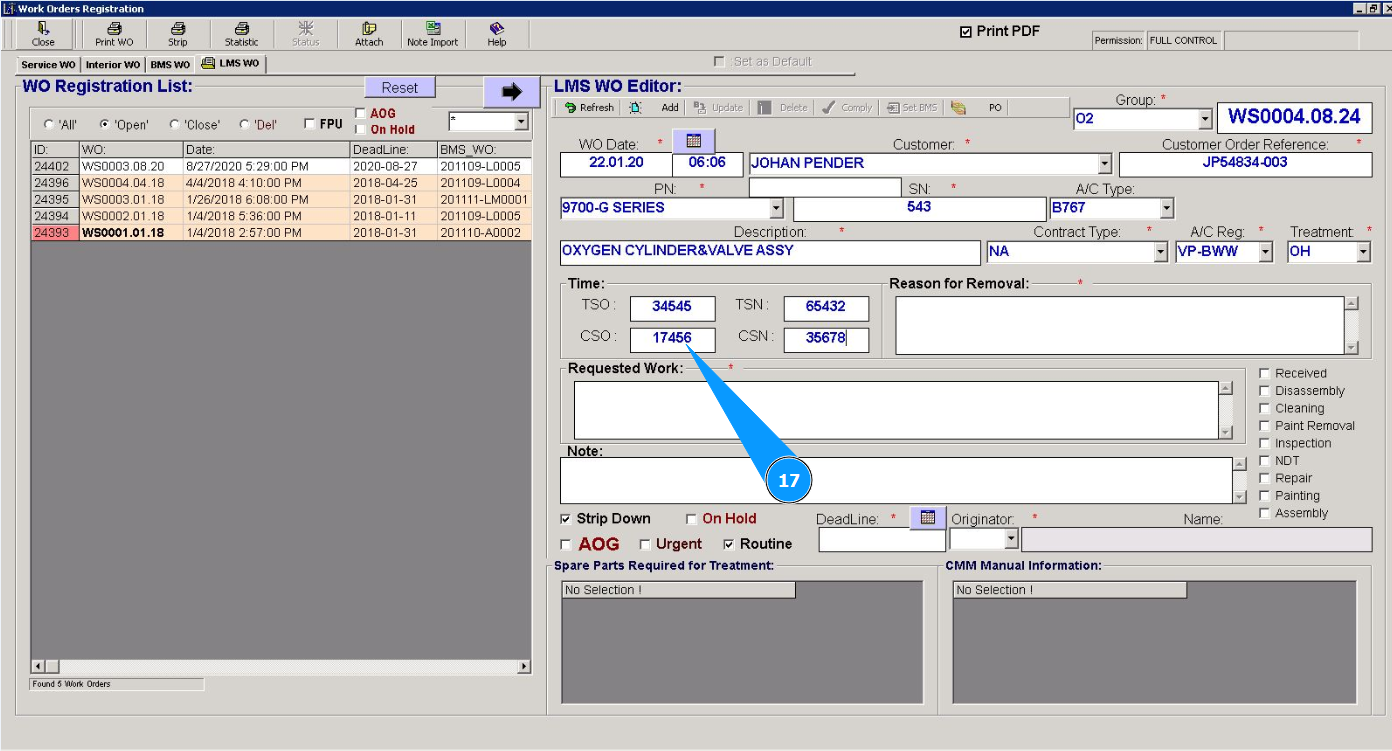
18. If necessary, enter the operating time of the component from the manufactured date in hours in the field "TSN".
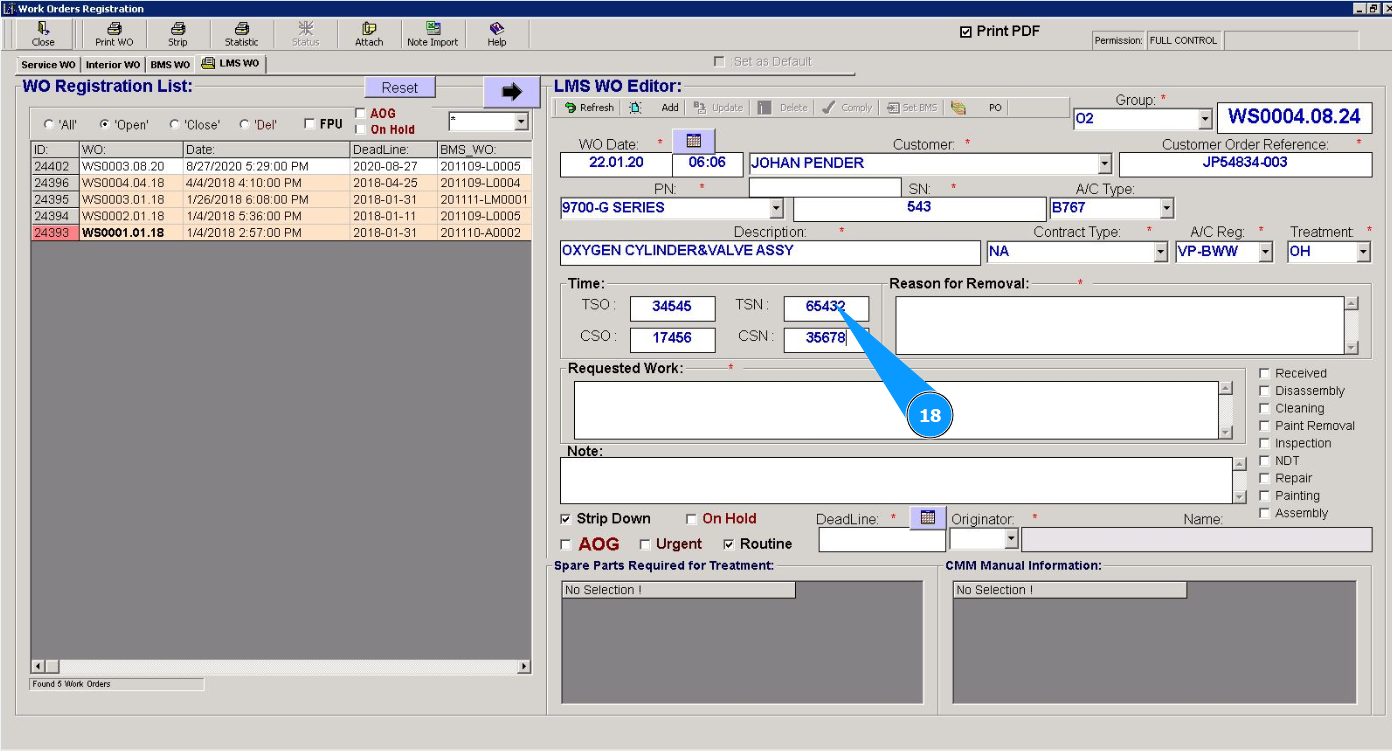
19. If necessary, enter the operating time of the component from the manufactured date in cycles in the field "CSN".
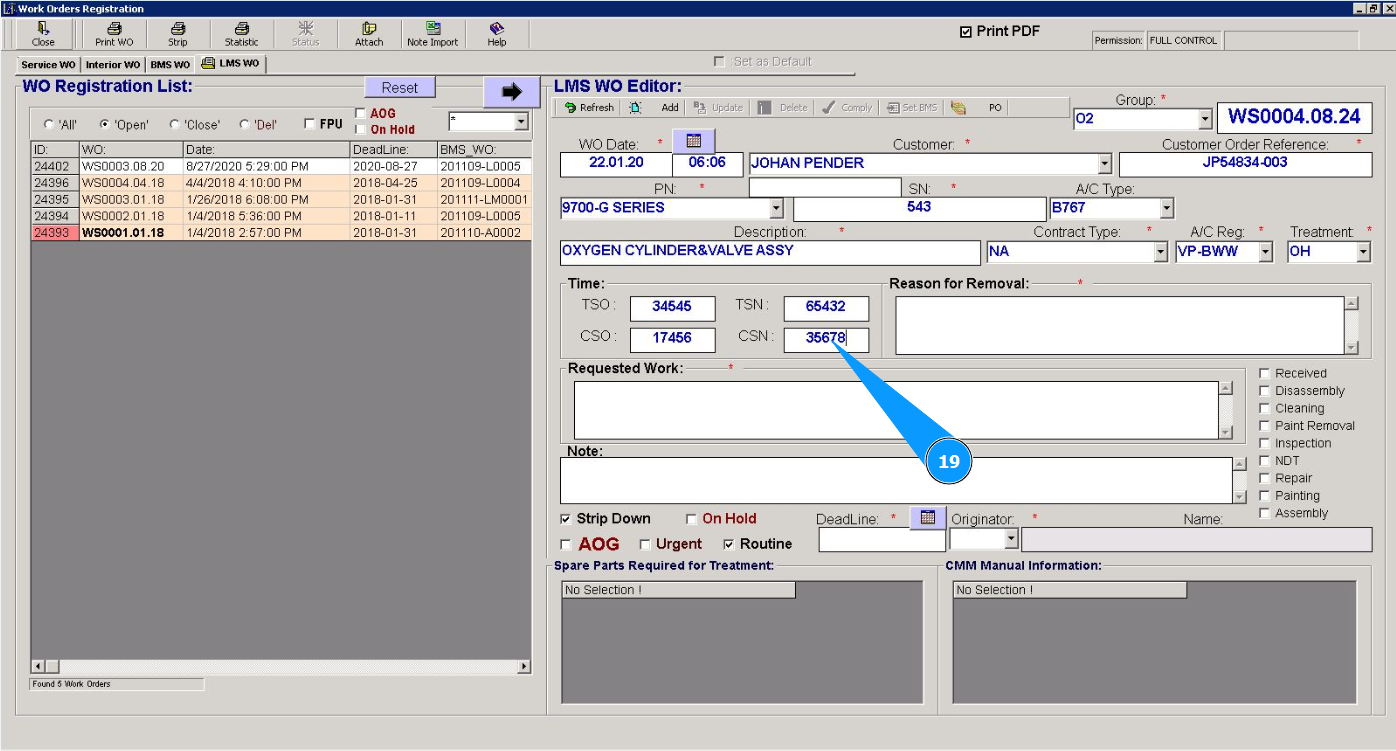
20. Enter the reason for removing the component in the field "Reason of Removal".
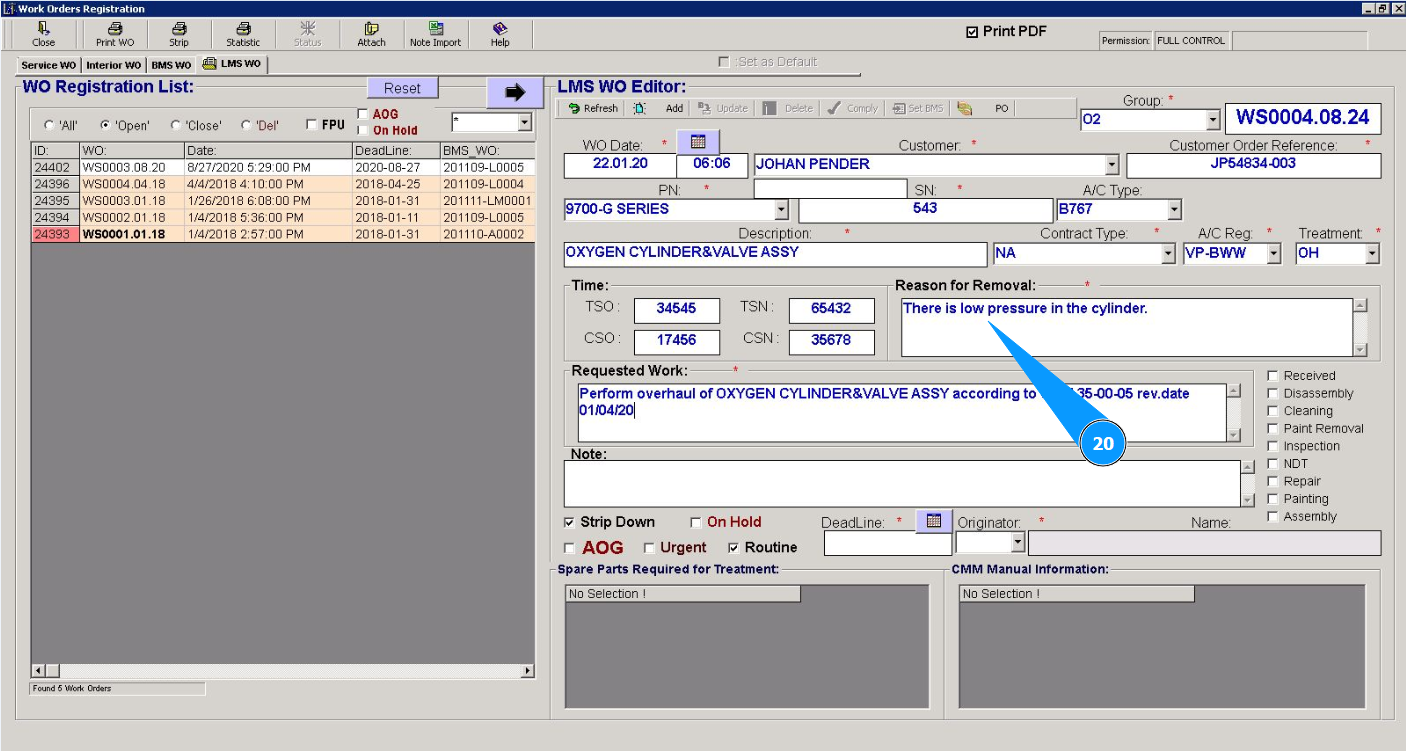
21. Enter the required work actions in the field "Requested Work".
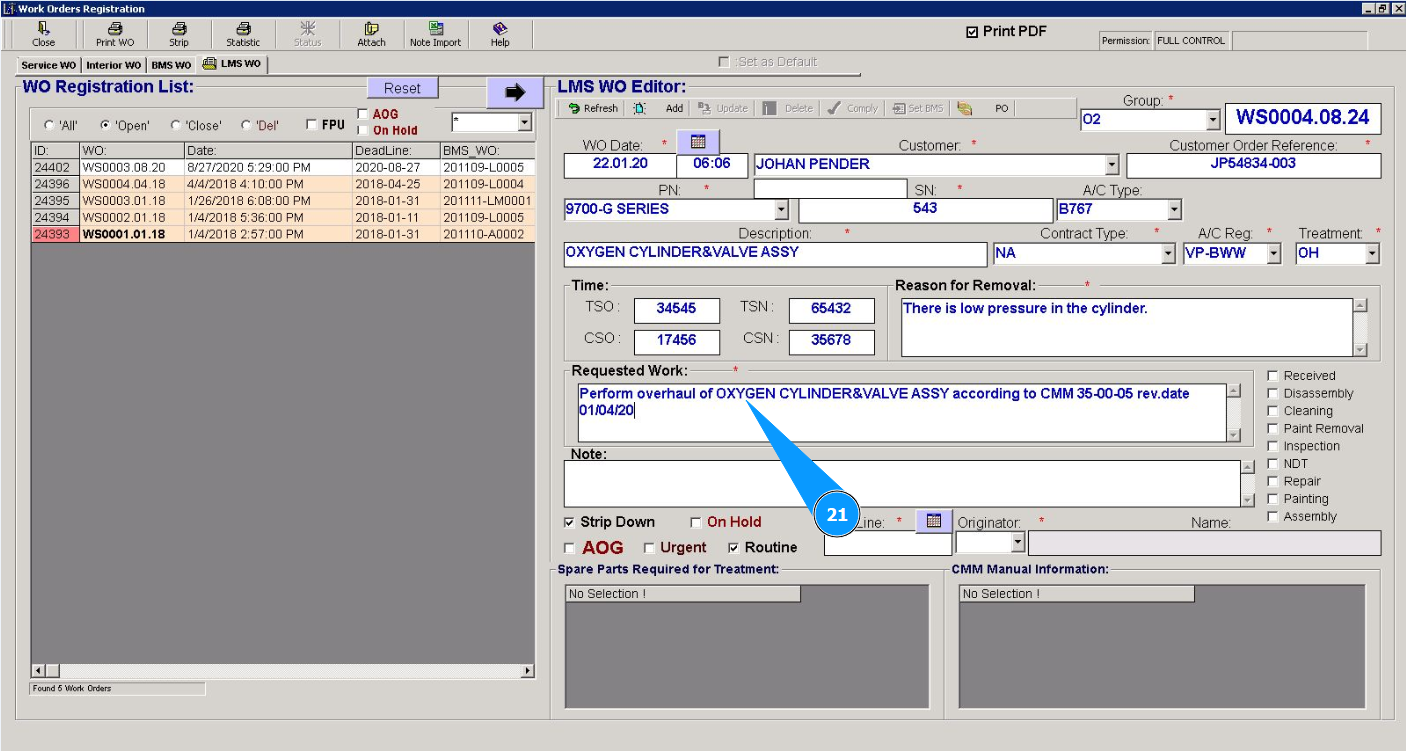
22. If necessary, enter remarks in the field "Note".
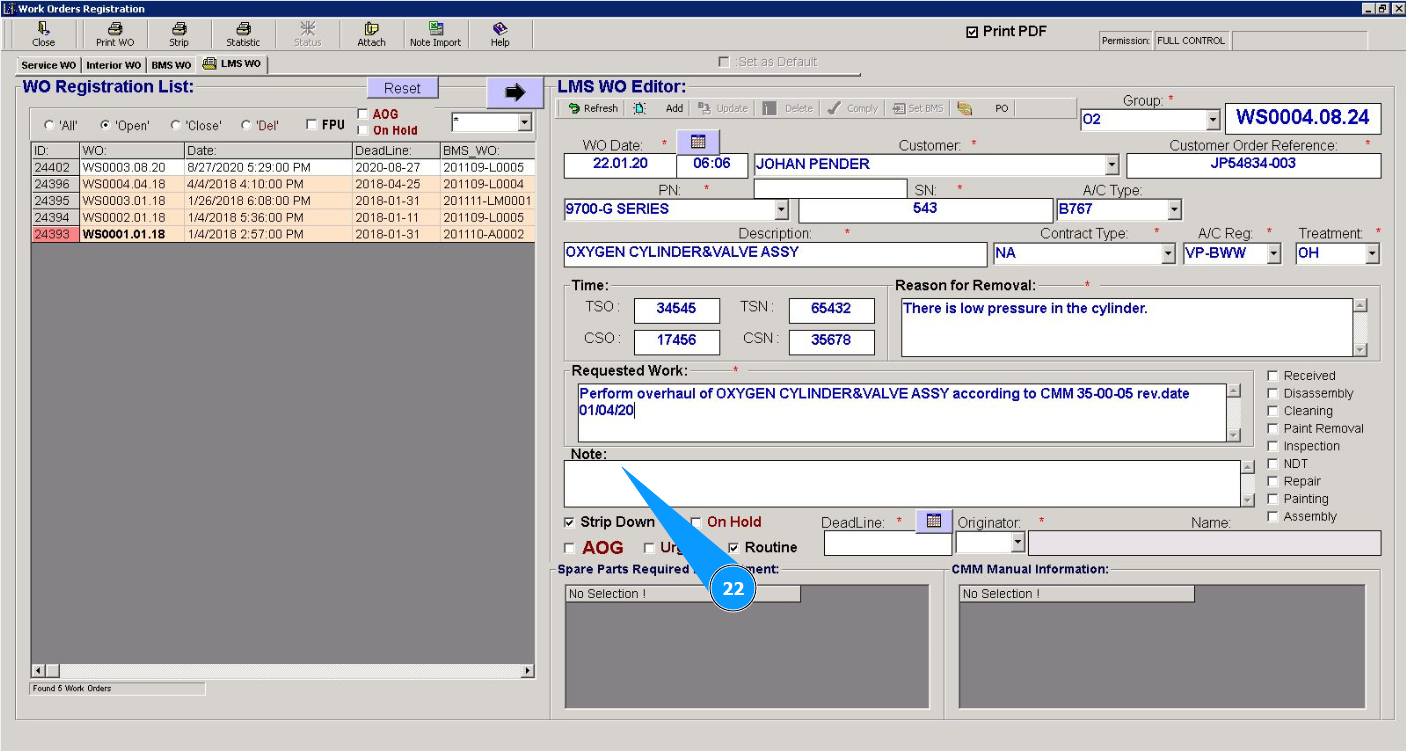
23. Select the required types of work and tick in the appropriate window.
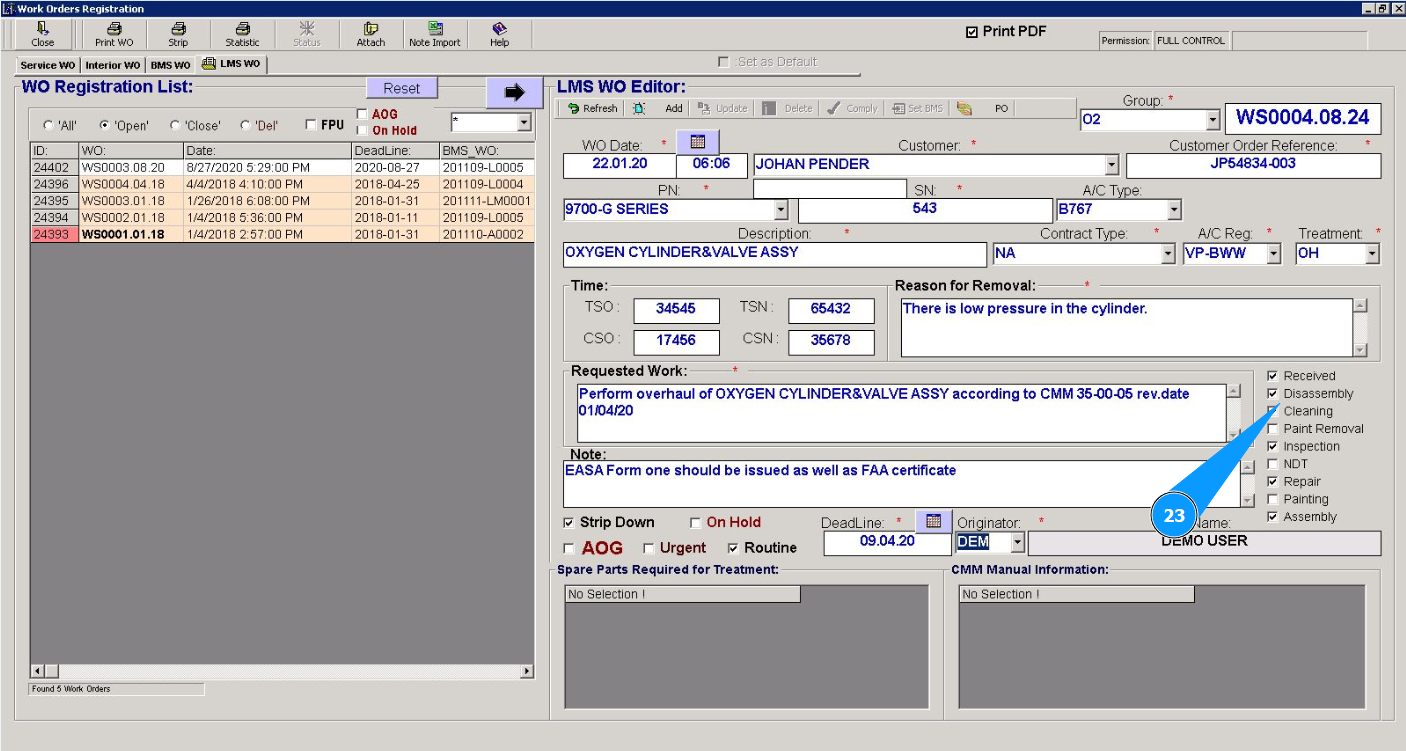
24. If necessary, select the required work criteria and tick in the appropriate window.
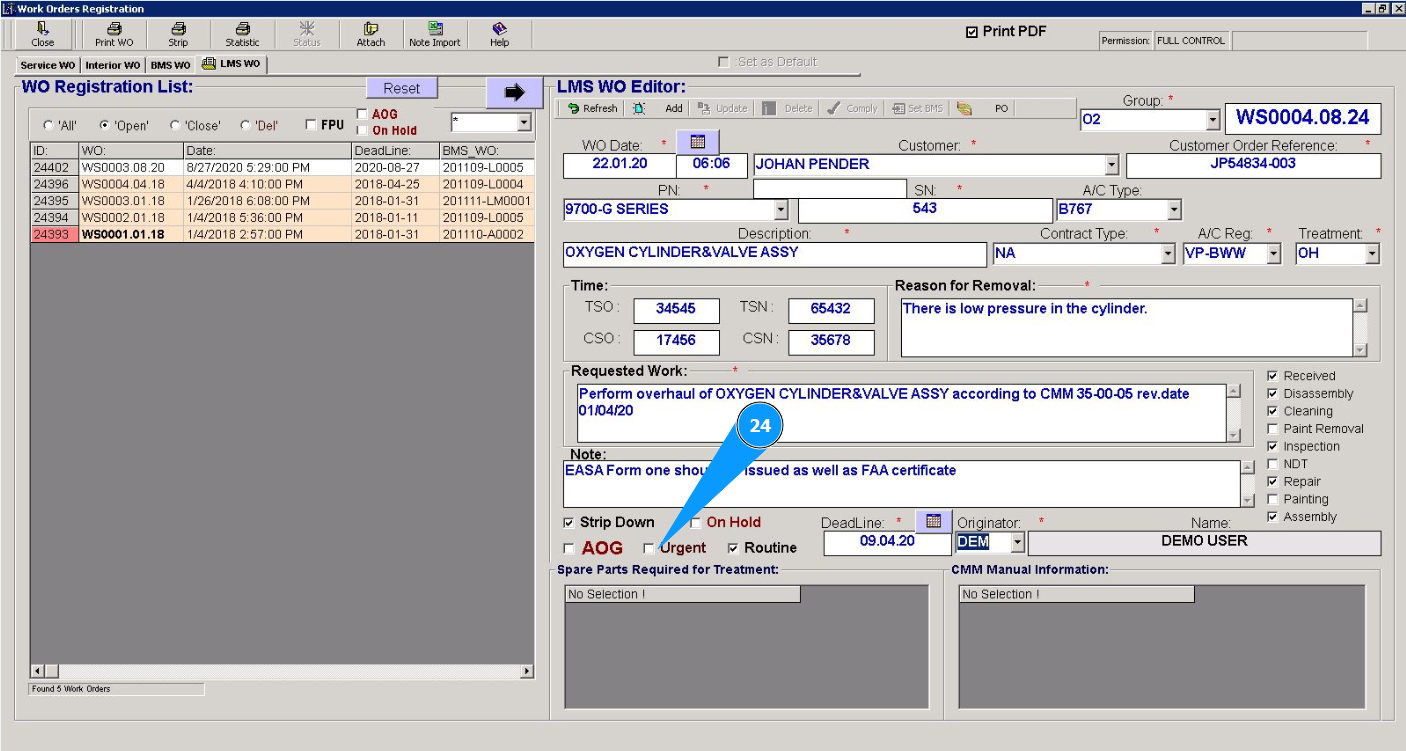
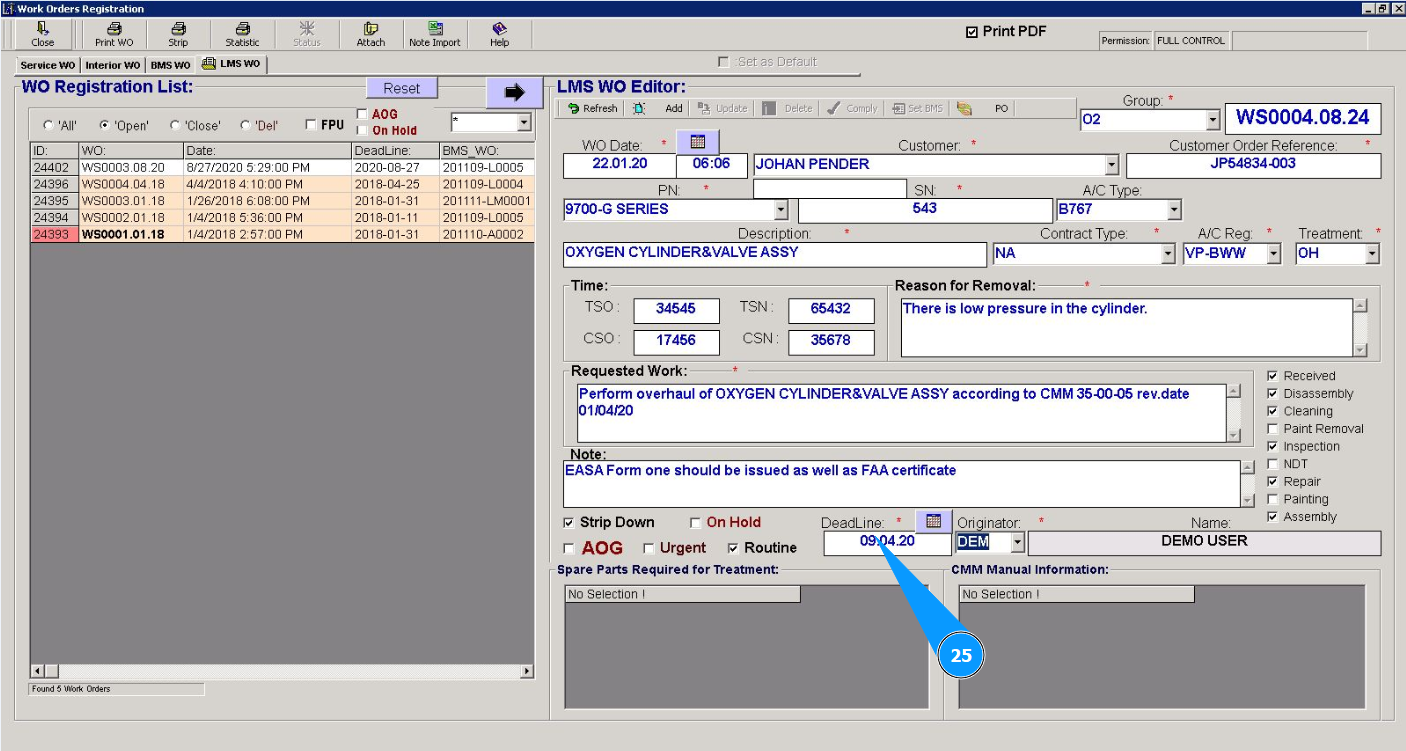
25. Select the work limitation date from the calendar in the field "Deadline".
26. Select the initials of the performer or creator WO (in accordance with your company policy) from the dropdown list in the field "Originator". Note: The performer's first and last name will appear automatically in the field "Name".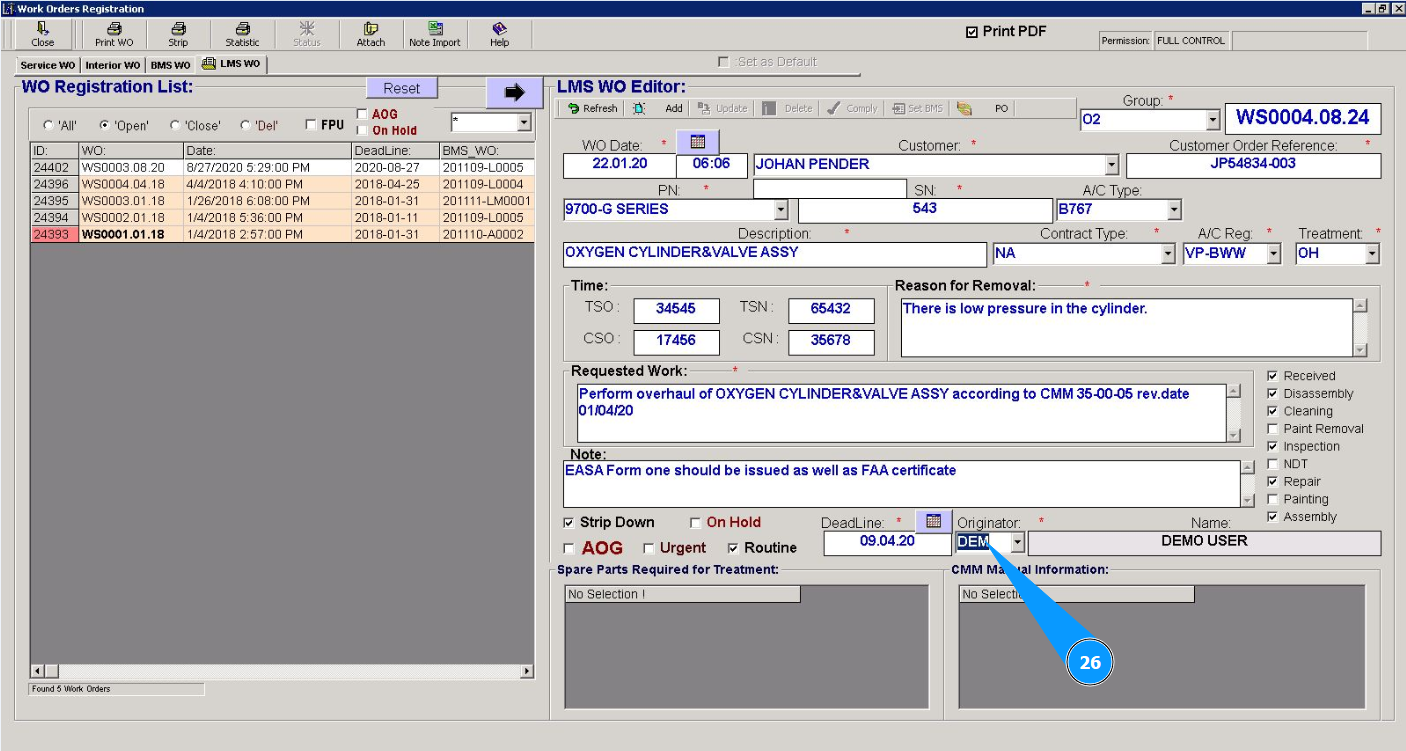
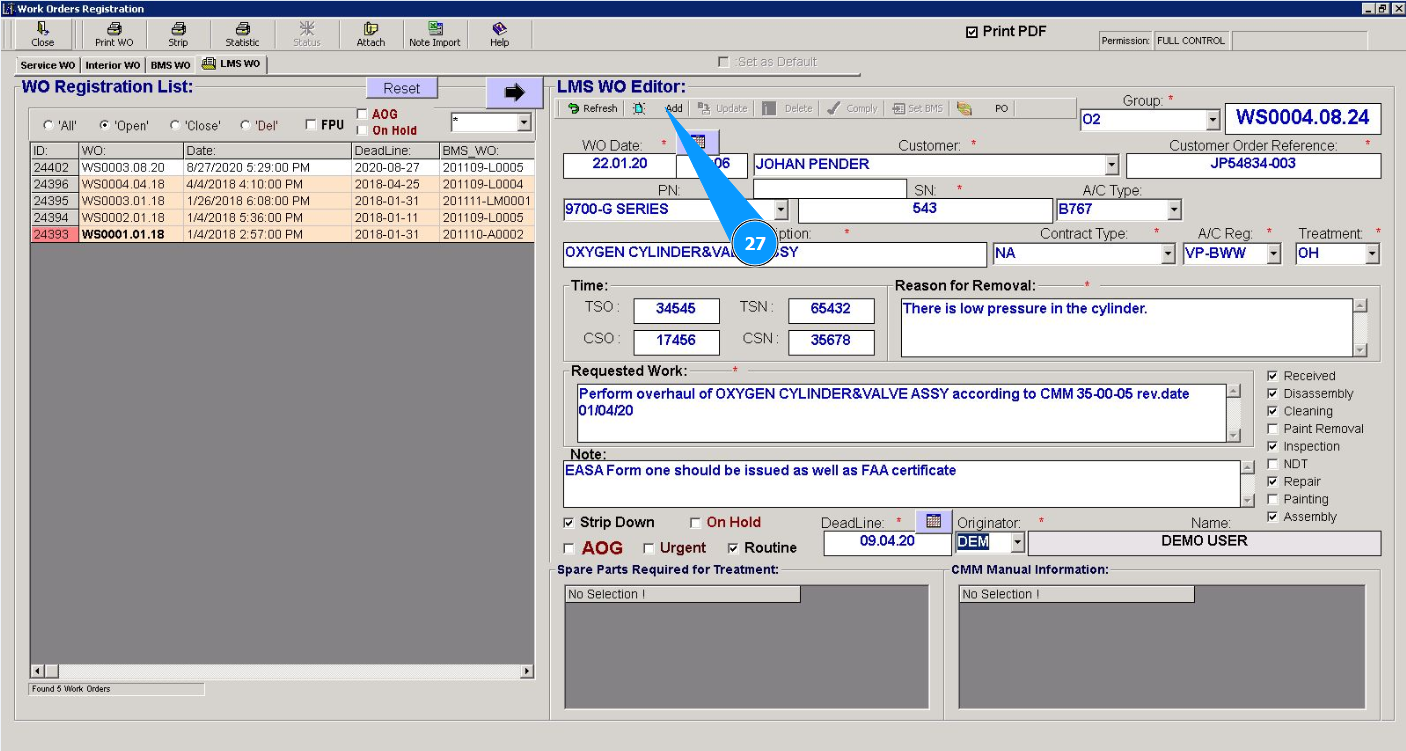
27. Click on the the button "Add" to add the order data to the program.
28. Click on the the button "Yes" to confirm adding data to the program.
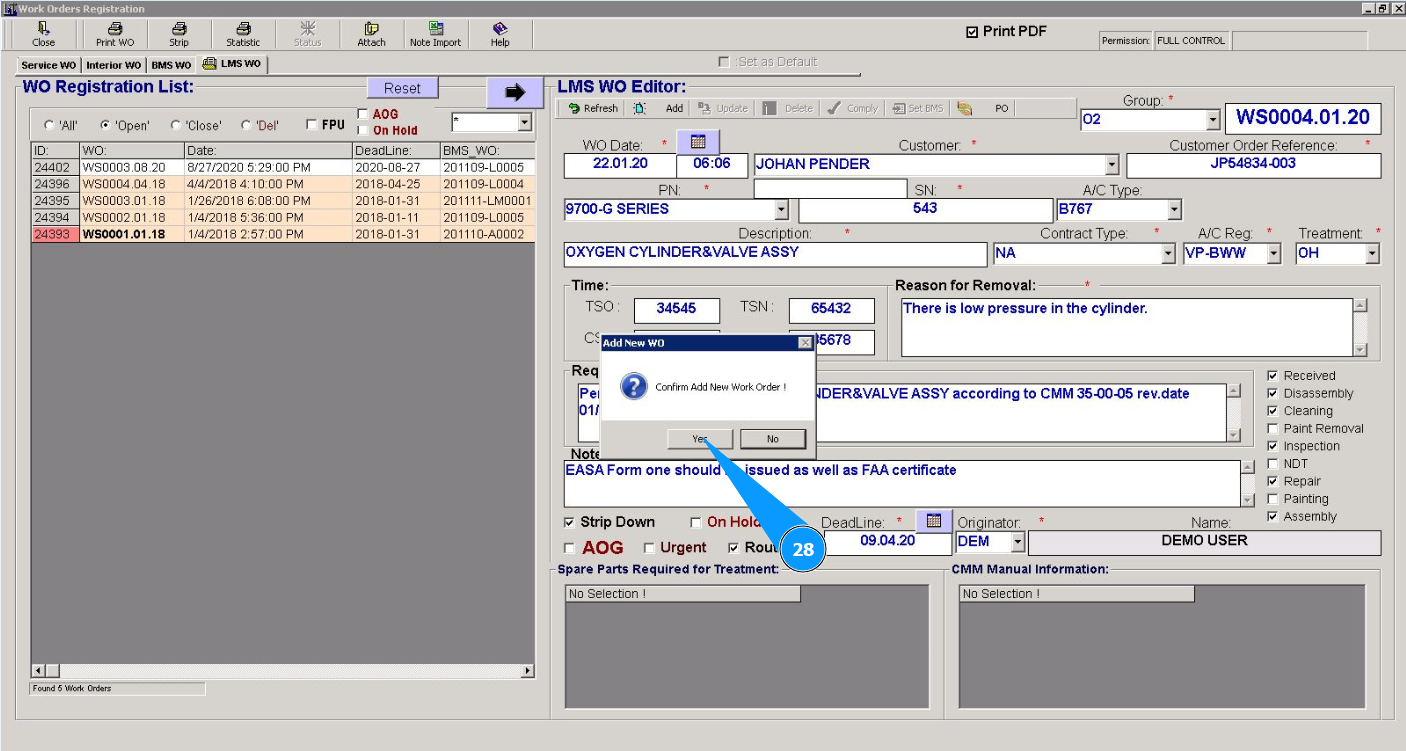
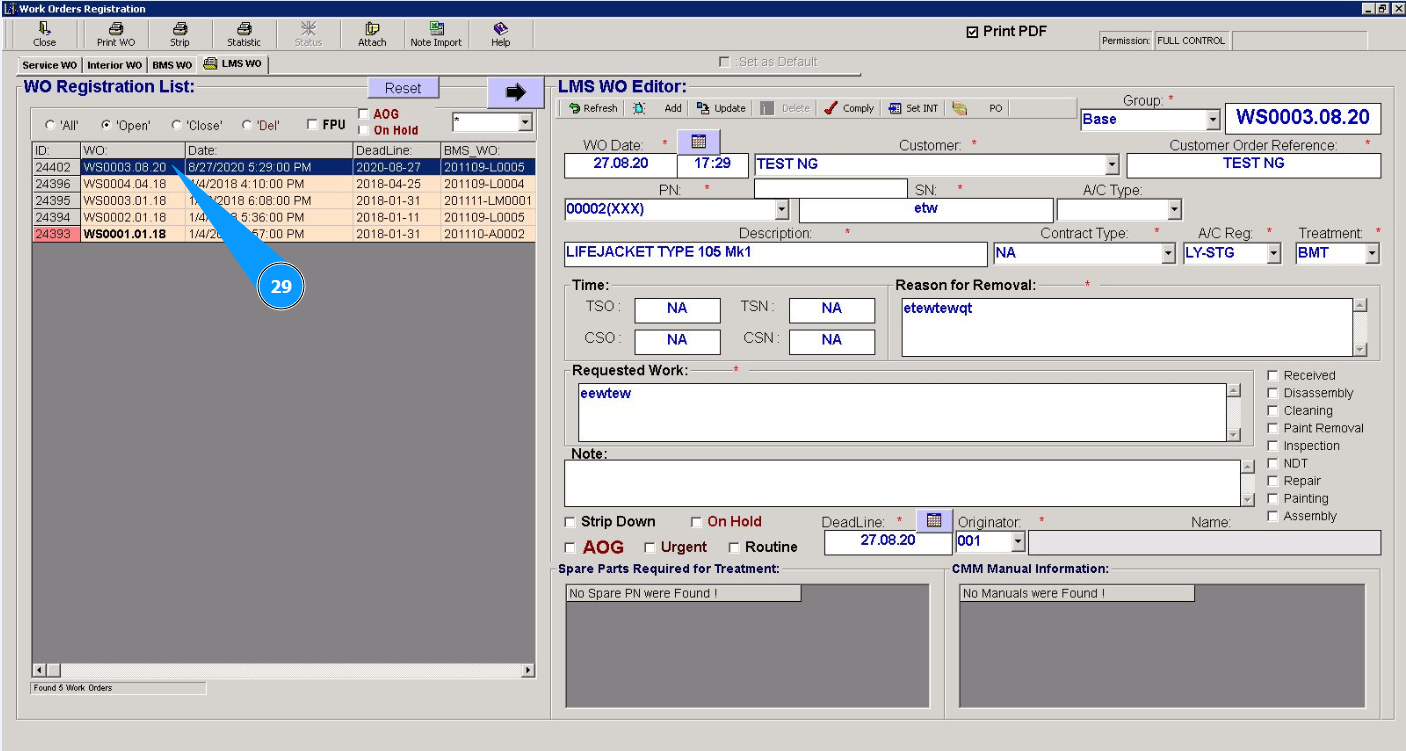
29. Check that the newly created WO is displayed in the window "WO Registration List".
Attention: If you need to immediately close this work order for line maintenance (Line Maintenace Shop WO), go to the corresponding instructions:
"How to close a work order for line maintenance (Line Maintenace Shop WO)"