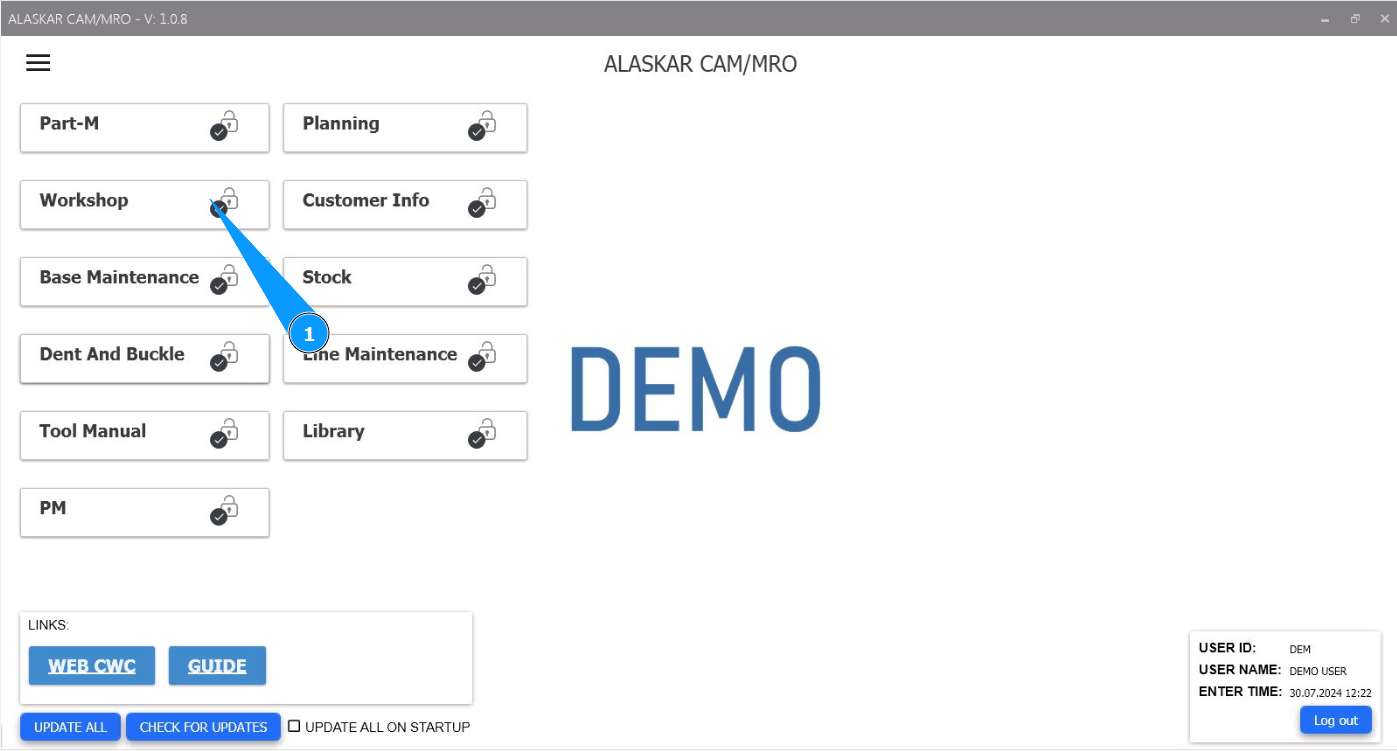
How to close a work order for base maintenance (Base Maintenace Shop WO)
1. In order to close a work order for base maintenance (Base Maintenace Shop WO), go to the module "Workshop".
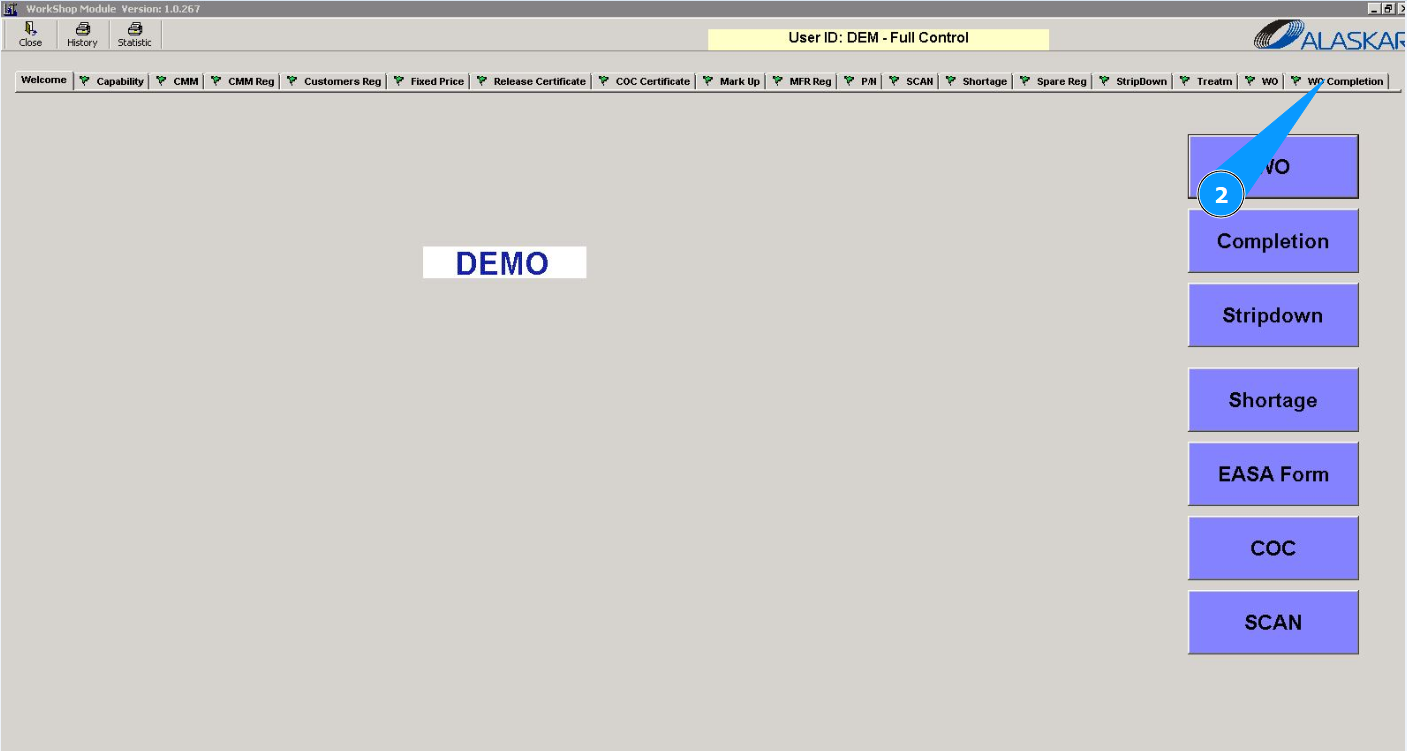
2. Then go to the tab "WO Completion".
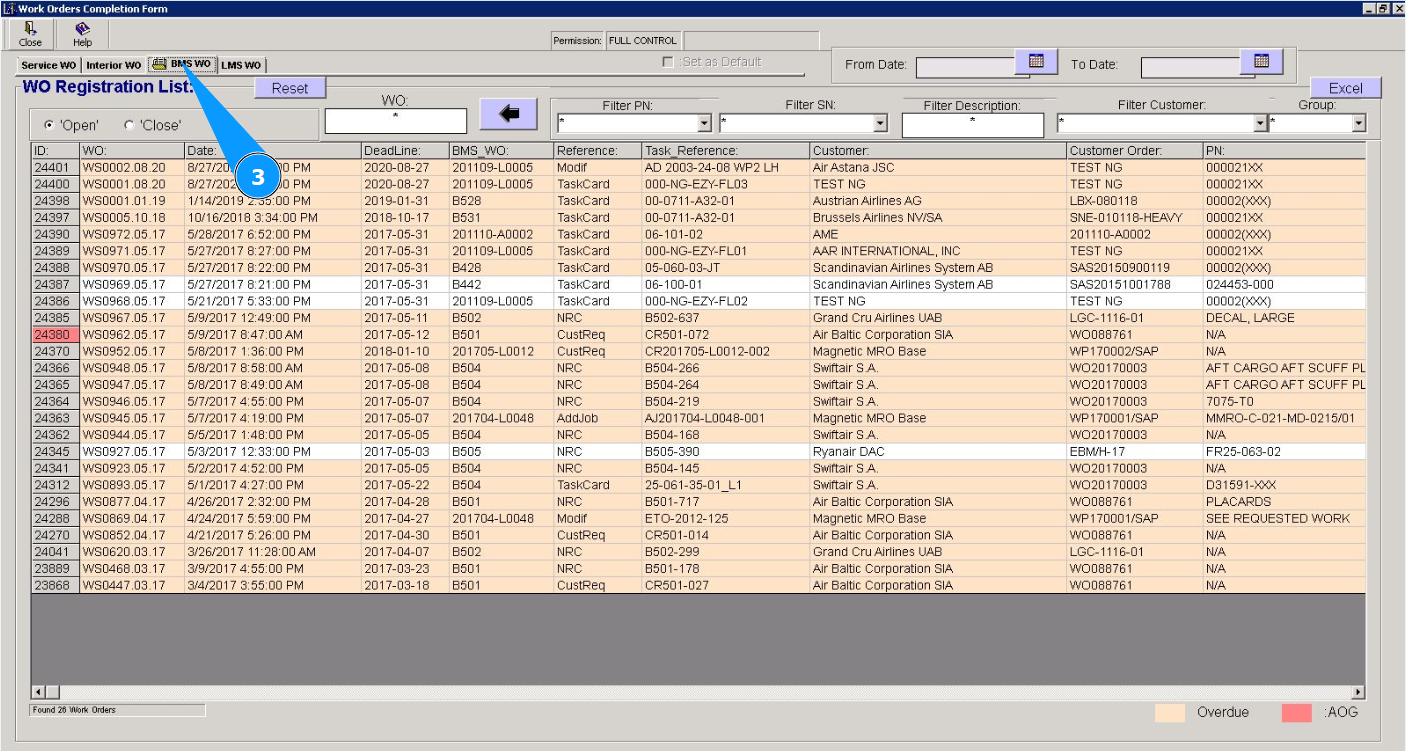
Note: Closing a work order for base maintenance is possible from the tab "WO Completion" or by using the submodule "Completion".
3. Then go to the tab "BMS WO".
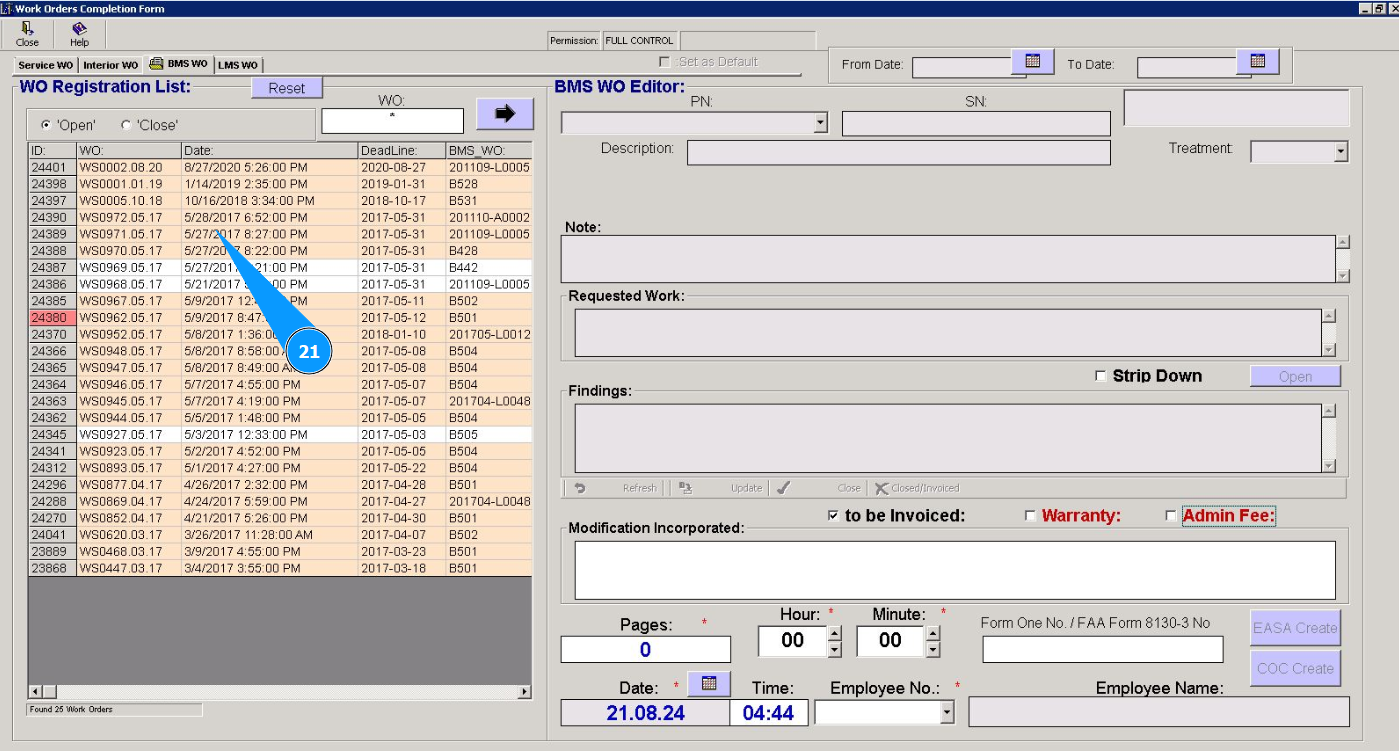
4. Click on the button with arrow to open the work order close editor.
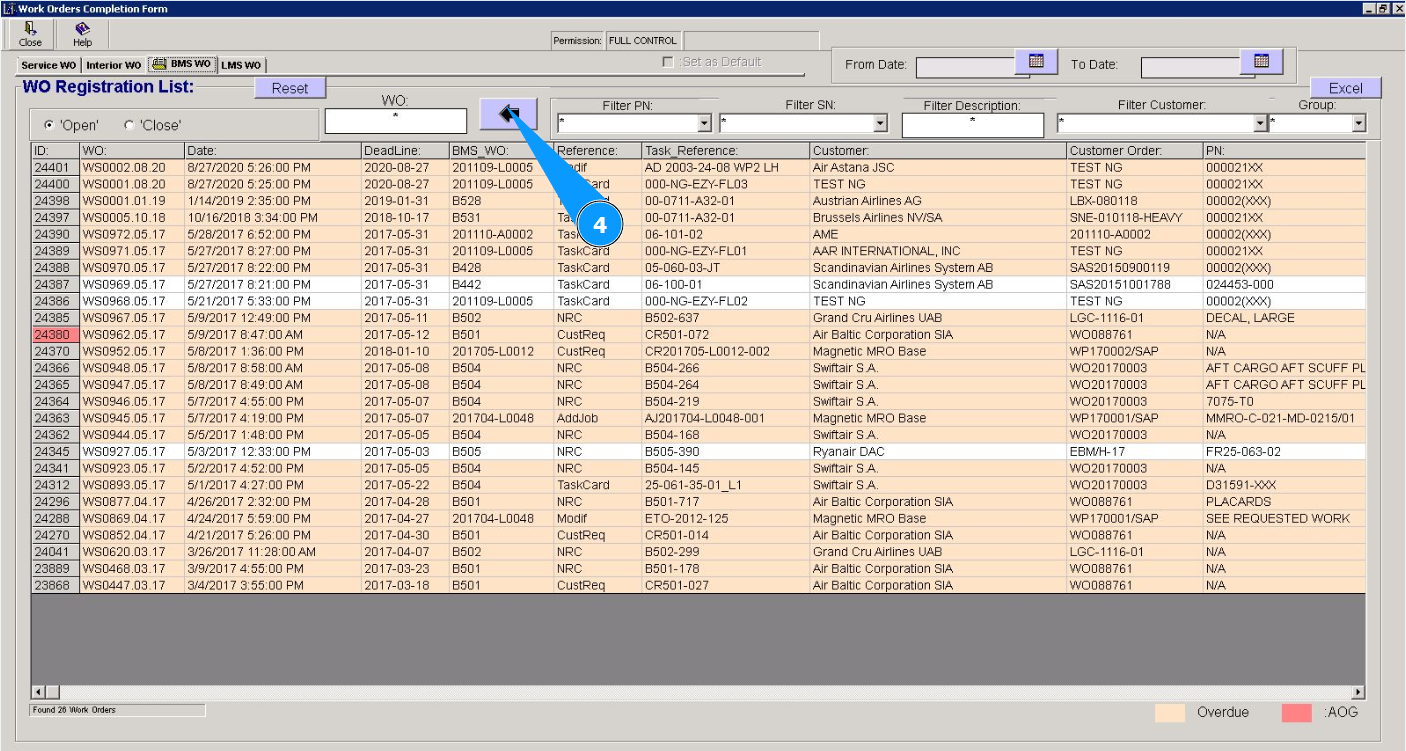
5. Select the required work order from the list in the window "WO Registration List". Click on the corresponding line. Note: Use the available filters if necessary.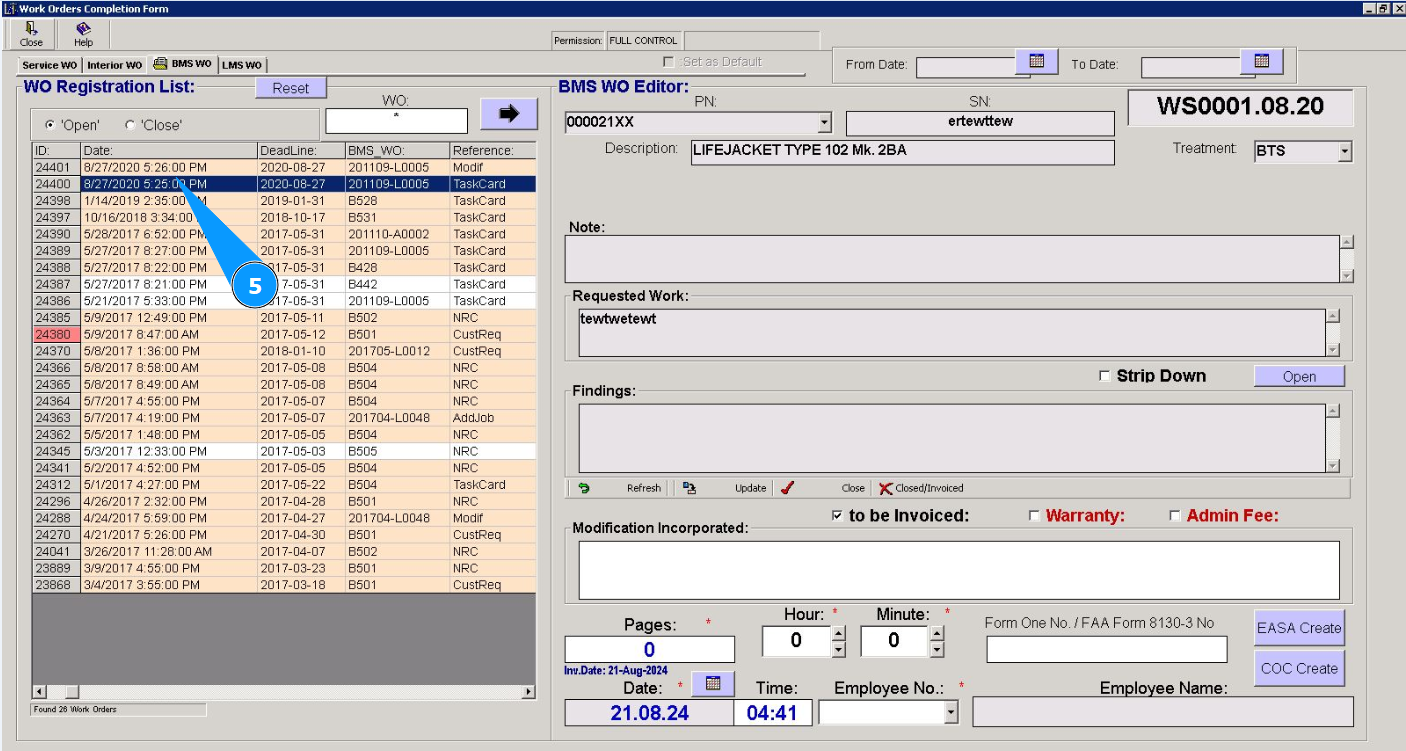
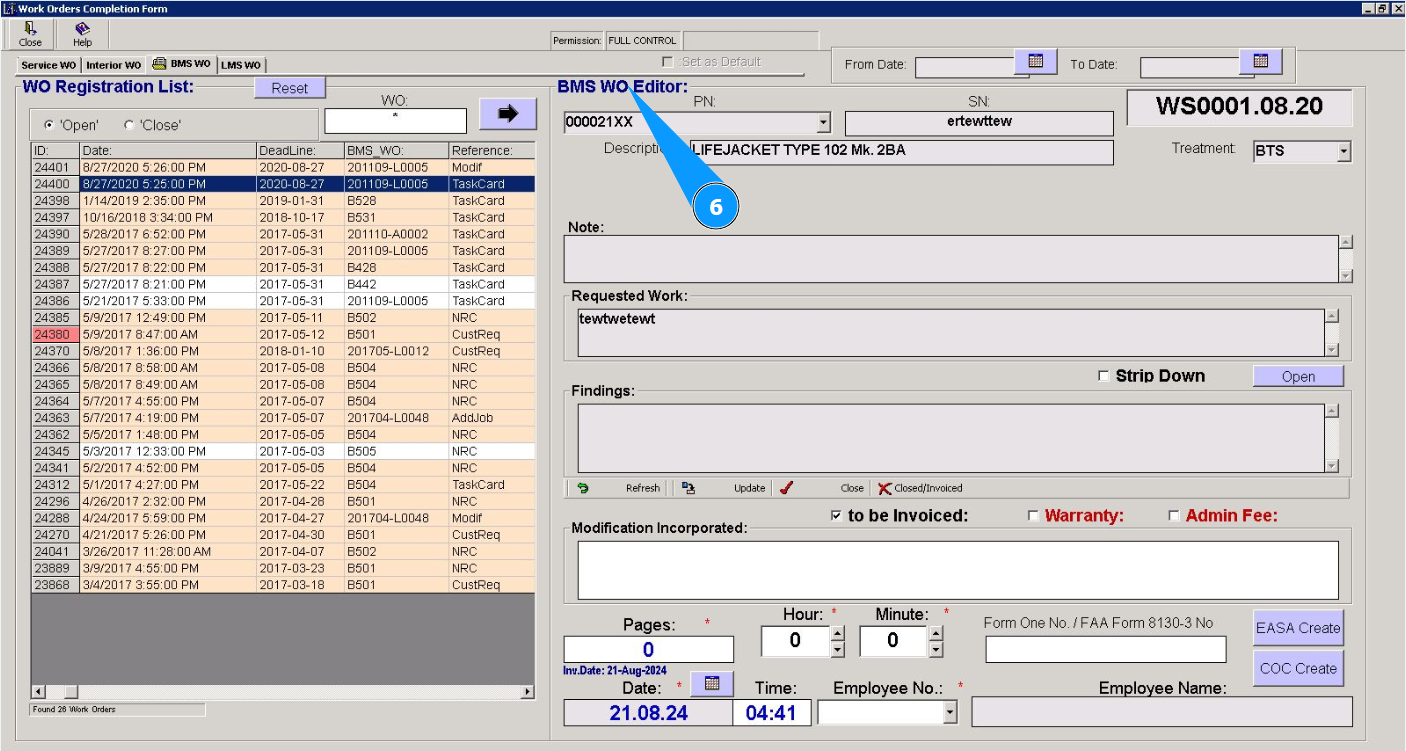
6. Check that the editor has opened in the window "BMS WO Editor" and the work order required to be closed is displayed.
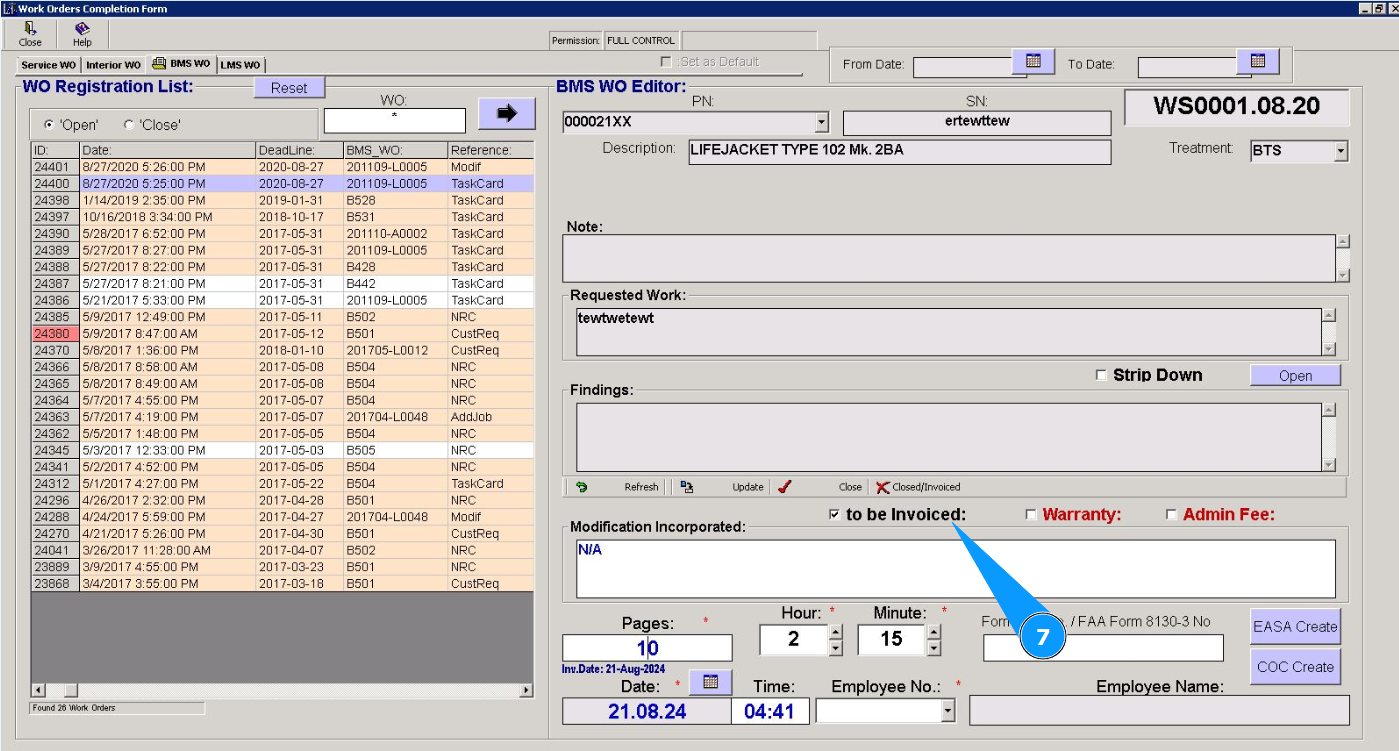
7. Select which payment option should be taken into account for this work order, tick in the corresponding window.
8. If you need to fill out the WO additionally, go to the "Stripdown" editor, click on the button "Open.
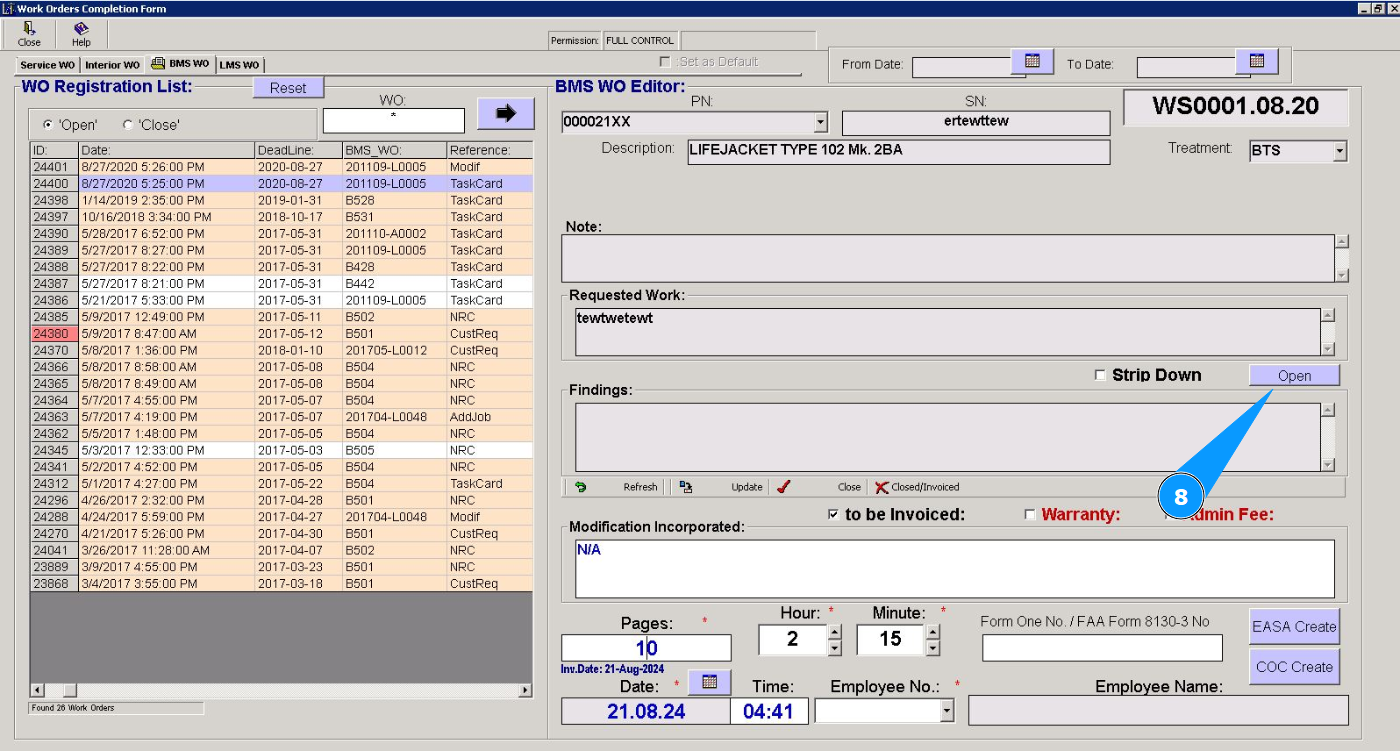
9. Enter the modifications made during the work in the field "Modification Incorporated".
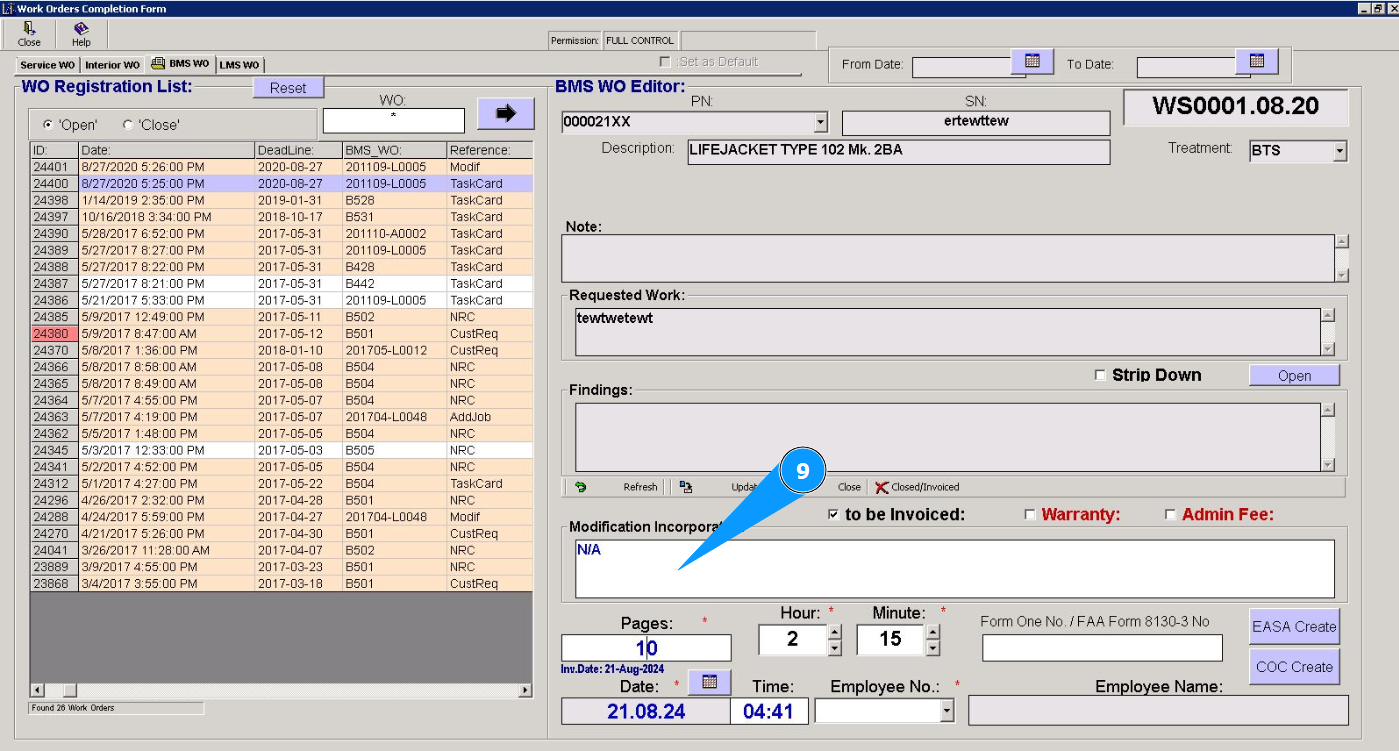
10. Enter the page number of the work in the field "Pages".
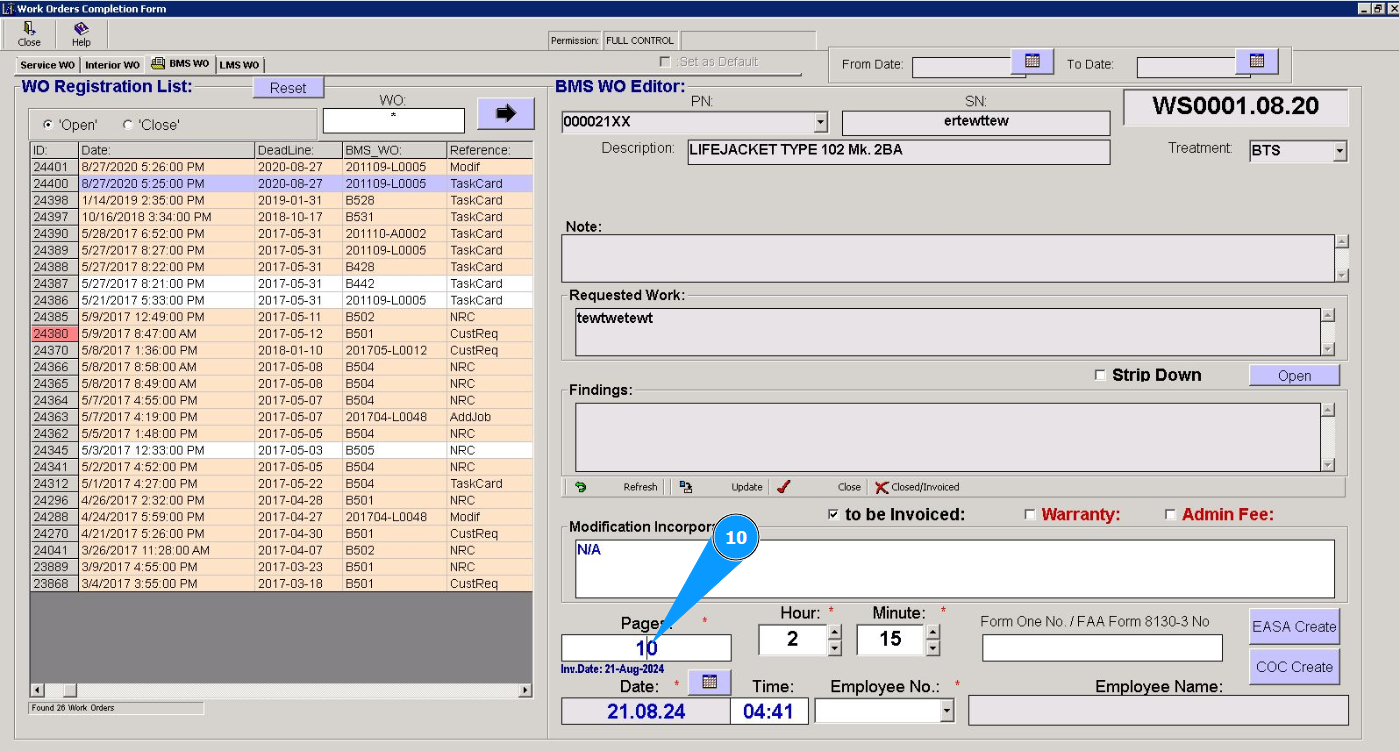
11. Enter the spent man-hours in hours in the field "Hour".
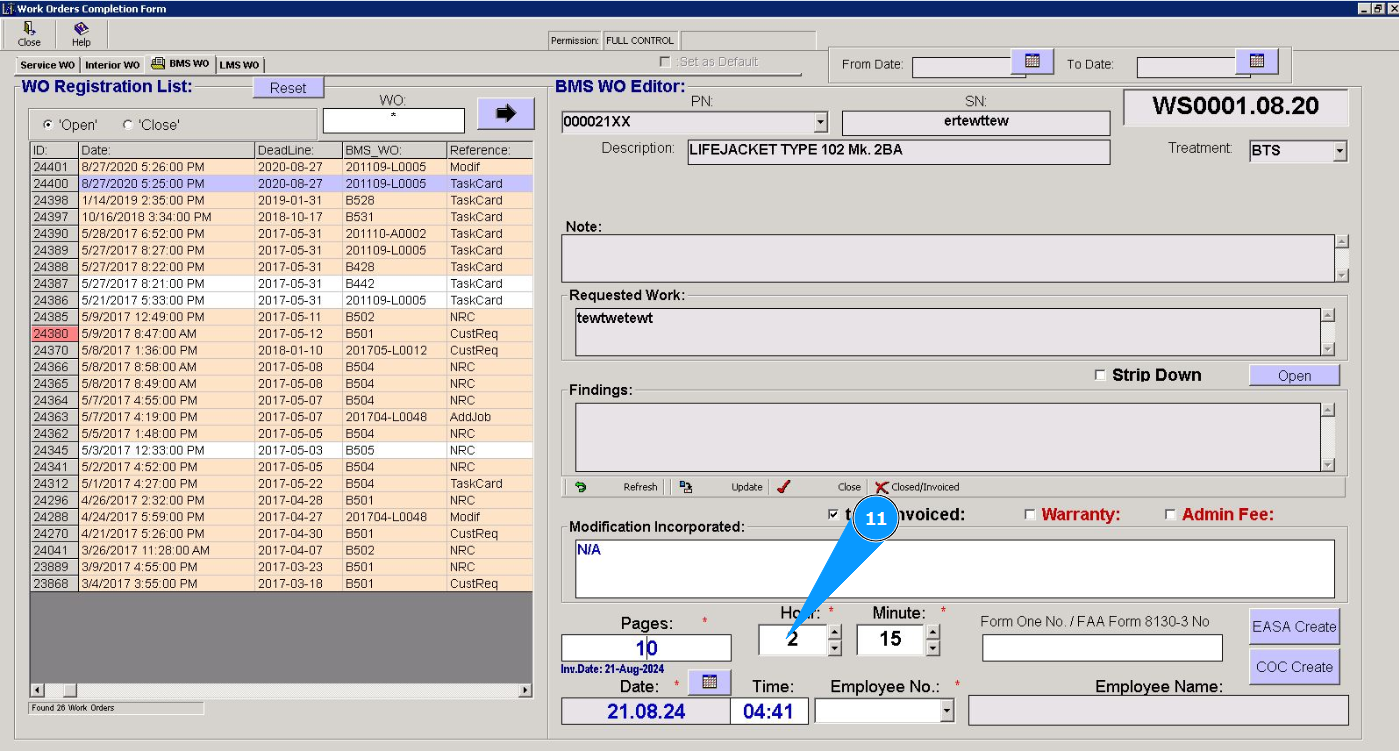
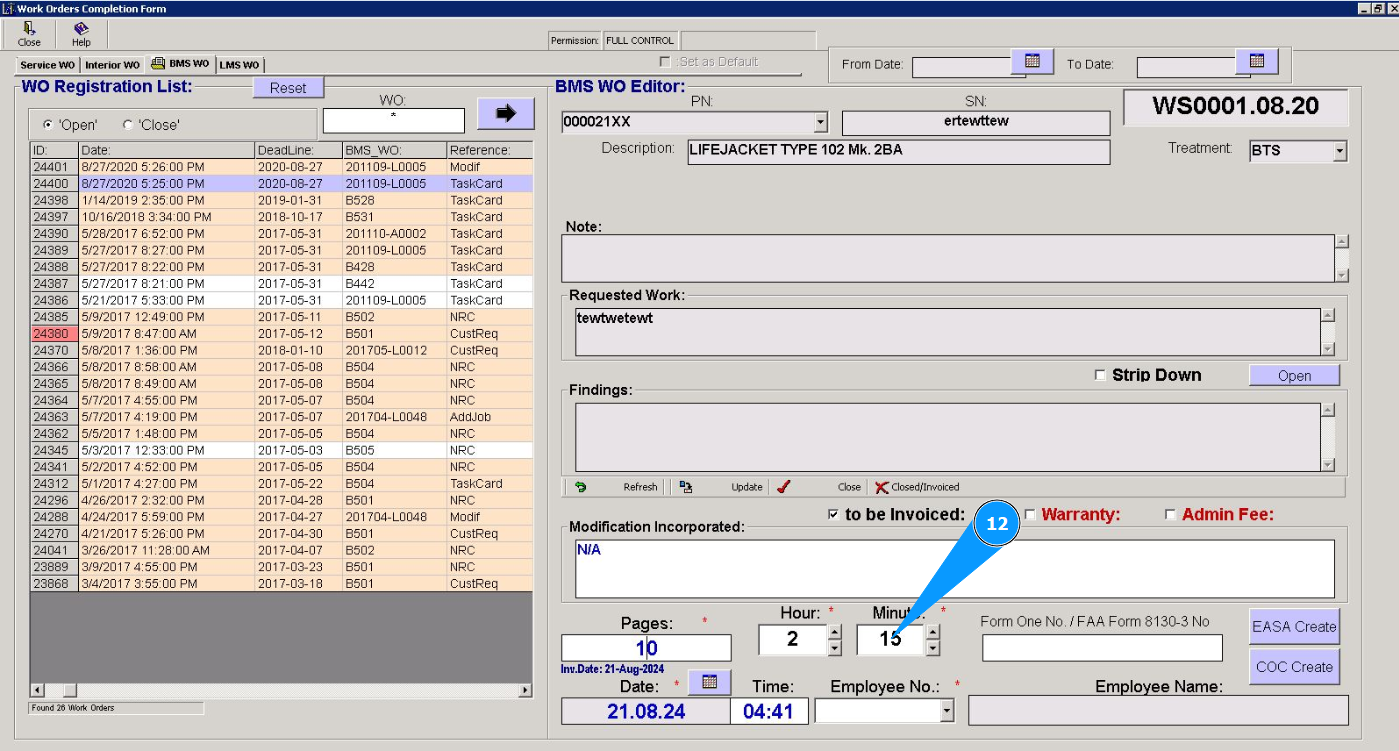
12. Enter the spent man-hours in minutes in the field "Minute".
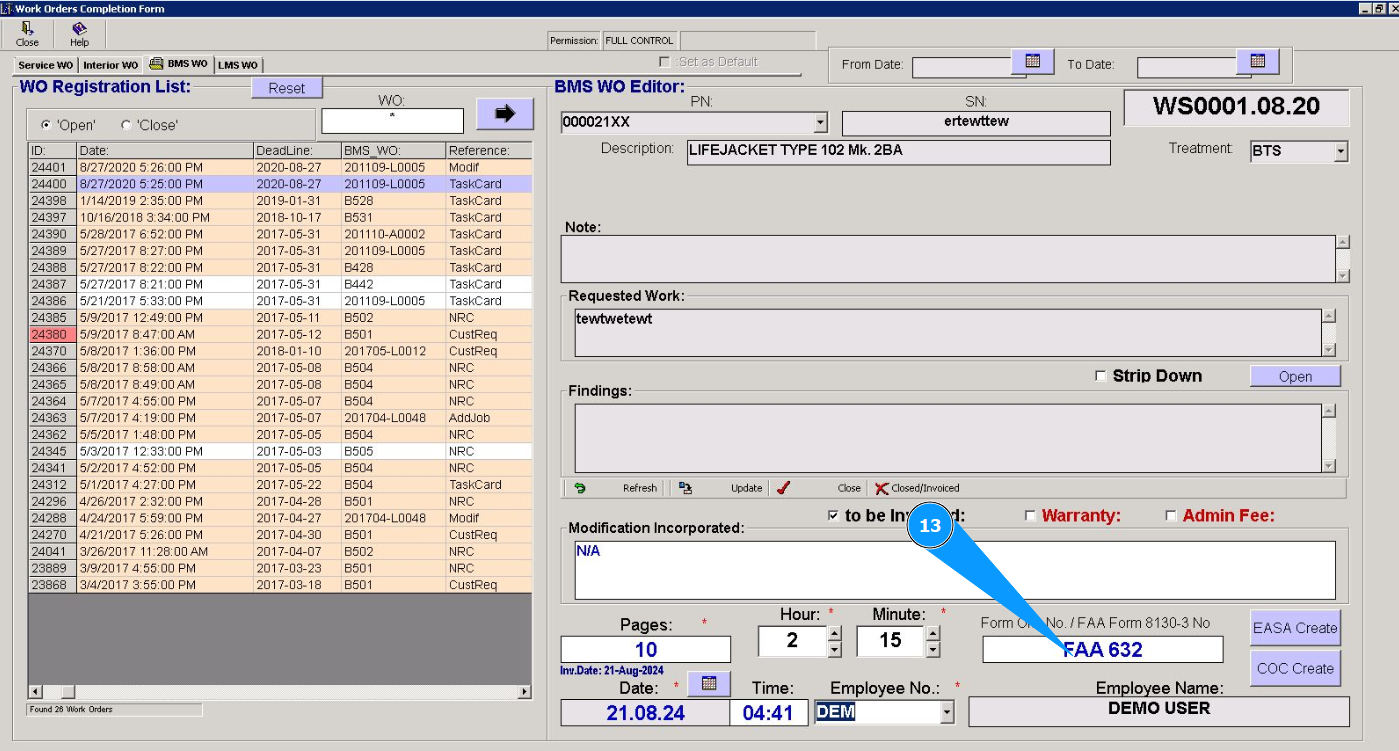
13. Enter the number of the certificate of release into operation in the field "Form One No./FAA Form 8130-3 No.".
14. If the release certificate number is unknown, go to the creation editor, click on the button "EASA Create".
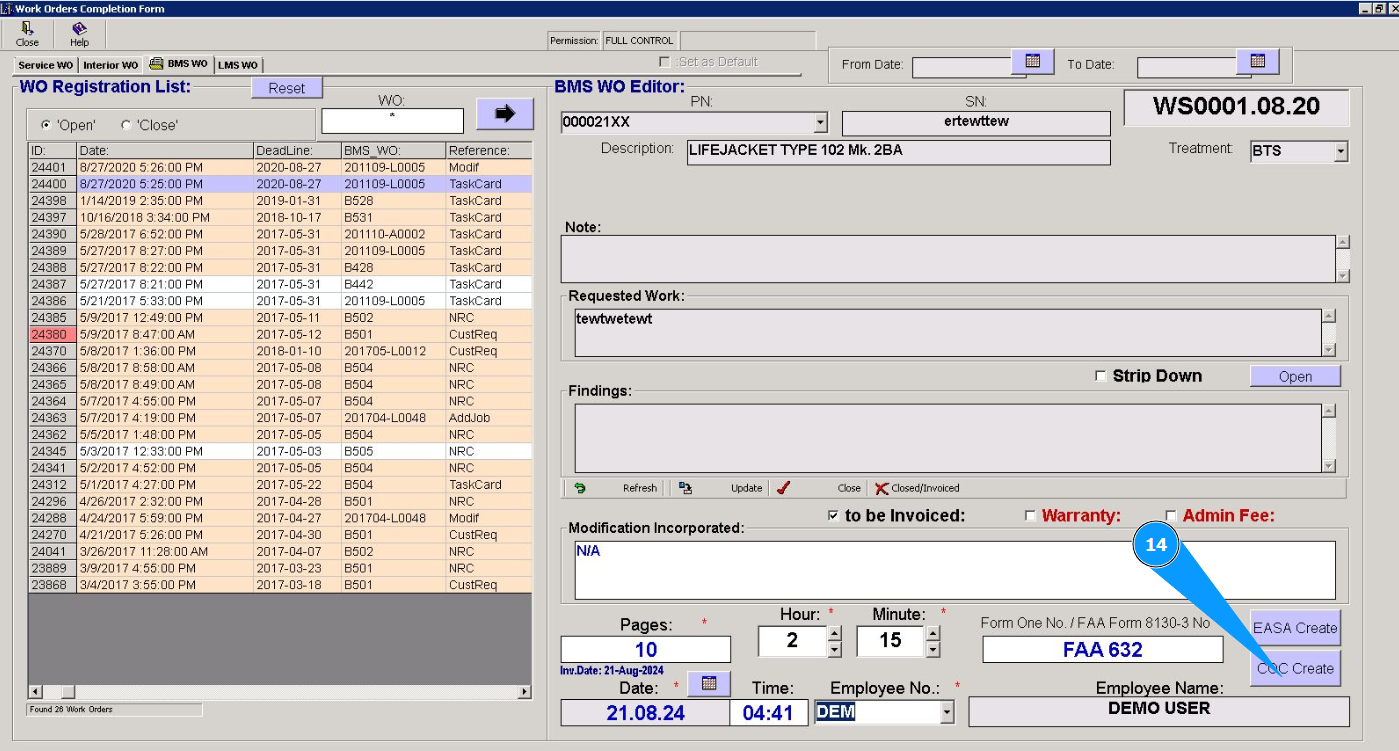
Attention: If you need to create a certificate of release to service, please use the appropriate instruction by link below:
"How to issue a certificate of release to service"
15. If you need to create a certificate of conformity, go to the creation editor, click on the button "CoC Create" button.
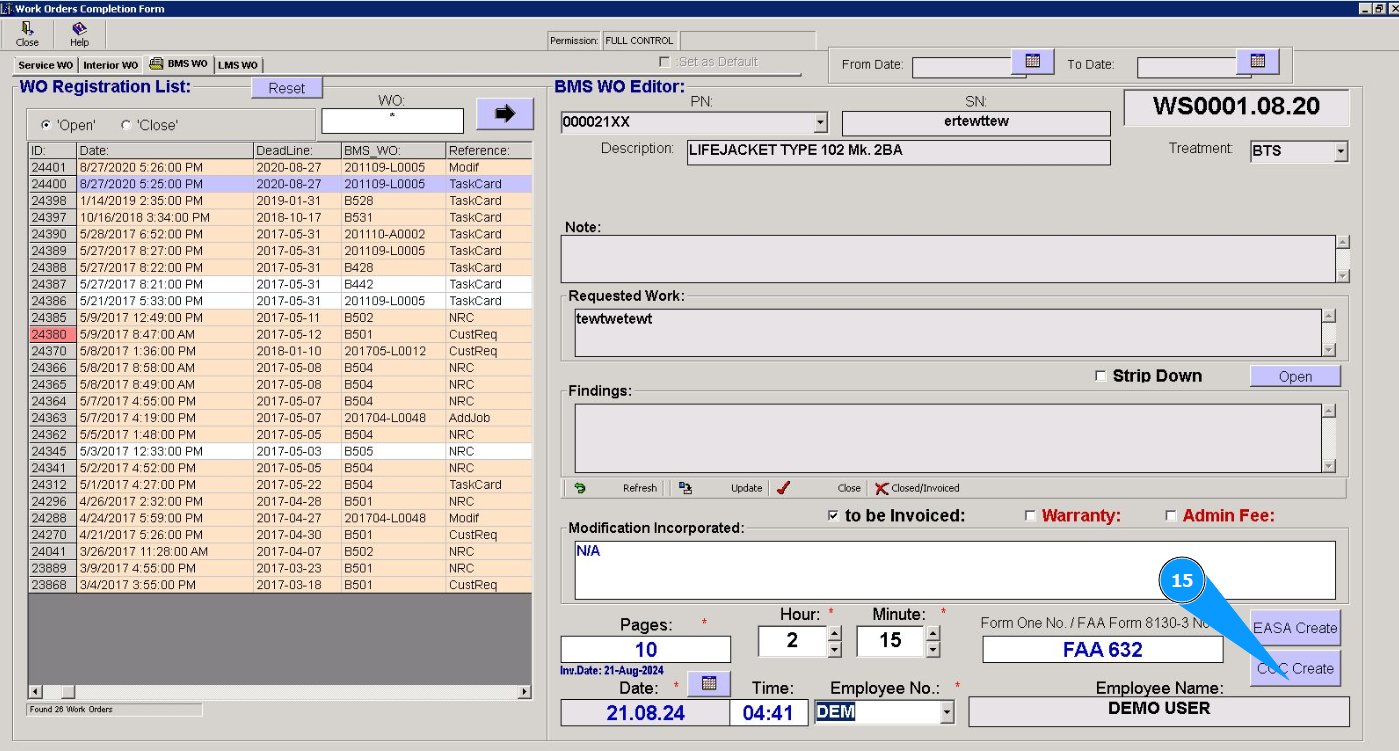
Attention: If you need to create a certificate of conformity, use the appropriate instruction by link below:
"How to issue a certificate of conformity"
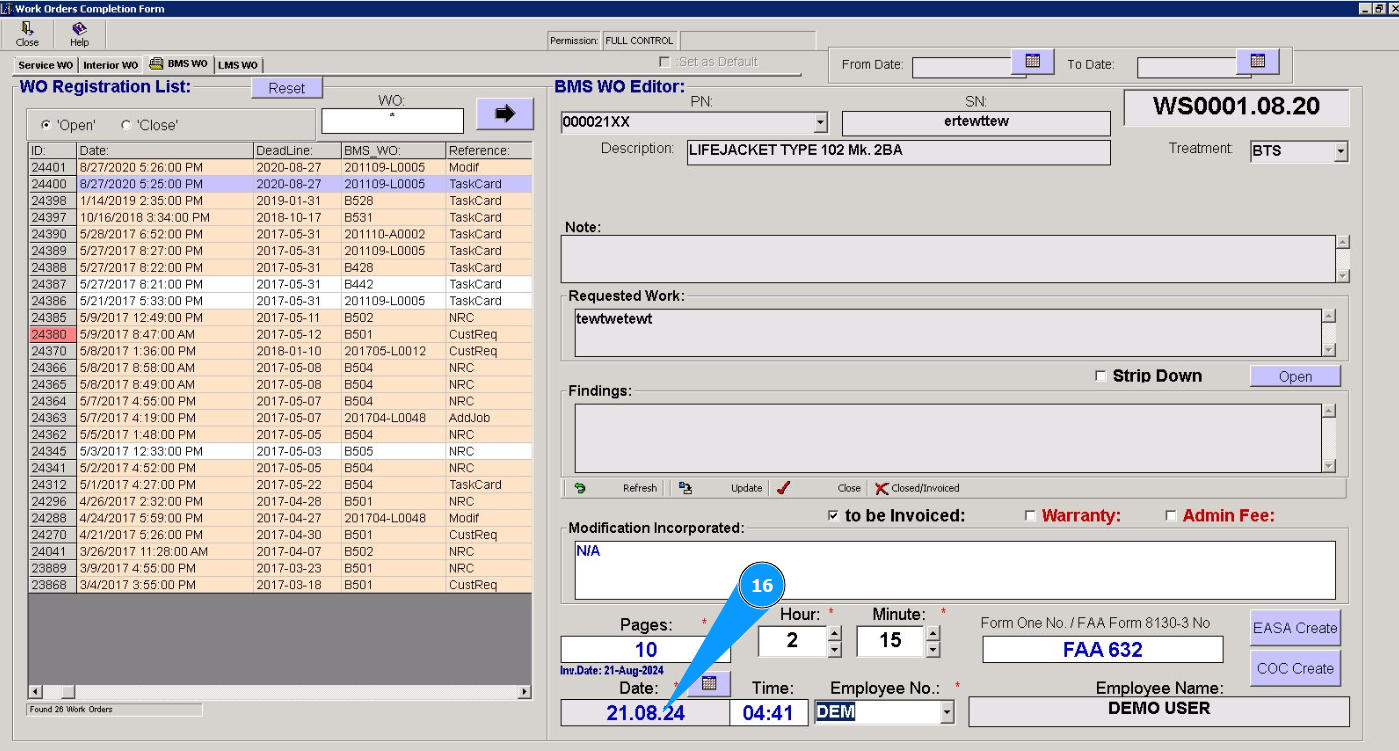
16. Select the date of work order from the calendar in the field "Date".
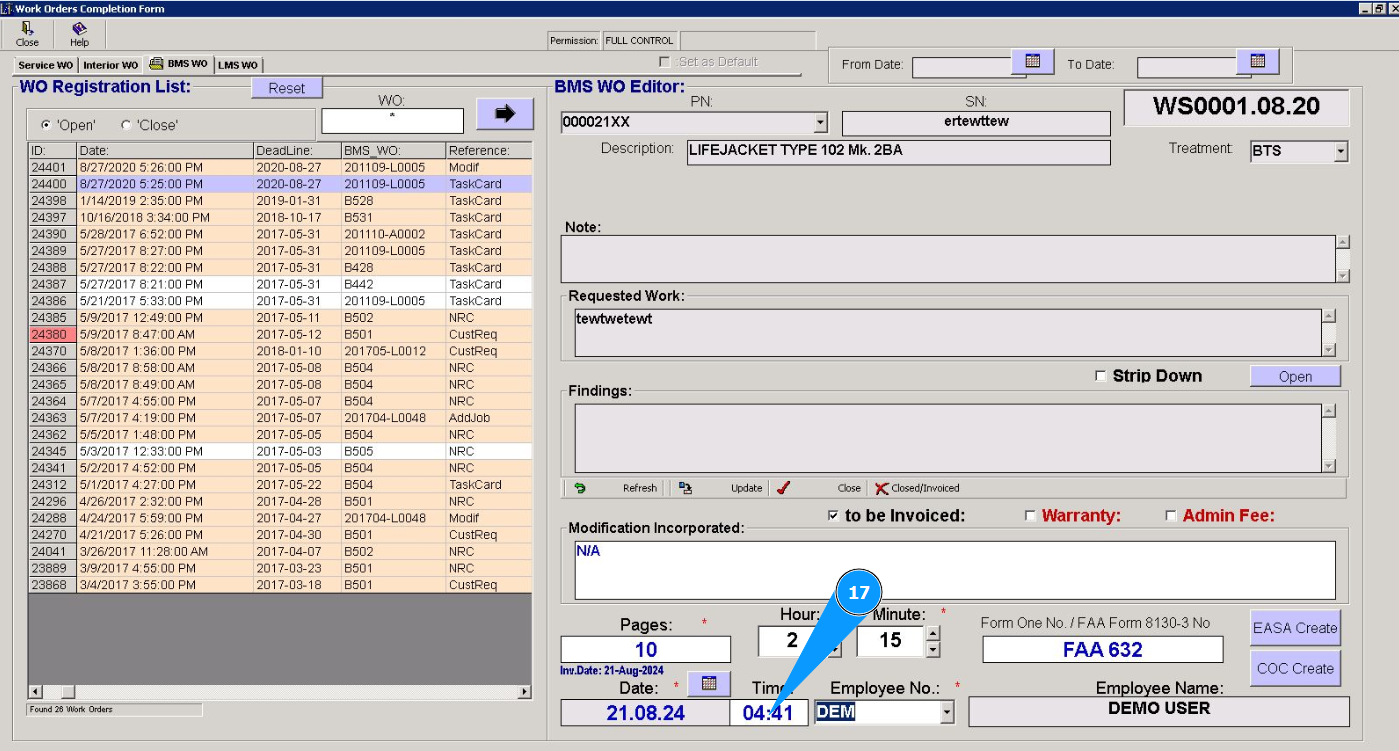
17. Enter the time of closing the work order in the field "Time".
18. Select from the dropdown list the initials of the performer or the one who closes the WO (in accordance with your company policy) in the field "Employee №". Note: The first and last name of the performer will be displayed automatically in the field "Employee Name".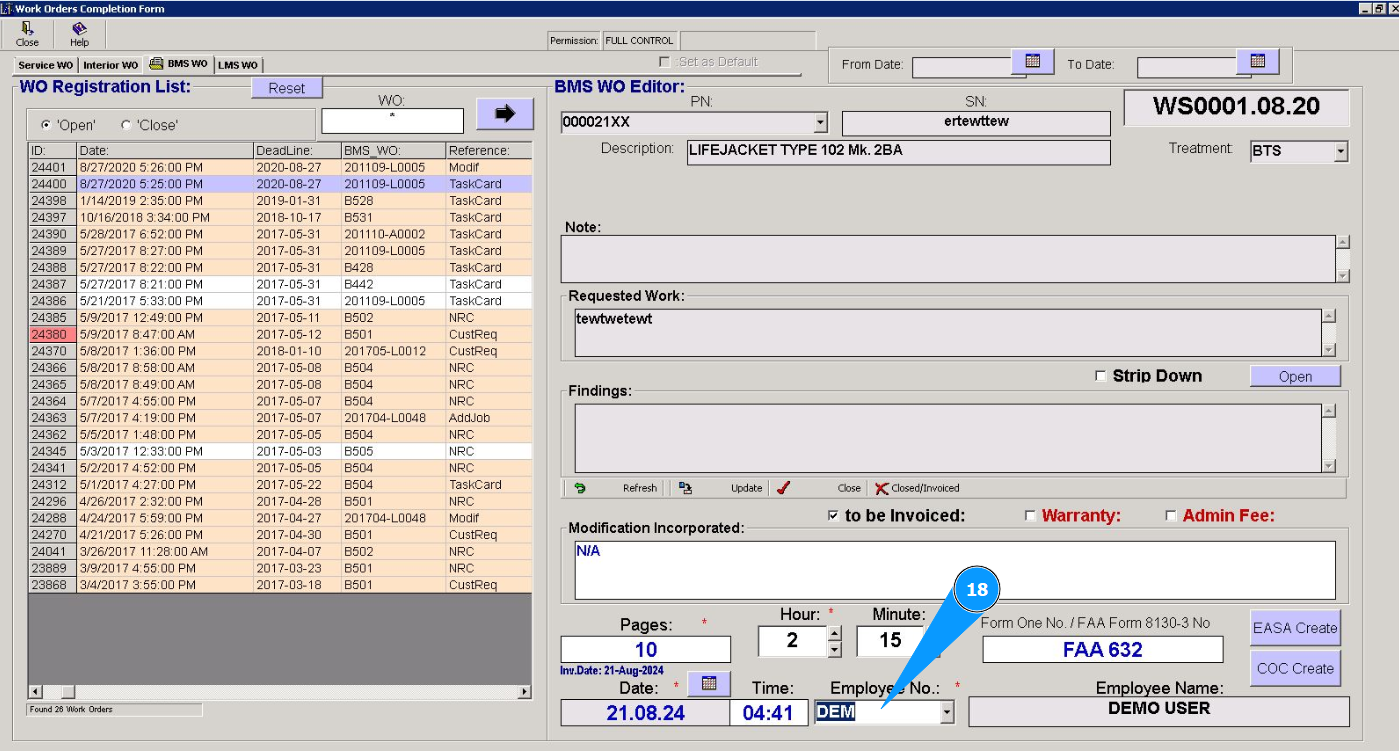
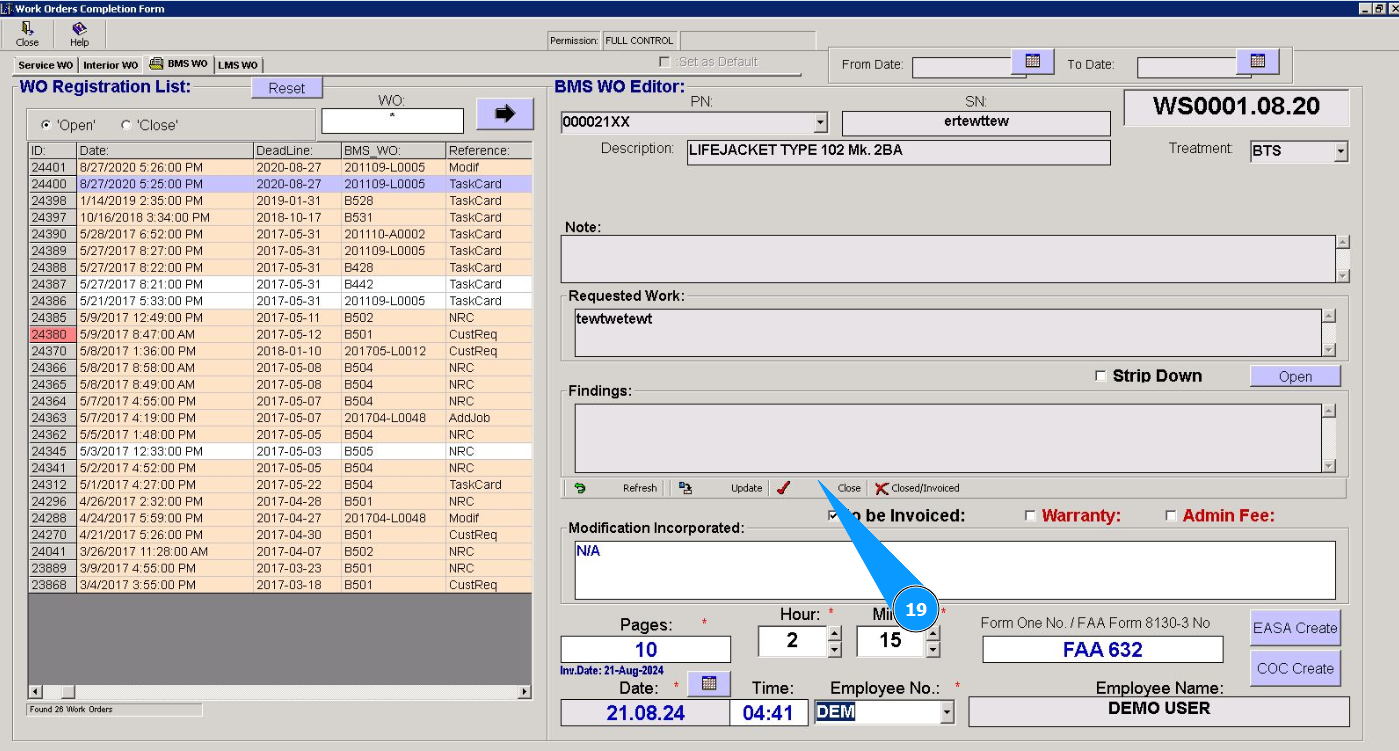
19. Click on the button "Close" to close the Base Maintenance work order.
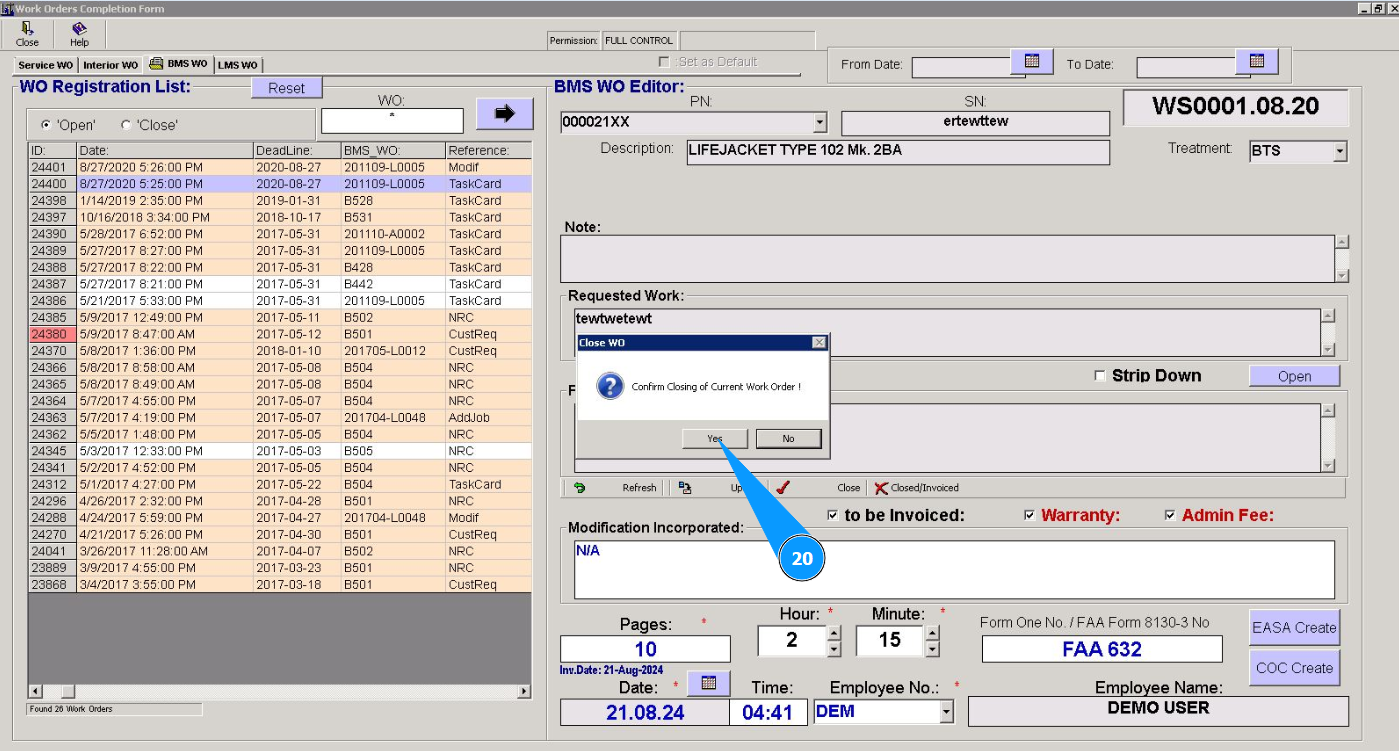
20. Click on the button "Yes" to confirm closing Base Maintenace Shop WO.
21. Check that the closed WO disappears in the window "WO Registration List".