How to add marks up
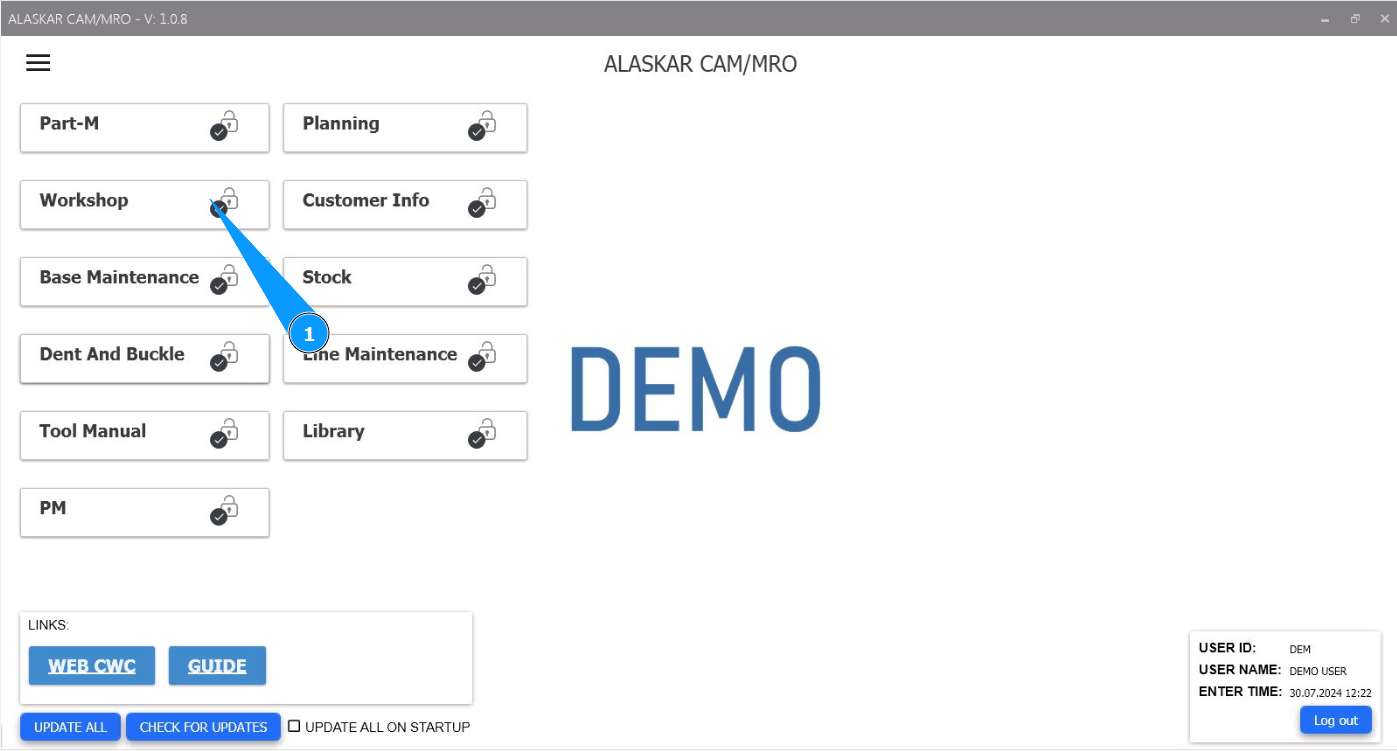
1. In order to add additional marks up, go to the module "Workshop".
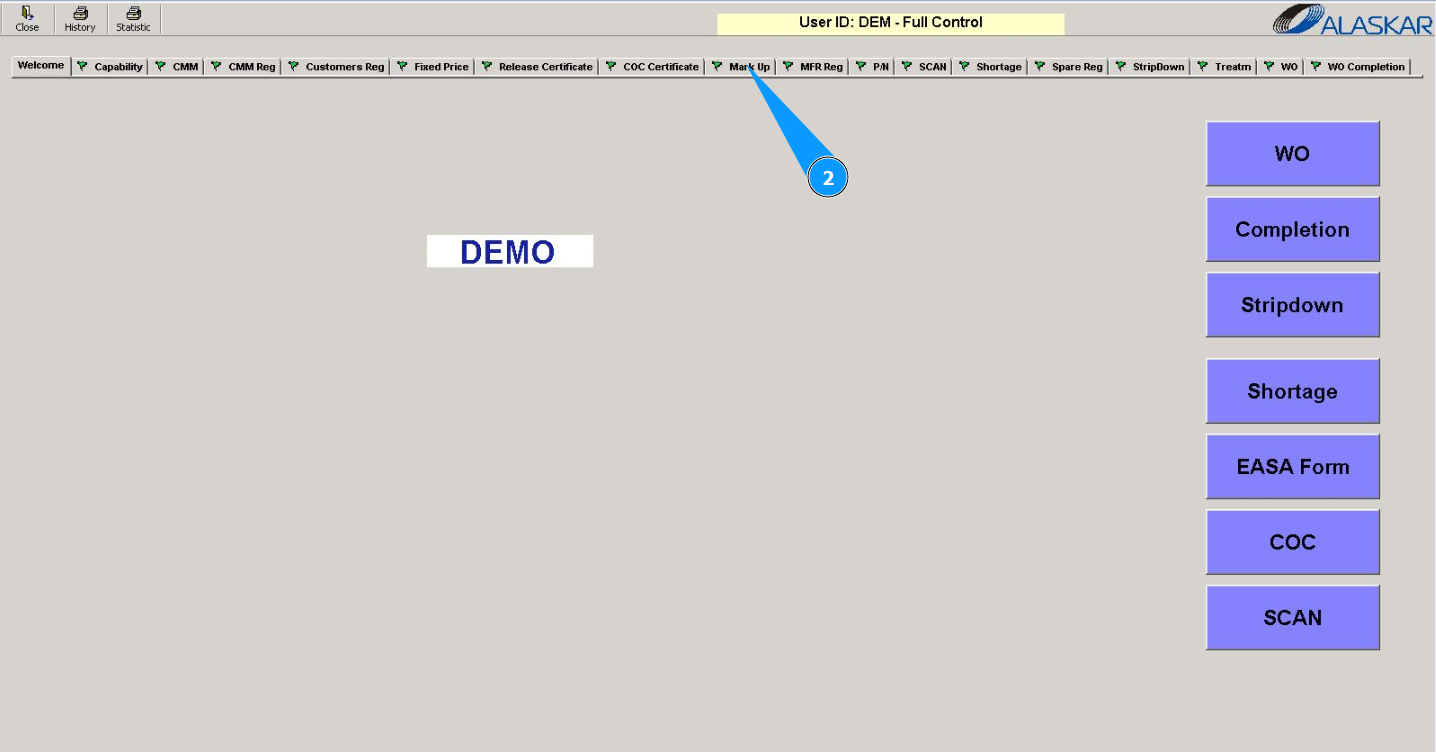
2. Then go to the tab "Mark Up".
3. From the dropdown list, select an organization in the field "Customer".
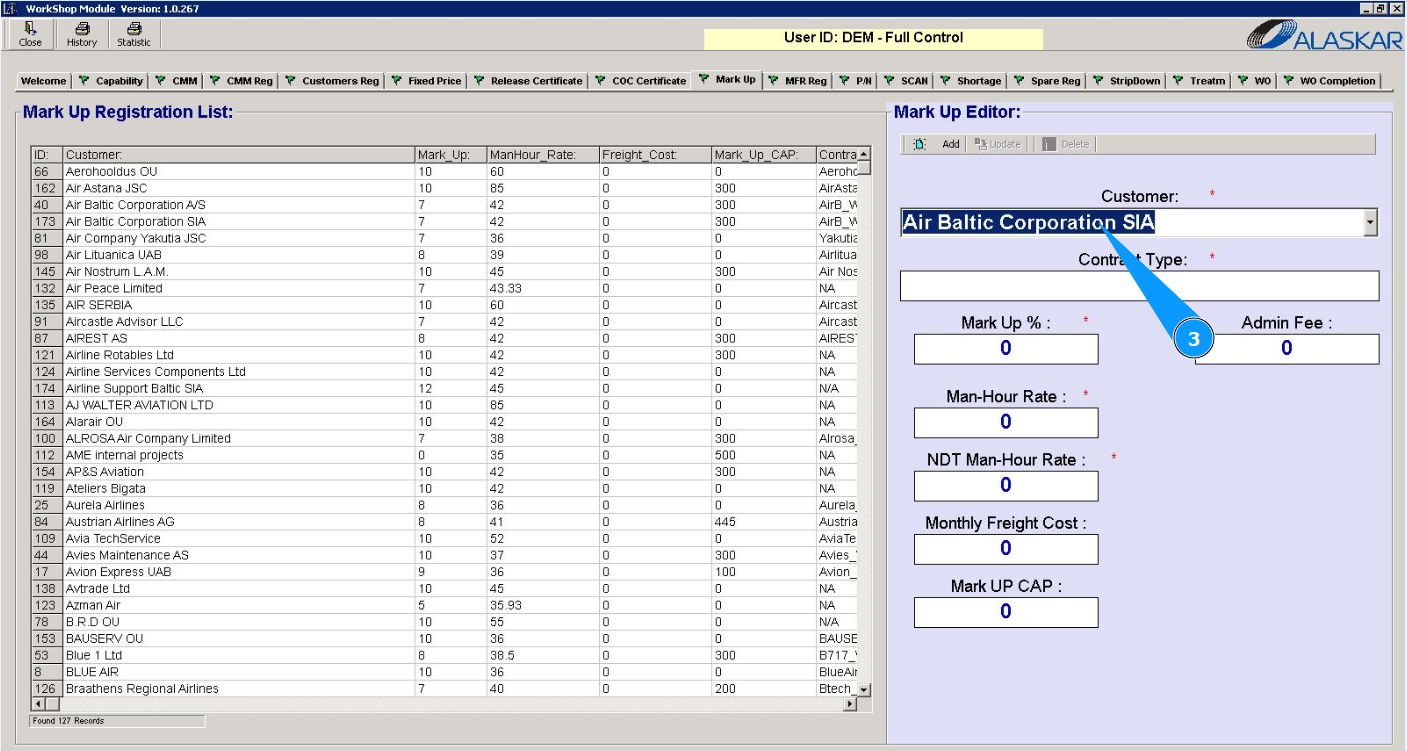
4. Enter the contract type in the field "Contract Type".
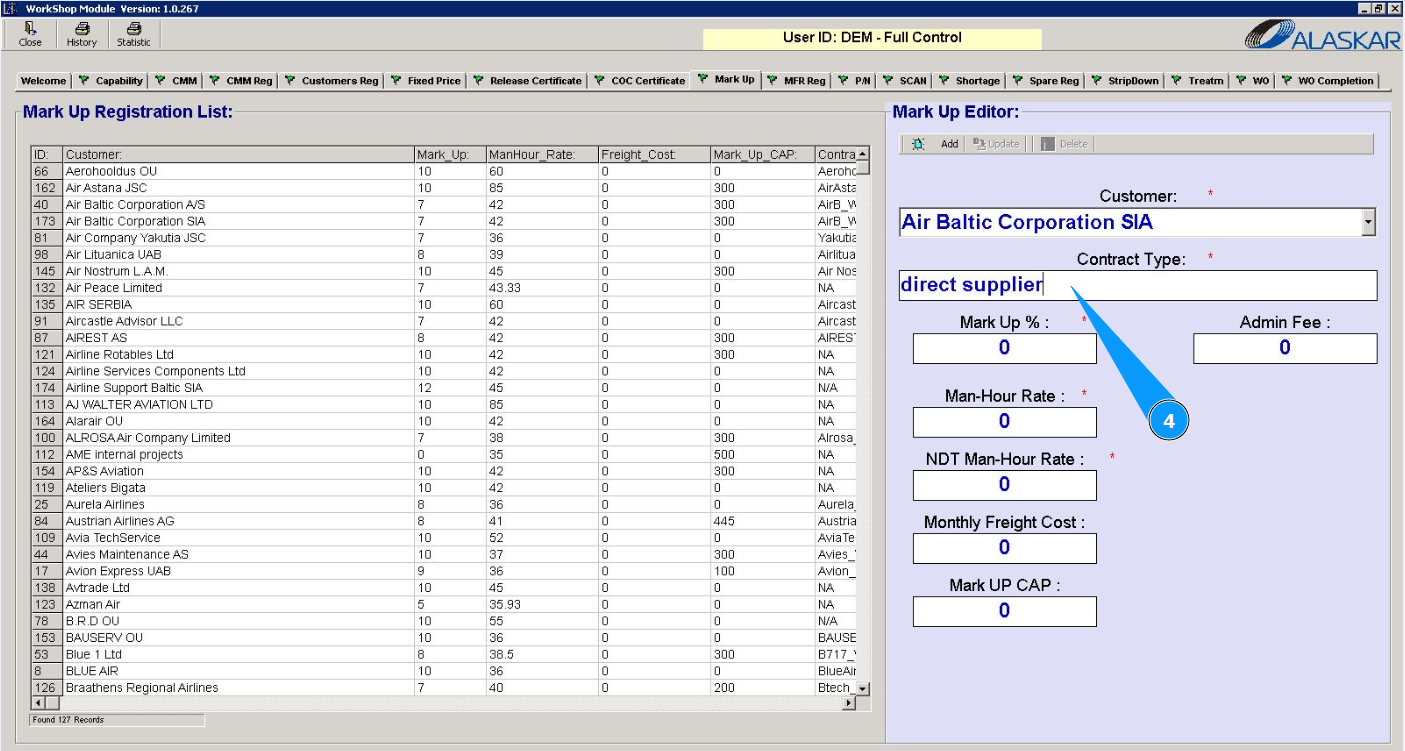
5. Enter the mark up value (in percentages) in the field "Mark Up".
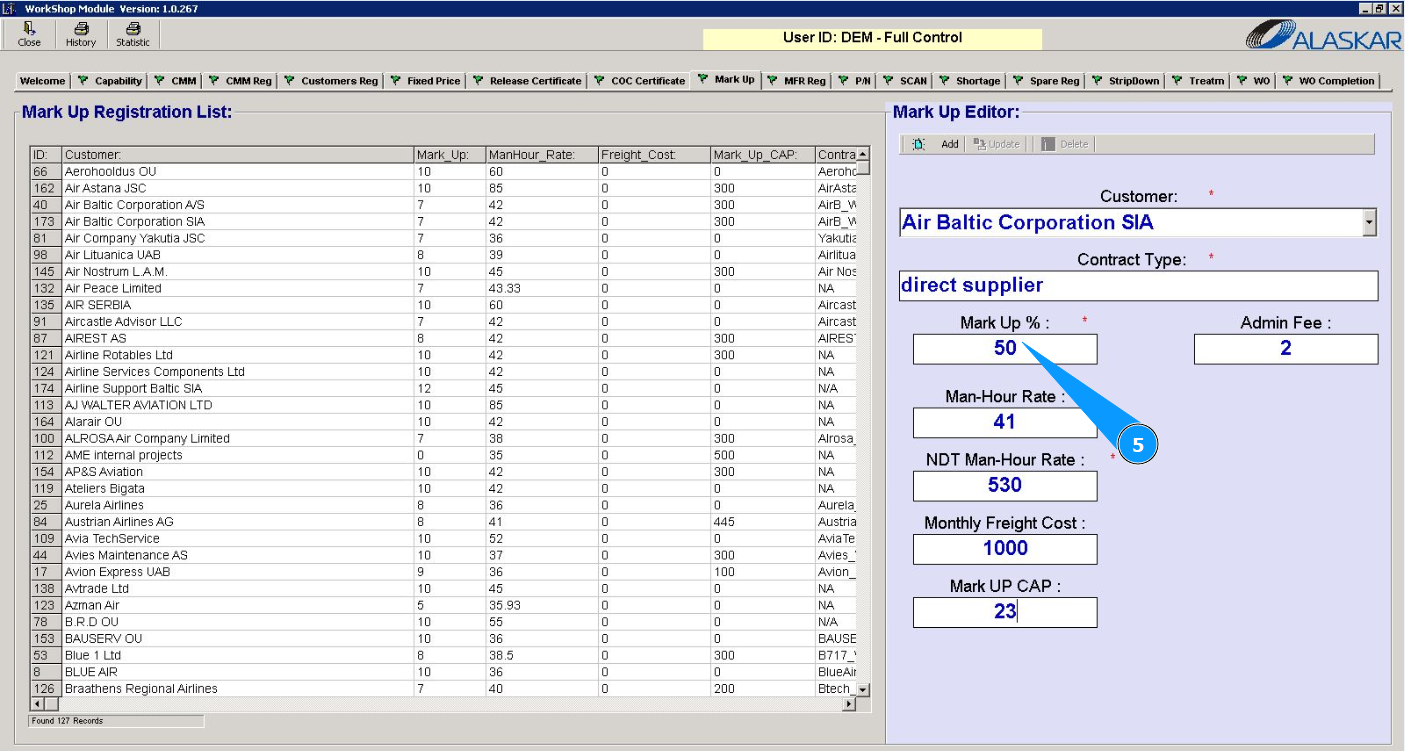
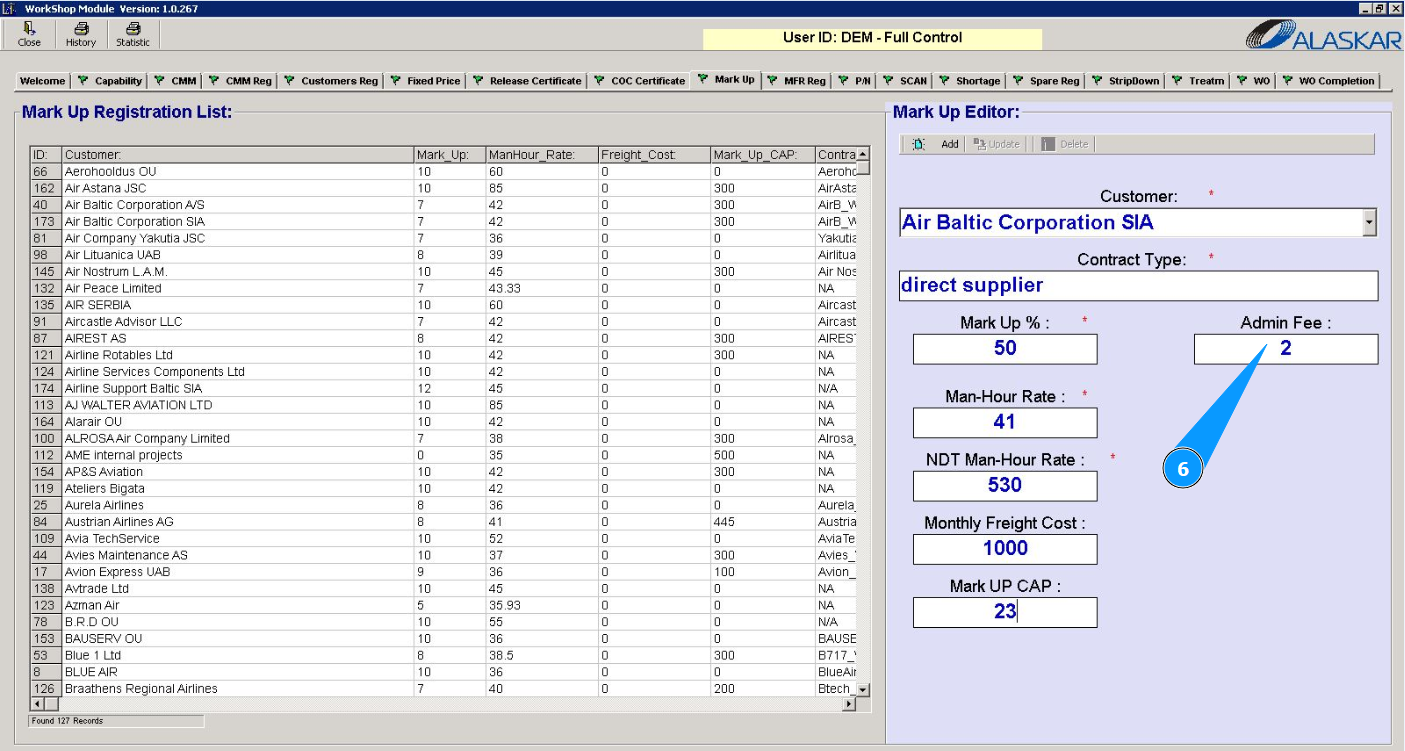
6. Enter the cost of the administrative fee in the field "Admin Fee".
7. Enter the cost of man-hours in the field "Man-Hour Rate".
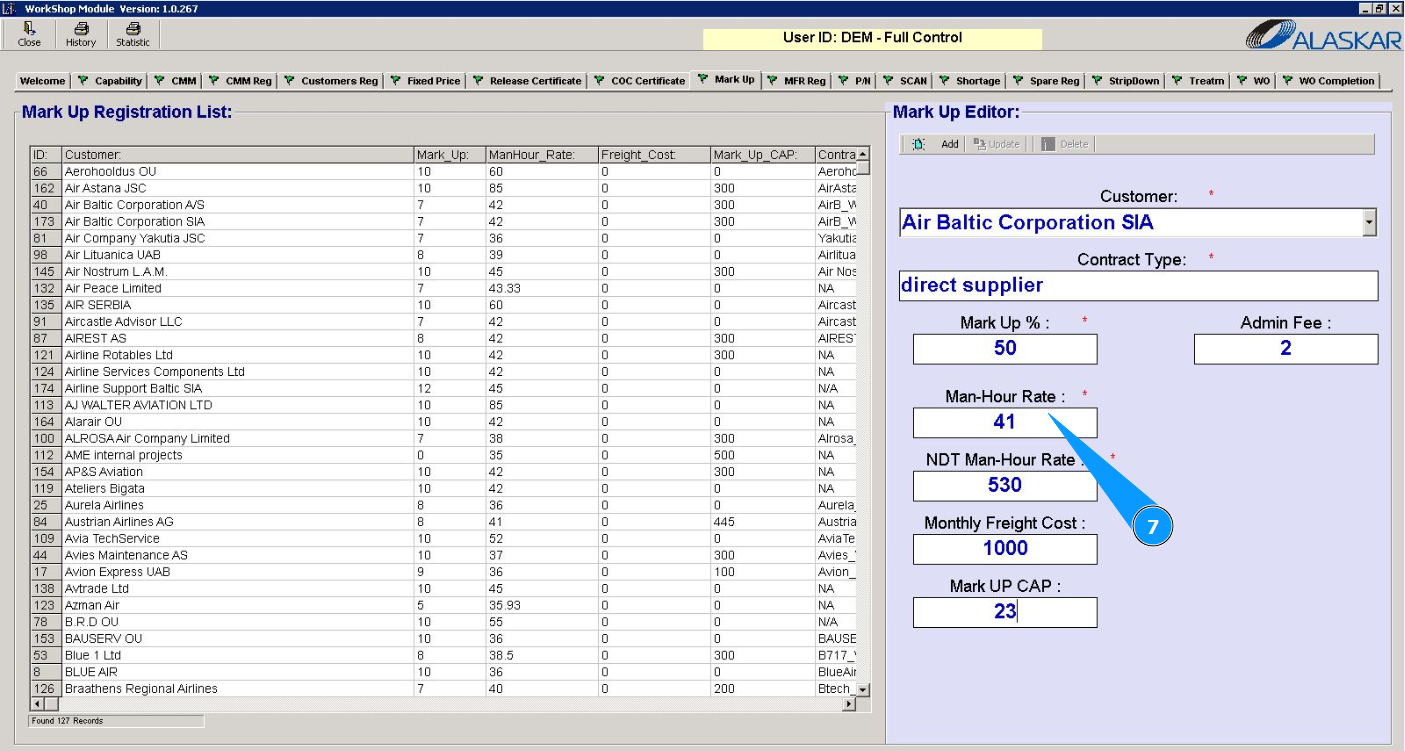
8. Enter the cost of man-hours for NDT specialists in the field "NDT Man-Hour Rate".
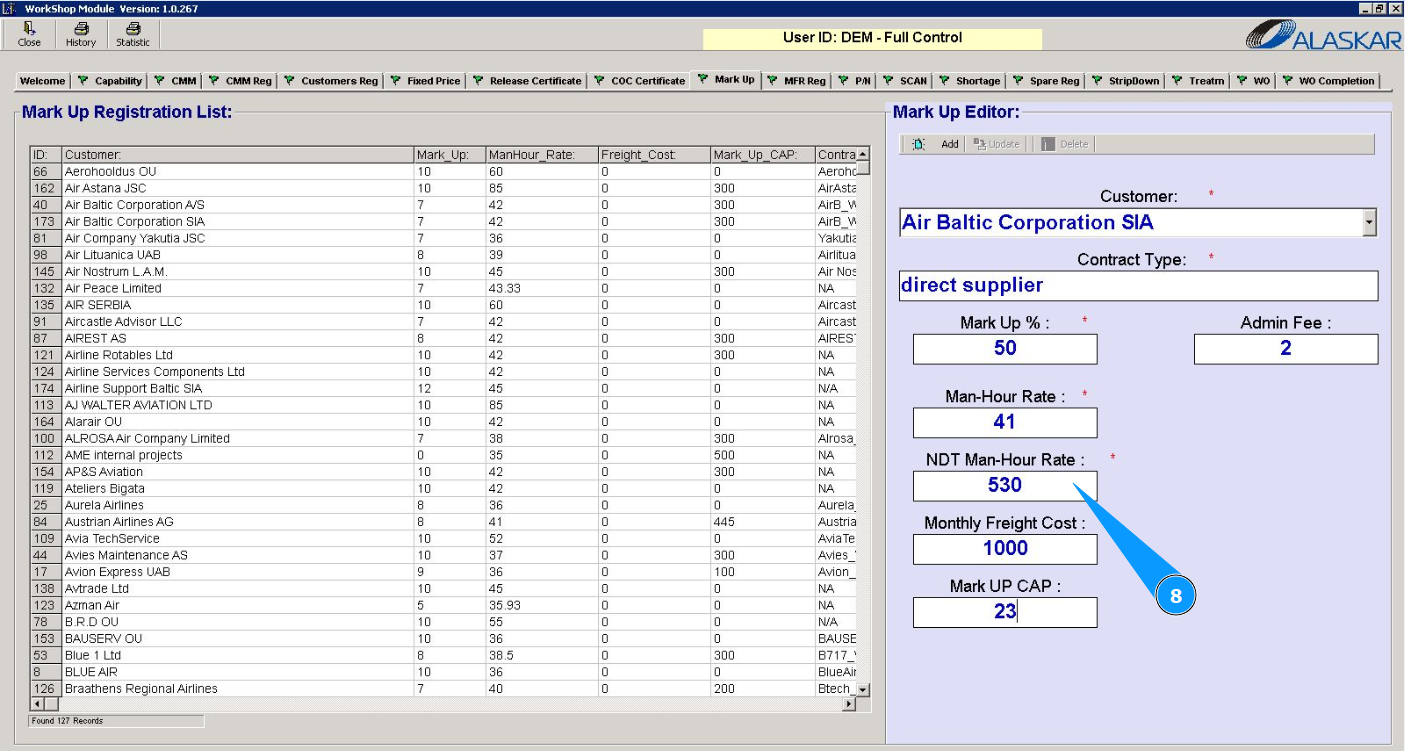
9. Enter the cost of monthly freight charges in the field "Monthly Freight Cost".
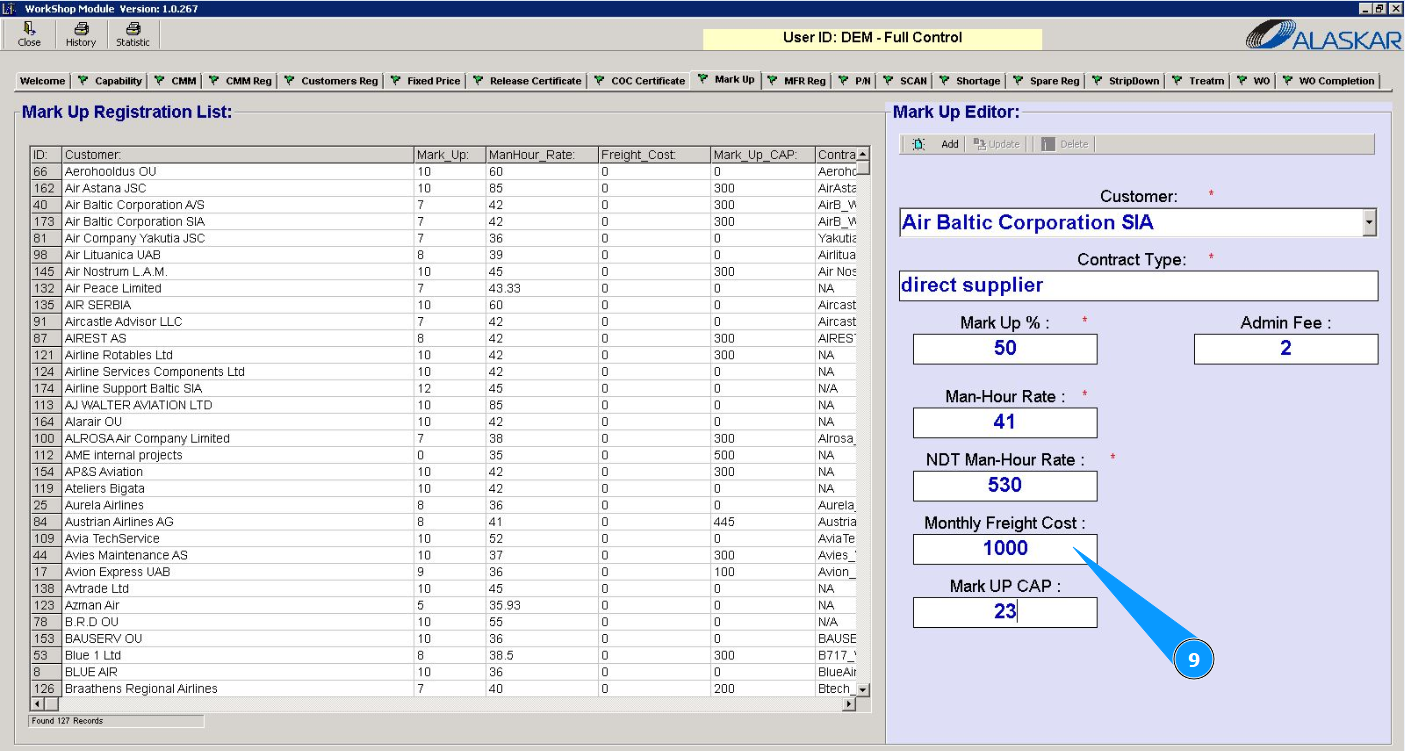
10. Enter the maximum mark up value in the field "Mark Up CAP".
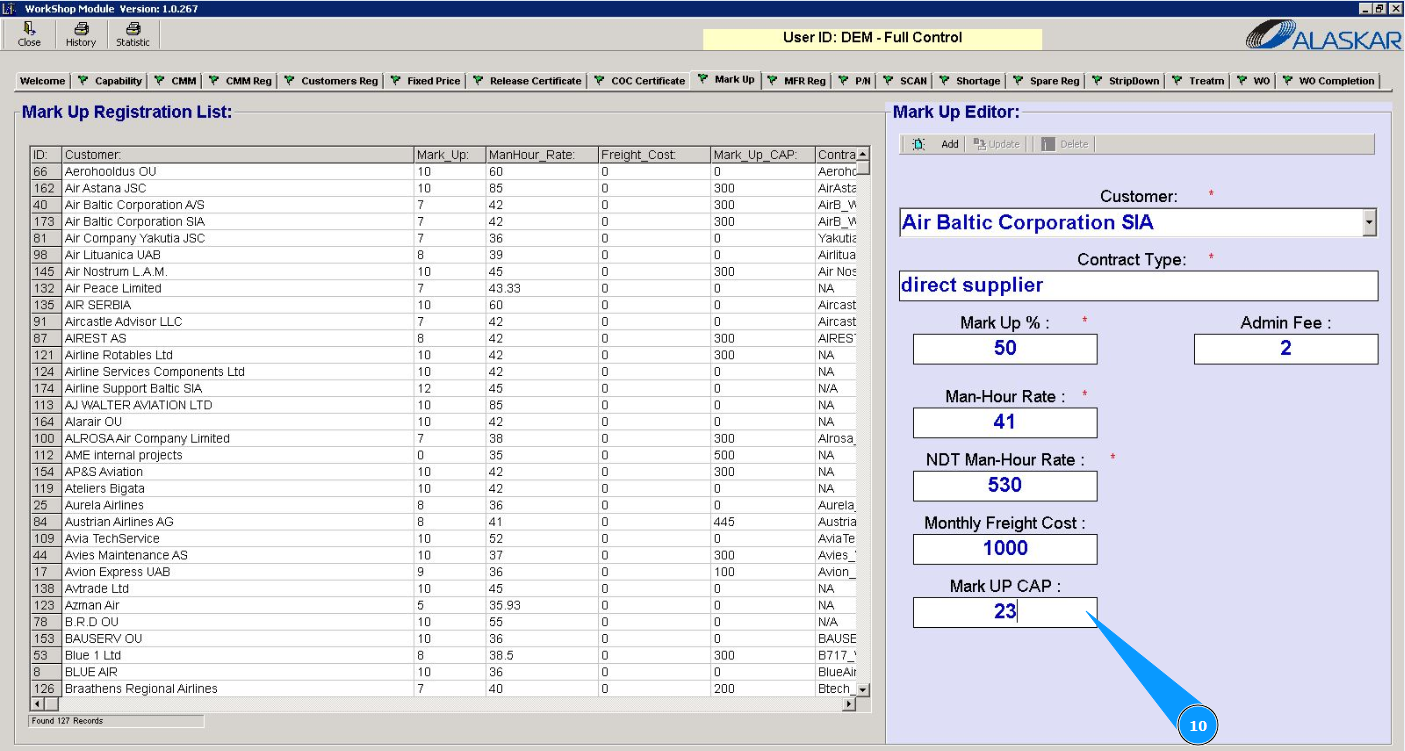
11. Click on the button "Add" to add mark up data to the program.
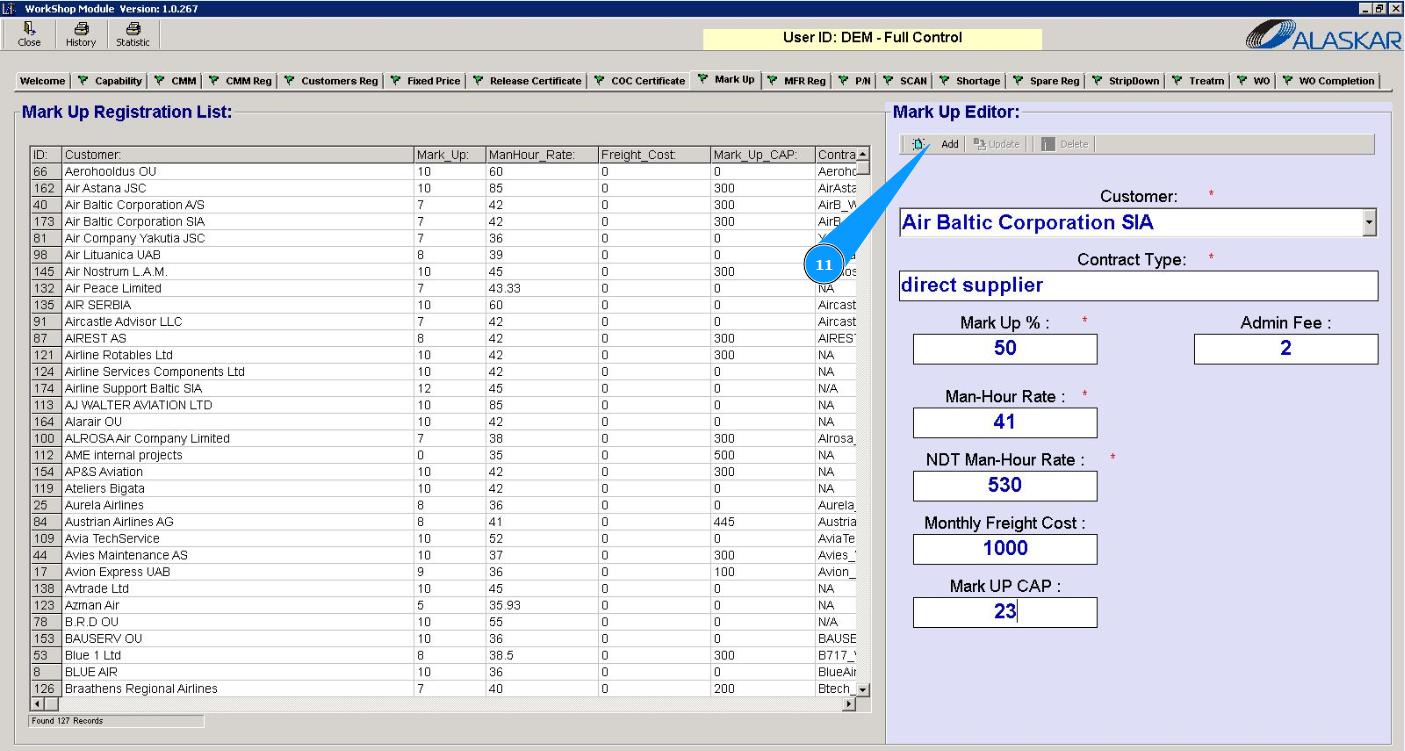
12. Click on the button "Yes" to confirm adding data to the program.
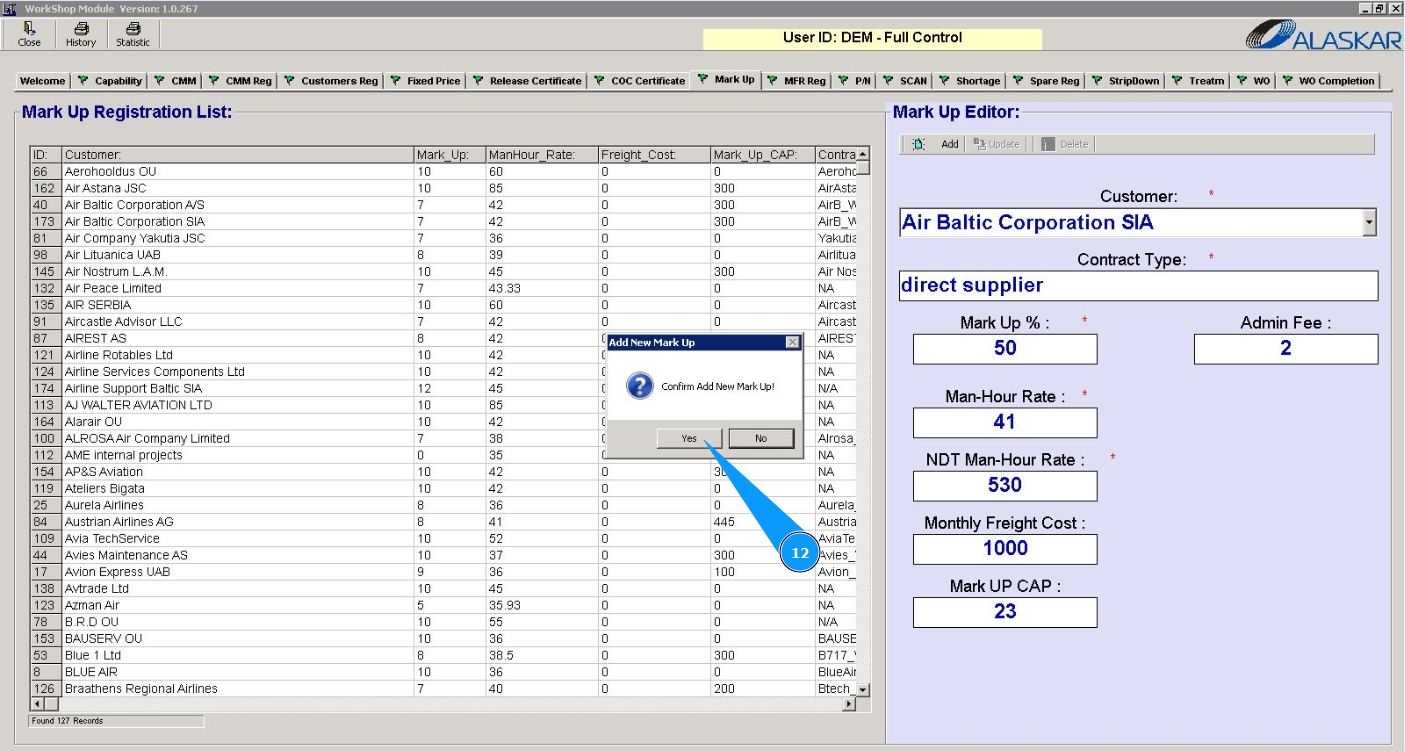
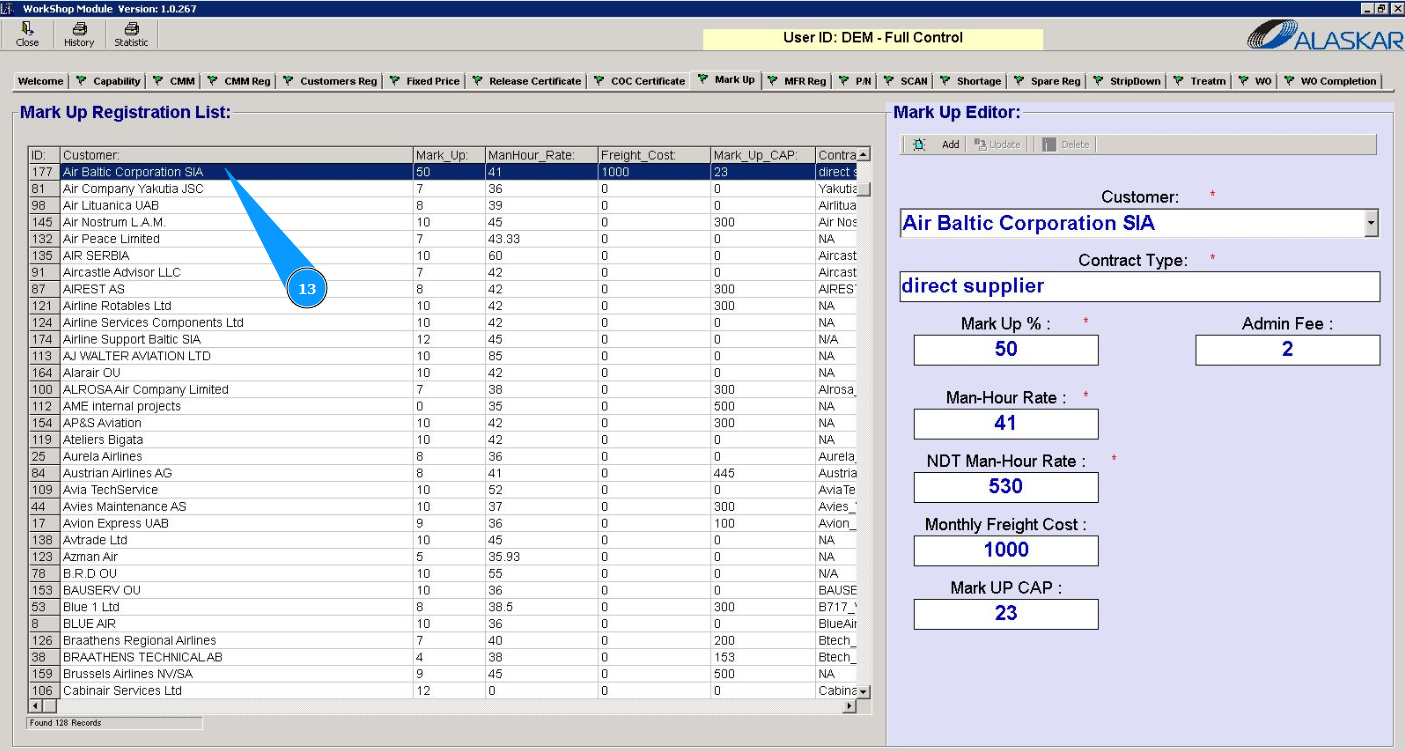
13. Check that your entered mark up is displayed in the window "Mark Up Registration List".