How to add cost to repair a component
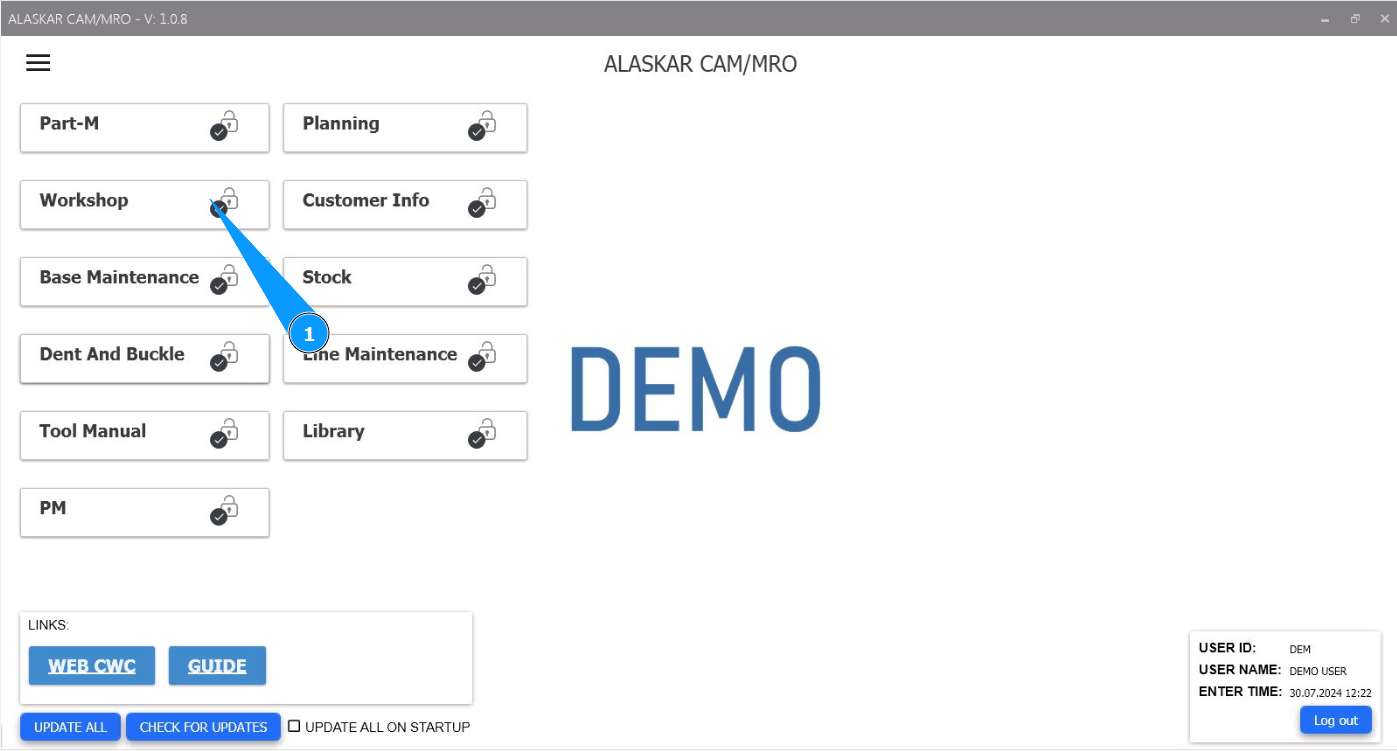
1. In order to add the cost of repairing a component, go to the module "Workshop/Component Repair Area".
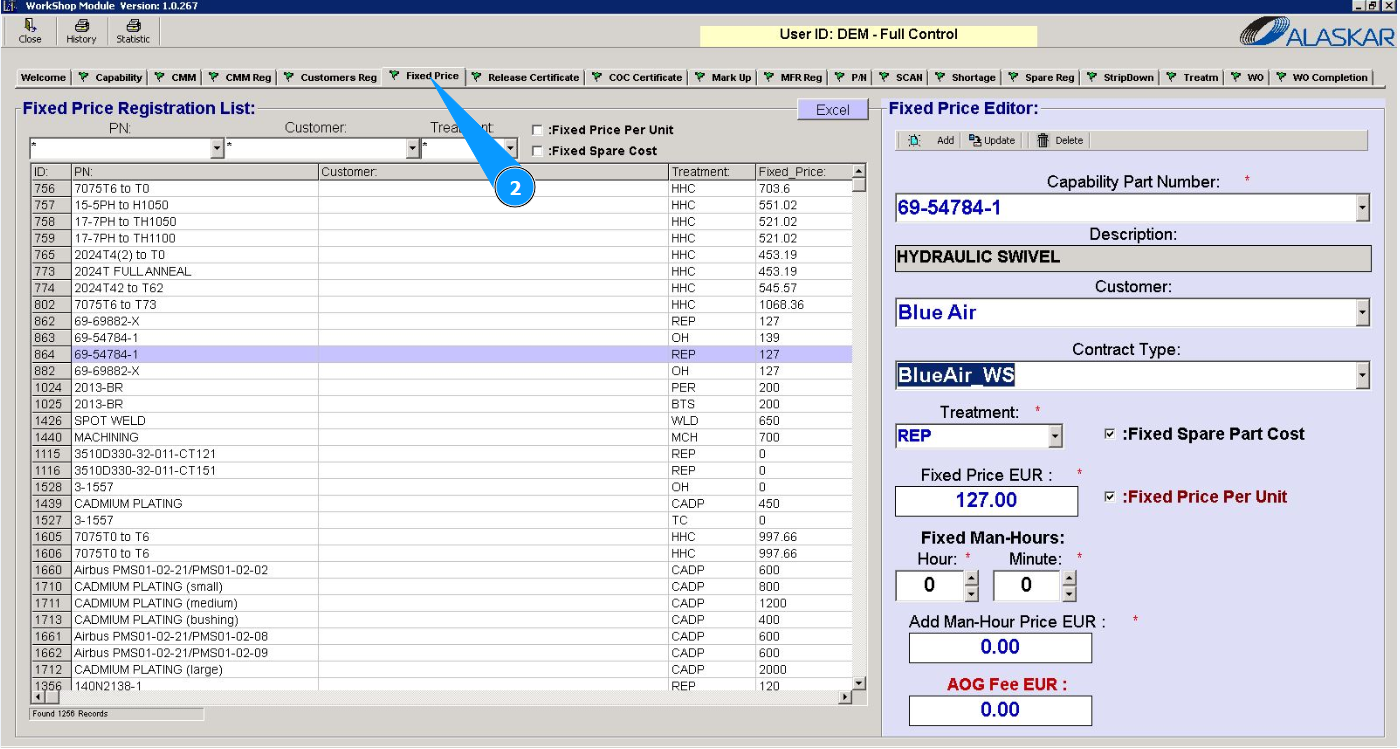
2. Next, go to the "Fixed Price" tab.
3. From the dropdown list, select the part number in the "Capability Part Number" field.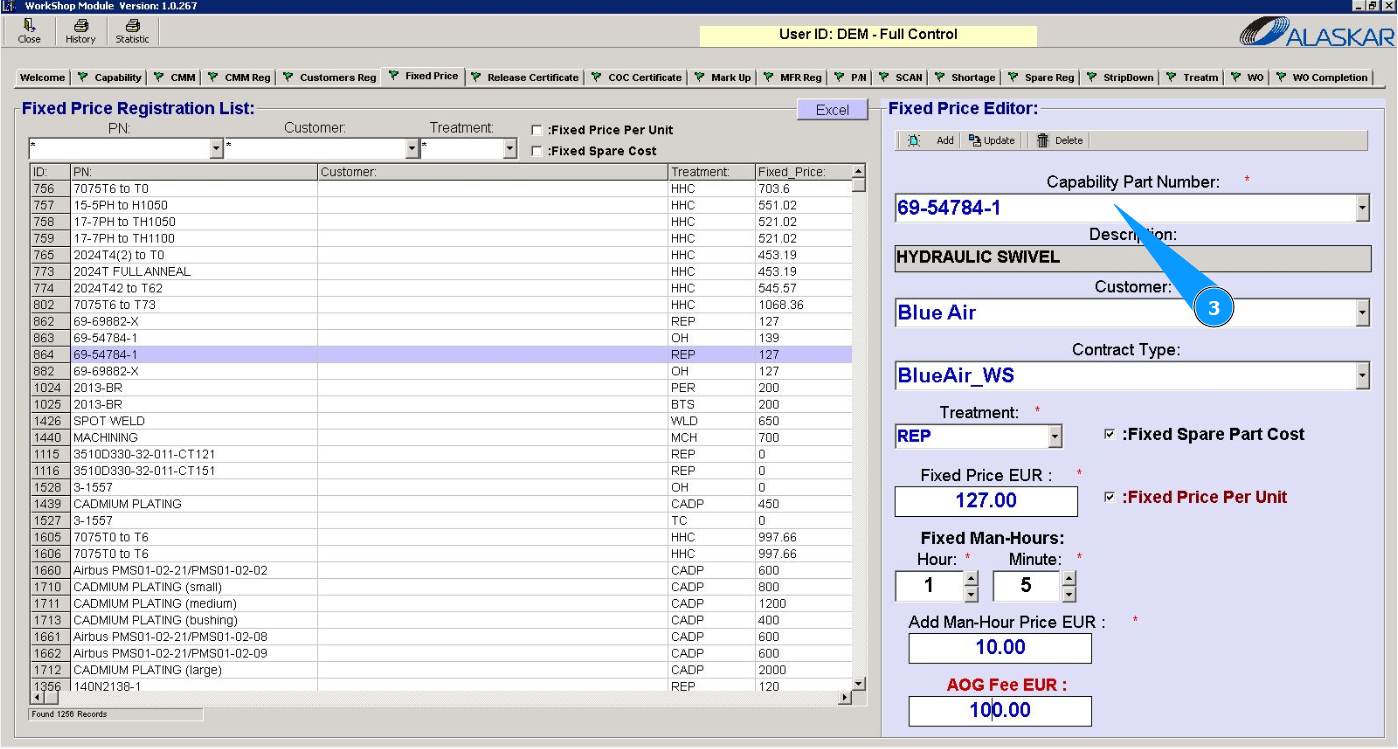
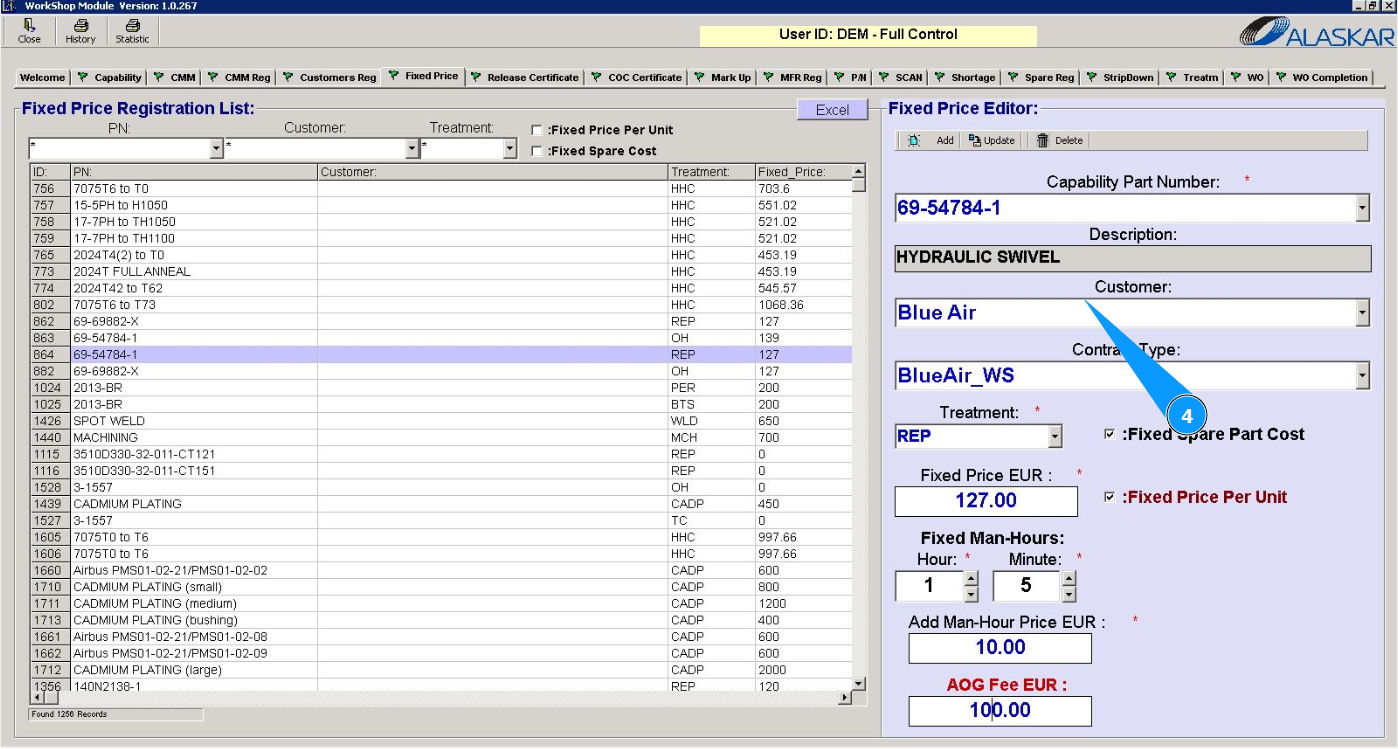
4. From the dropdown list, select the organization name in the "Customer" field or enter it manually.
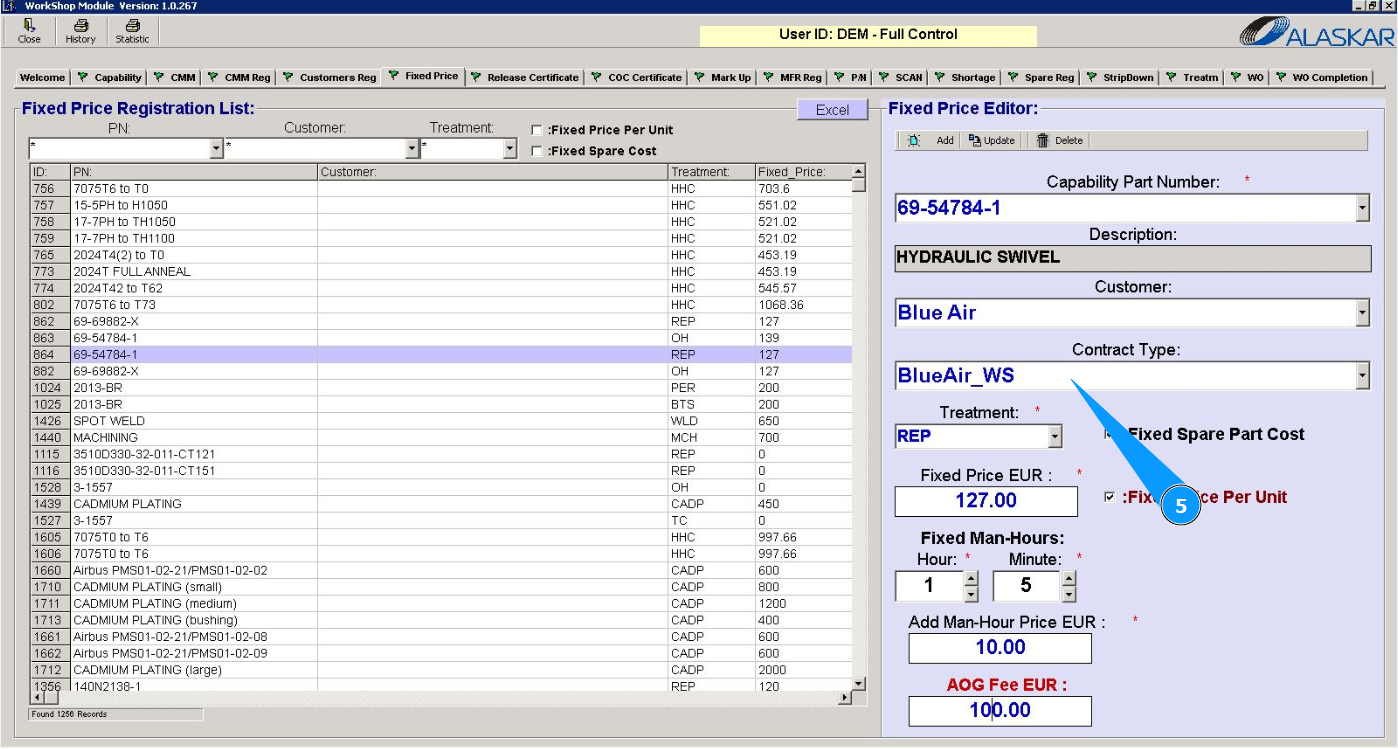
5. From the dropdown list, select the contract type in the "Contract Type" field or enter it manually.
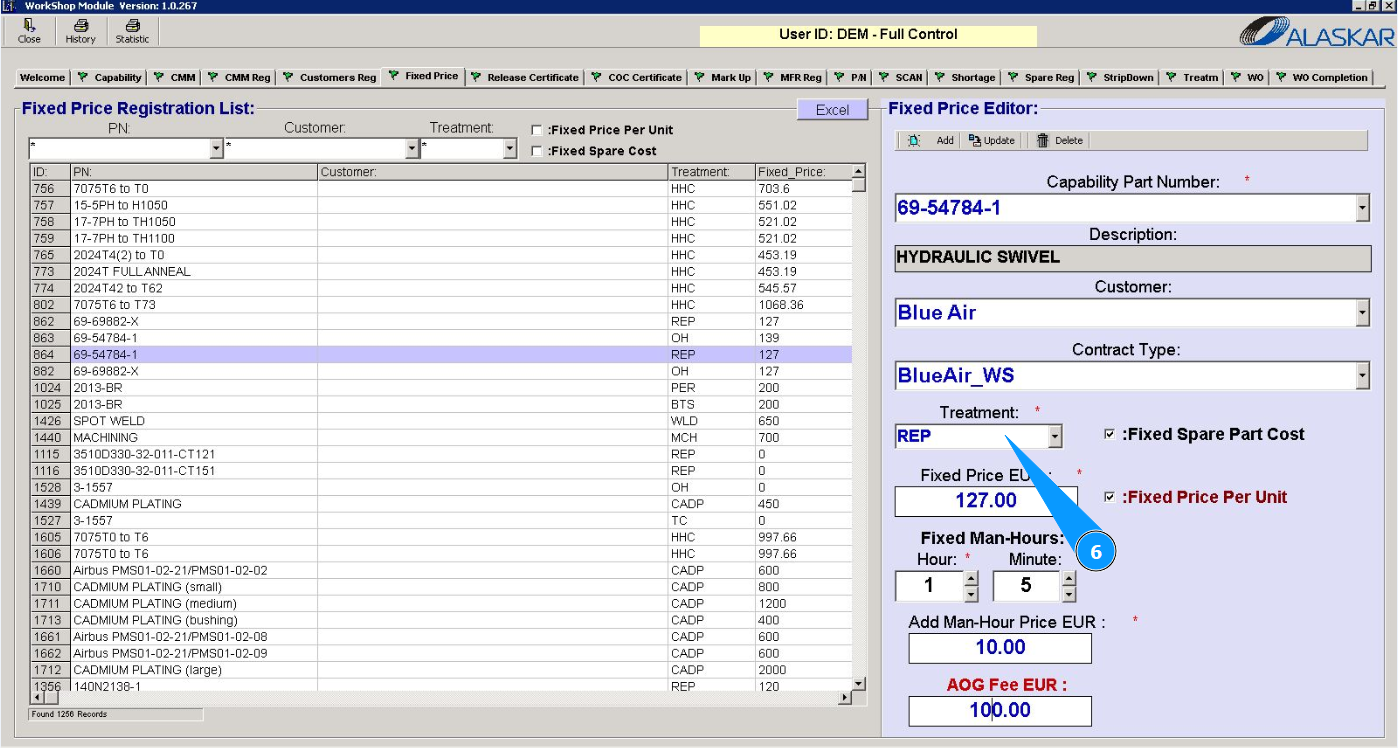
6. From the dropdown list, select the type of work in the "Threatment" field.
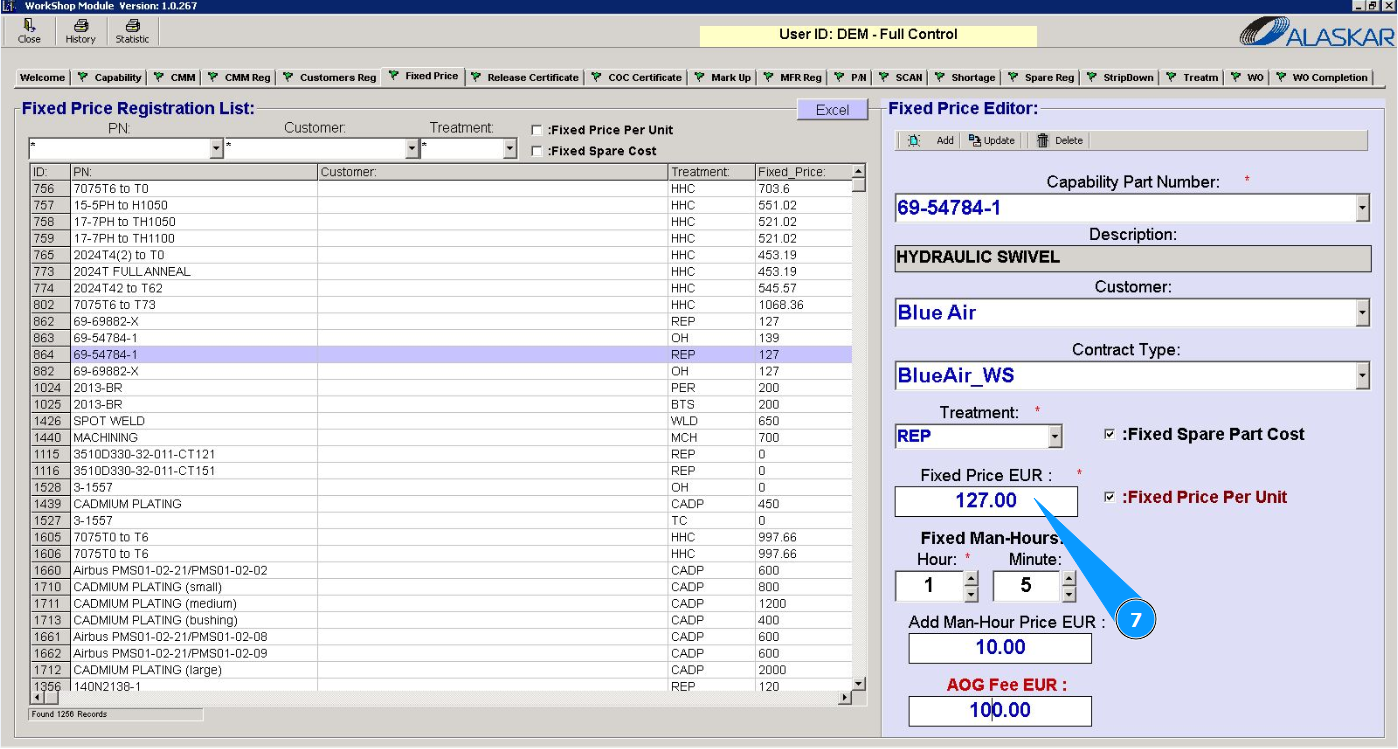
7. Enter the cost of the work in the "Fixed Price EUR" field.
8. Enter the required number of standard hours in hours to complete the work in the "Fixed Man-Hours" field.
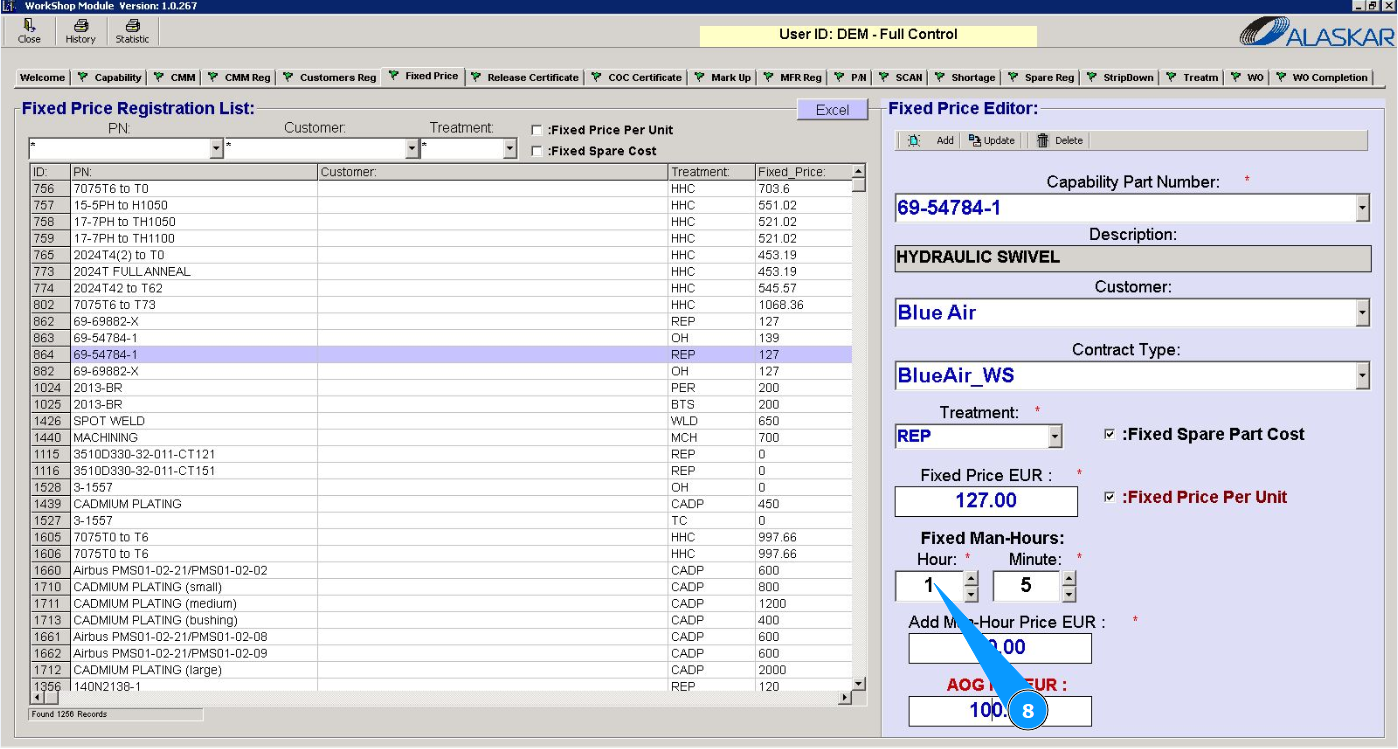
9. Enter the required number of standard hours in minutes to complete the work in the "Fixed Man-Hours" field.
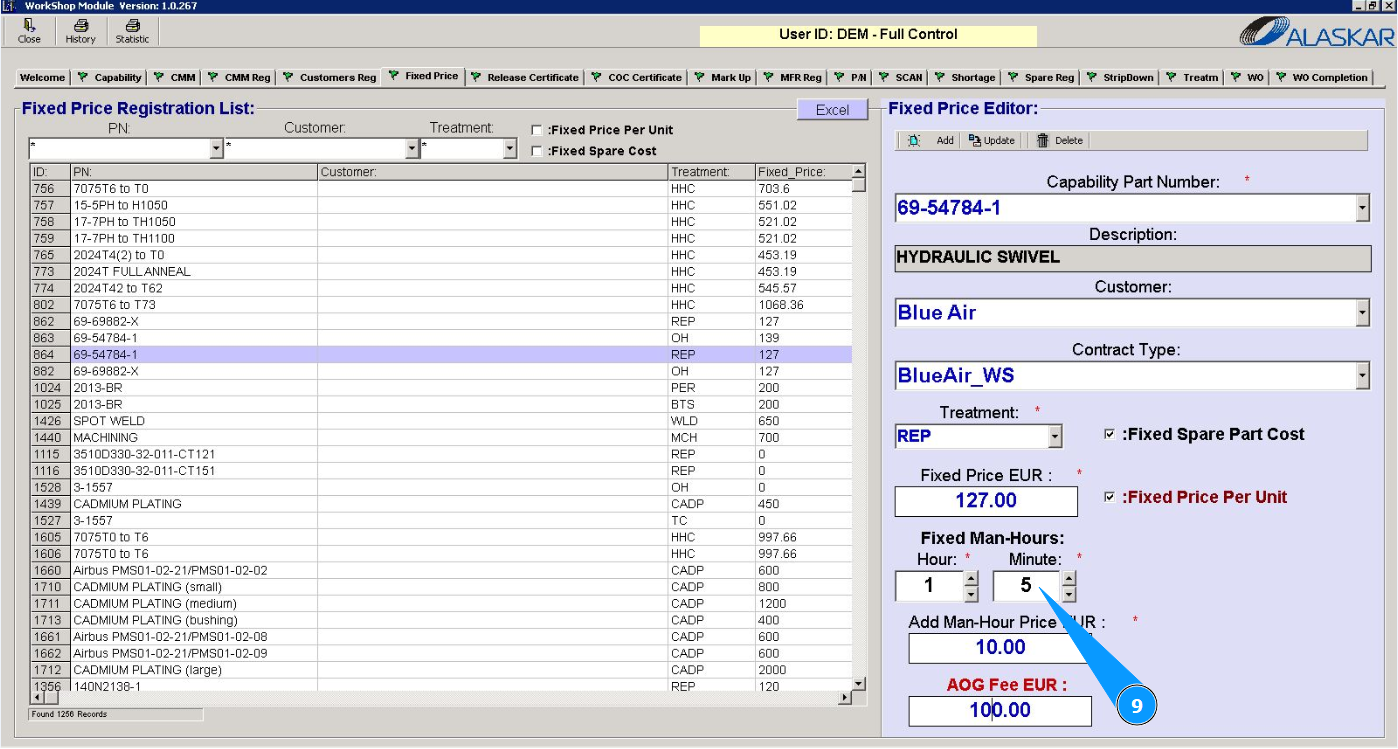
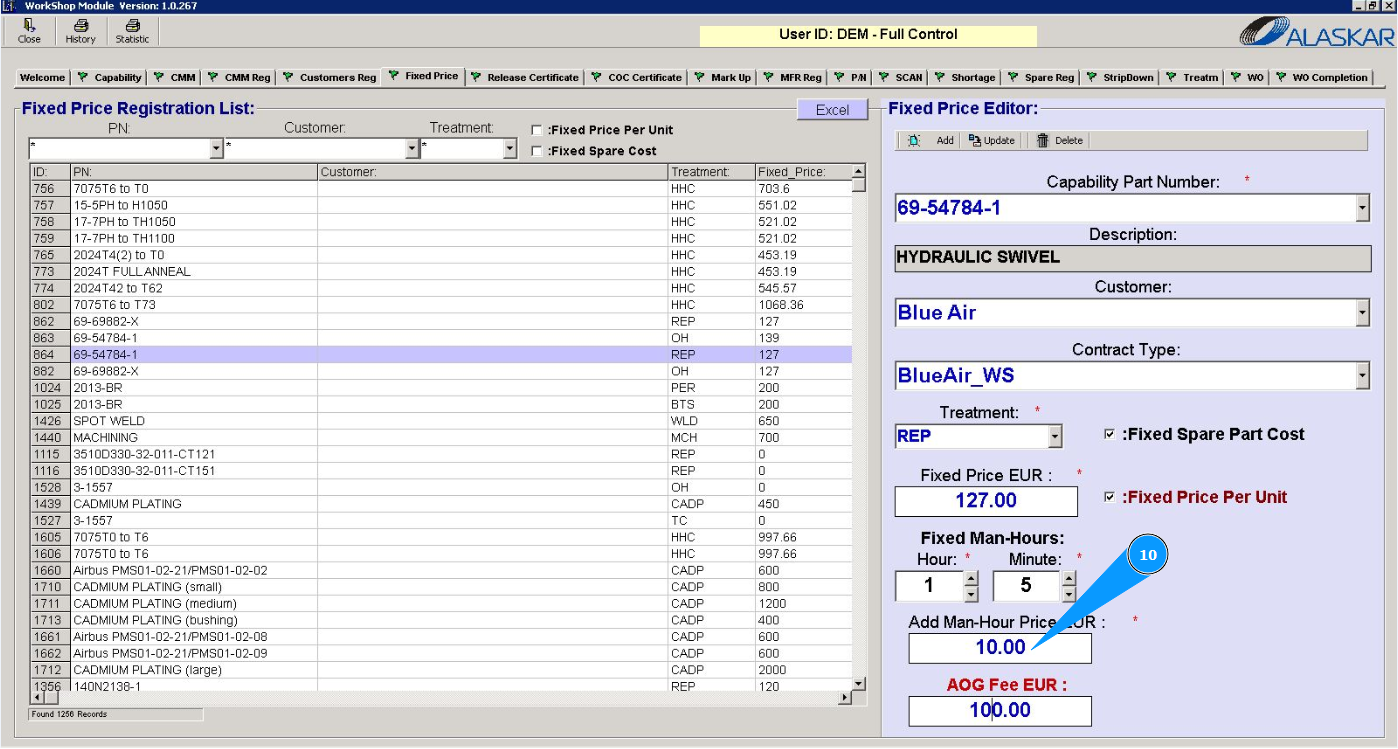
10. Enter the cost of standard hours in the "Add Man-Hour Price EUR" field.
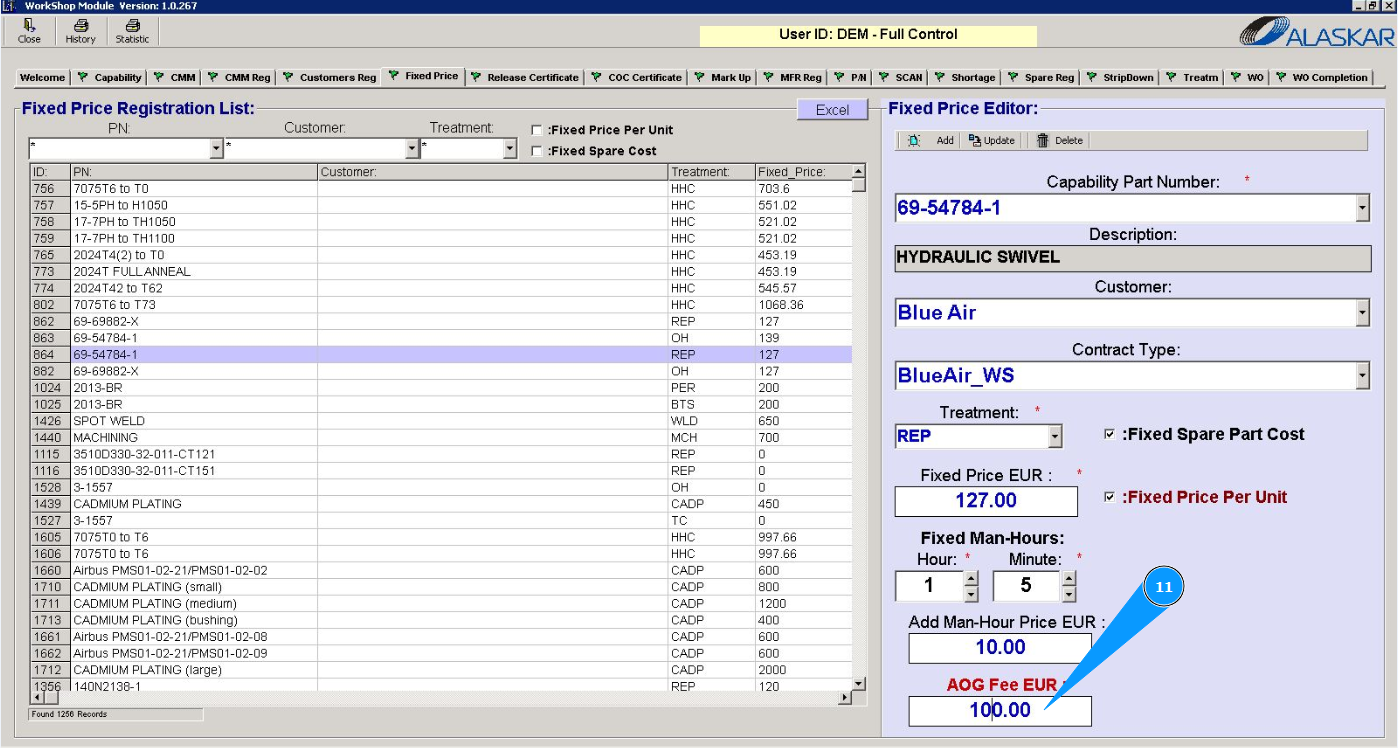
11. If necessary, enter the cost of providing urgent services in the "AOG Fee EUR" field.
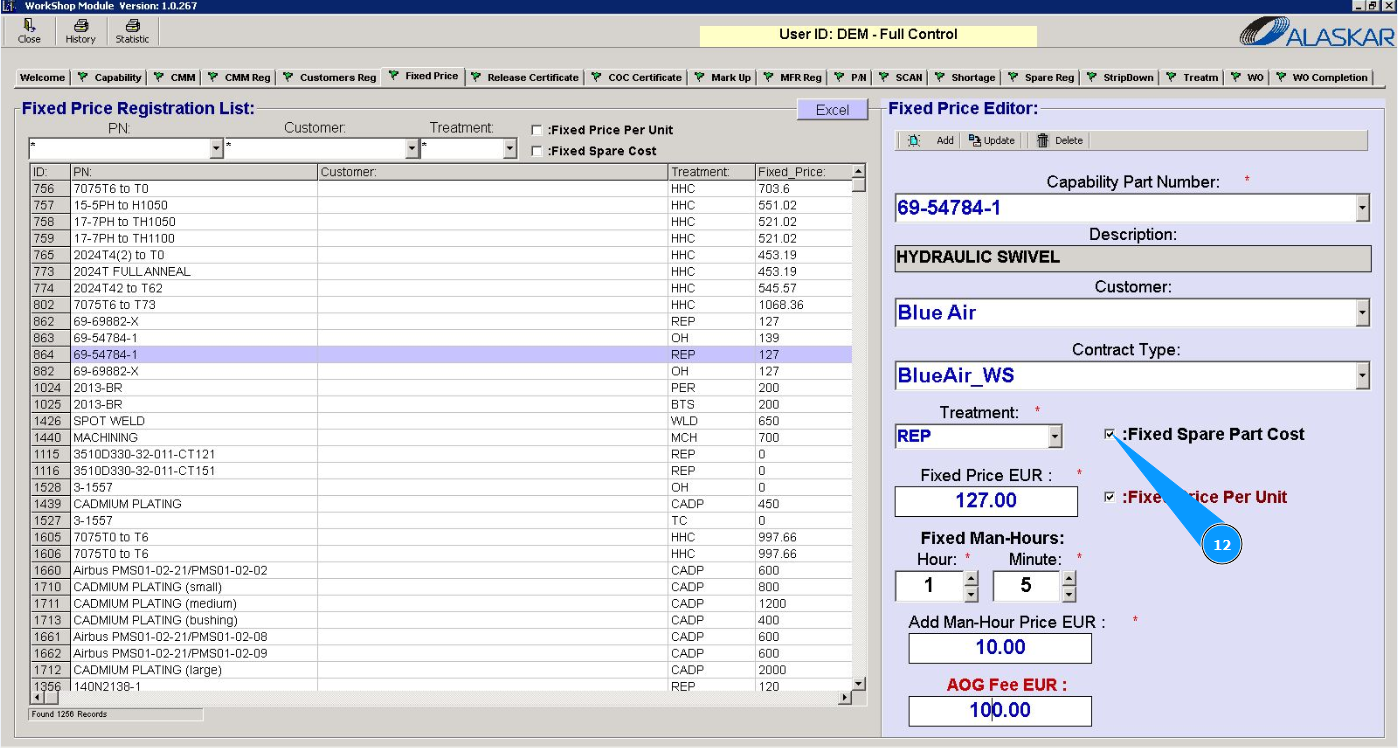
12. If necessary, mark whether materials for work are included in the fixed cost in the "Fixed Spare Part Cost" window.
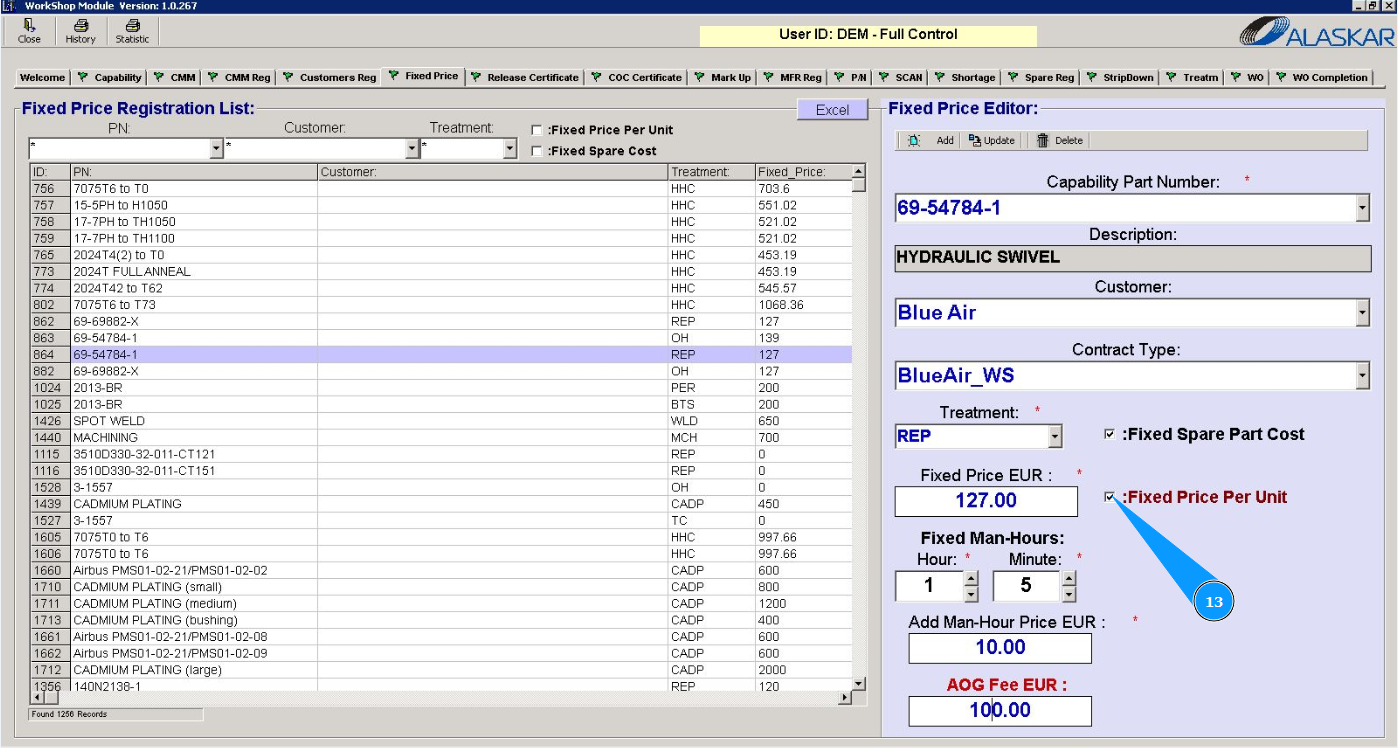
13. If necessary, check if the fixed cost is indicated for one job in the "Fixed Price Per Unit" window.
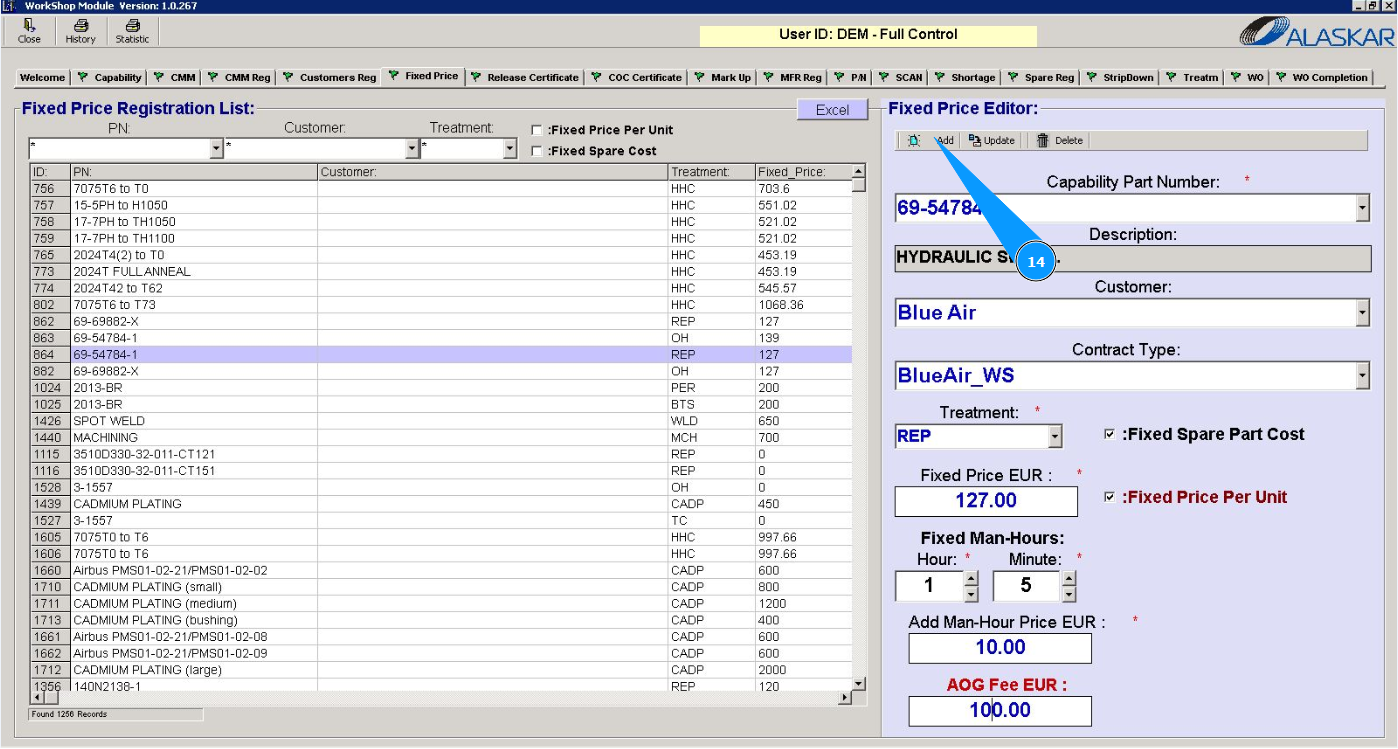
14. Click the "Add" button to add data on the cost of performing the work to the program.
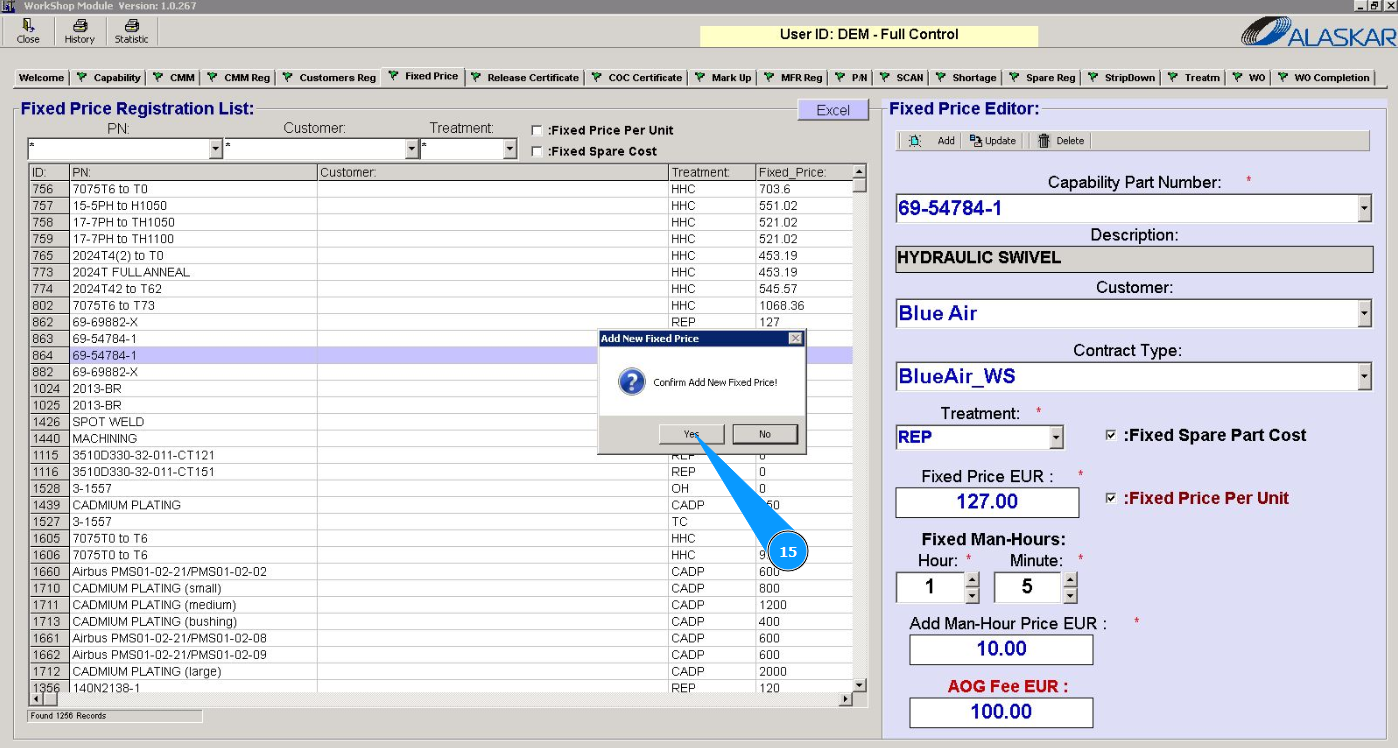
15. Click the "Yes" button and confirm adding data to the program.
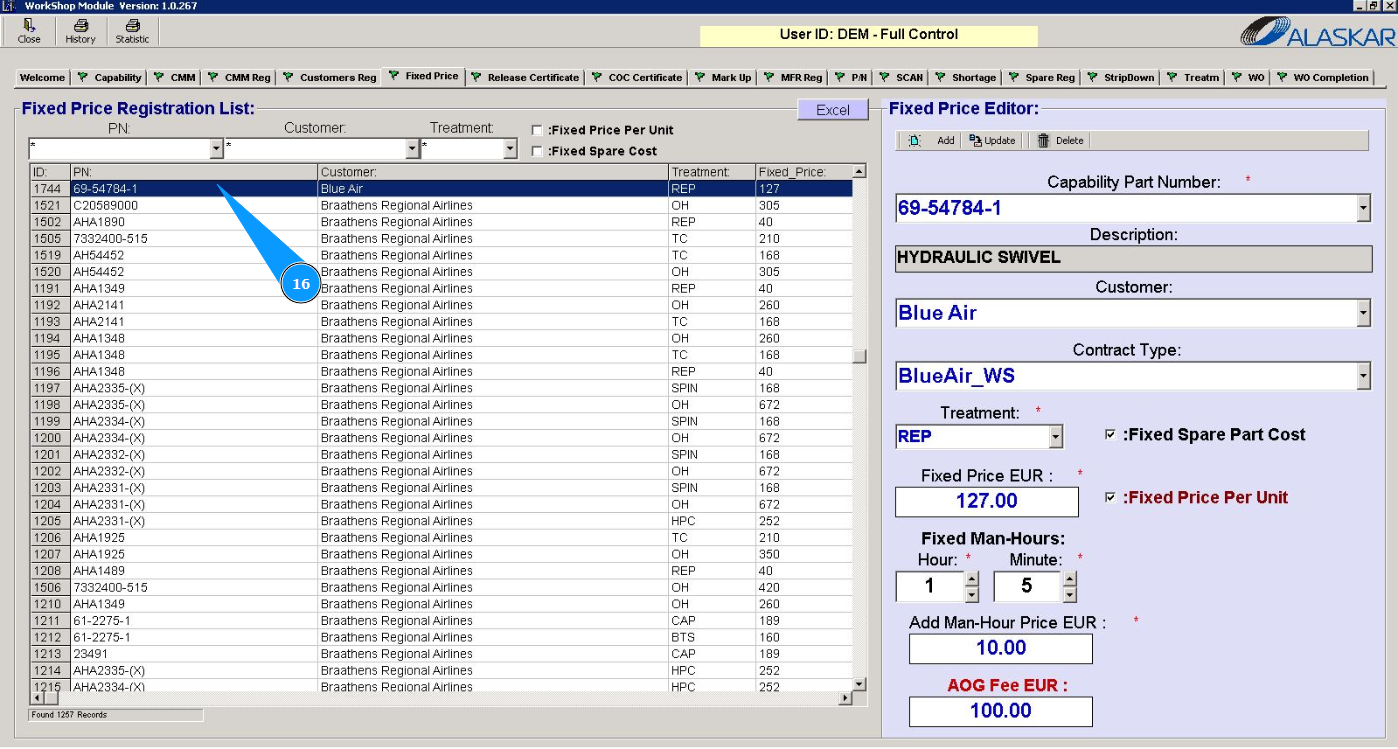
16. Check the appearance of the entry with your cost in the "Fixed Price Registration List" window.