How to add a new customer
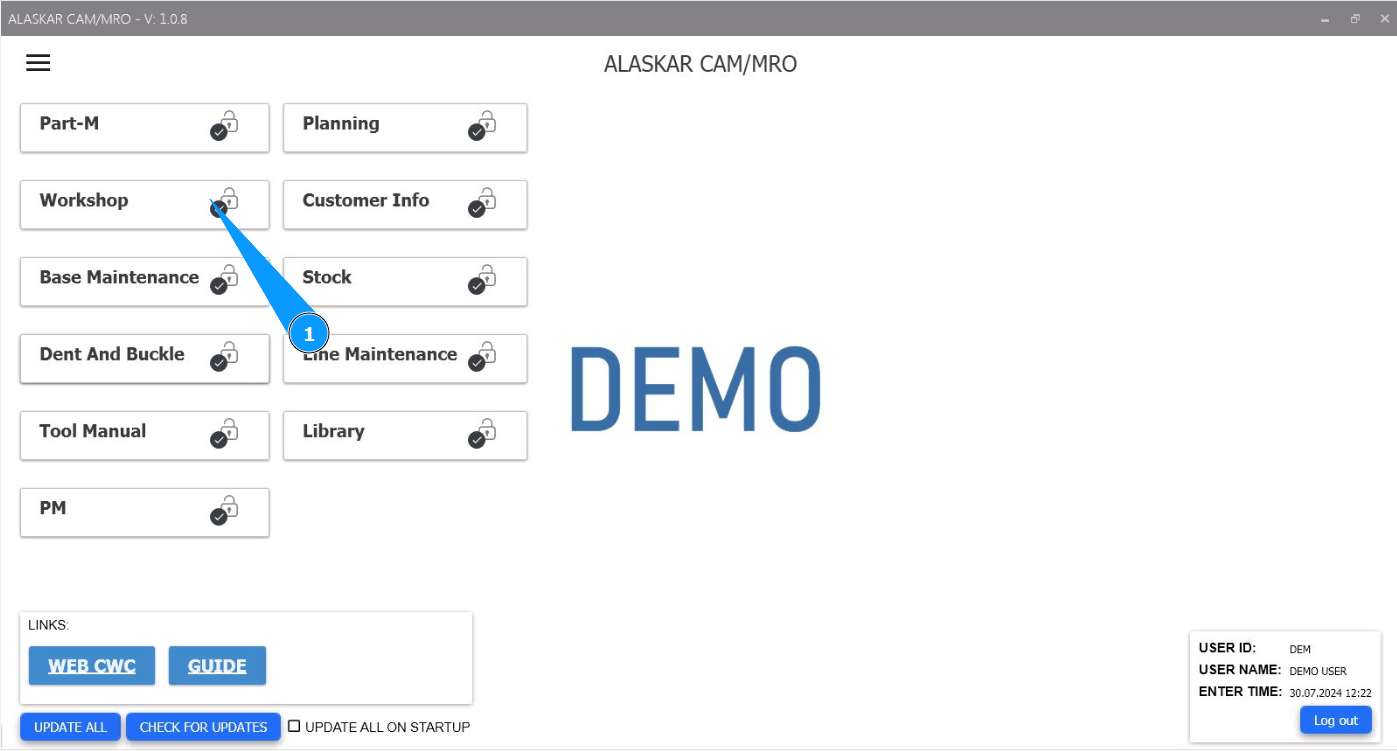
1. In order to add a new customer, go to the module "Workshop".
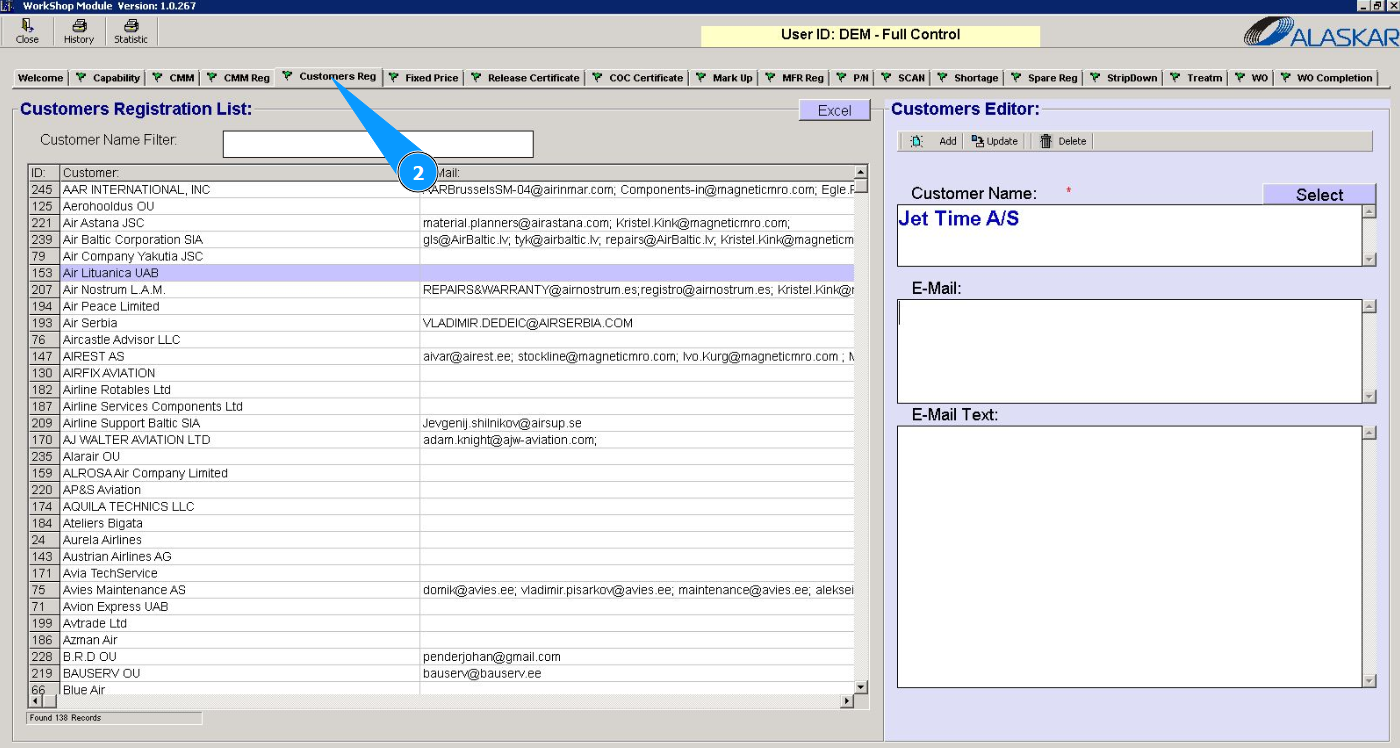
2. Next, go to the tab "Customers Reg.".
3. Click on the button "Select" and select the customer name from the list.
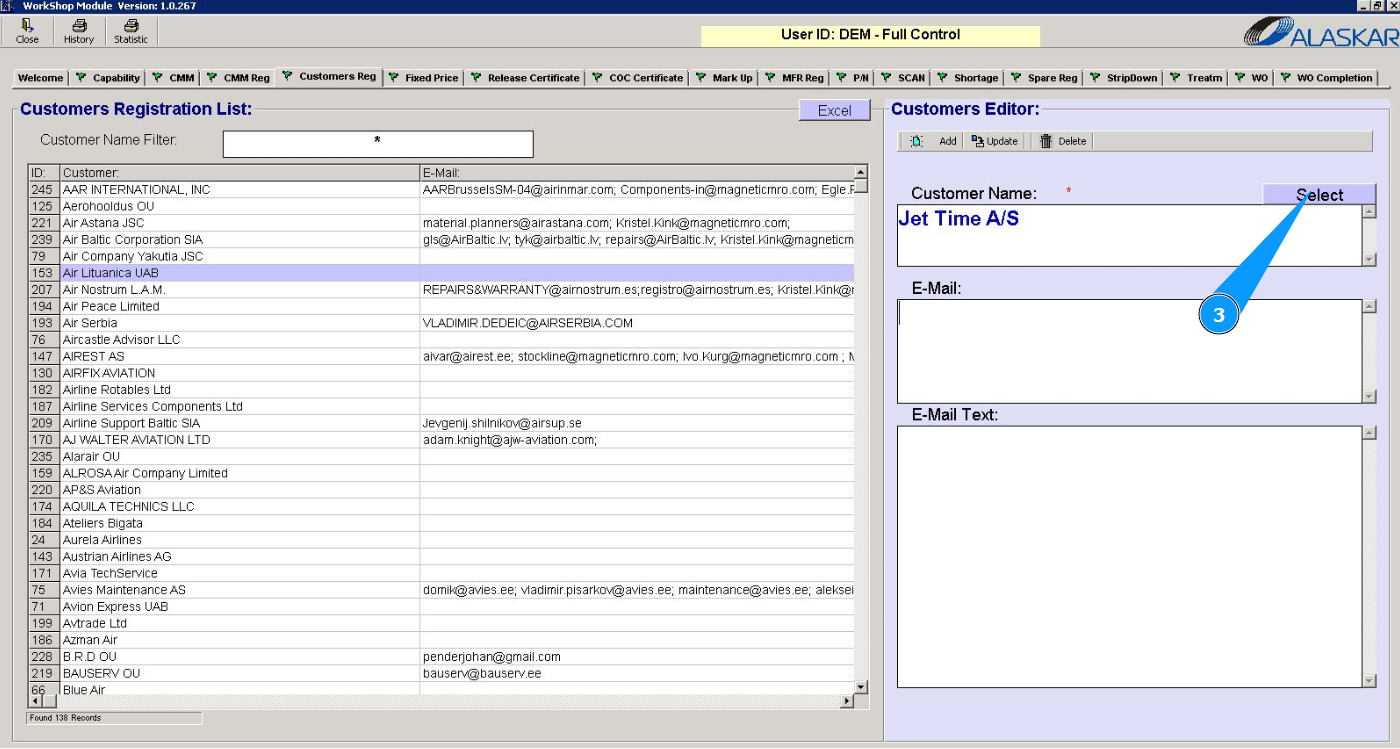
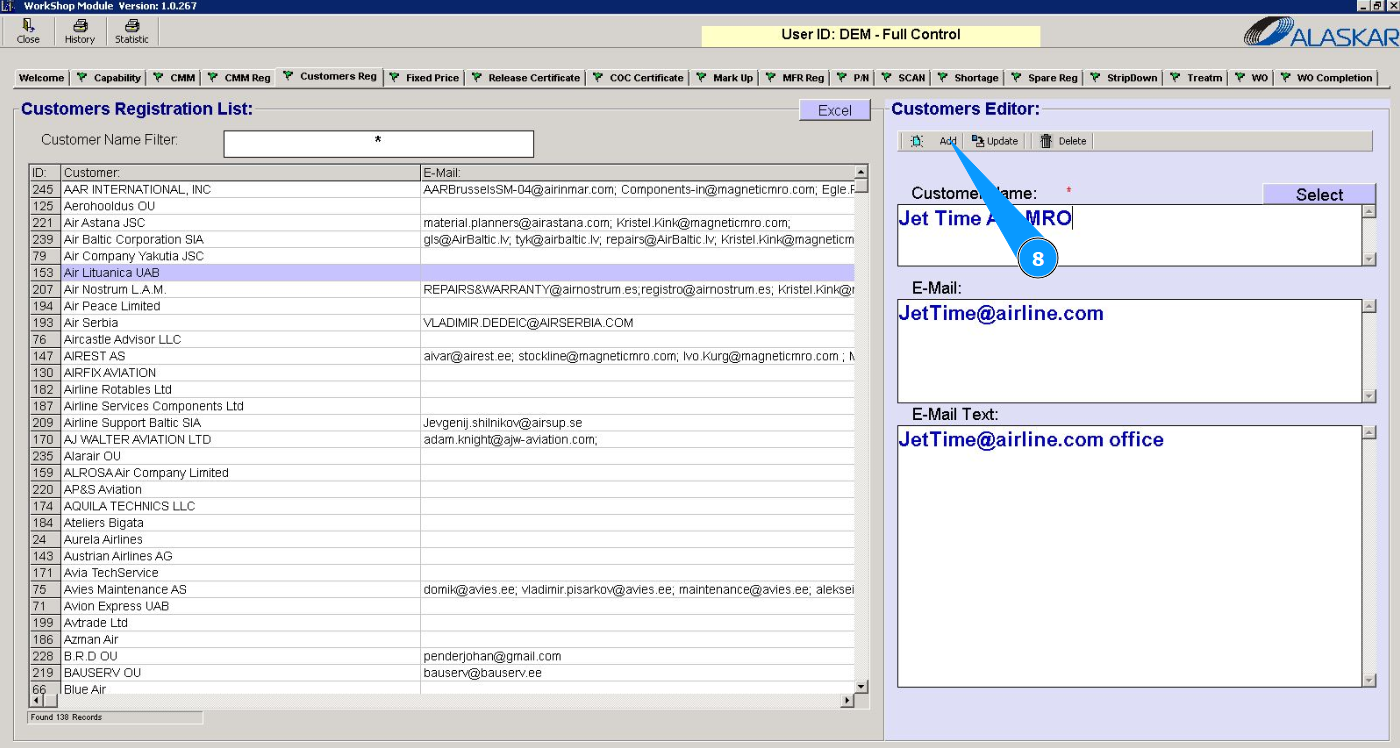
4. Check that the customer name is displayed in the field "Customer Name".
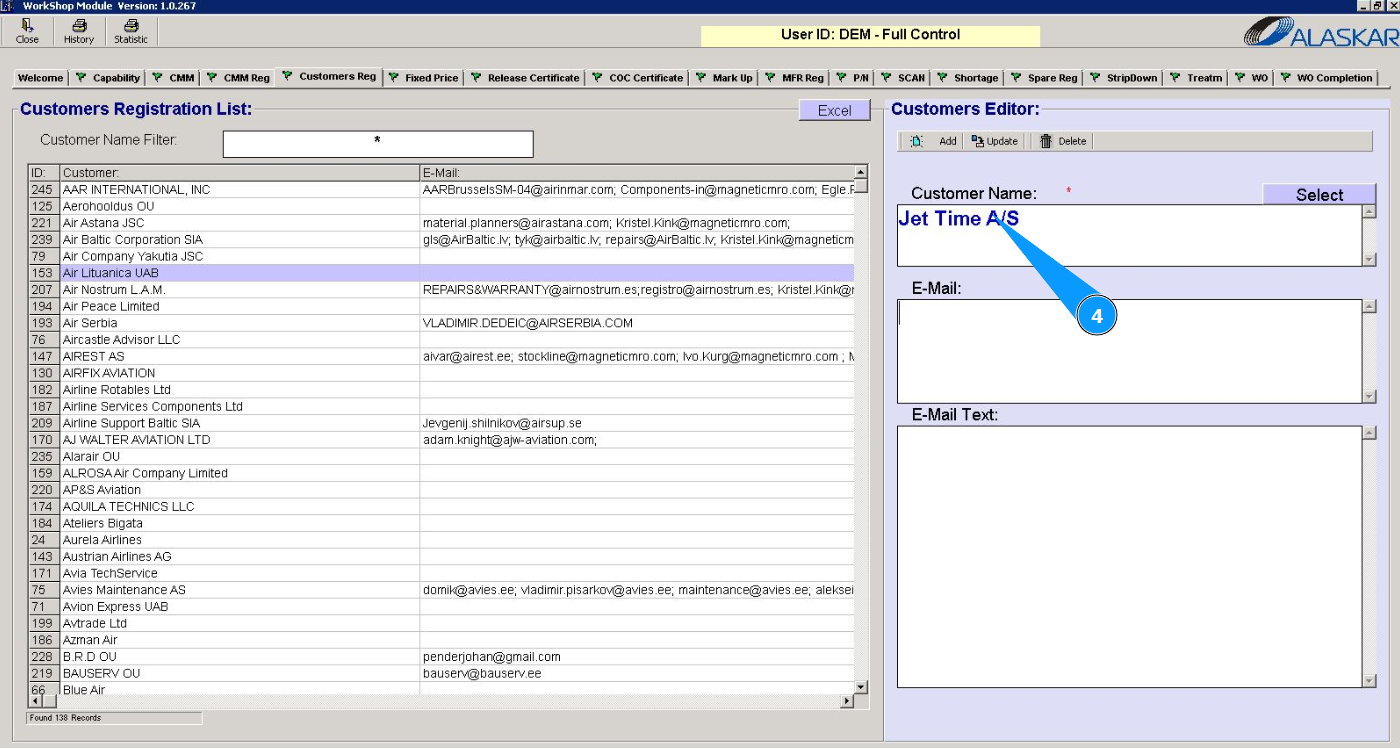
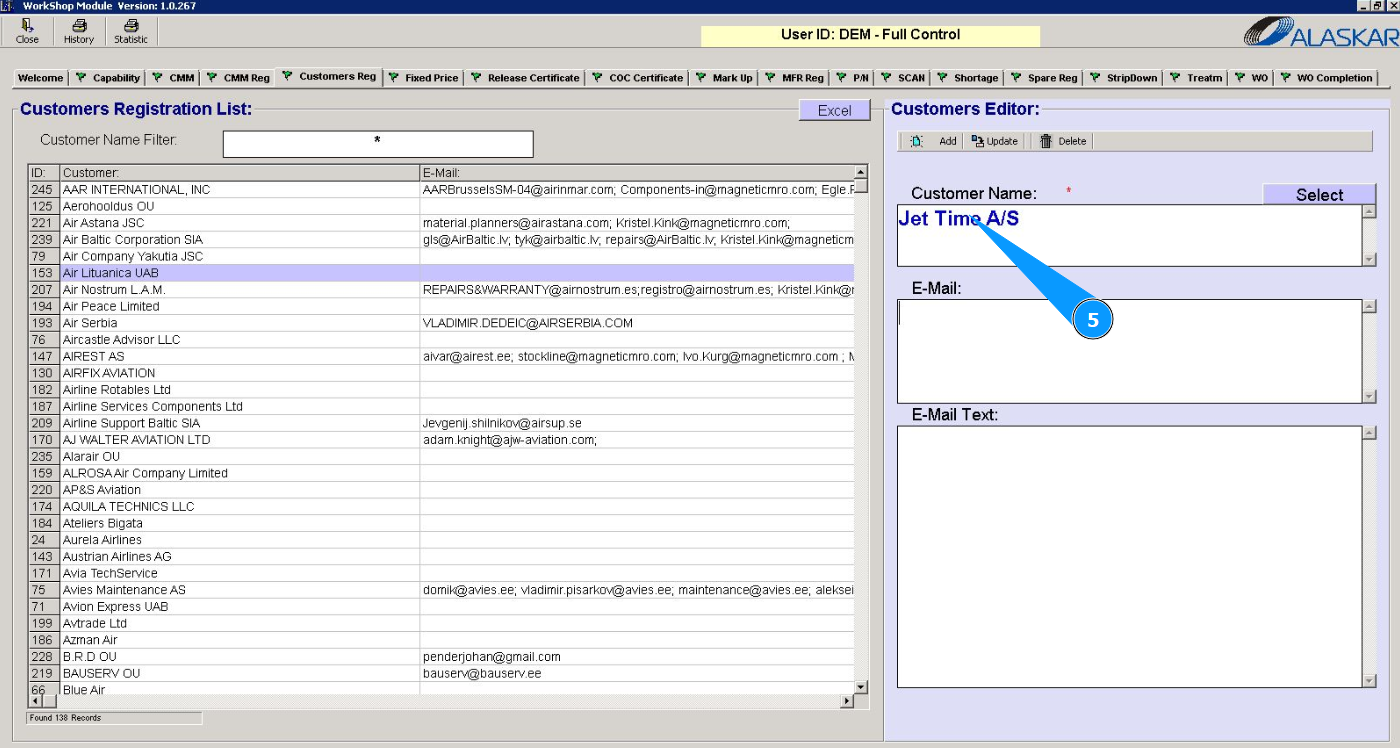
5. If the customer name is not in the list, enter it manually in the field "Customer Name".
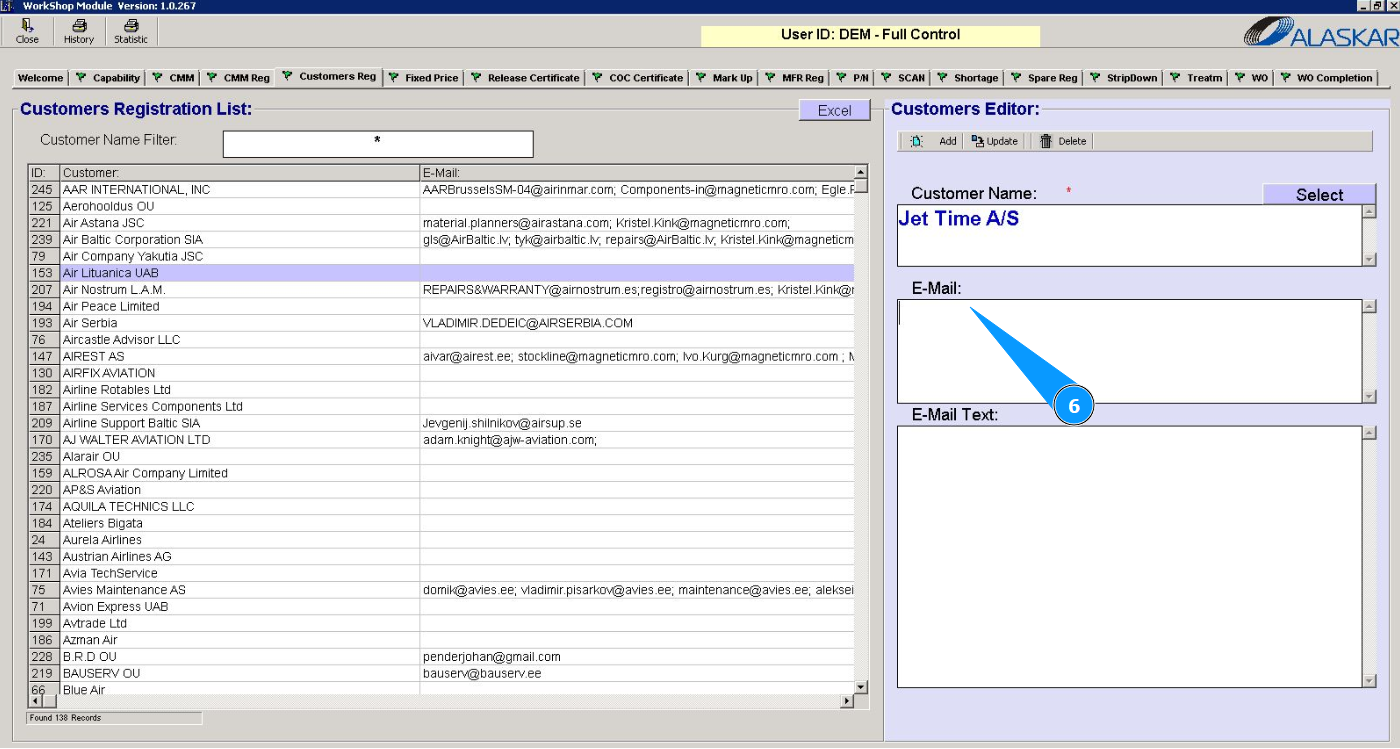
6. If necessary, enter the customer's email in the field "E-Mail".
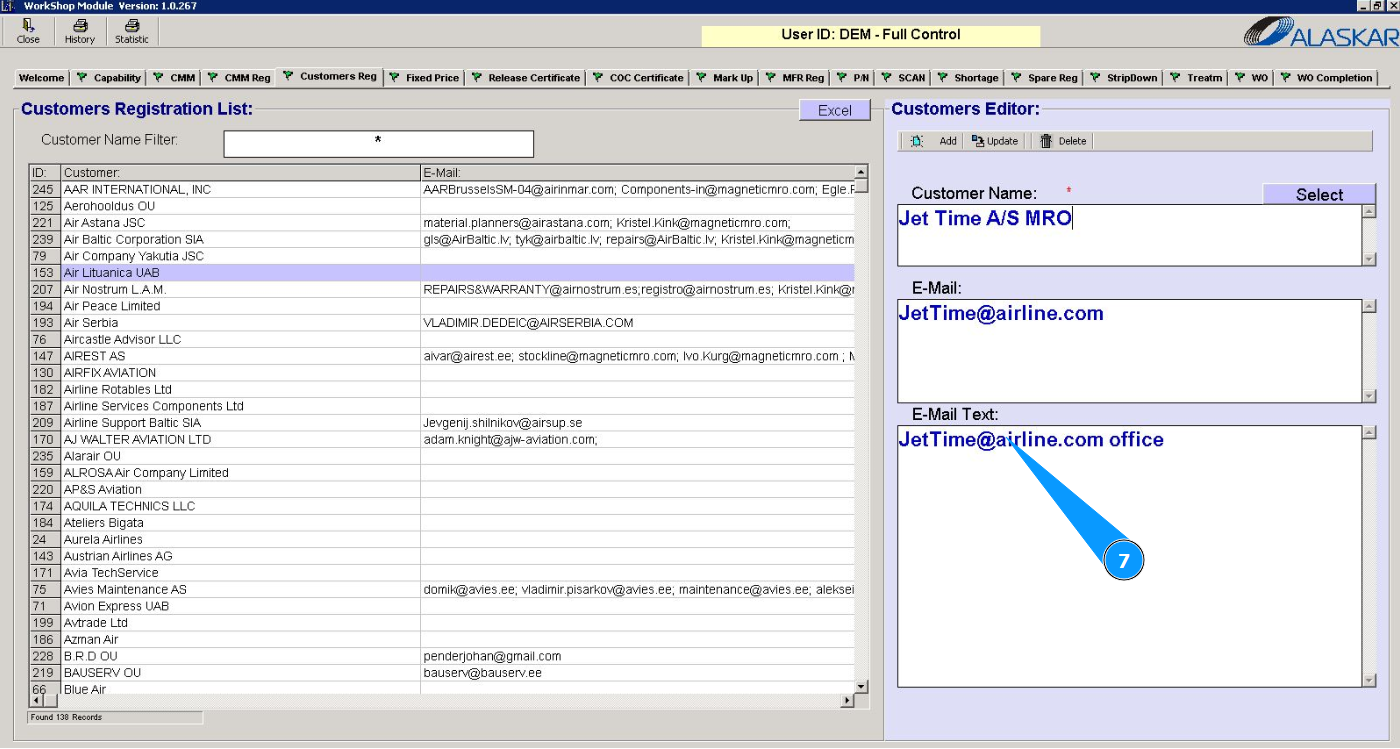
7. If necessary, enter the text of the customer's email in the field "E-Mail Text".
8. Click on the button "Add" to add a new customer to the program.
9. Click on the button "Yes" to confirm adding data to the program.
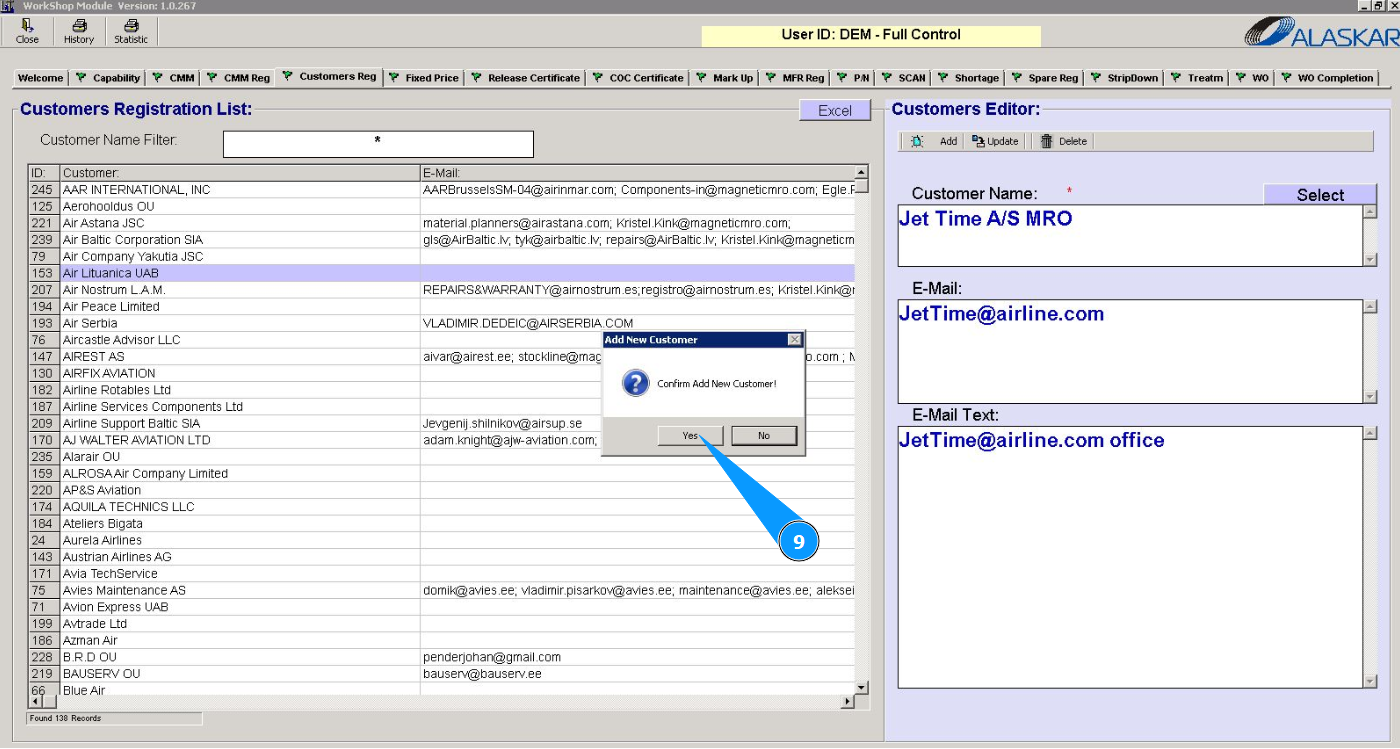
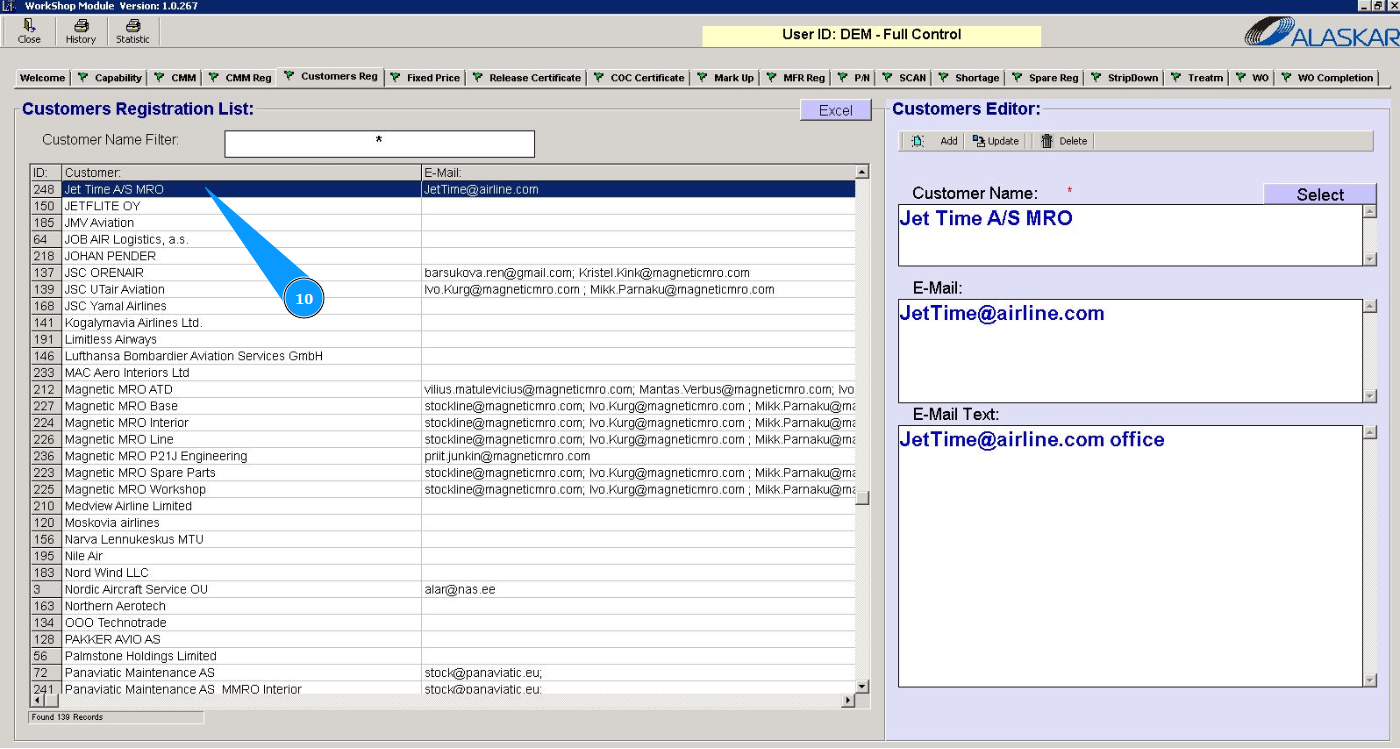
10. Check that the new customer is displayed in the window "Customer Registration List".