How to upload a tool image to a tool card
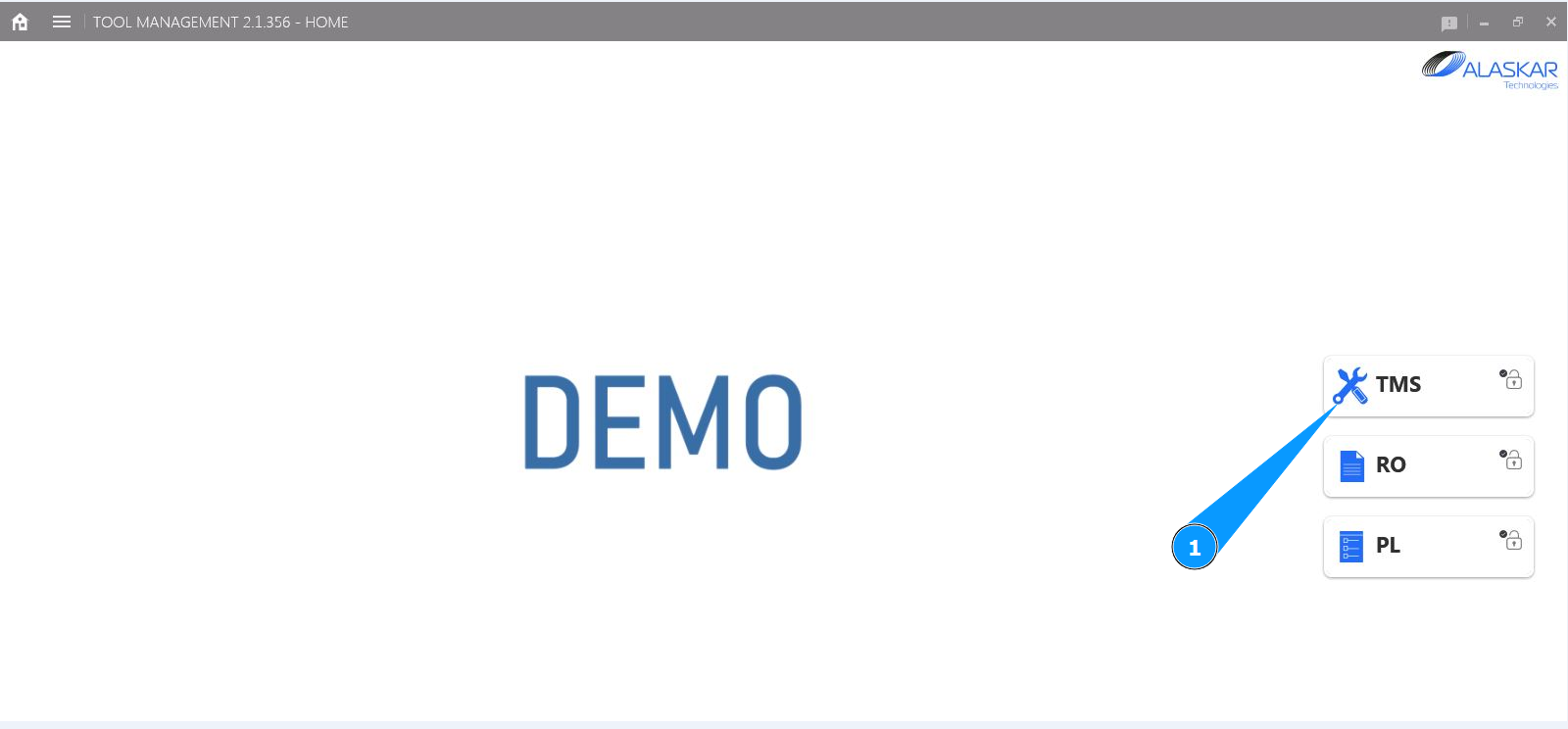
1. In order to upload a tool image to a tool card, go to the submodule "TMS".
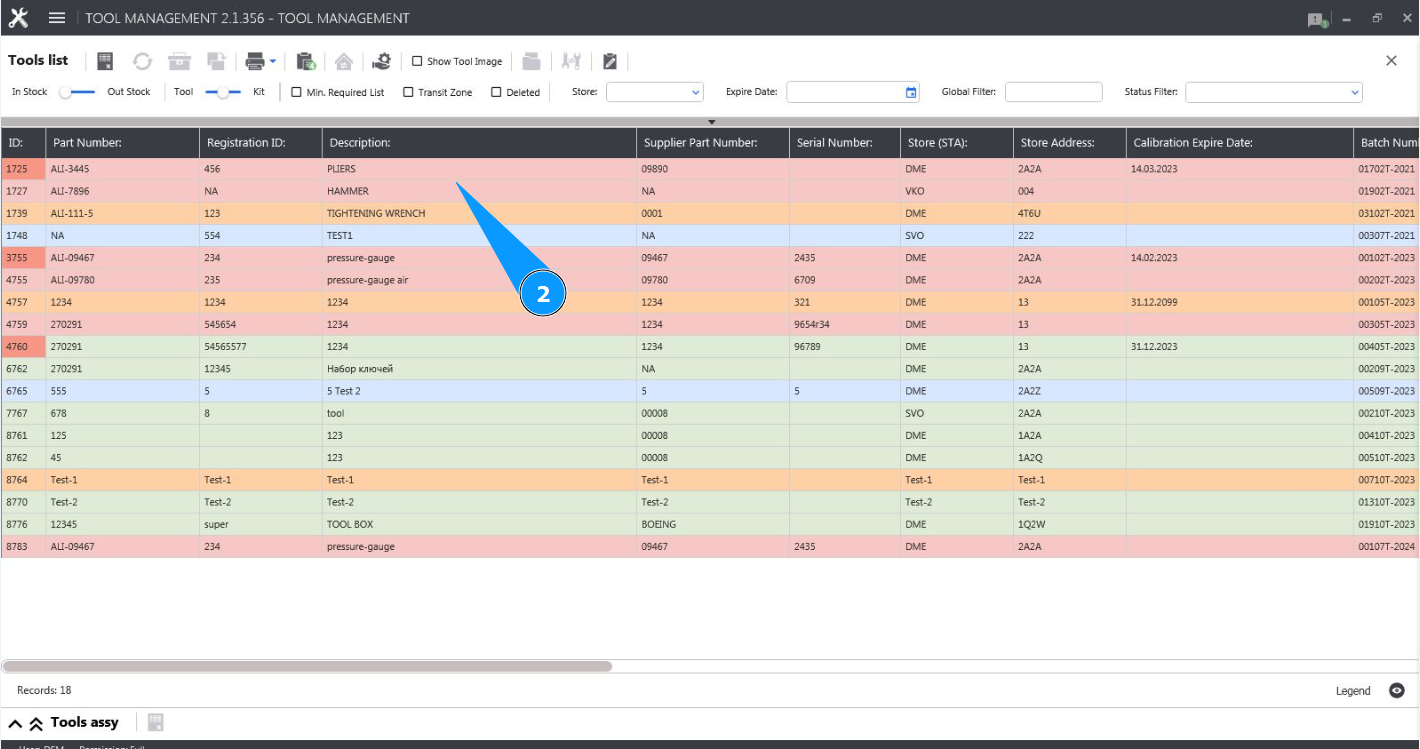
2. Select the required line with the tool in the window and click on it in the window "Tool List".
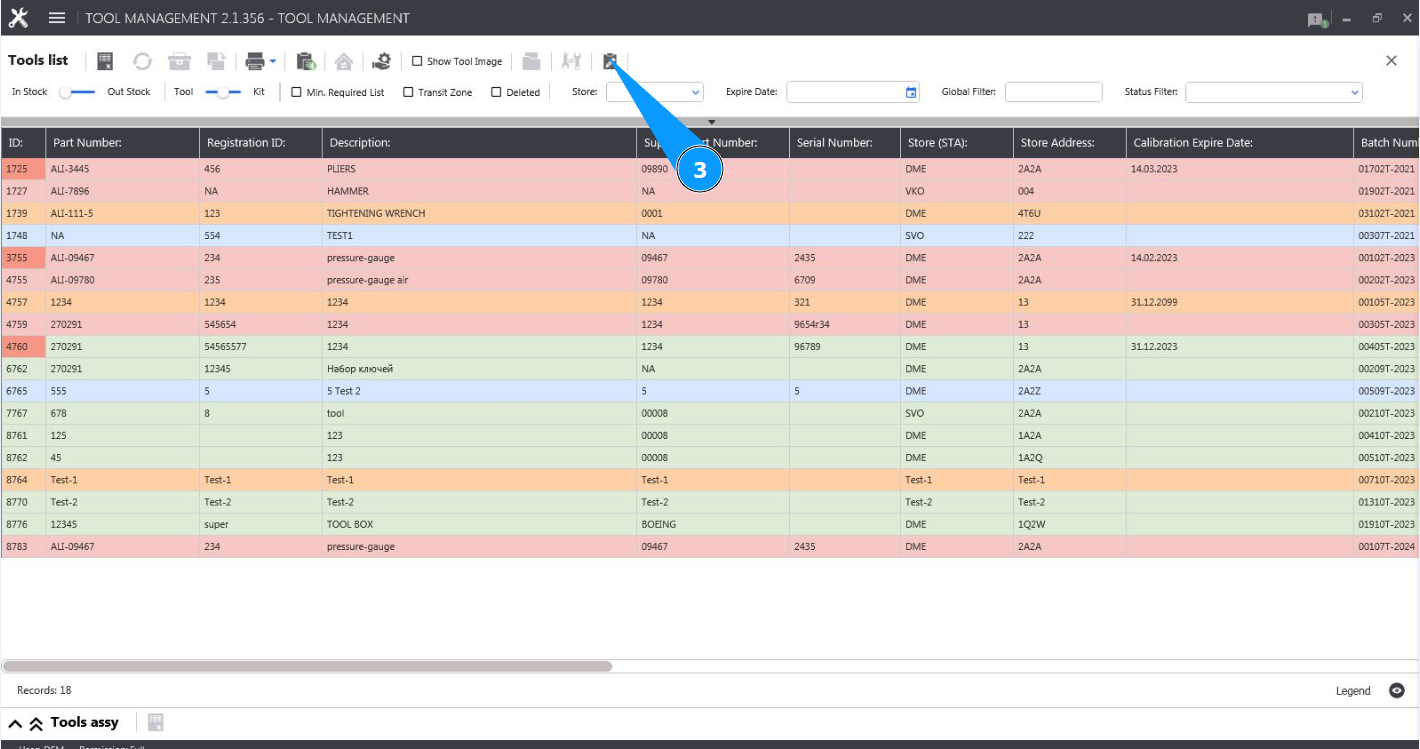
3. Click on the button "Show Editor" to open the tool editor.
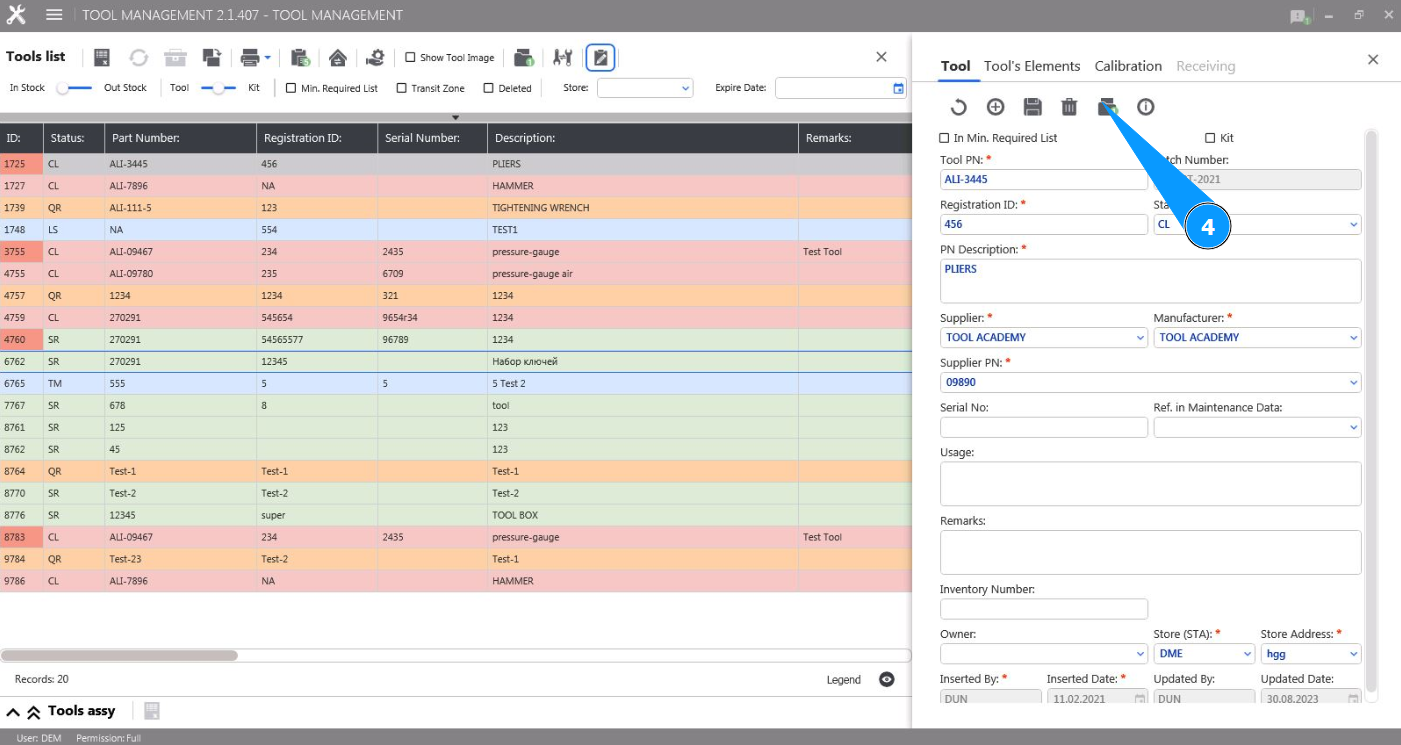
4. Click on the button "Attachment Documents" to open the image attachment editor.
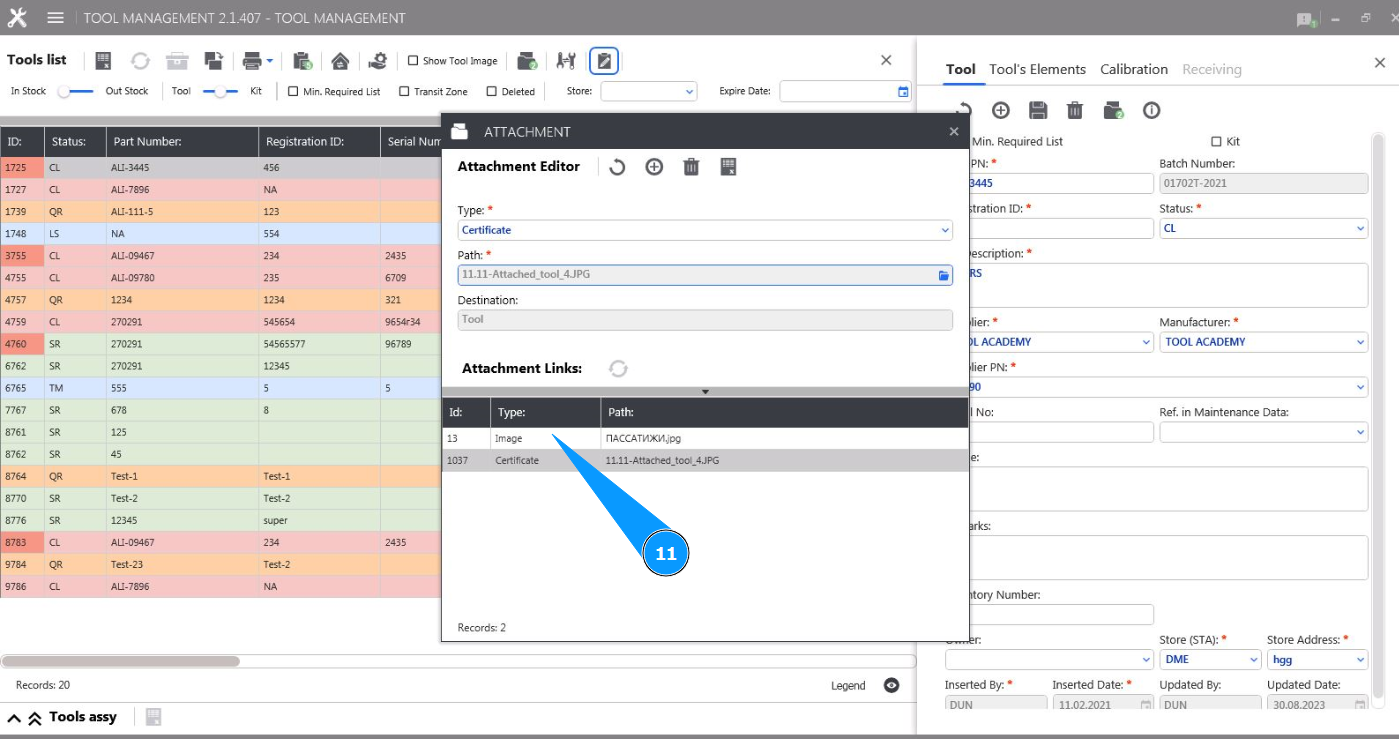
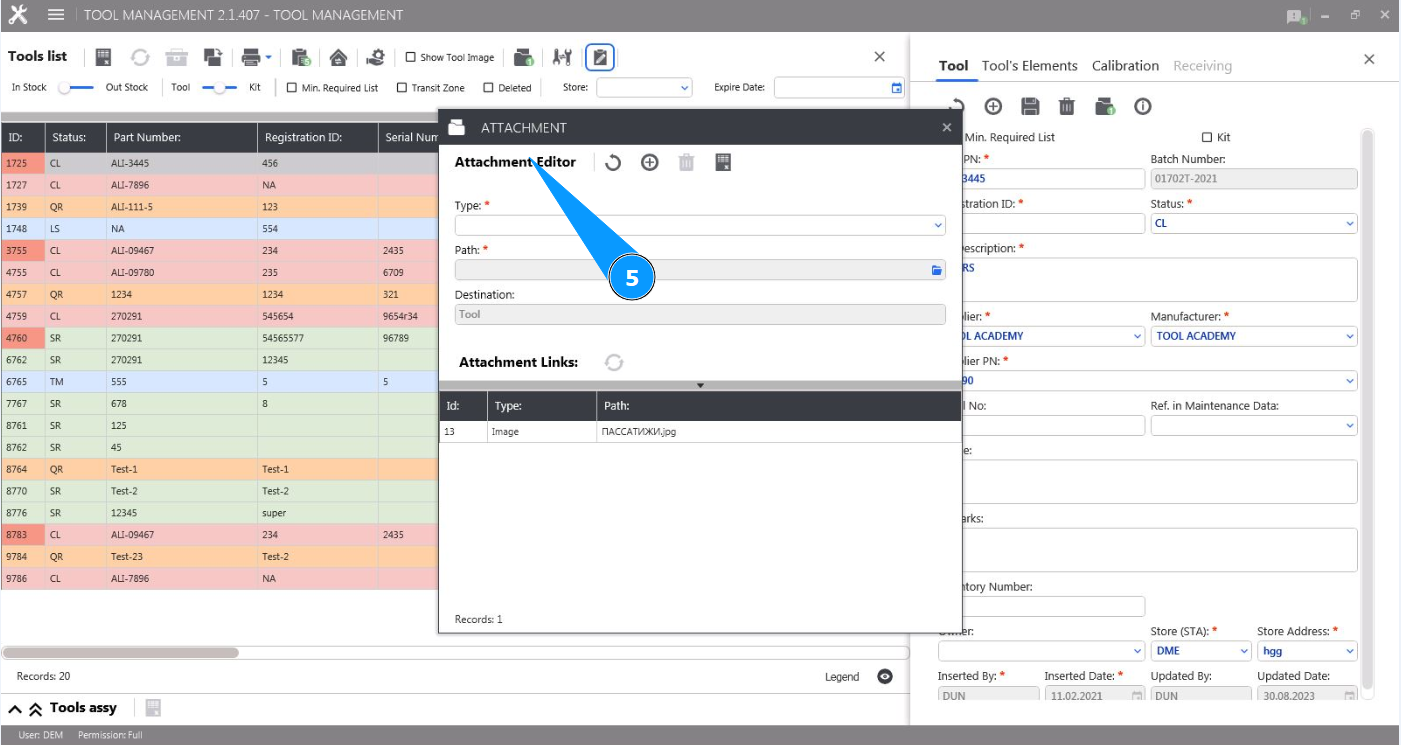
5. Check that the image attachment section has opened and is available in the window "Attachment Editor".
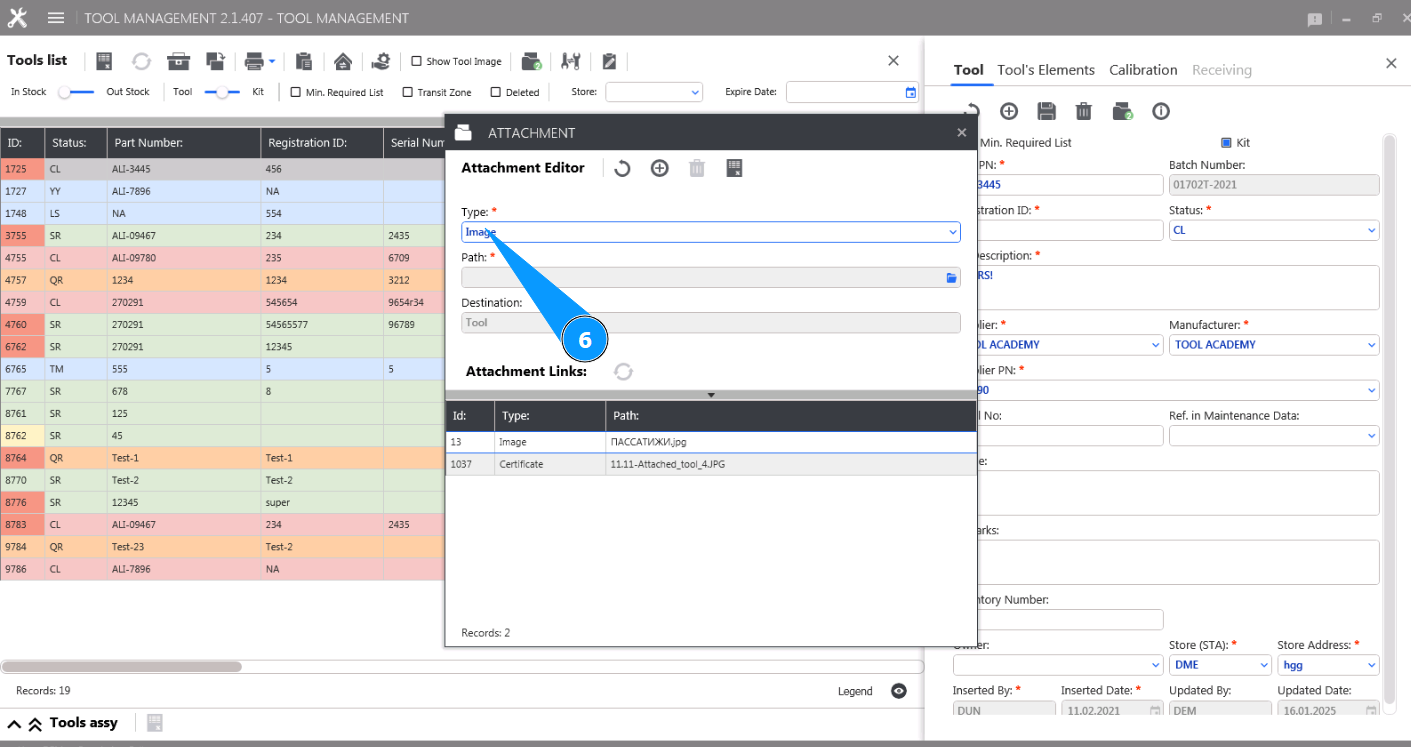
6. From the dropdown list, select the "Image" document type in the field "Type".
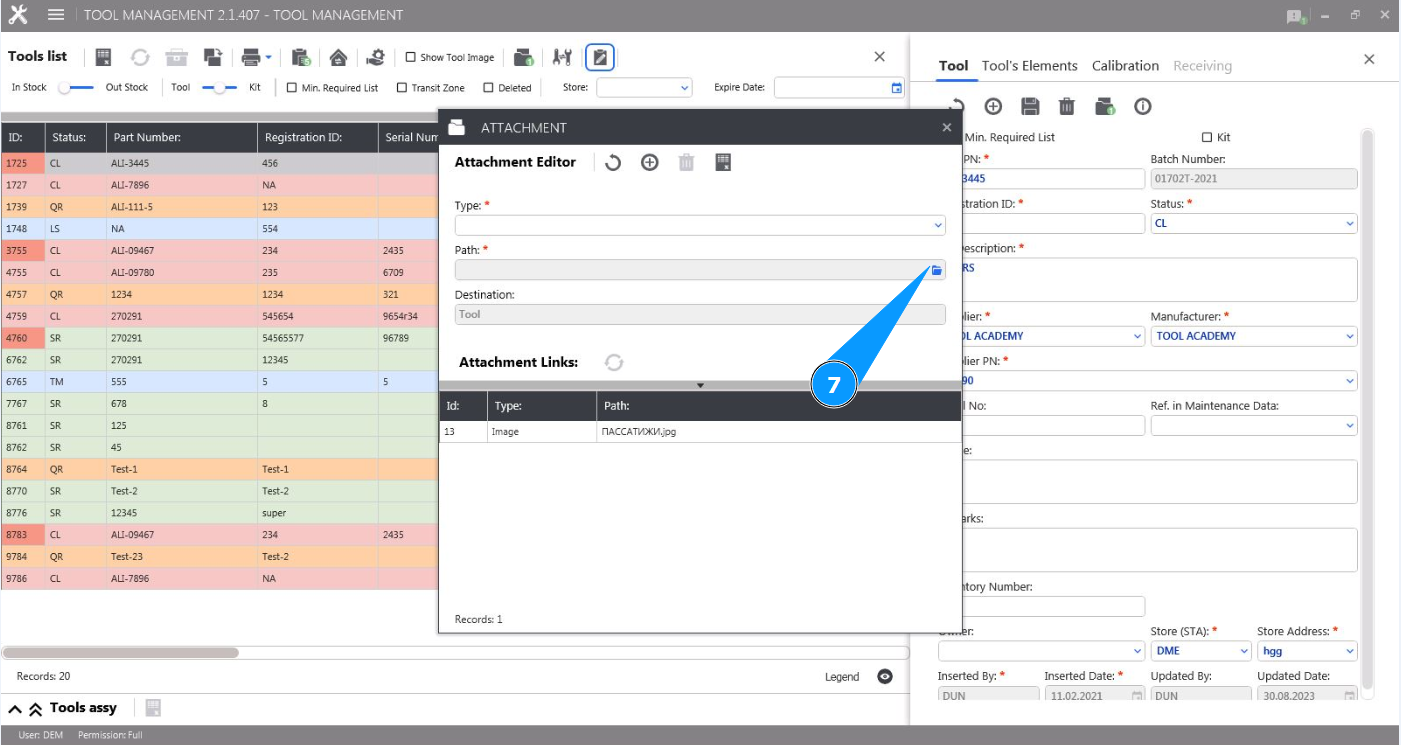
7. Click on the button "Path" to select a document on your computer.
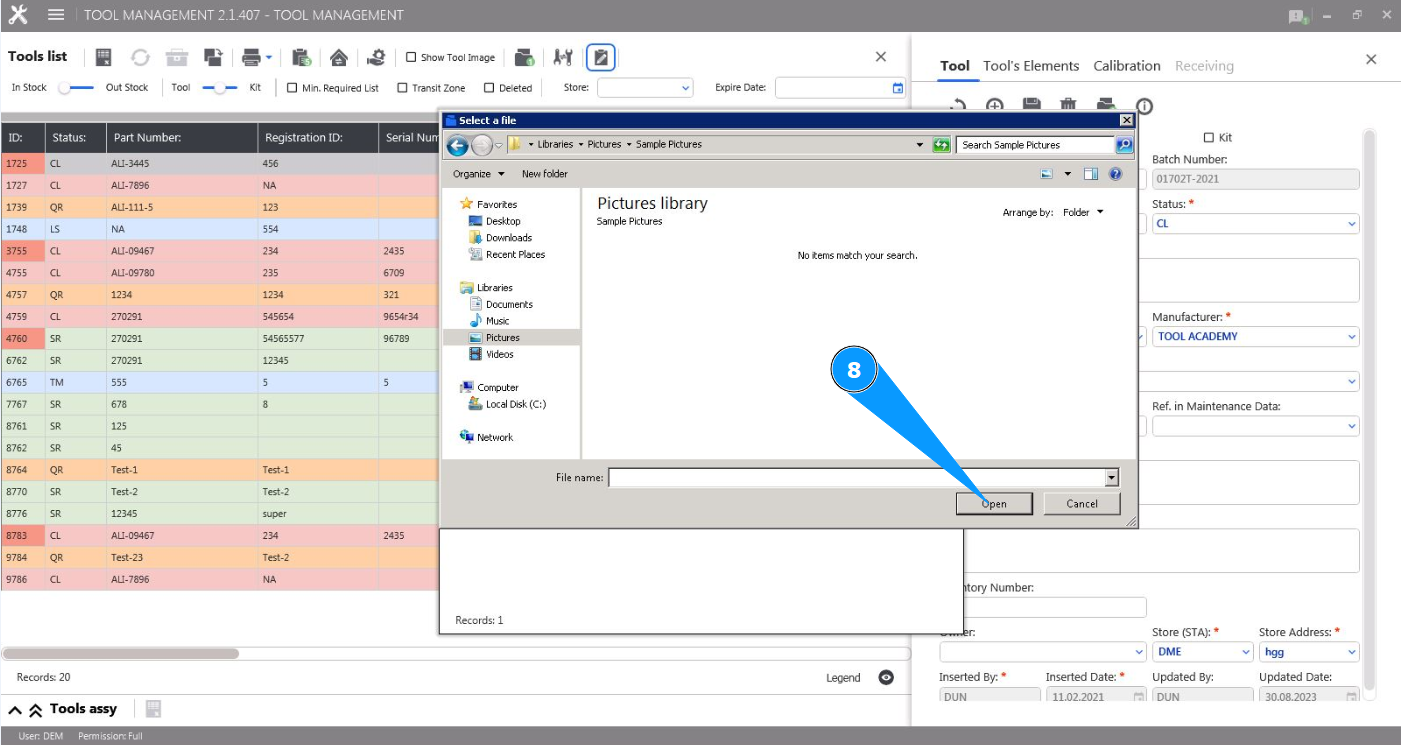
8. Select the desired image file on your computer and click on the button "Open".
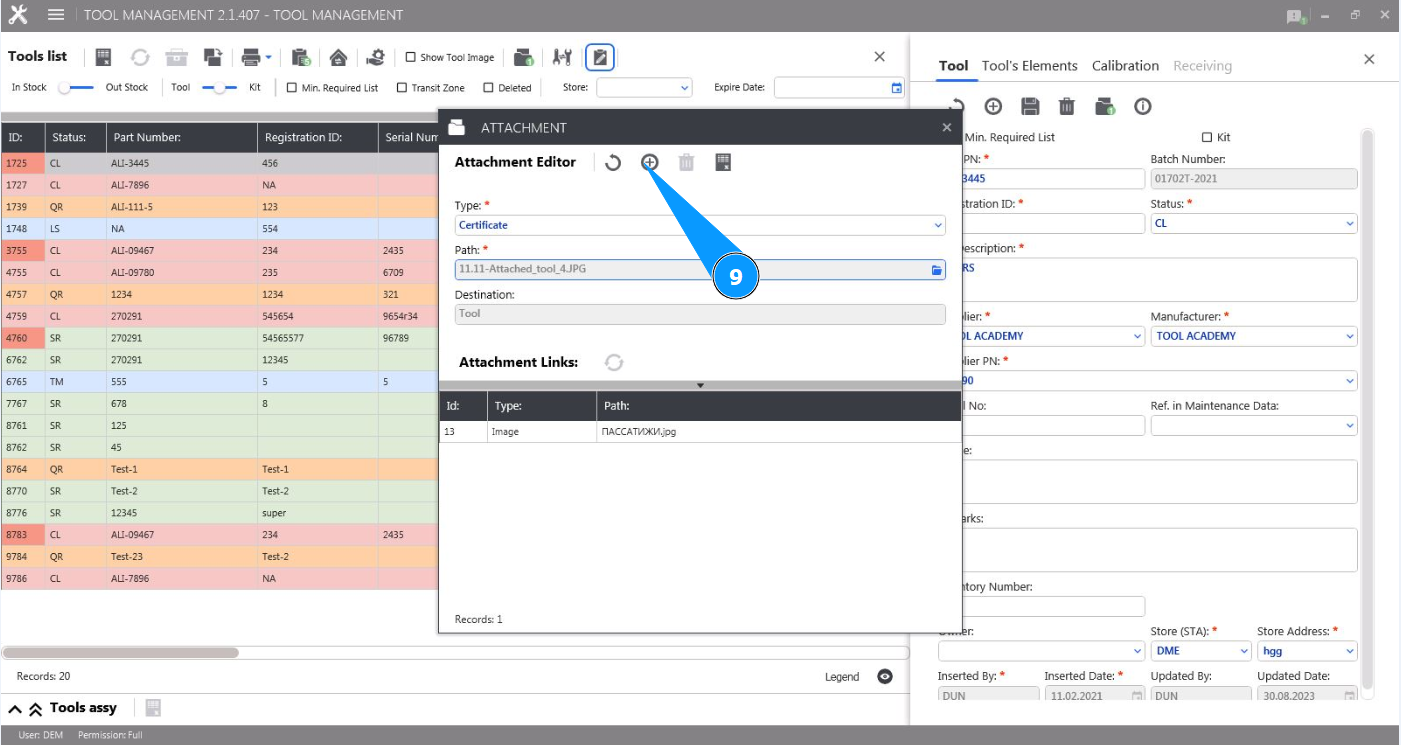
9. Click on the button "Add" to add an image to the tool card.
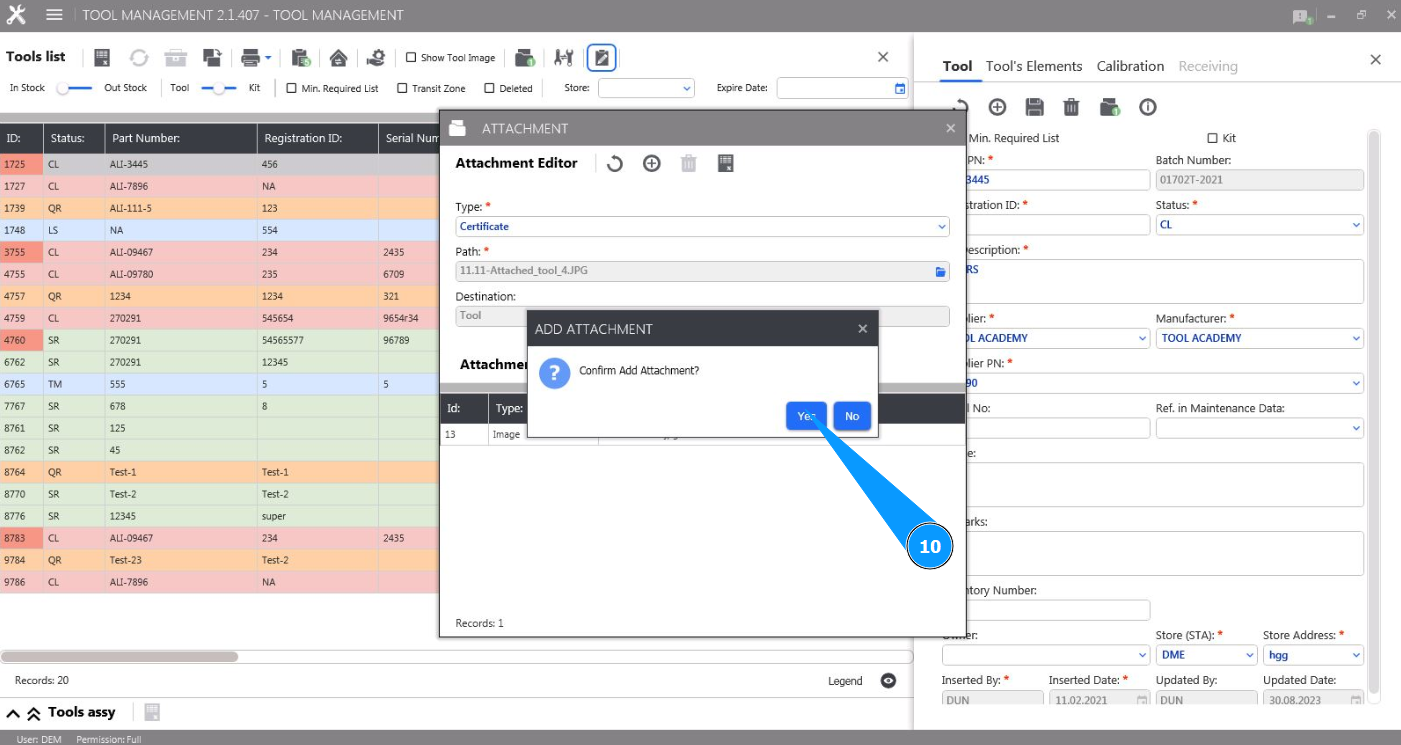
10. Click on the button "Yes" to confirm adding the image to the tool card.
11. Check that the added image is displayed in the list of the window "Attachment List".