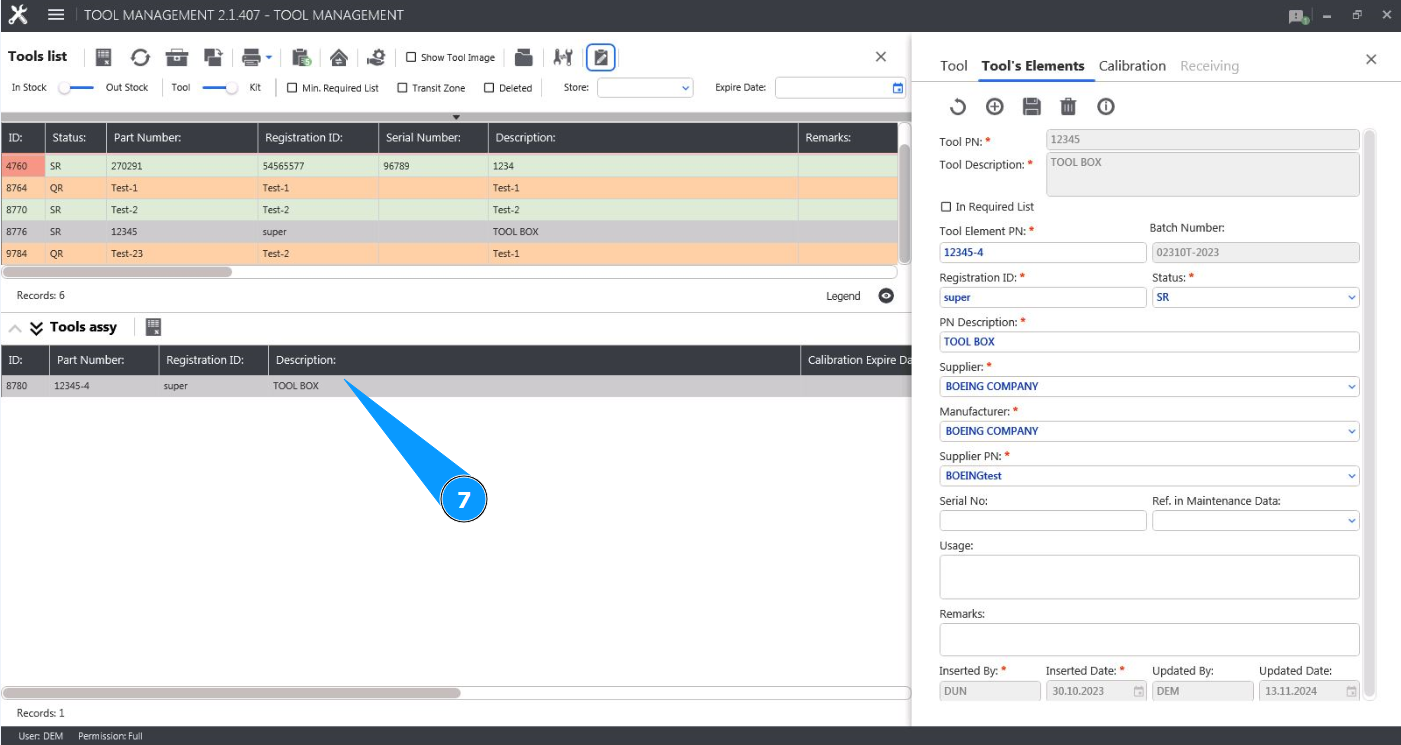
How to update a tool kit element
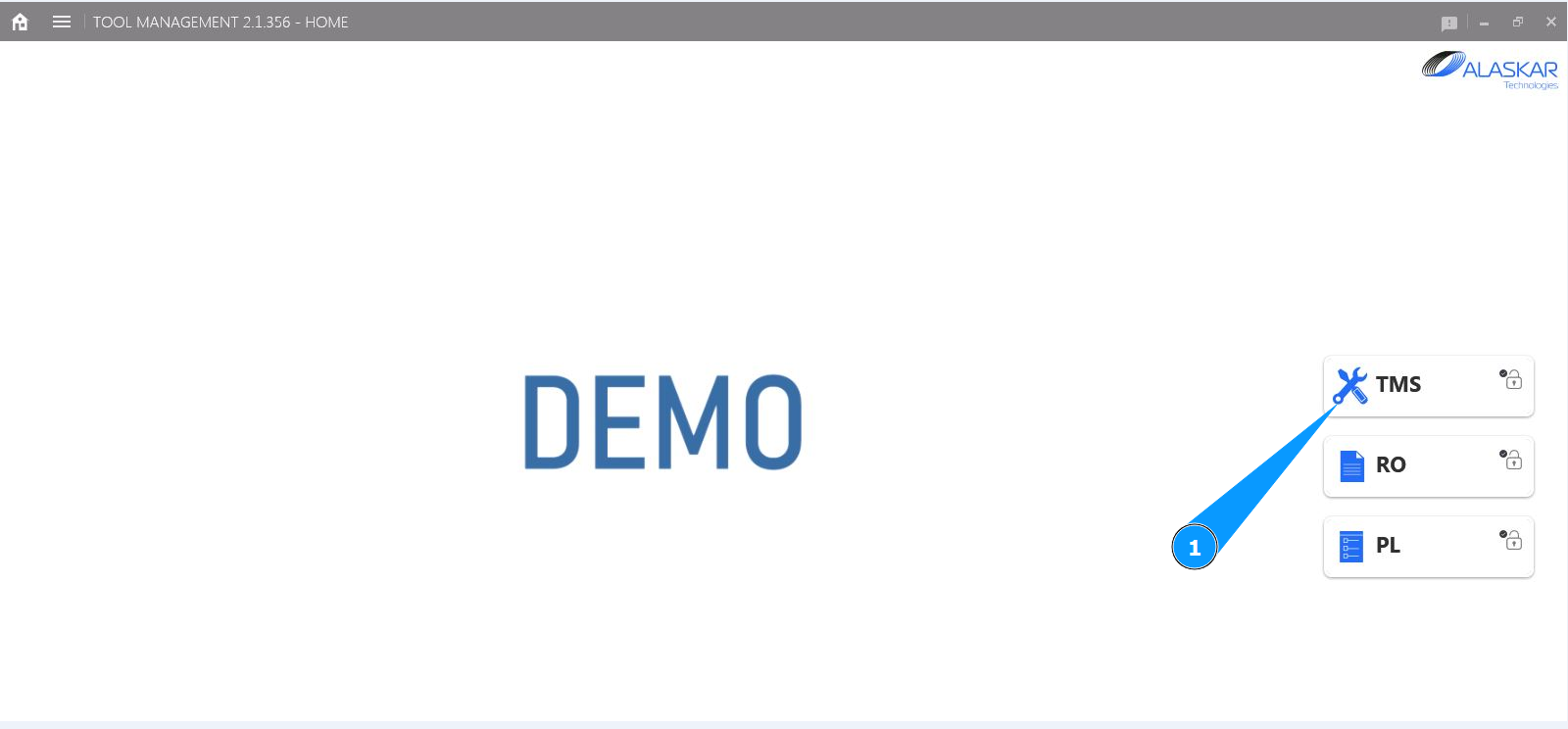
1. In order to update a tool kit element, go to the submodule "TMS".
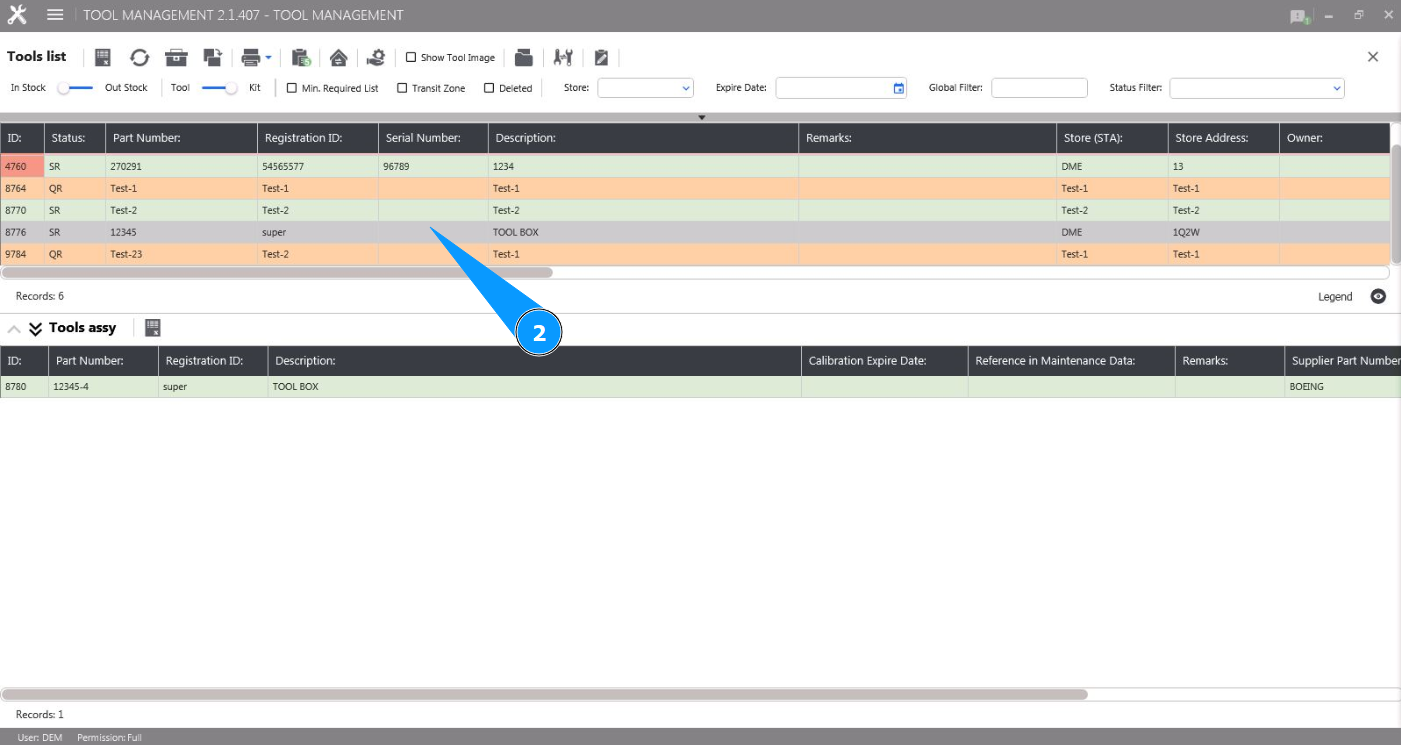
2. Select the required line with the tool in the window and click on it in the window "Tool List".
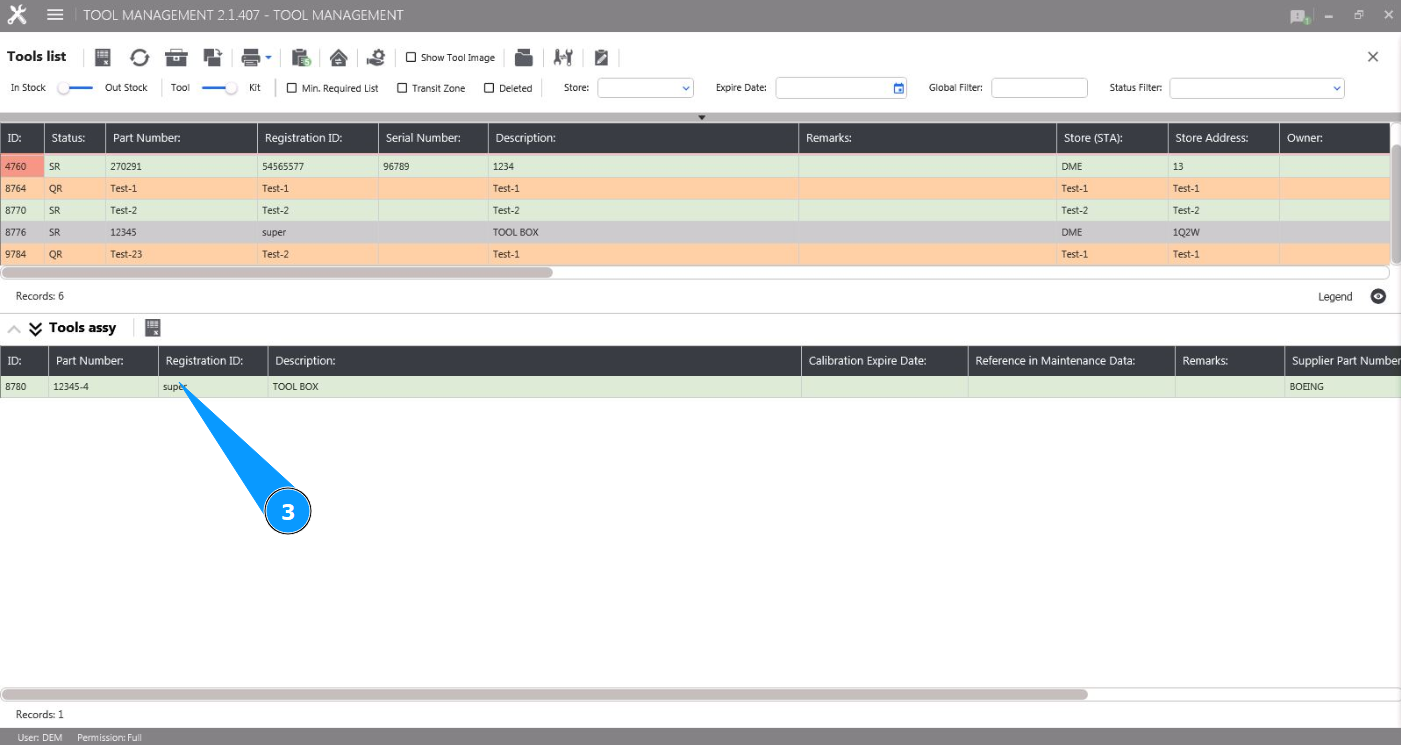
3. Select the required line with the tool kit element and click on it in the window "Tool Assy".
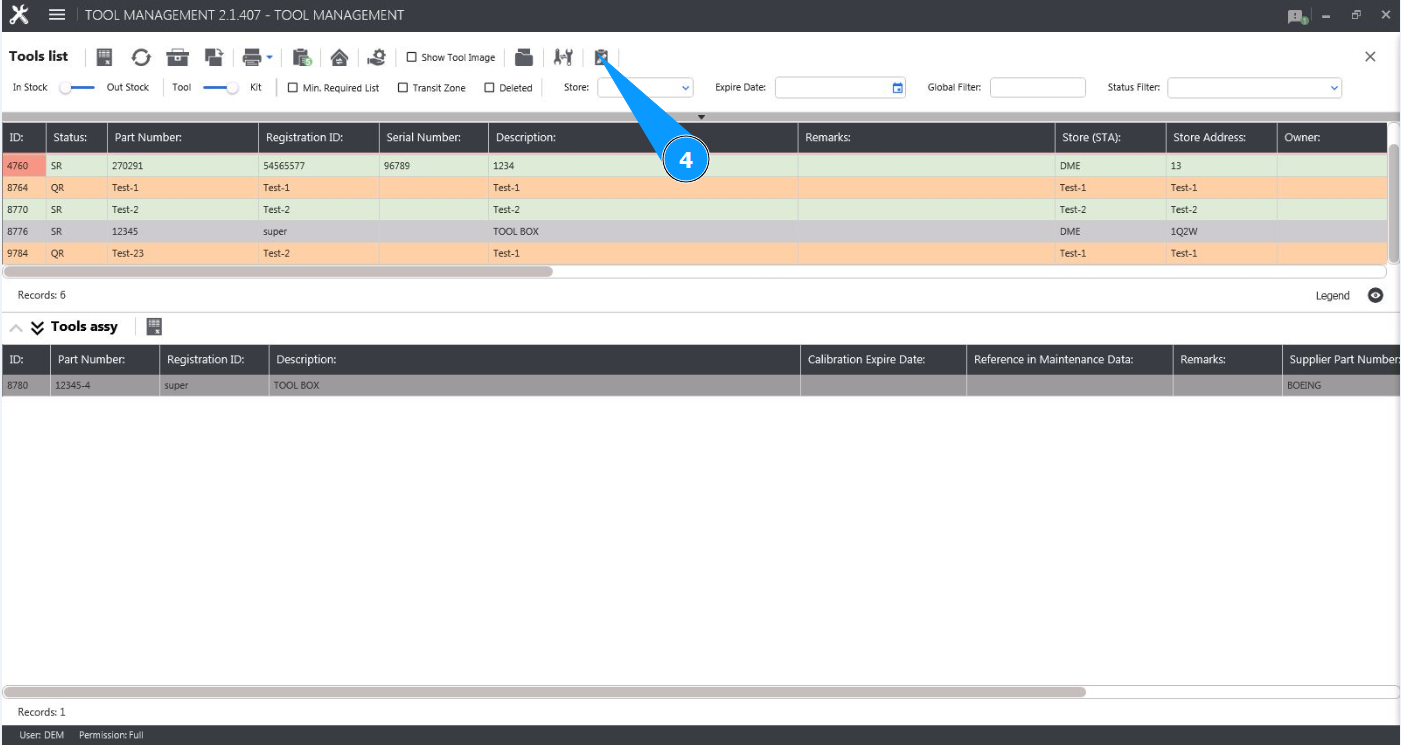
4. Click on the button "Show Editor" to open the tool kit element editor.
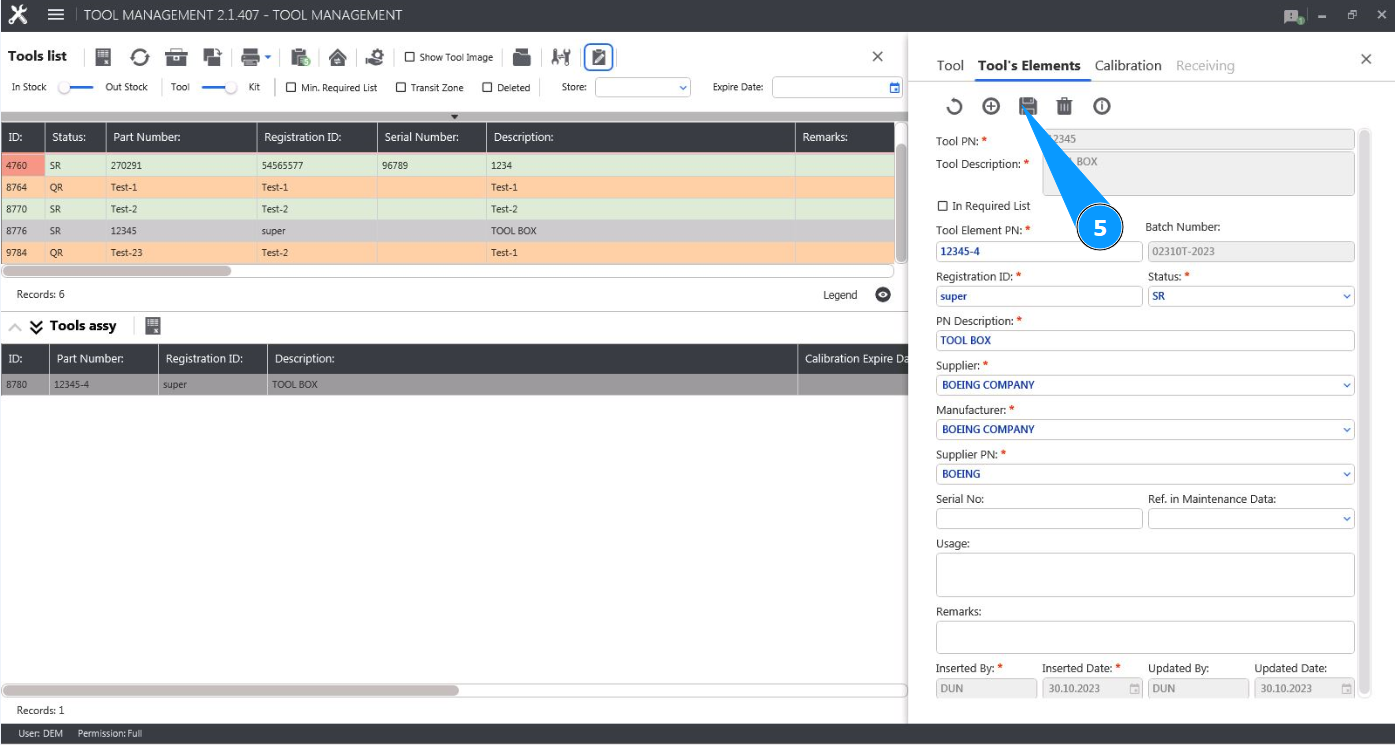
5. Make the necessary changes to the tool kit element and click on the button "Update".
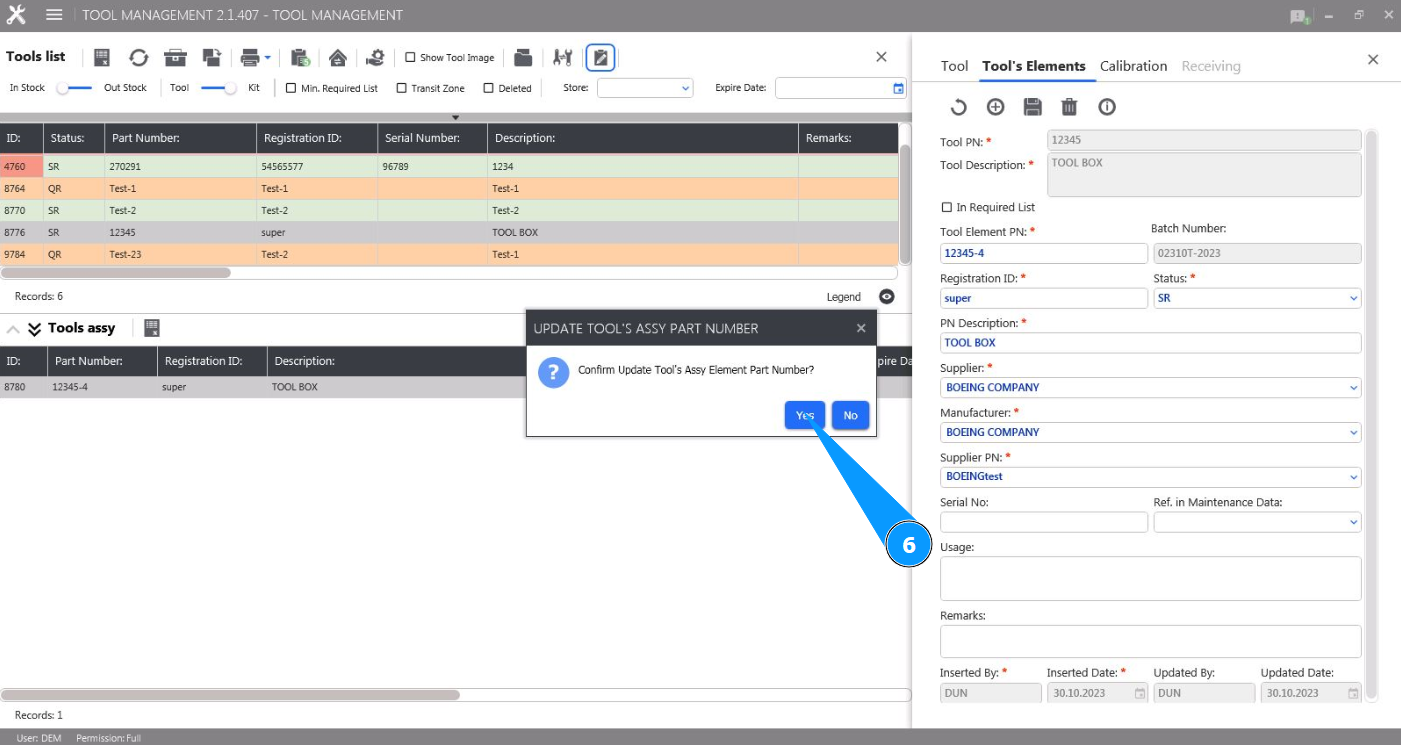
6. Click on the button "Yes" to confirm updating the data in the tool kit element.
7. Check that the necessary changes have been successfully made in the window "Tool Assy".