How to return a tool to the tool stock
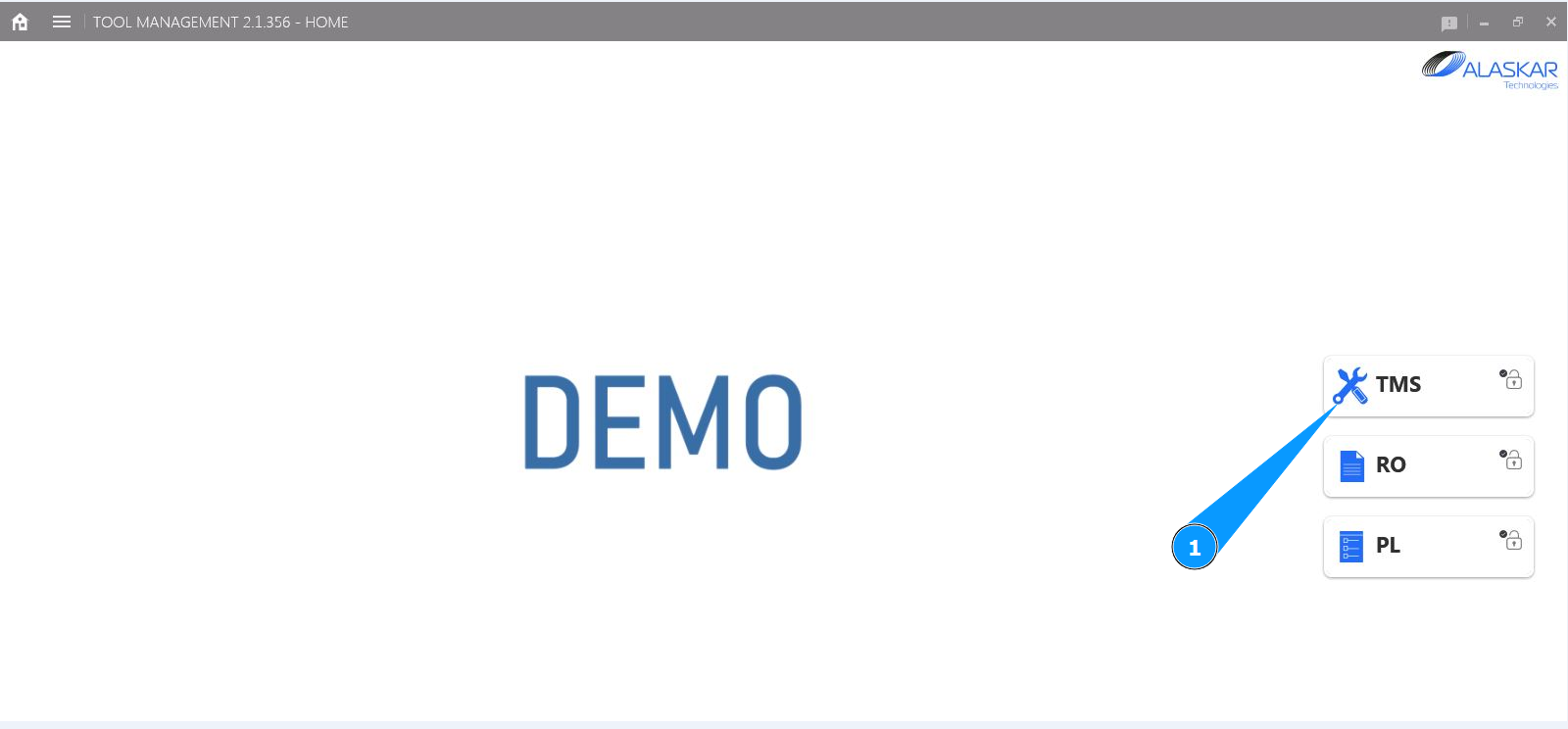
1. In order to return a tool to the tool stock, go to the submodule "TMS".
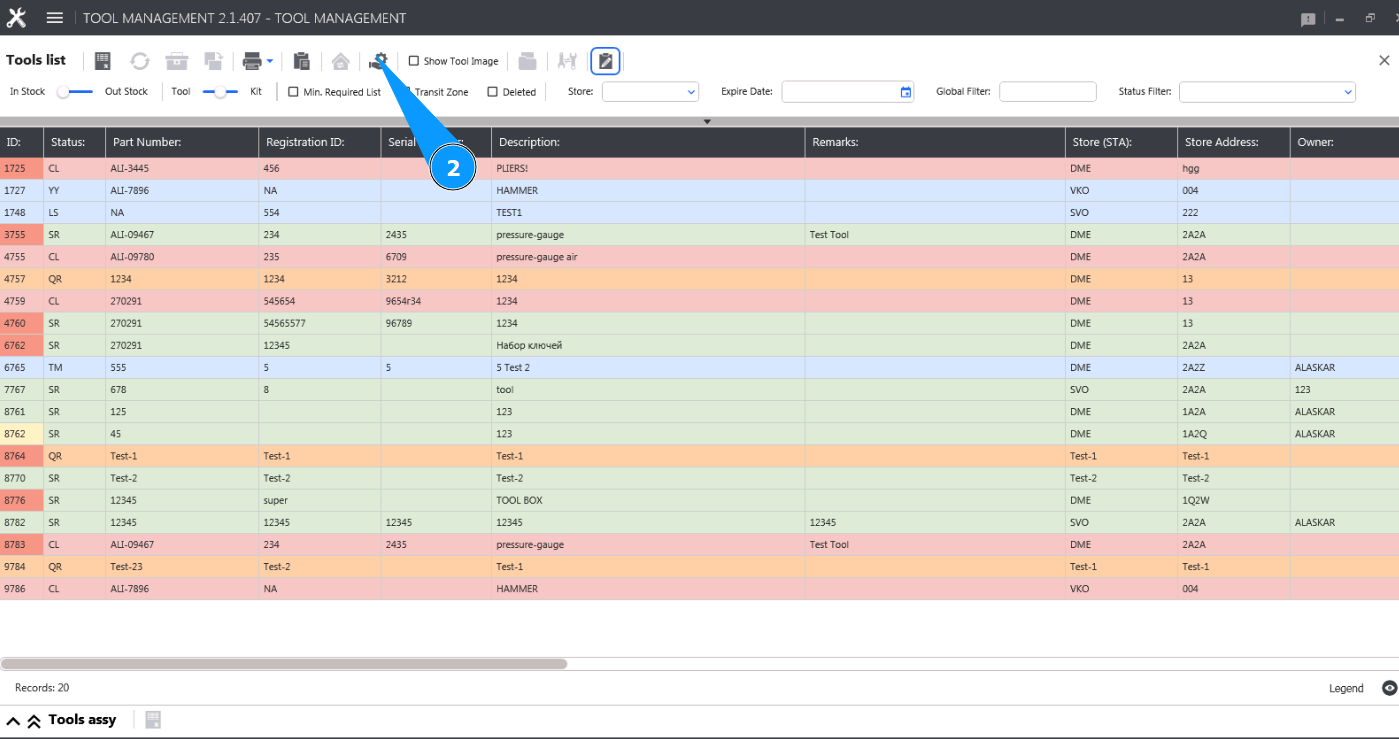
2. Click on the button "Issue or Return Tool" to open the tool acceptance editor.
3. From the dropdown list, select the login of the personnel who returns the tool to stock in the field "Mechanic".
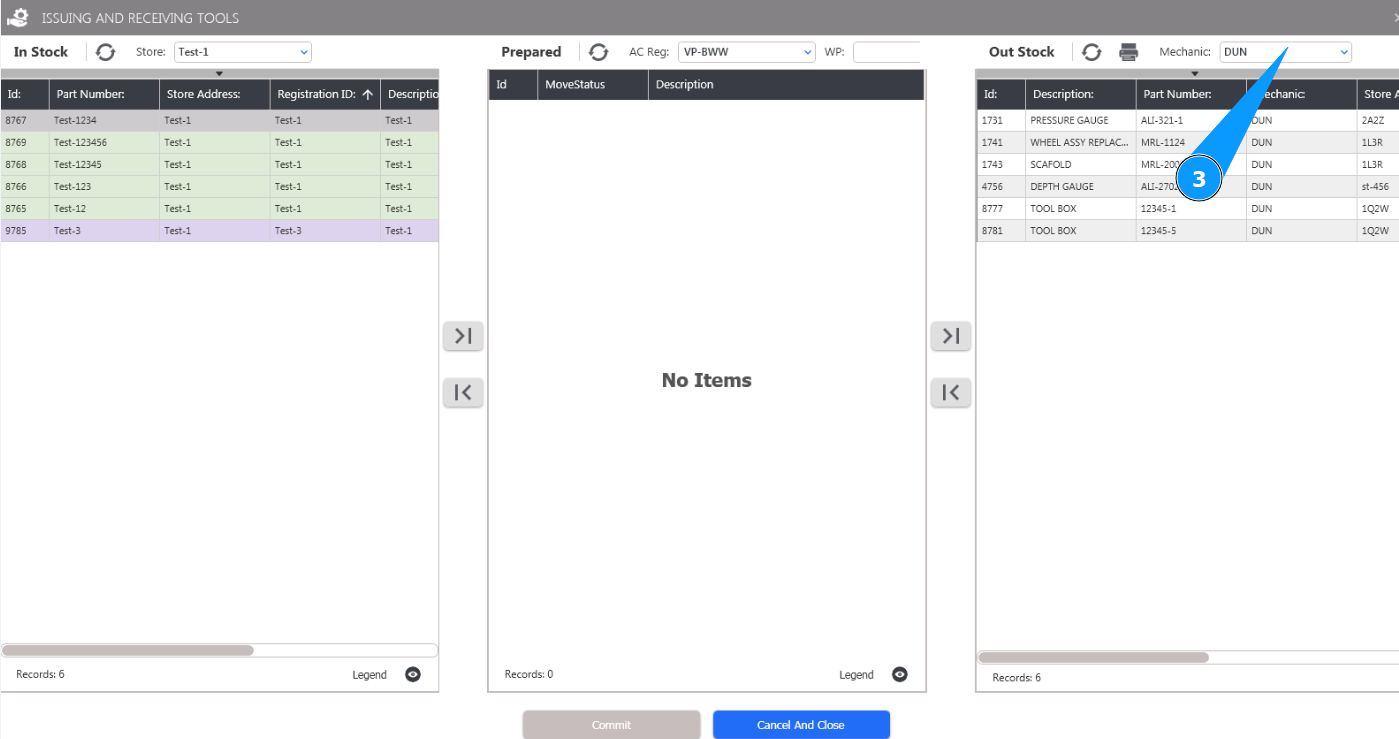
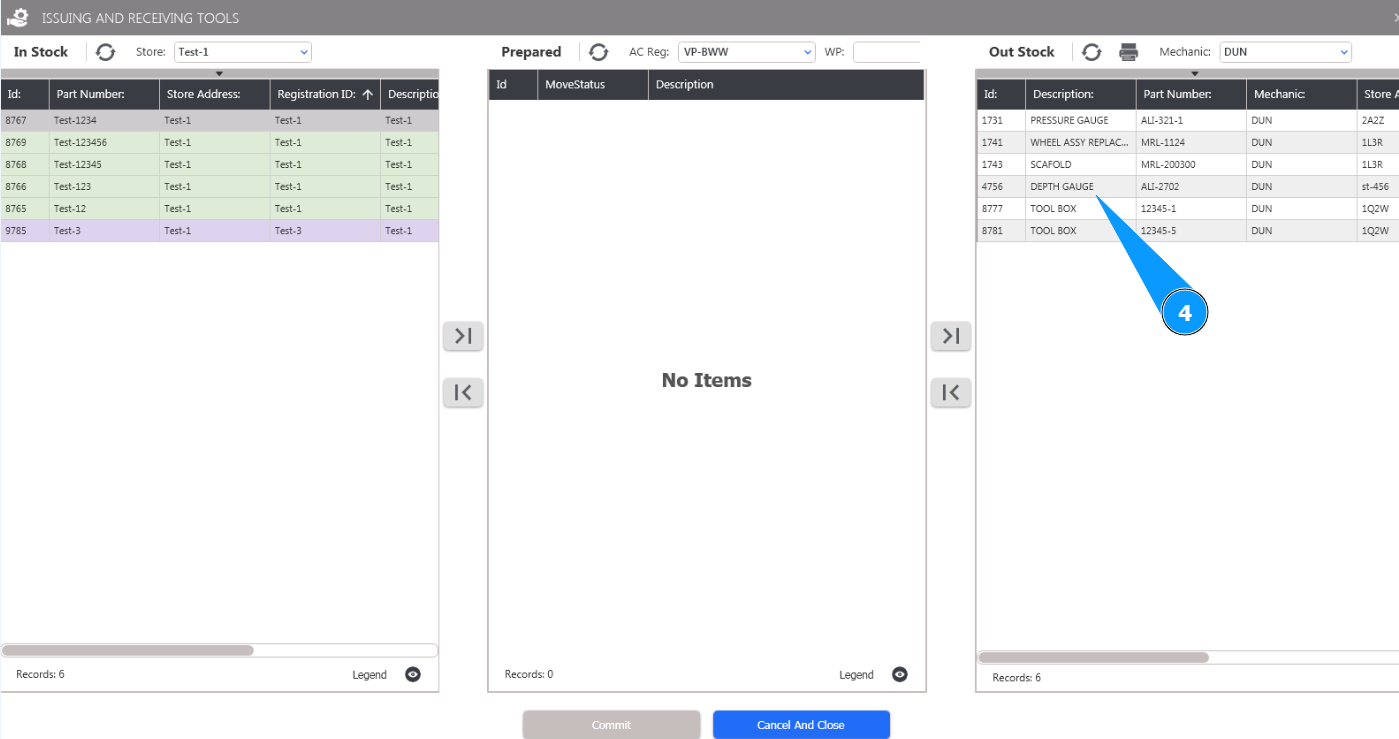
4. Select the required line of the tool to be returned to the stock and click on it in the window "Out Stock".
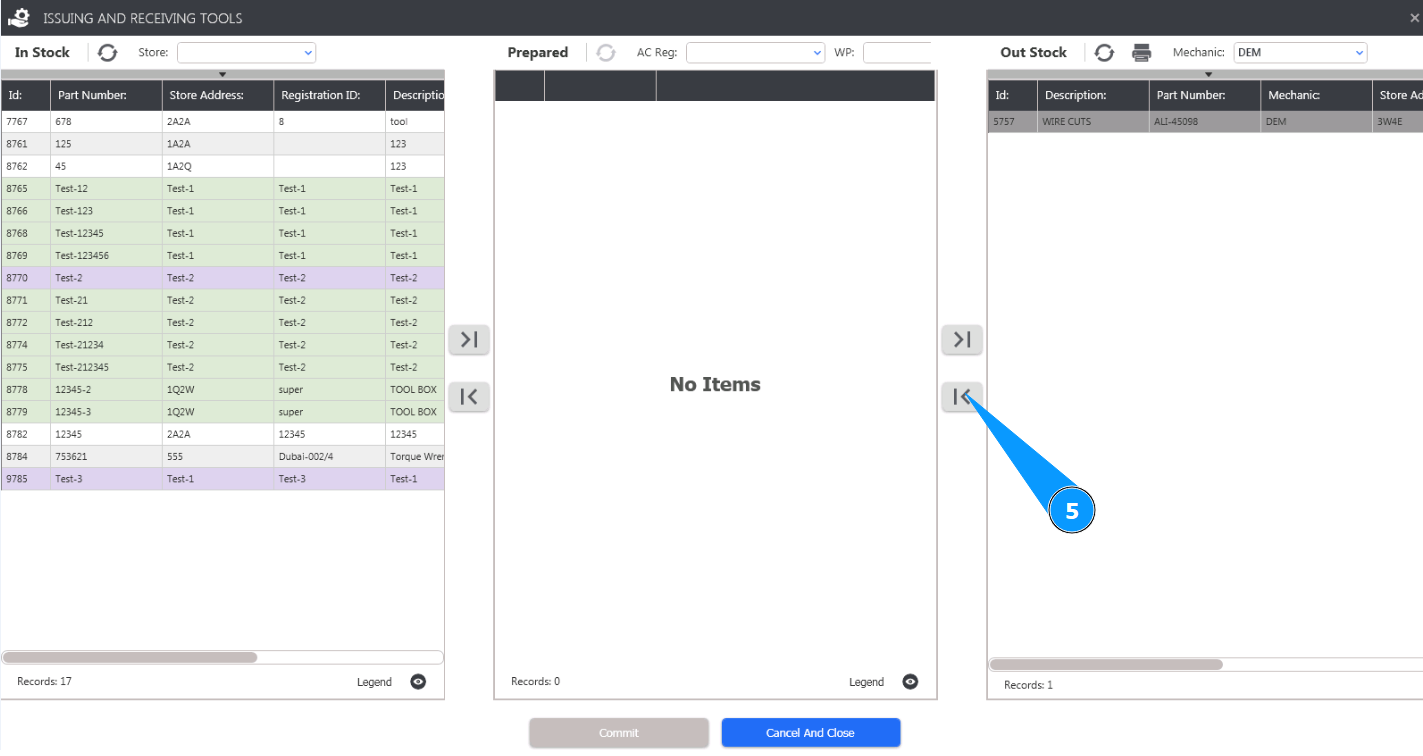
5. Click on the button "Move In" to move the tool in the return window "Prepared".
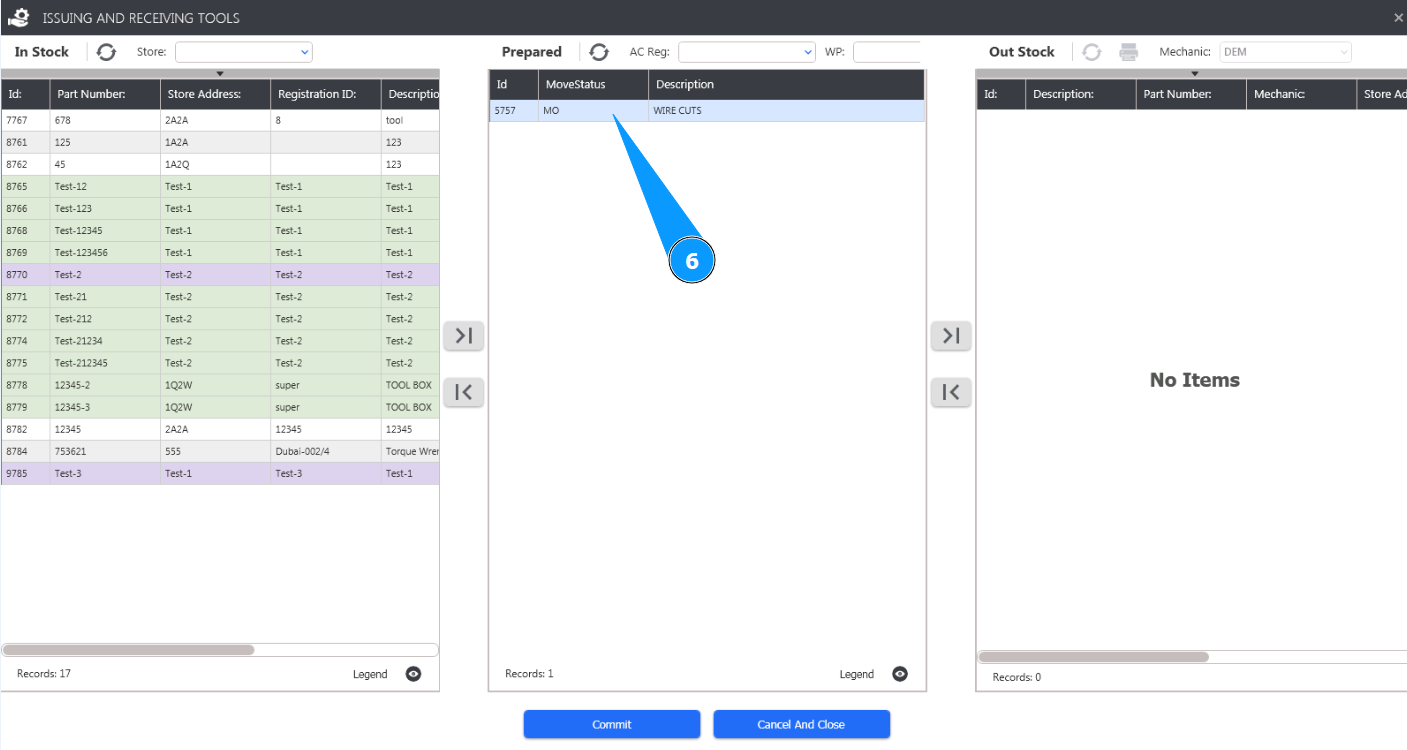
6. Check that the tool has moved and is displayed in the return window "Prepared".
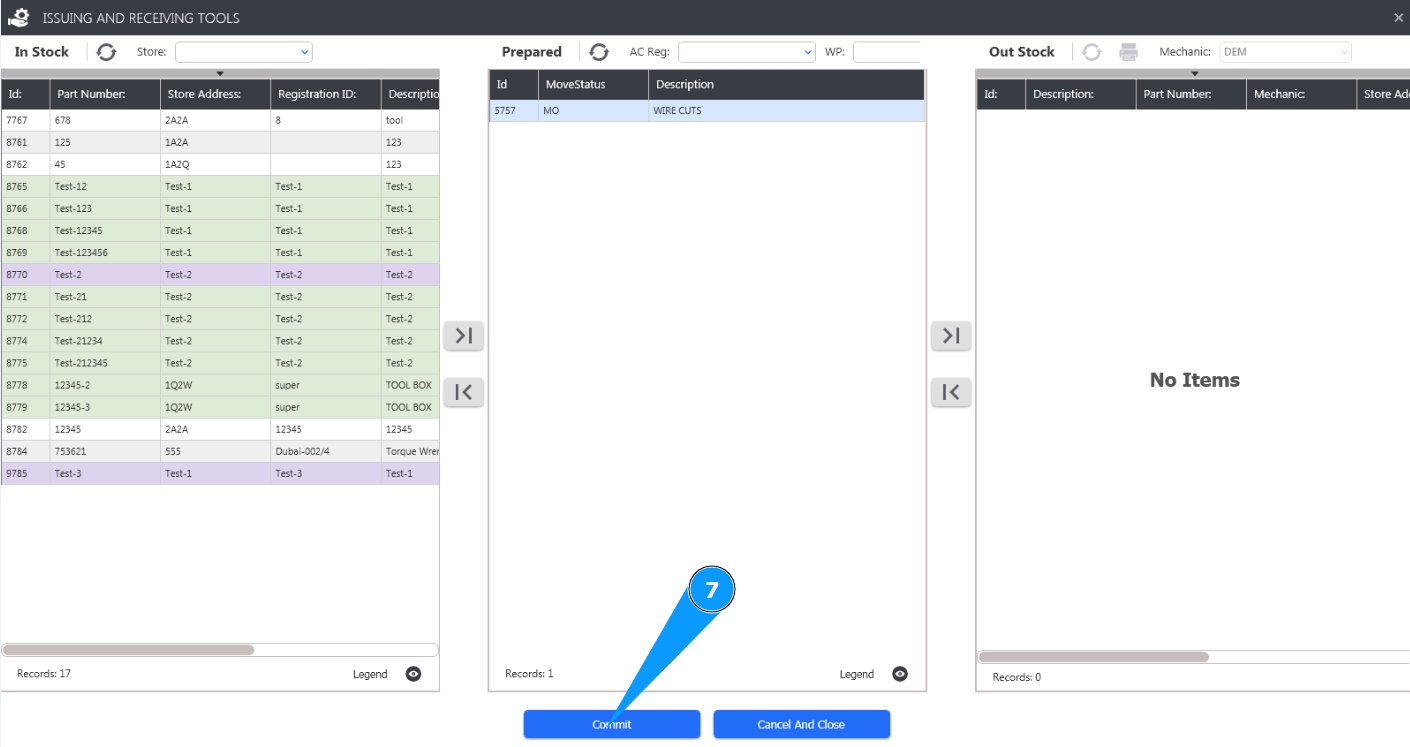
7. Click on the button "Commit" to move the tool to the stock.
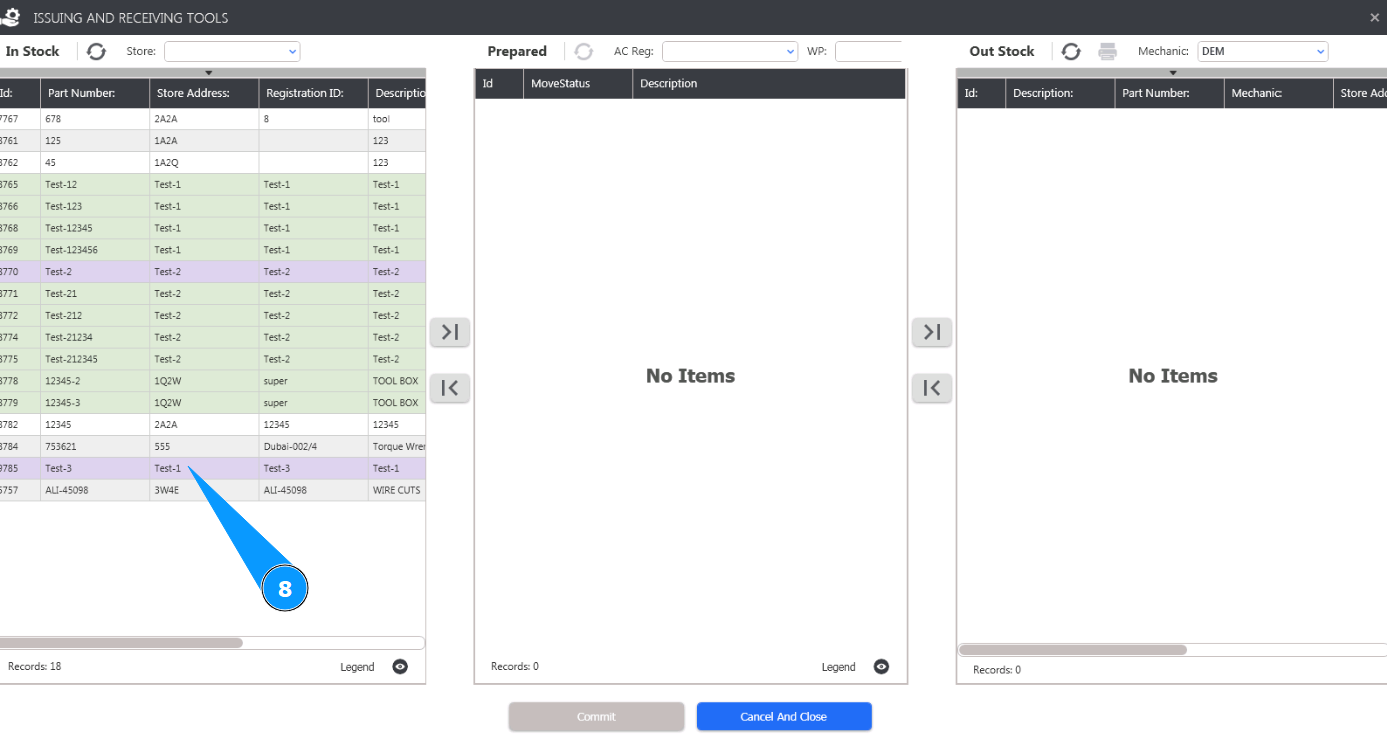
8. Check that the tool has moved and is displayed in the stock window "In Stock". The tool has been successfully returned to the tool stock.