How to print a tool check card
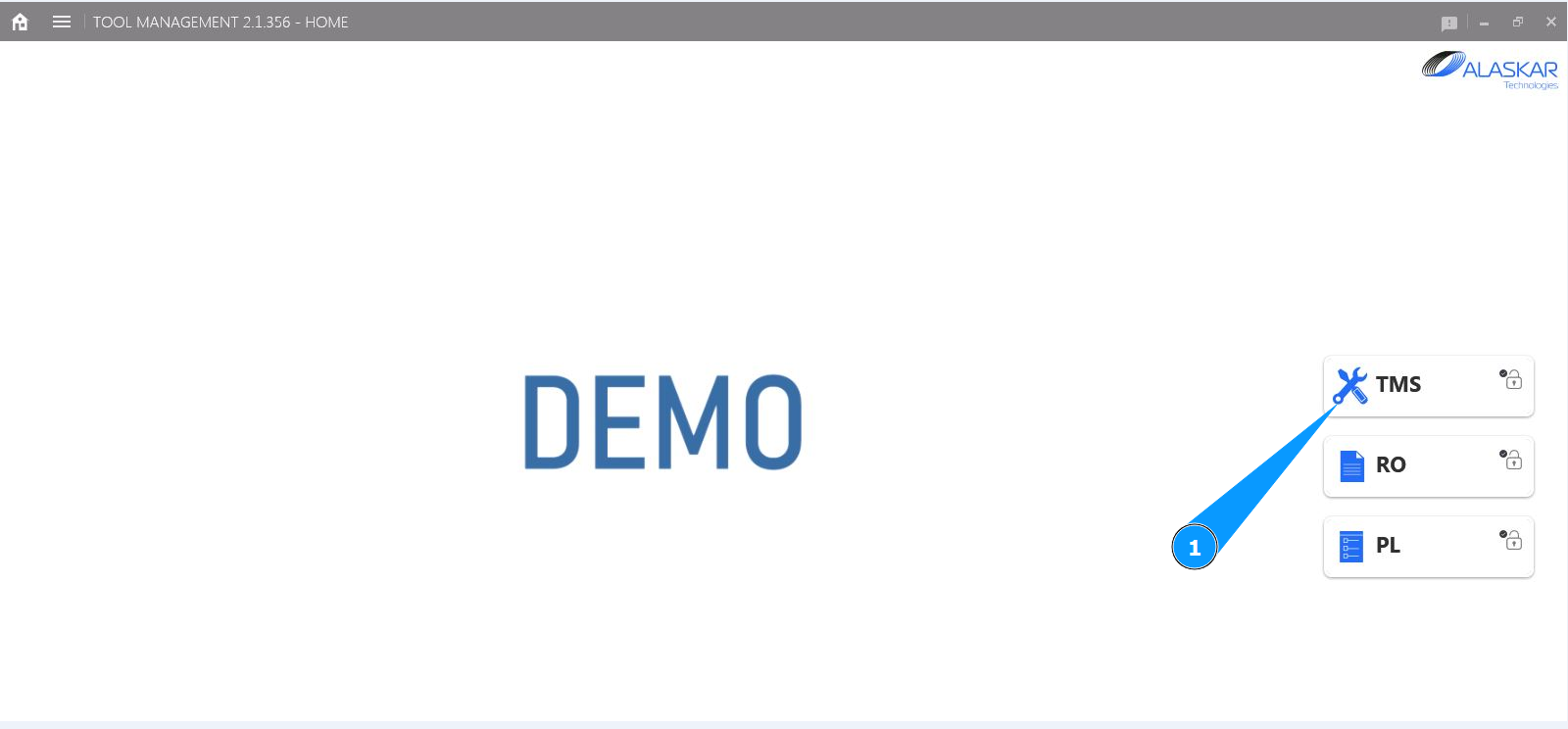
1. In order to print a tool check card, go to the submodule "TMS".
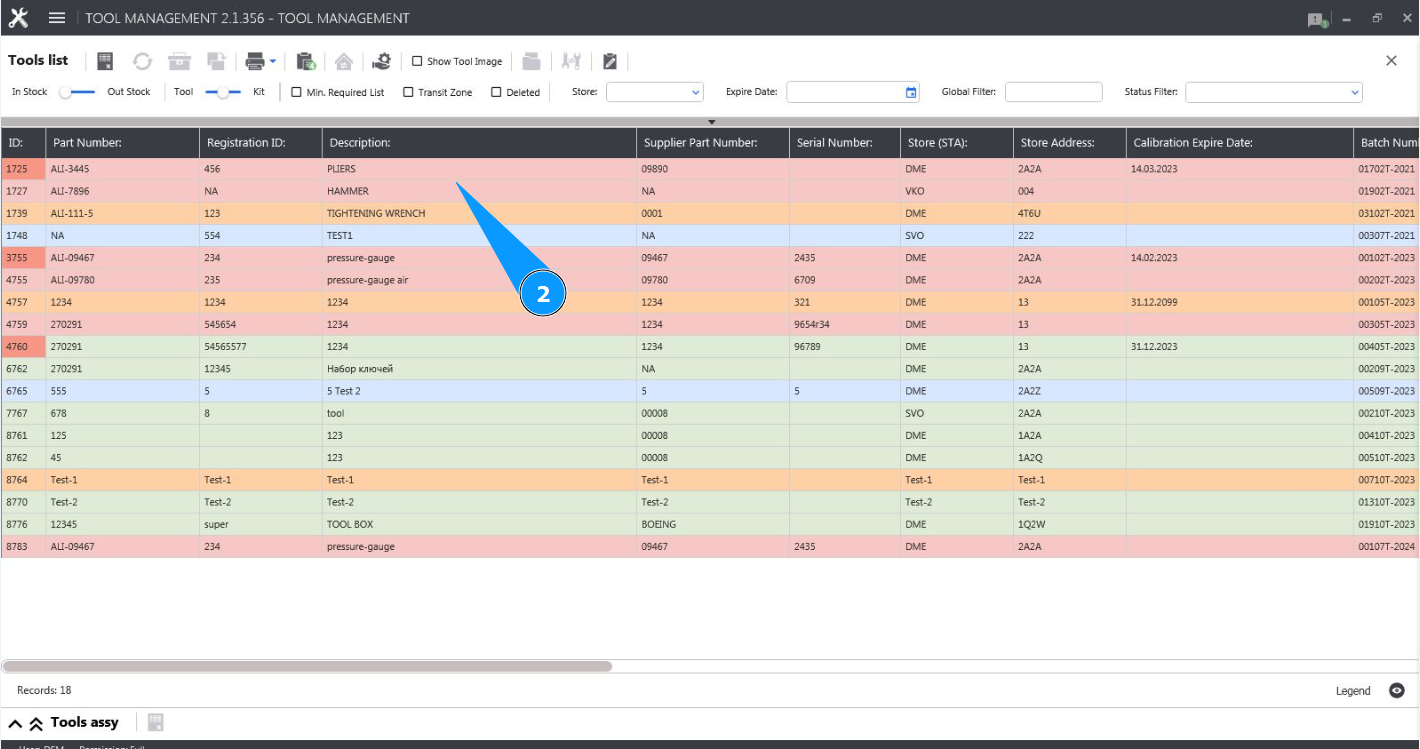
2. Select the required line with the tool and click on it in the window "Tool List".
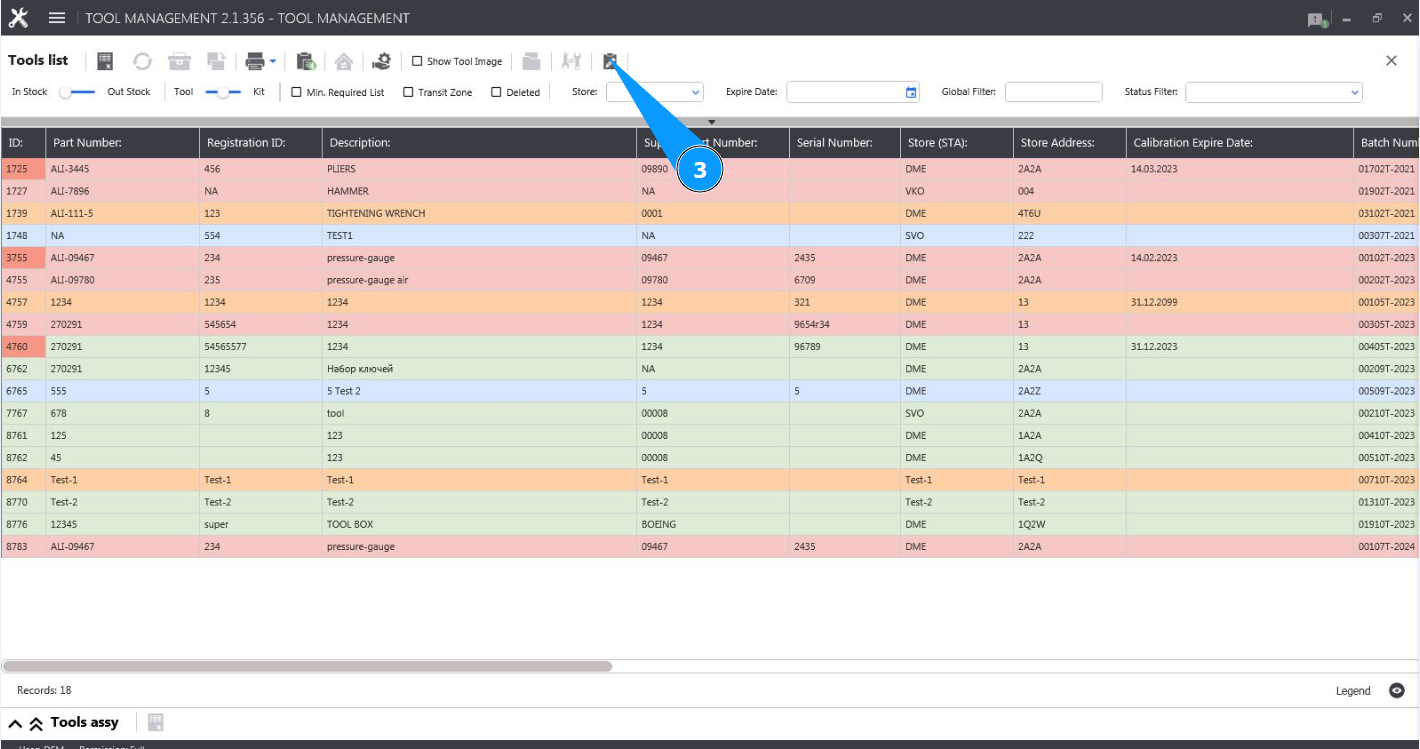
3. Click on the button "Show Editor" to open the tool editor.
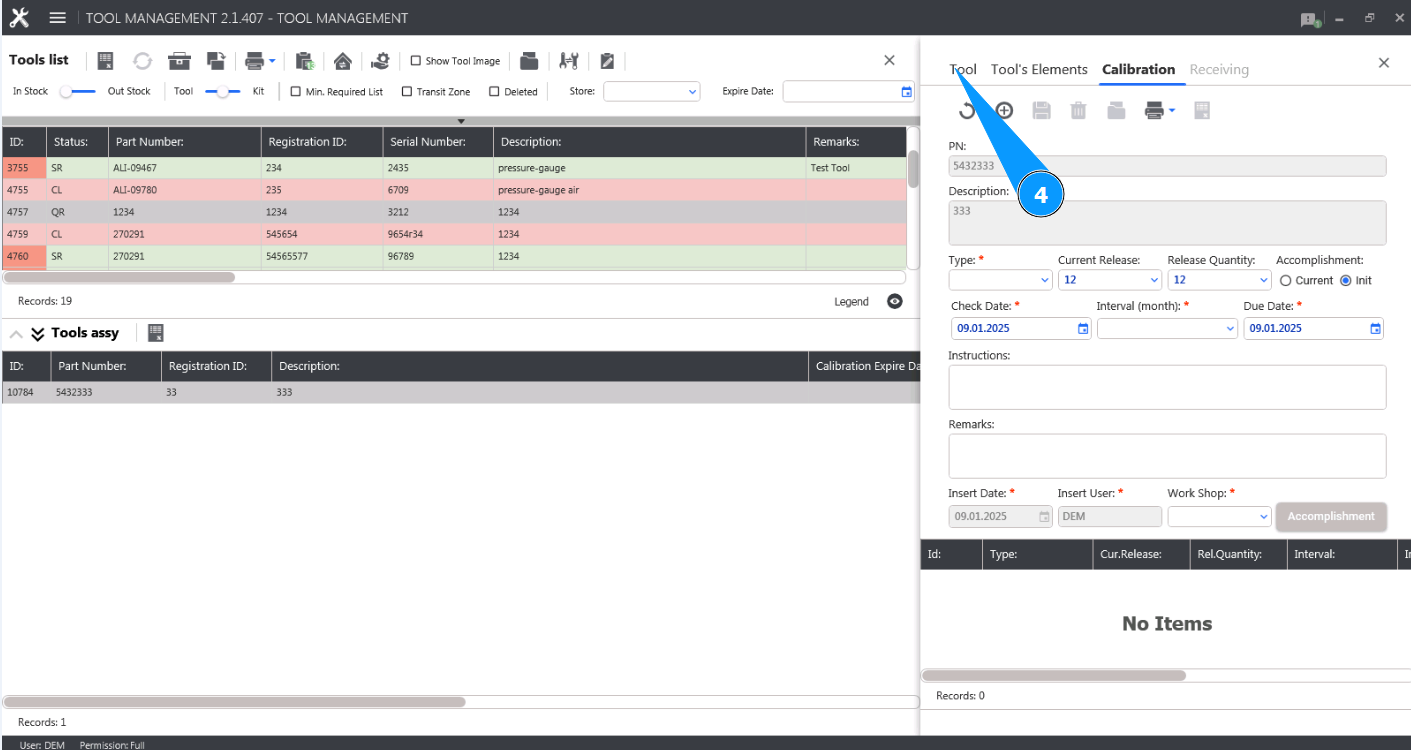
4. Make sure the editor is open and accessible in the tab "Tool".
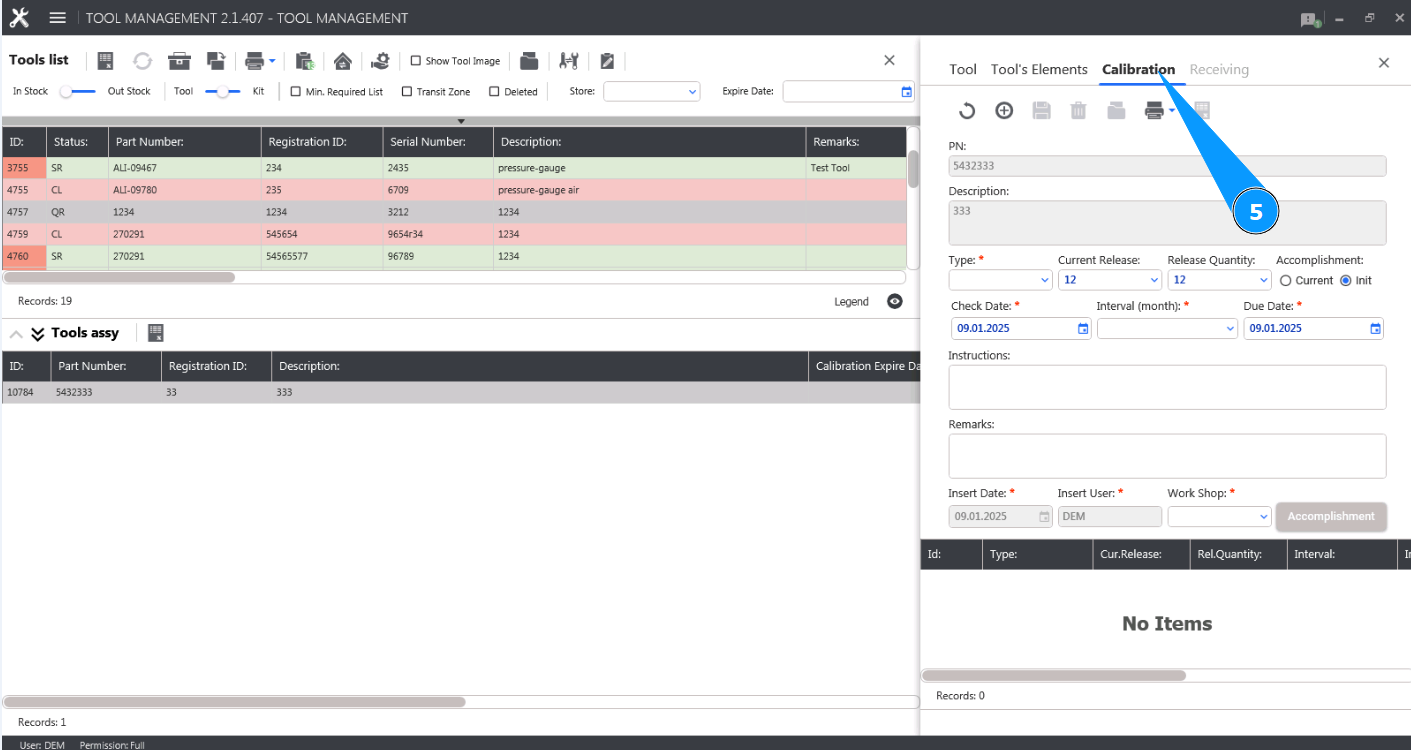
5. Go to the tab "Calibration".
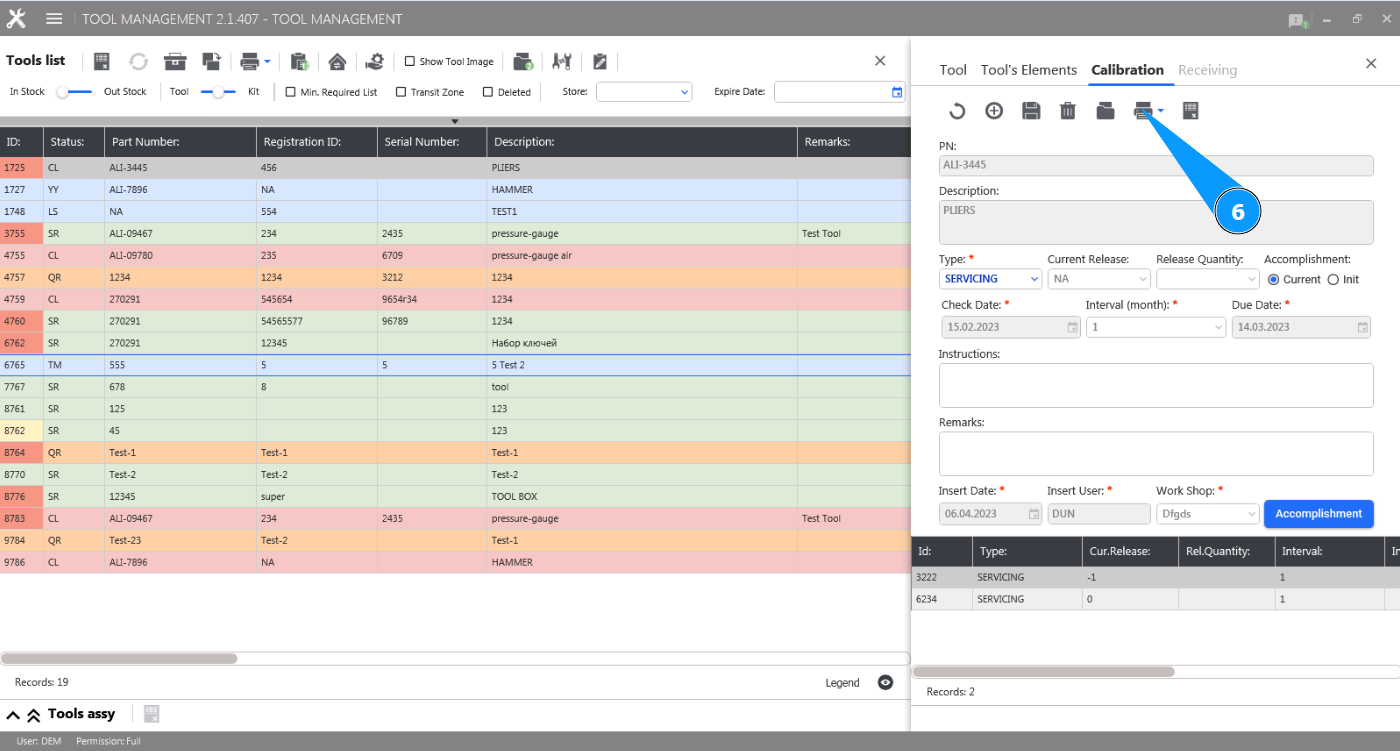
6. Click on the button "Choose Report to Print" to open the list of reports.
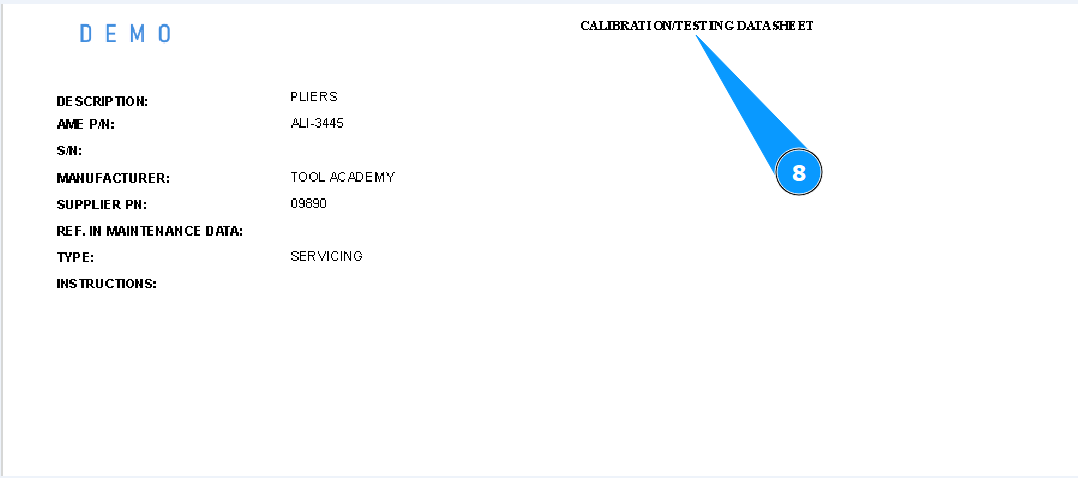
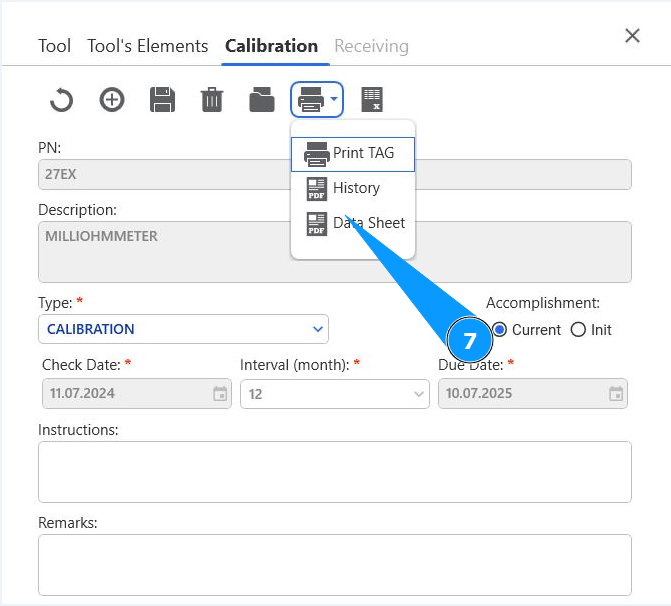
7. In order to display the tool check history, click on the button "Data Sheet".
8. Check that the required report has been generated and is displayed on your screen.