How to move a tool to new tool stock
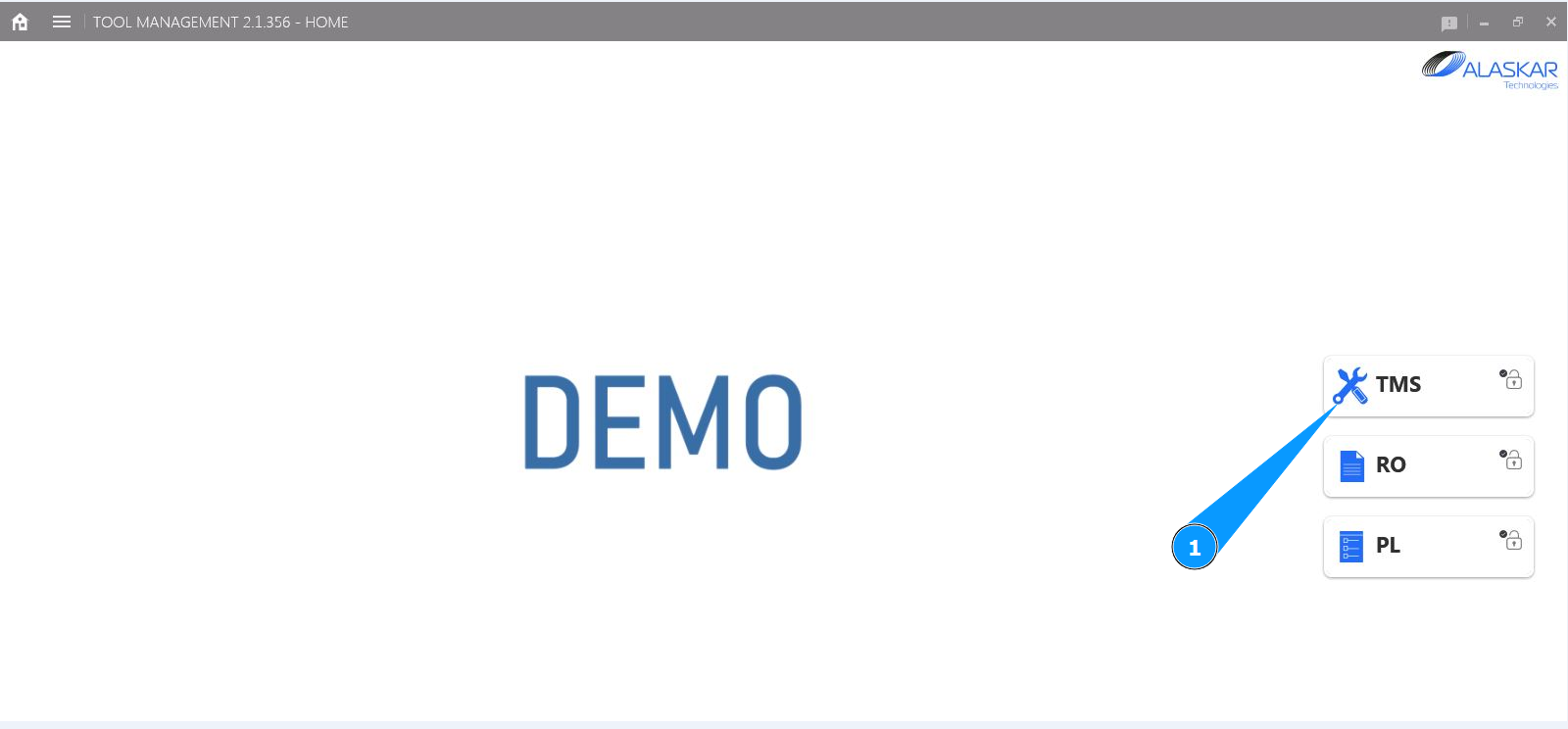
1. To move a tool to another tool stock, go to the submodule "TMS".
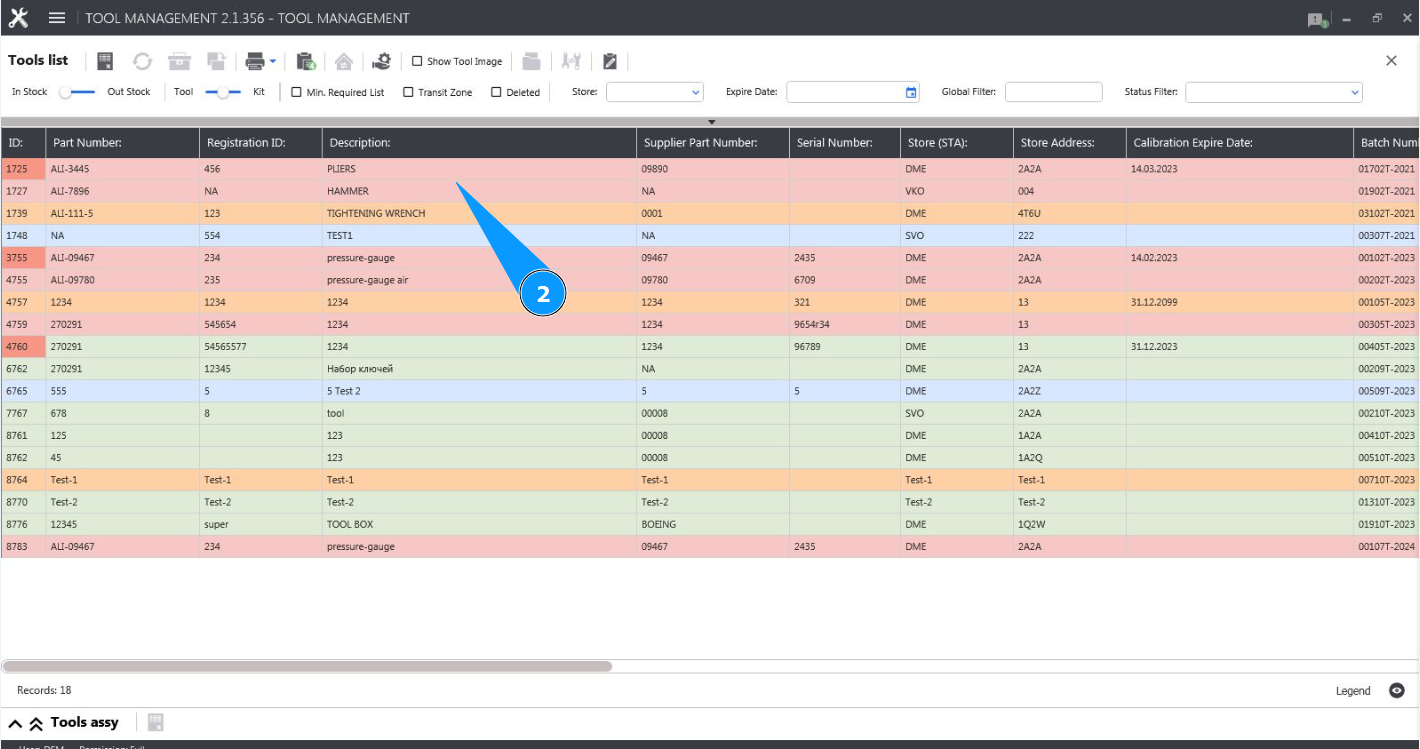
2. Select the required line with the tool and click on it in the window "Tool List".
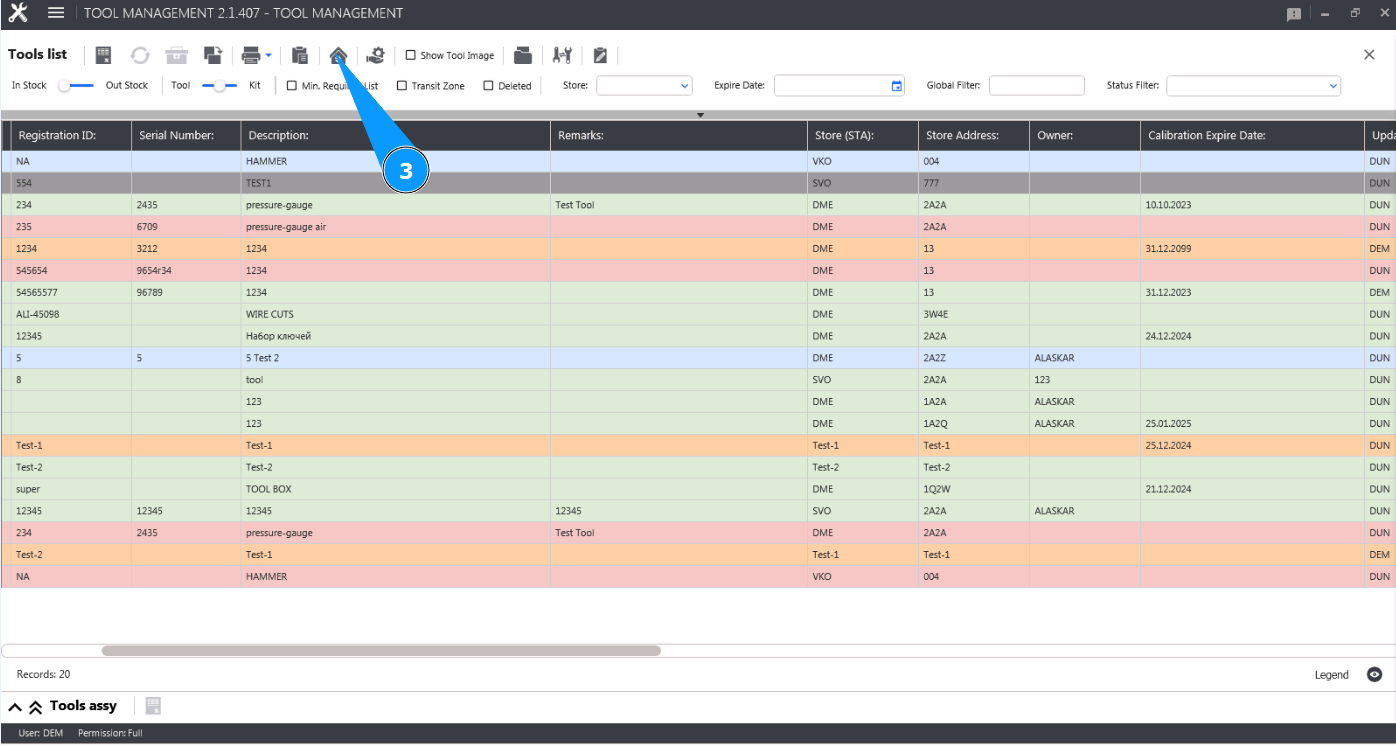
3. Click on the button "Move to Station" to open the tool move editor.
4. Make sure the editor is open and accessible in the window "Move Tool".
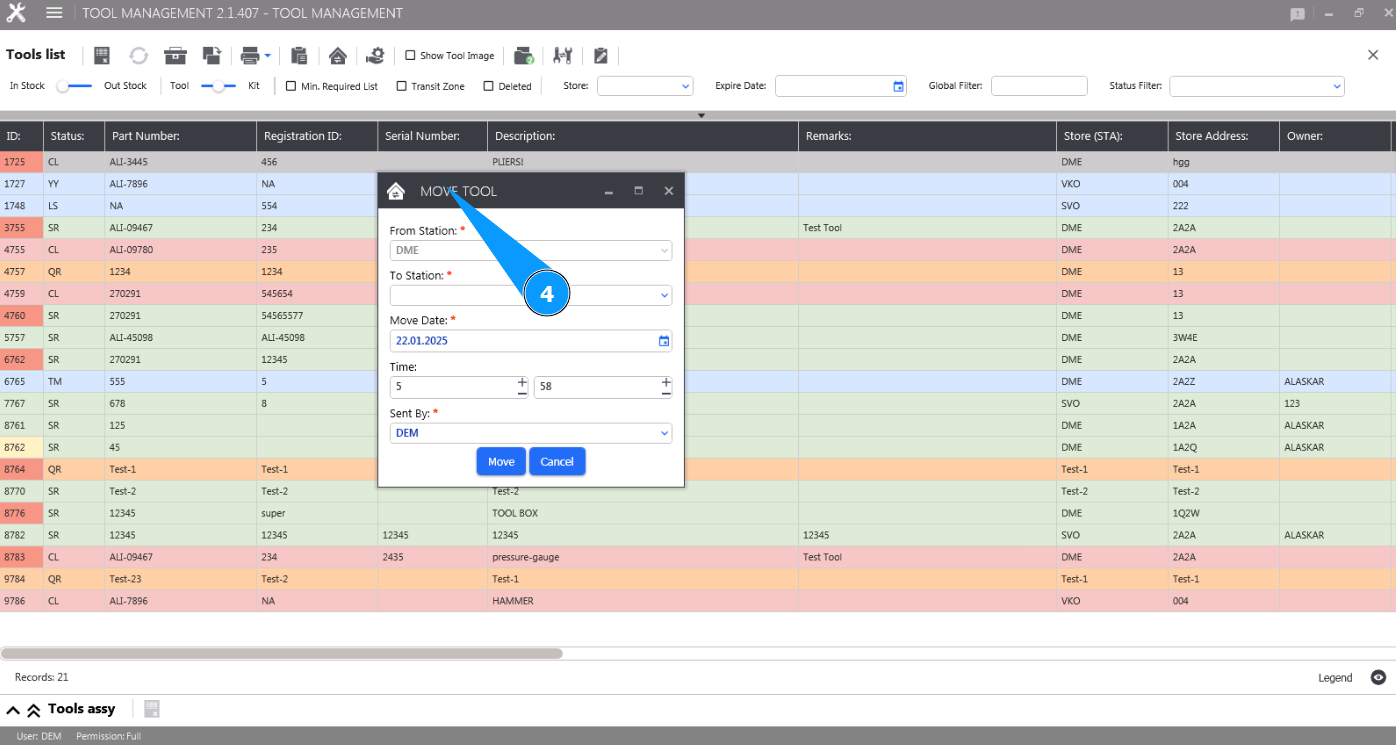
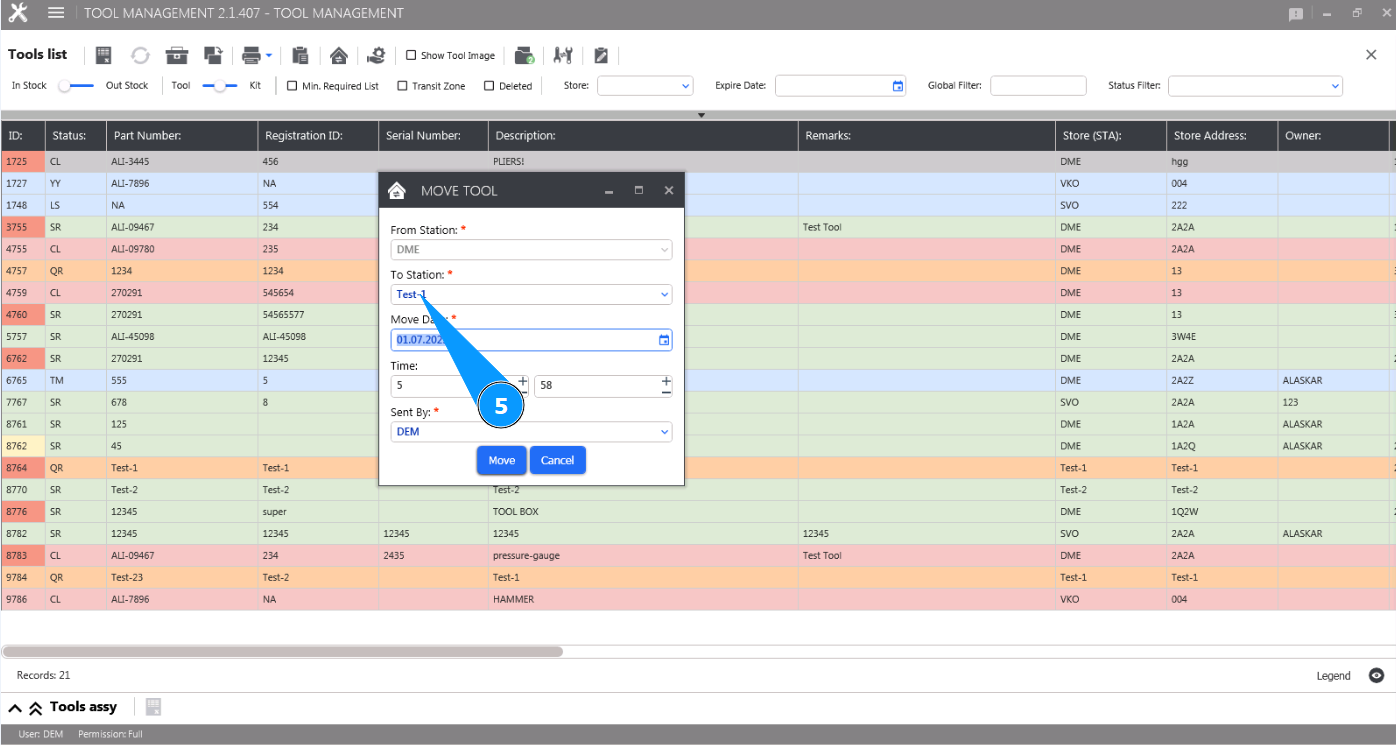
5. Select from the dropdown list the new tool stock for moving the tool in the field "To Station".
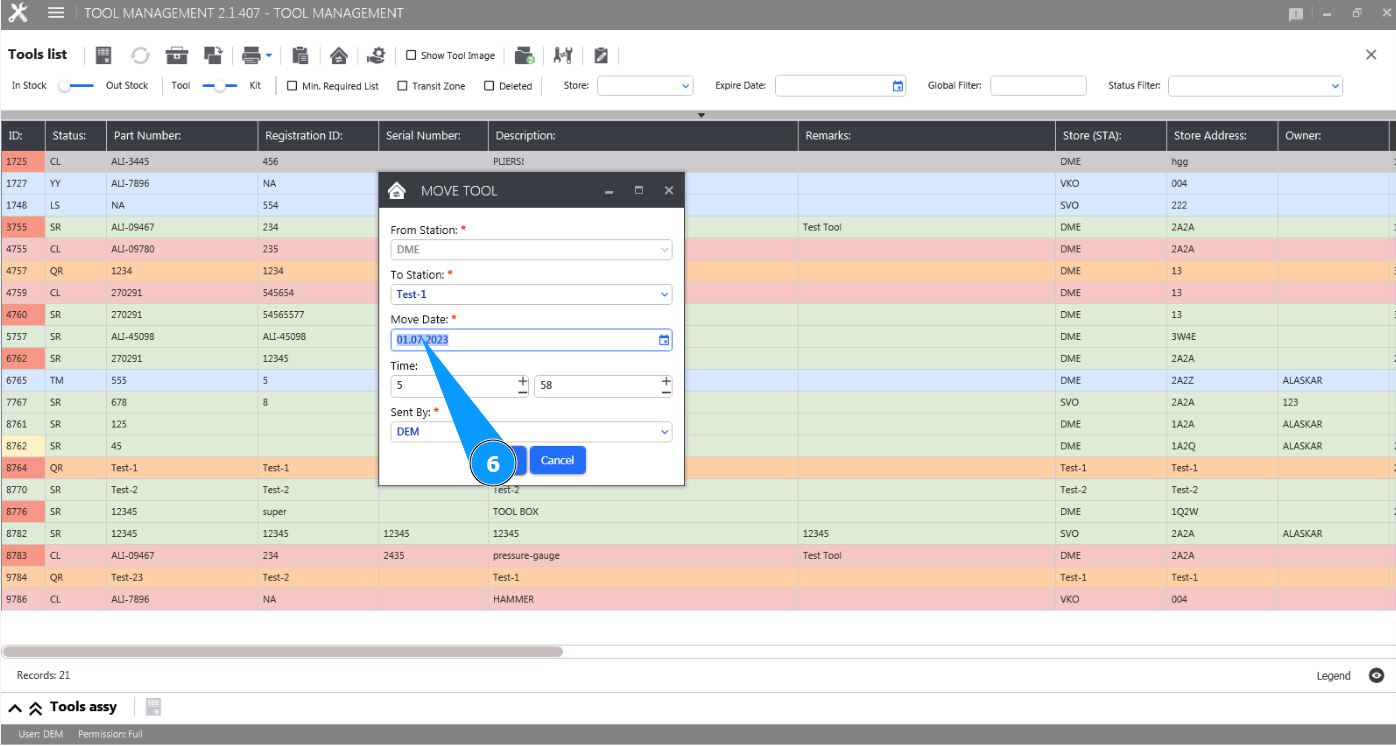
6. Select the move date in the calendar in the field "Move Date".
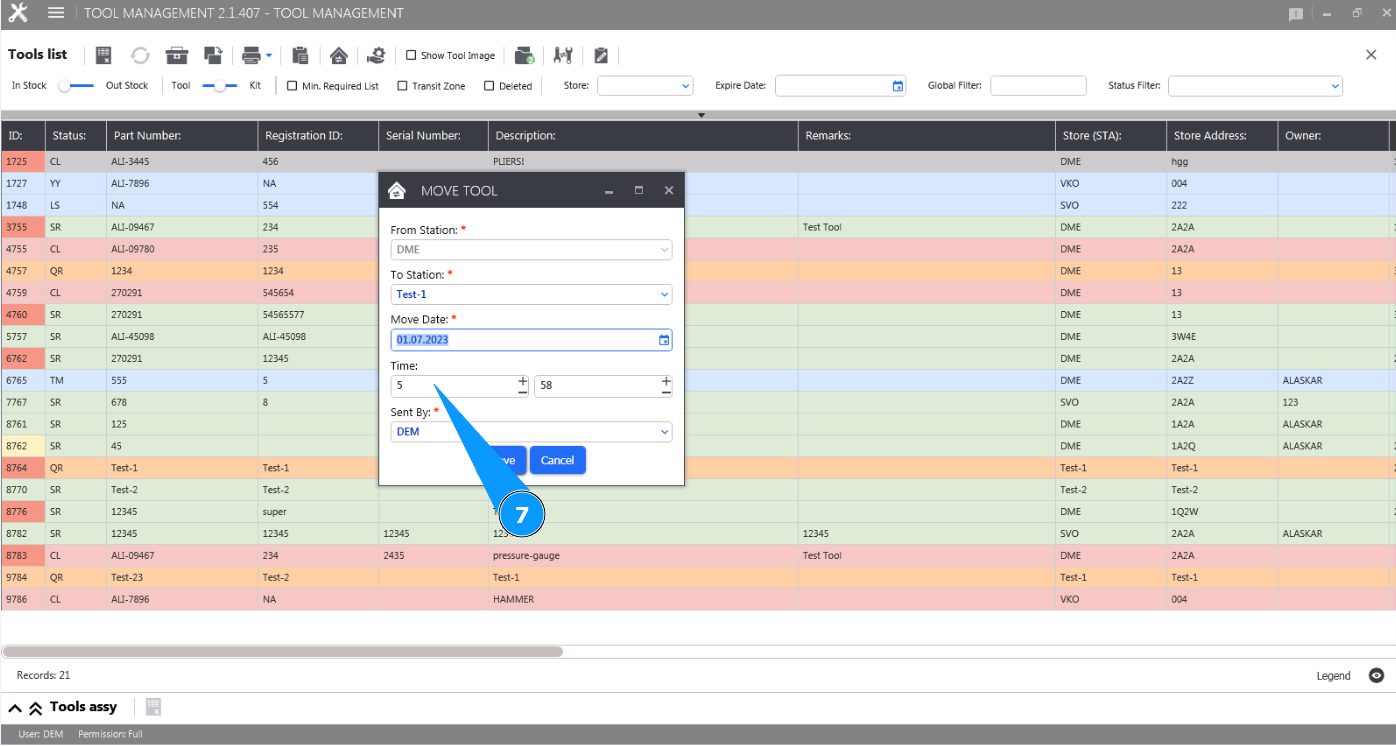
7. Select the move time in hours in the field "Time".
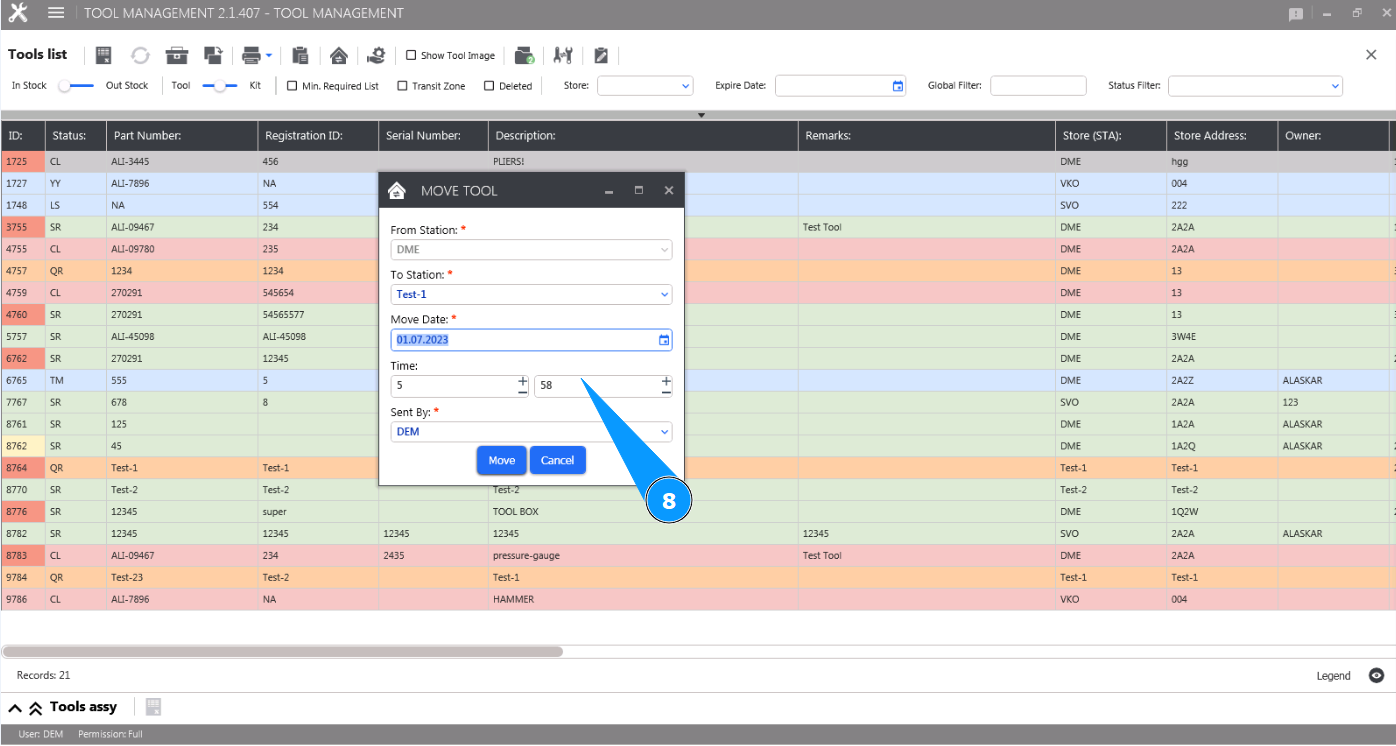
8. Select the move time in minutes in the field "Time".
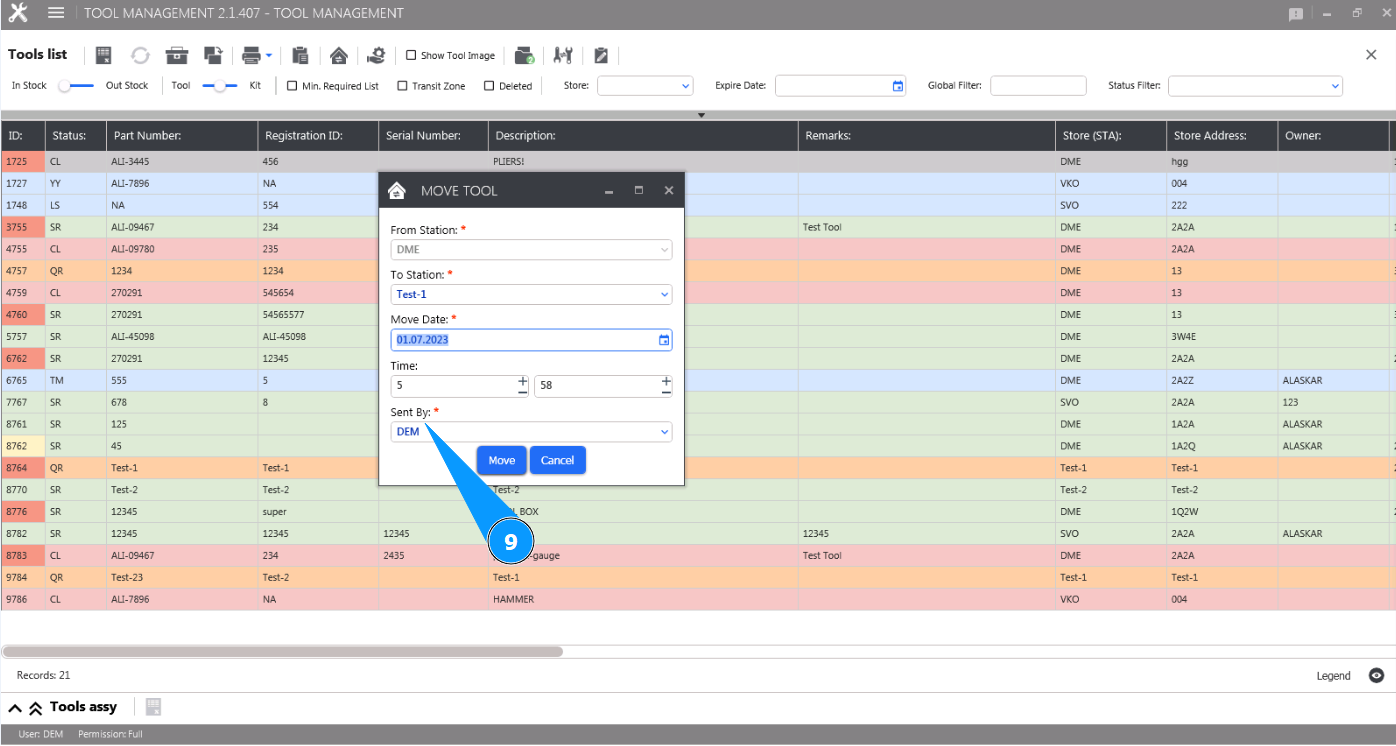
9. Select the login of the staff moving the tool from the dropdown list in the field "Sent By".
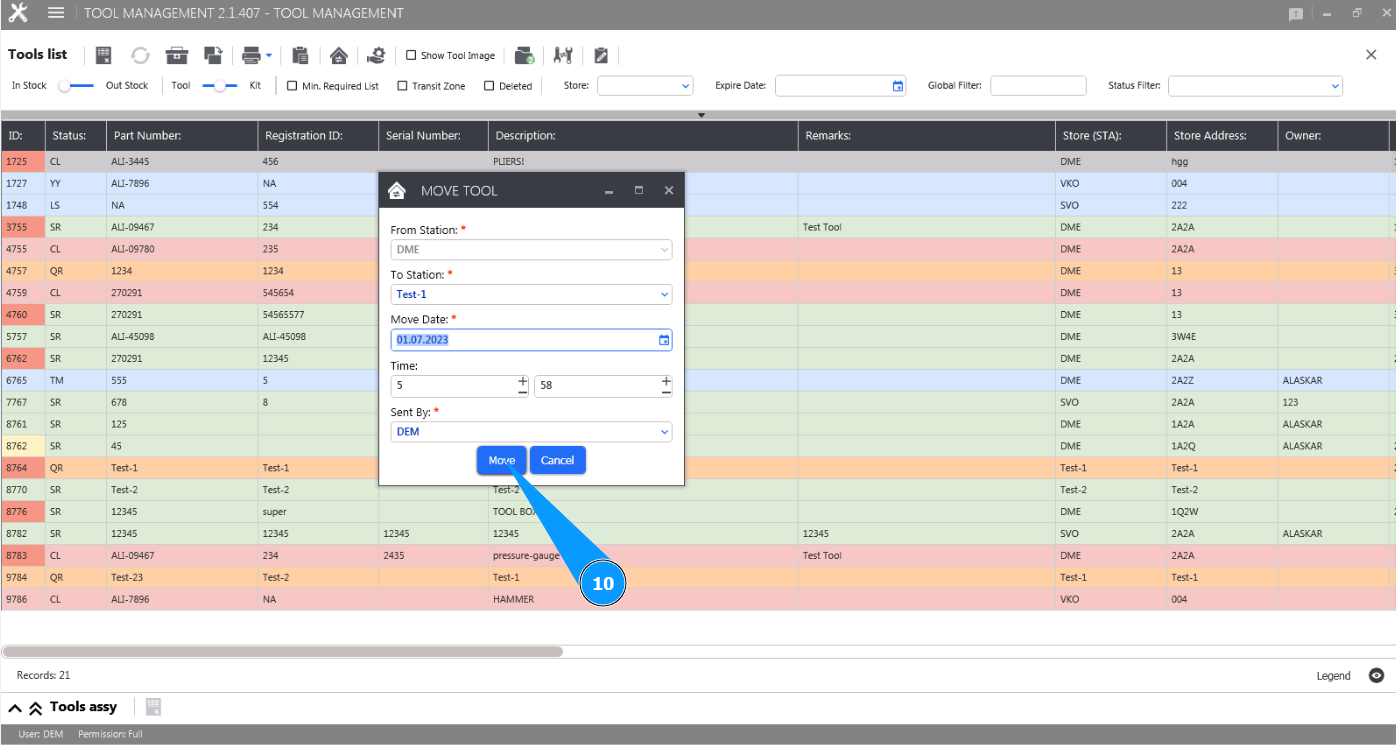
10. Click on the button "Move" to move the tool to the new tool stock.
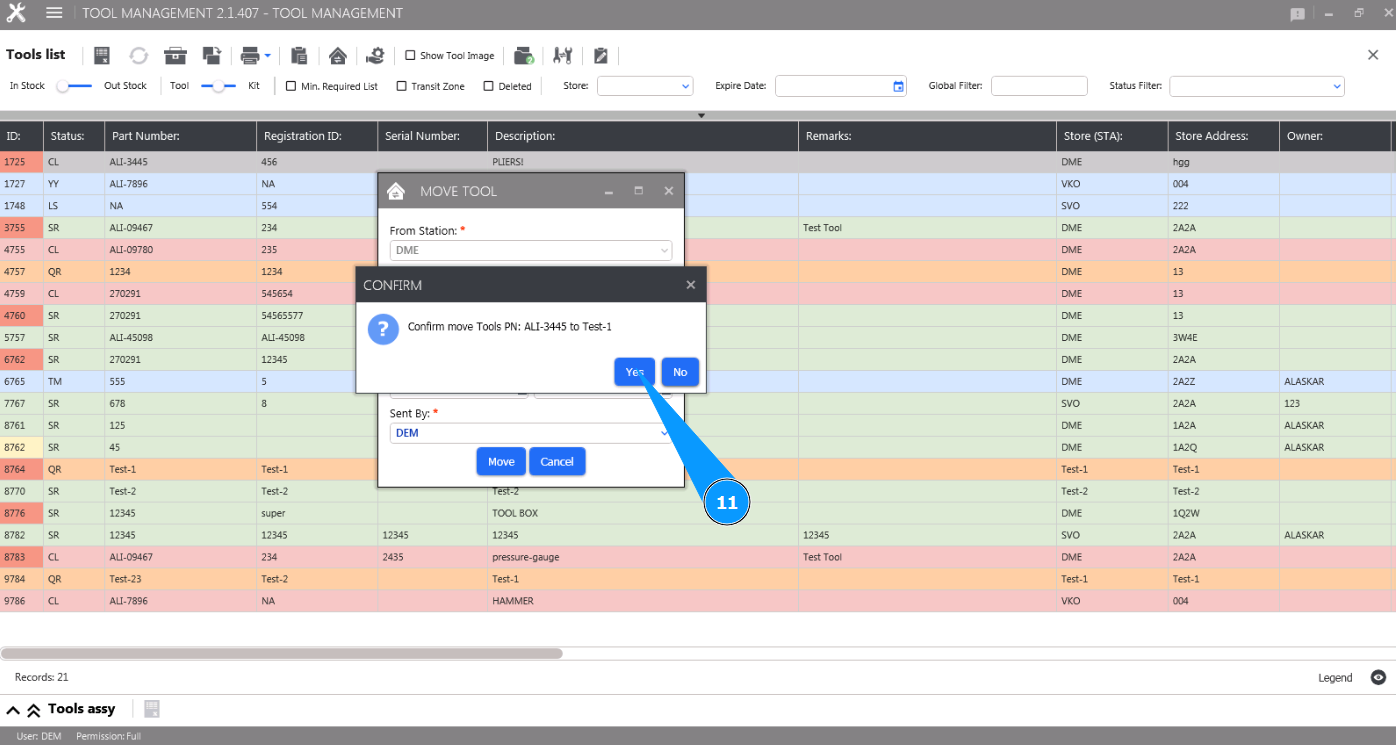
11. Click on the button "Yes" to confirm moving the tool to the new tool stock.
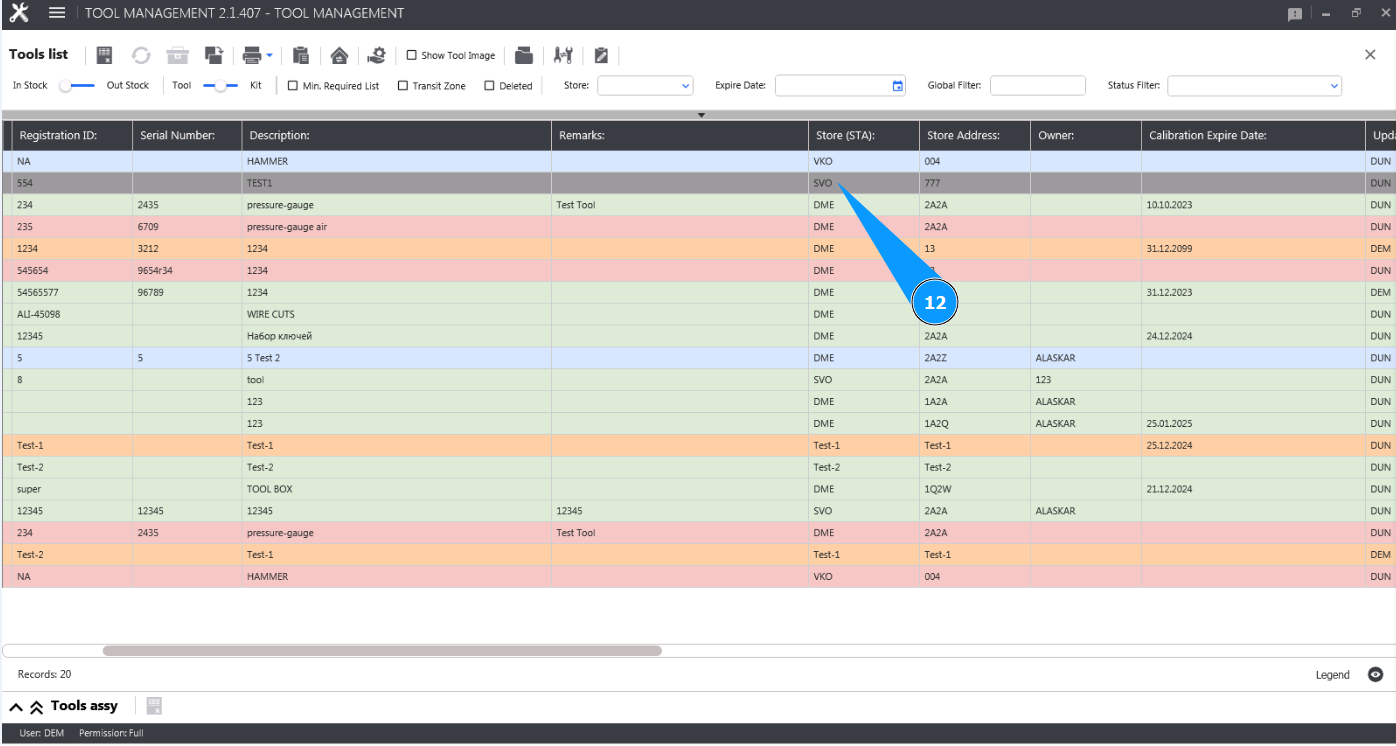
12. Check that the location of the tool in the new tool stock is displayed in the window "Tool List".