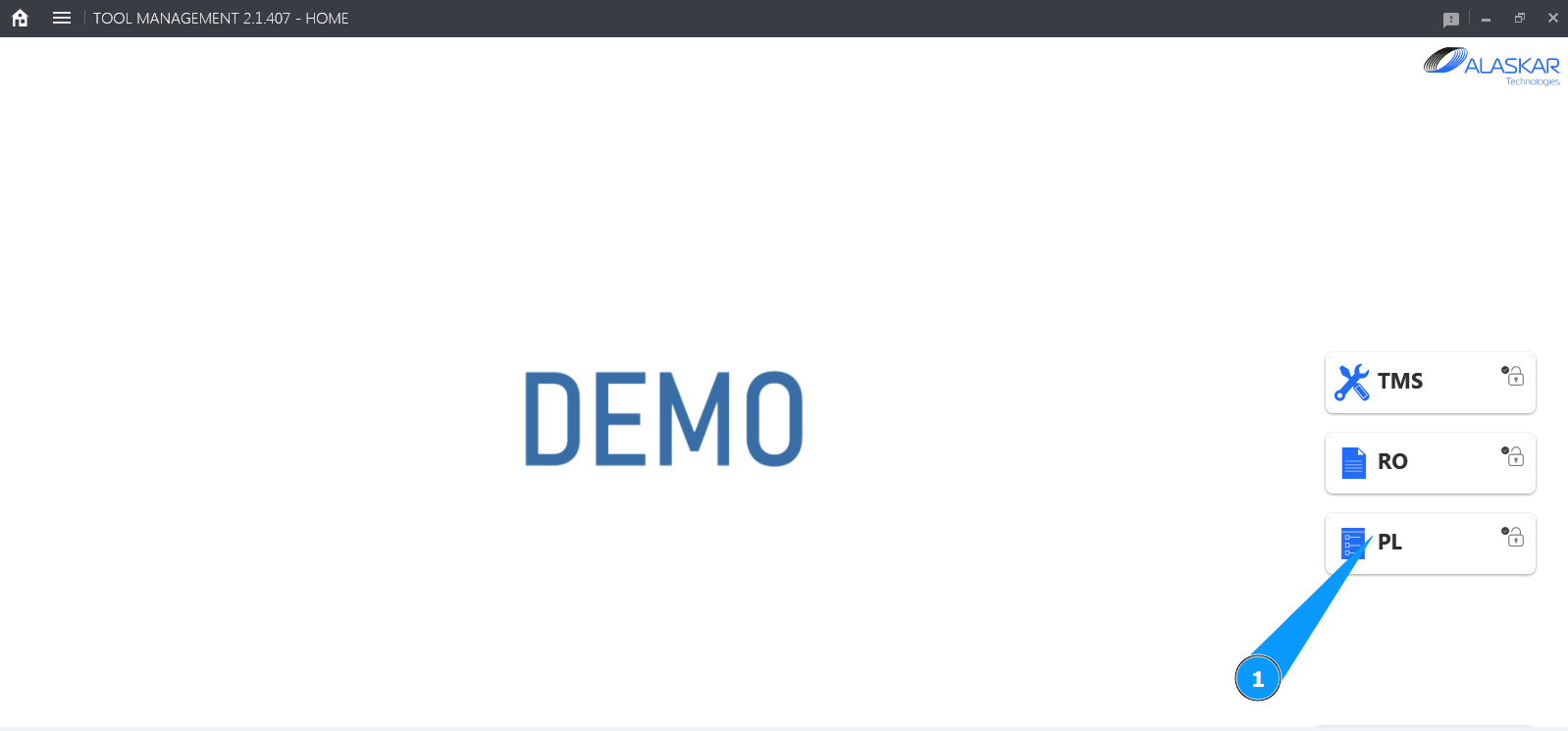
How to create the packing list of tools
1. In order to create the packing list of tools, go to the submodule "PL".
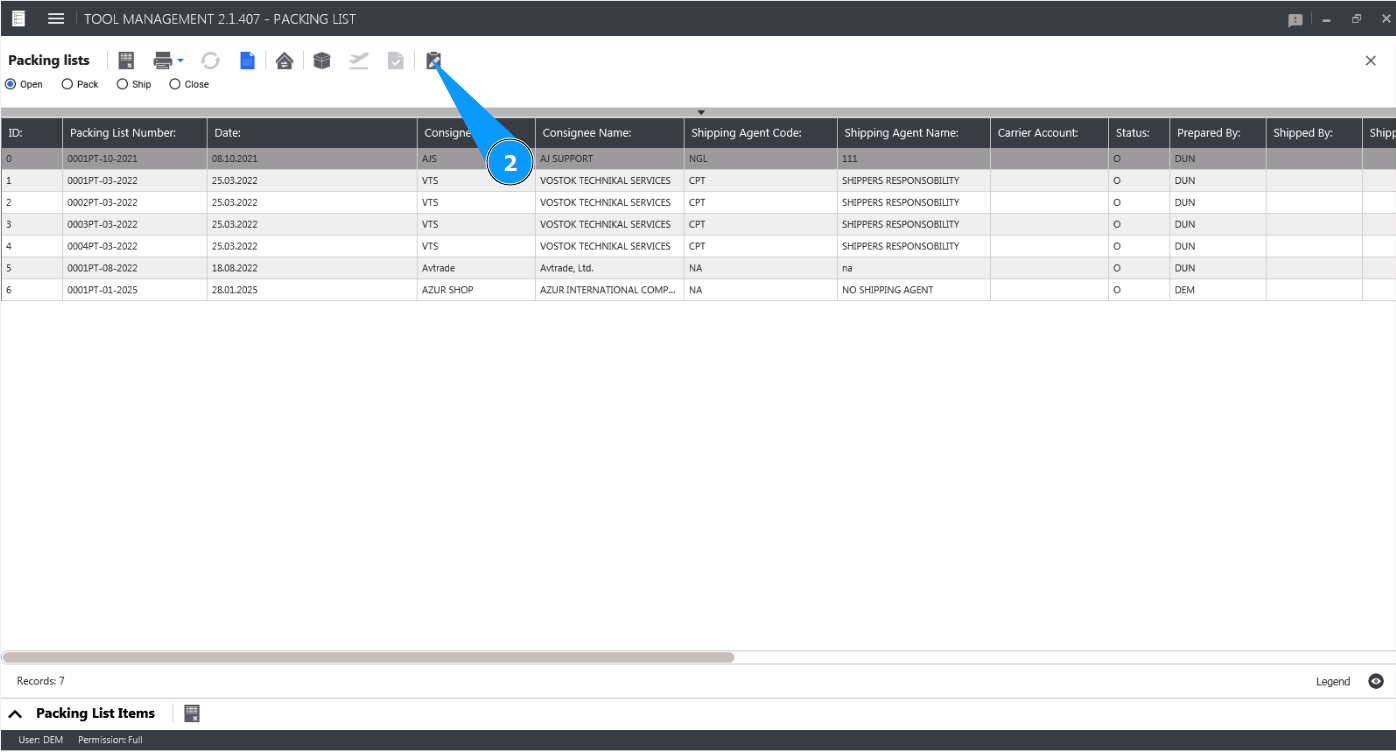
2. Click on the button "Show Editor" to open the Packing List editor.
3. Check that the window "Packing List Editor" opens. You need to fill it with data.
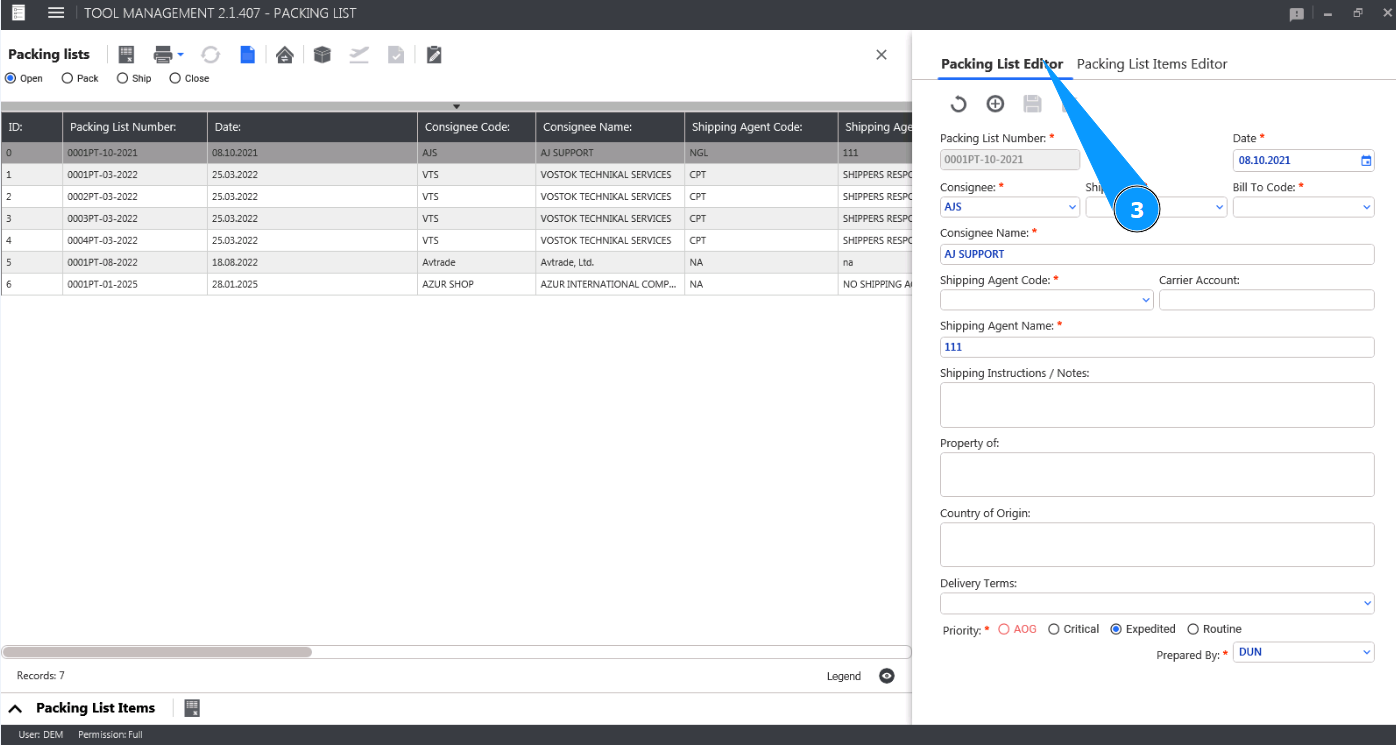
4. The current date is set by default. If necessary, change the Packing List creation date. Note: The Packing List number is created automatically by the program without the ability to edit it in the field "Packing List Number".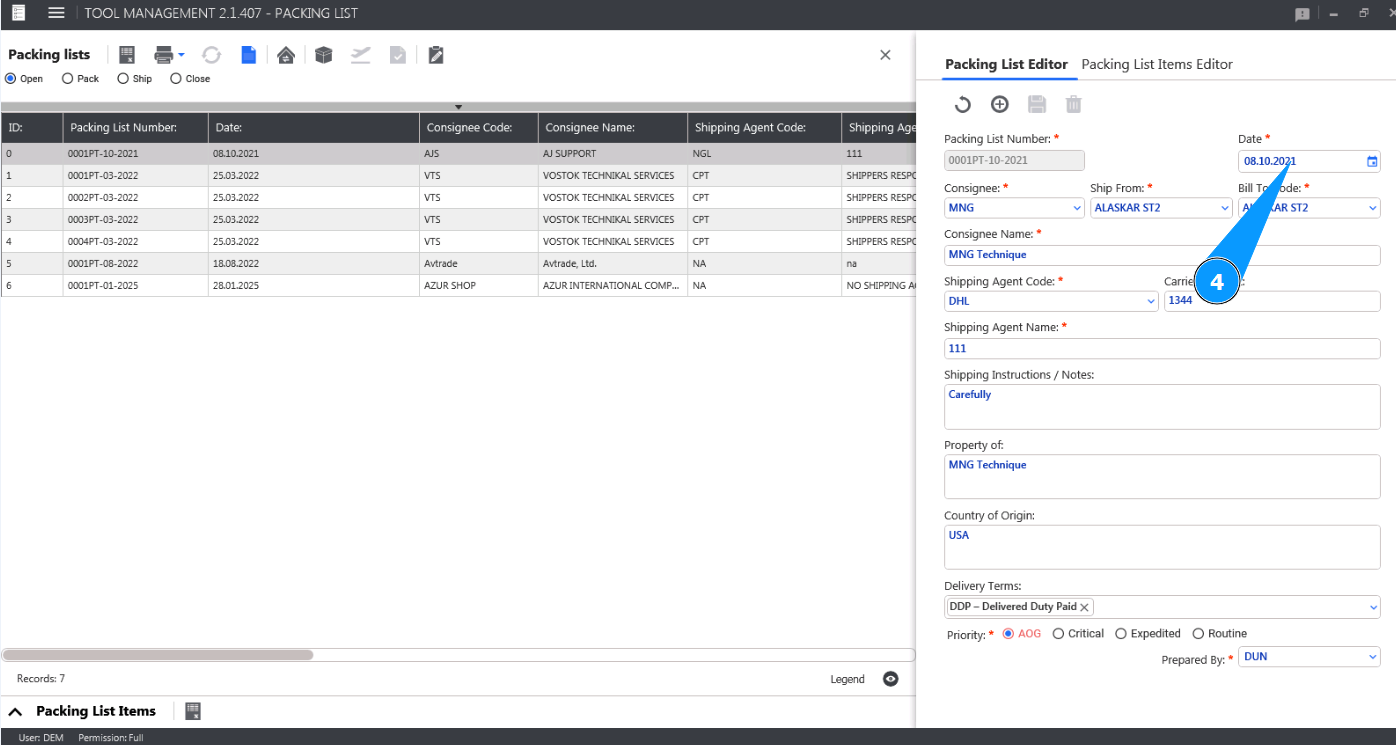
5. Select the consignee to whom the tool list is sent from the dropdown list in the field "Consignee". Note: The consignee's name will be displayed automatically by the program in the field "Consignee Name".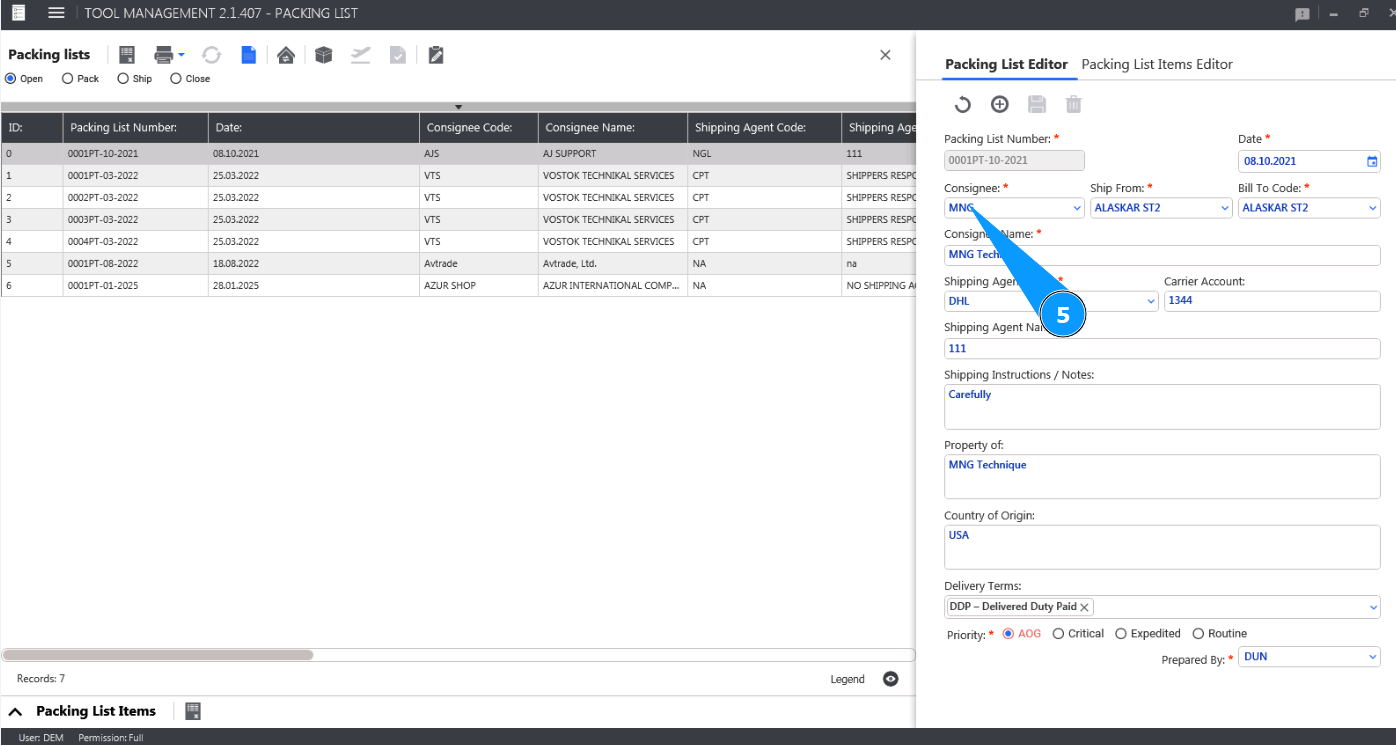
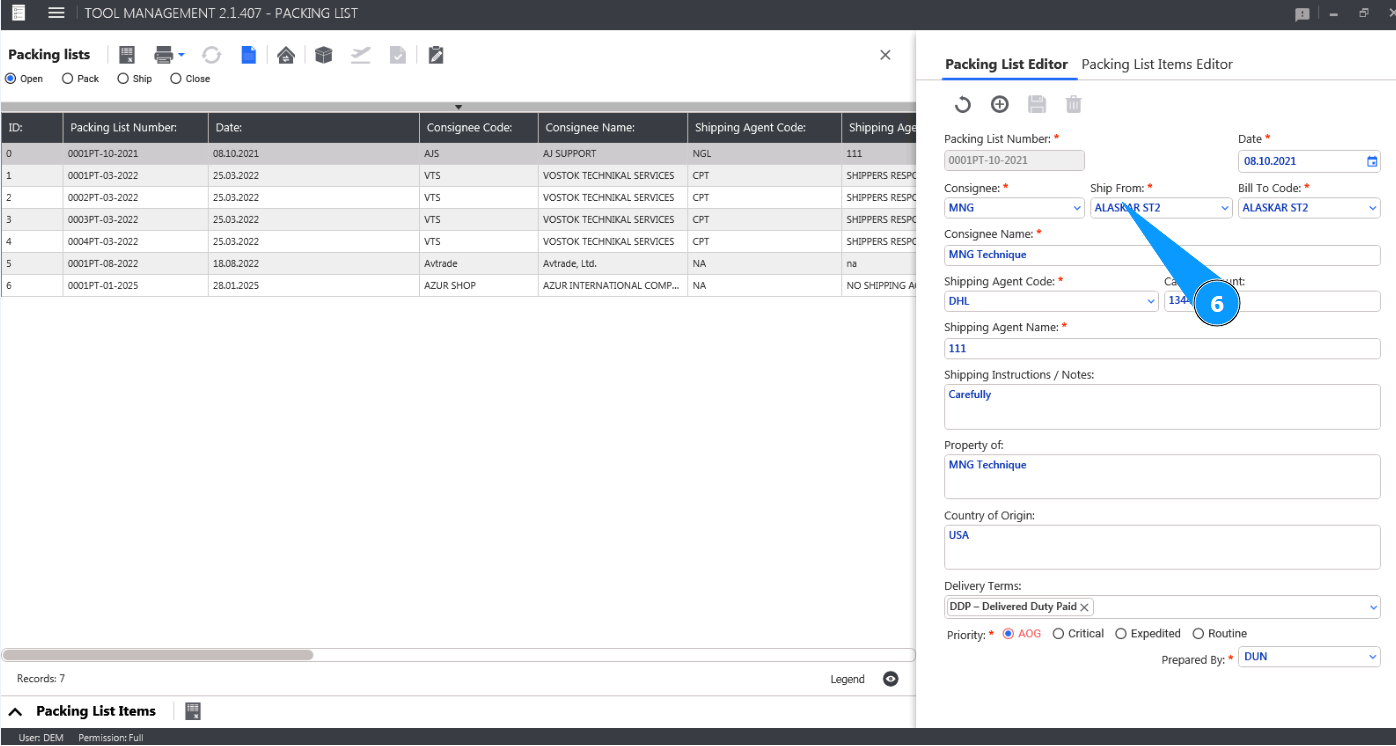
6. Select the name of the place from which the tool list is shipped from in the field "Ship From" from the dropdown list.
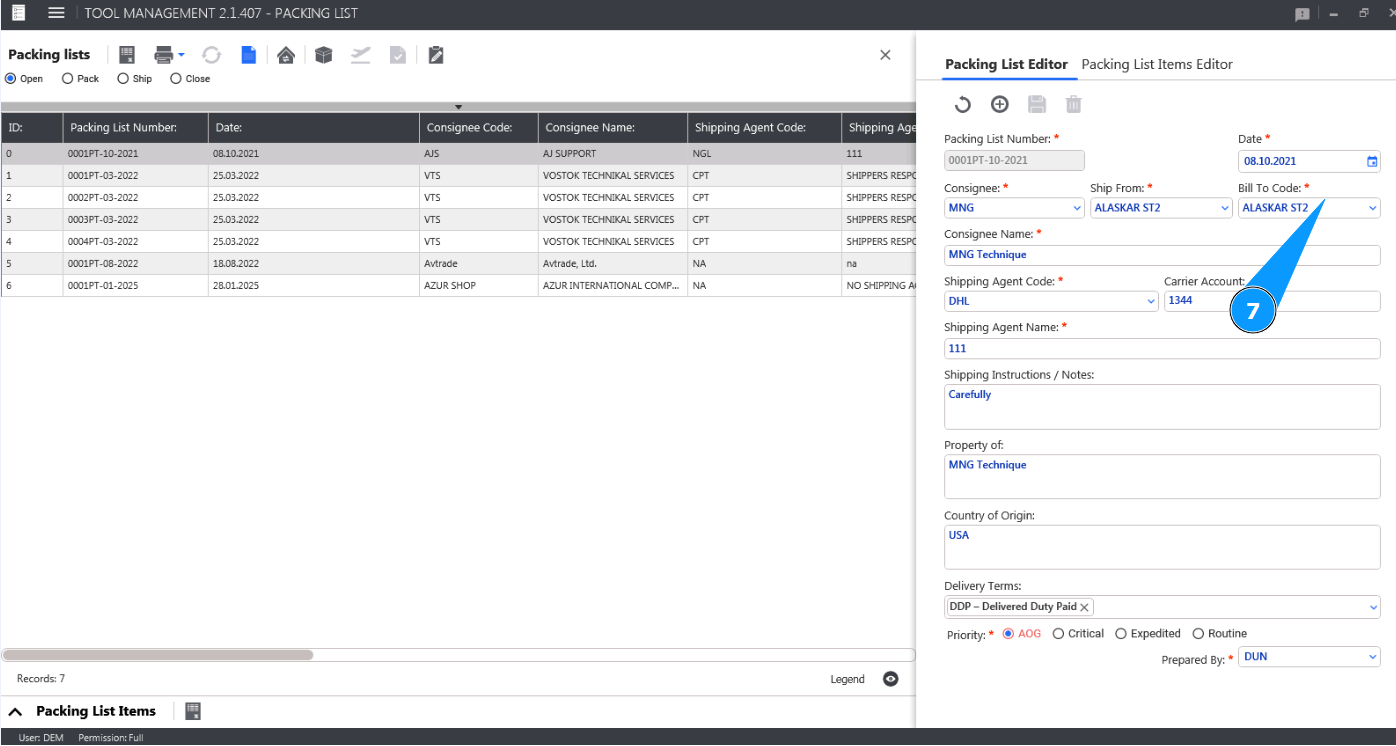
7. Select your company's account information from the dropdown list in the field "Bill to Code".
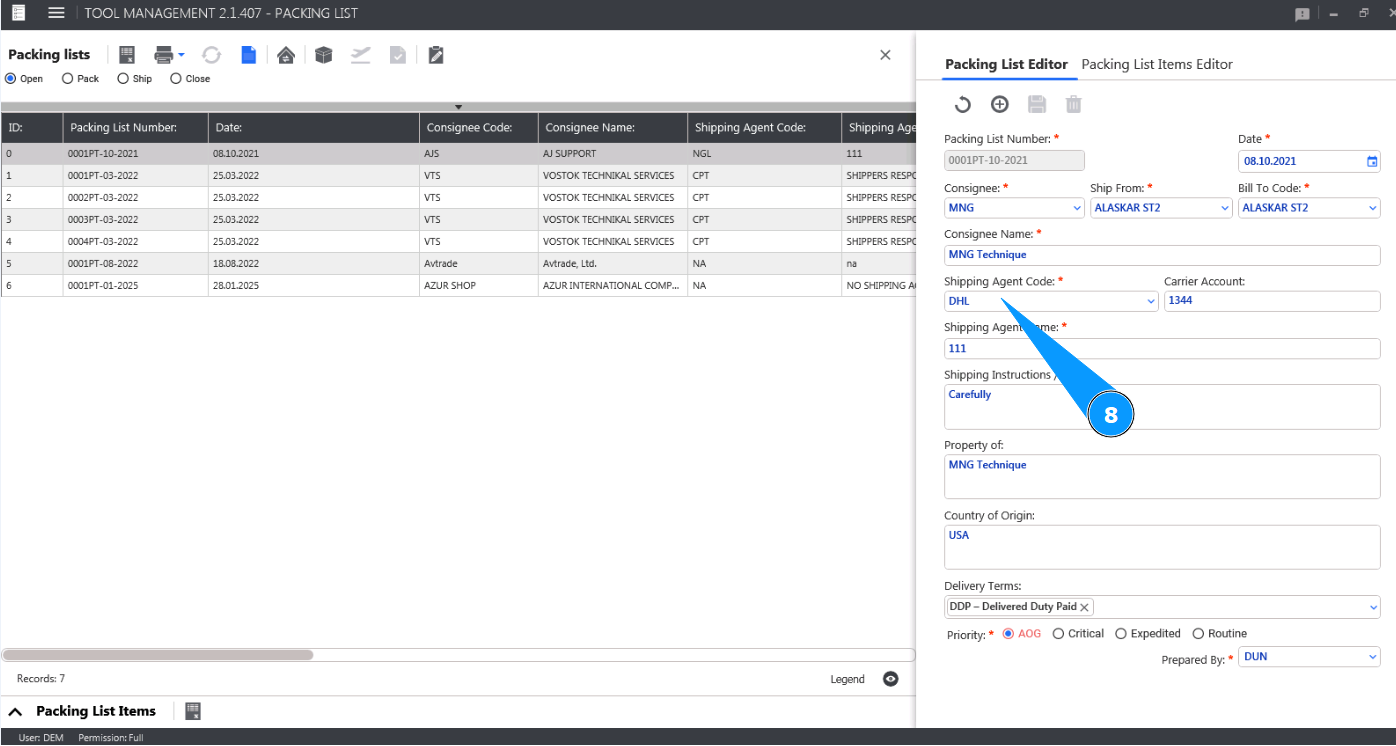
8. Select the shipping company from the dropdown list in the field "Shipping Agent Code".
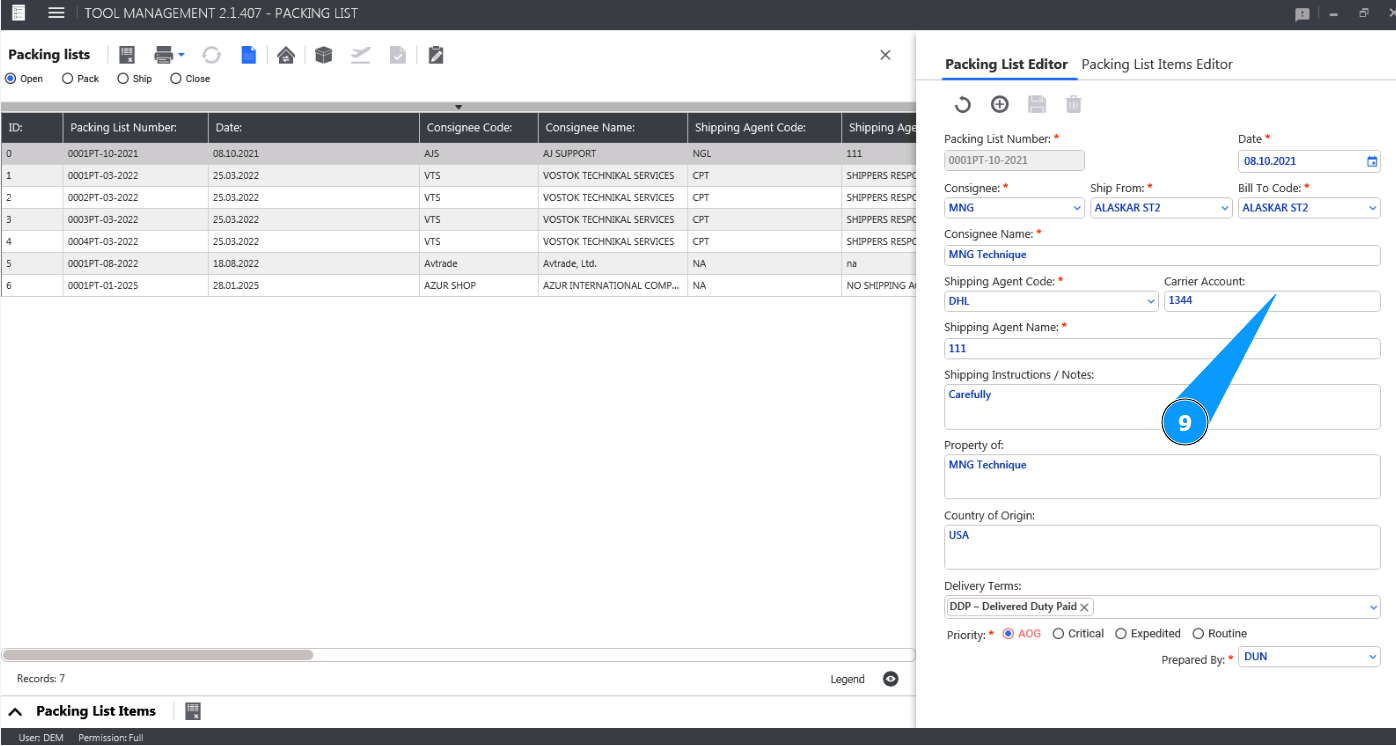
9. Enter the carrier account number in the field "Carrier Account".
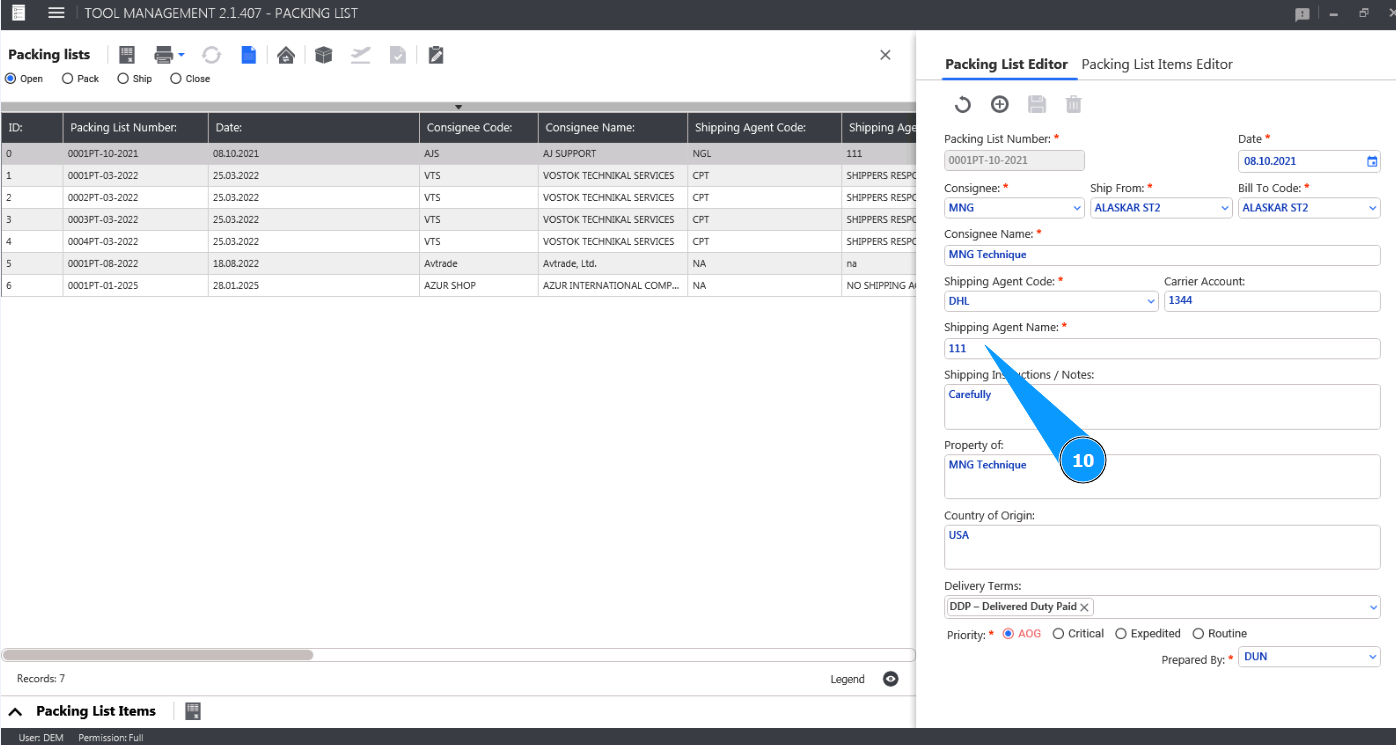
10. Enter the shipping company name in the field "Shipping Agent Name".
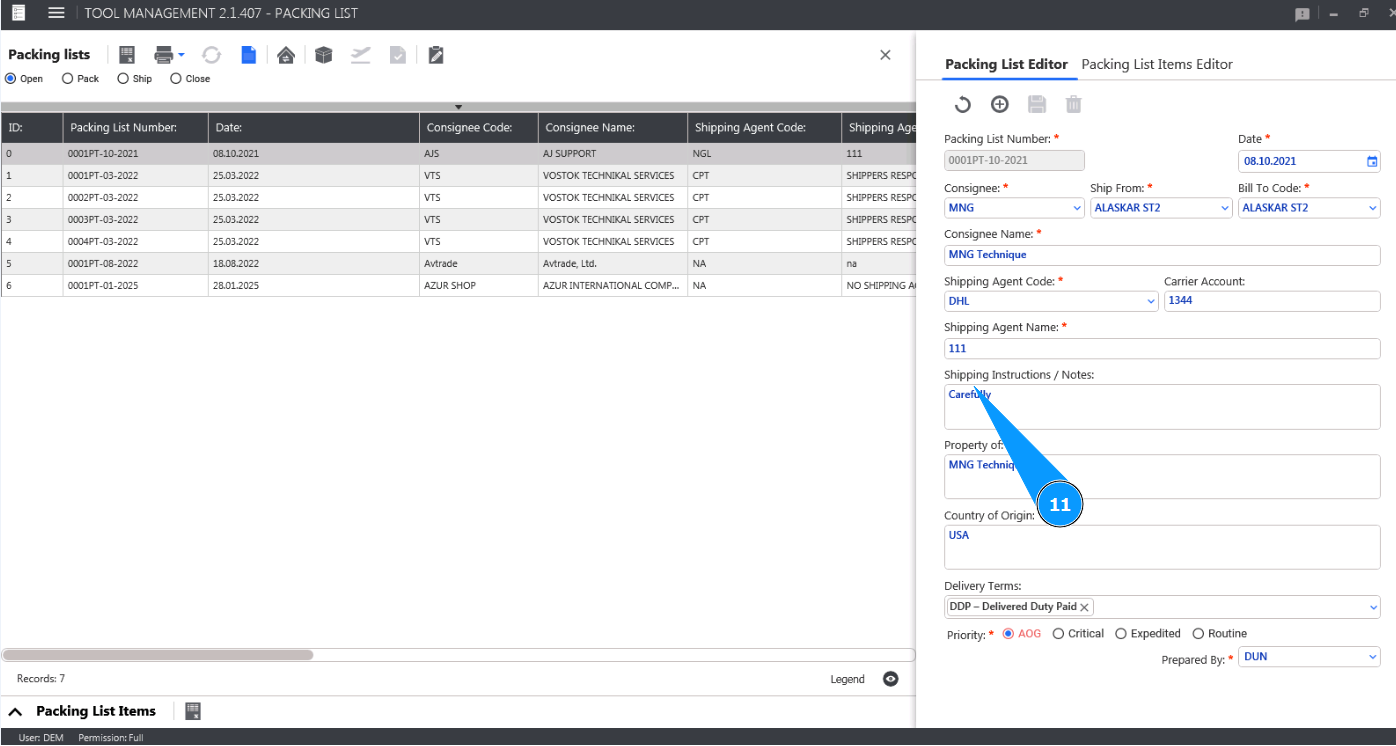
11. If necessary, enter additional comments or instructions for shipping the tool list in the field "Shipping Insructions/Notes".
12. If necessary, enter the name of the owner of the tool list in the field "Property of".
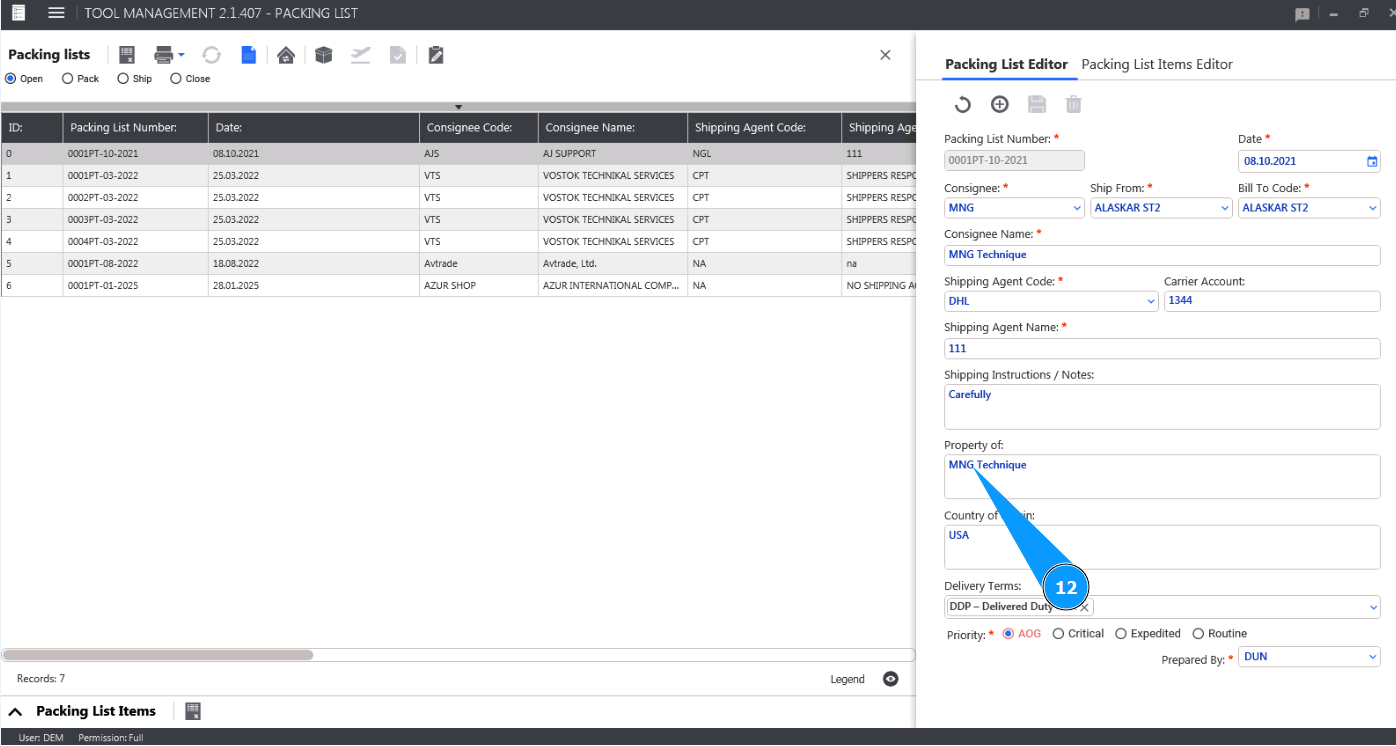
13. If necessary, enter the name of the country of manufacture of the tool list in the field "Country of origin".
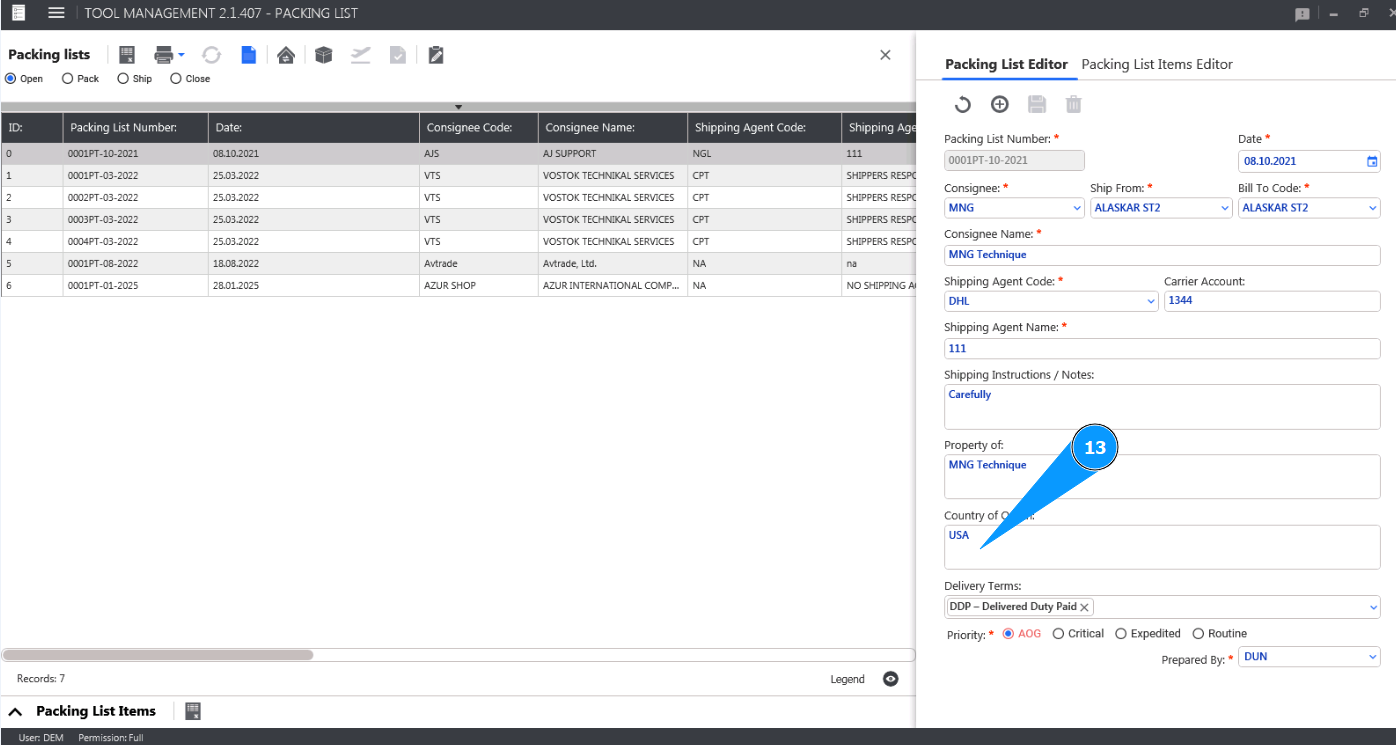
14. If necessary, select the delivery method from the dropdown list in the field "Delivery Terms".
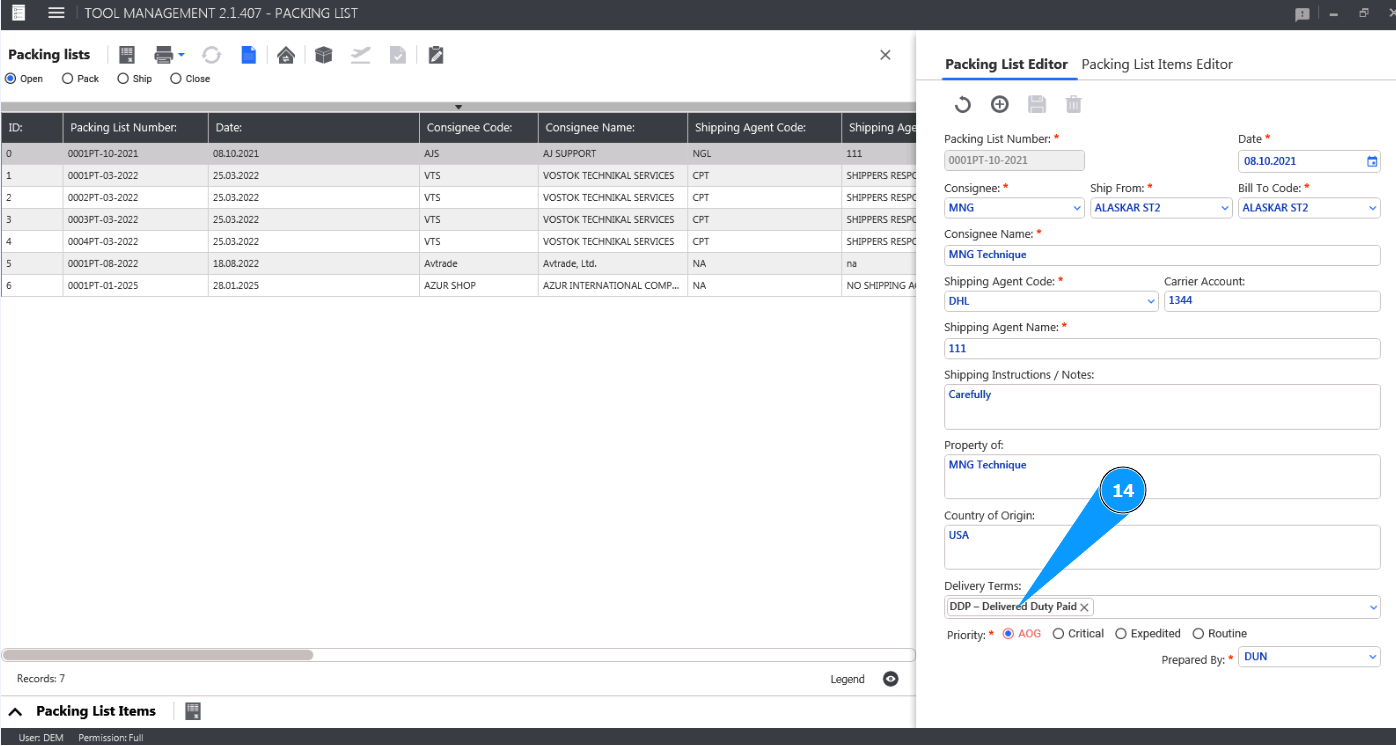
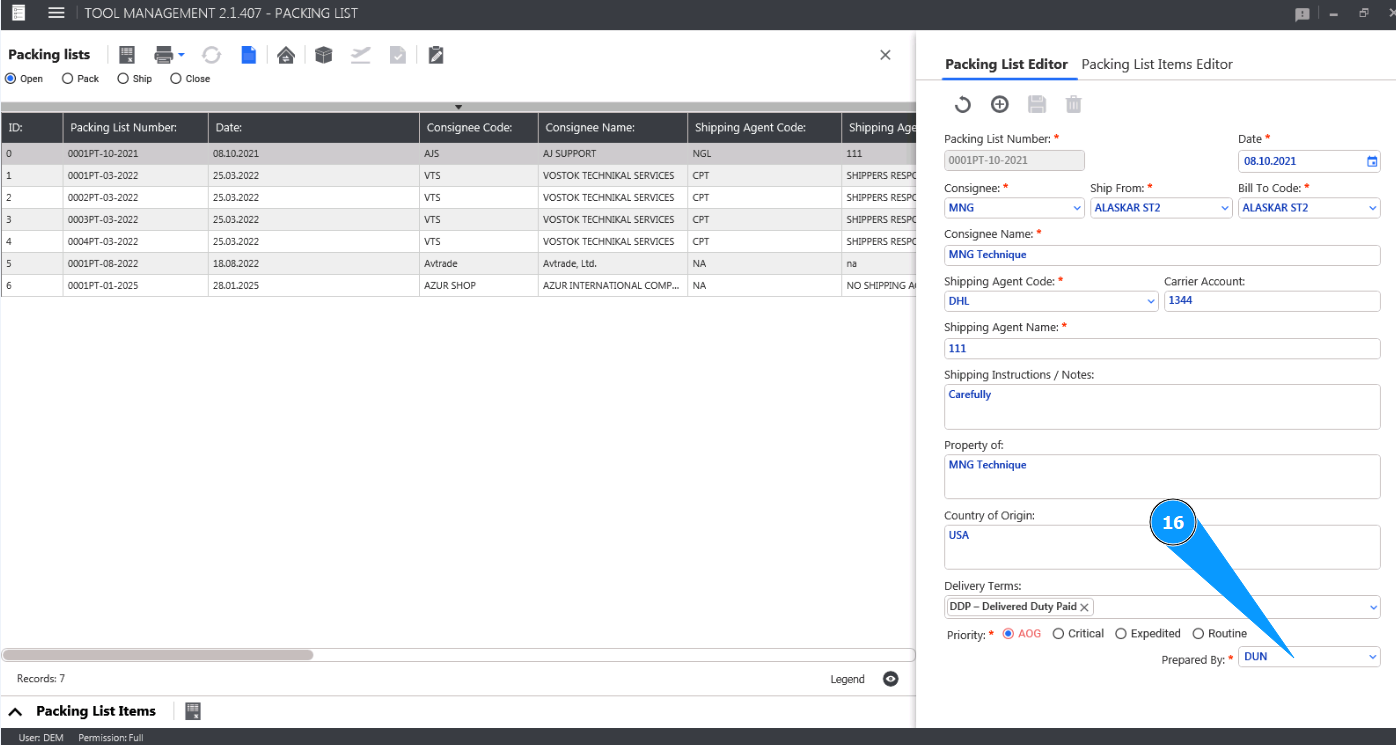
15. Enter the priority of sending the tool list in the corresponding.
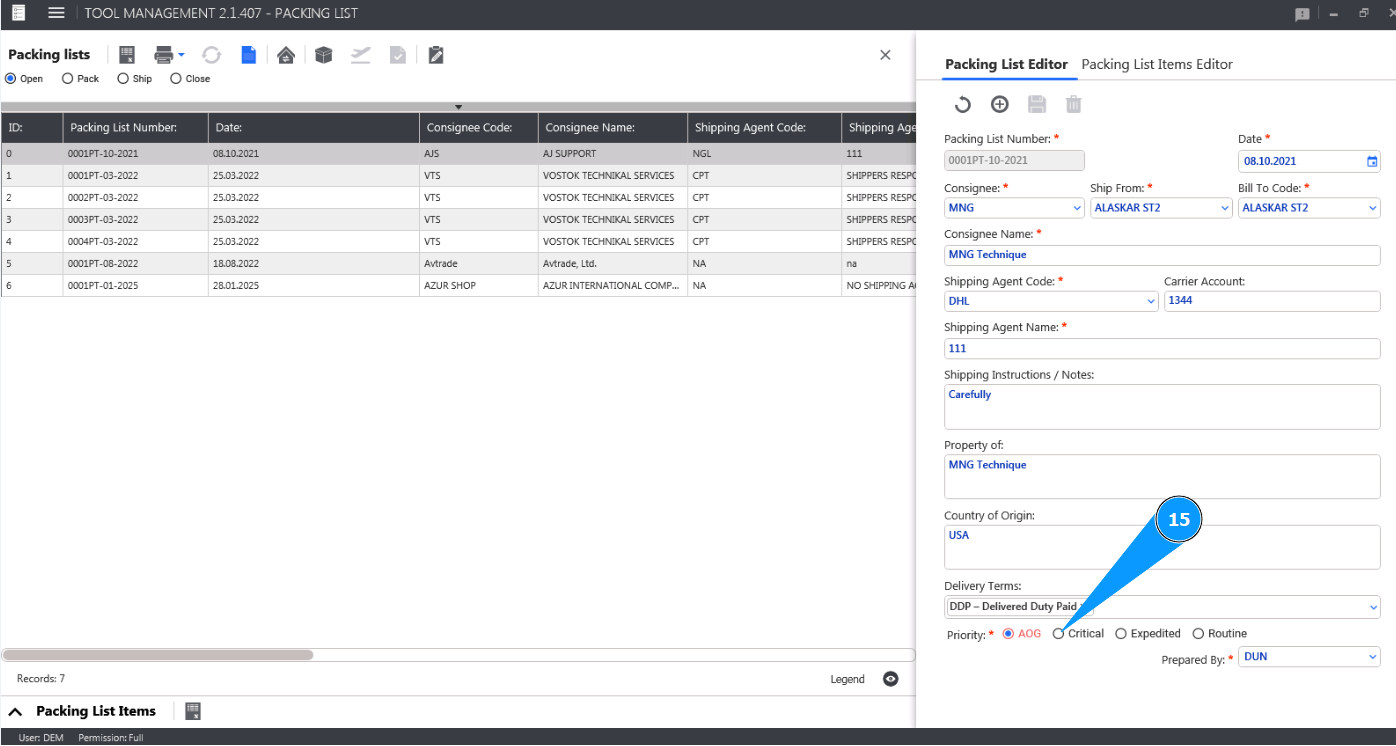
16. Select the login of the staff who created the Packing List from the dropdown list in the field "Prepared By".
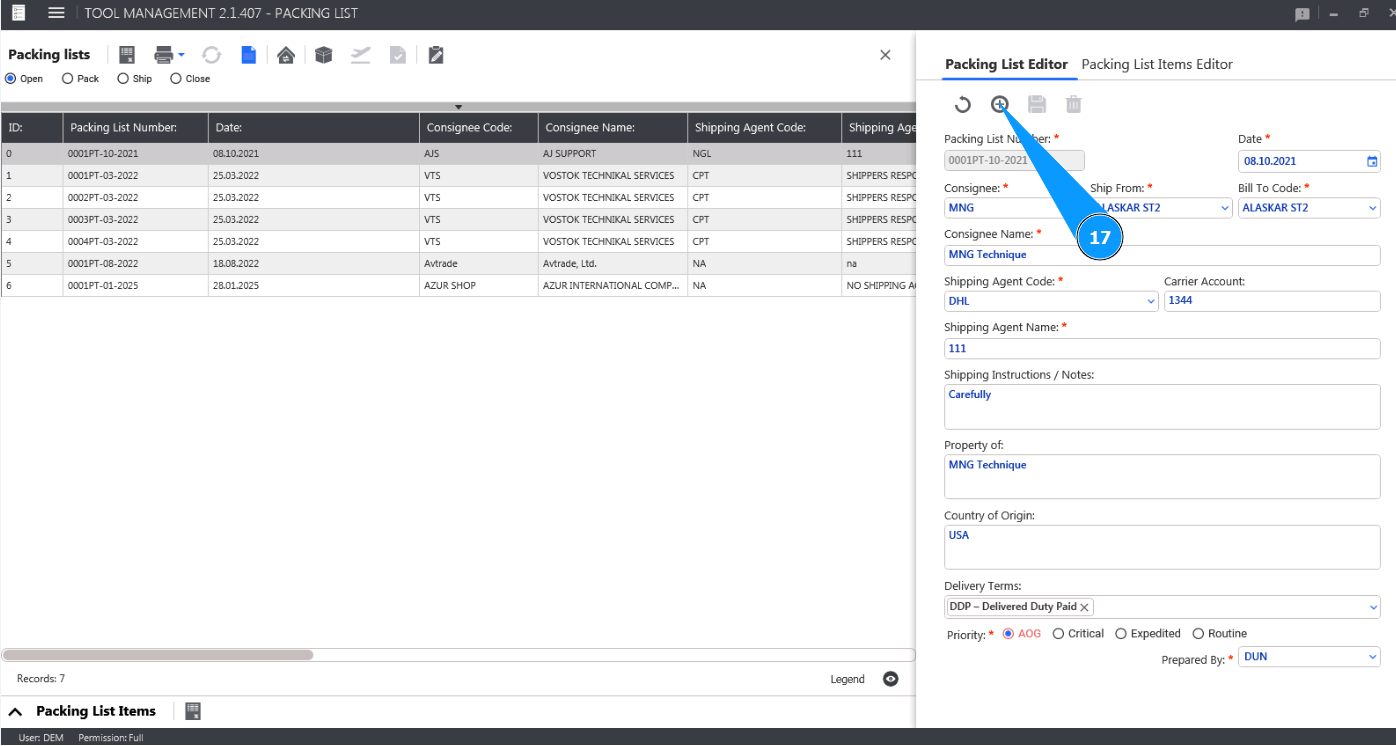
17. Click on the button "Add" to upload the created Packing List to the Alaskar.
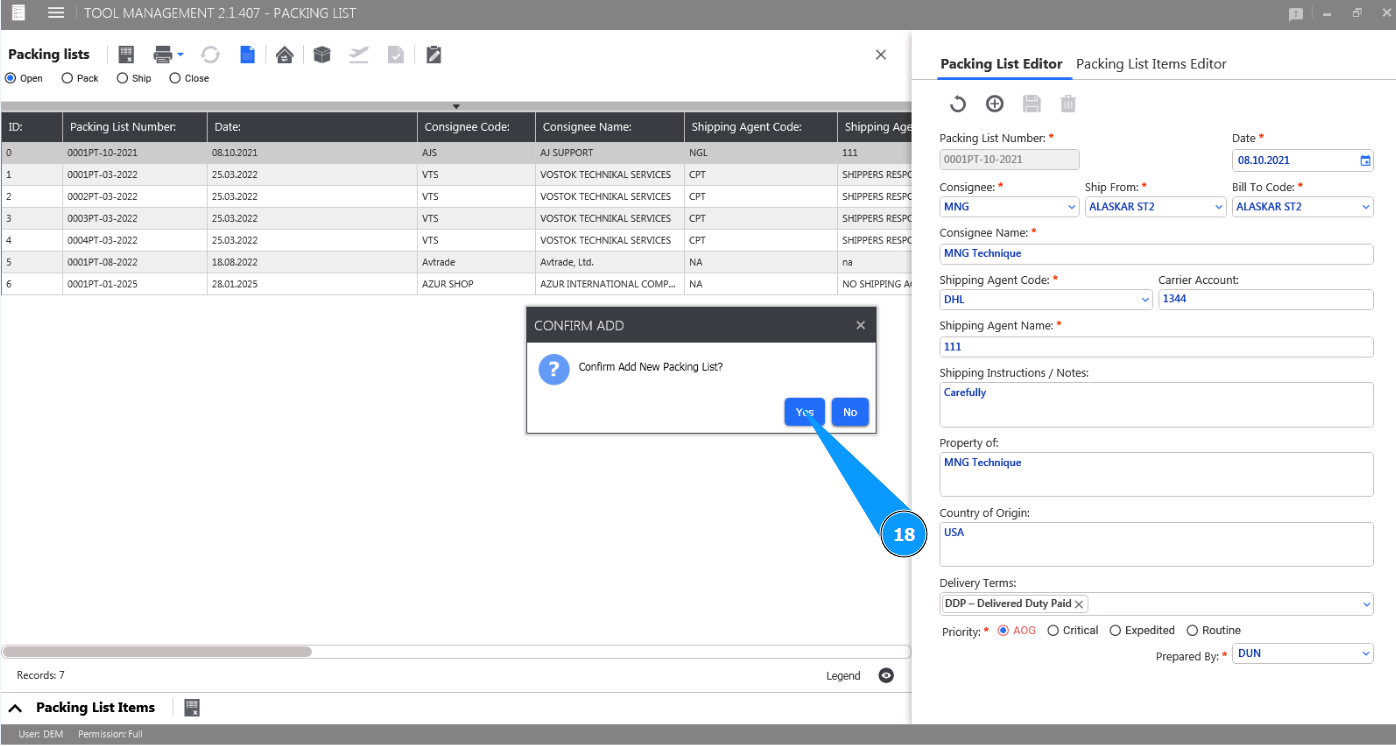
18. Click on the button "Yes" to confirm writing the created Packing List to the Alaskar.
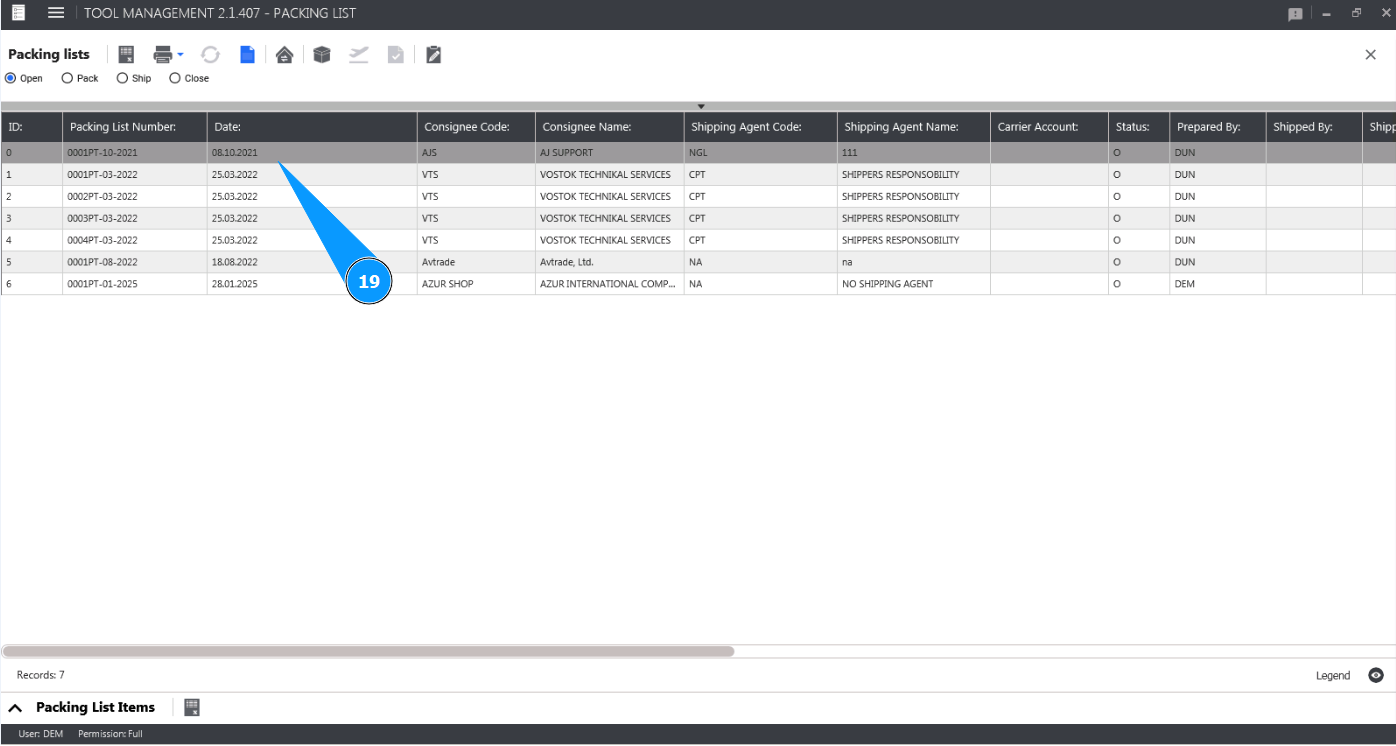
19. Check that the entry with your Packing List appears in the window "Packing List".