How to create a tool calibration card
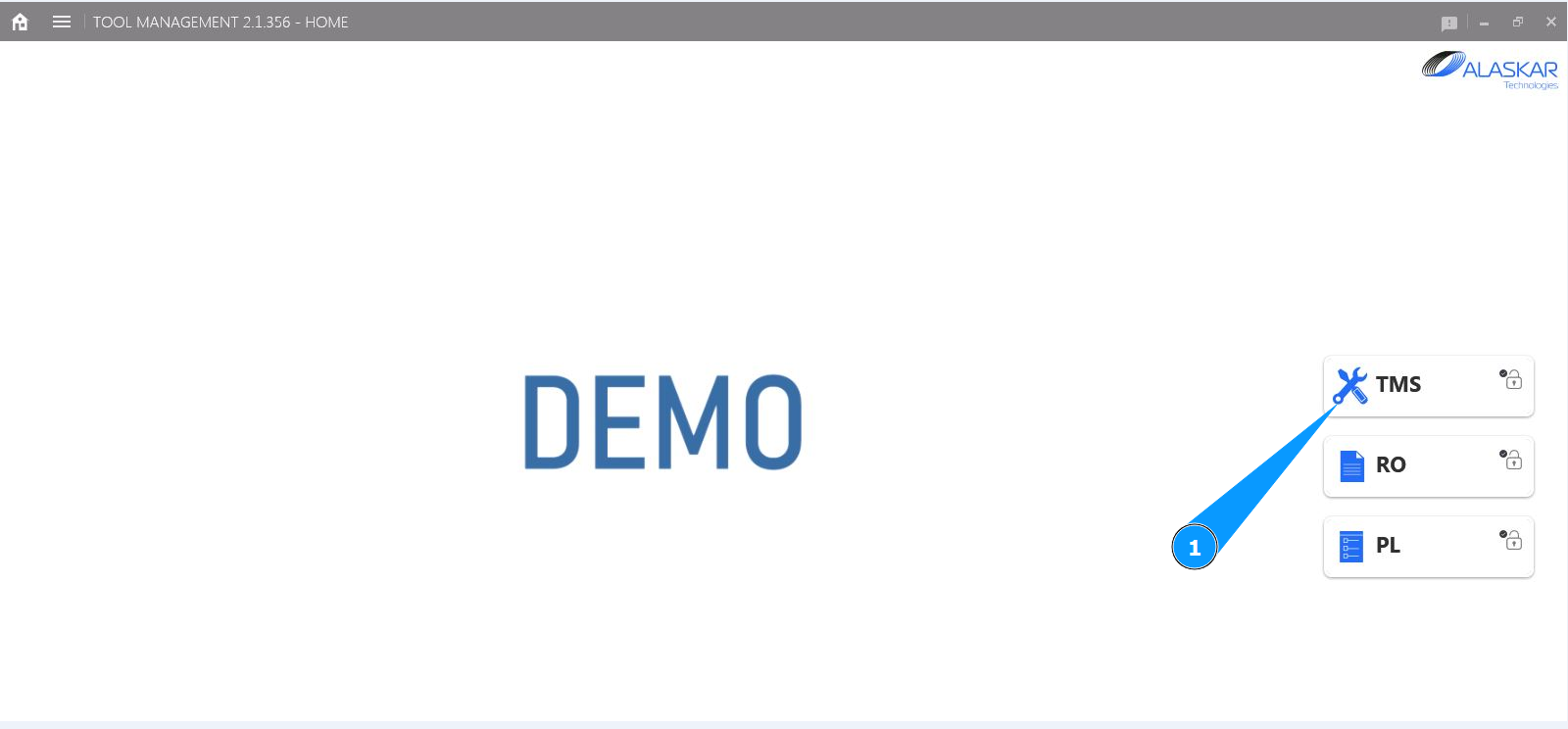
1. In order to create a tool calibration card, go to the submodule "TMS".
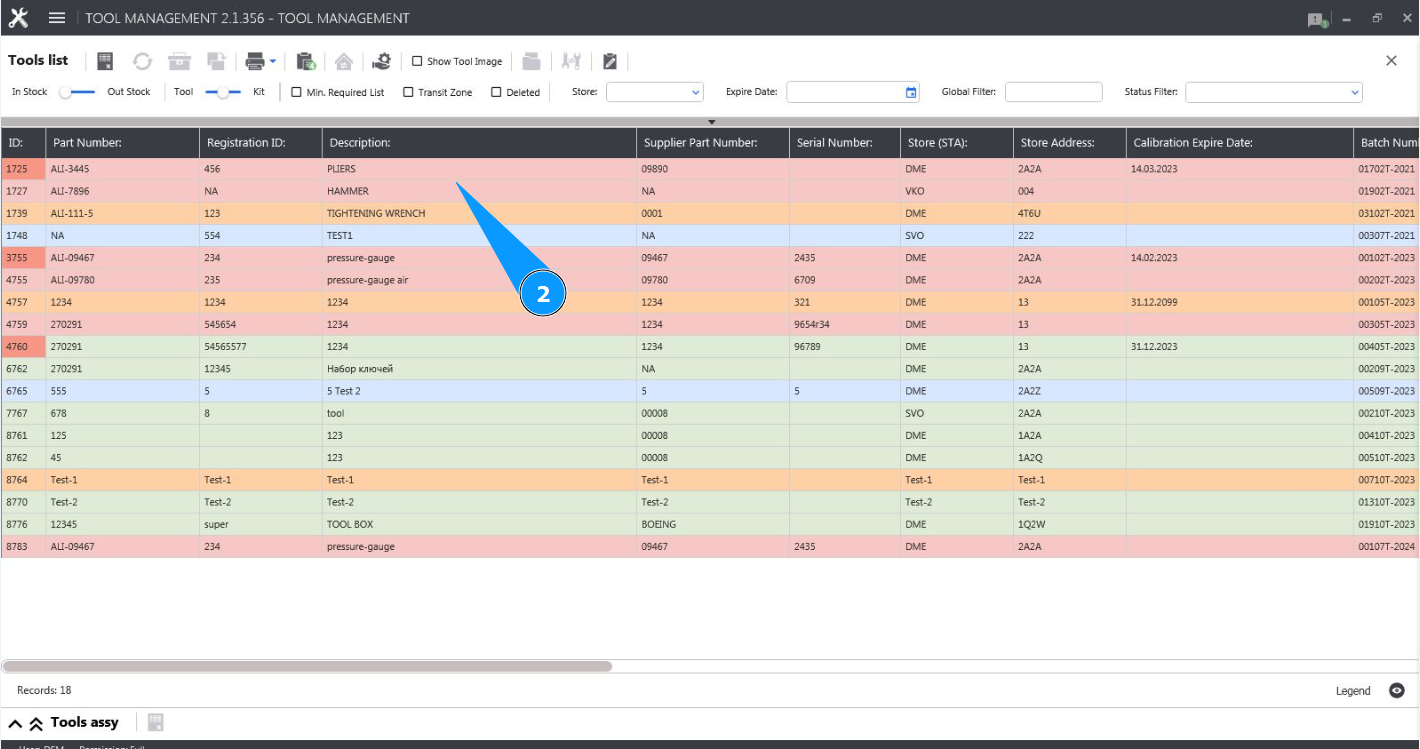
2. Select the desired line with the tool and click on it in the window "Tool List".
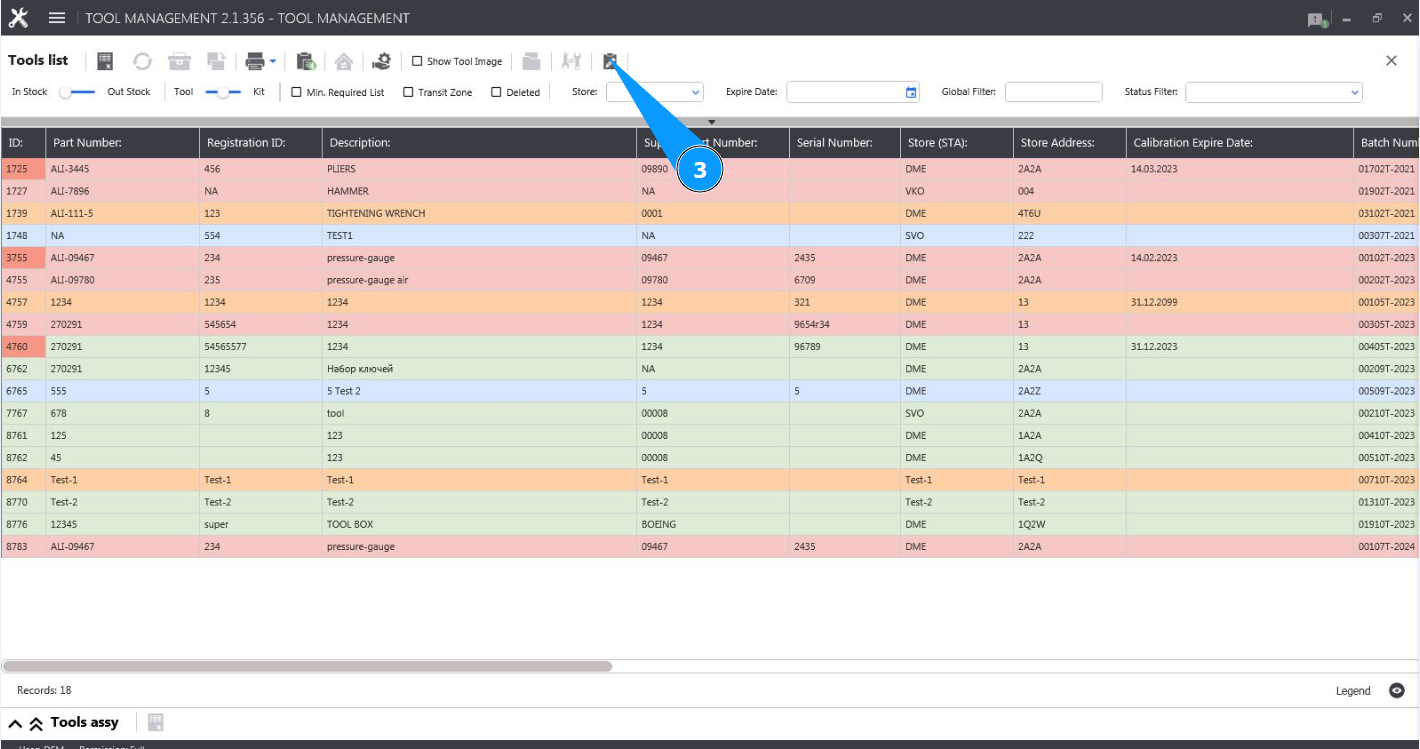
3. Click on the button "Show Editor" to open the tool editor.
4. Make sure the editor is open and accessible in the tab "Tool".
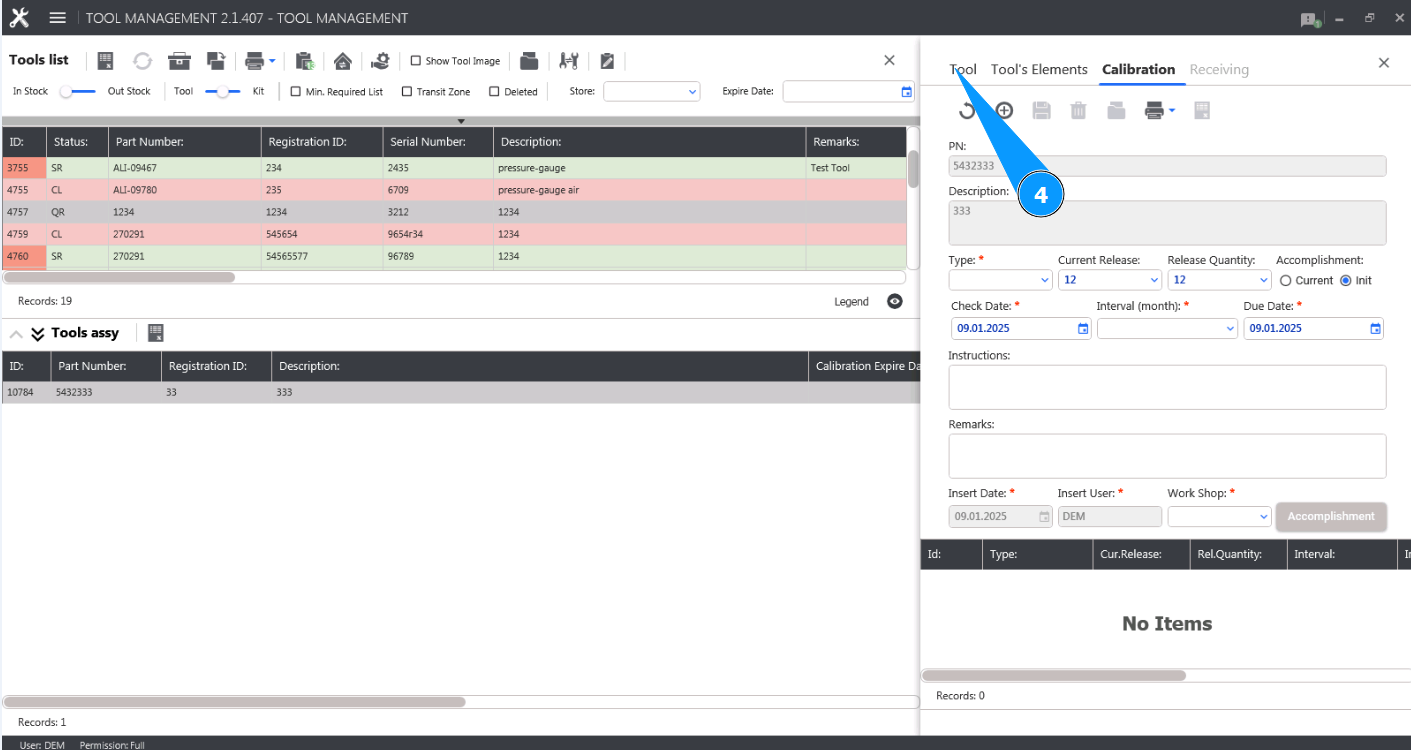
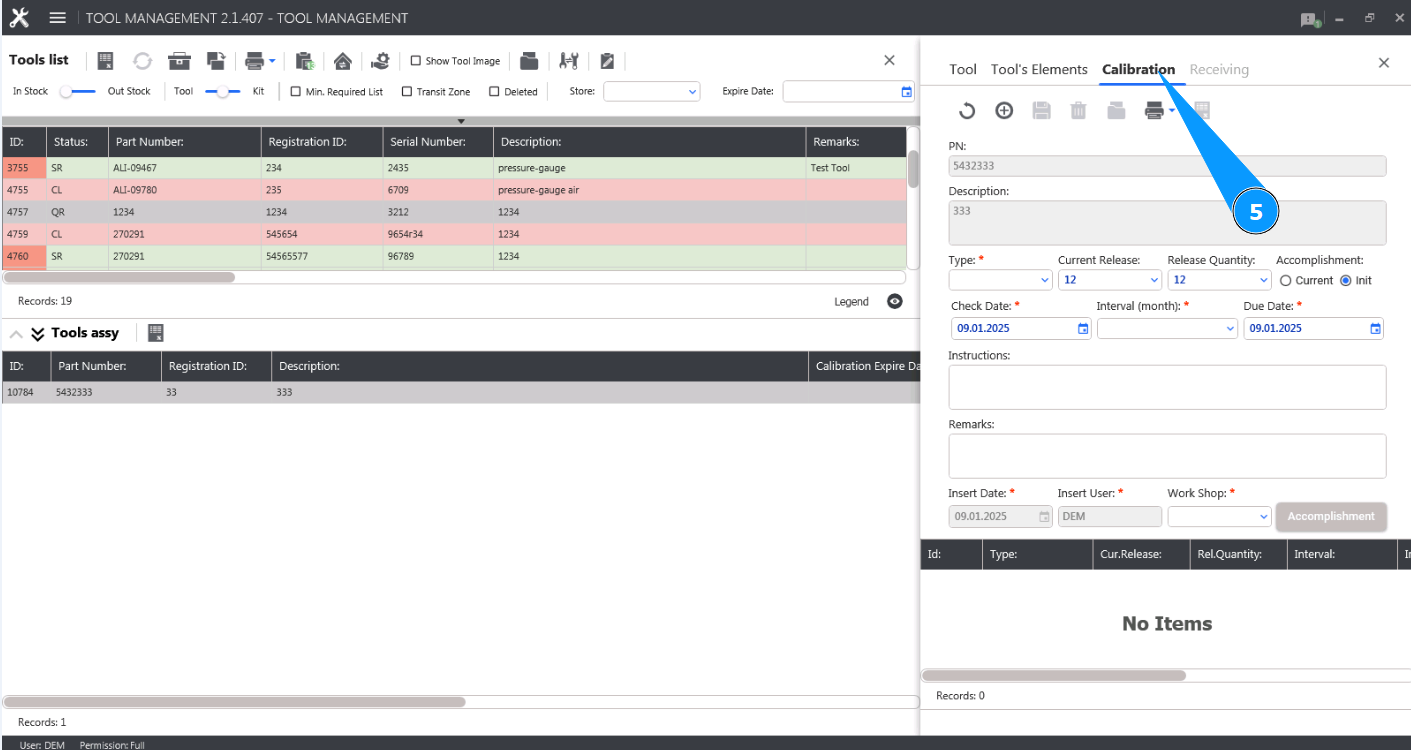
5. Go to the tab "Calibration".
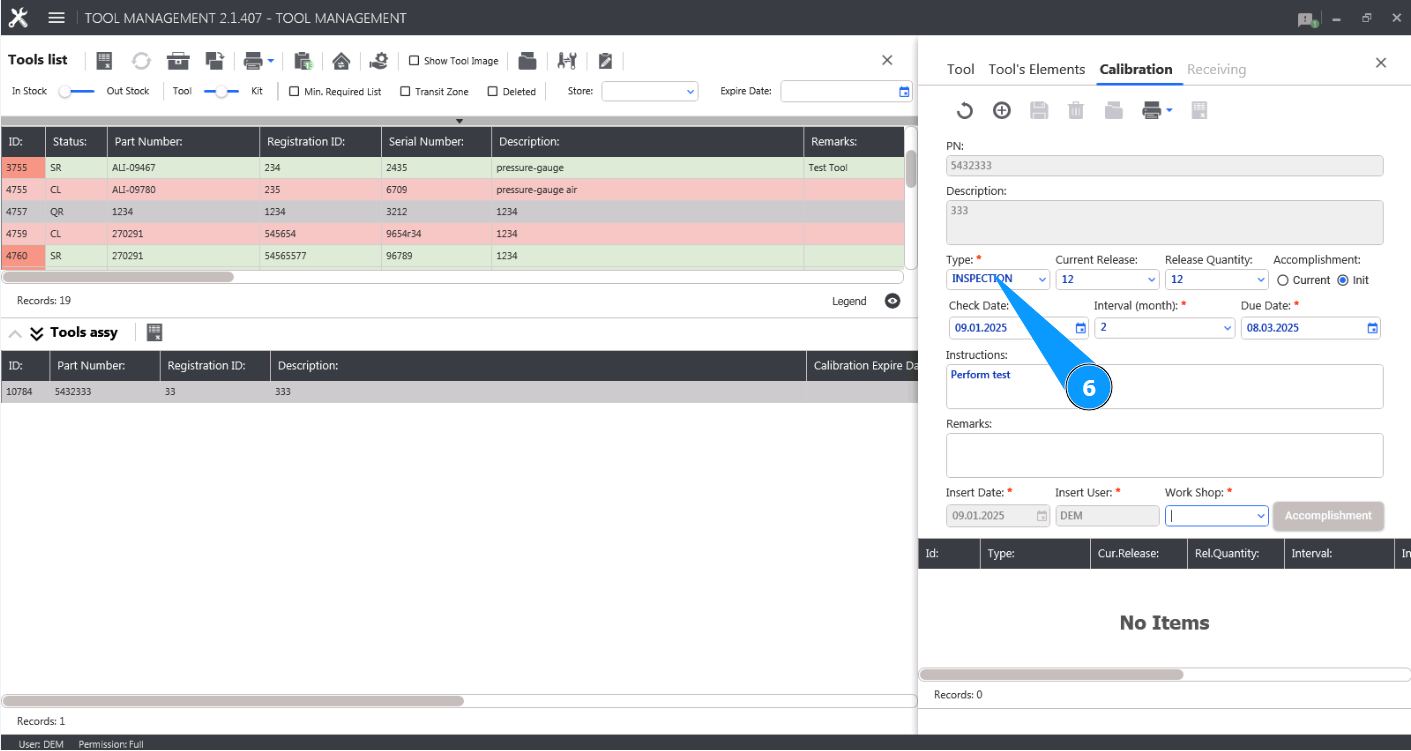
6. Select from the dropdown list or enter the name of the test to be performed in the field "Type".
7. Select the interval at which this check should be performed from the dropdown list in the field "Interval (month)". Note: The next check date will be calculated automatically by the program in the field "Due Date".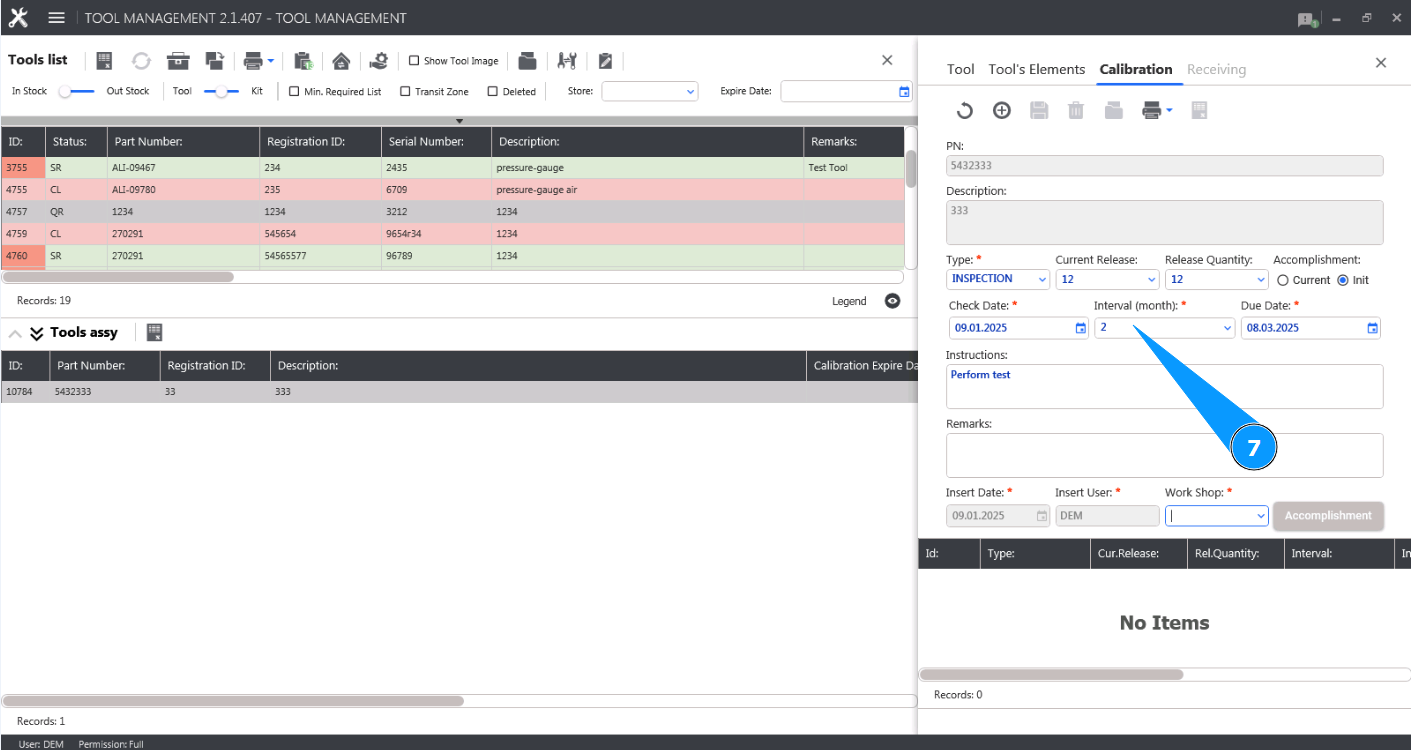
8. If necessary, enter the quantity of the tool to be moved in the field "Current Release".
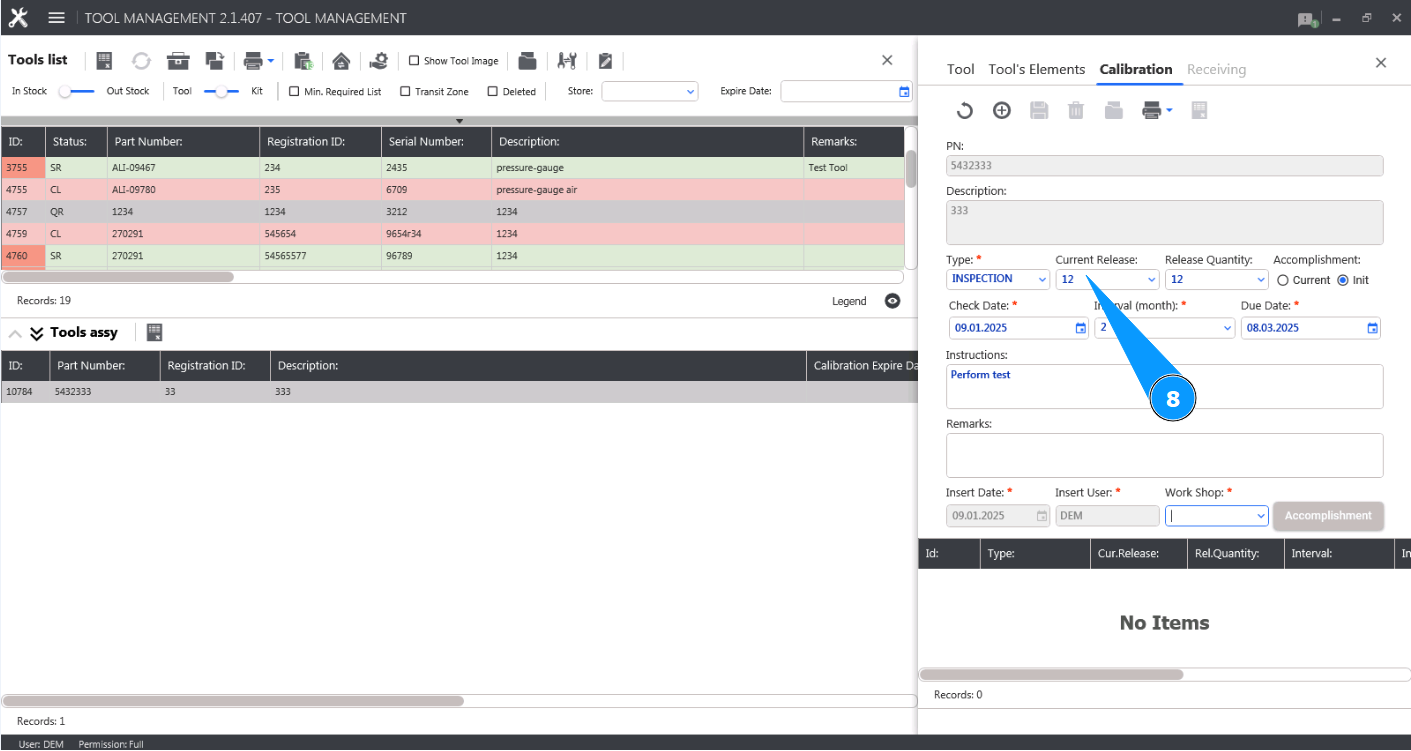
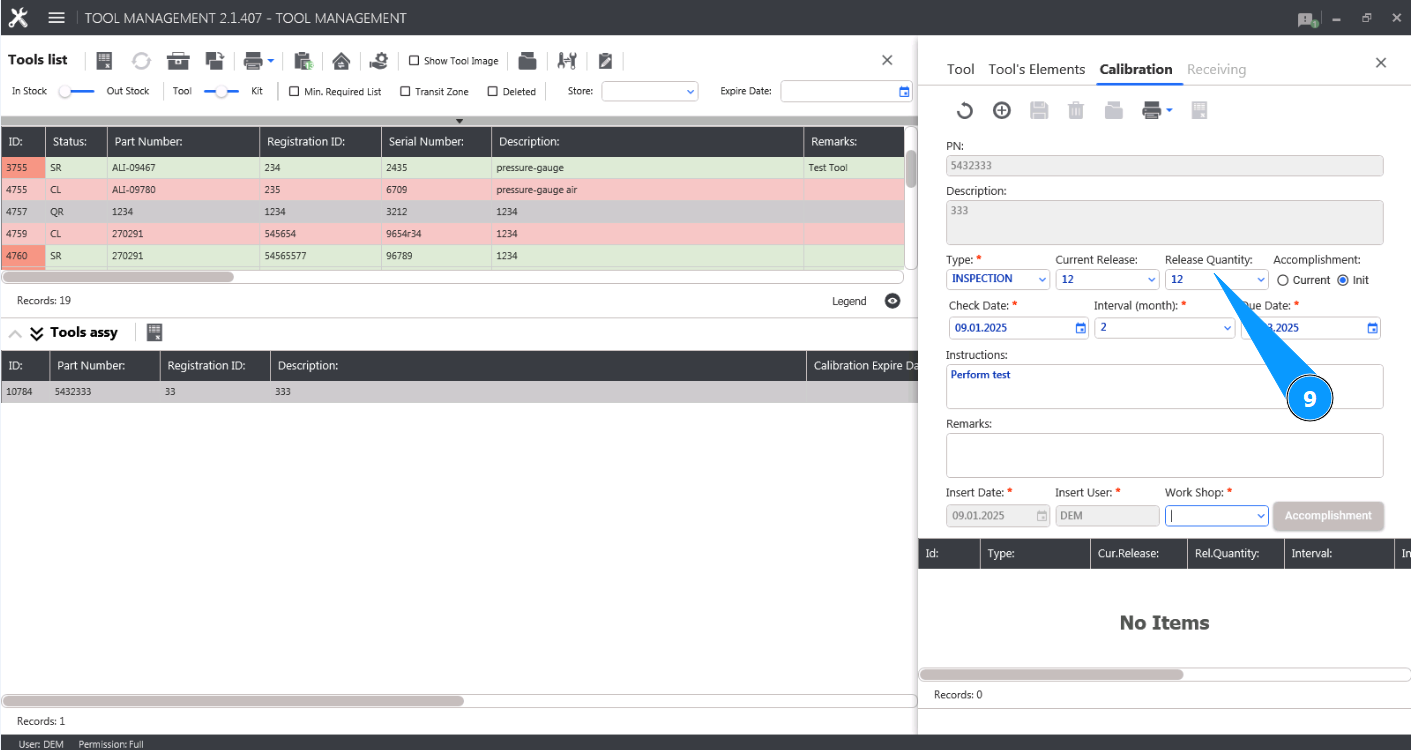
9. If necessary, enter the quantity of the moved tool in the field "Release Quantity".
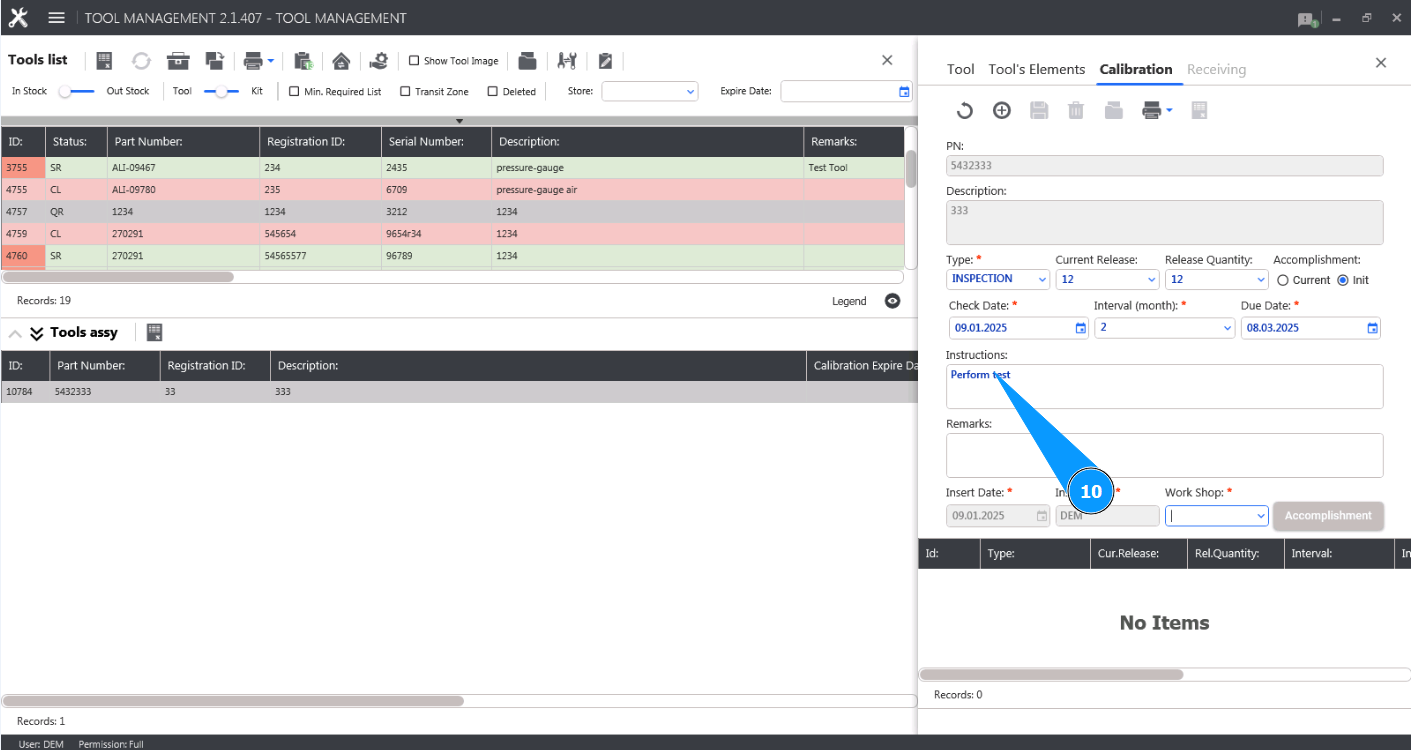
10. If necessary, enter instructions for performing the tool check in the field "Instructions".
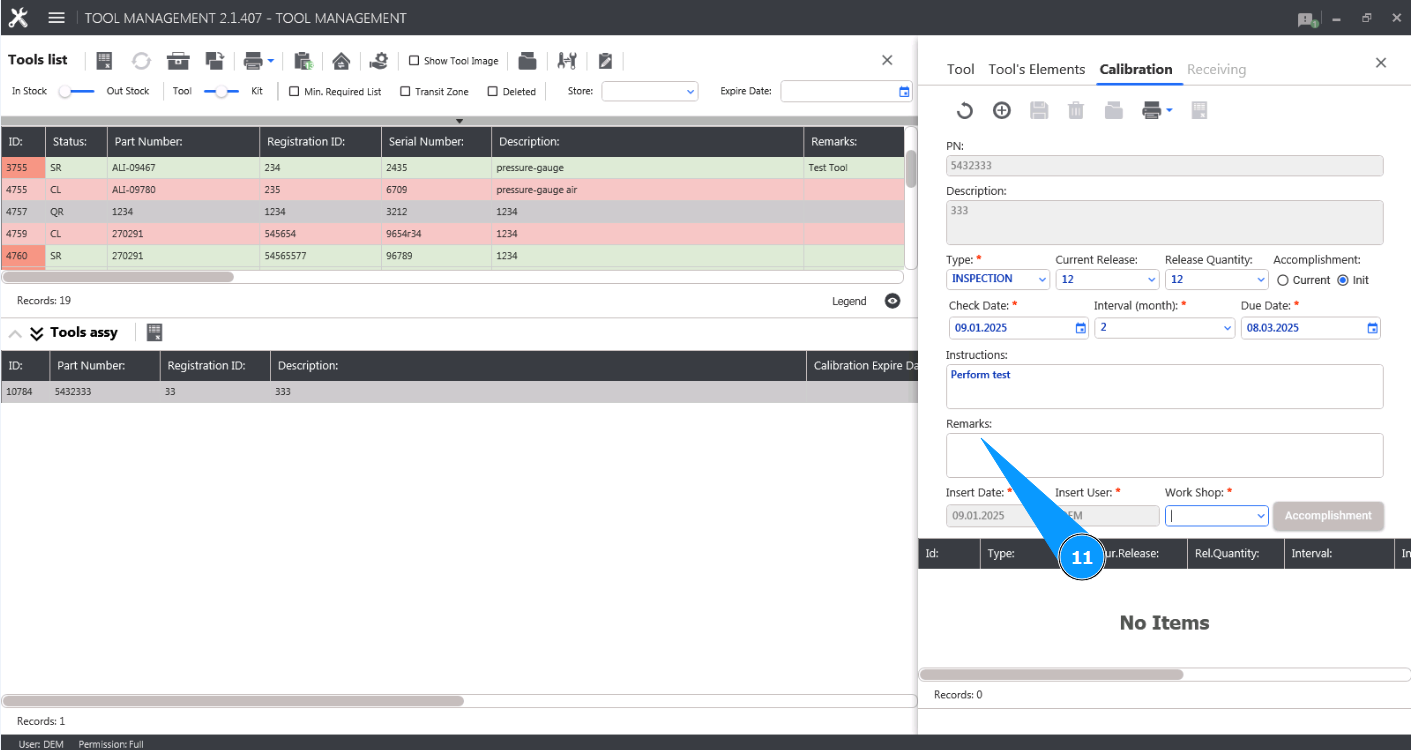
11. If necessary, enter any comments on the tool check in the field "Remarks".
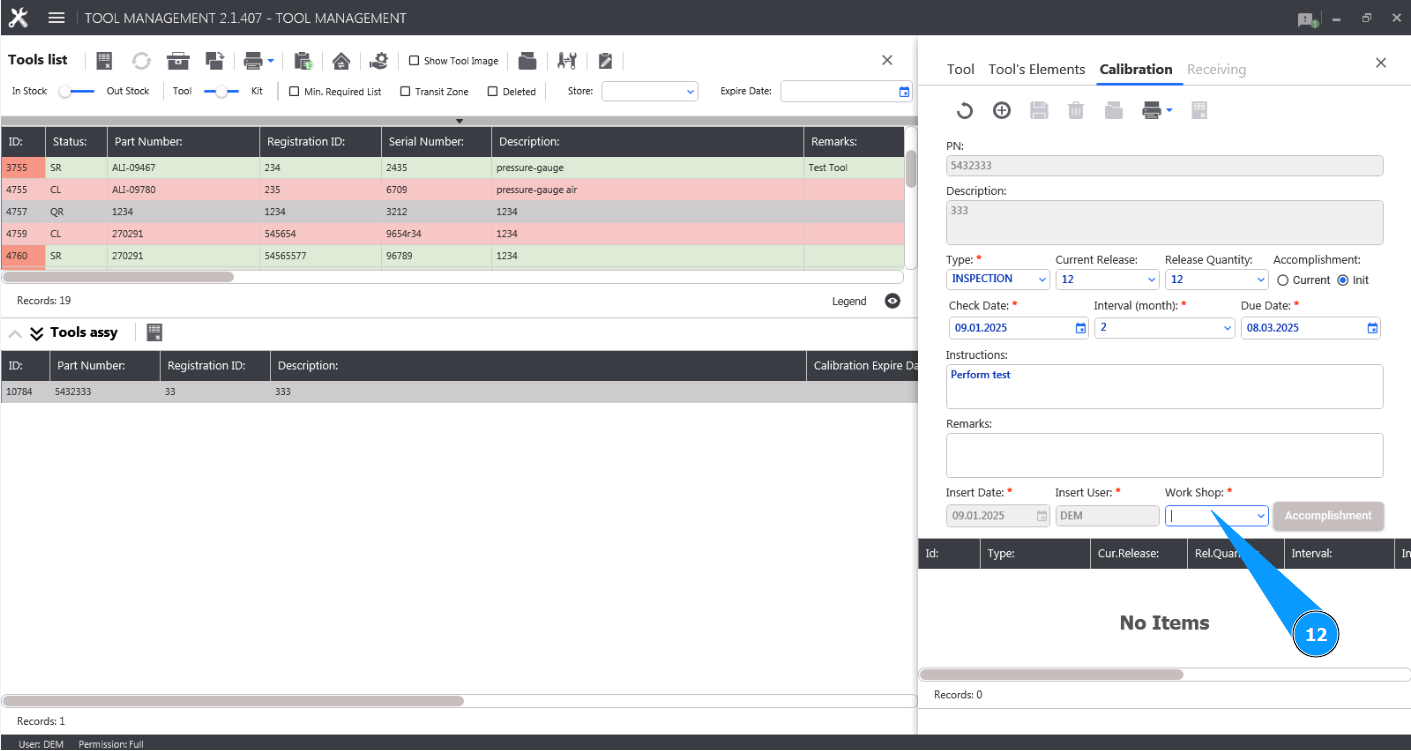
12. Select from the dropdown list or enter the name of the workshop for performing the check in the field "Workshop".
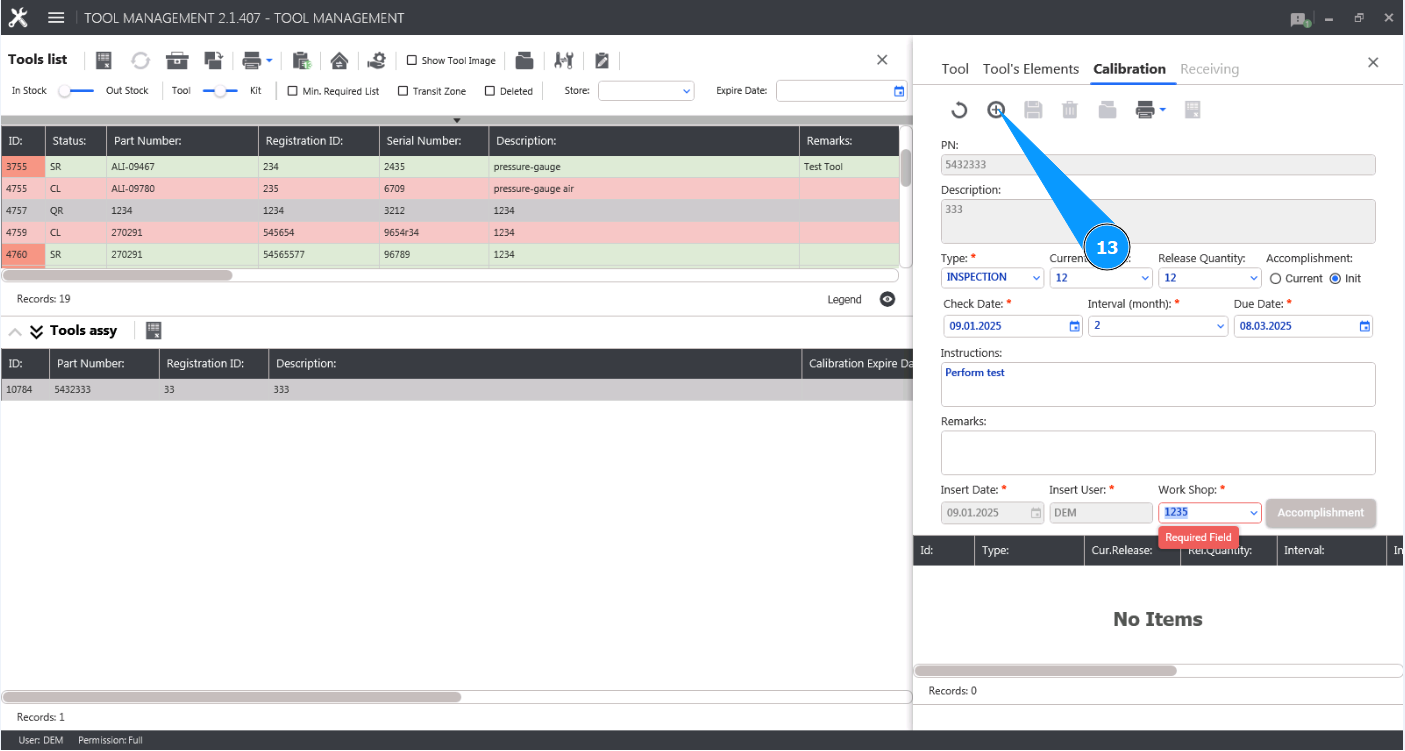
13. Click on the button "Add" to add a tool check card.
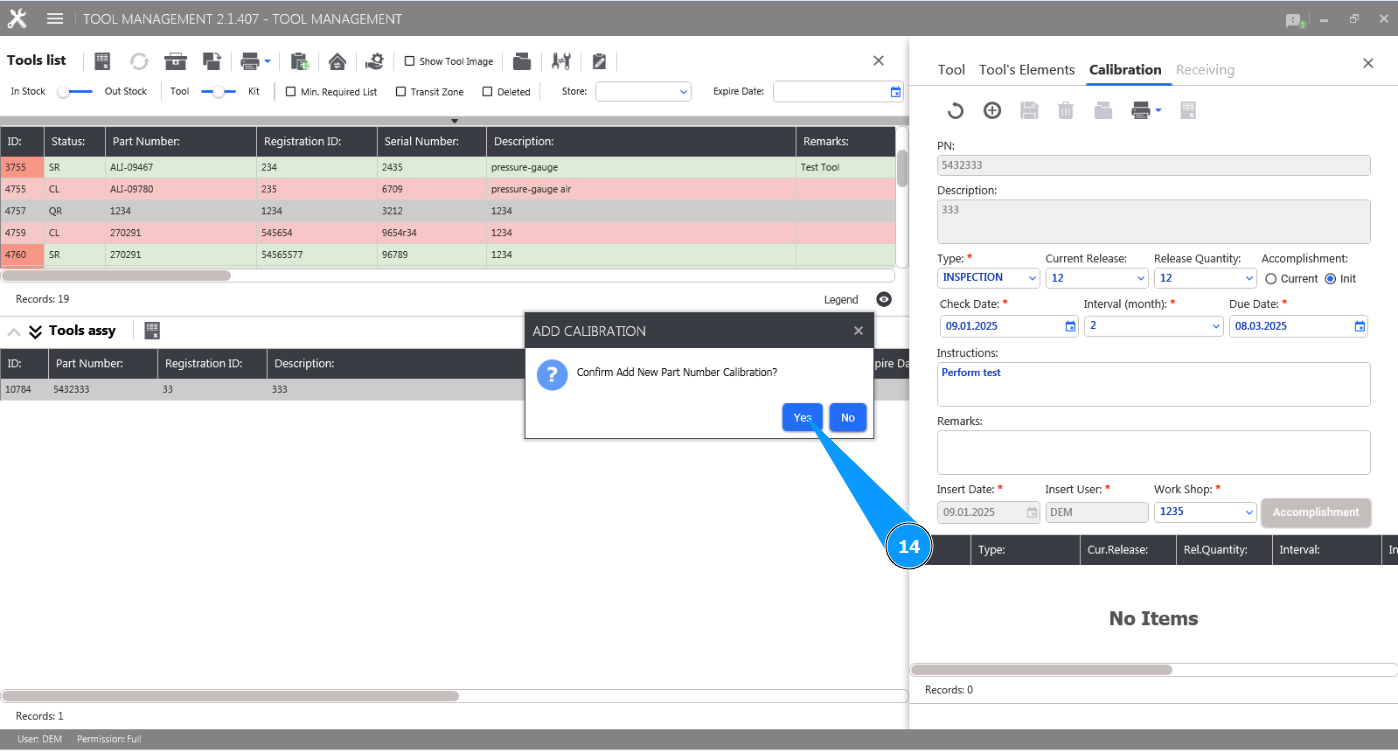
14. Click on the button "Yes" to confirm adding a new tool check card.
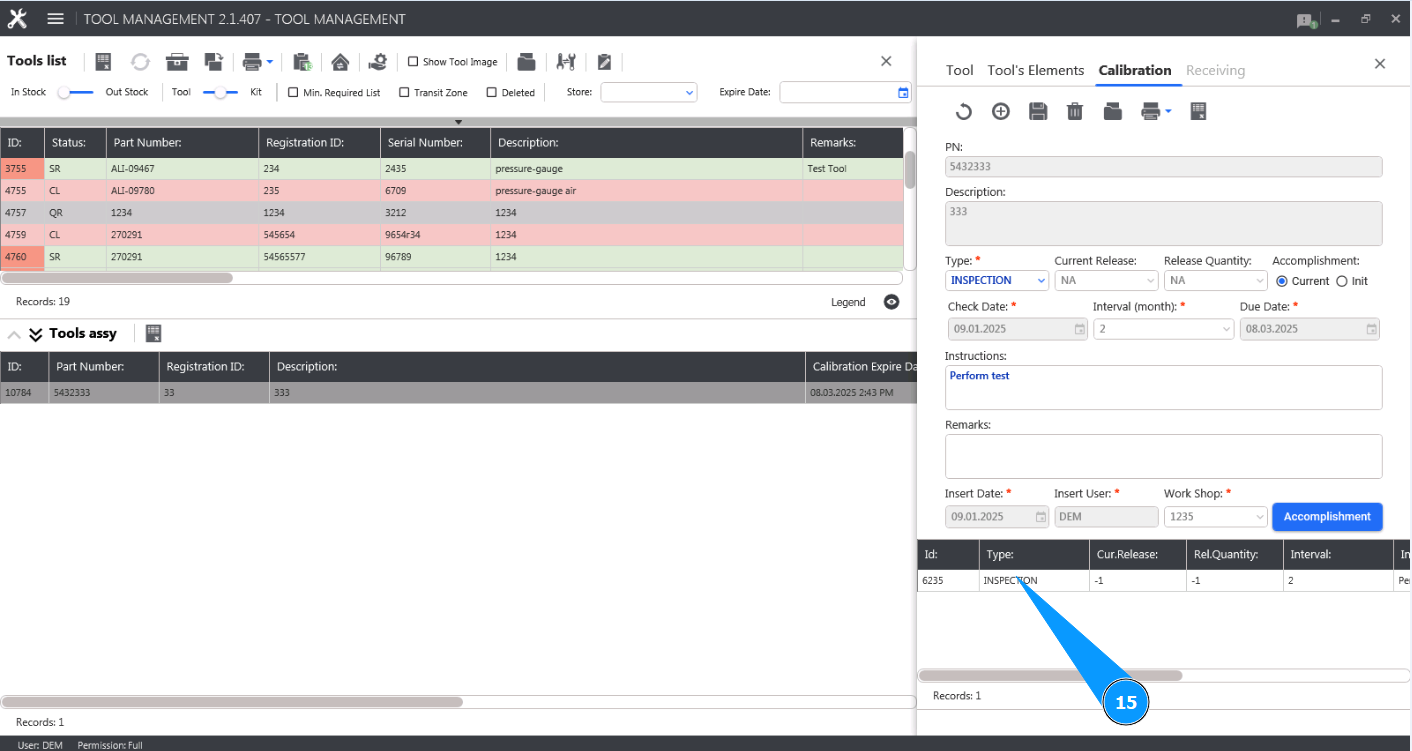
15. Check that the tool check completion record is displayed in the special window.