How to close a Repair order
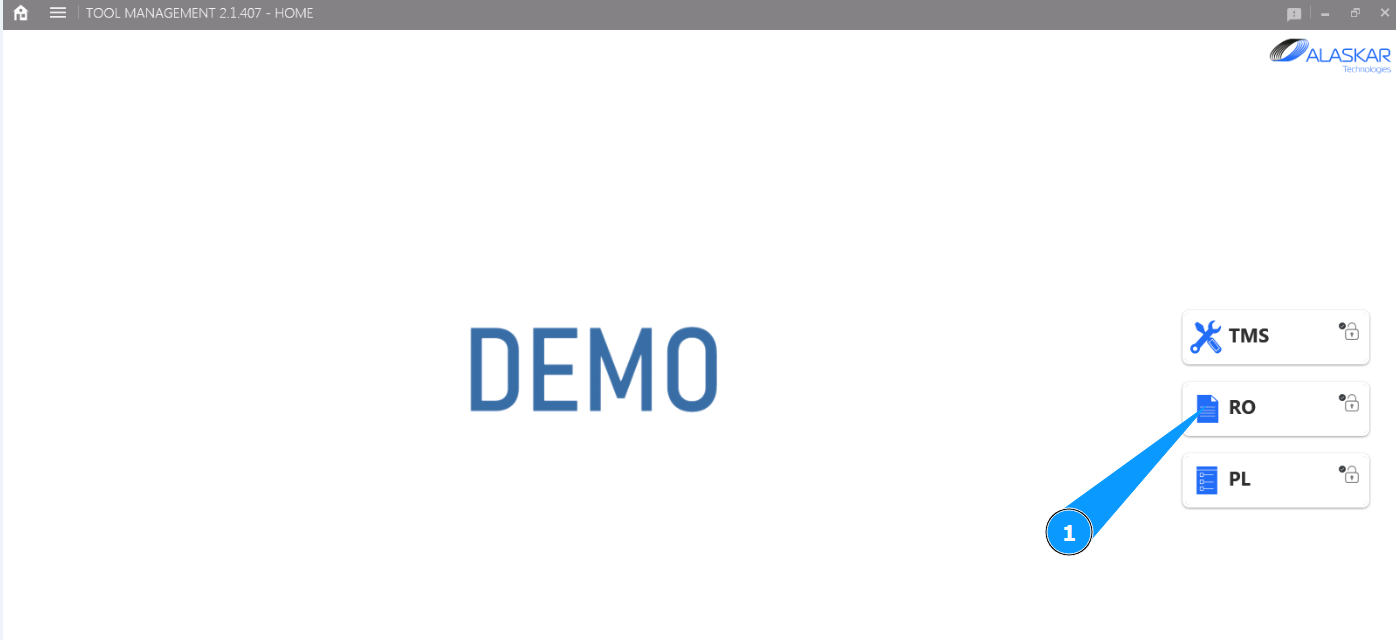
1. In order to close a Repair order, go to the submodule "RO".
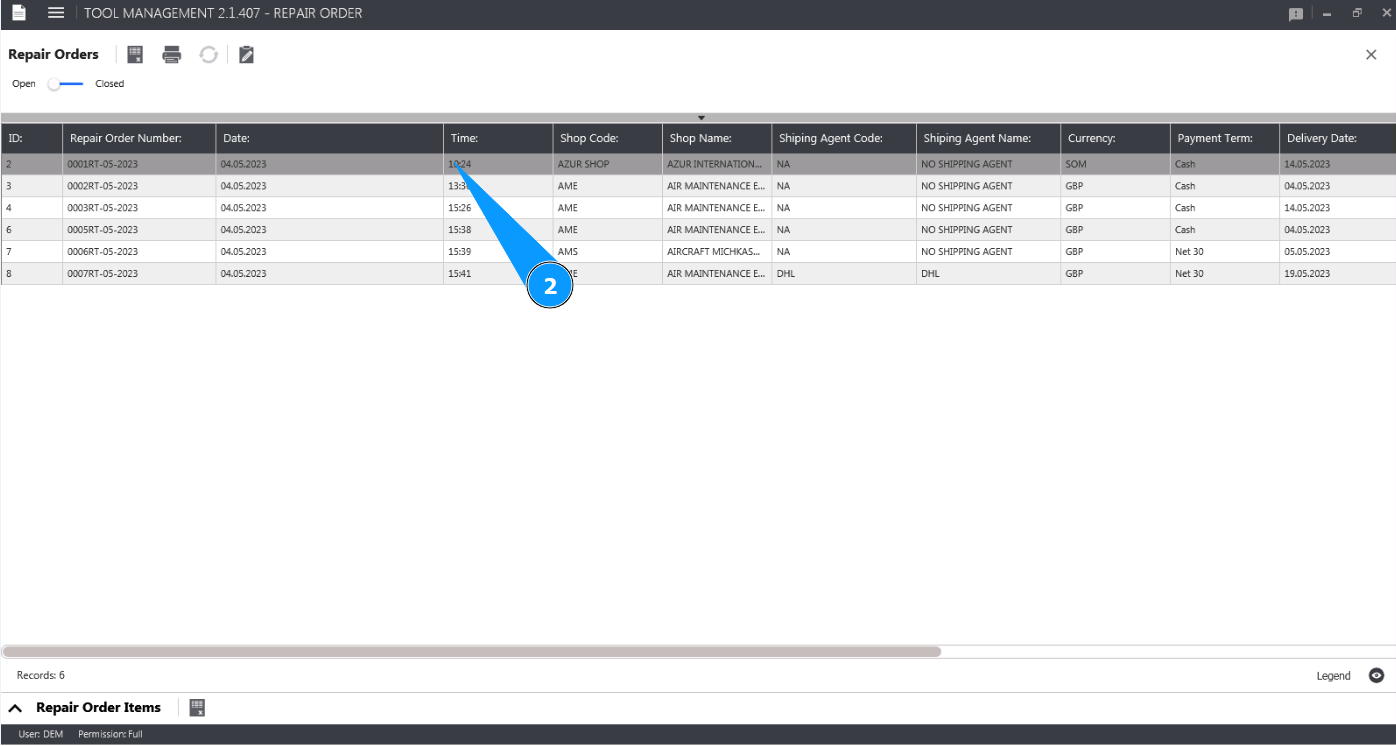
2. Select the Repair order you want to close from the list and click on the corresponding line in the window "Repair Orders".
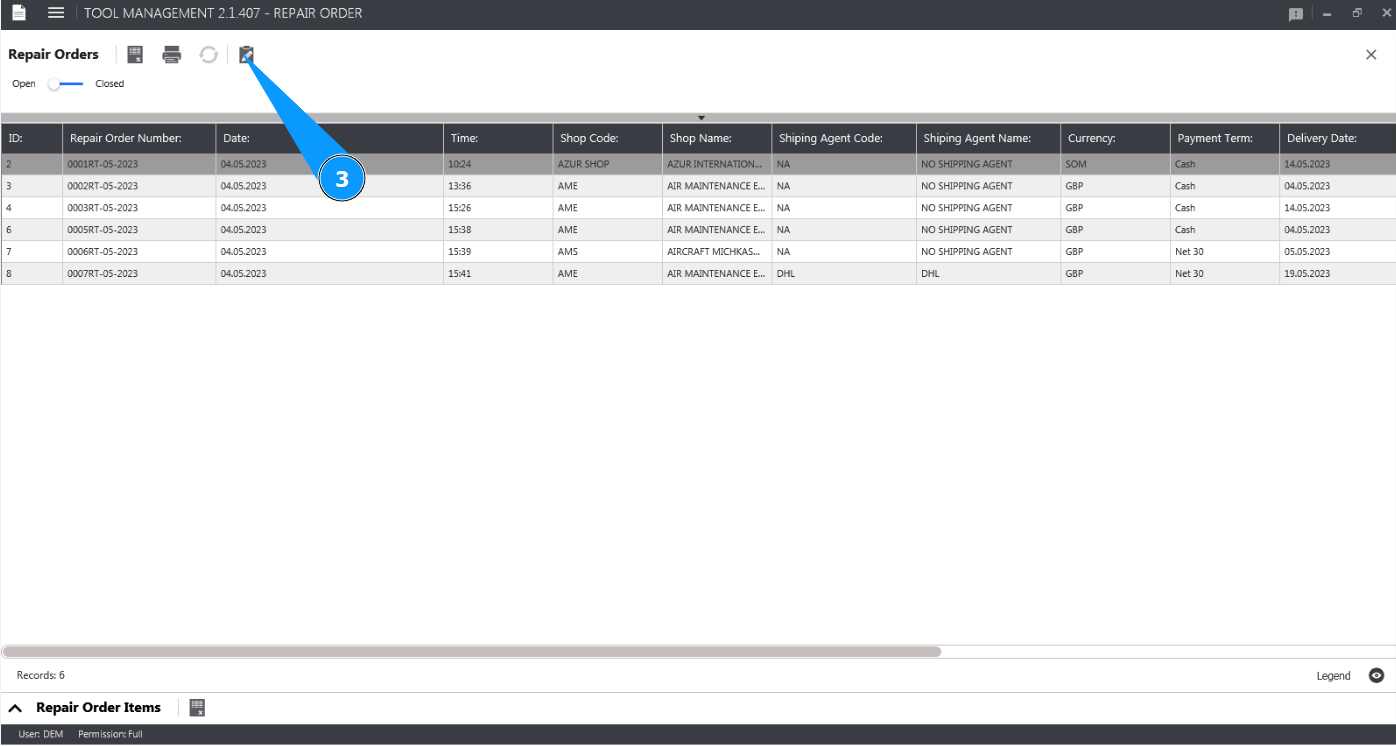
3. Click on the button "Show Editor" to open the Repair order editor.
4. Check if the window "Repair Order Editor" opens.
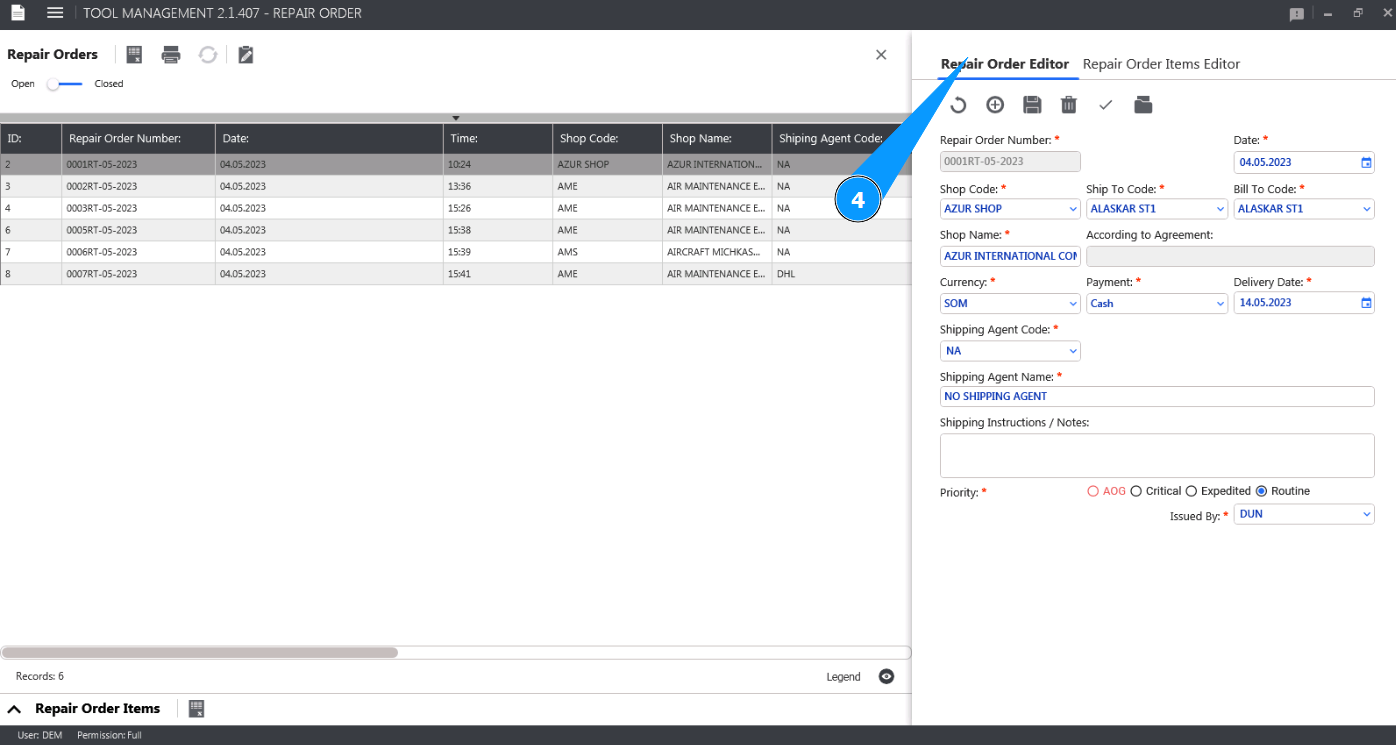
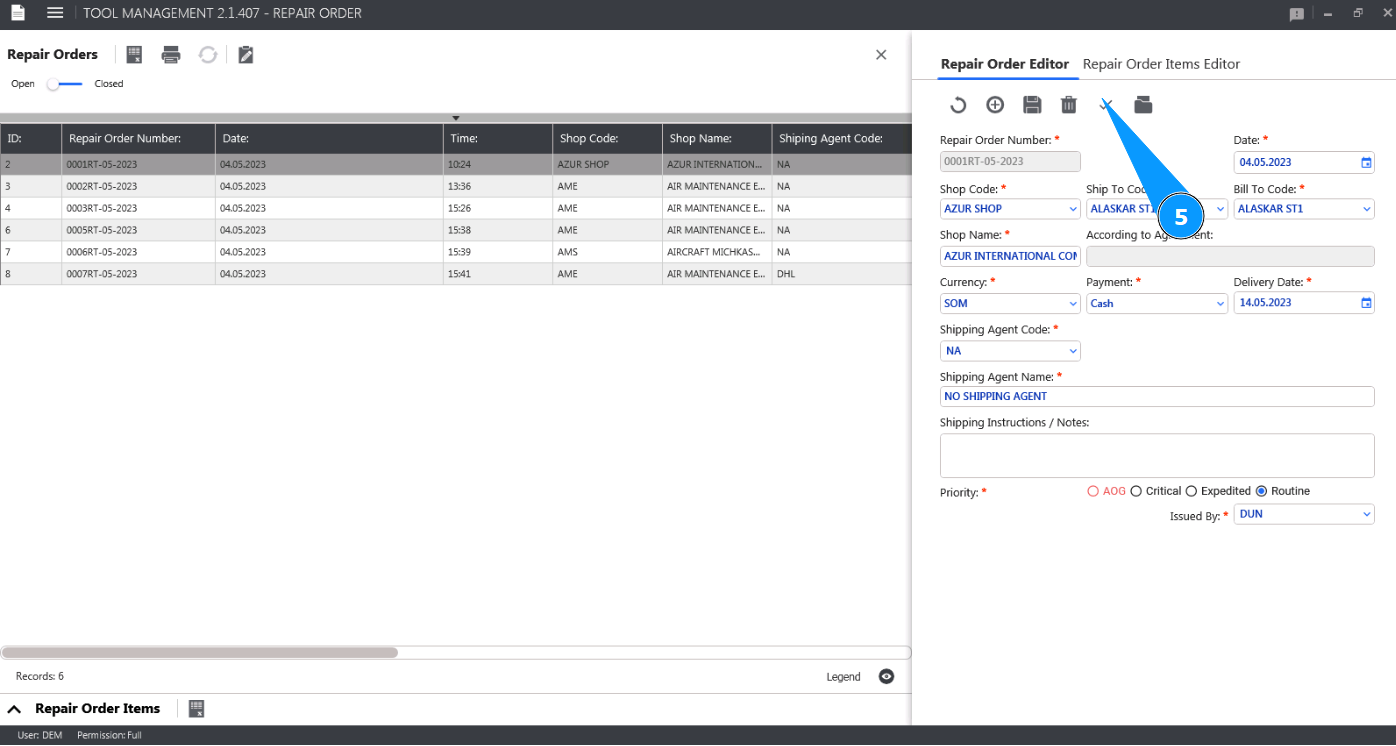
5. Click on the button "Close Repair order" to close the Repair order.
6. Click on the button "Yes" to confirm deletion of the Repair Order.
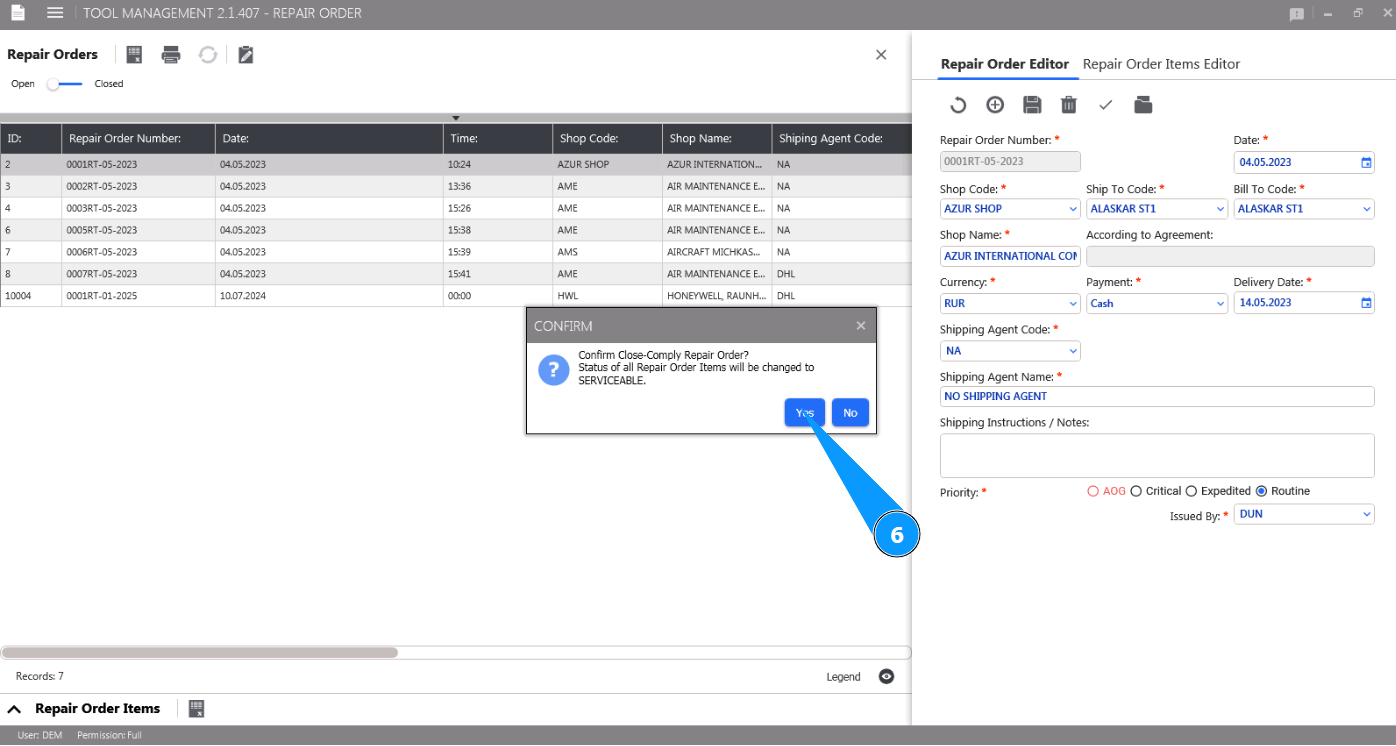
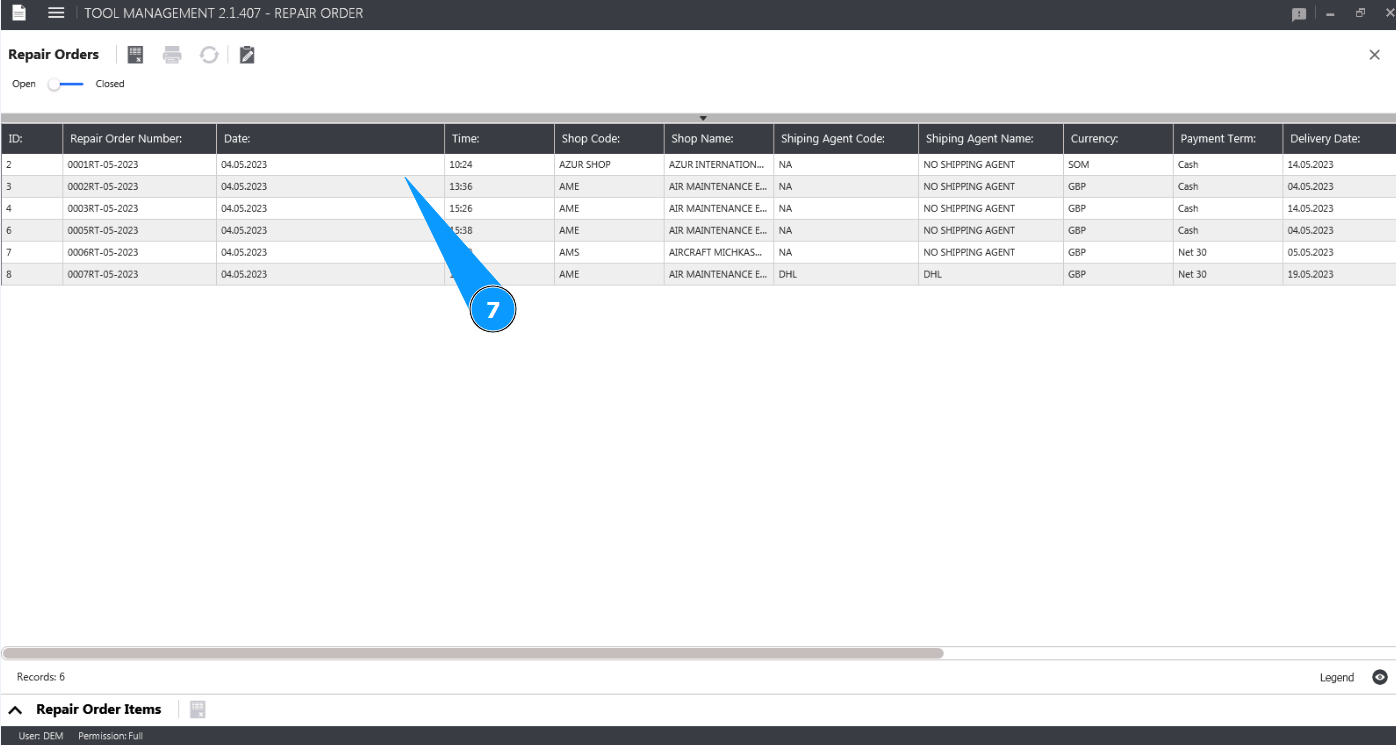
7. Check that the Repair Order has disappeared from the opened status in the window "Repair Orders".