How to view a tool in a Work Package (WP)
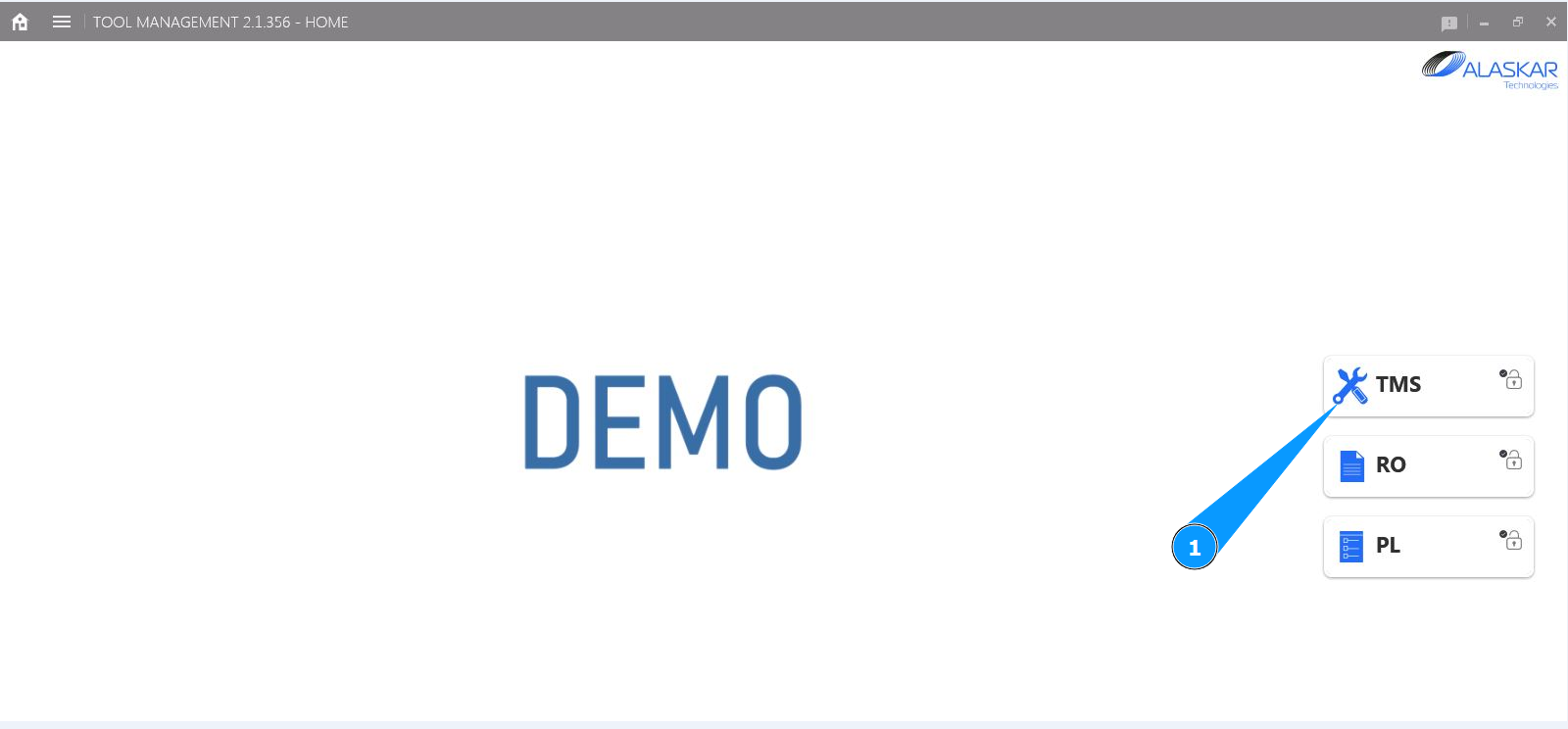
1. In order to check a tool in a Work Package (WP), go to the submodule "TMS".
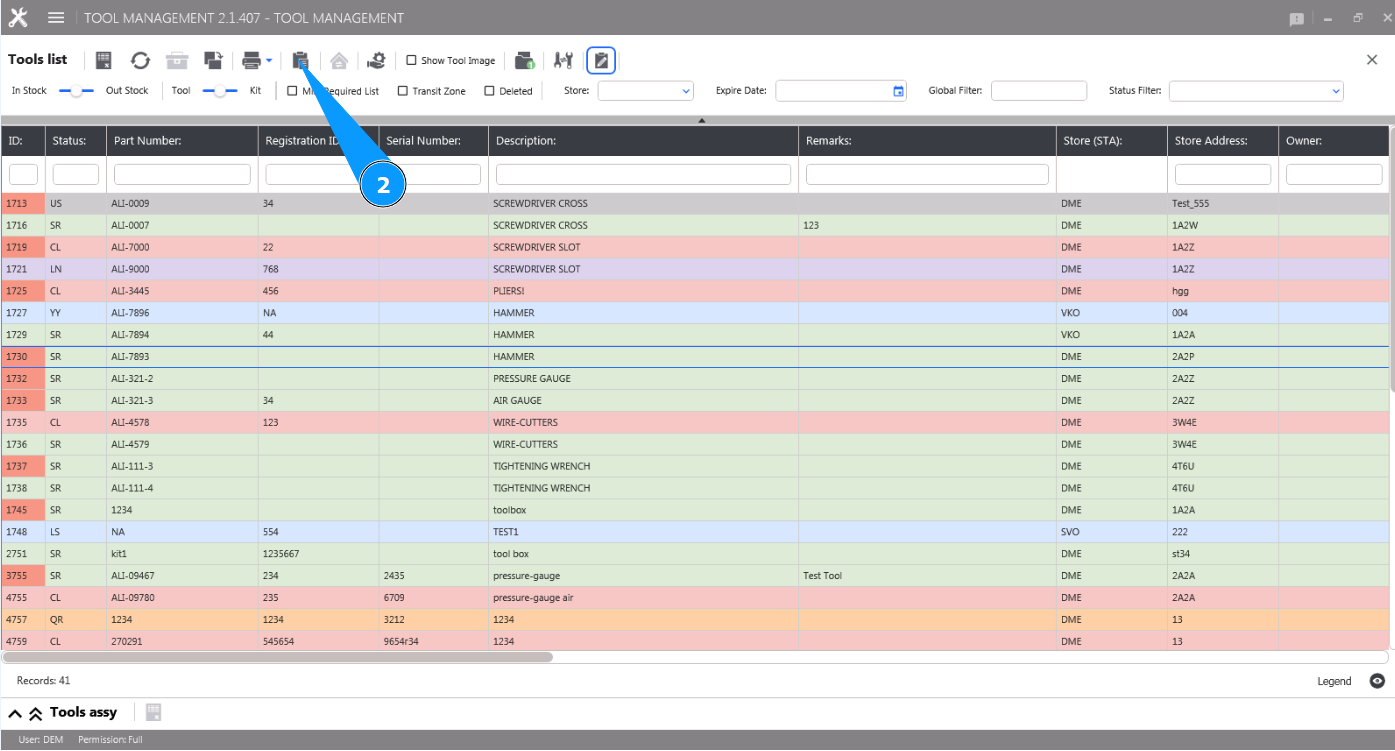
2. Click on the button "Show Work Package Tool List" to open the list of Work Packages.
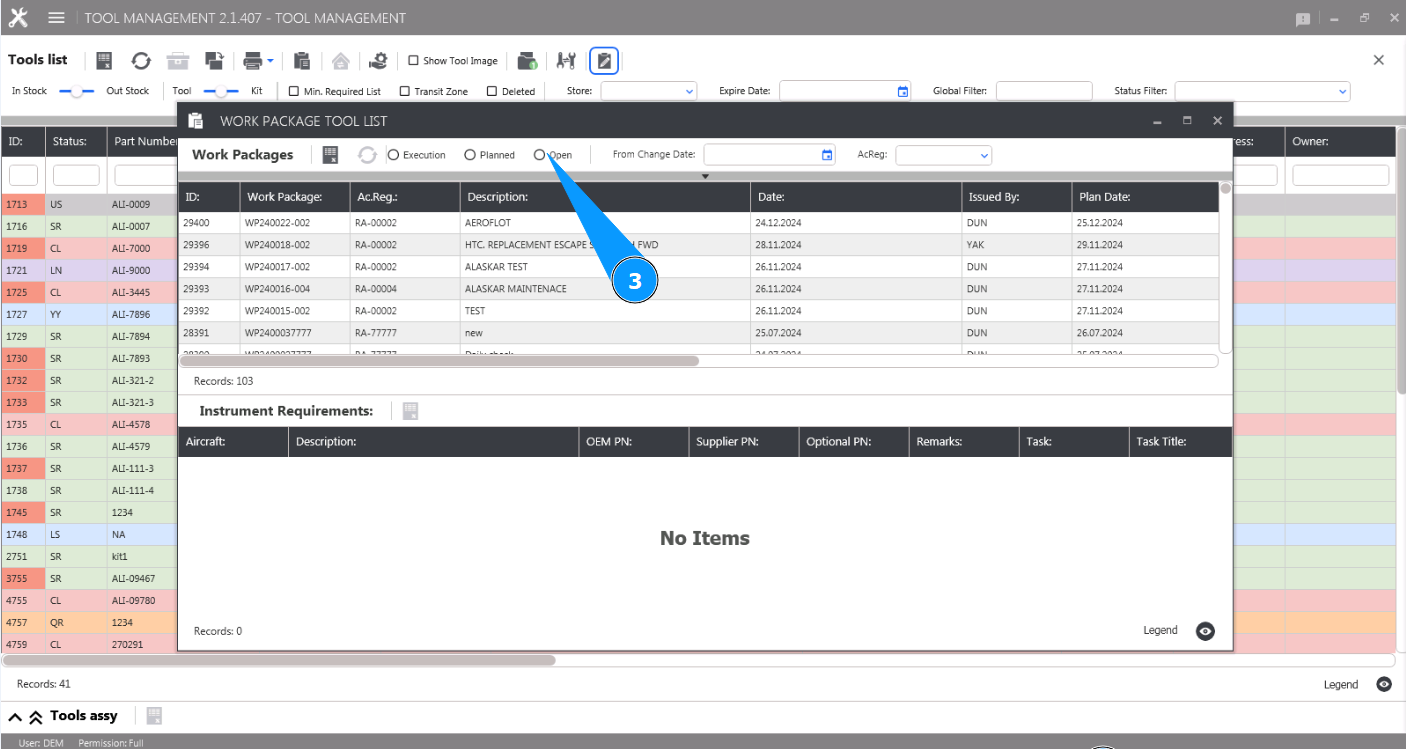
3. Select the package status and click in the corresponding field. Note: If necessary, use the available filters in the fields: "From change date" or "A/C Reg.".
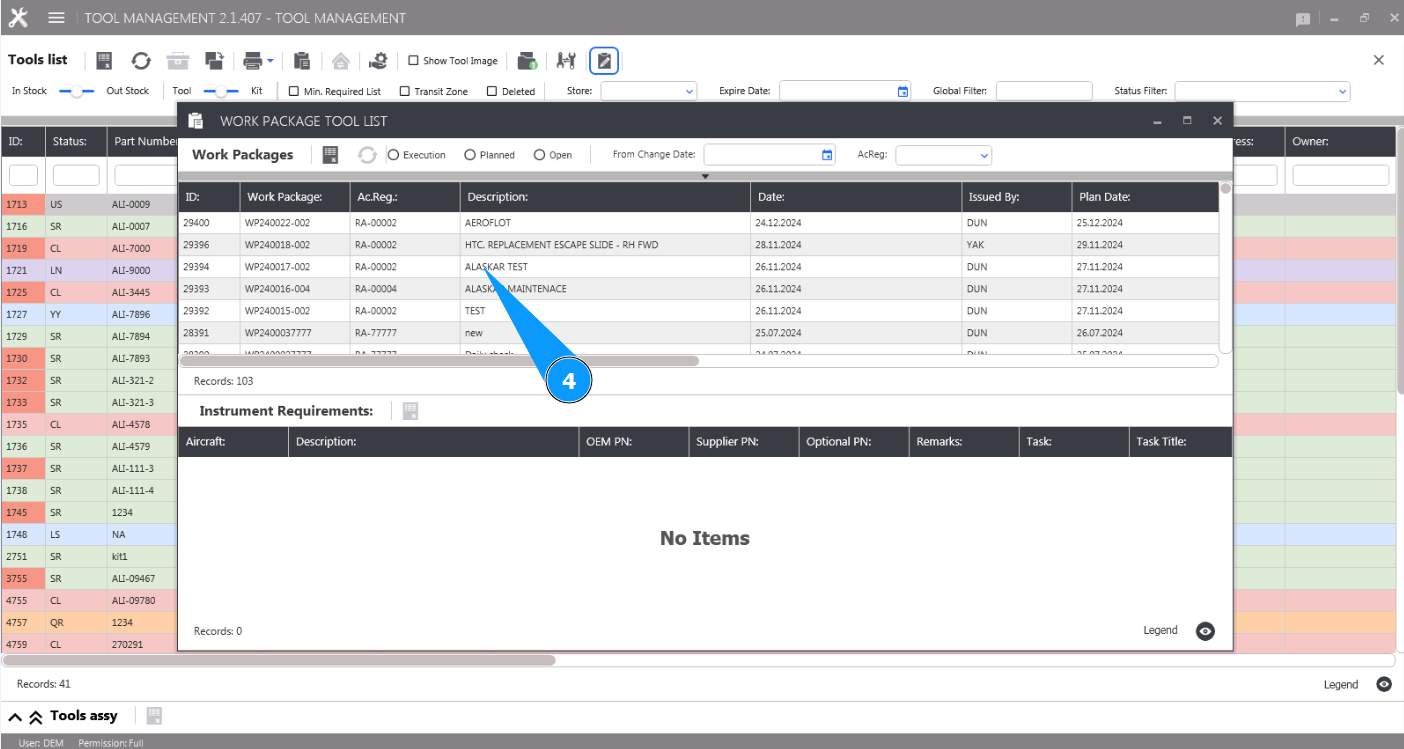
4. Select the required line with the work package and click on it in the window "Work Packages".
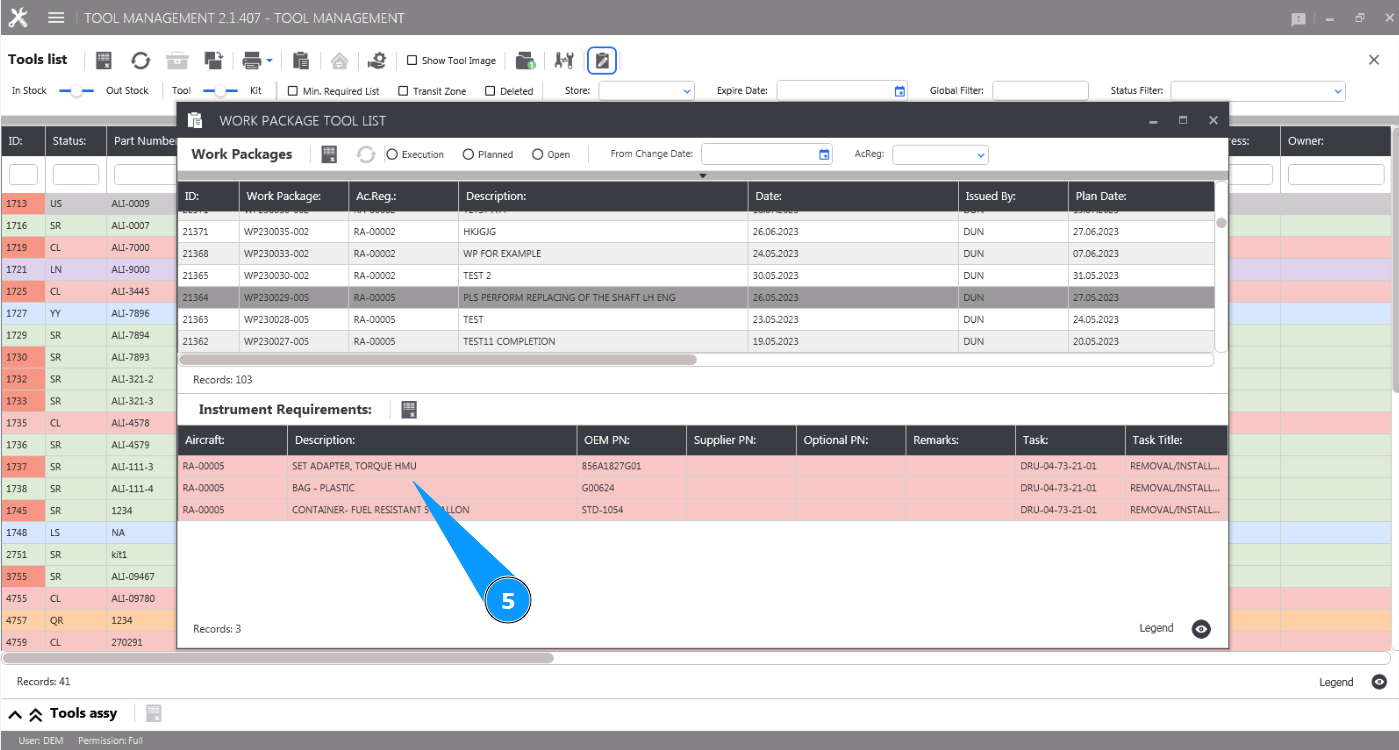
5. Check that the list is displayed and available for review in the window "Instrument Requirements".
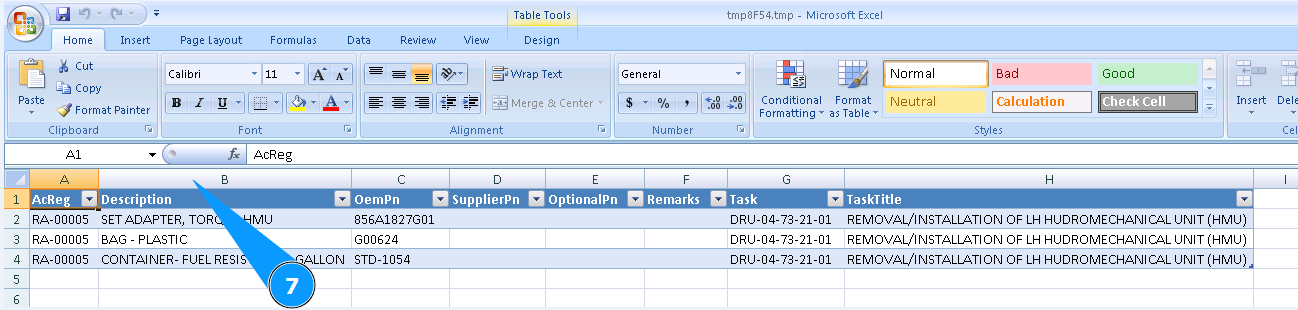
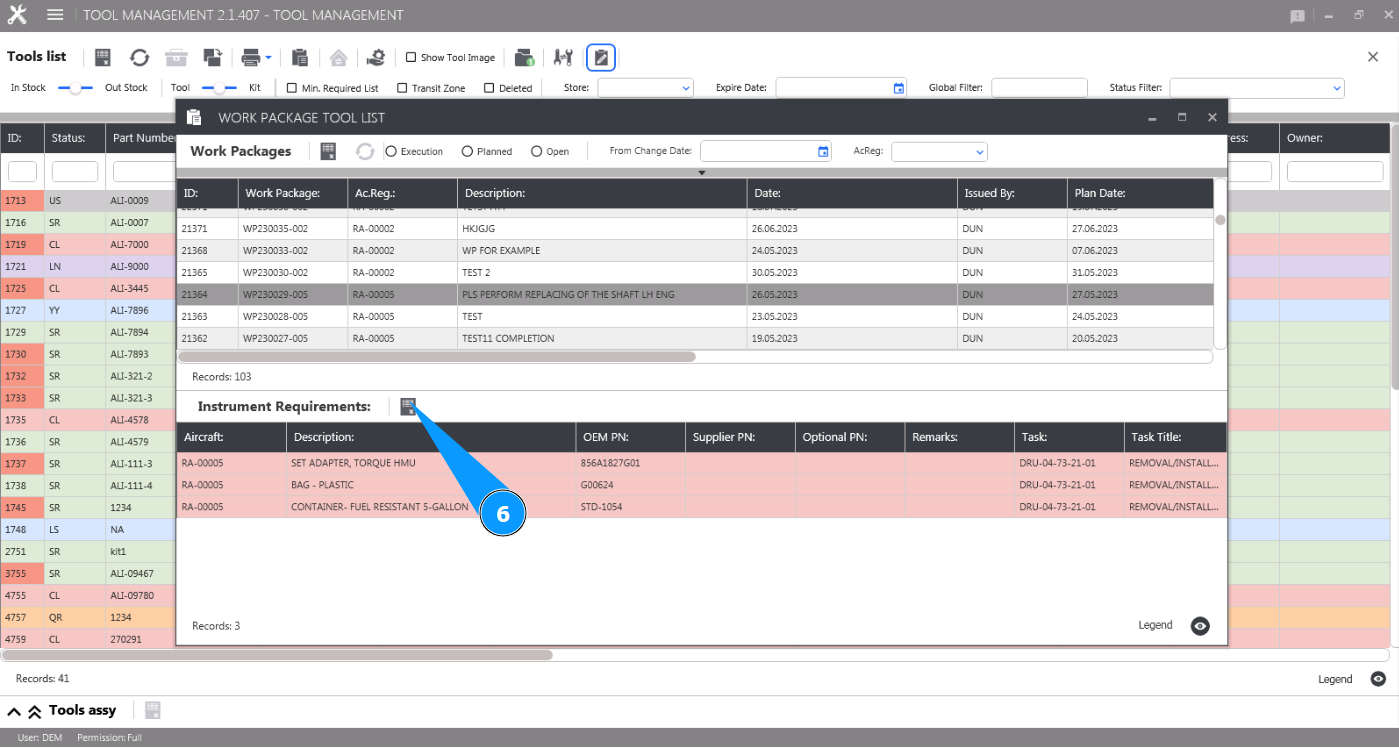
6. If necessary, you can print the list of tools from the package in Excel format, click on the button "Excel".
7. Check that the report is displayed and available for review.