How to add additional information to a tool card
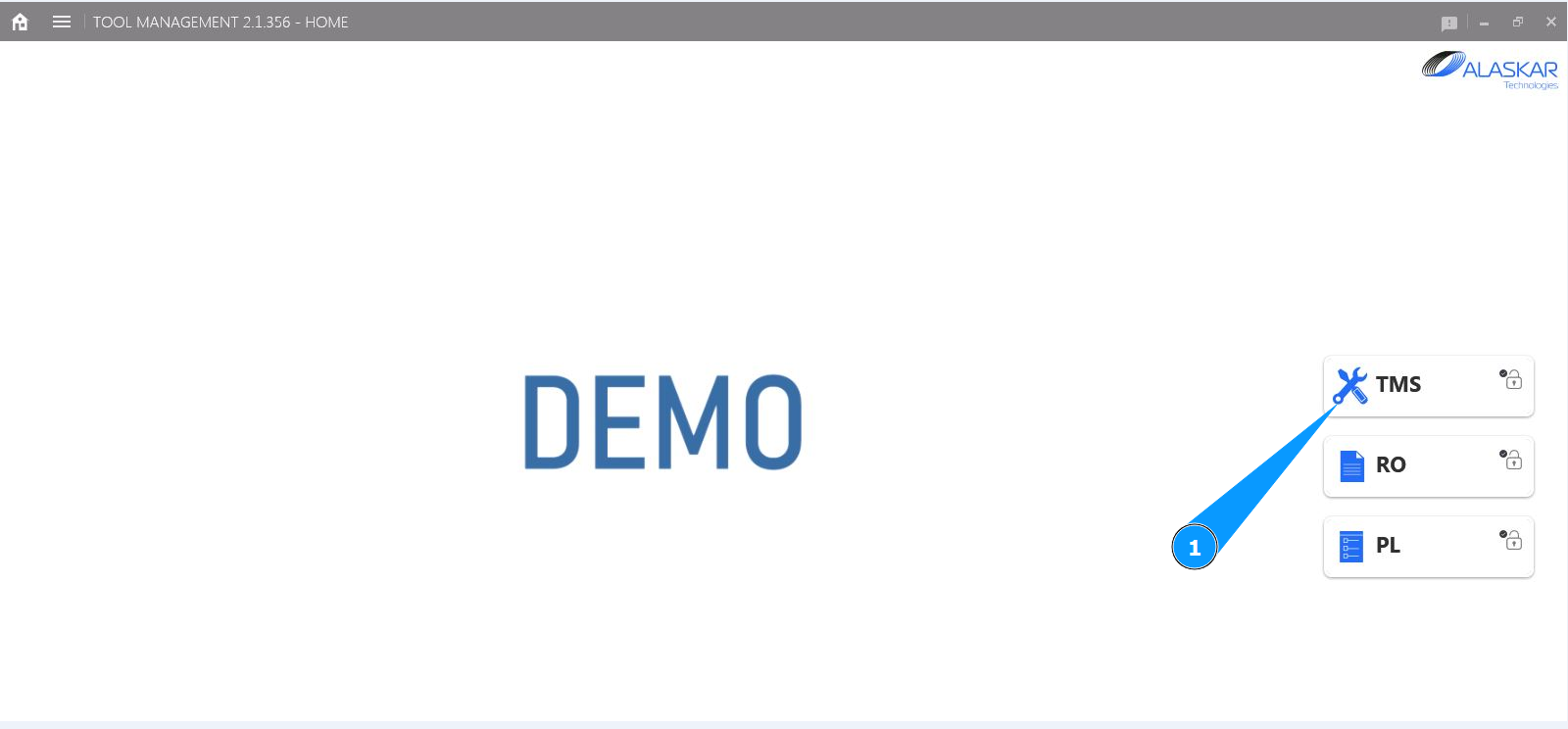
1. In order to add additional information to a tool card, go to the submodule "TMS".
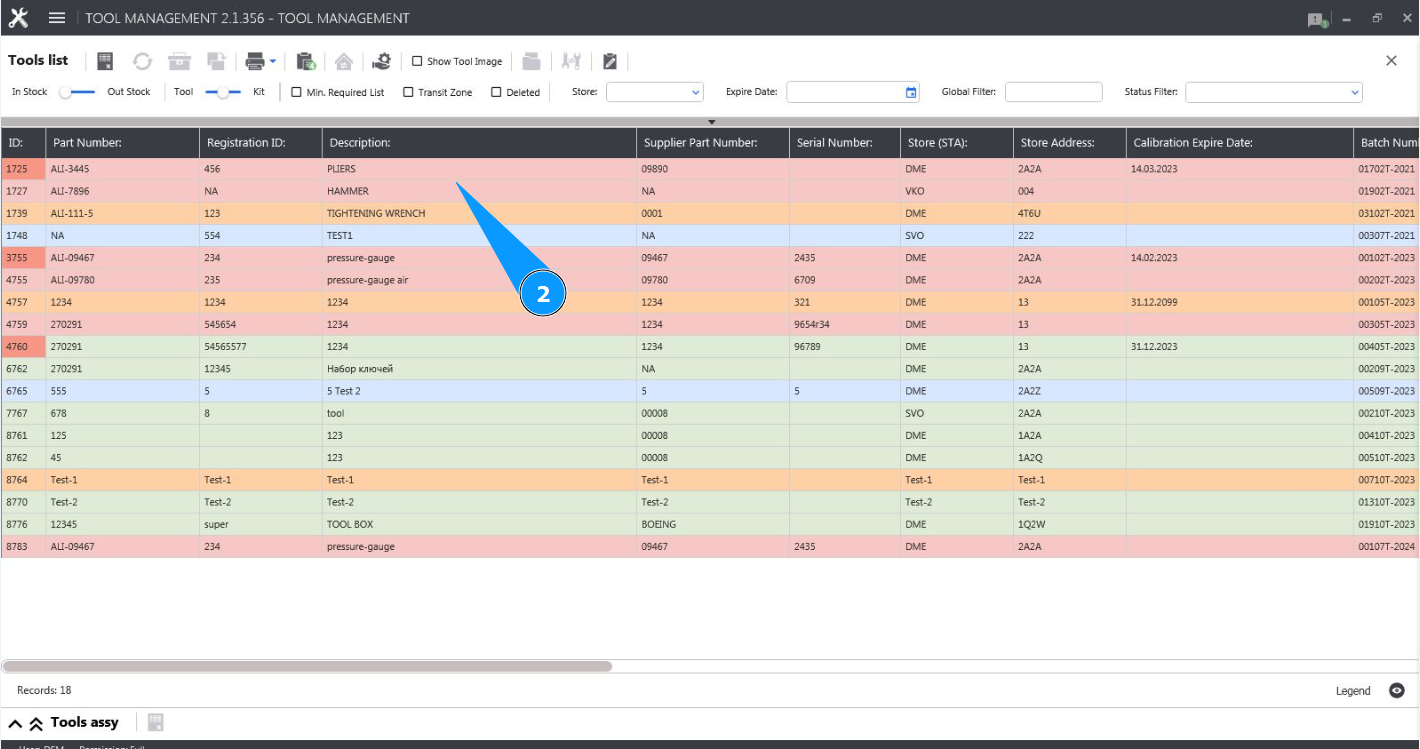
2. Select the required line with the tool in the window and click on it in the window "Tool List".
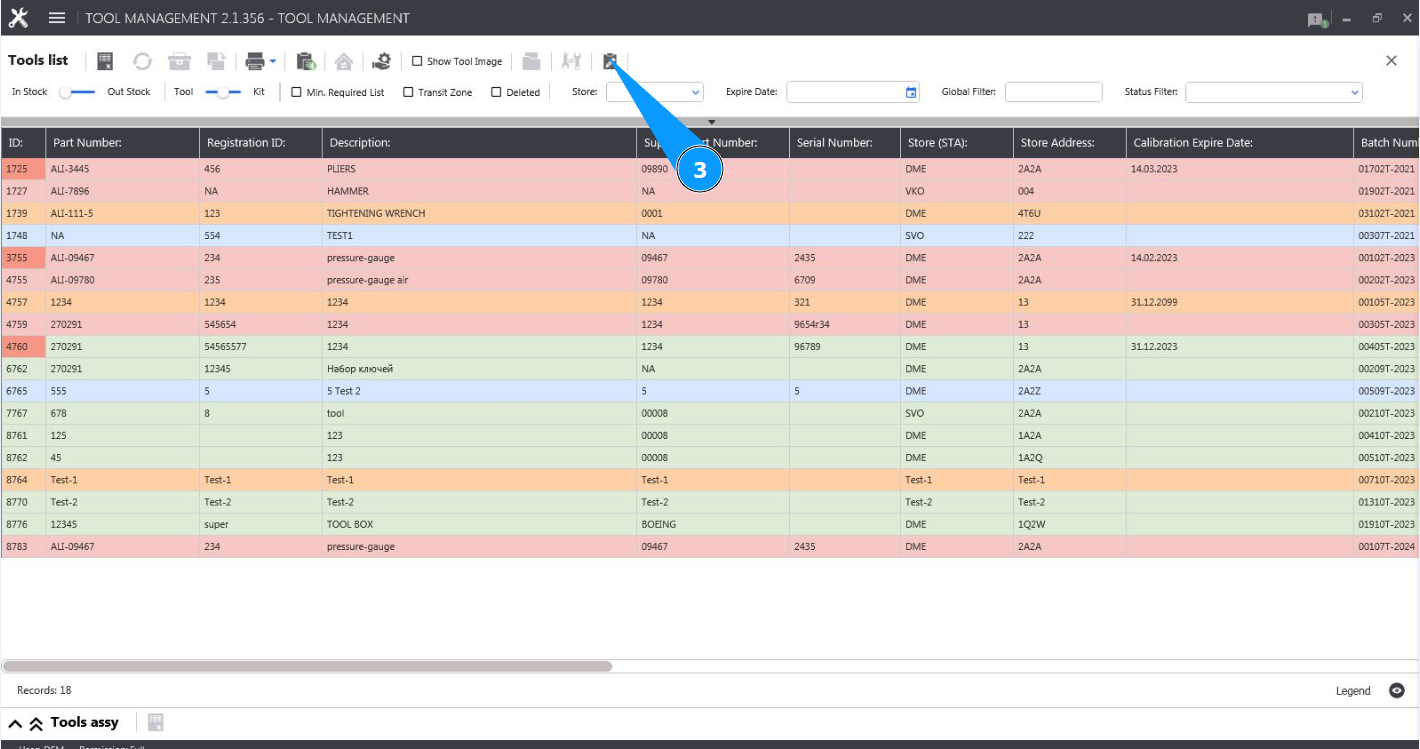
3. Click on the button "Show Editor" to open the tool editor.
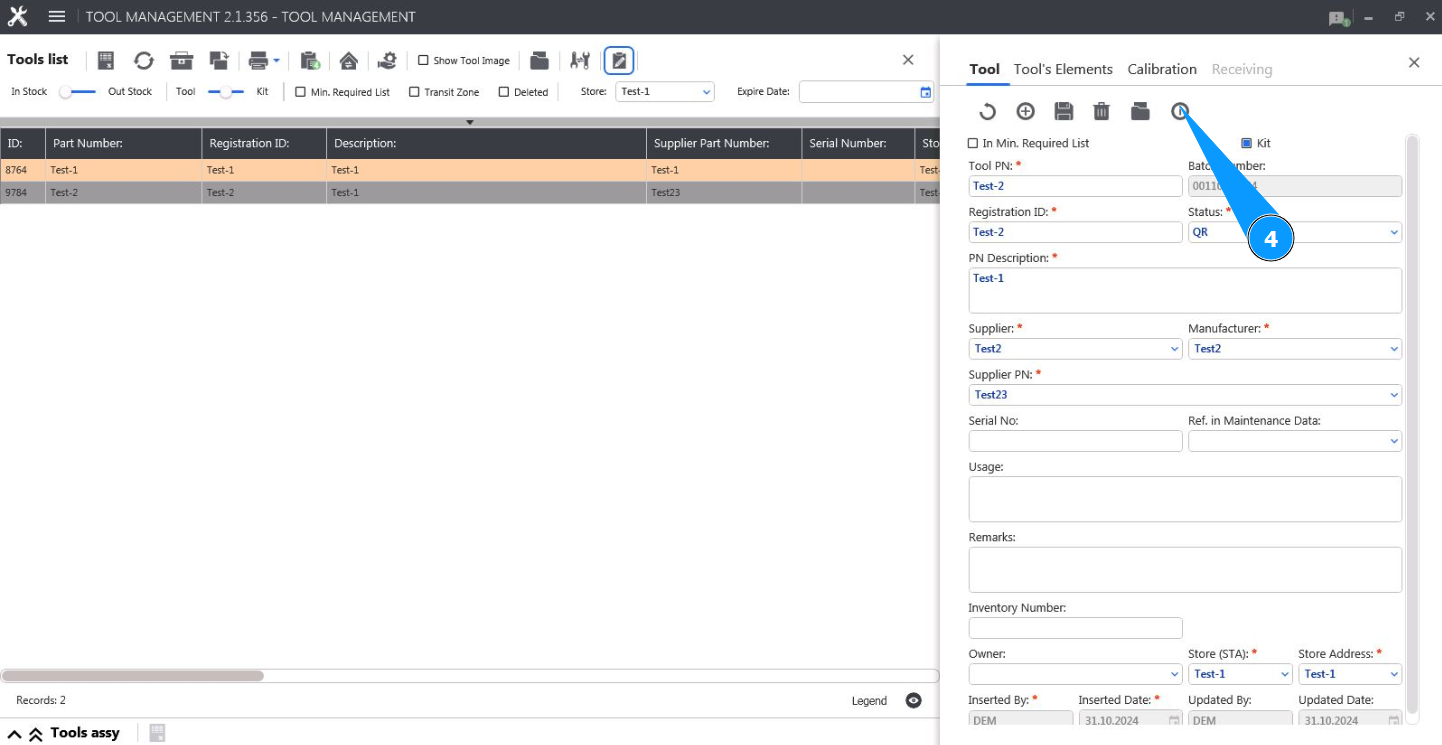
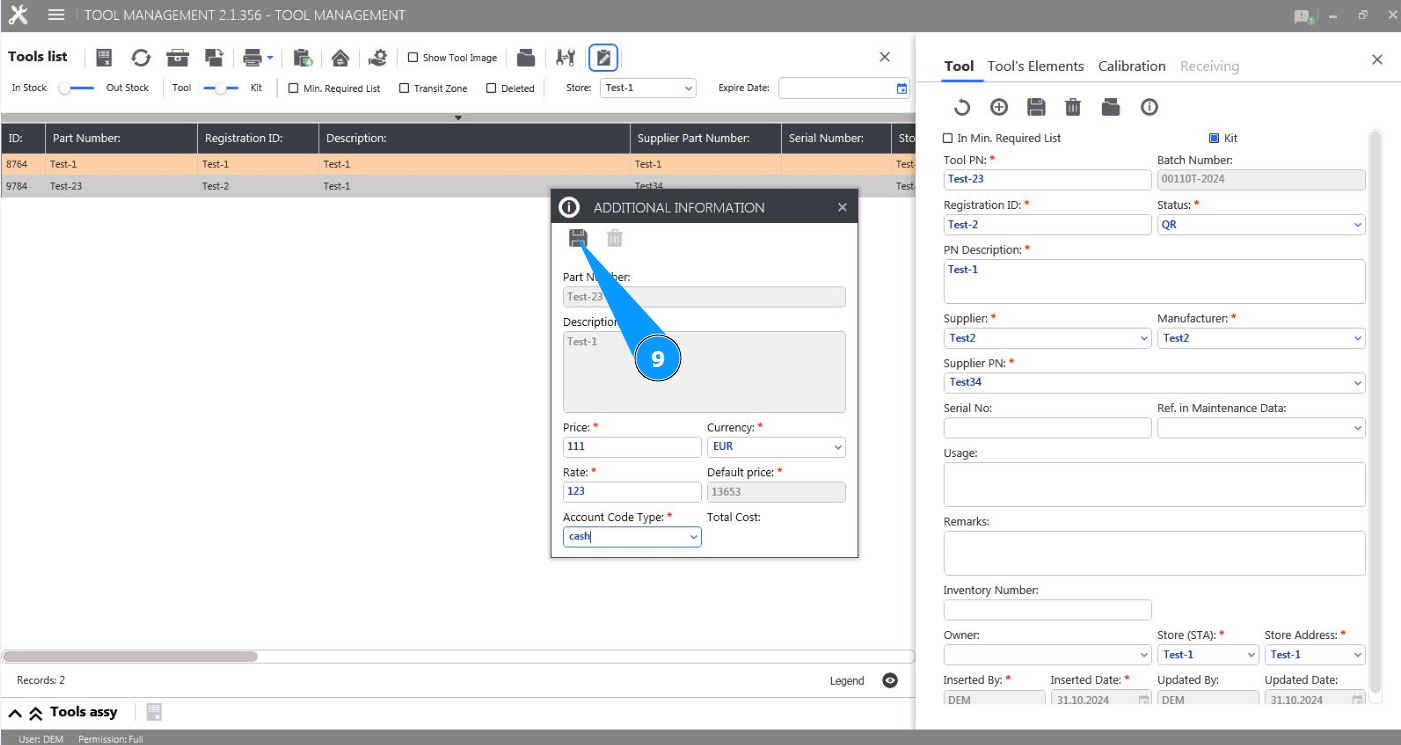
4. Click on the button "Additional Info" to open the additional information editor.
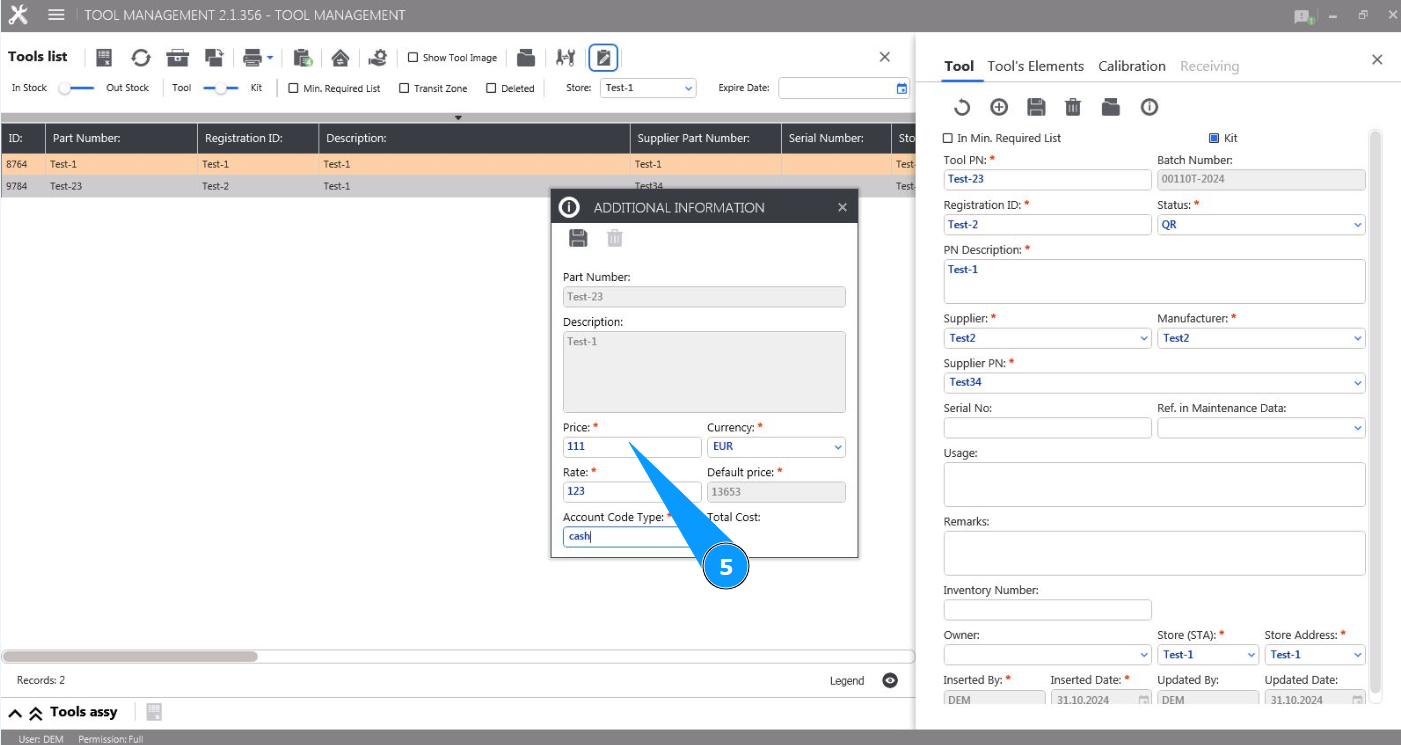
5. Enter the price of the tool in the field "Price".
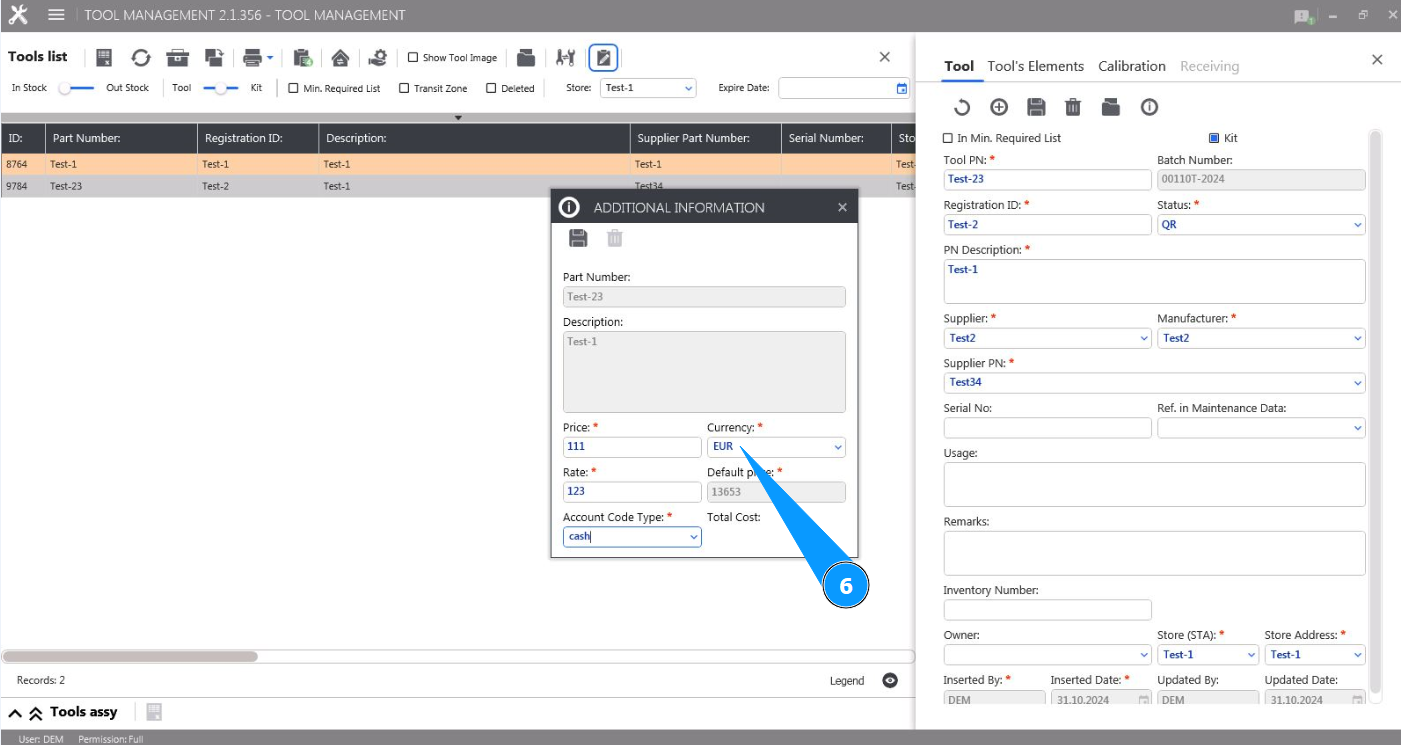
6. Select the currency name from the drop-down list in the field "Currency".
7. Enter the cost factor in the field "Rate". Note: The instrument price with the factor applied will be displayed automatically in the field "Default Price".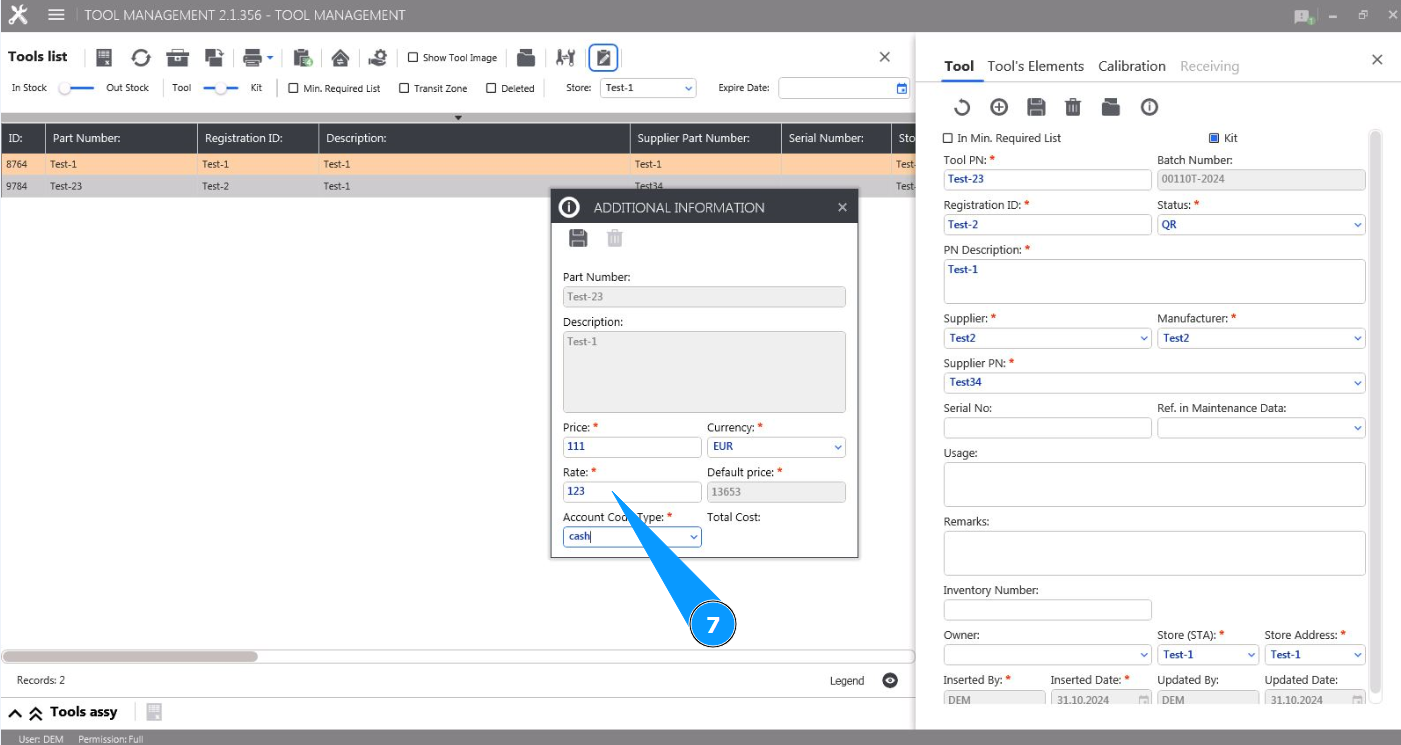
8. Enter the invoice code type in the field "Account Code Type".

9. Click on the button "Update" to add the entered information to the tool card.
10. Click on the button "Yes" to confirm adding information to the card.

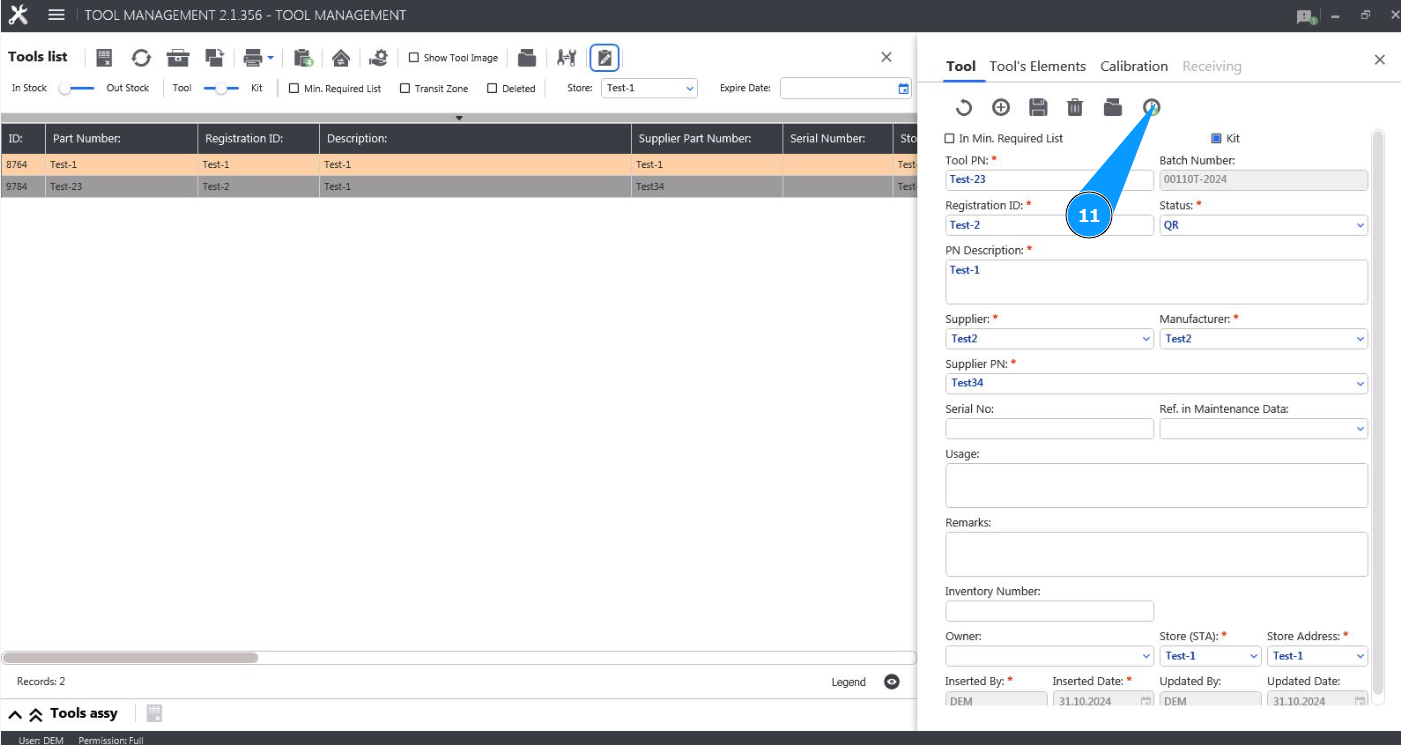
11. Check that the on the button "Additional Info" displays a green symbol. Additional information has been successfully added.