How to reject component
Note: There are two rejection types:
A. temporary ("Reject bin"); after this procedure, the component can be returned to store) and,
B. permanent ("Reject Items", after this procedure, the component is not possible to return to store).
А. Temporary rejection in the "Reject bin".
- Method №1. Rejection of expired components from the Controller" tab
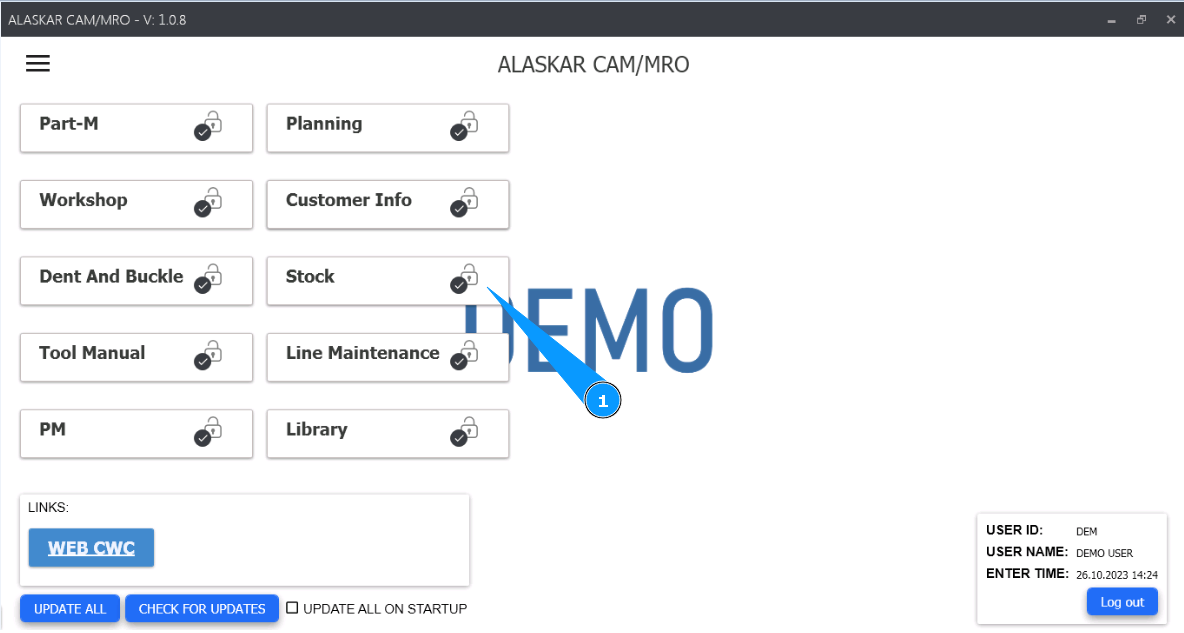
1. For rejection of expired components, please go to module "Stock".
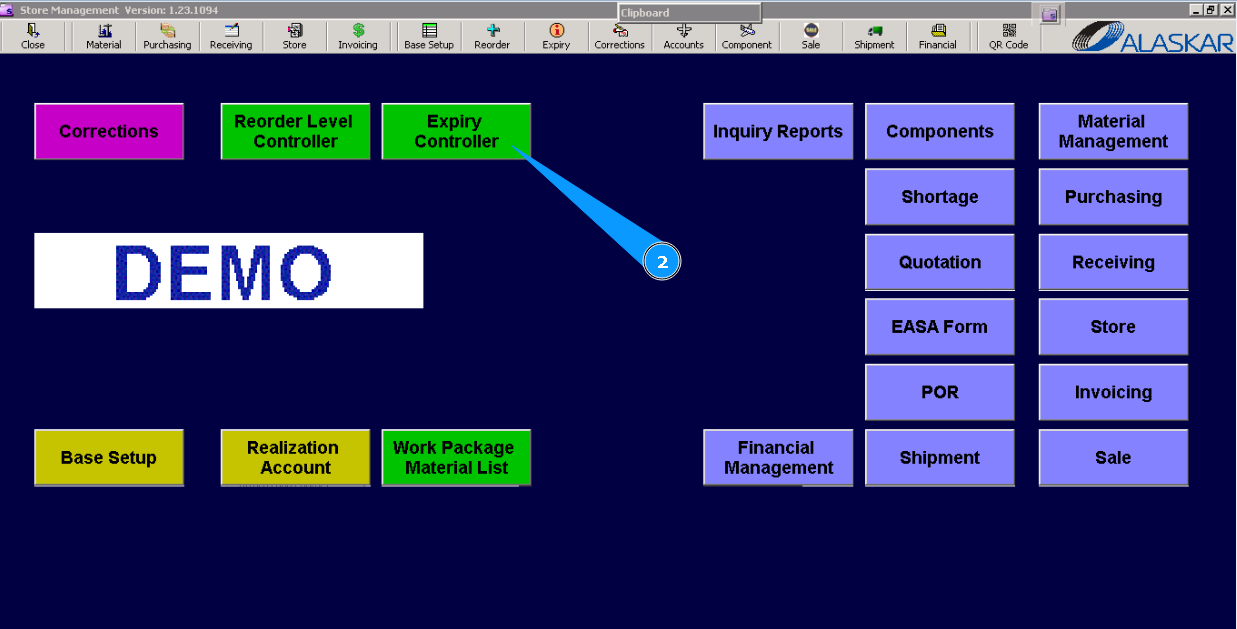
2. Then go to submodule "Expiry Controller".
3. Then go to tab "Expiration Controller".
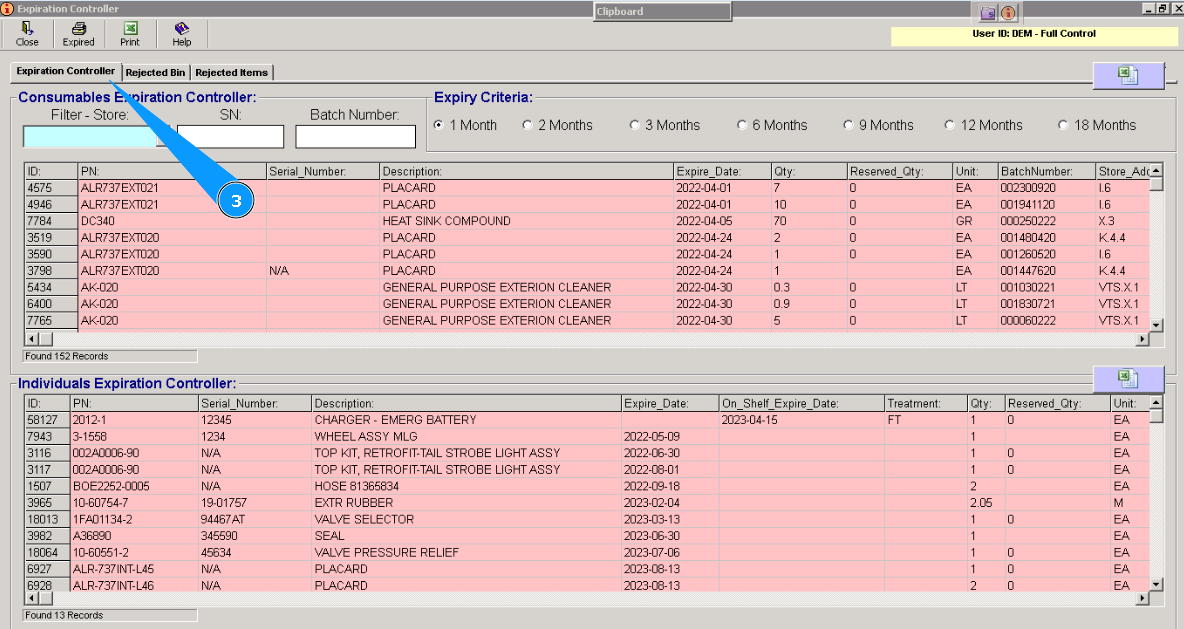
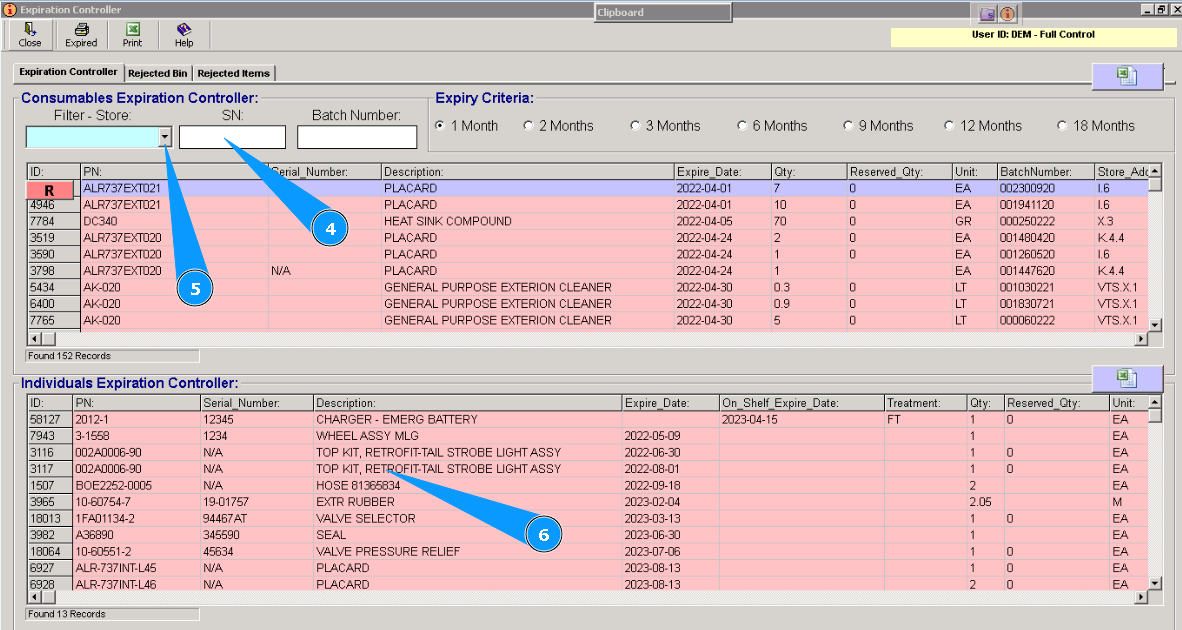
4. Enter the serial number in the field "SN (Serial Number)" and press the button "Enter" on your keyboard.
5. Or select from the dropdown list applicable store name.
6. Find applicable material in the window "Consumables Expiration Controller" or components in the window "Individuals Expiration Controller".
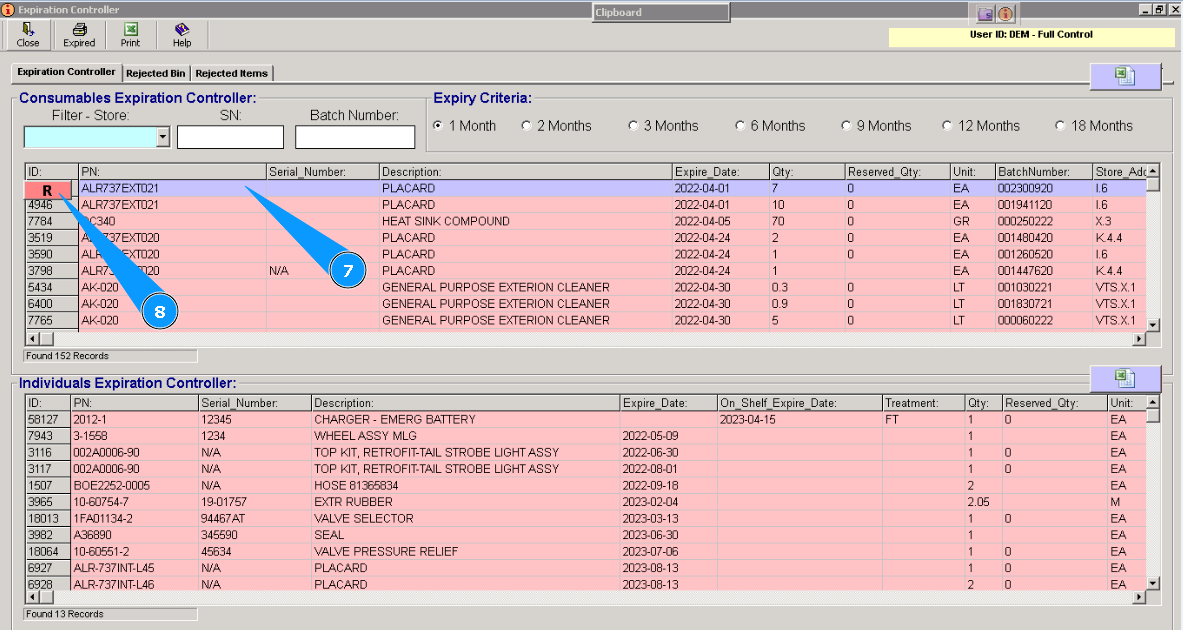
7. Highlight the applicable line with materials or components.
8. Click on the button "R (Reject)"
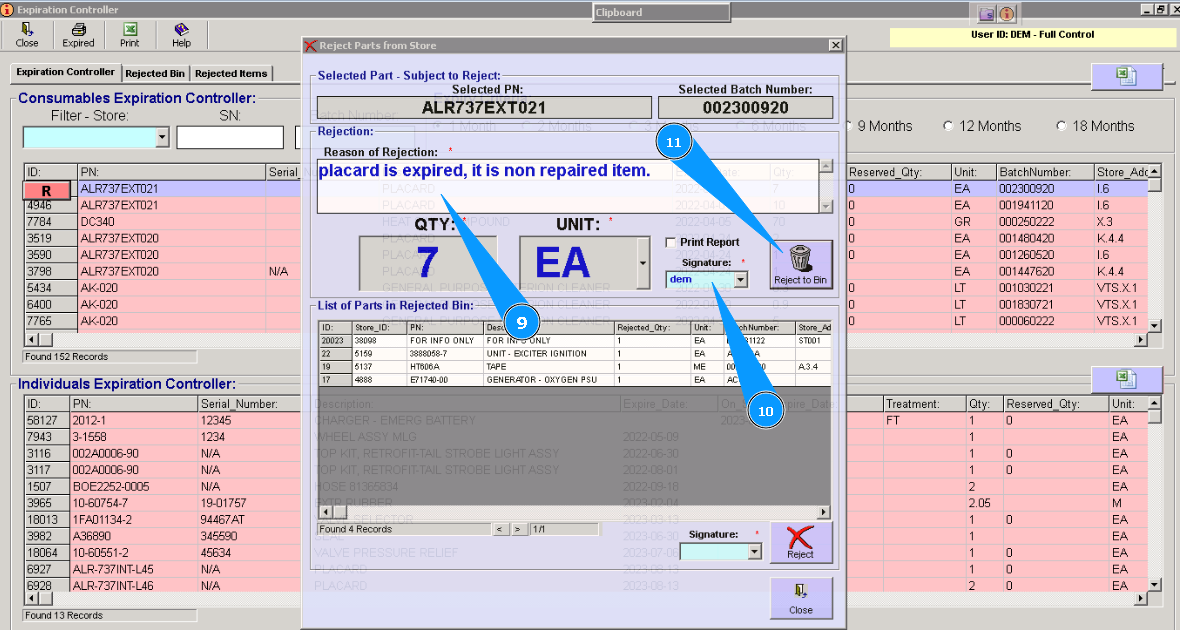
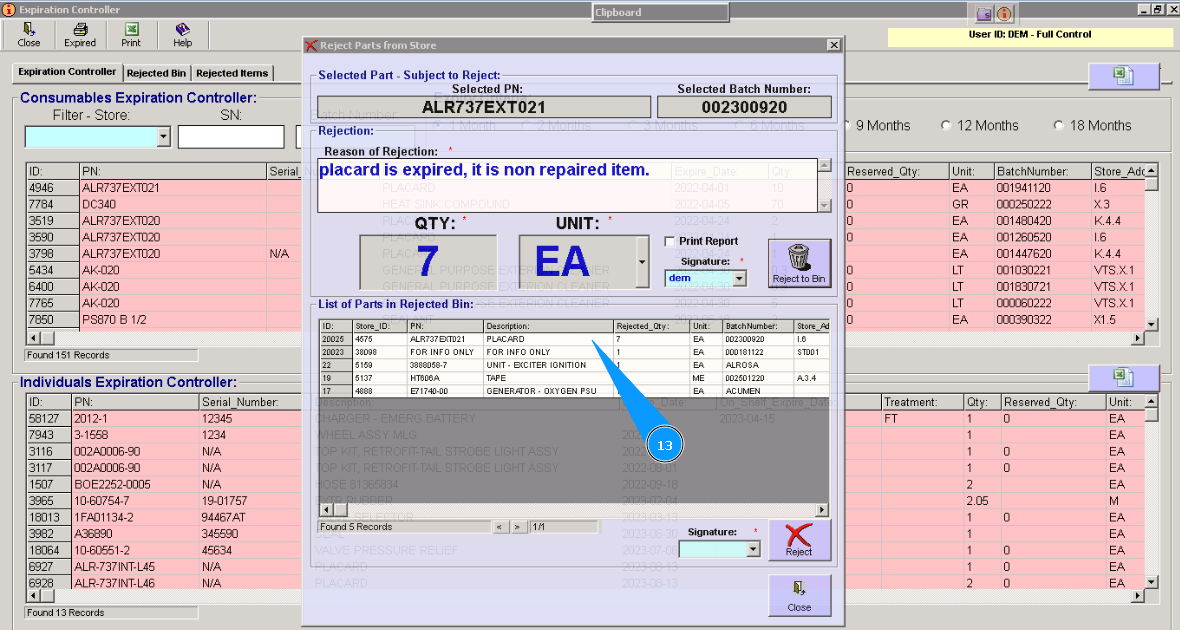
9. Enter information about the temporary rejection reason in the field "Reason of Rejection" of the opened window "Selected part-Subject to Reject".
10. Enter your login in the field "Signature".
11. Click on the button "Reject to bin".
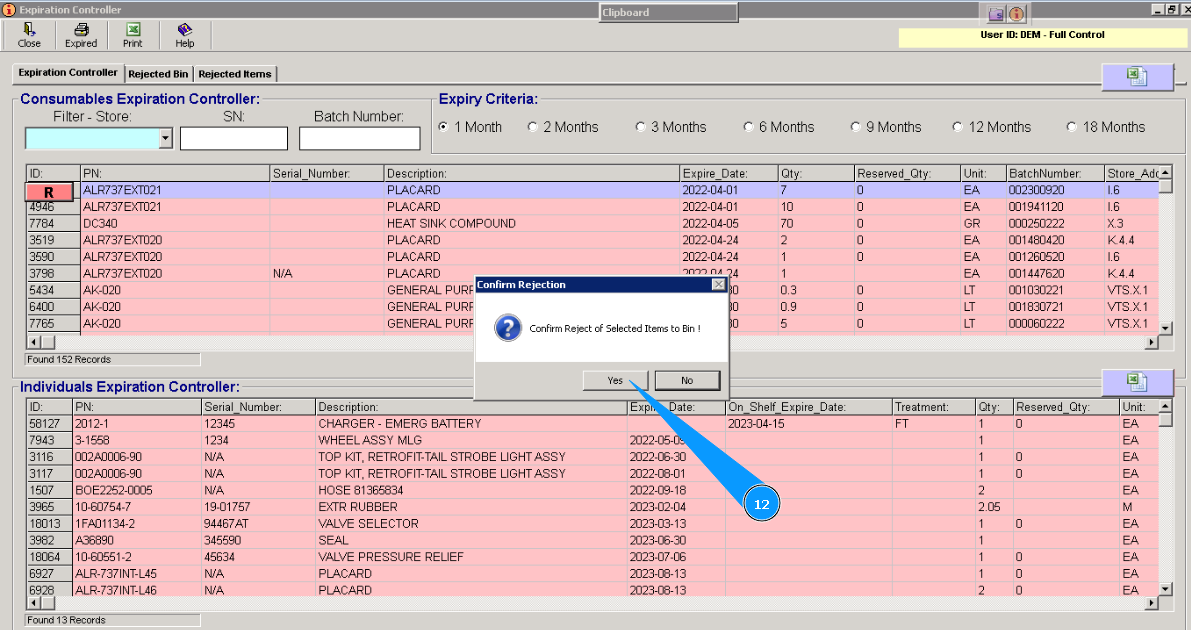
12. Click on the button, "Yes", to confirm loading data into the program.
13. Visually check that the new line with the rejected part is appeared in the window "List of Parts in Rejected Bin".
- Method №2. Rejection of unserviceable parts from the tab "Repair Shelf"
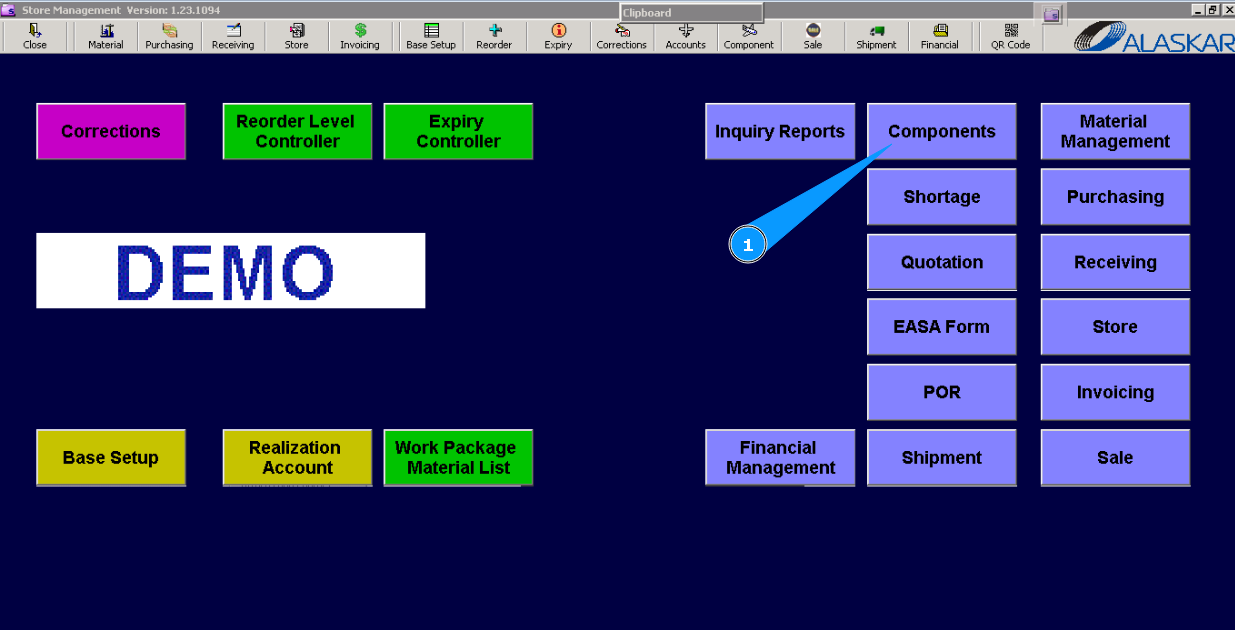
1. For temporary rejection of components or materials from the repair shelf, please go to submodule "Components".
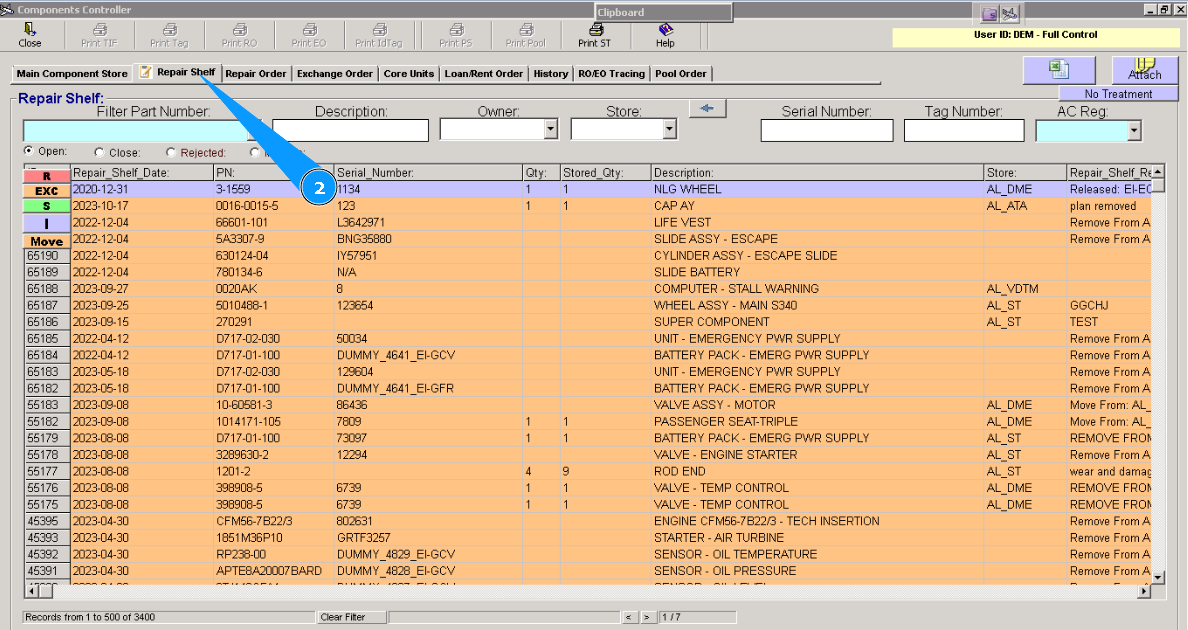
2. Then go to tab "Repair shelf".
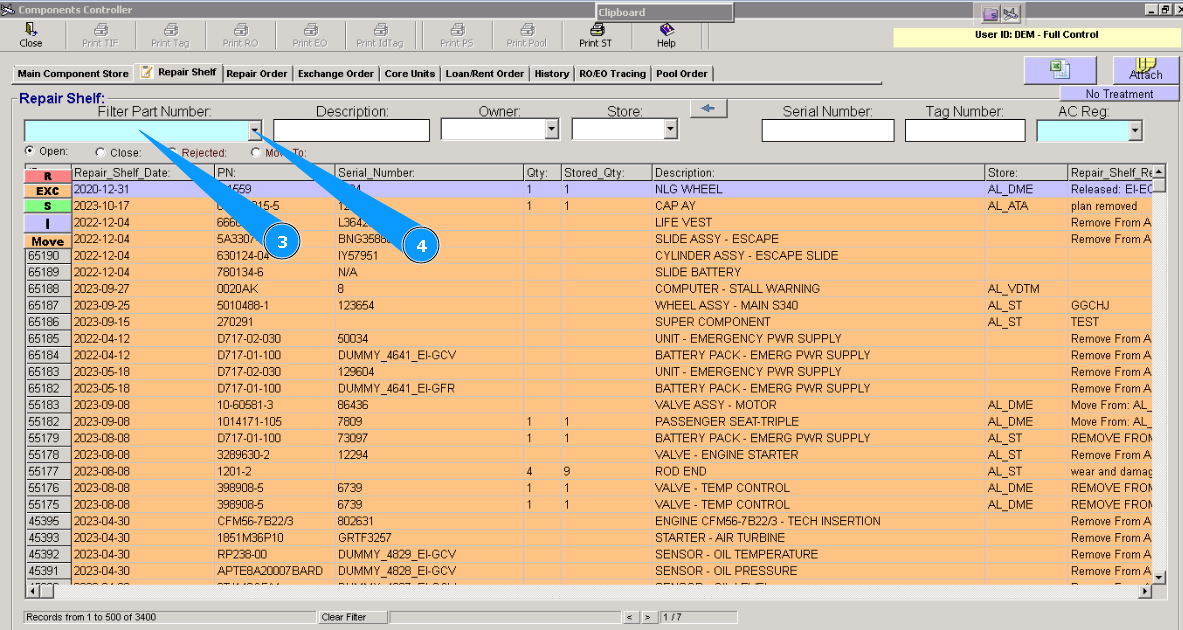
Note: If necessary, you can use other searching criteria, fields: "Description", "Owner", "Serial Number" etc
4. Or select from dropdown list.
5. Highlight the applicable line with component, which should be rejected.
6. Click on the button "R (Reject)".
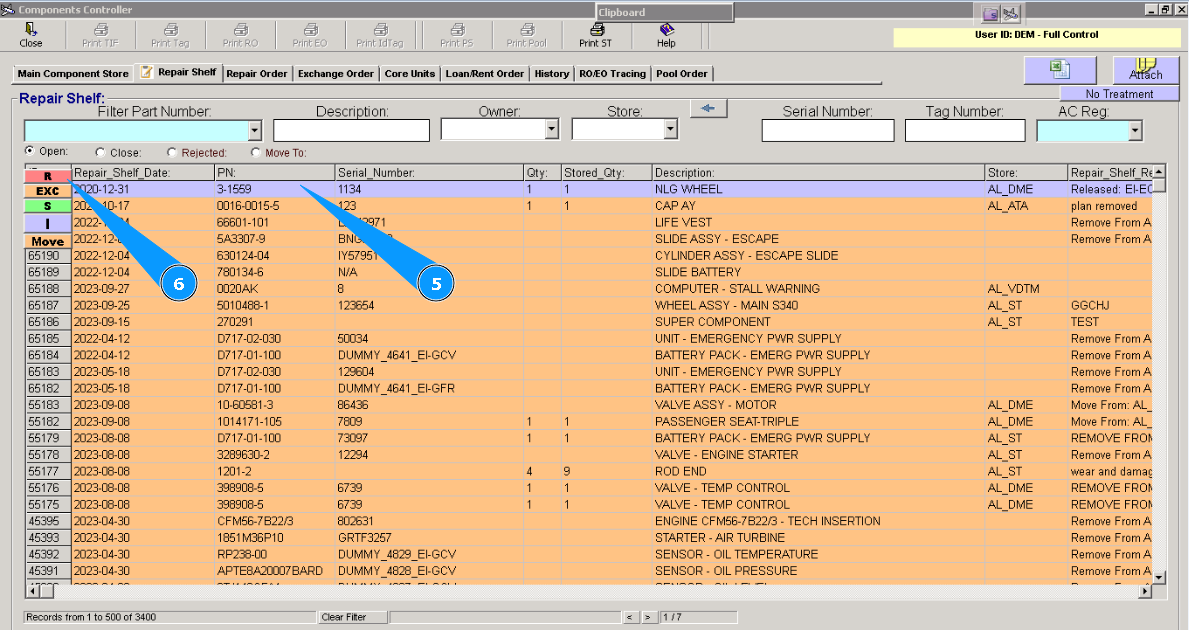
7. Enter the temporary rejection reason of materials or component in the field "Reason of Rejection" of opened window "Selected part-Subject to Reject".
8. Enter your login in the field "Signature".
9. Click on the button "Reject to bin".
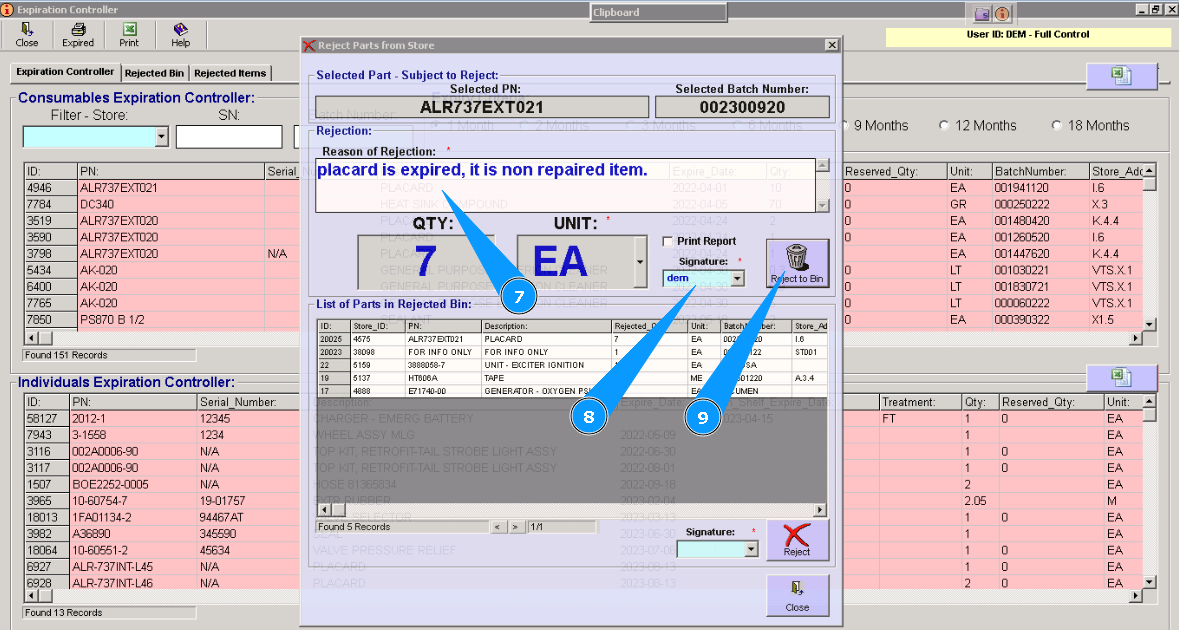
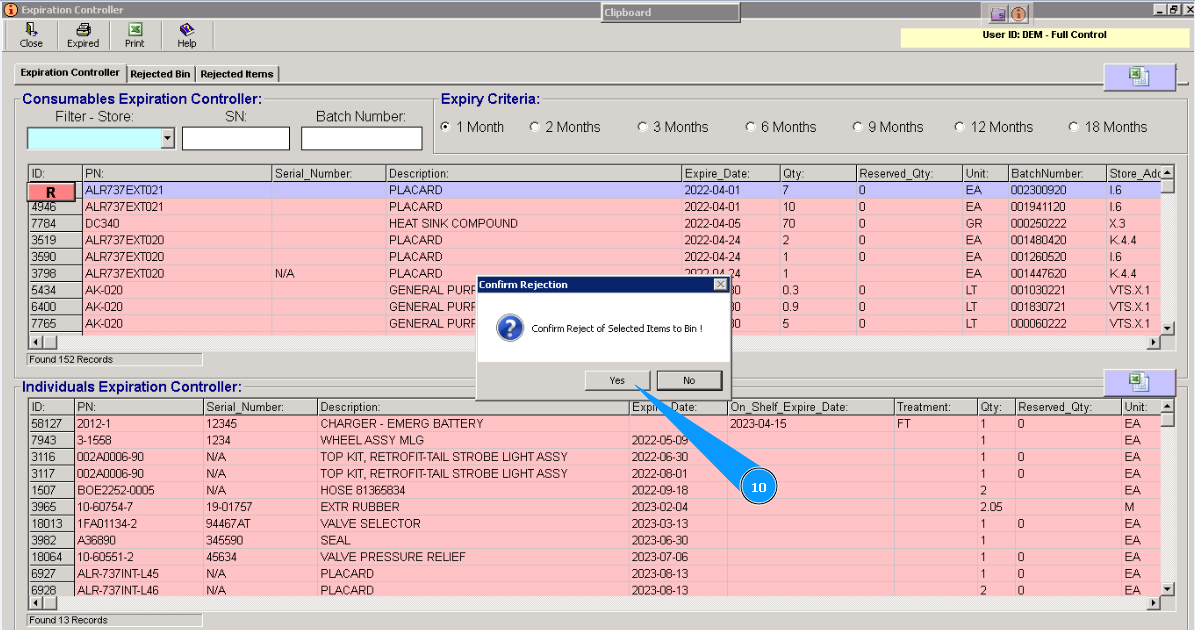
10. Click on the button, "Yes", to confirm loading data into program.
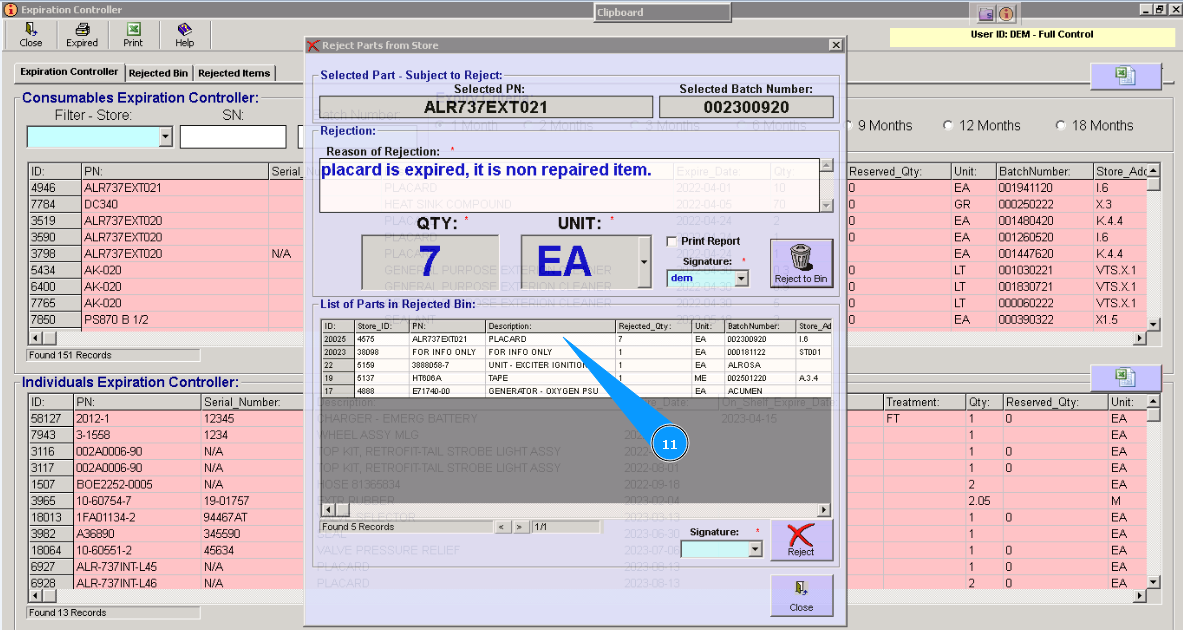
11. Visually check that the line with materials or components appears in the window "List of Parts in the Rejected Bin".
B. Permanent rejection in "Reject Items".
- Method №1. Permanent rejection from the window "List of Parts in Rejected Bin".
Note: During the temporary rejection process, you can permanently reject component. Returning component to stores in this case is not possible.
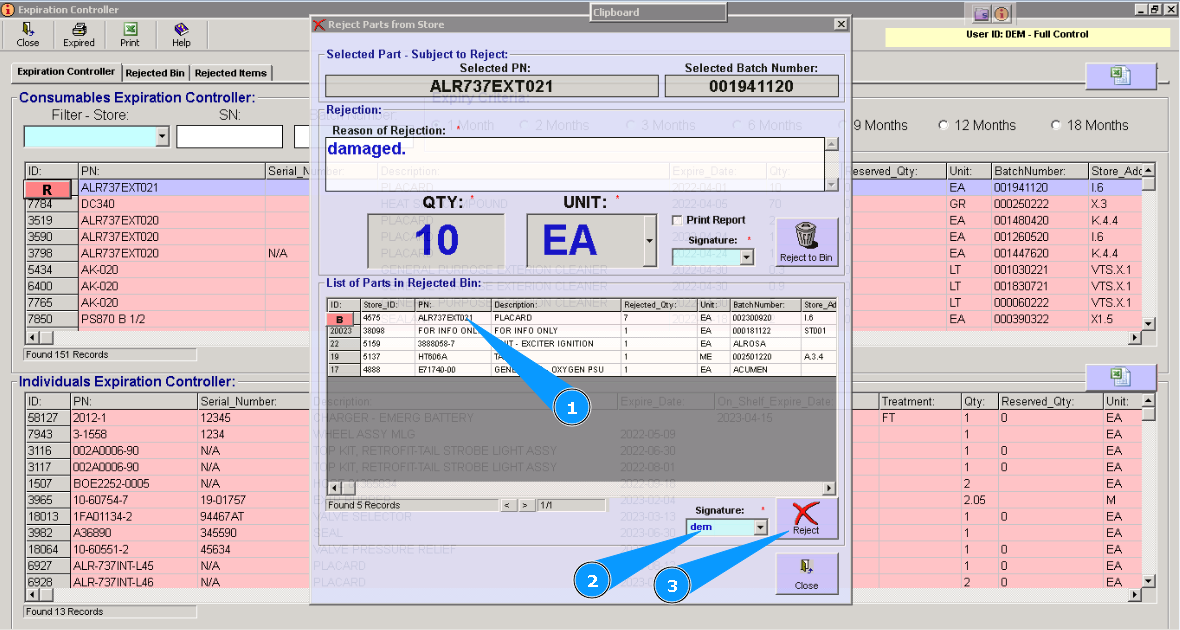
1. For the permanent rejection component, from the list of temporary rejected components in the window "List of Parts in Rejected Bin" visually find and highlight the applicable line.
2. Enter your login in the field "Signature".
3. Click on the button "Reject".
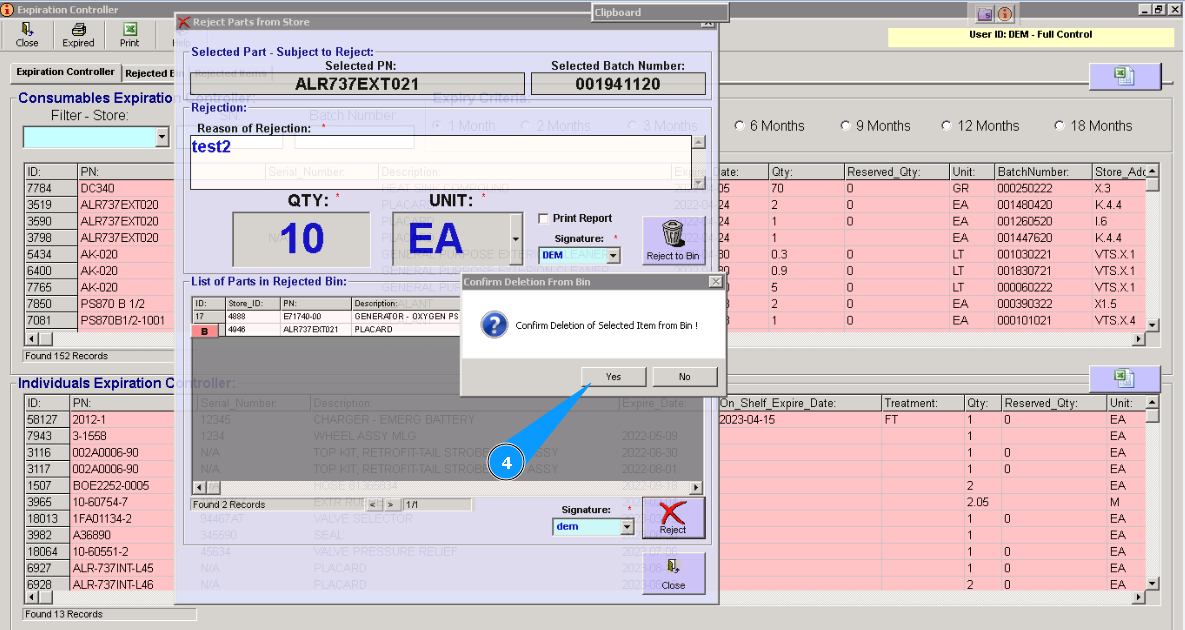
4. Click on the button "Yes", to confirm permanent rejection and loading data into the program.
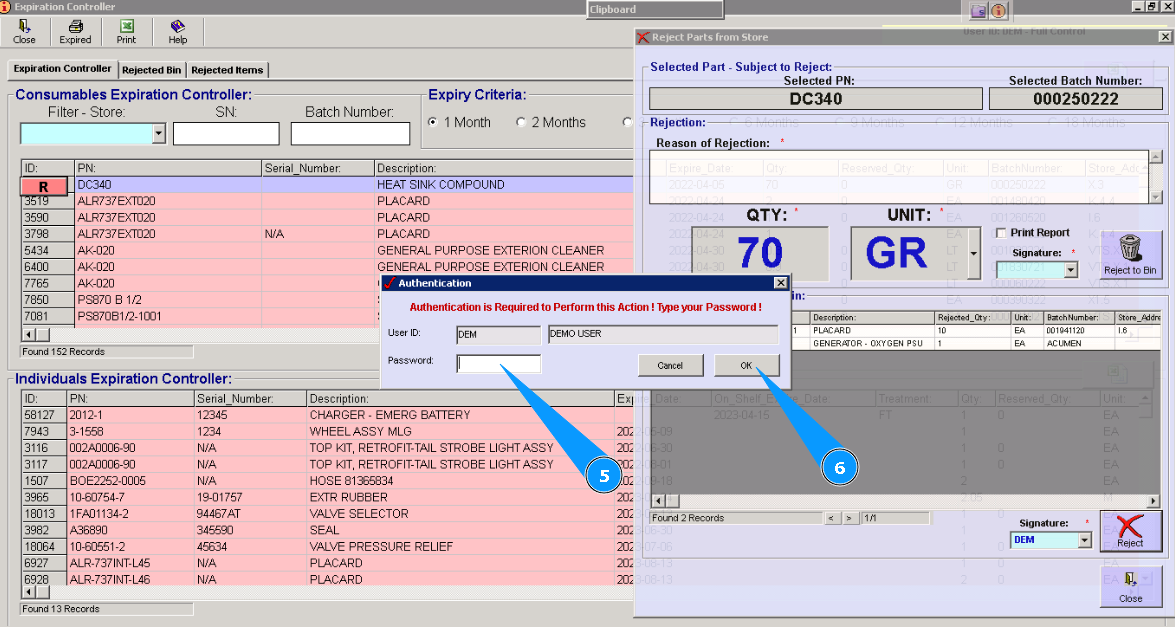
5. Enter your password in the field "Password".
6. Click on the button "OK", to confirm loading data into the program.
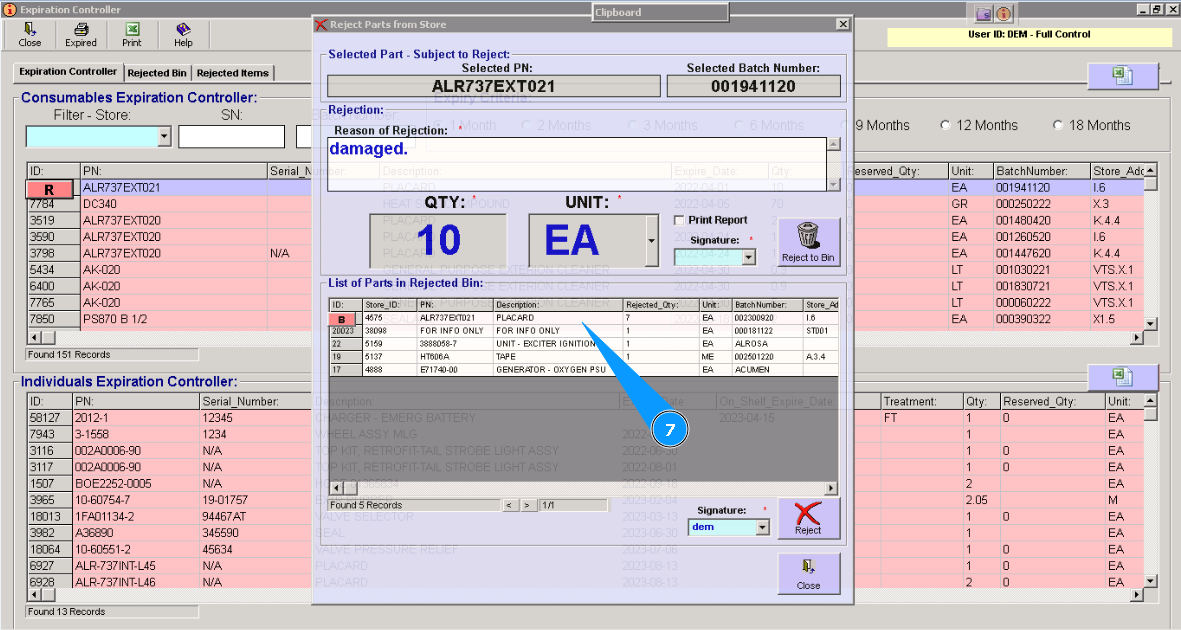
7. Visually check that the line with materials or component is disappeared in the window "List of Parts in Rejected Bin". Part is permanently rejected.
- Method № 2. Permanent rejection from the tab "Reject bin".
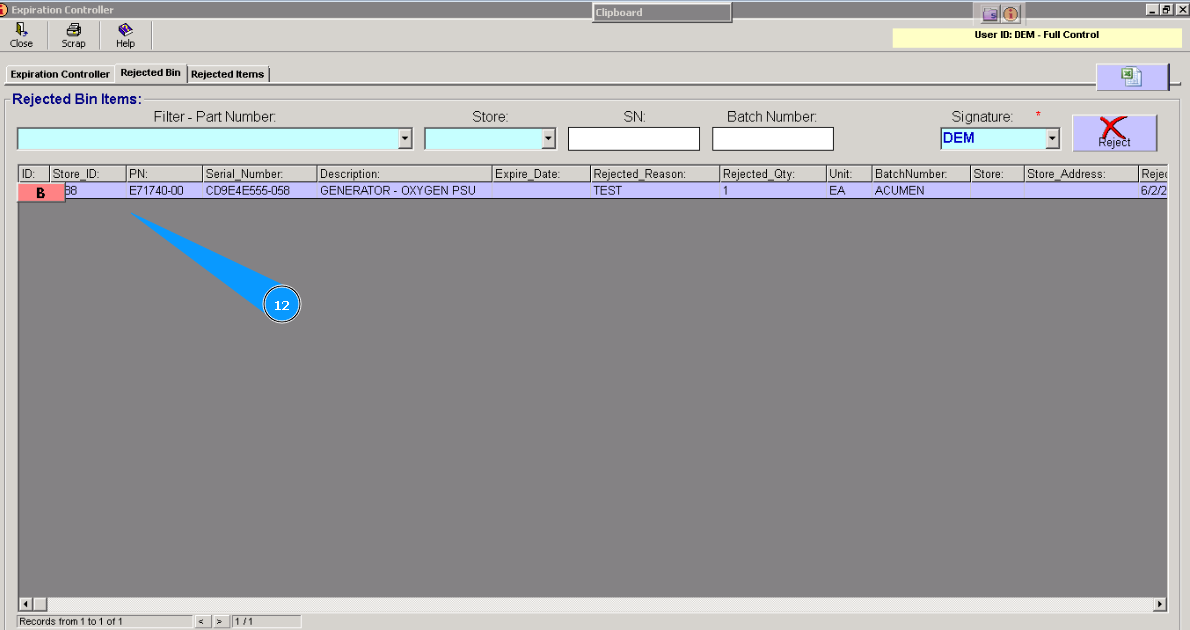
1. For permanent rejection, by the way, go to module "Stock".
2. Then go to submodule "Expiry Controller".
3. Then go to tab "Rejected Bin".
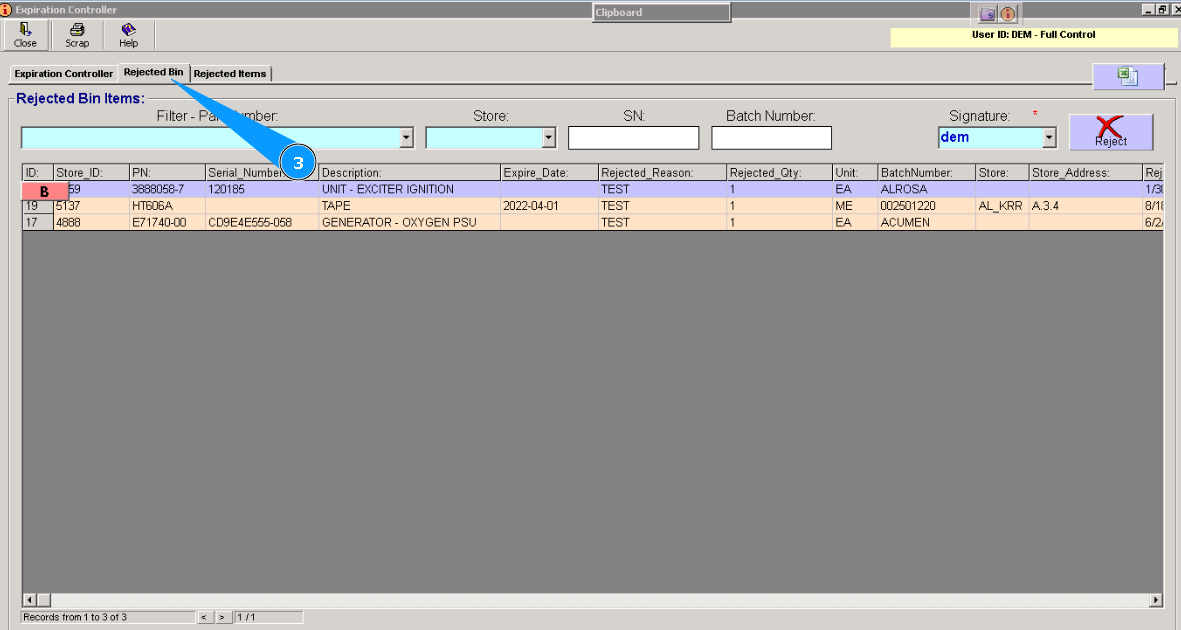
Note: If necessary, you can use other searching criteria and fields: "Batch Number", "Store", "Serial Number" etc.
5. Or select from dropdown list.
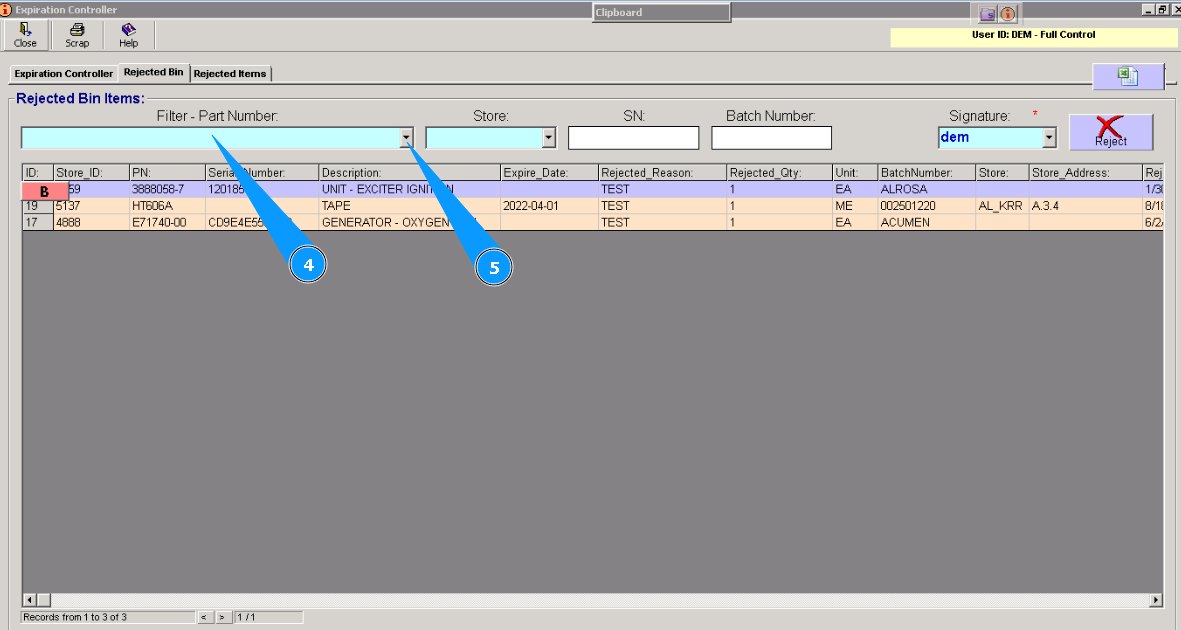
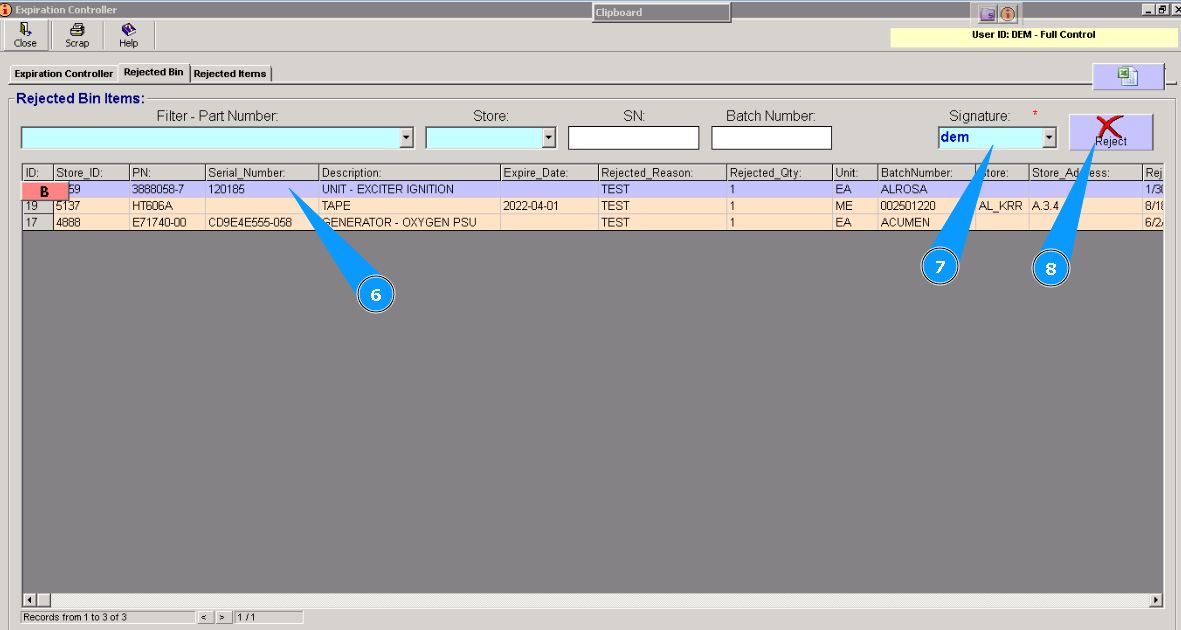
6. Highlight line with applicable materials or component.
7. Enter your login in the field "Signature".
8. Click on the button "Reject".
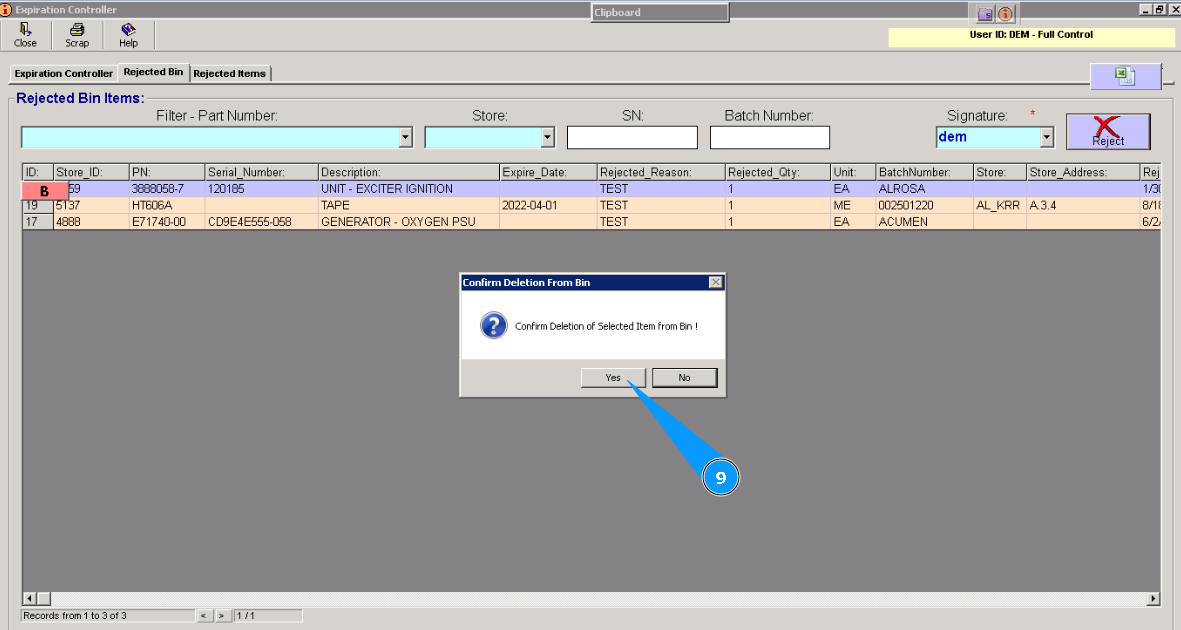
9. Click on the button "Yes", to confirm permanent rejection and loading data in the program.
10. Enter your password in the field "Password".
11. Click on the button "OK", to confirm loading data in the program.
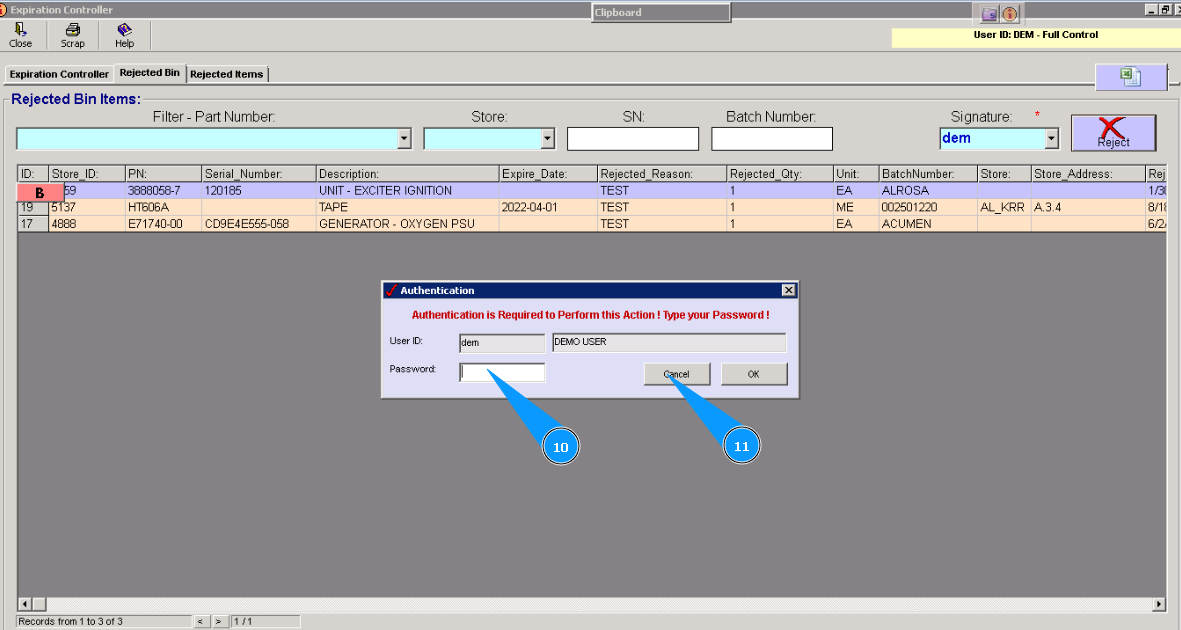
12. Visually check that line with materials or component is disappeared in the window "List of Parts in Rejected Bin". Part is permanently rejected.