How to monitor time restrictions on components in the Store
Note: There are four methods of time restrictions monitoring on the store in this instruction.
Method №1. Opened window "Expired Items".
1. For time restrictions monitoring on the store by this method, please go to module "Stock".
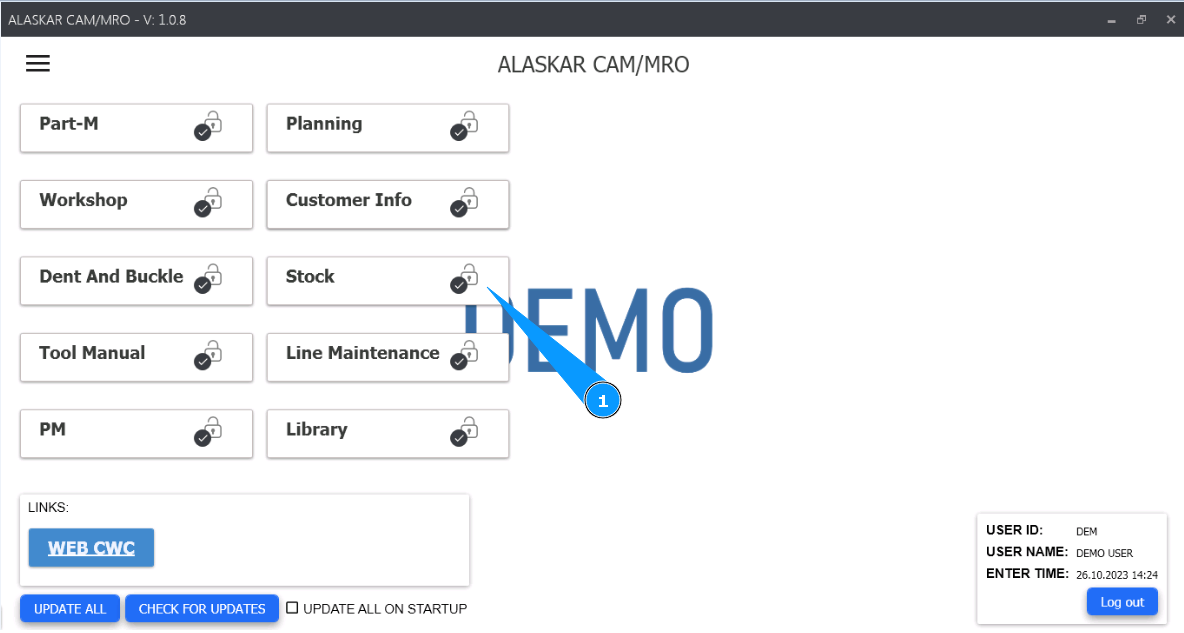
2. Visually check that the "Expired Items" window appears with expired items in the left bottom angle of your screen.
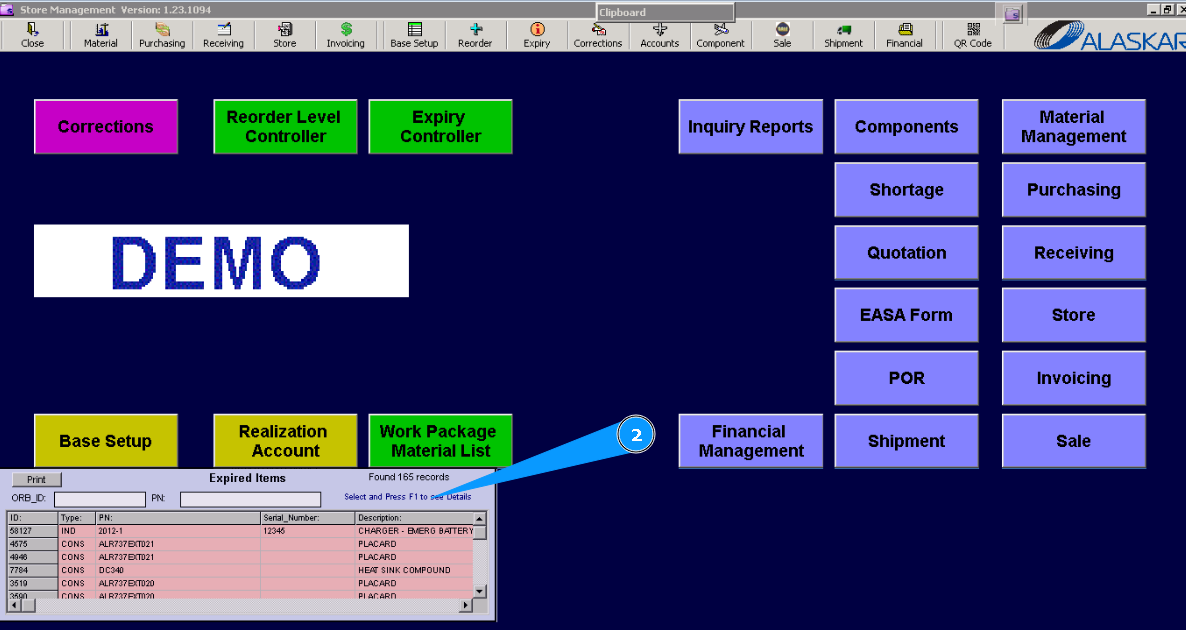
Note: You can see in this window information about the quantity of expired items and print a report (if necessary). As well, you can check the details of the component (or materials), highlight the line with the component (or materials), and press the button "F1" on your keyboard.
Method №2. Creating a report: Stock Expired Materials.
1. For time restrictions monitoring on the store by this method, please go to module "Stock".
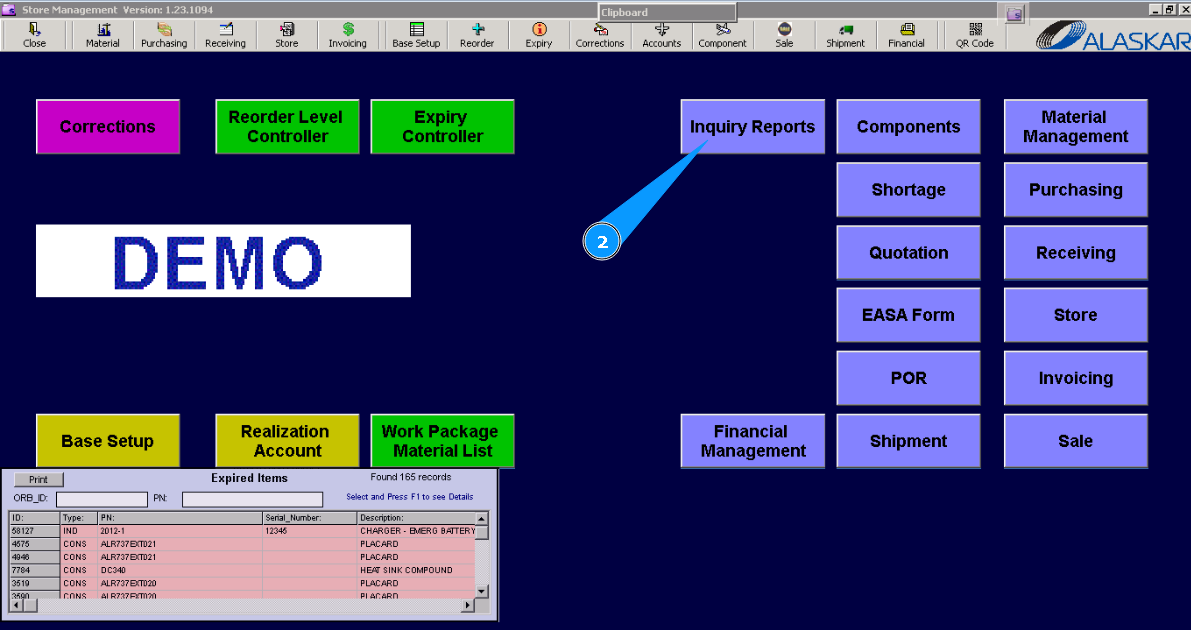
2. Then, go to submodule "Inquiry Reports".
3. Then, go to the tab "Reports".
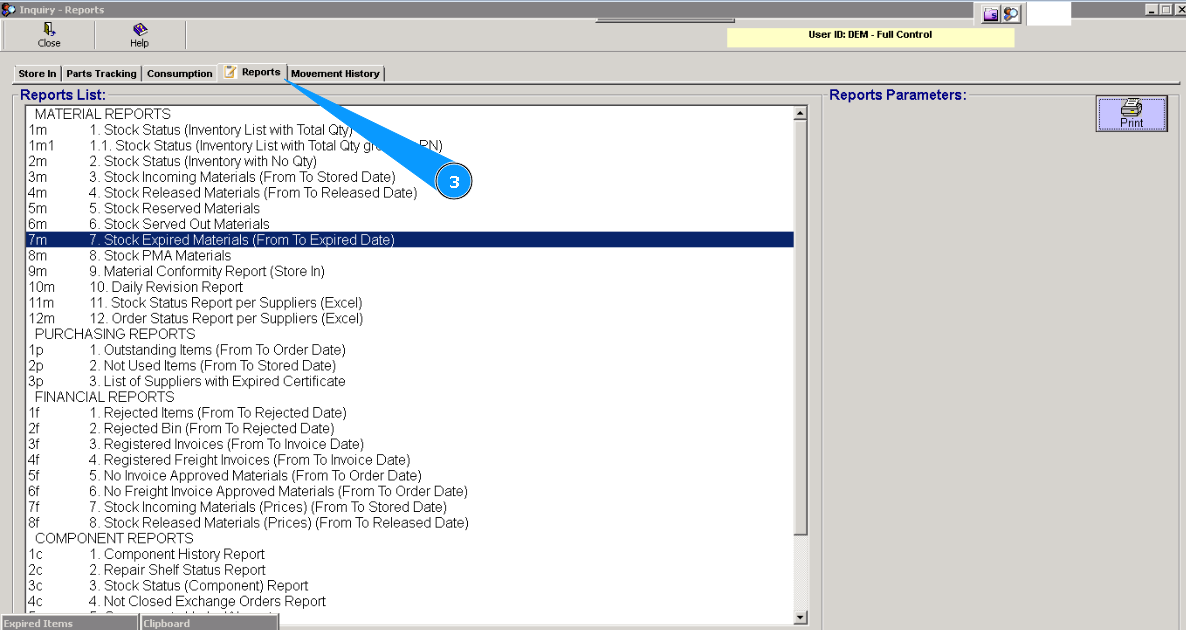
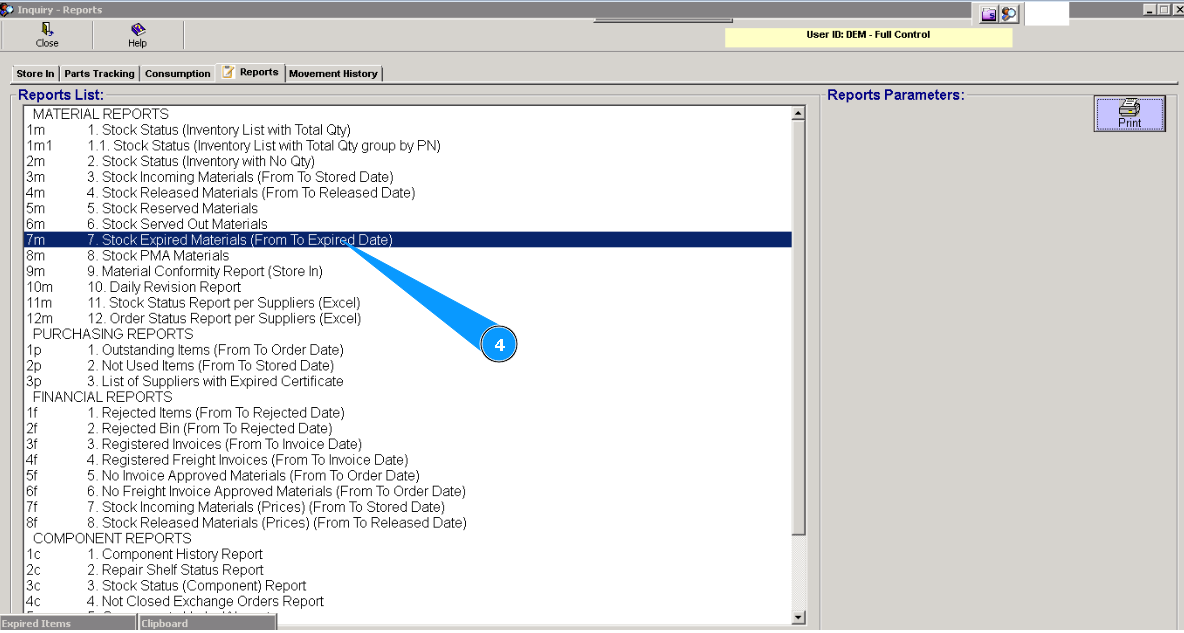
4. Select the report with the number "7М- Stock Expired Materials".
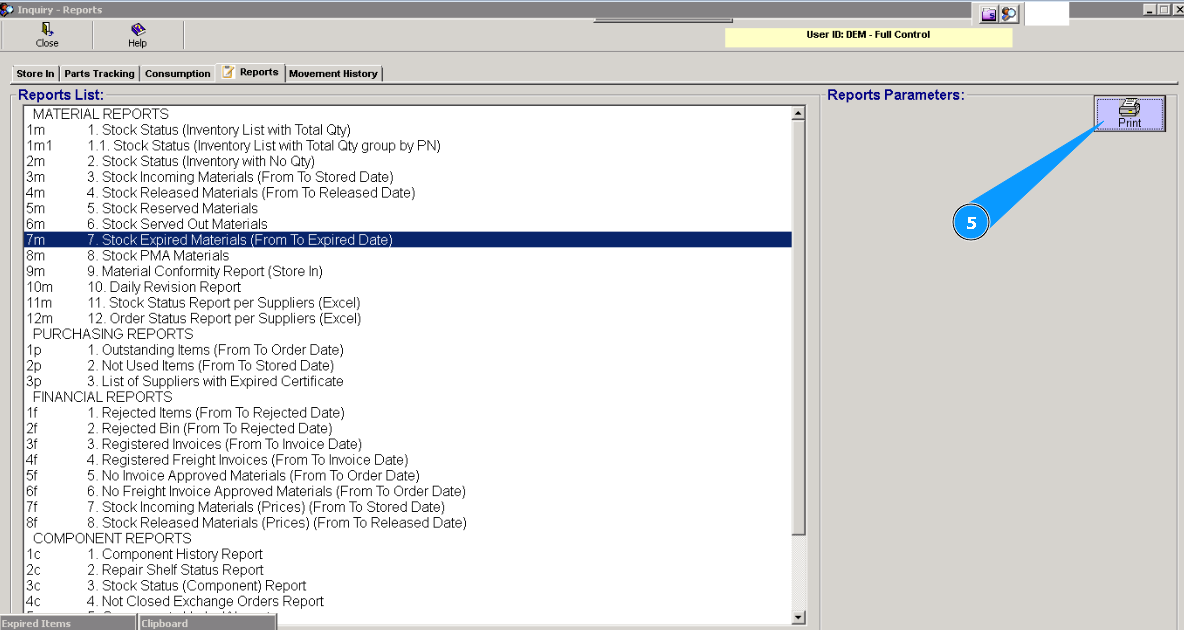
5. Click on the button "Print" in the window "Reports Parameters".
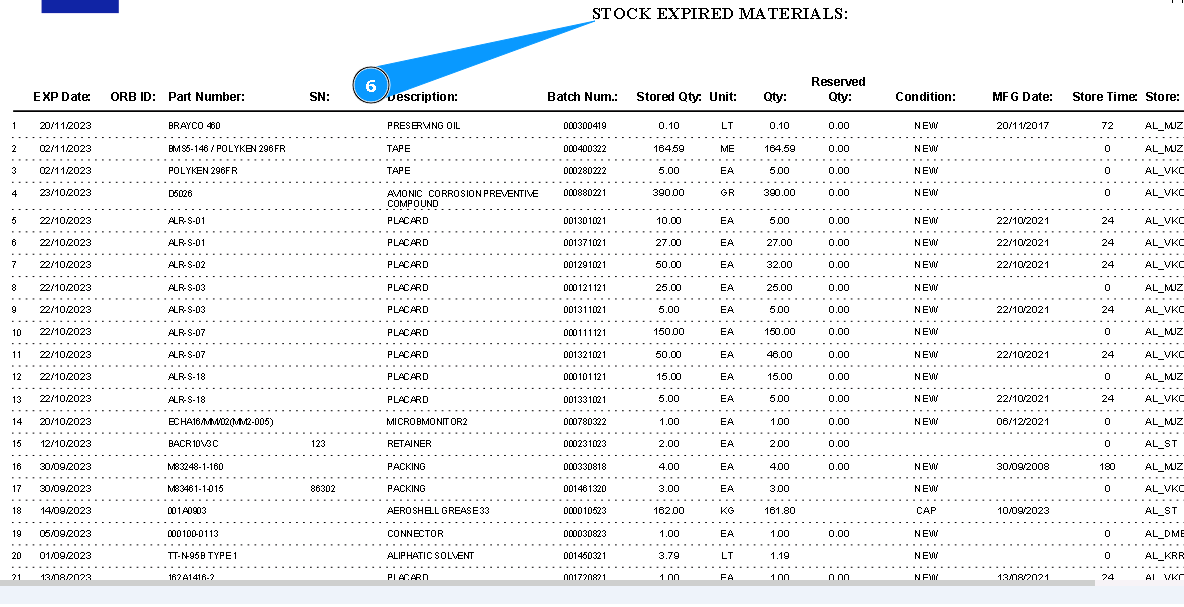
6. Visually check that the "Stock Expired Materials" report is created.
Method №3. Color marker in the component list.
1. For time restrictions monitoring on the store by this method, please go to module "Stock".
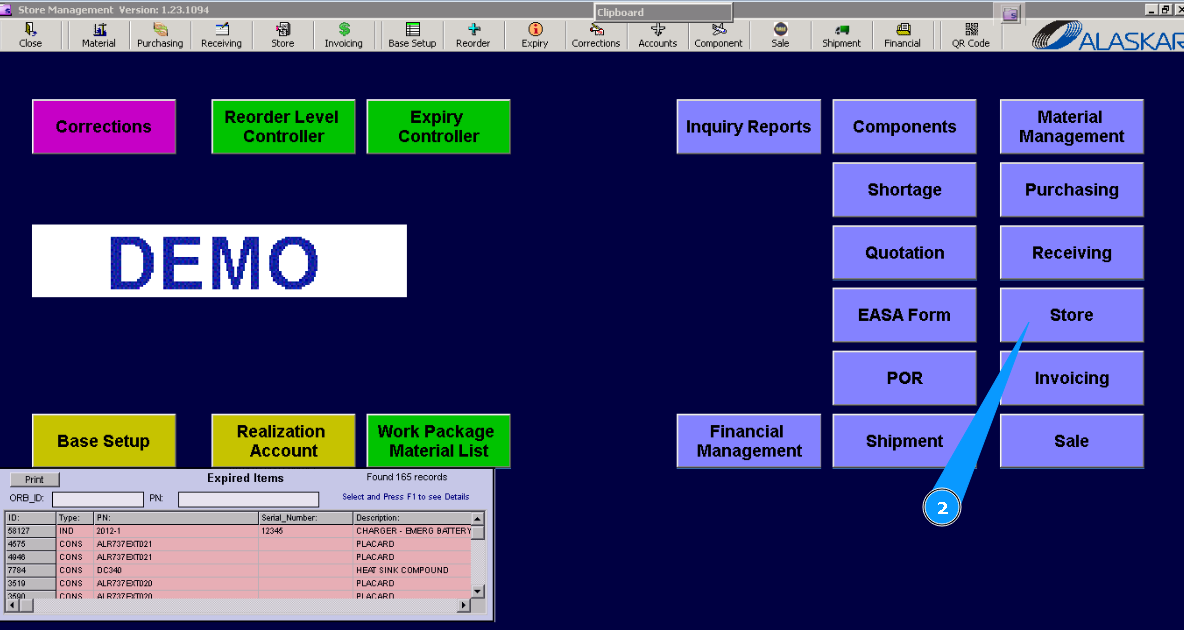
2. Then, go to submodule "Store".
3. Then, go to the tab "Main Store".
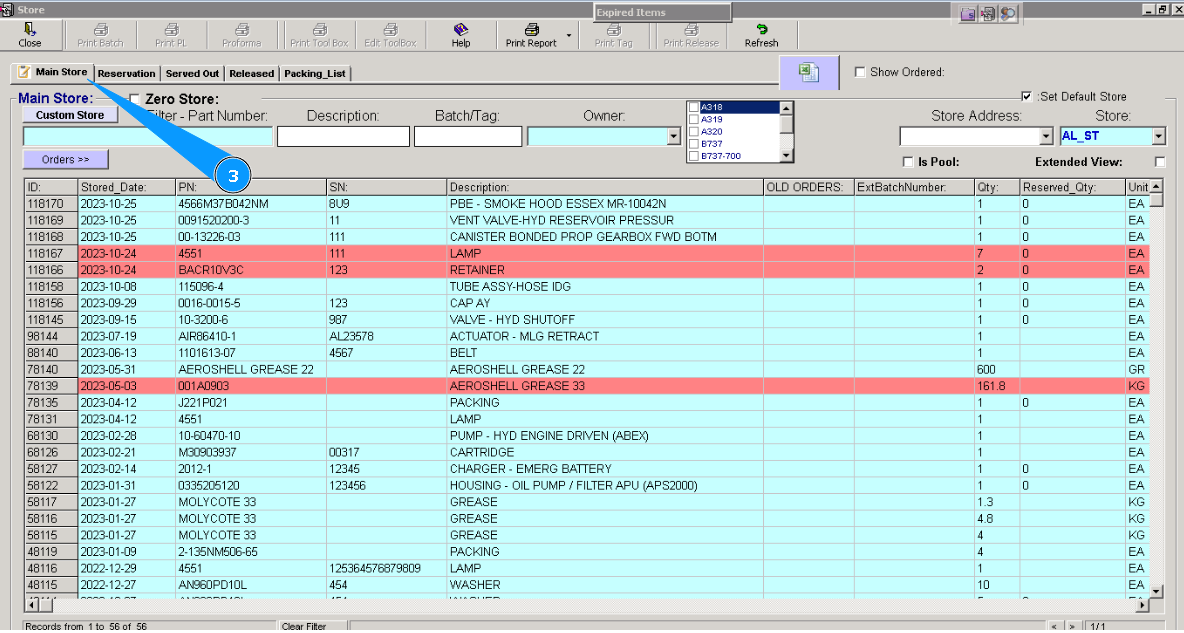
Note: All lines with expired items are colored red color. Expired dates are pointed out in the column "Expired Date" or you can highlight the applicable line and press the button "F1" on your keyboard.
Method №4. Using submodule "Expiry Controller".
1. For time restrictions monitoring on the store by this method, please go to module "Stock".
2. Then, go to submodule "Expiry Controller".
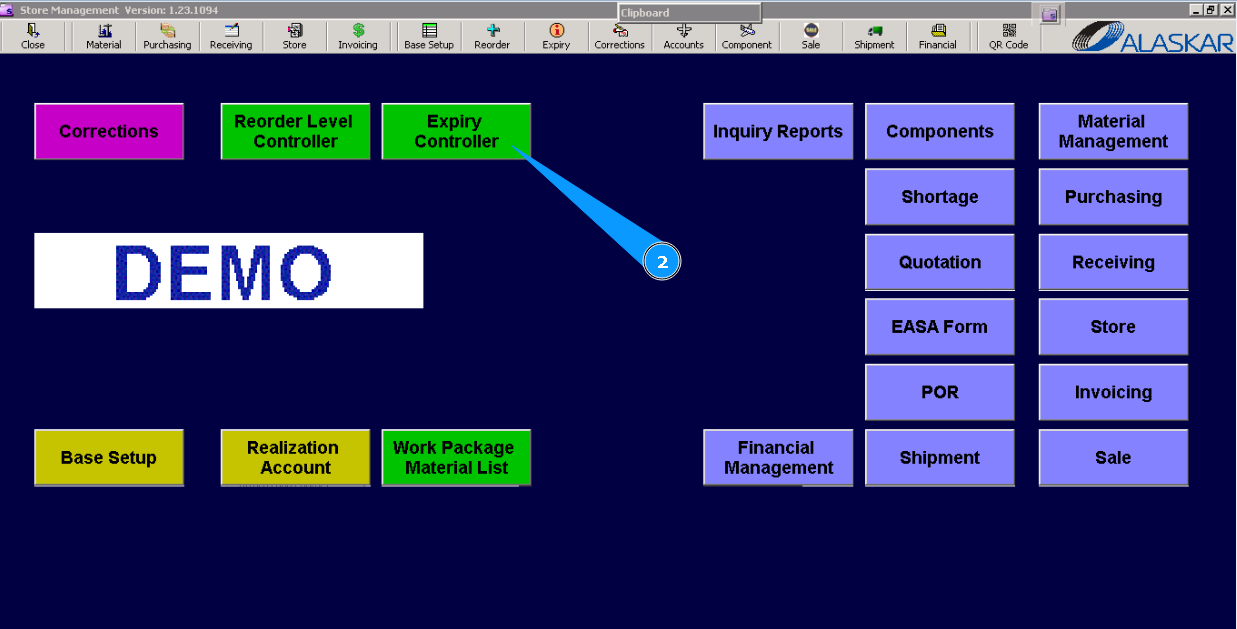
3. Then, go to the tab "Expiration Controller".
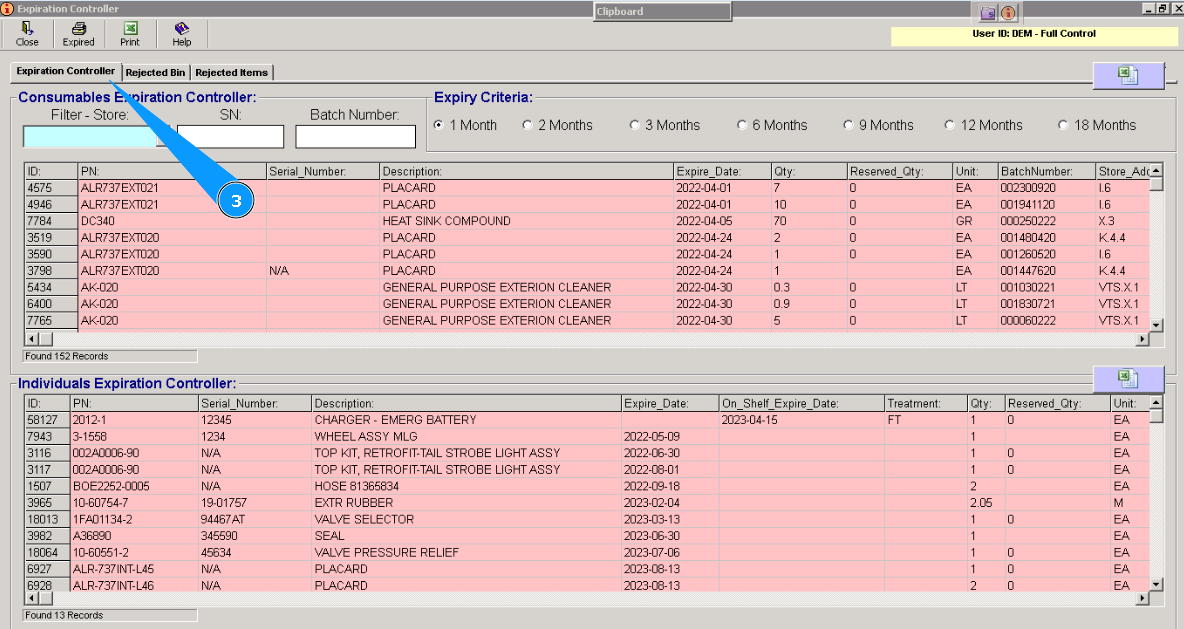
Note: There are two windows in this tab: Consumables (materials) and Individuals (serialized components) for comfortable using. You can use searching filters to precisely select materials or components.
4. All lines with expired items are colored red color. Expired dates are pointed out in the column "Expire Date".
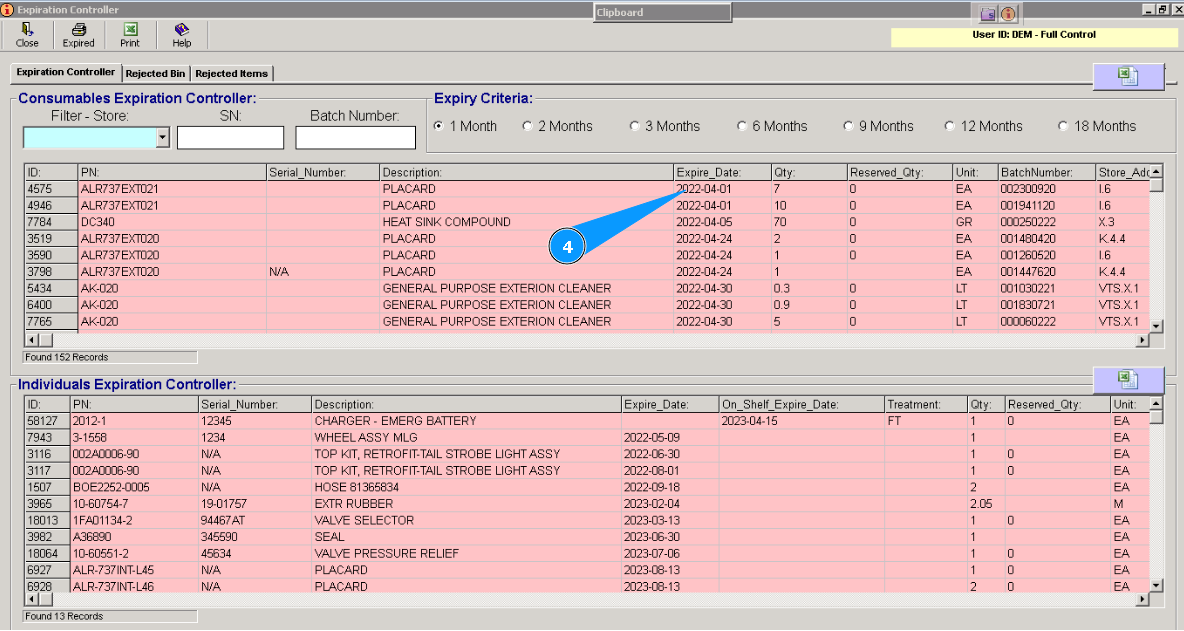
5. All lines with non-expired items are colored a light orange color.
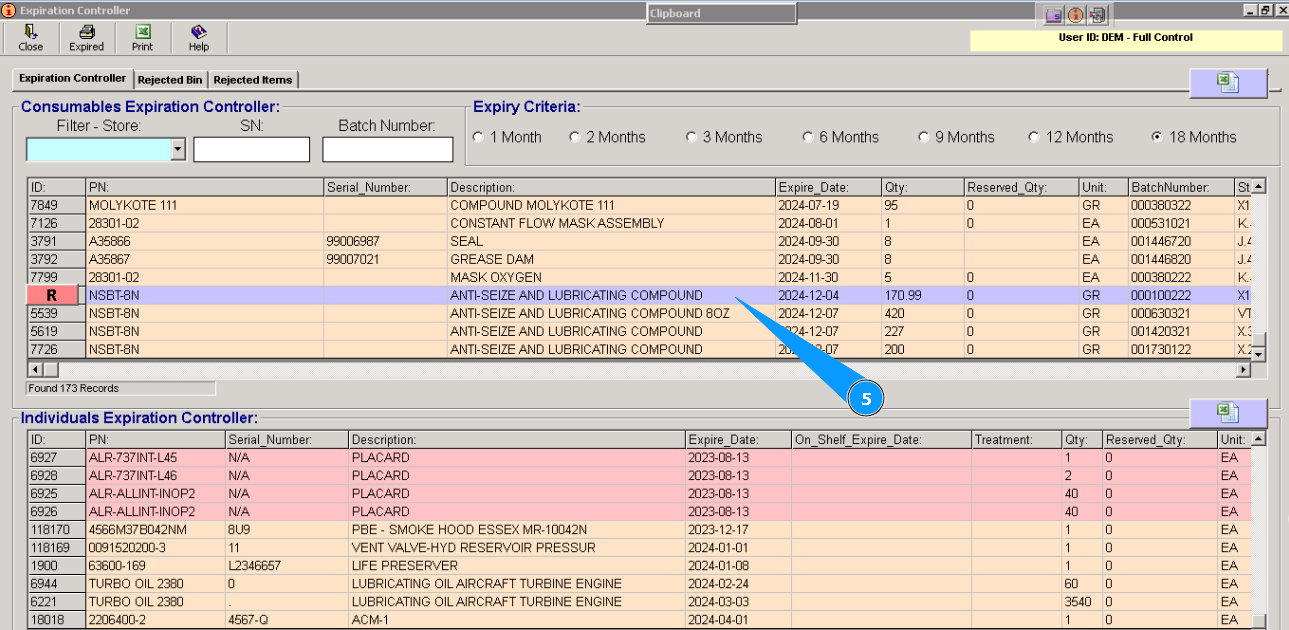
Note: If necessary, you can use the filter "Expire Criteria" to check the forecast of expired dates.