How to link an unserviceable component with an Exchange Order
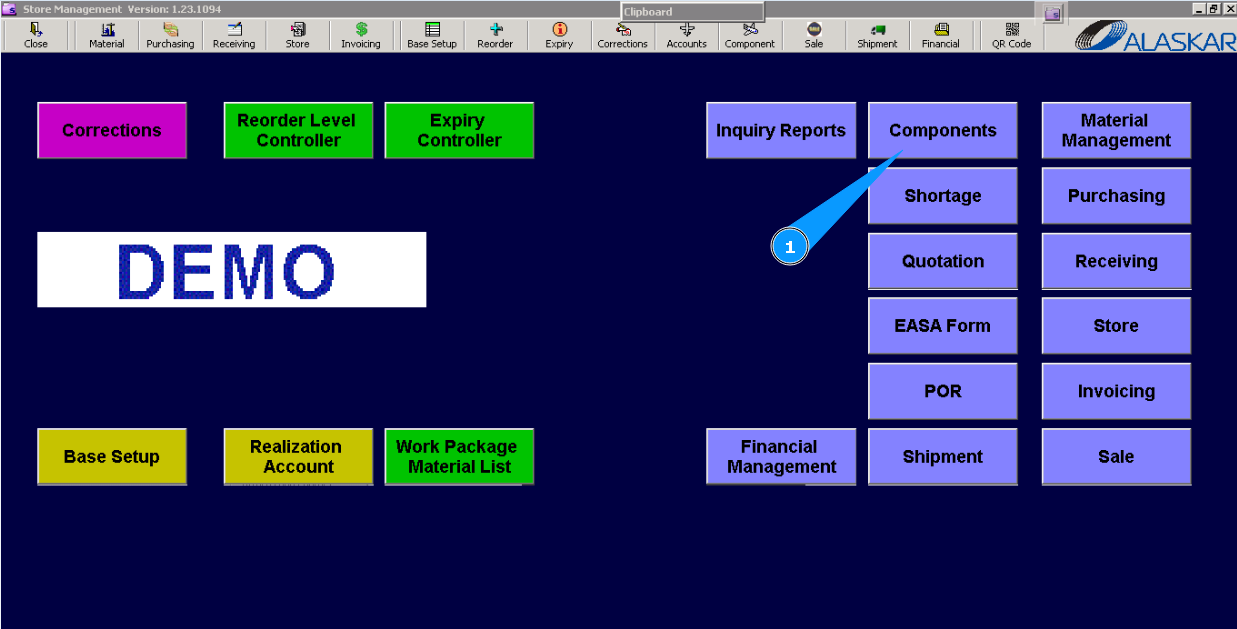
1. For linking an unserviceable component with "Exchange order", go to submodule__"Components"__.
2. Then, go to the "Repair Shelf". Note: You should know the "Exchange Order Number". If you don't know the EO number, go to the tab "Exchange order" and check the necessary number.
3. Use the available filters, __"Filter Part Number," "Store," or others, to find the necessary component. Highlight the component in the window "Repair Shelf".
4. Click on the button "EXC- Transfer component to exchange order".
5. If the component for changing an unserviceable one is well received on the store, enter the Exchange Order number in the field "EO Number (Received).". Note: Information about unserviceable components is automatically appeared from tab "Repair Shelf".
6. Or select from dropdown list.
7. If the component for changing an unserviceable one is not found and no link is in EO, enter the Exchange Order number in the field "EO Number (Opened)".
8. Or select from dropdown list.
9. Enter Alaskar login in the field "Signature".
10. Click on the button "Exchange".
Information about components from Exchange Order is also automatically appeared from tab "Exchange Order".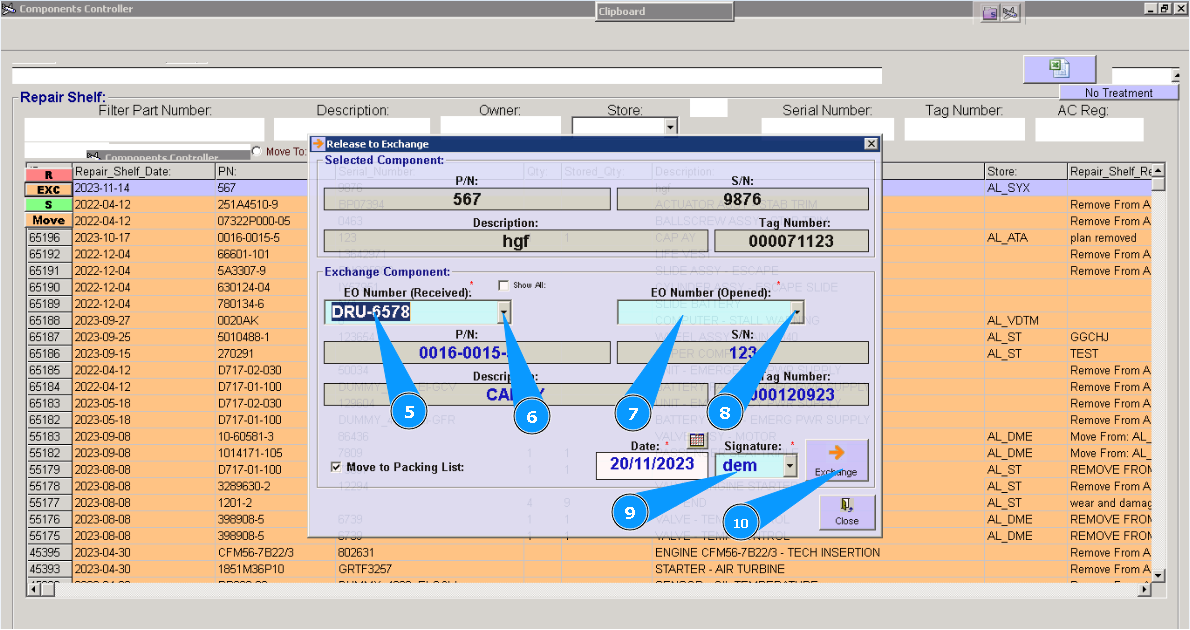
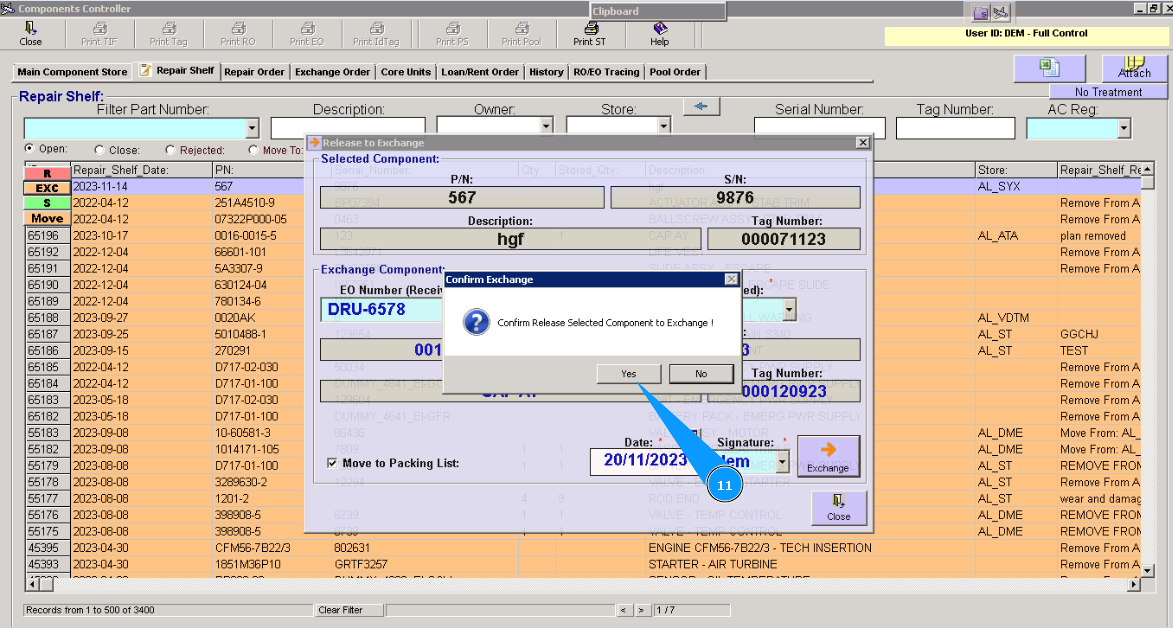
11. Click on the button "Yes", to confirm linking between the component and "Exchange Order".
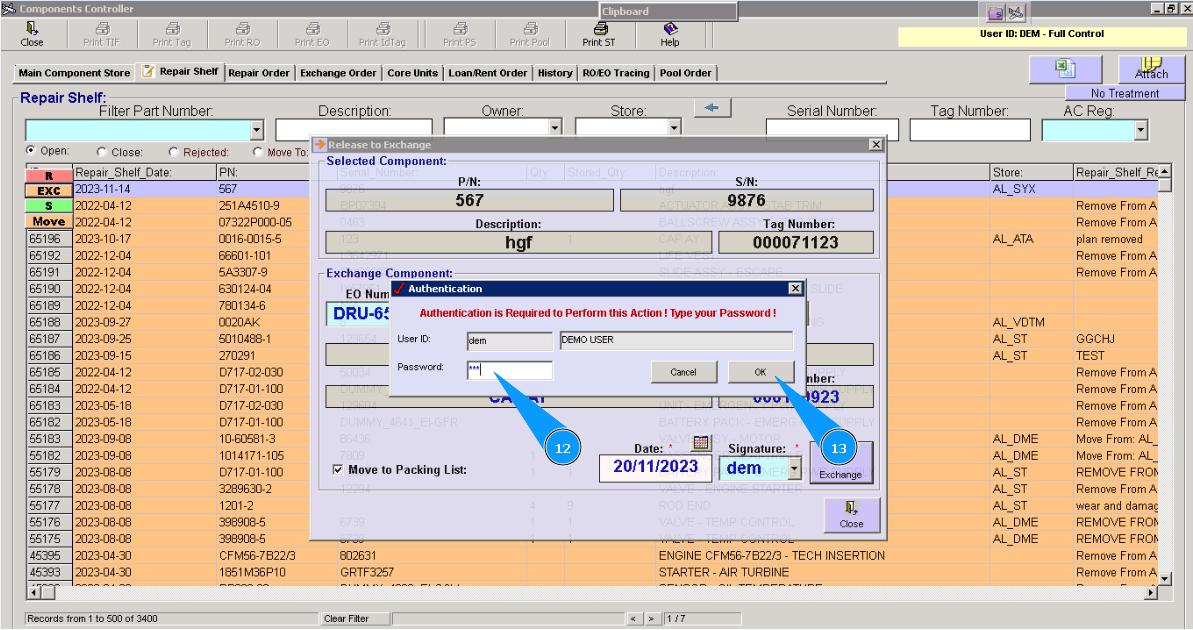
12. Enter your Alaskar password in the field "Password".
13. Click on the button **"OK" to link the component, and EO is finished.
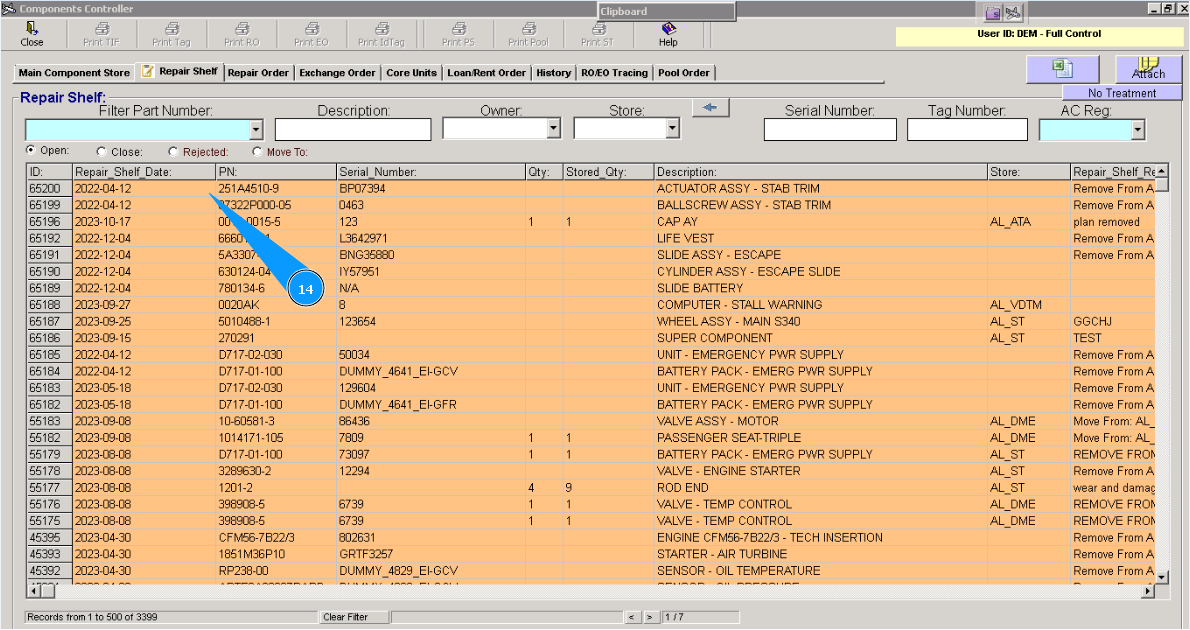
14. Check that the line with your component has disappeared from the window "Repair Shelf".