How to enter time restrictions of component
Note: This instruction has a three-way time restriction for each component.
Method №1. Setting "Store Time" criteria.
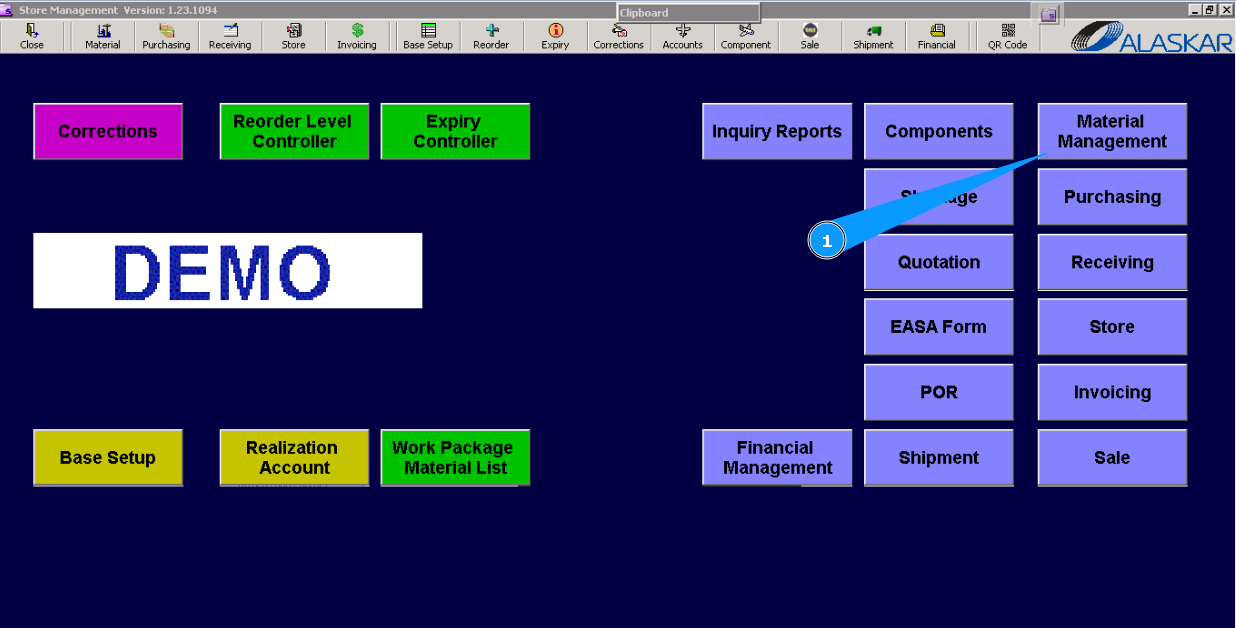
1. For setting the "Store Time" criteria on the store, please go to submodule "Material Management".
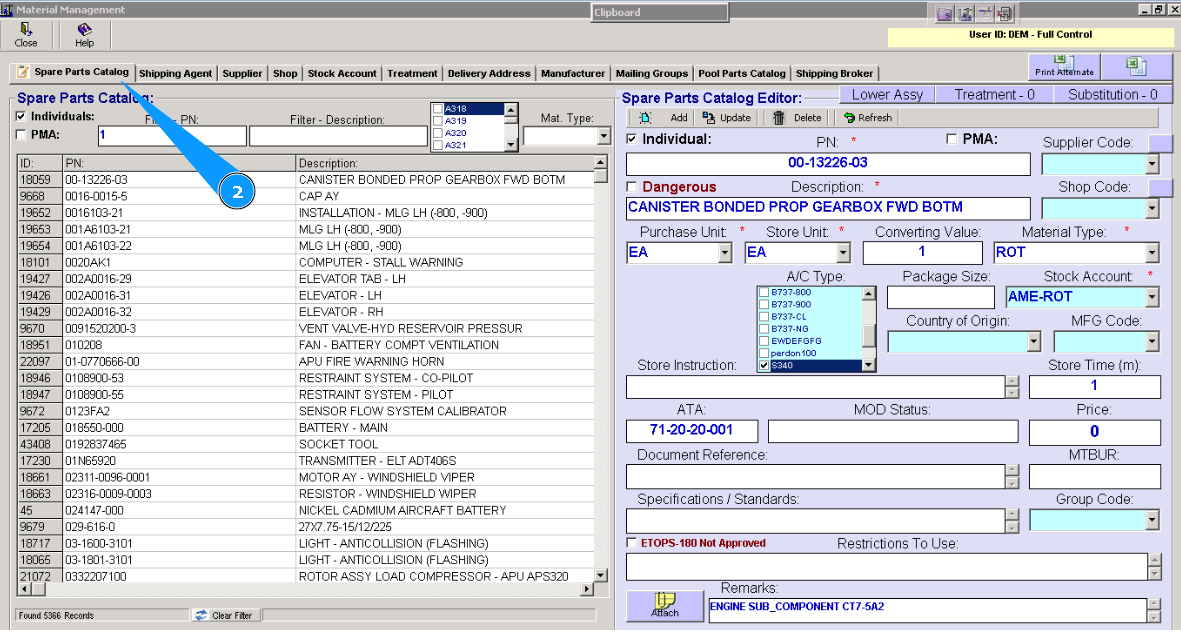
2. Then, go to the tab "Spare Parts Catalog".
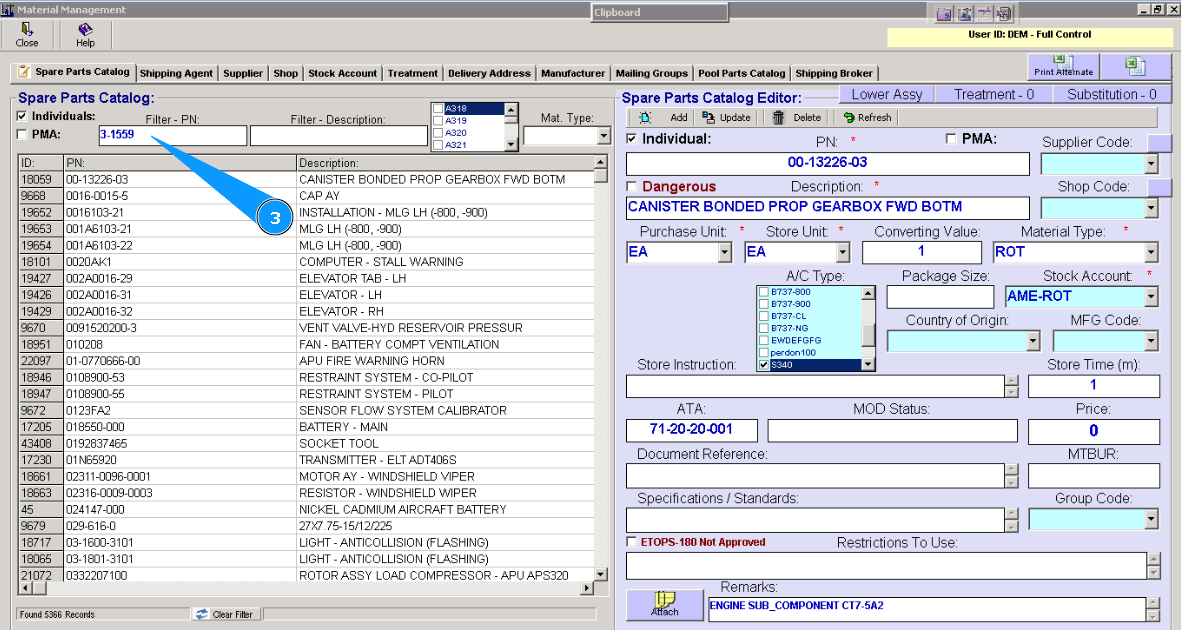
3. Enter the part number of the component or materials in the searching field "Filter-PN" and press the button "Enter" on your keyboard.
Note: If necessary, you can use other searching criteria and fields: "Filter-Description", "Mat.Type".
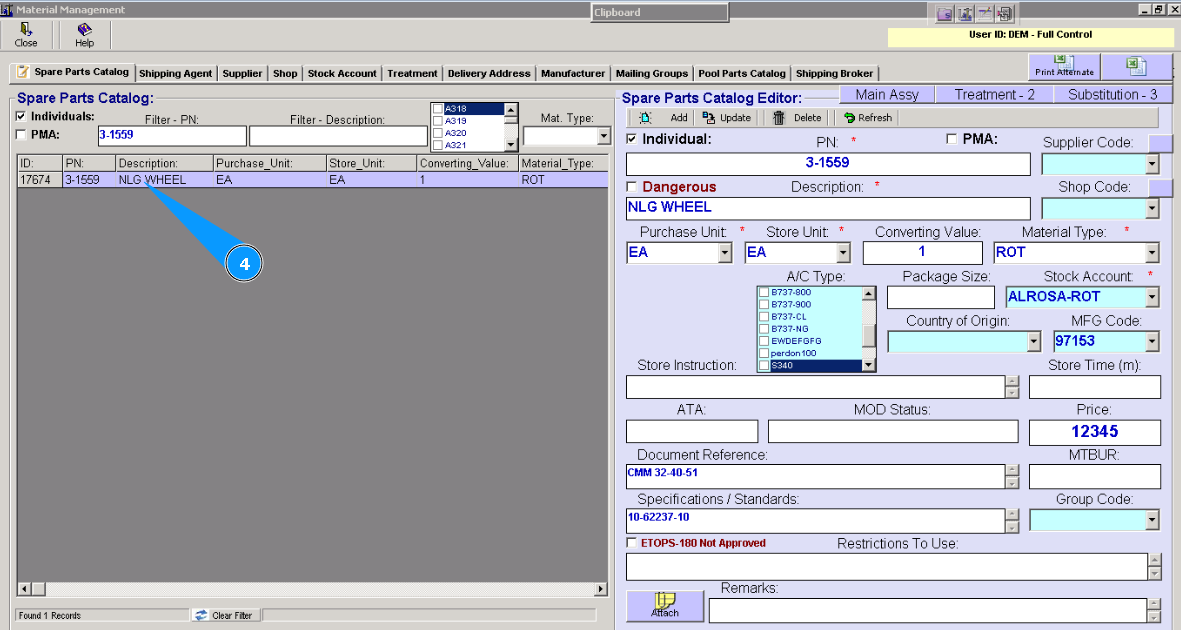
4. Highlight the applicable line with the component.
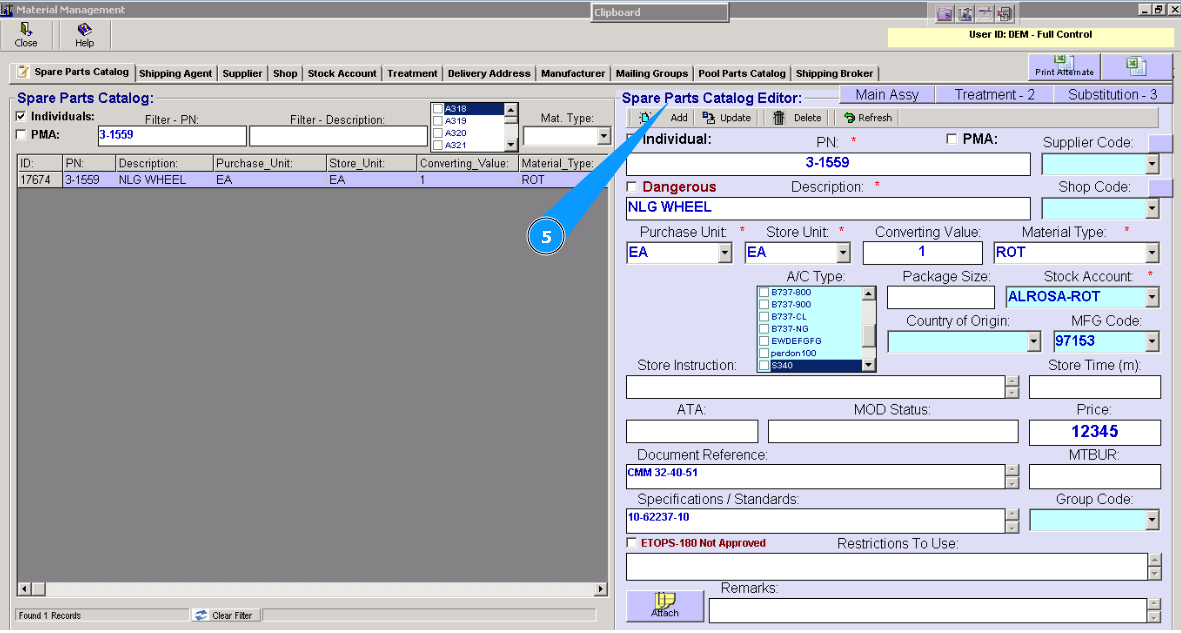
5. Visually check that component data is updated in the editor window "Spare Parts Catalog Editor".
6. Enter the time for storing components or materials in the field "Store Time". Note: Storing time is set in the в "months".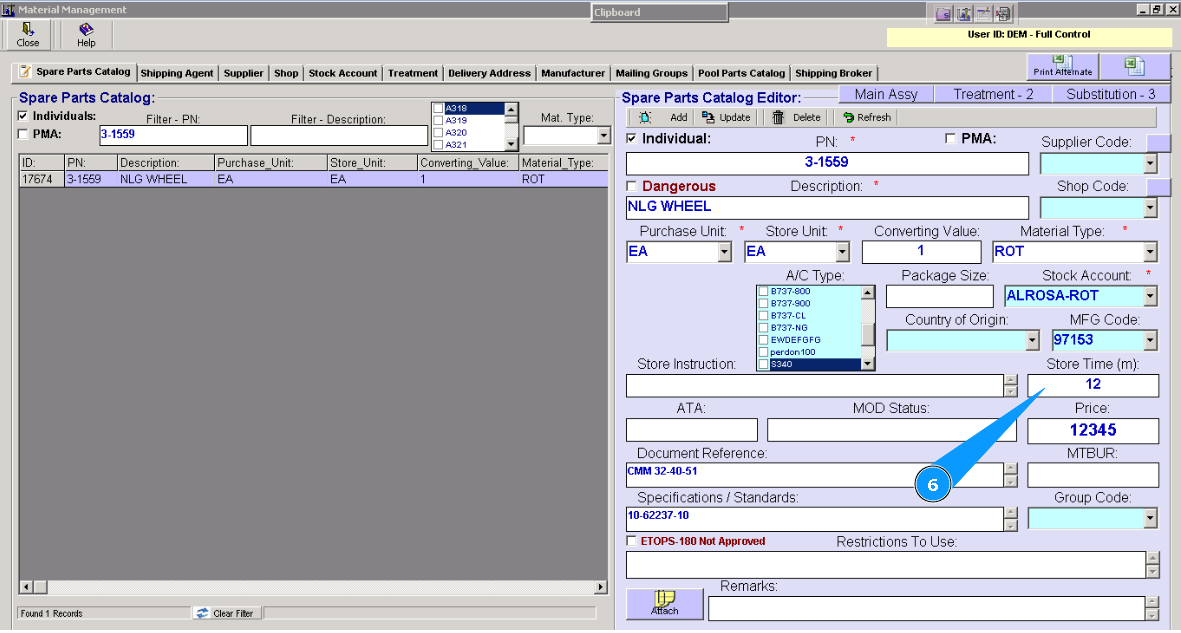
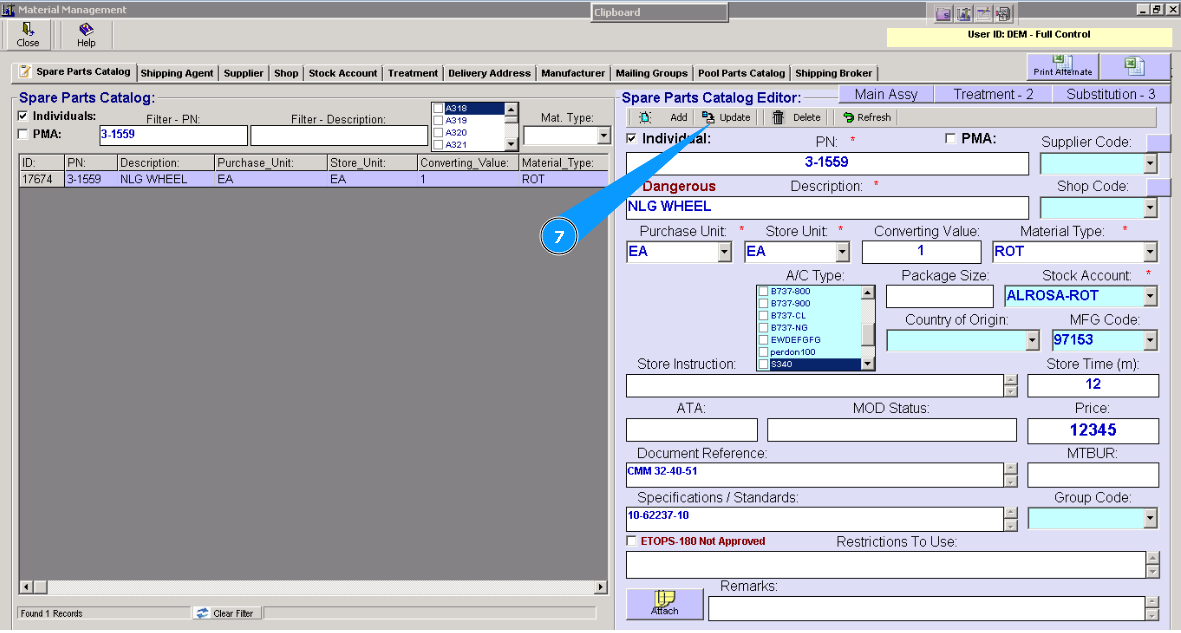
7. Click on the button **"Update" to load and enter data into the program.
8. Click on the button "Yes", to confirm entering data into the program.
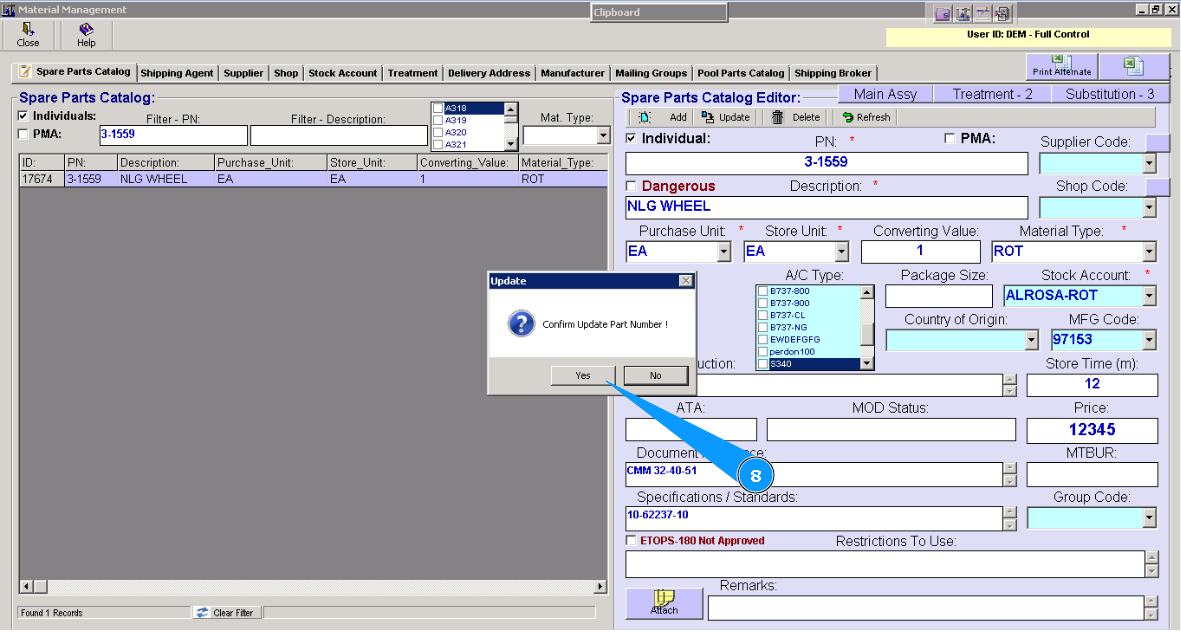
9. After receiving the process with the set "Store Time" criteria in the months, Alaskar will automatically follow the storing time from the receiving date. If the deadline date is reached, Alaskar will inform users about this.
Details of Store Time control can be found in the instruction:"How to monitor time restrictions on the Store"
Method №2. Setting the criteria "Expire Date" during receiving to store.
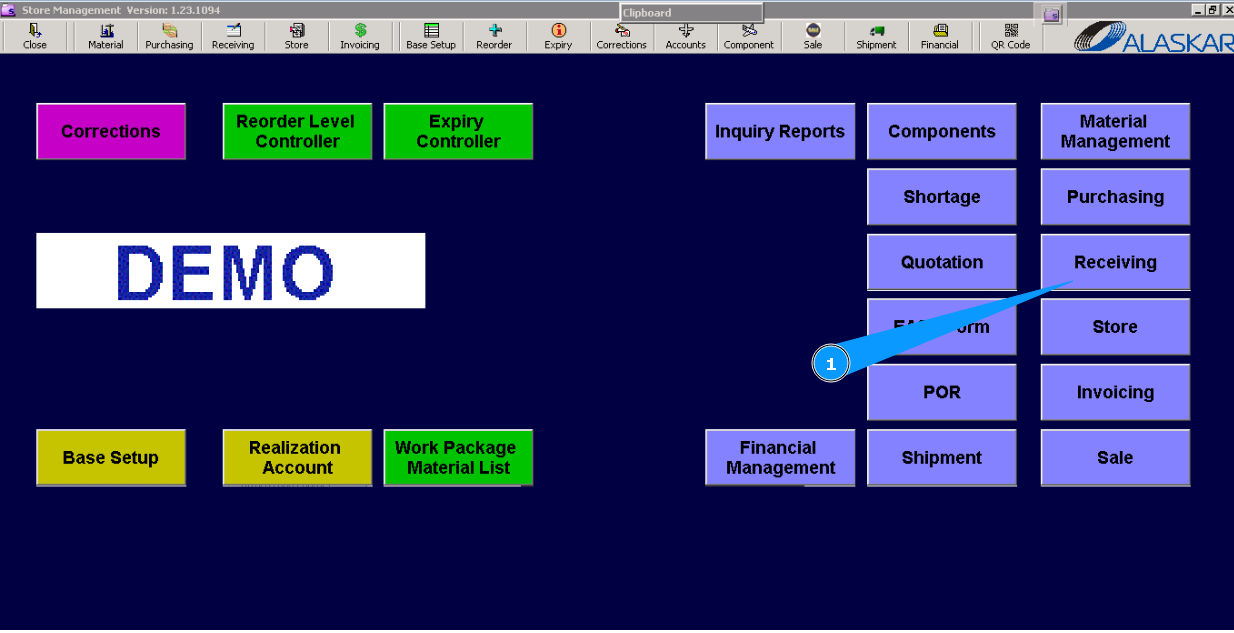
1. For setting the criteria Expire Date, necessary during the receiving process, go to submodule "Receiving".
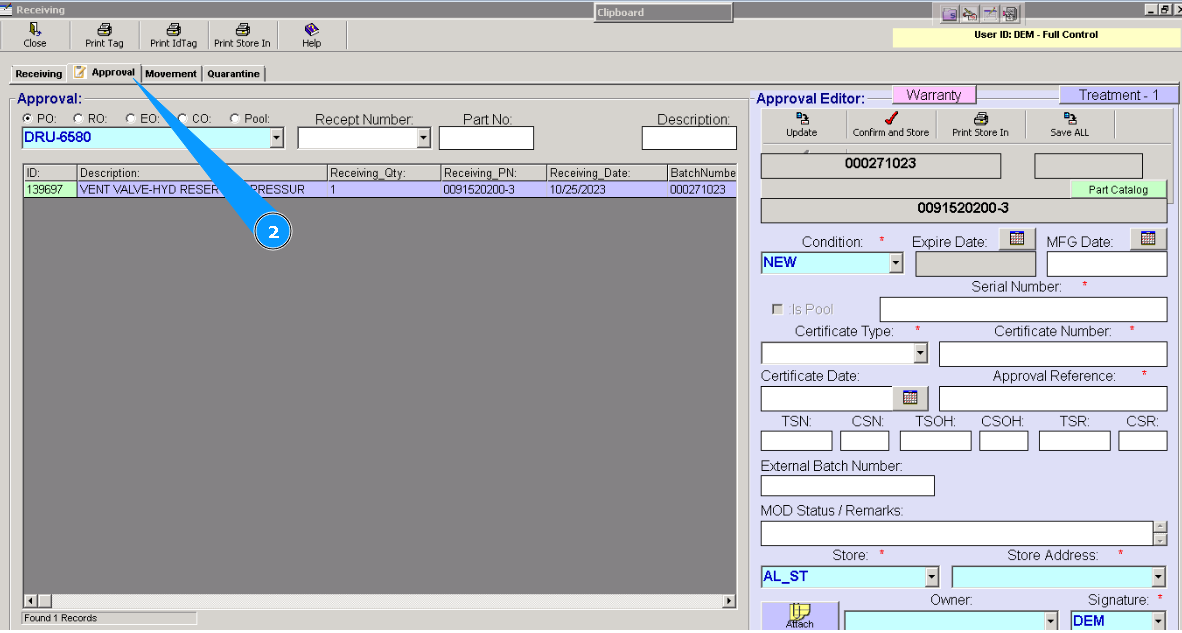
2. Then, go to the tab "Approval".
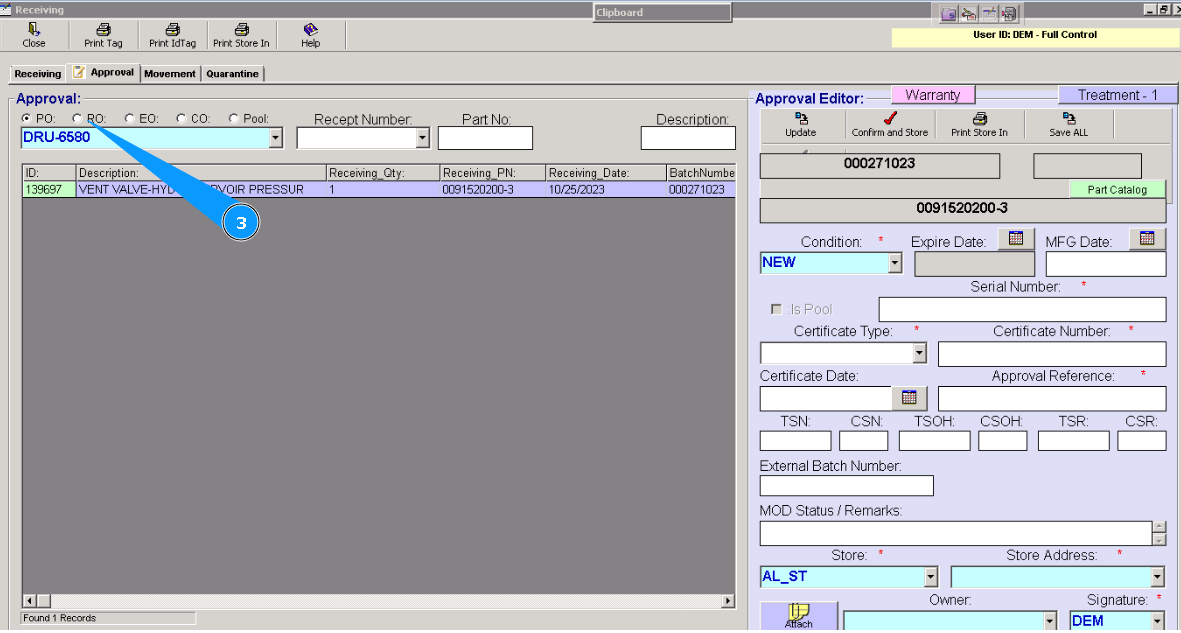
3. Select one of the following order types: PO, RO, EO, CO, or Pool.
4. Enter the part number of the component or materials in the searching field and press the button "Enter" or select from dropdown list.
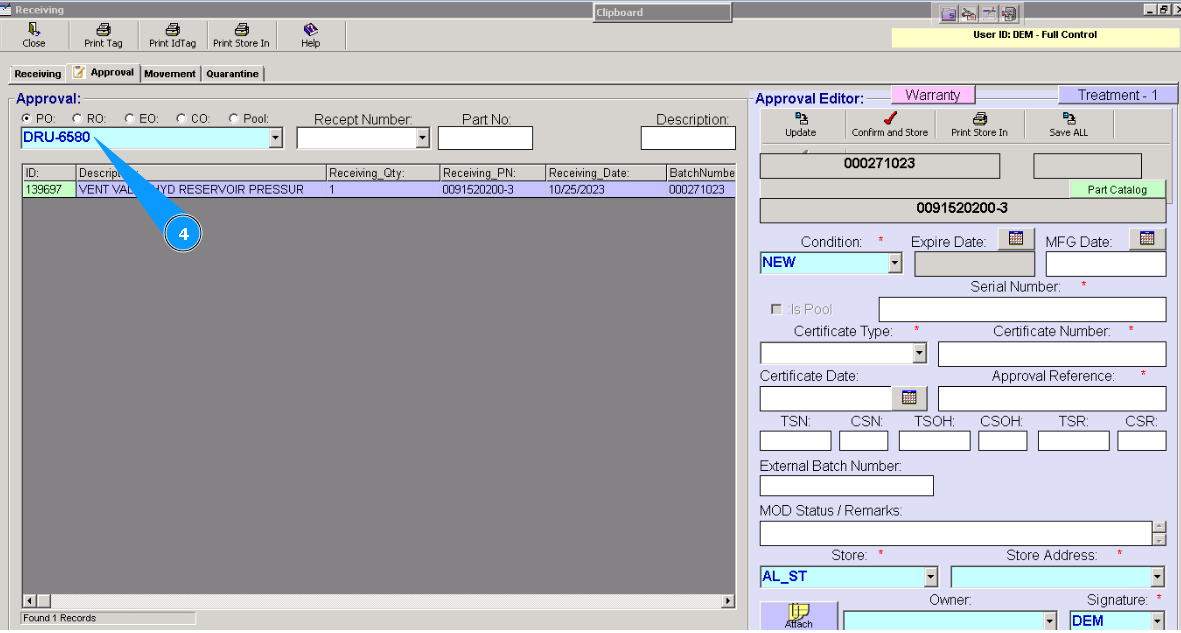
5. Highlight the applicable line with the component.
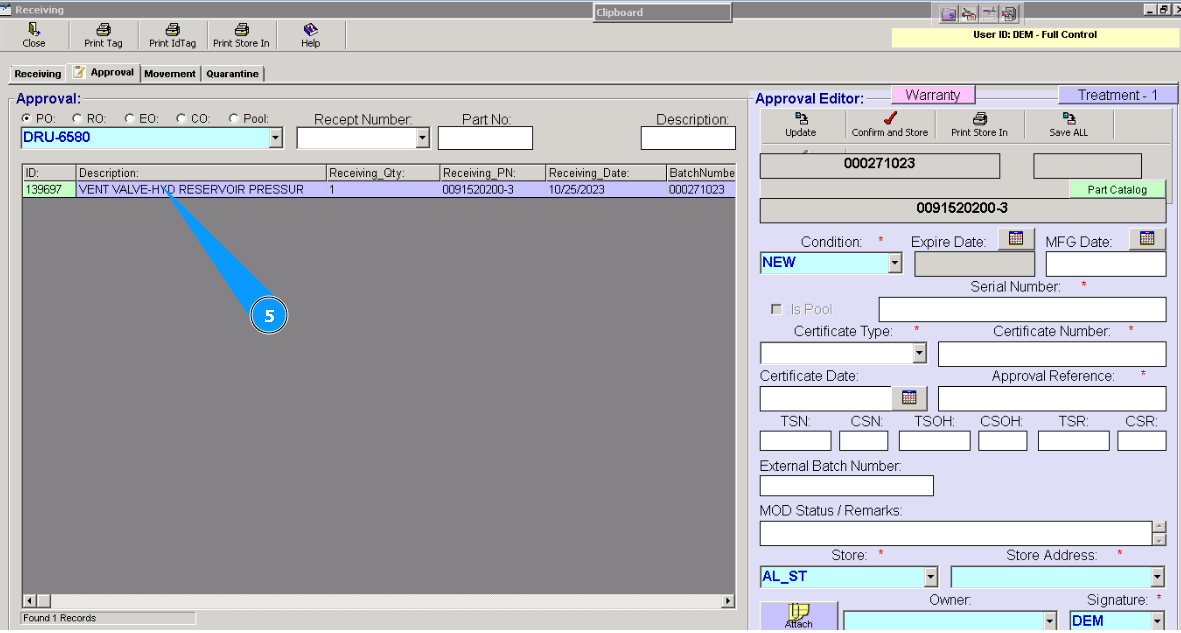
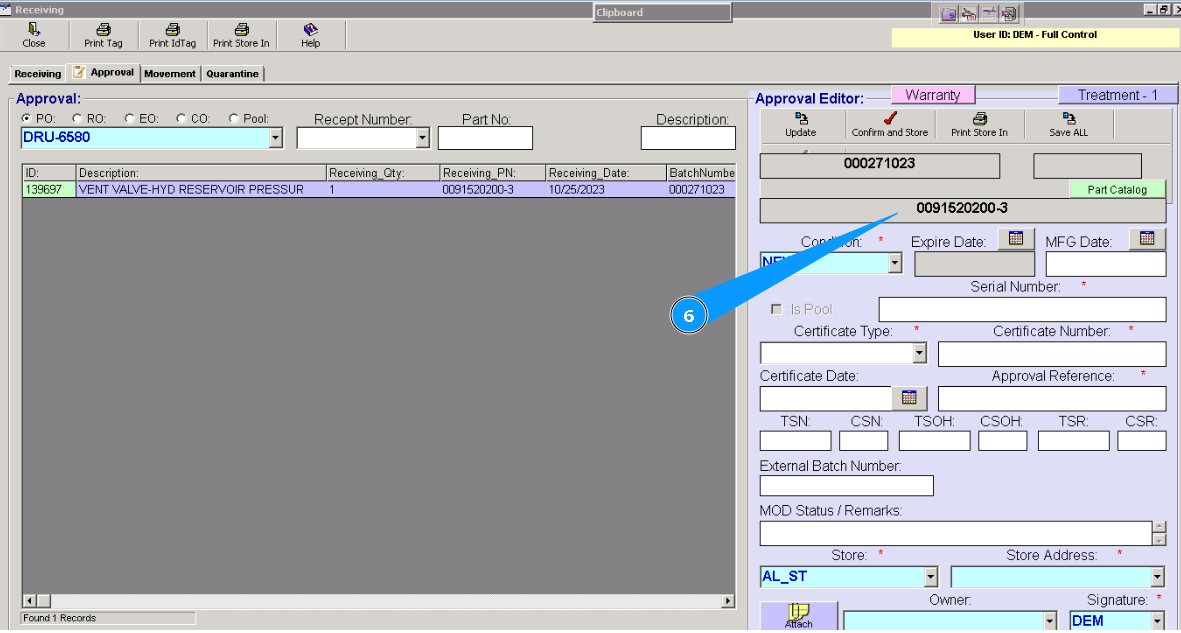
6. Visually check that component data is updated in the editor "Approval Editior".
7. Enter the expiring date in the field "Expire Date".
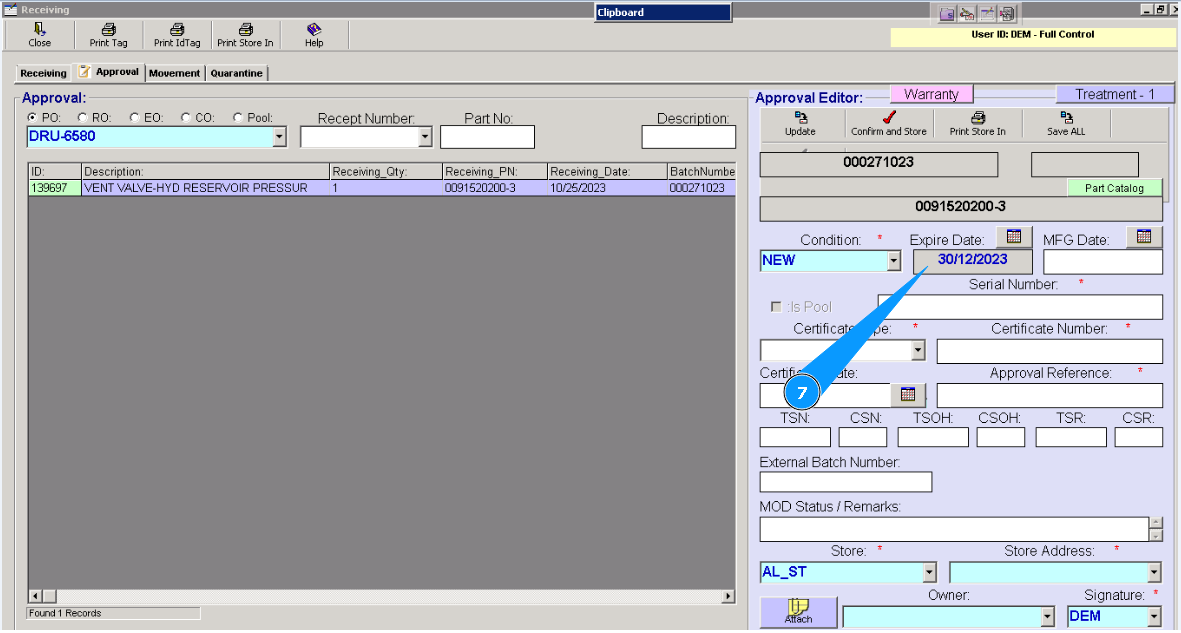
8. Or select the expiring date in the calendar and click on the button "Calendar".
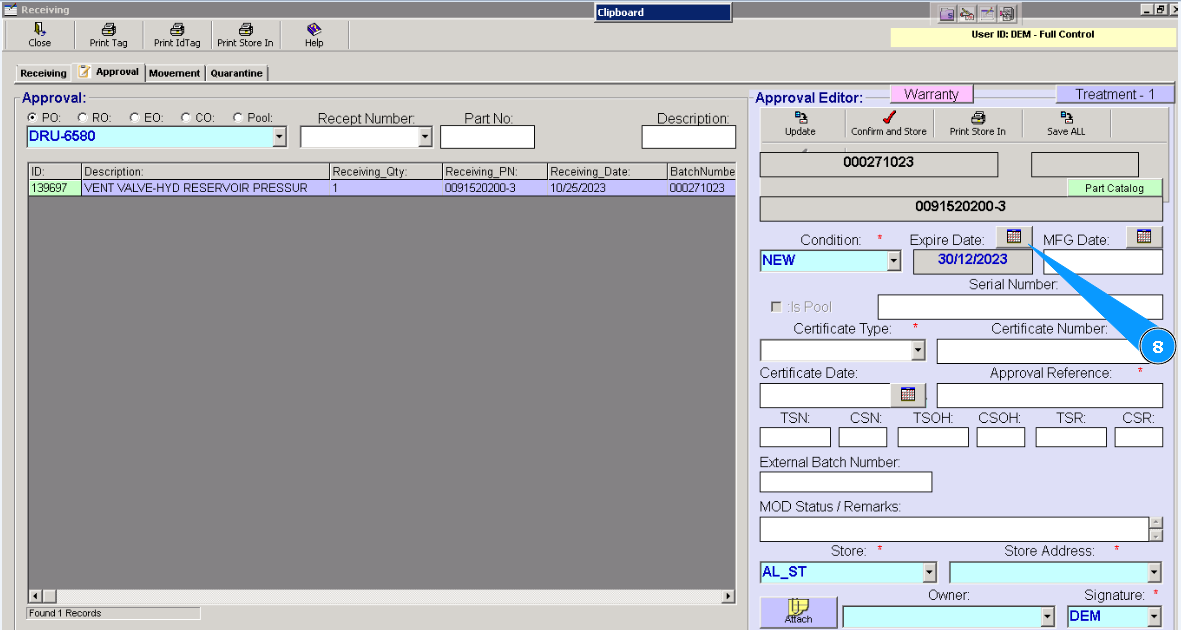
9. Click on the button "Confirm and Store", to loading data into the program.
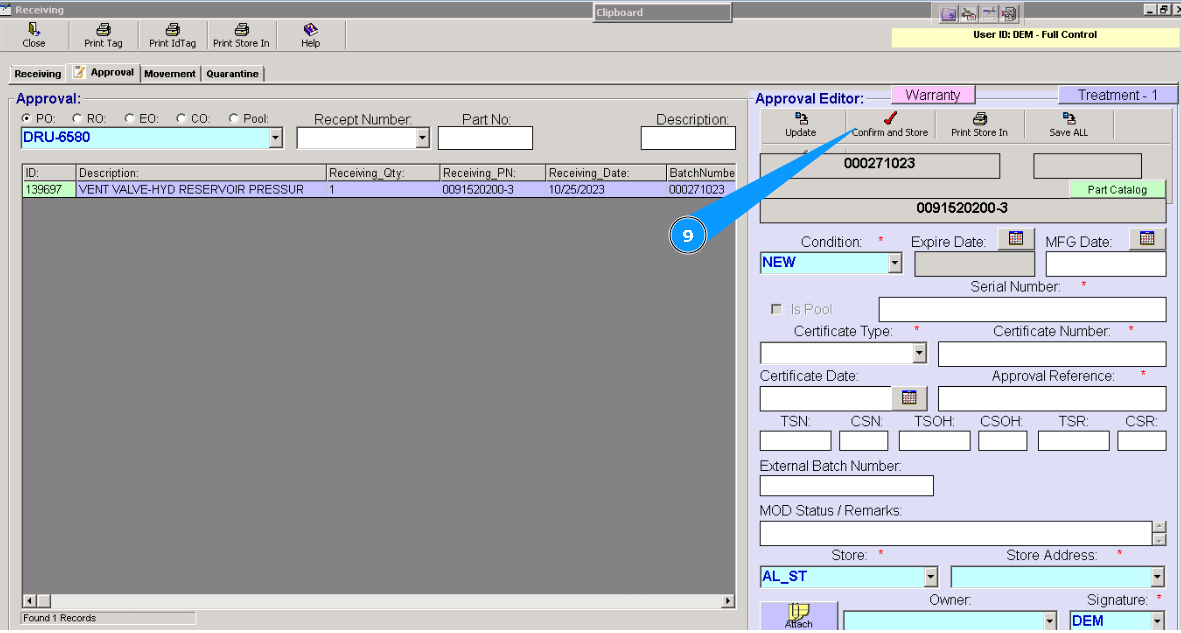
To finish the receiving process, perform all necessary actions in the instruction:
"How to receive serviceable component on the store"
Method №3. Correction criteria Expire Date of the component that is being stored.
1. For correcting the criteria Expire Date, please go to submodule "Corrections".
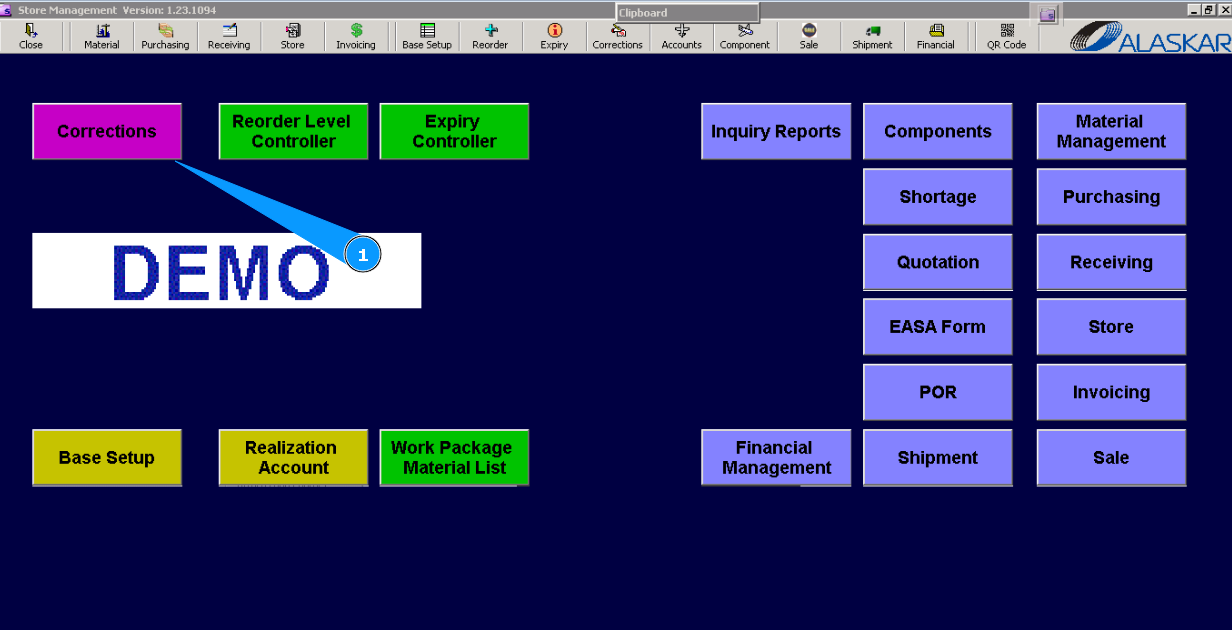
2. Then, go to the tab "Fix Expiry Date".
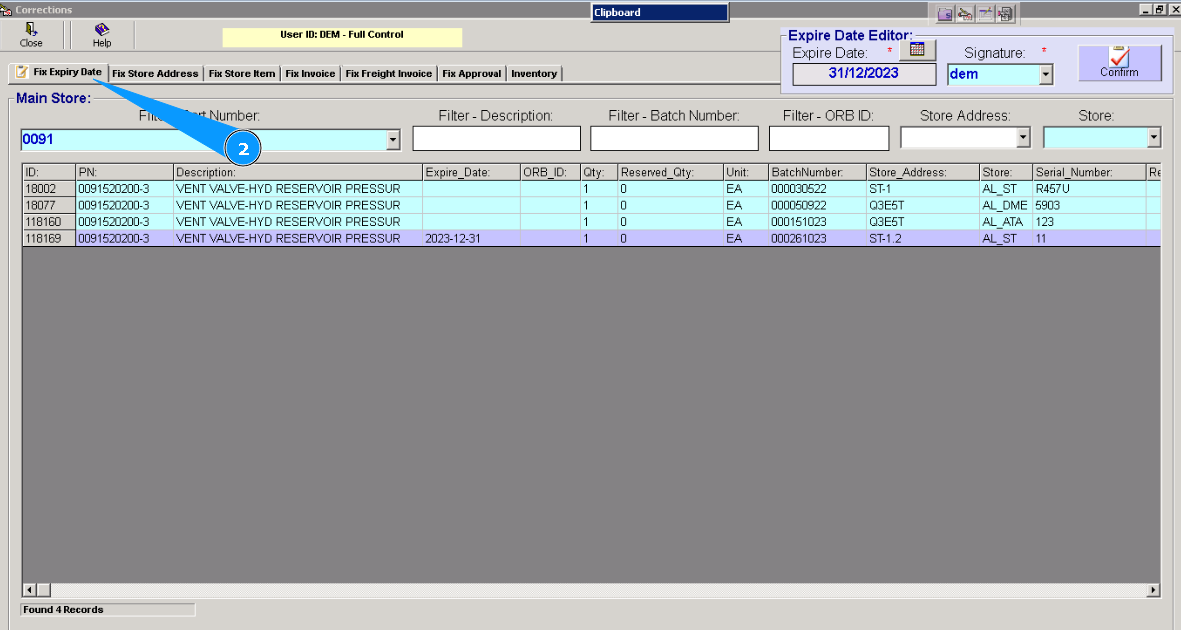
3. Enter the part number of the component or materials in the searching field "Filter-Part Number" and press the button "Enter" on the keyboard.
Note: If necessary, you can use other searching criteria and fields: "Filter-Description", "Store" etc.
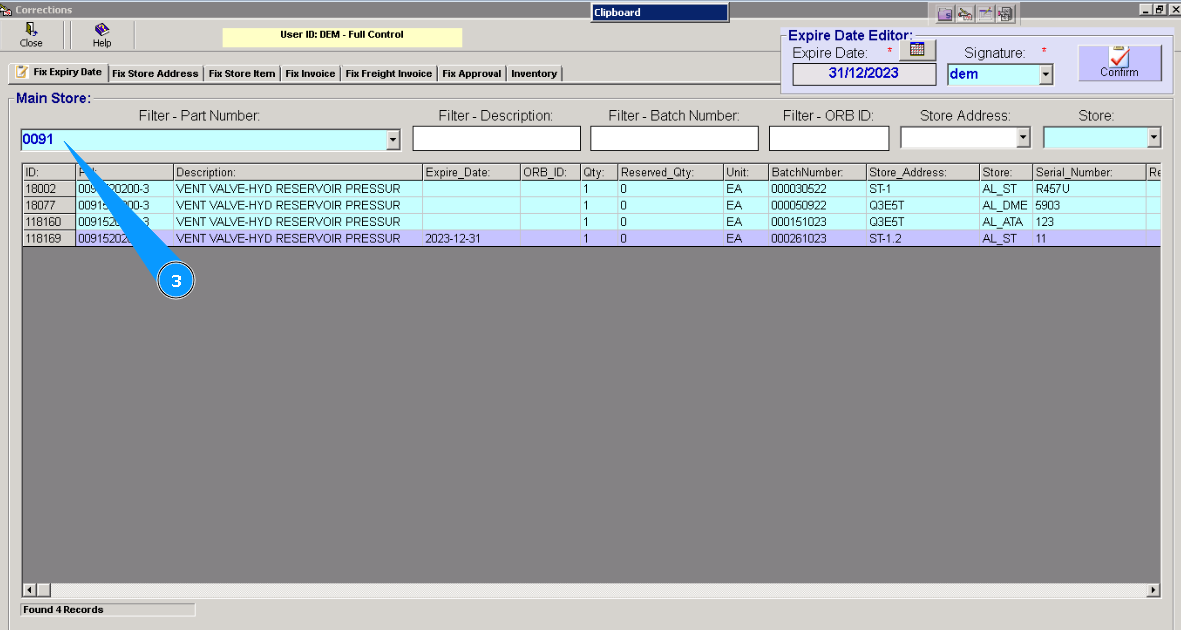
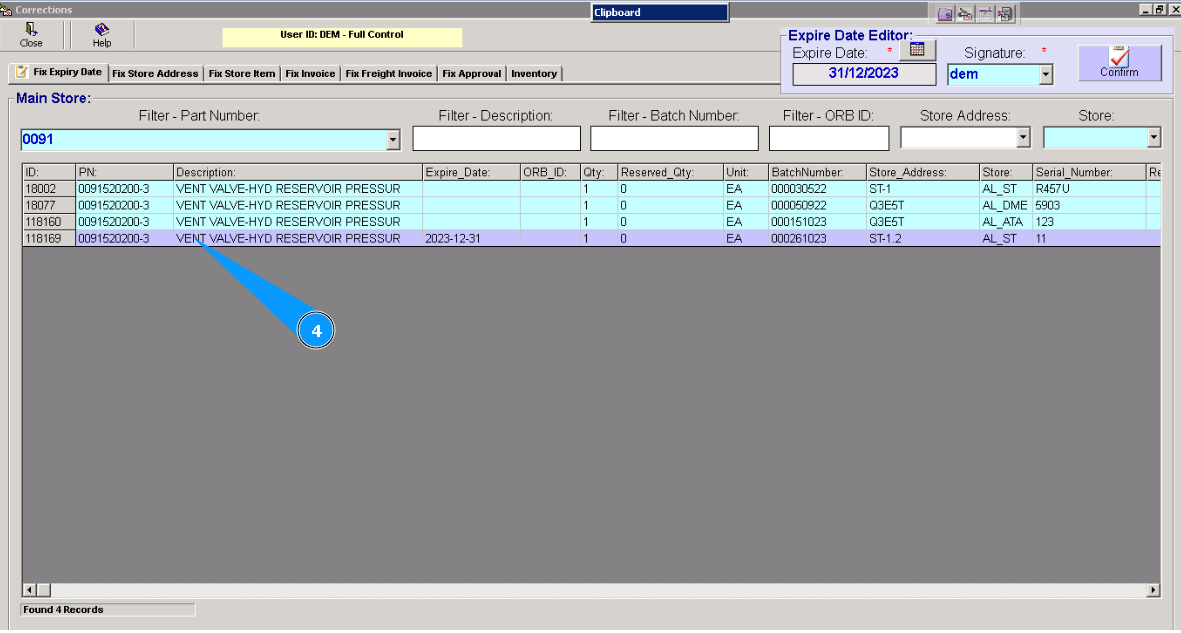
4. Highlight applicable line with component.
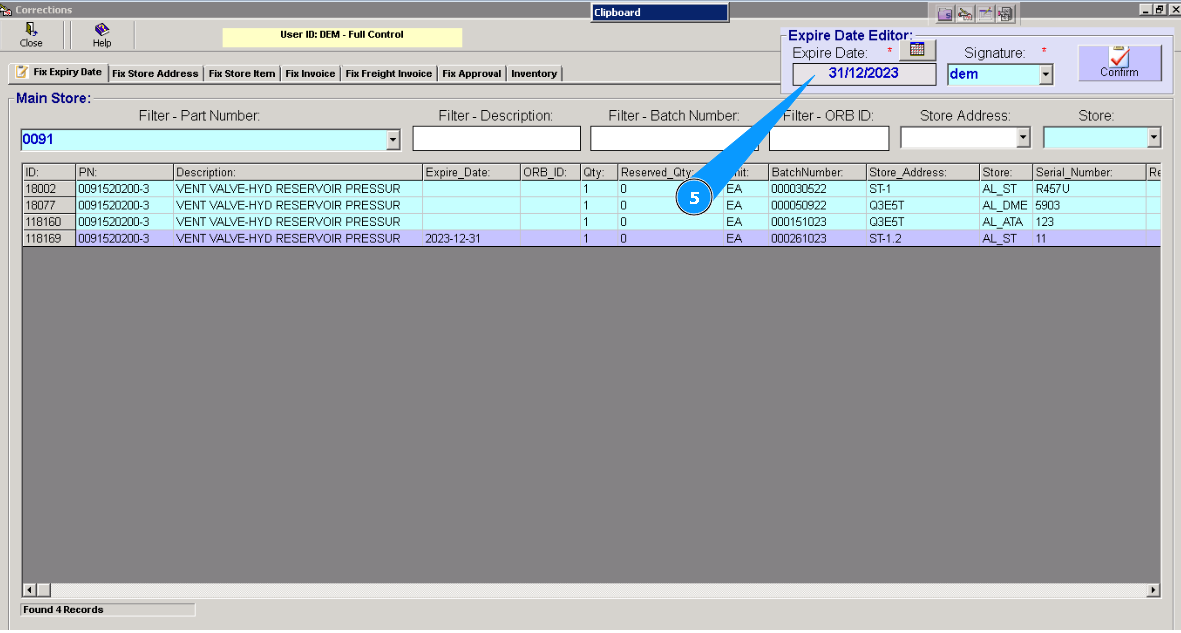
5. Enter a new expiring date in the field "Expiry Date".
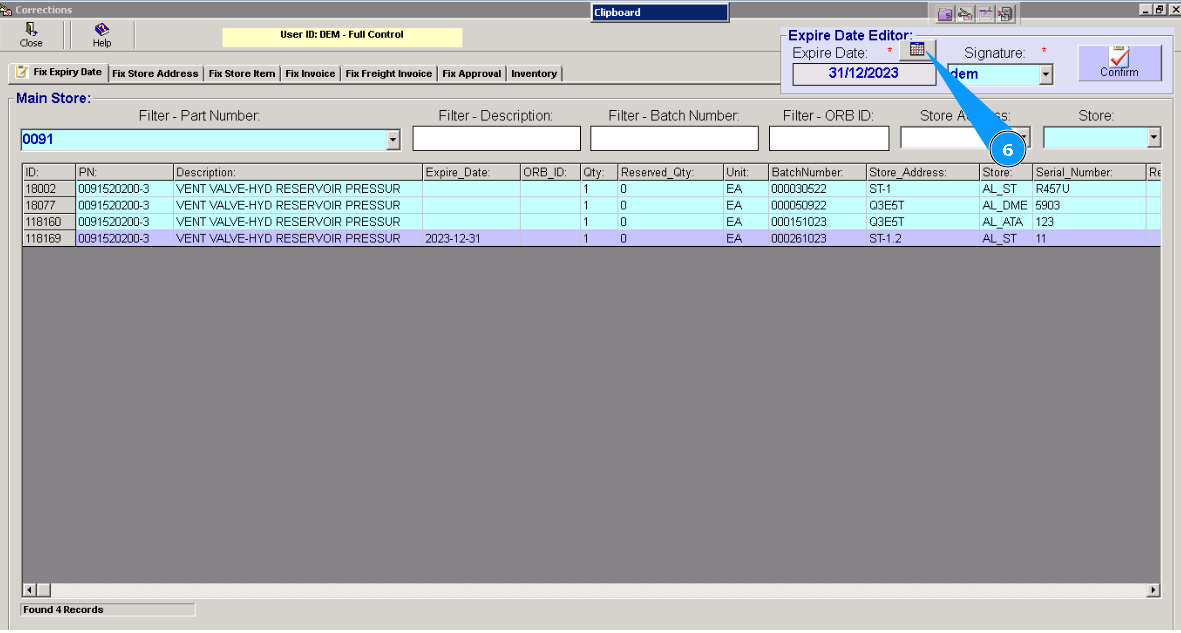
6. Or select the expiring date in the calendar and click on the button "Calendar".
7. Click on the button "Confirm", for loading data in the Alaskar.
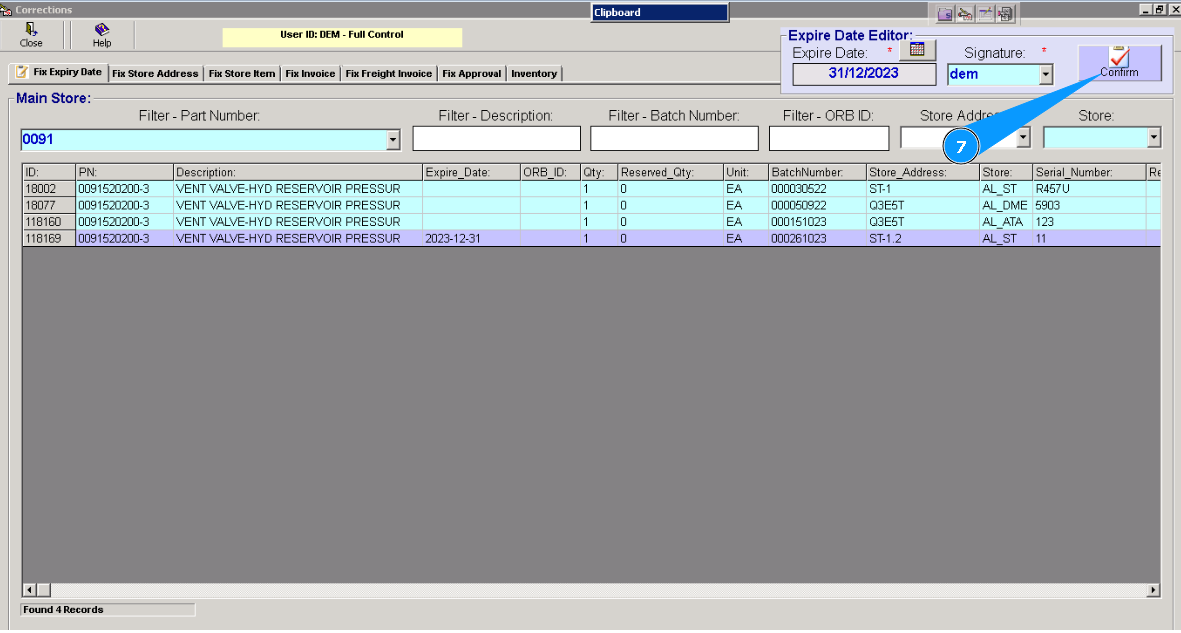
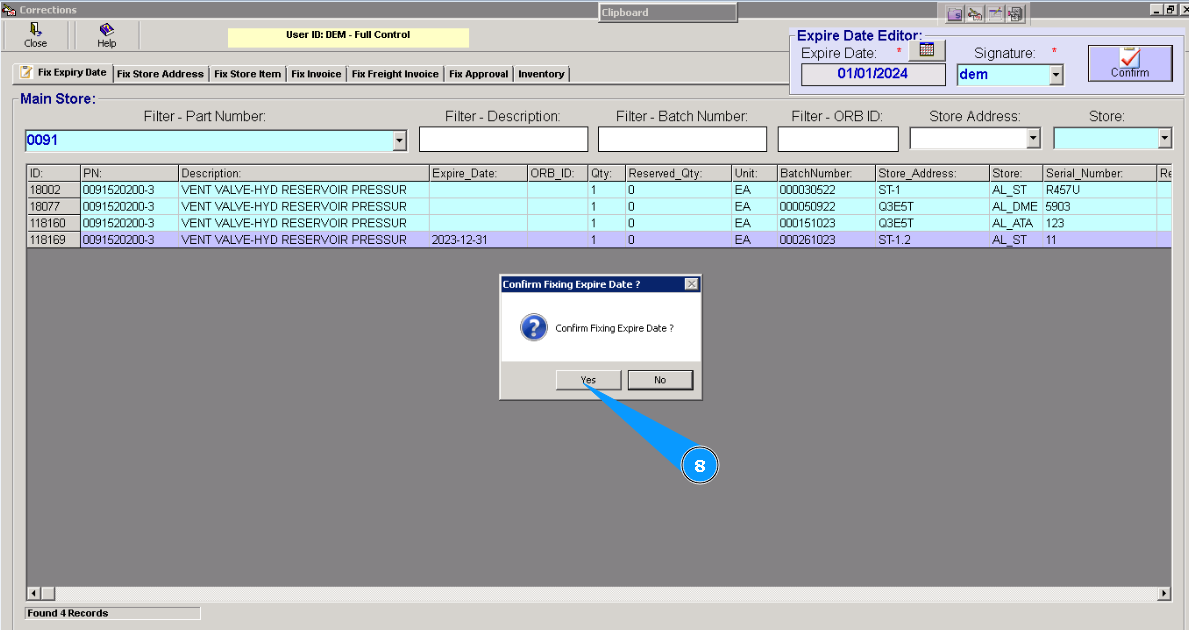
8. Click on the button "Yes", to confirm correction of date.
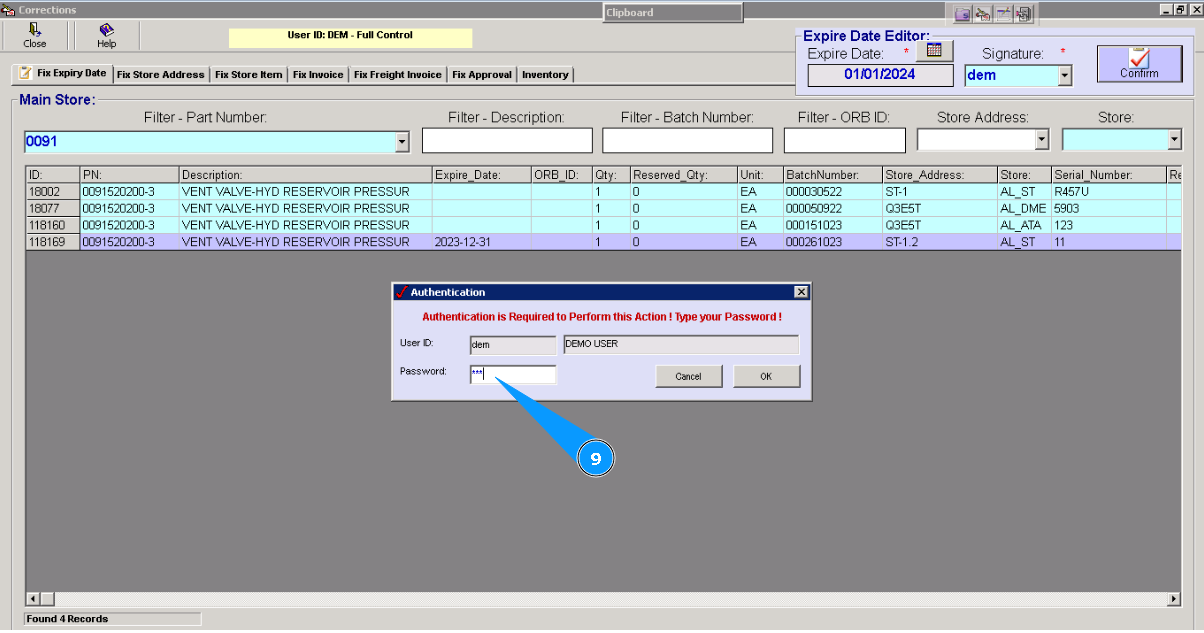
9. Enter your password for the Alaskar program.
10. Click on the button "Ok".
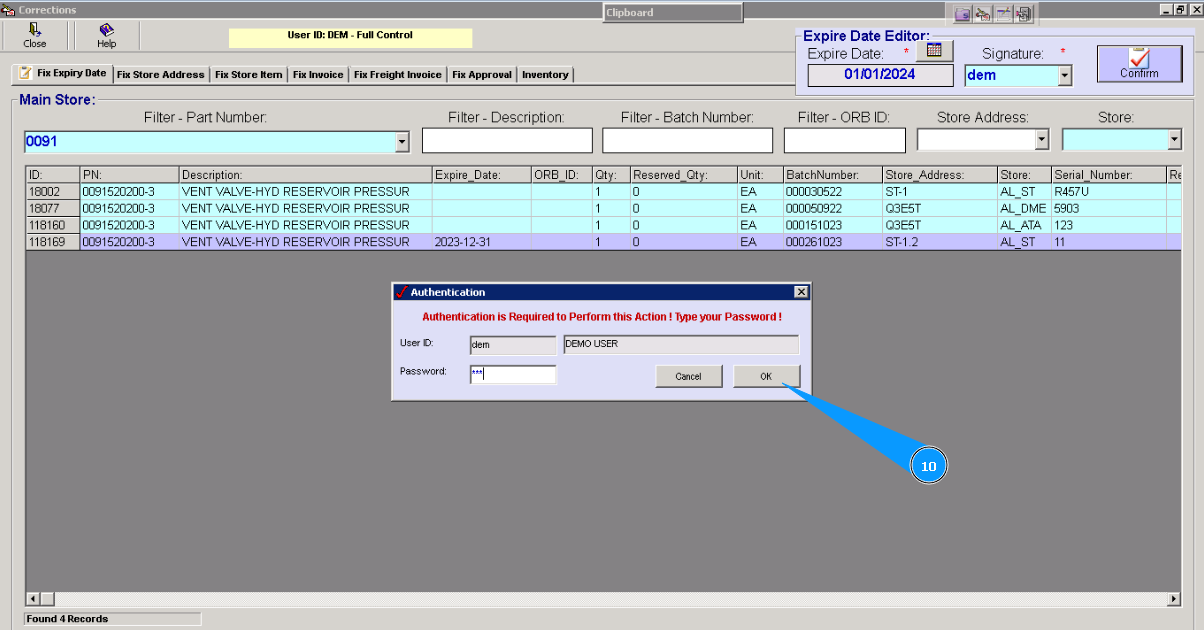
11. Click on the button "Ok", data is corrected.
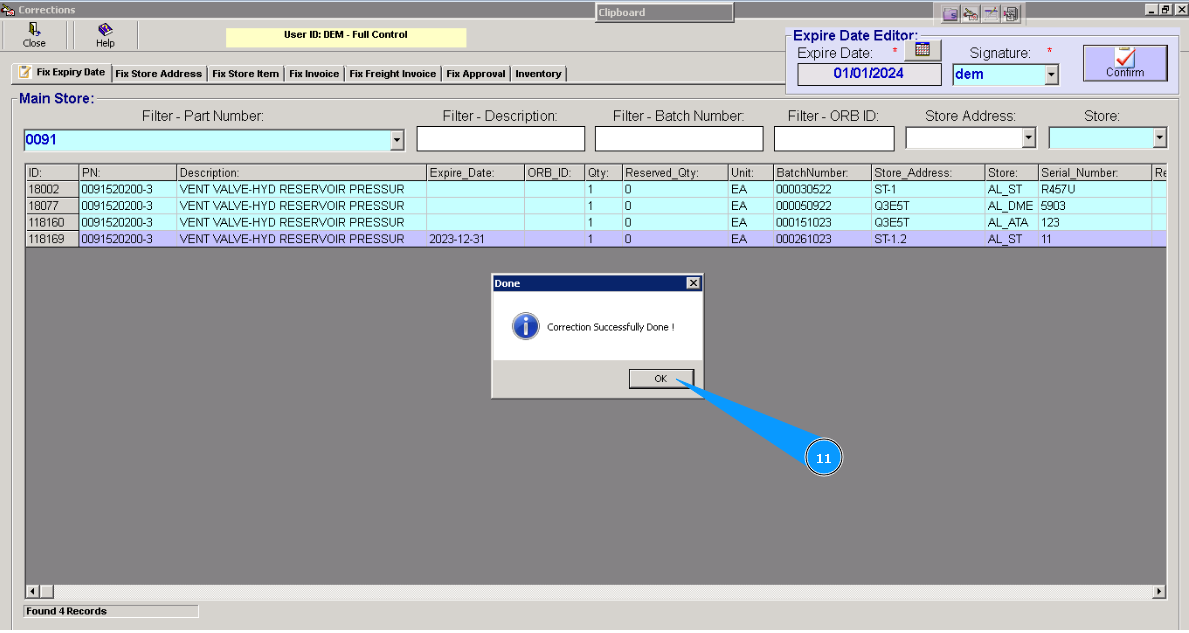
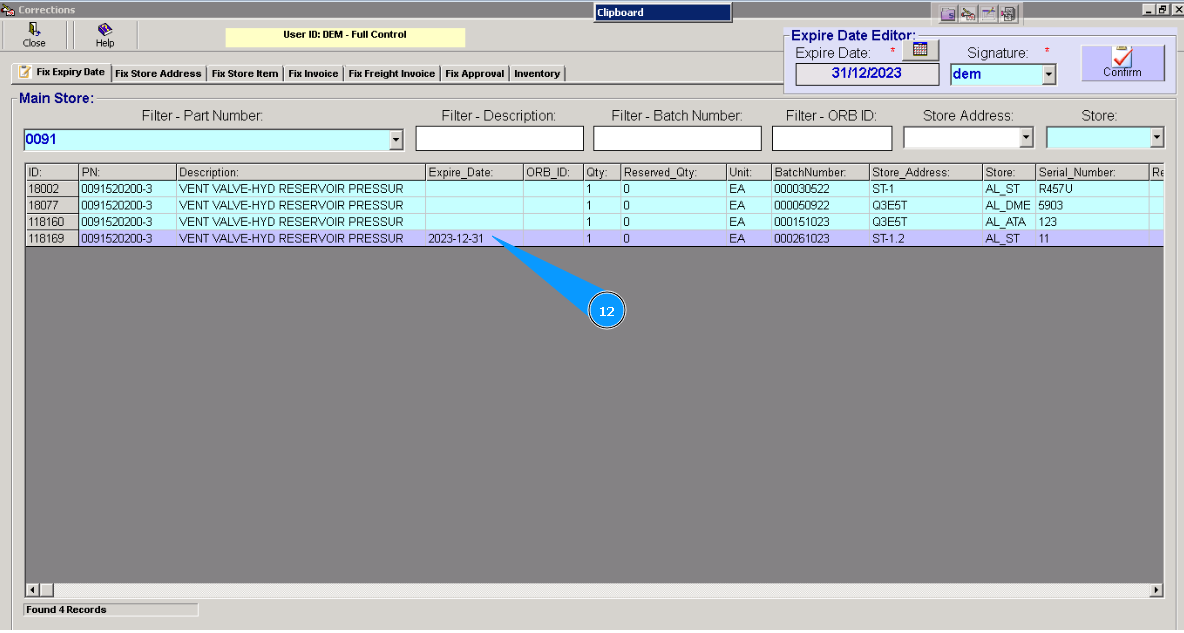
12. Visually check new expiring date for selected component or materials in the column "Expiry Date".