How to delete a component from the store
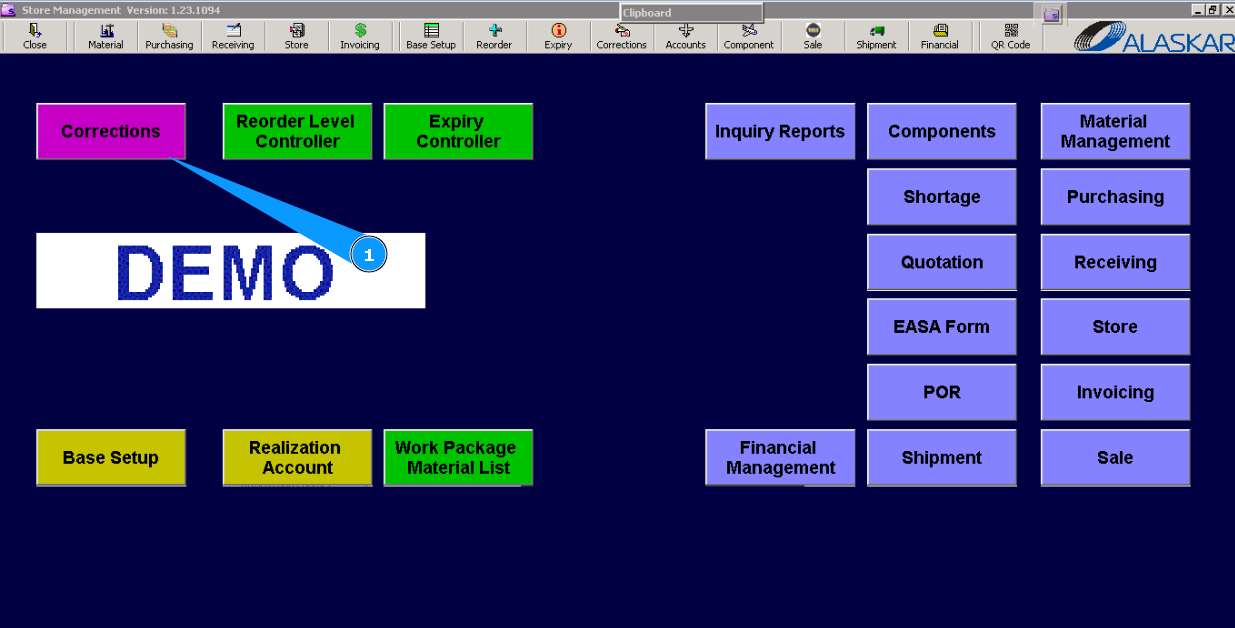
1. For the deletion component from the store, please go to submodule "Corrections".
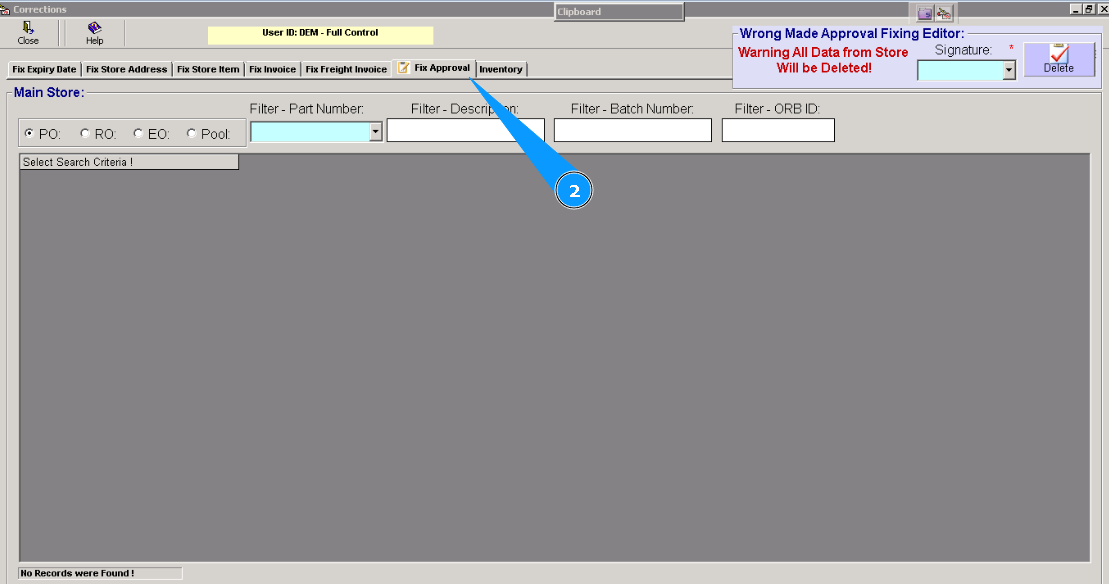
2. Then, go to the tab "Fix approval".
Note: If necessary, you can try other criteria for searching using fields: "Filter-Description", "Filter-Batch number", "Filter-ORB ID"
4. Or select from dropdown list.
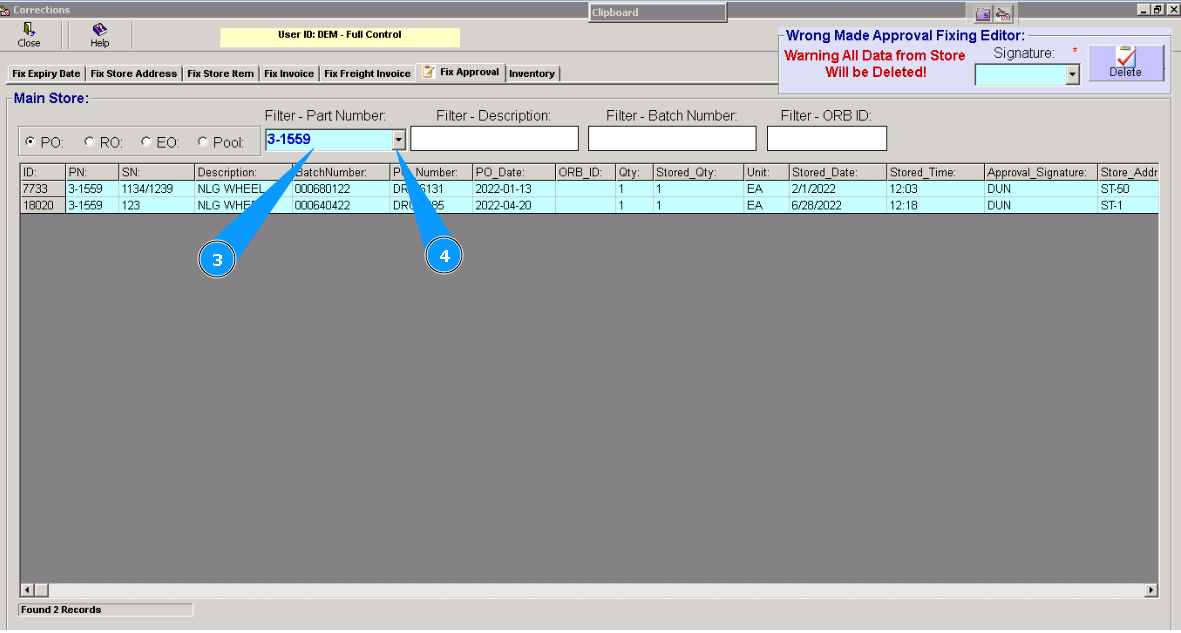
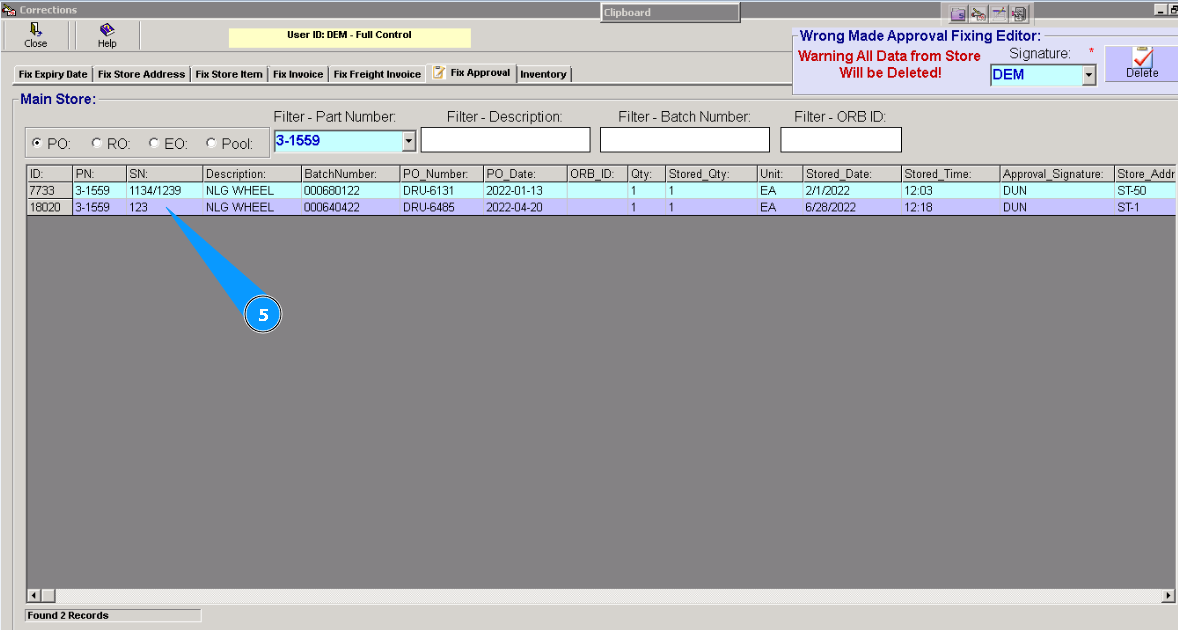
5. Highlight the applicable line with a component that should be deleted from the store.
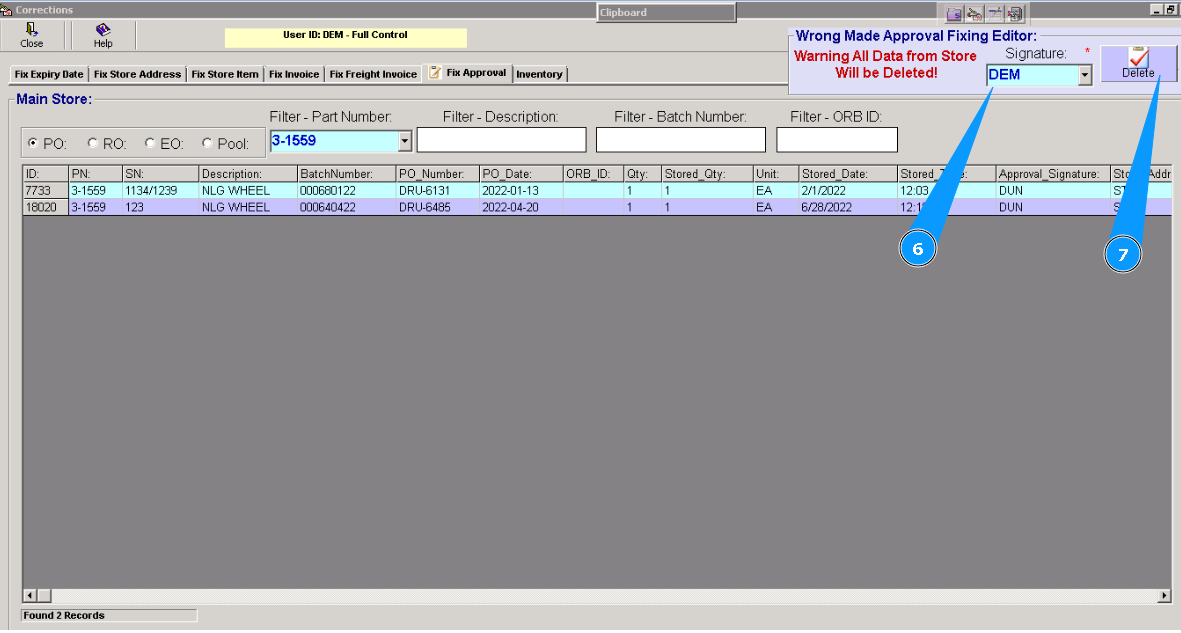
6. Enter the first three letters of your login.
7. Click on the button "Delete".
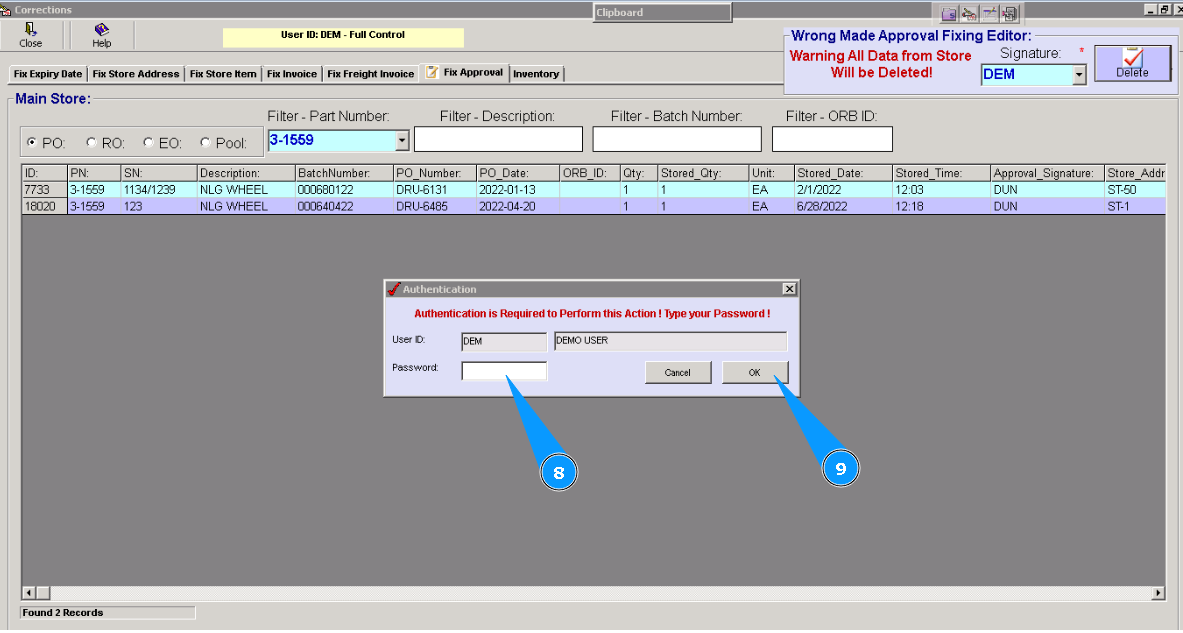
8. Enter your password for the program.
9. Click on the button "OK".
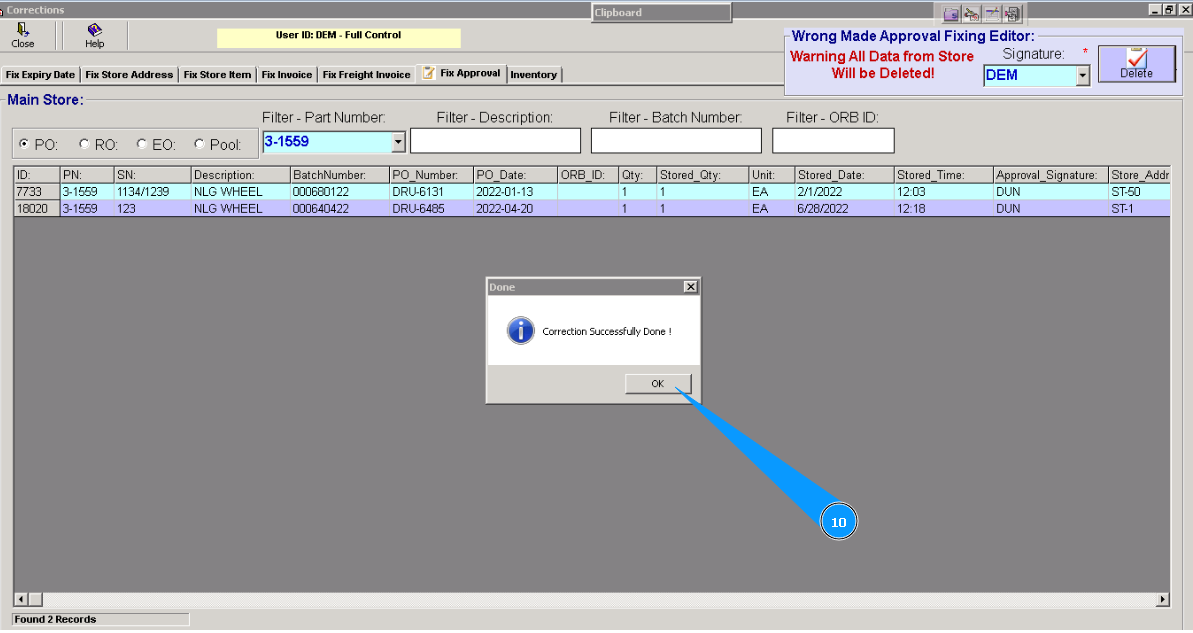
10. Correction is well done. Click on the button "OK".
11. Visually check that the line with the selected component will disappear. Component is deleted from the store and transferred to receiving mode.

12. To continue the deletion process, please go to submodule "Receiving".
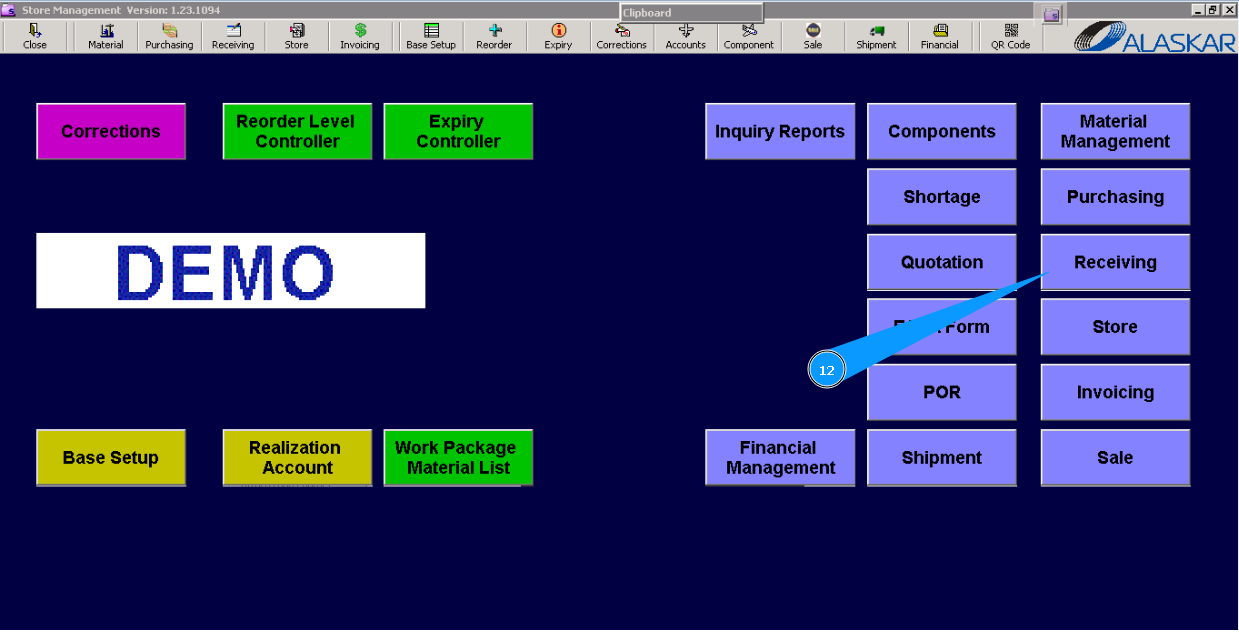
13. Then go to the tab "Receiving".
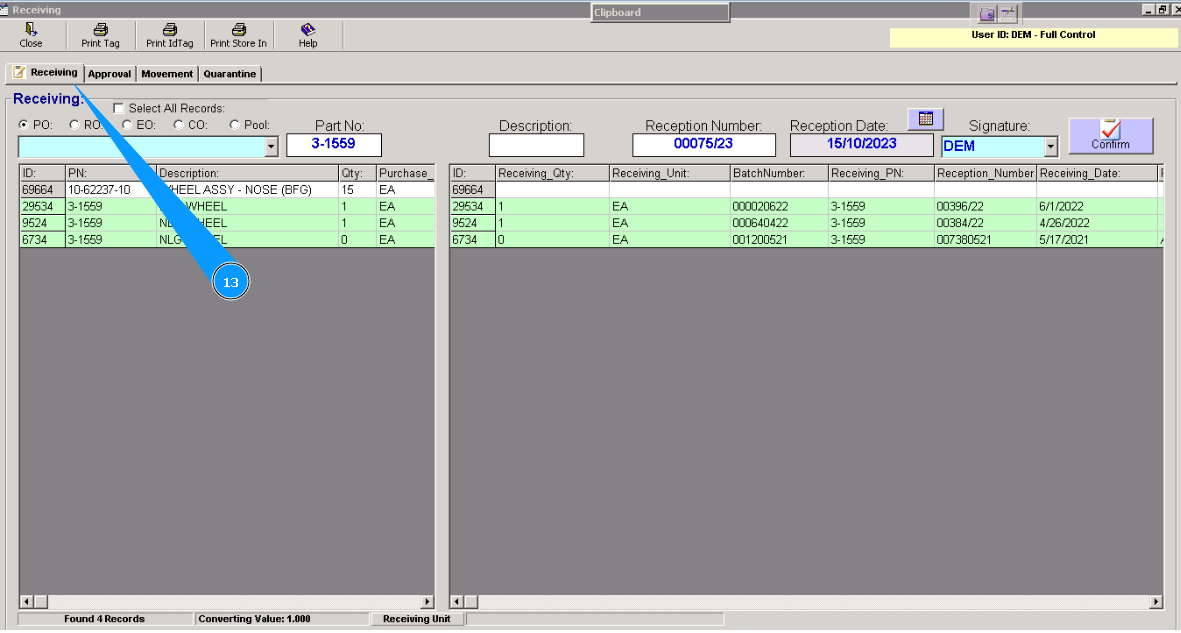
Note: If necessary, you can use other criteria for searching in this tab.

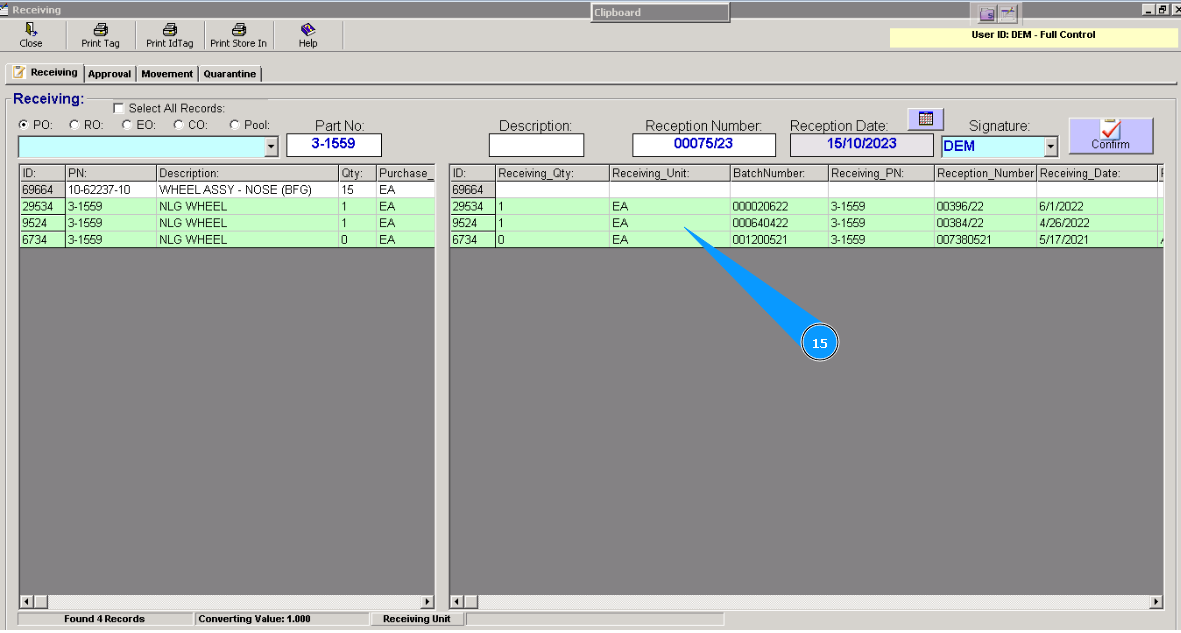
15. Highlight the applicable line in the right hand window.
16. Press the button "Delete" on your keyboard.
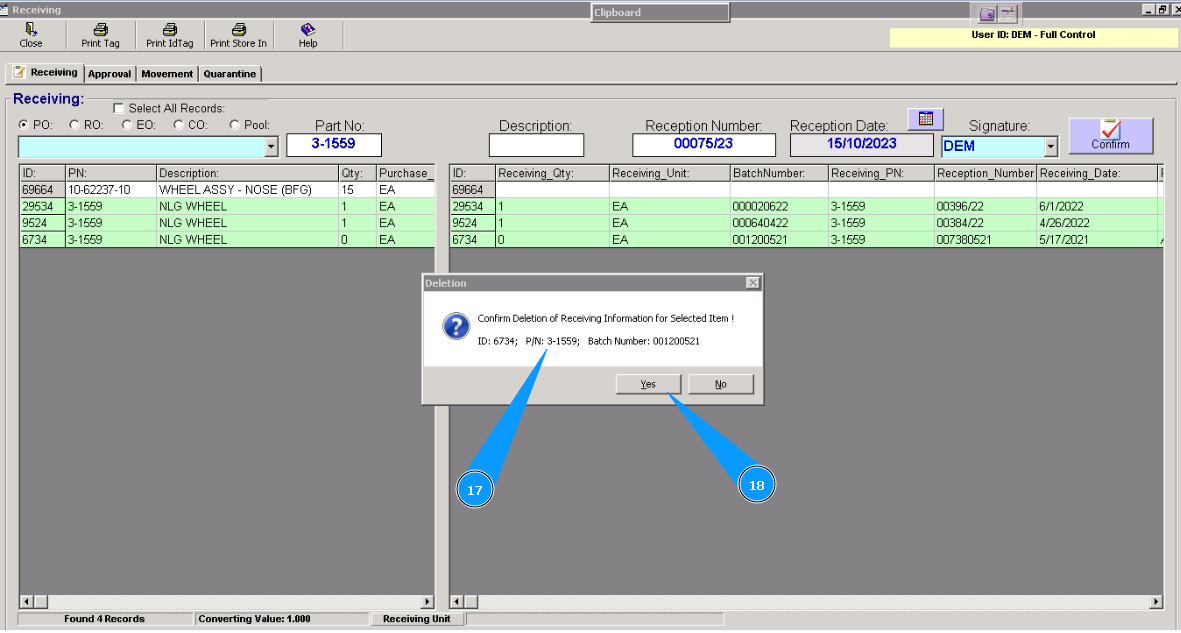
17. Check that the deleted component's details are correct.
18. Click on the button "Yes" to confirm the deletion component from this receiving mode.
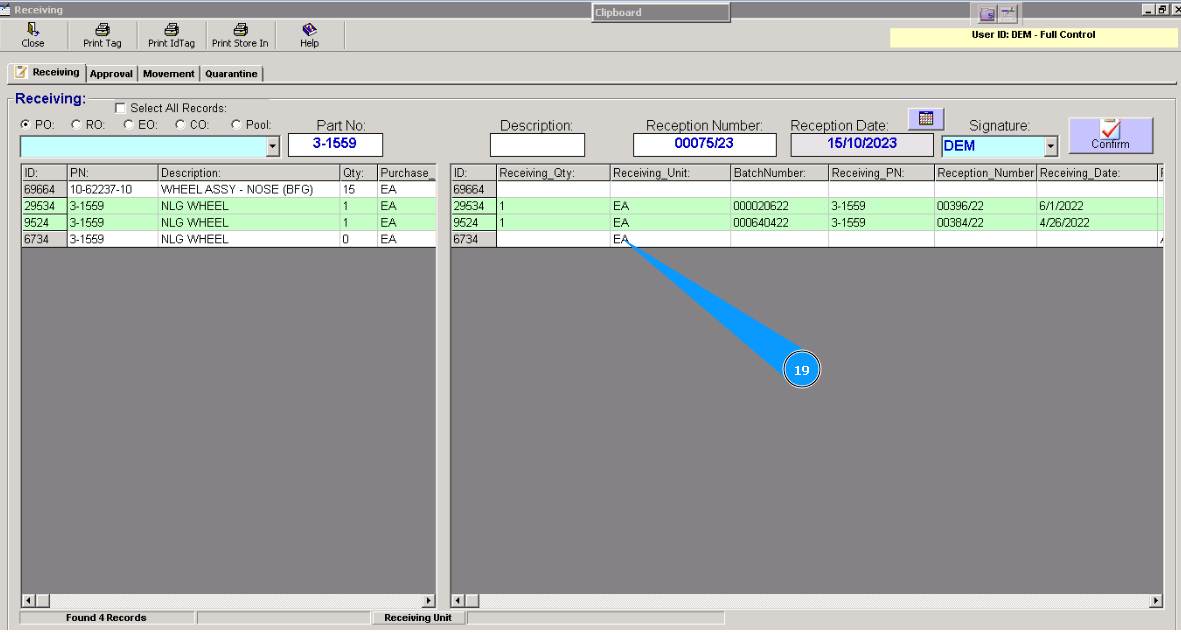
19. Visually, check that the color of the highlighted line is changed to white. The deletion process for the component is fully completed.