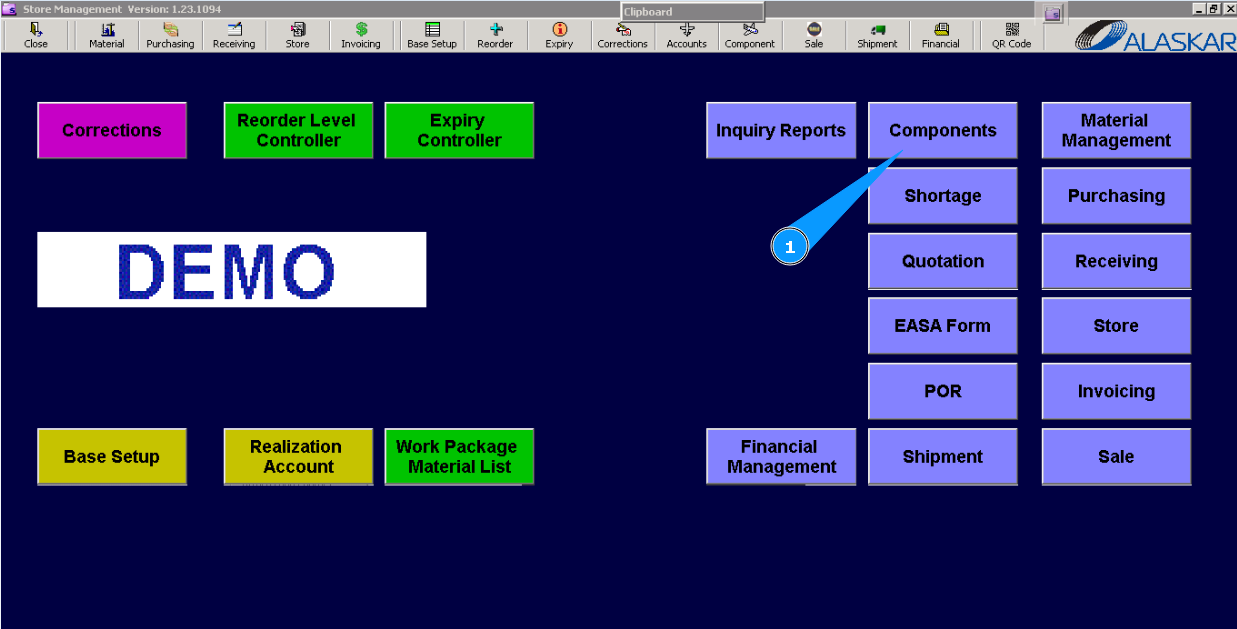
How to create Pool Order
1. For the starting process of creation "Pool order" go to submodule "Components".
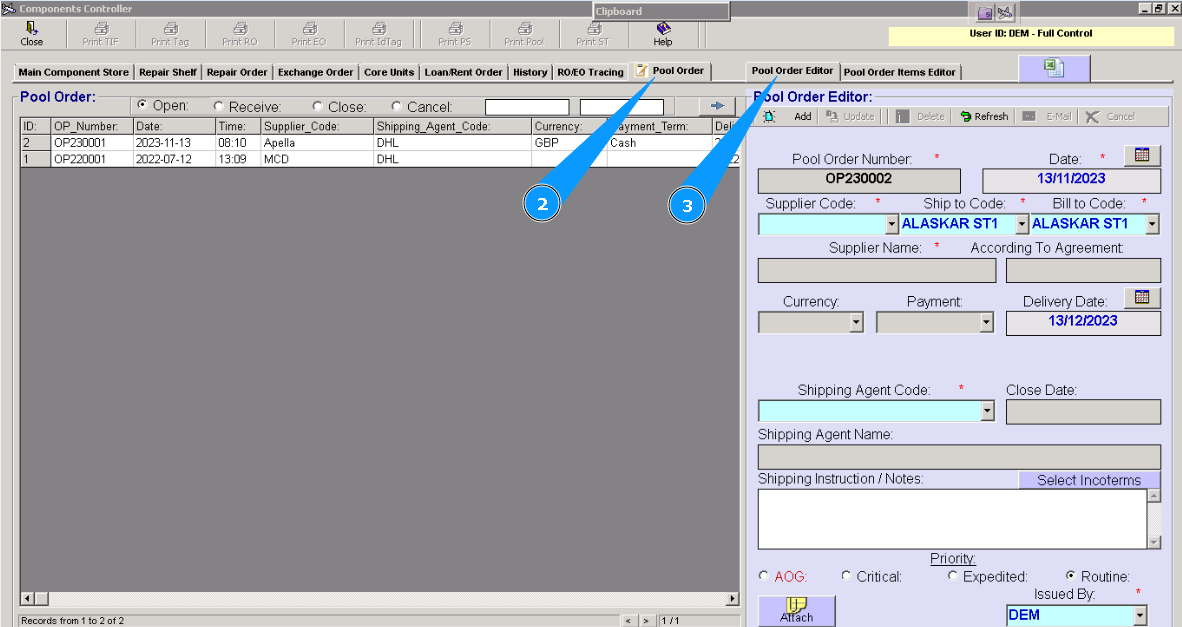
3. Check that the window of the editor, "Pool Order Editor" is opened. It should be filled in with data. Note : If the editor "Pool Order Editor" was not opened, click on the button with arrow.
2. Then, go to tab "Pool order". 
4. Enter supplier name of component in the field "Supplier Code". Note : Number of Pool order(abbreviation: PO) is automatically generated by programm, without possibility to change.
5. Enter store name, where component should be delievered in the field "Ship to Code".
6. Enter financial department or store in the field "Bill to Code".
7. Enter shipping company name in the field "Shipping Agent Code".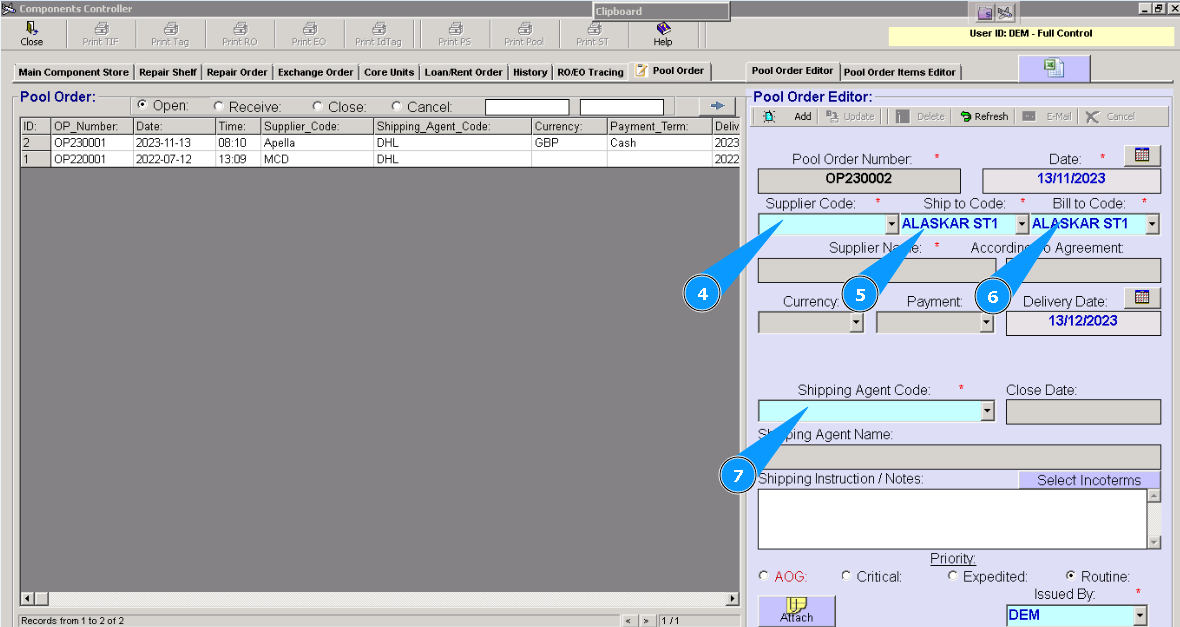
8. Enter your login from Alaskar in the field "Issued by".
9. Click on the button "Add", for adding "PO" and loading data in the programm.
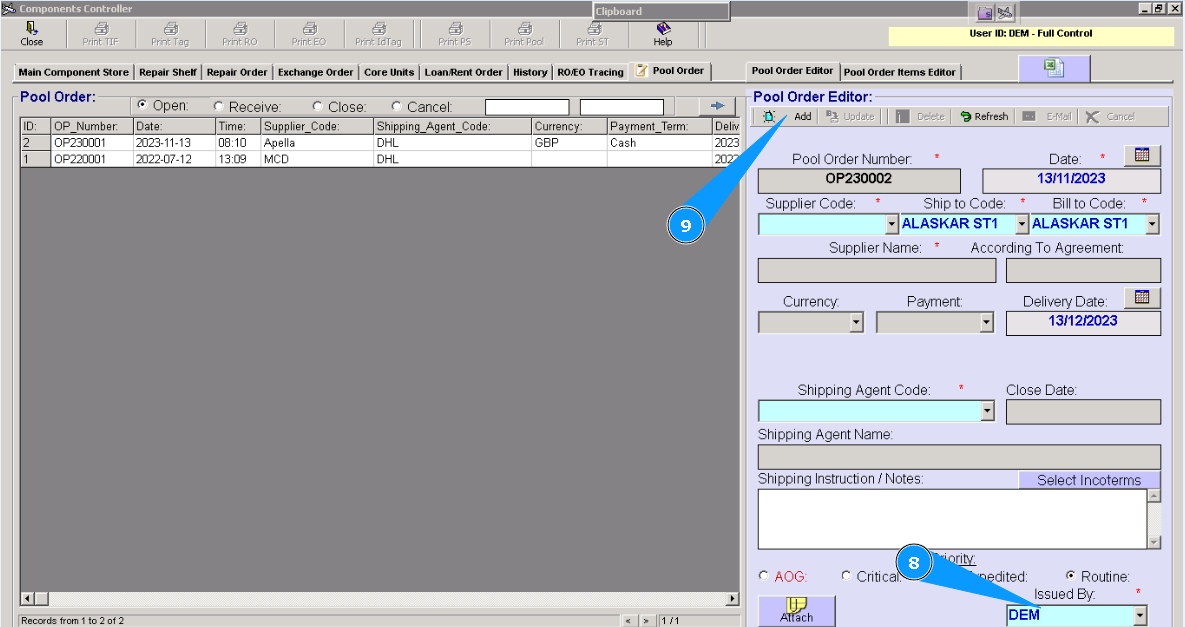
10. Click on the button "Yes", подтвердите внесение нового бланка Pool order.
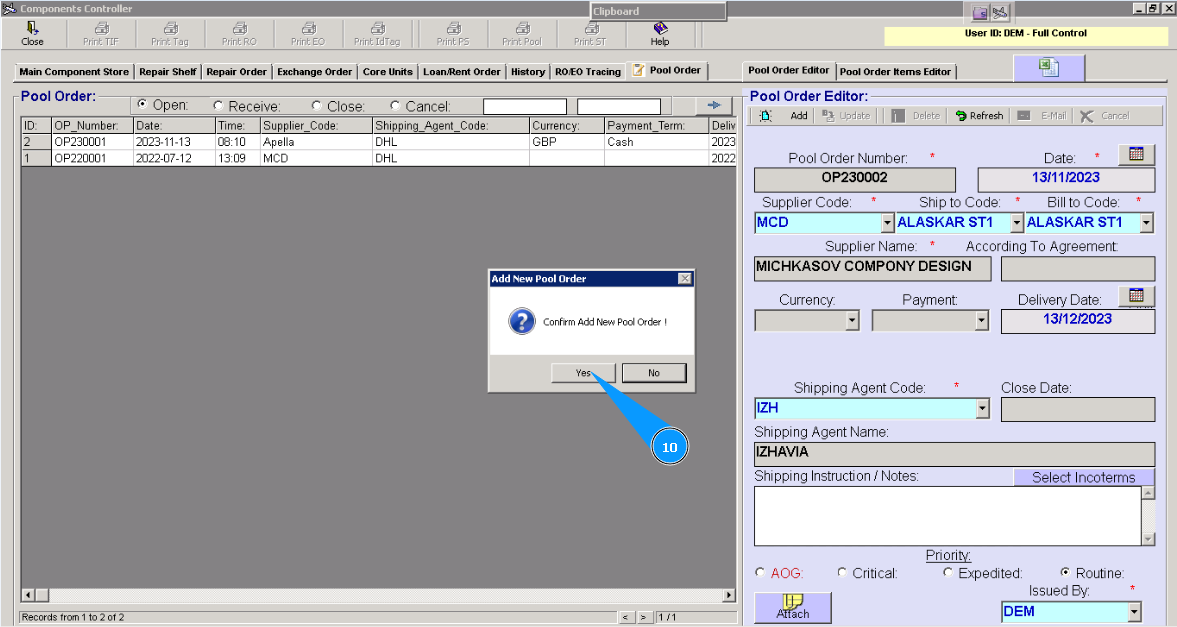
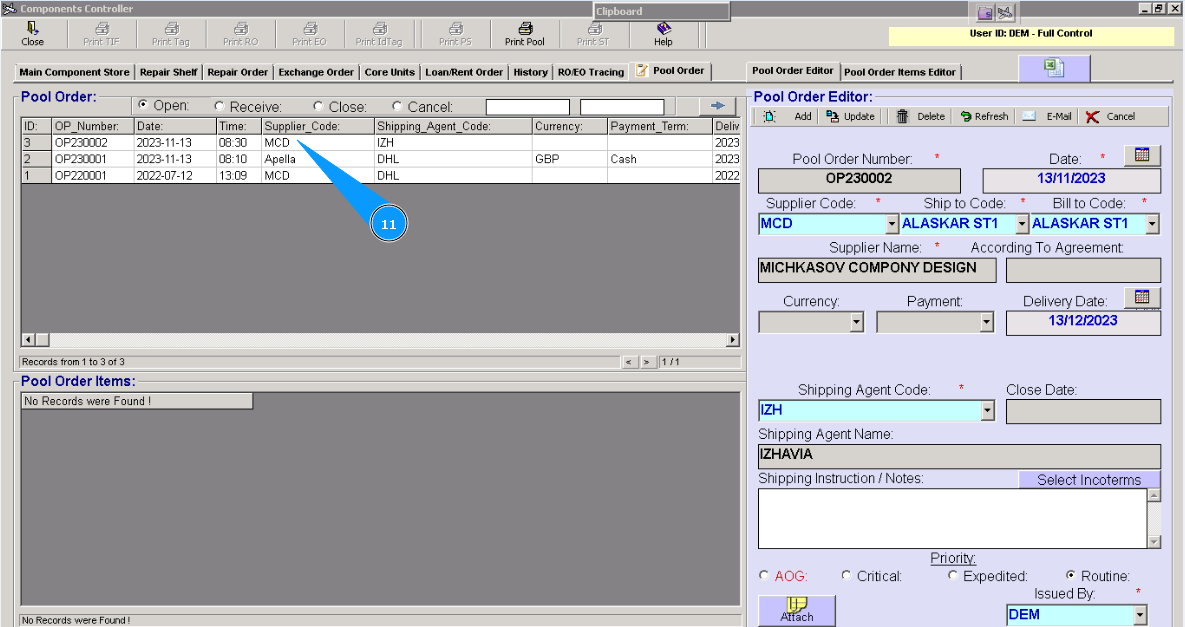
11. Check that line with new created PO is appeared in the window "Pool Order".
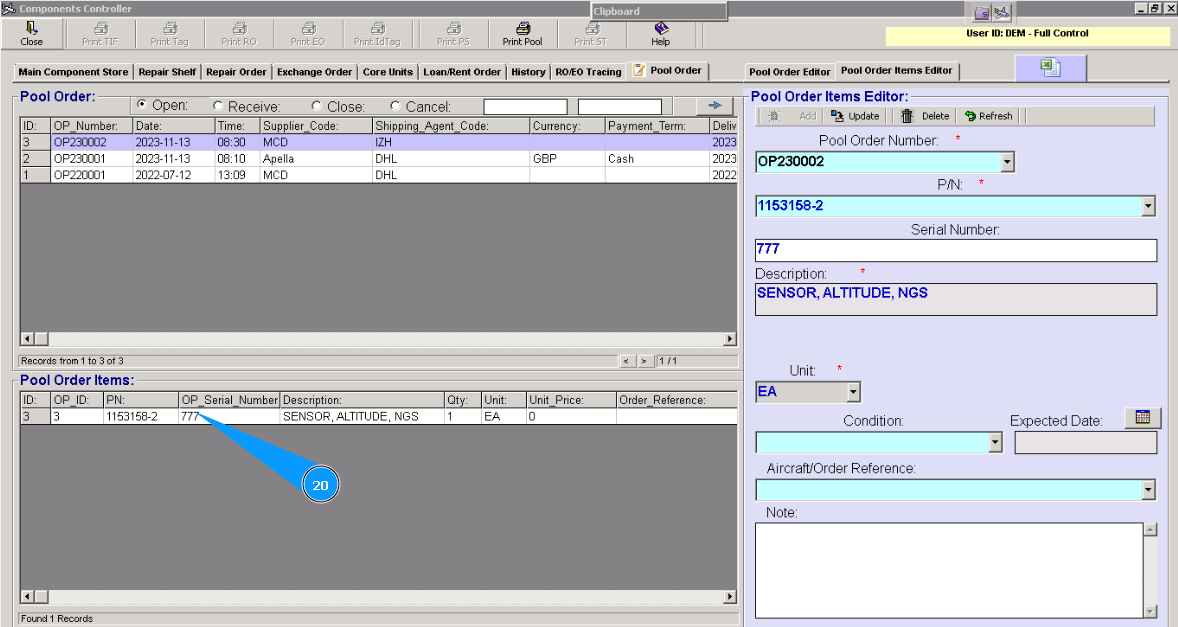
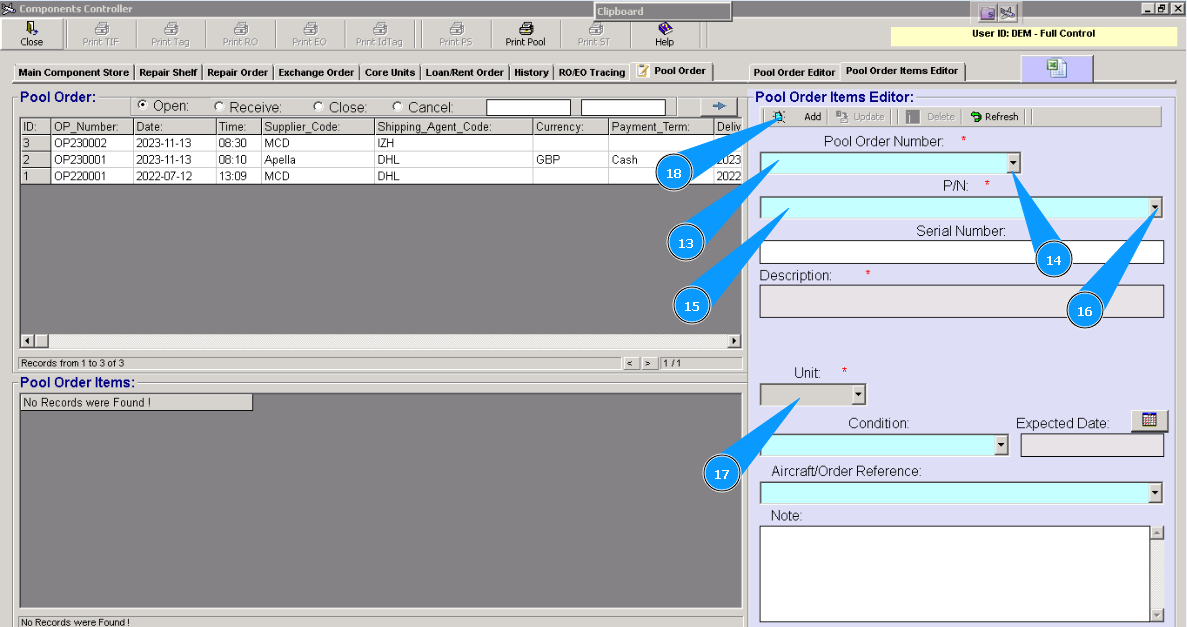
12. For adding necessary components go to tab "Pool Order Items Editor".
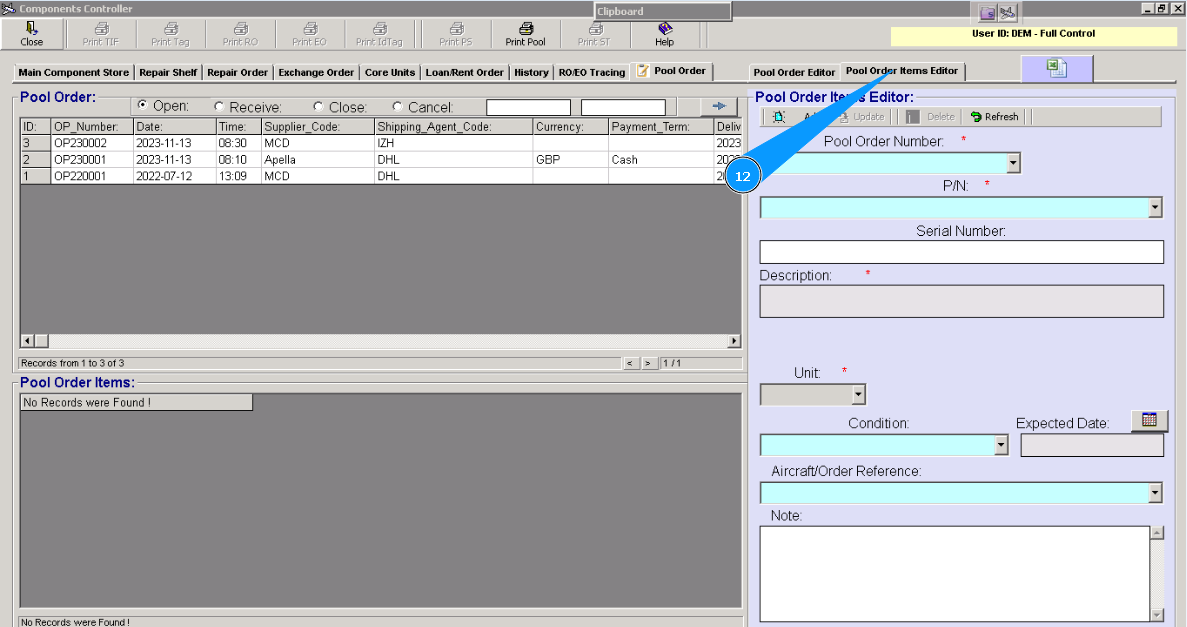
13. Check that your Pool Order is selected in the field "Pool Order Number".
14. Or select it from dropdown list.
15. Enter part number of necessary component in the searching field "P/N" and press on the button "Enter" of your keyboard.
16. Or select it from dropdown list.
17. Select applicable units in the field "Unit".
18. Click on the button "Add", for adding this component to programm.
Note : Mandatory field "Description" is autotmatically filled in, if this p/n is exsisted by Alaskar.
19. Click on the button "Yes", for confirmation loading component to Pool order.
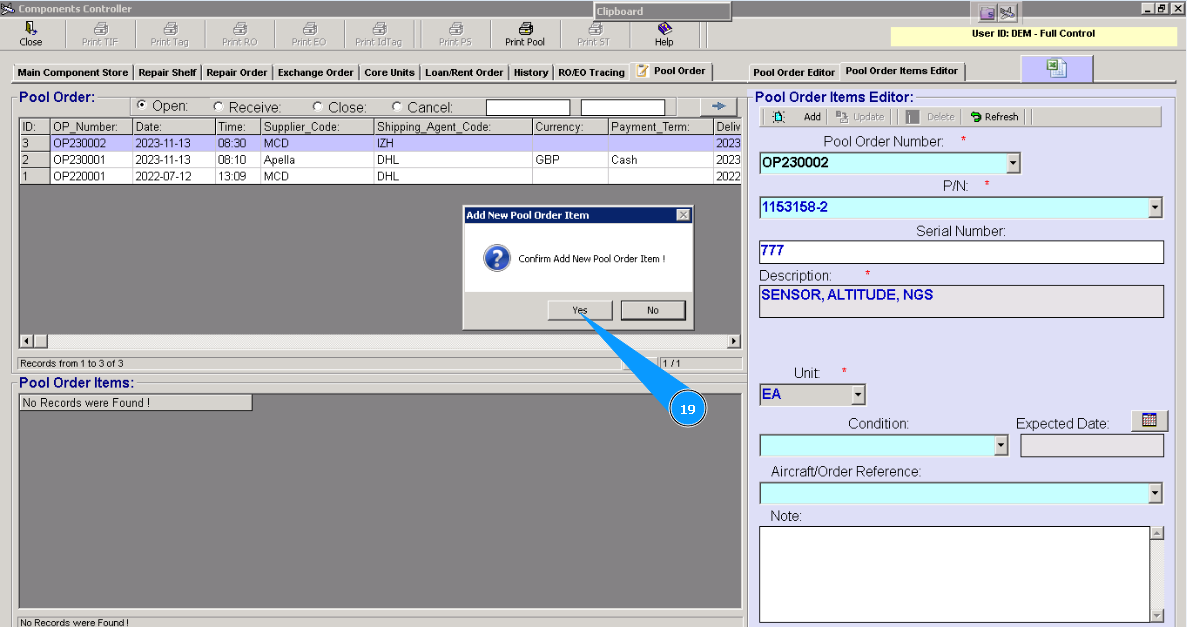
20. Check that line with new component PO is appeared in the window "Pool Order Items".