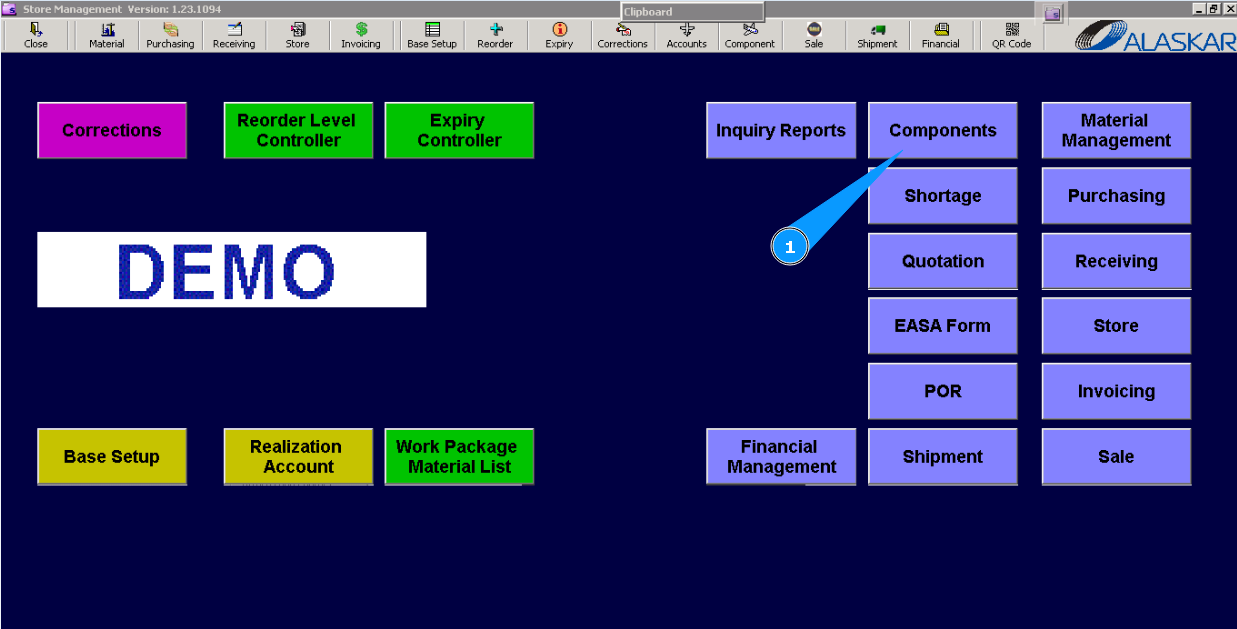
How to create Loan (Rental) order
1. For the starting process of creation "Loan/Rent order" go to the submodule "Components".
2. Then go to tab "Loan/Rent order". Note: If the editor "Loan Order Editor" was not opened, click on the button with arrow.
3. Check that the window of the editor, "Loan/Rent Order Editor" is opened. It should be filled in with data. 
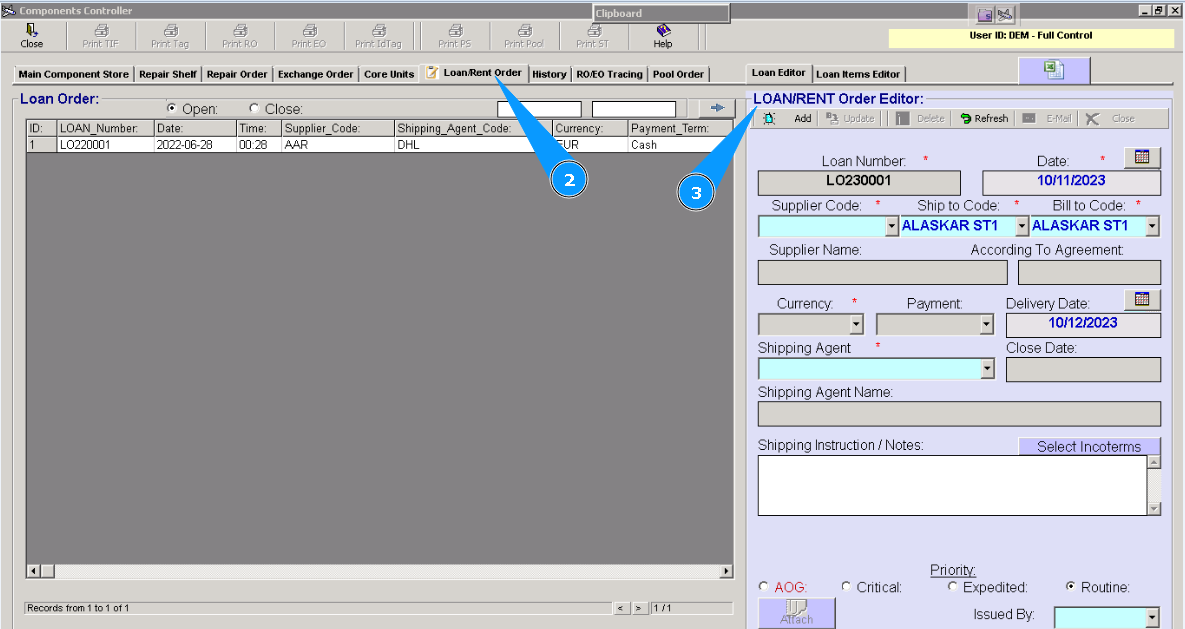
4. Enter the supplier name of the component in the field "Supplier Code". Note: Number of Loan/Rent order (abbreviation: LO) is automatically generated by the program, with out possibility of change.
5. Enter the store name and where the component should be delivered in the field "Ship to Code".
6. Enter the financial department or store in the field "Bill to Code".
7. Enter the used currency for payment of the bill in the field "Currency".
8. Enter the shipping company name in the field "Shipping Agent Code".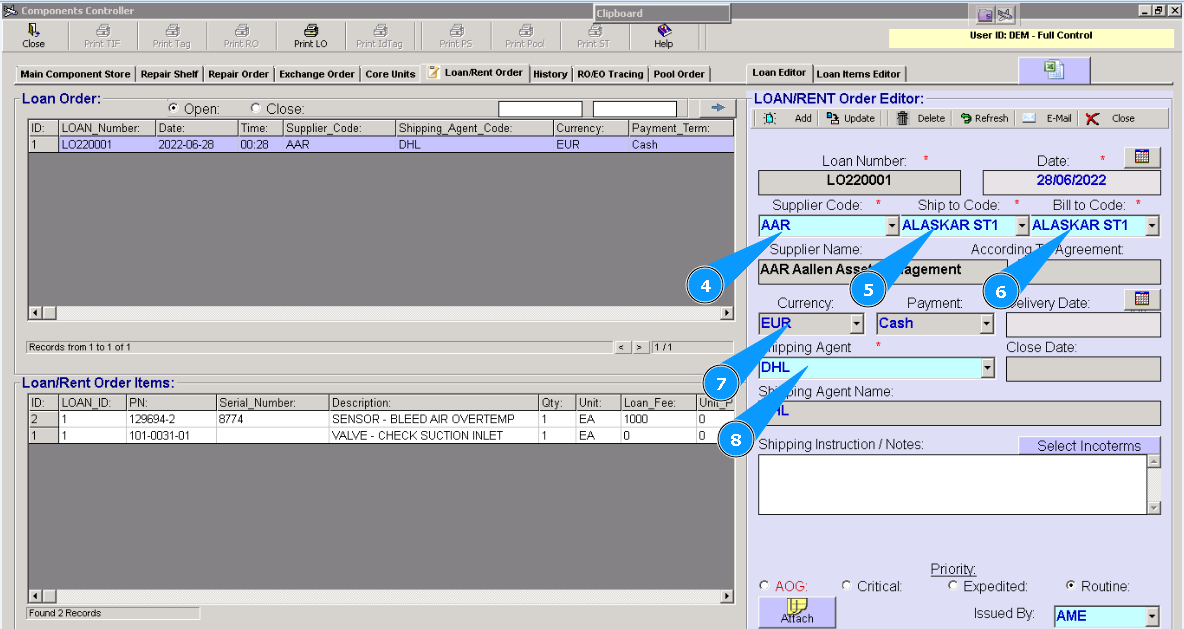
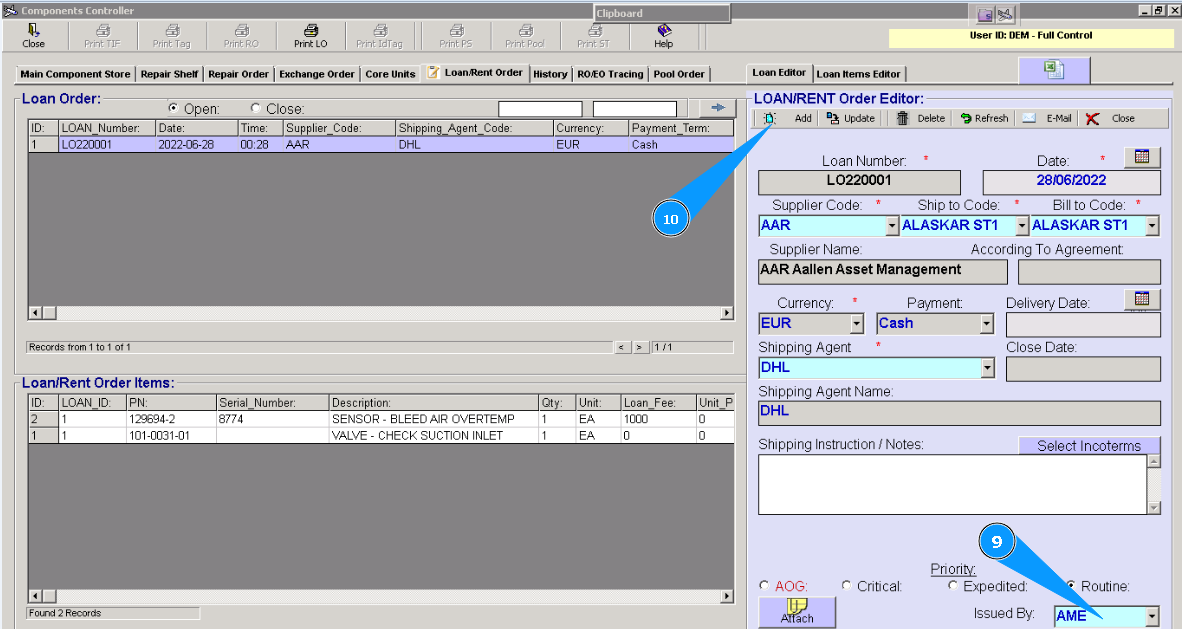
9. Enter your login from Alaskar in the field "Issued by".
10. Click on the button **"Add" to add "LO" and loading data in the program.
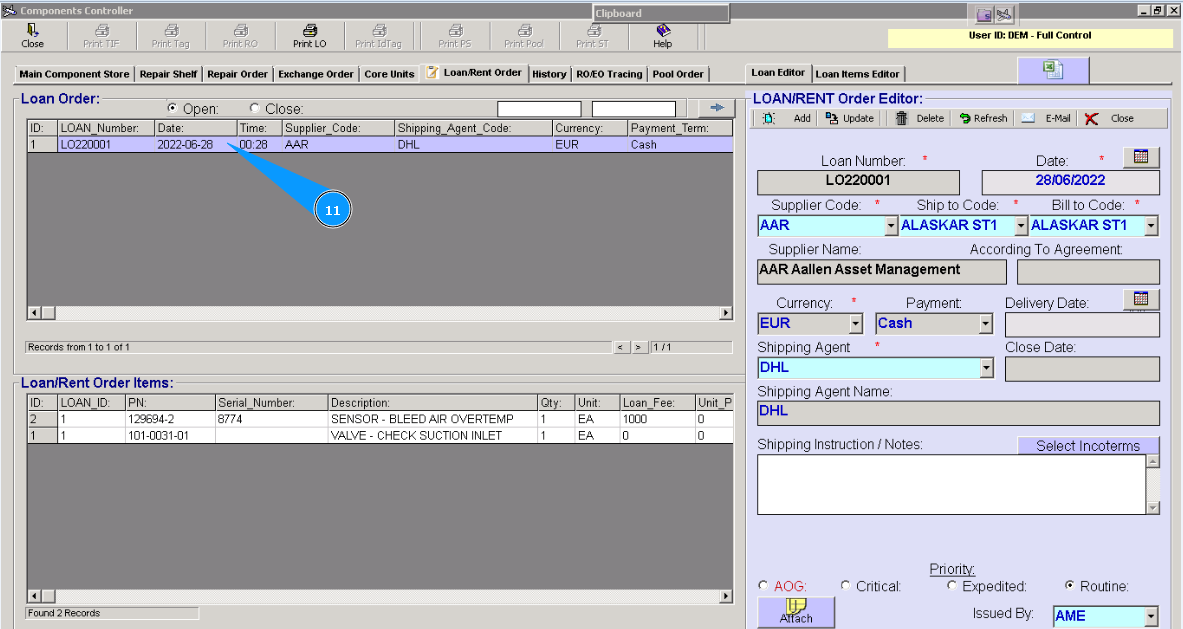
11. Check that the line with the newly created LO appears in the window "Loan Order".
12. For adding necessary components, go to the tab "LO Items Editor".
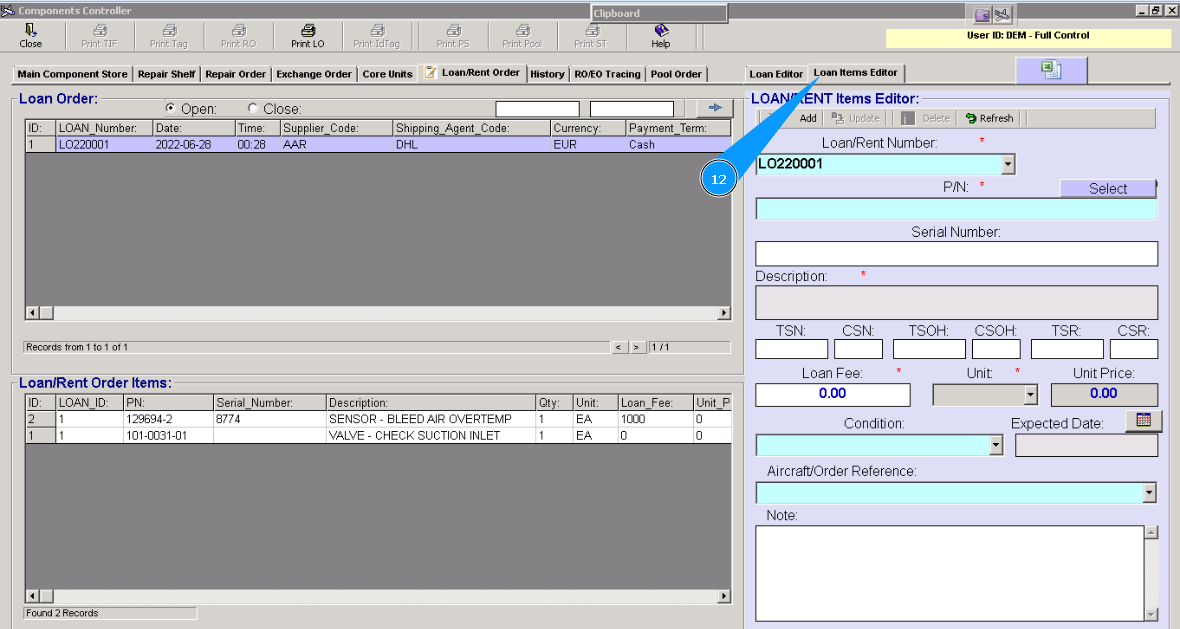
13. Click on the button "Select" in this window.
14. Enter the part number of the necessary component in the opened window "List of PN", in the field "Filter PN" and press the button "Enter" on your keyboard.
15. Select the necessary part number from the list in the window "List of PN" and click on the line twice with the left button of your mouse.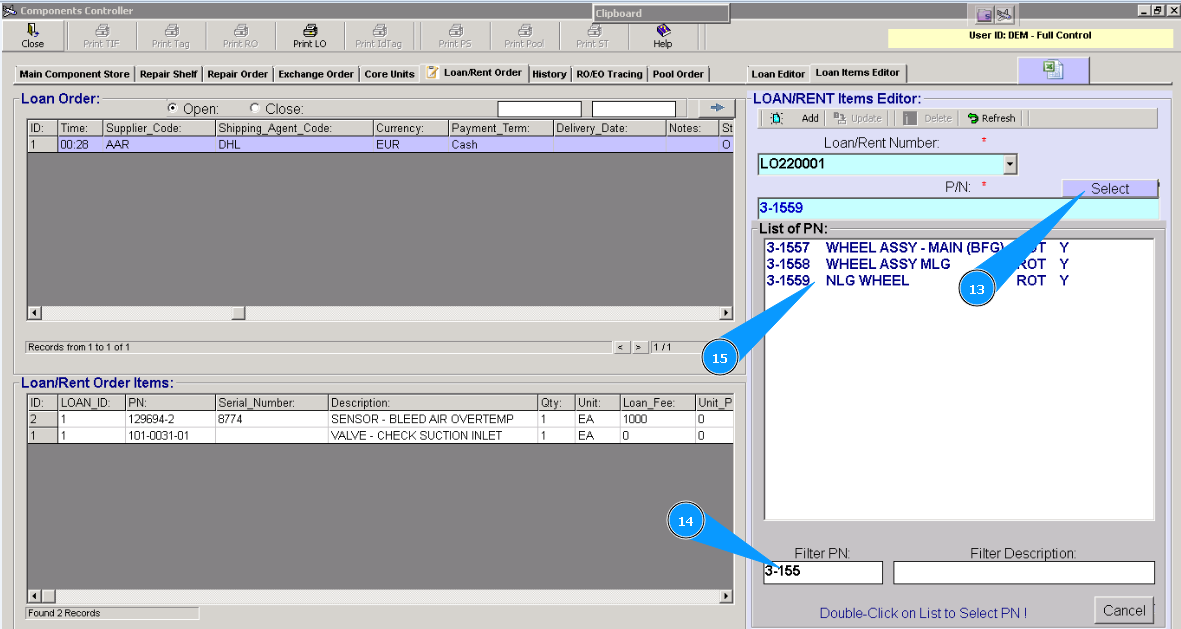
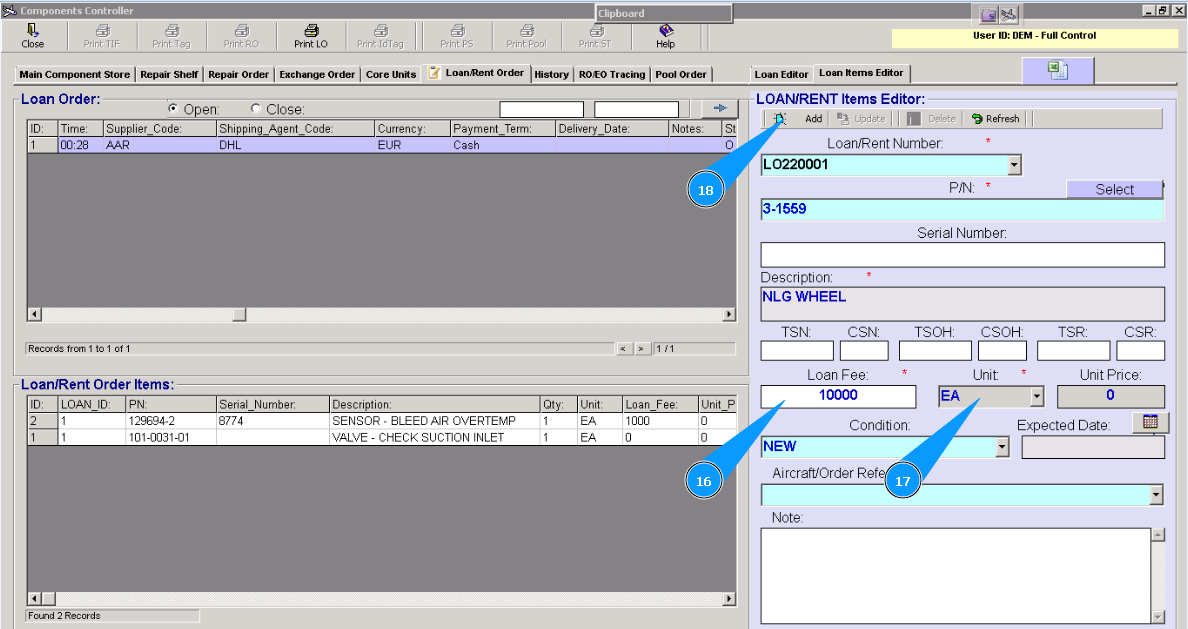
16. Enter the cost of rent in the field "Loan Fee".
17. Select the necessary units from dropdown list in the field "Unit".
18. Click on the button "Add".
19. Click on the button "Yes", to confirm adding a component to the "Loan Order".
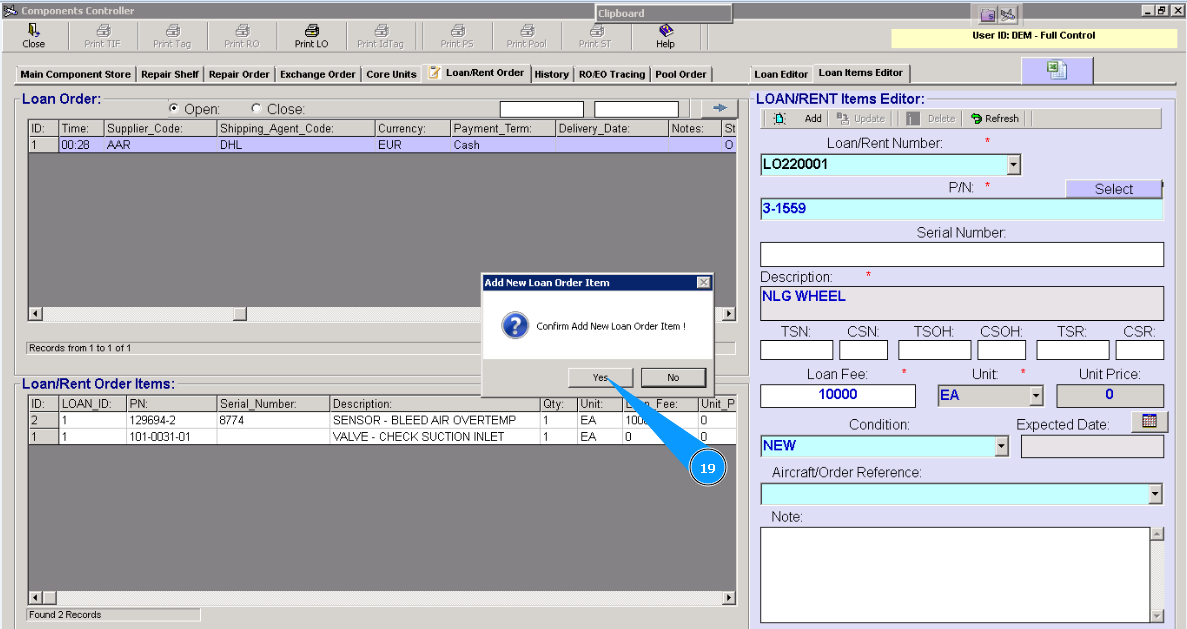
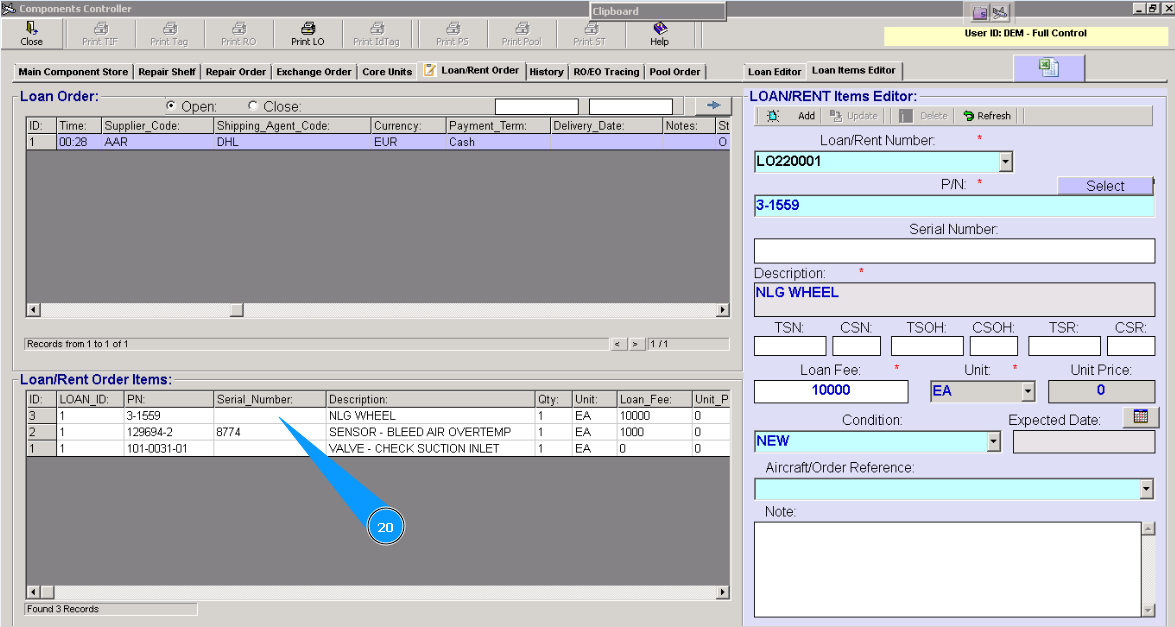
20. Check that a new line with your component appears in the window "Loan Order".