How to check POR status
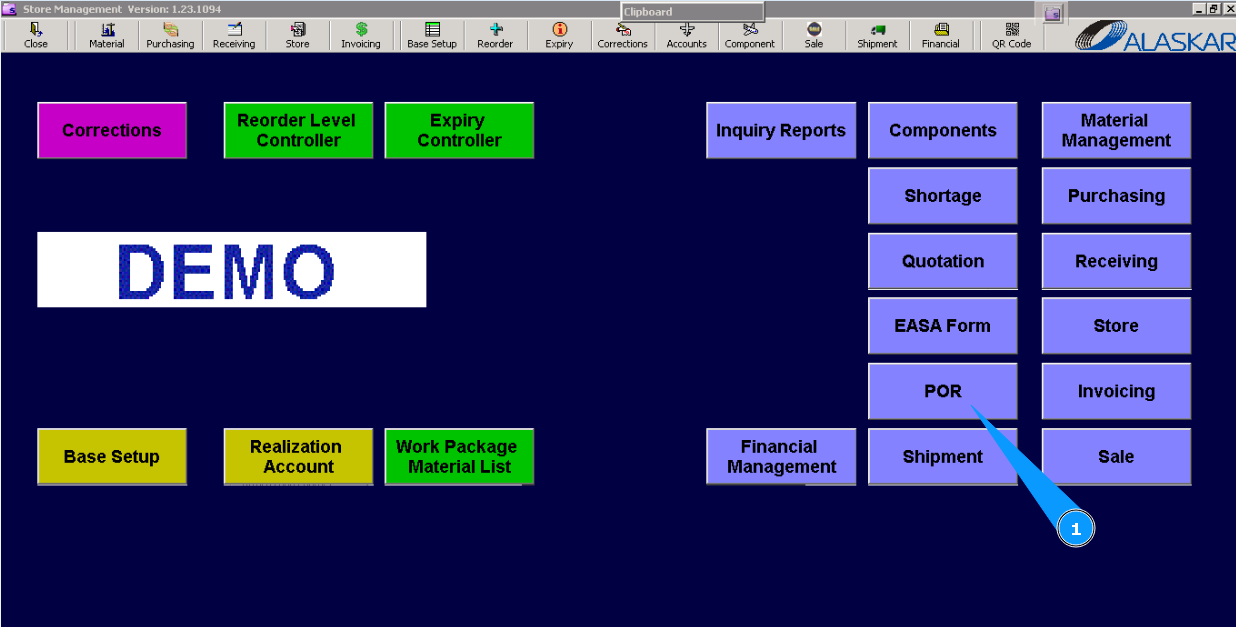
1. For checking POR status, go to the submodule "POR (Part Order Request)".
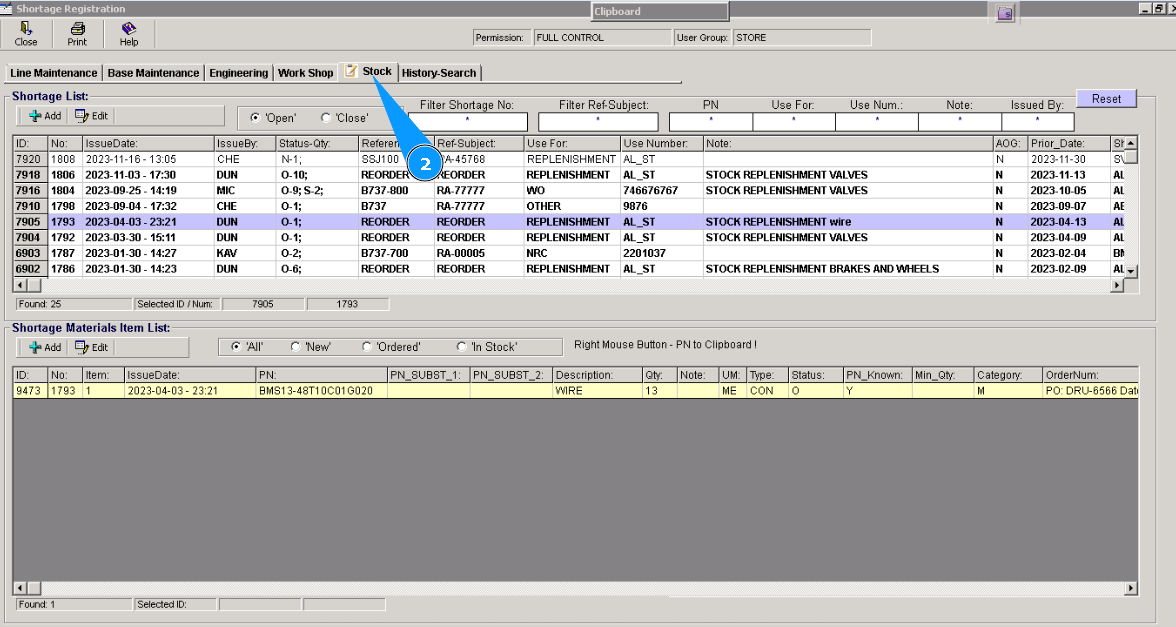
2. Then, go to tab "Stock".
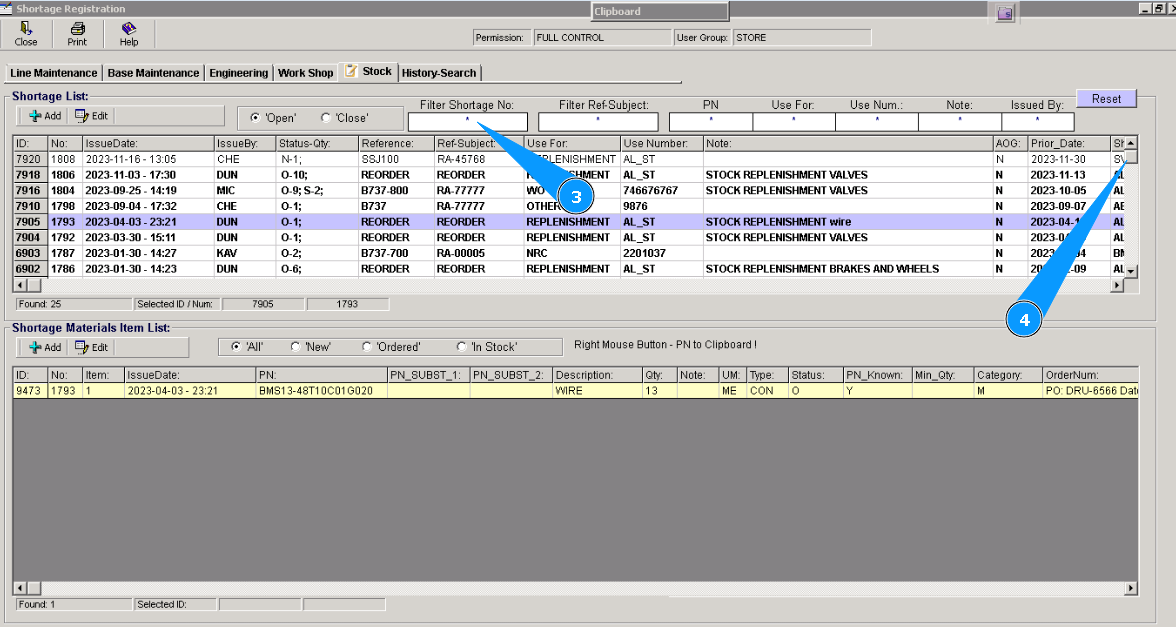
3. Find the necessary POR with the available filters "Filter Shortage Number", "PN", or others. For this reason, enter searching creation in the field of filter, for example: POR number, and press the button "Enter" on your keyboard.
4. Or find a POR by scrolling. Select it and click on the applicable line.
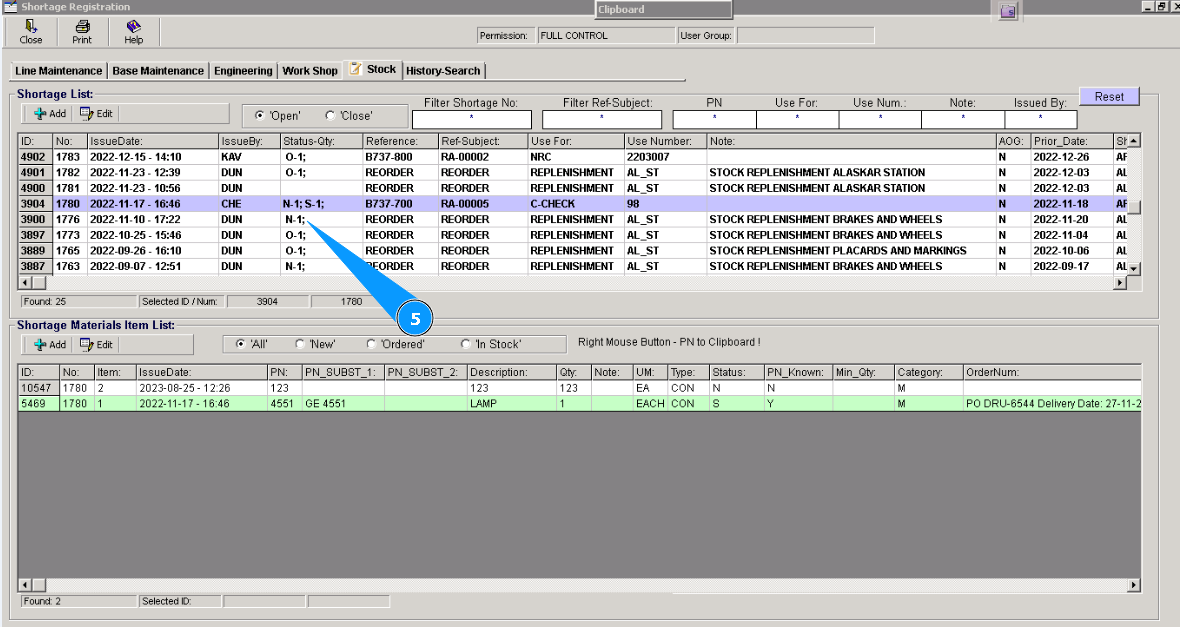
5. You can check information about status in the column "Status-Qty".
N - means POR is new, materials are not ordered.
O - means, materials are ordered but not delivered to the store.
S - means, materials are ordered and kept in the store.
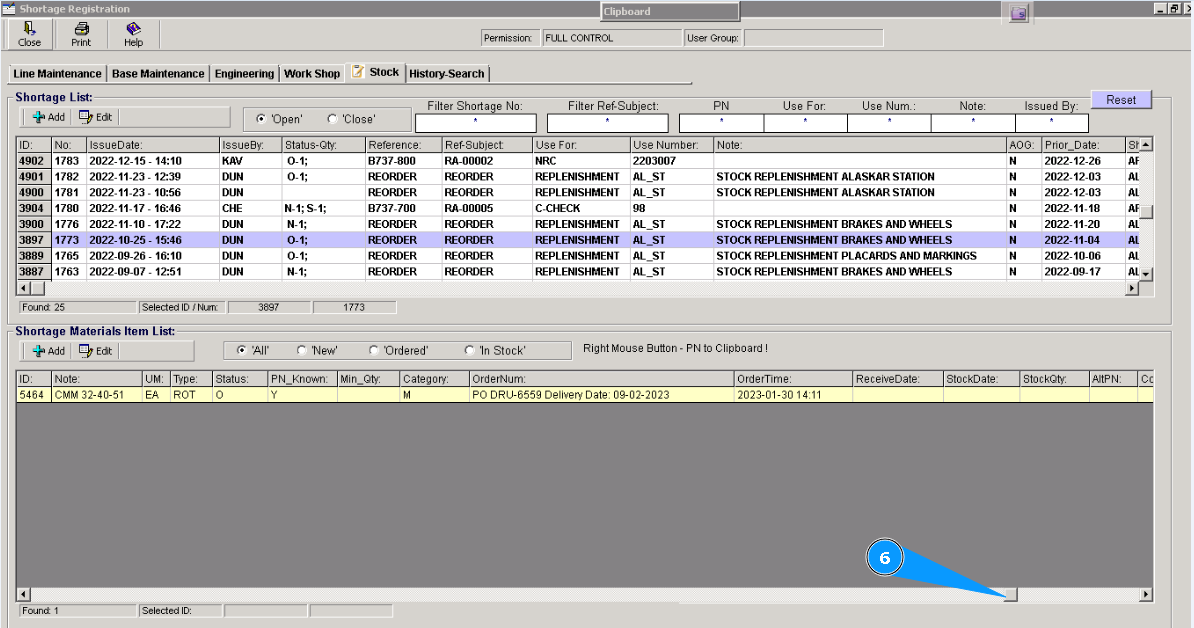
6. For a POR with "Ordered" status, it is possible to check under which document it has been ordered from the supplier and the planned date of delivery. Move the slider to the right hand till column "OrderNum" is appeared.
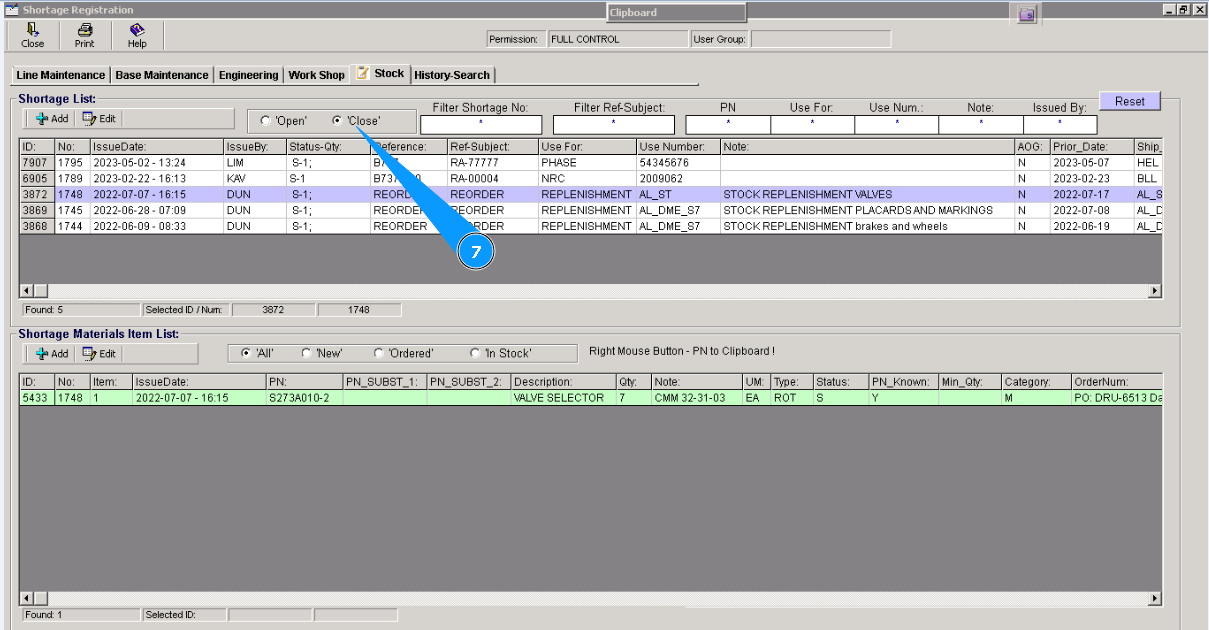
7. You can check information about all closed PORs materials that are stored. For such a POR with the status "In stock", click on the filter "Close". Check the results of the selection.