How to change store unit value for receiving to store
Method 1 Store units are constantly delivered in the same quantity.
Note: Example. Always, requests for oil are in the E.A., and oil cans are constantly delivered with 2.5 liters of oil.
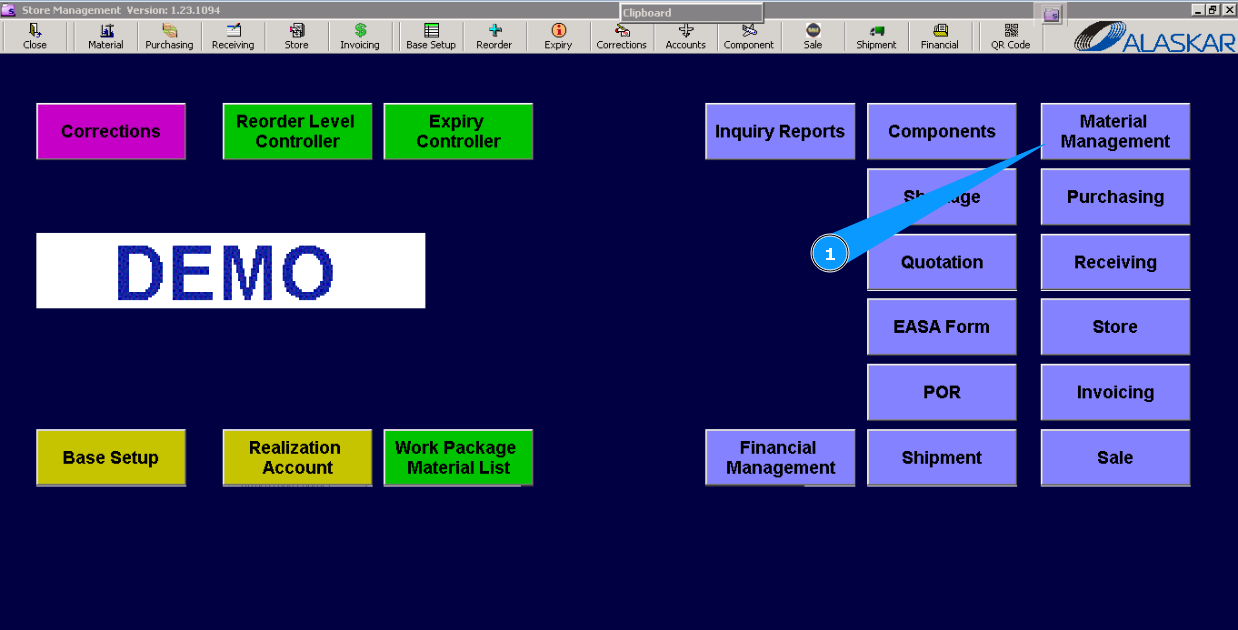
1. To change the store unit value for receiving to store, go to submodule "Material Management.".
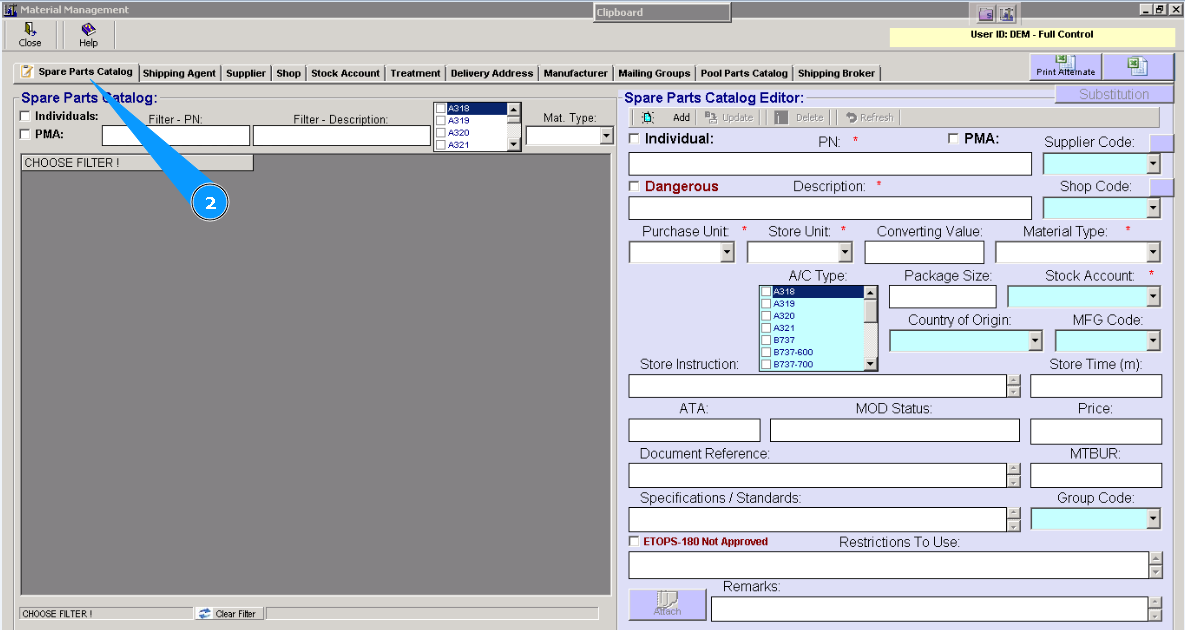
2. Then go to the tab "Spare Parts Catalog".
3. Enter the part number in the window "Filter-PN" and click on the button "Enter" on your keyboard, to search for the required unit. Note: If necessary, use other available filters in the window "Spare Parts Catalog".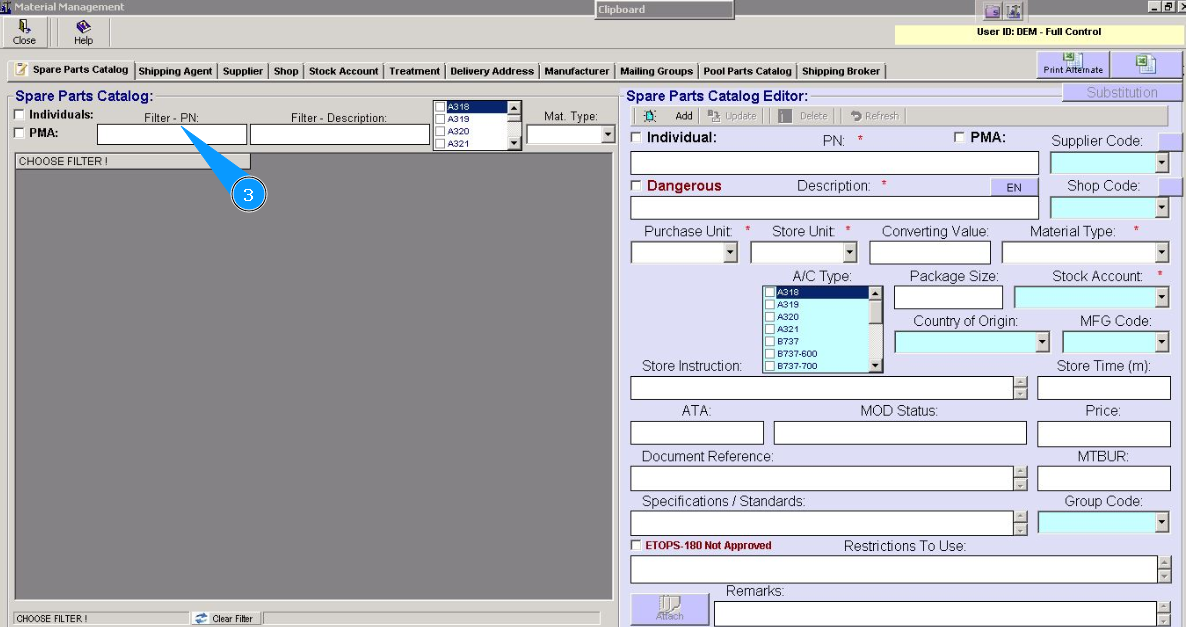
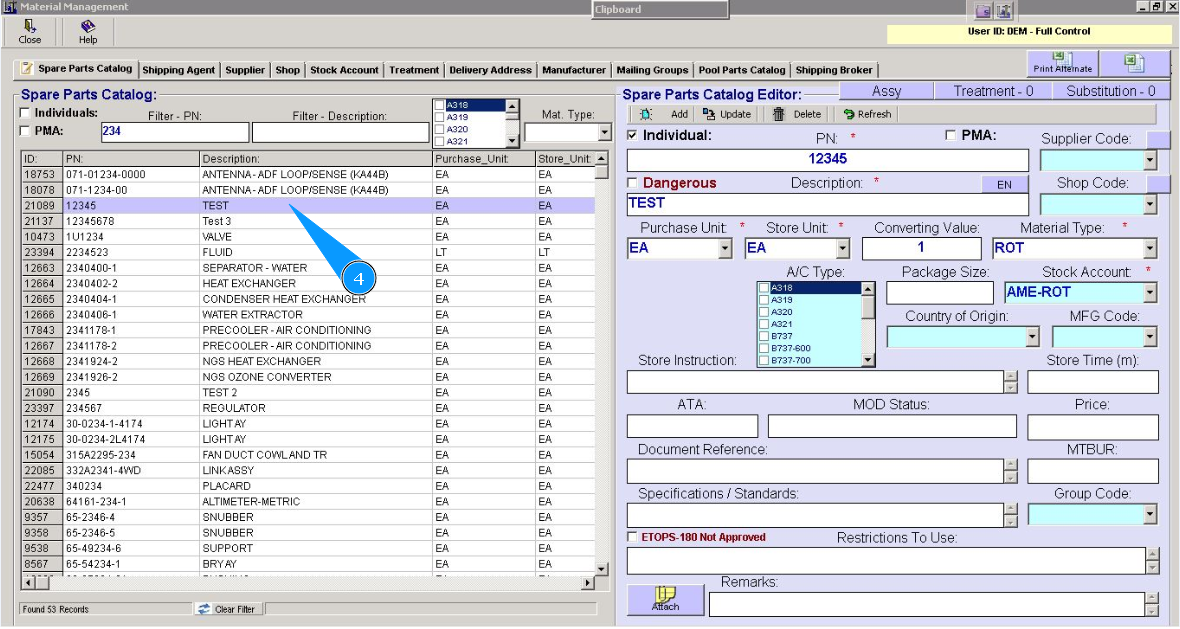
4. Highlight required line with unit, click on the line with unit by left knob of your mouse.
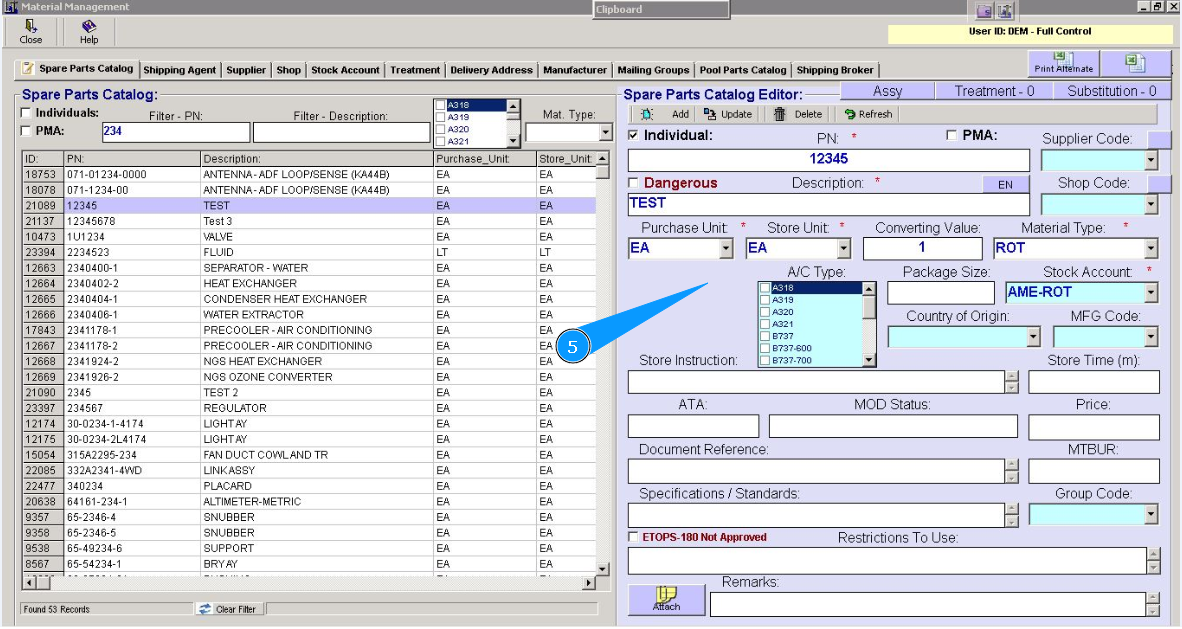
5. Check that data of required and selected unit is presented in the window of editor "Spare Parts Catalog Editor".
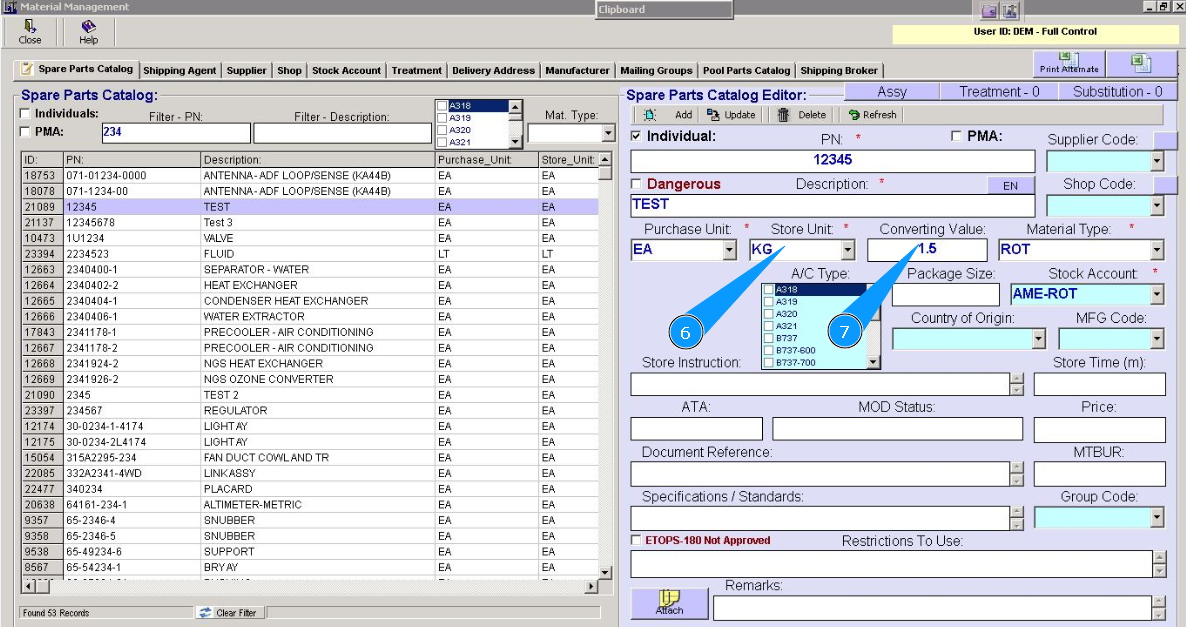
6. Select from dropdown list store unit (E.A., KG, etc.) in the window "Store Unit".
7. Enter value of applicable coefficient in the field "Converting Value". Based on example above you schould enter coefficient 2.5 (two-dot-five).
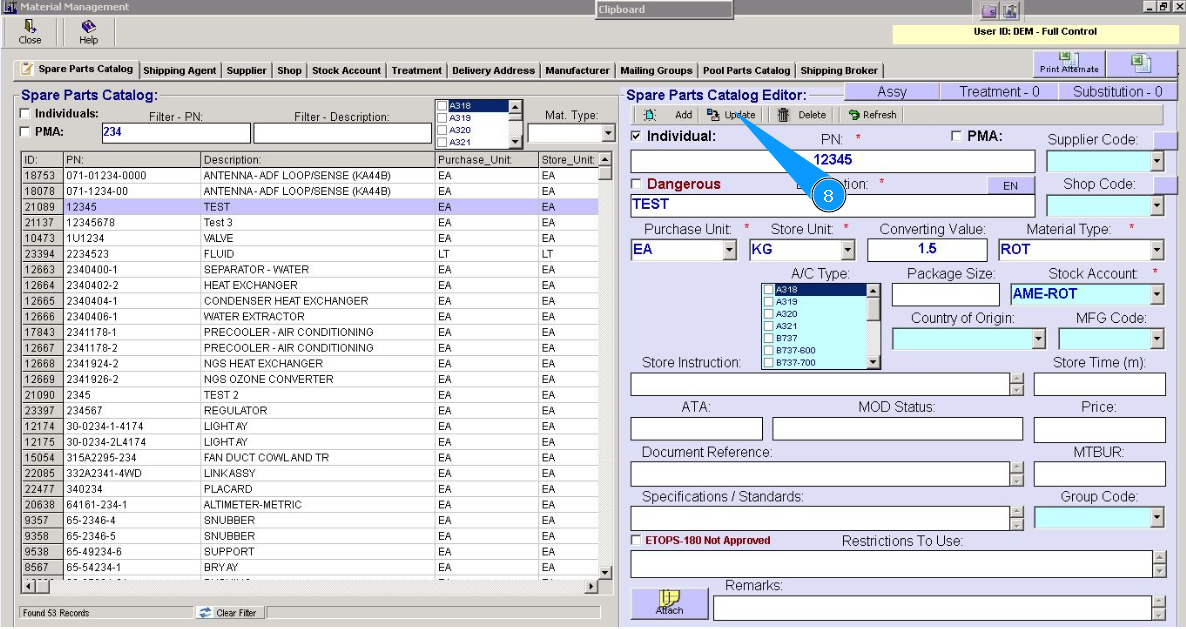
8. Click on the button "Update", to add changes to the program.
9. Click on the button "Yes", to confirm adding changes to the program.
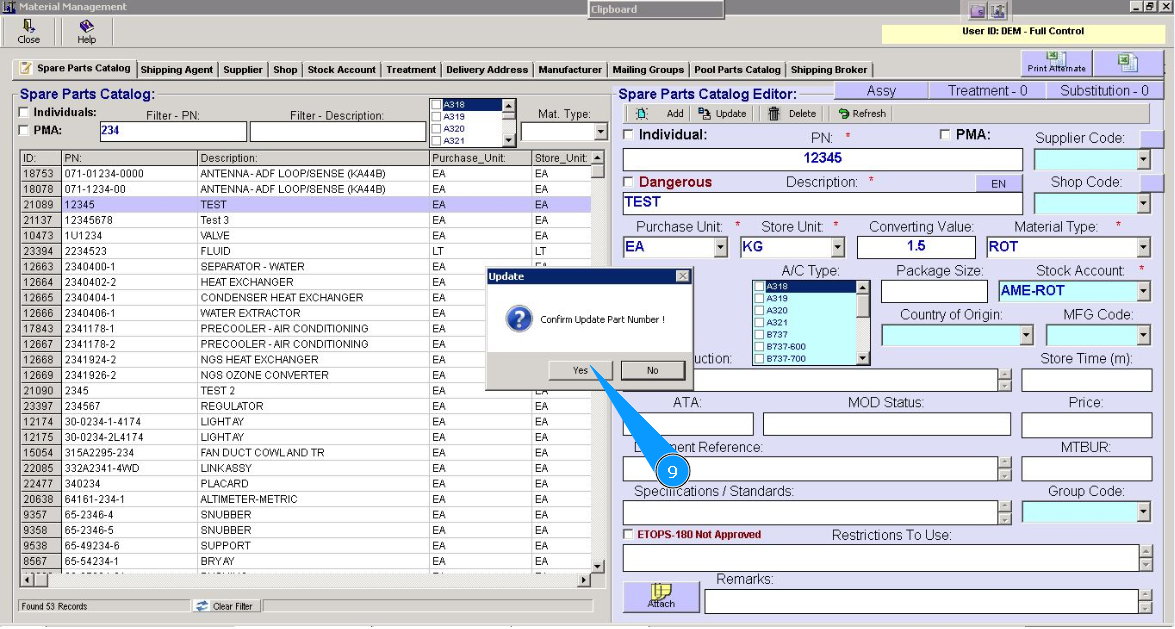
10. Now, during receiving to store, coefficient will be automaticcaly applied.
Method №2 Store unit is constantly delivered with the different quantity.
Note: Example. Alaways request of oil is in the E.A., and oil cans is constantly delivered with different quantity literes of oil.
1. To change store unit value for receiving to store, go to submodule "Receiving".
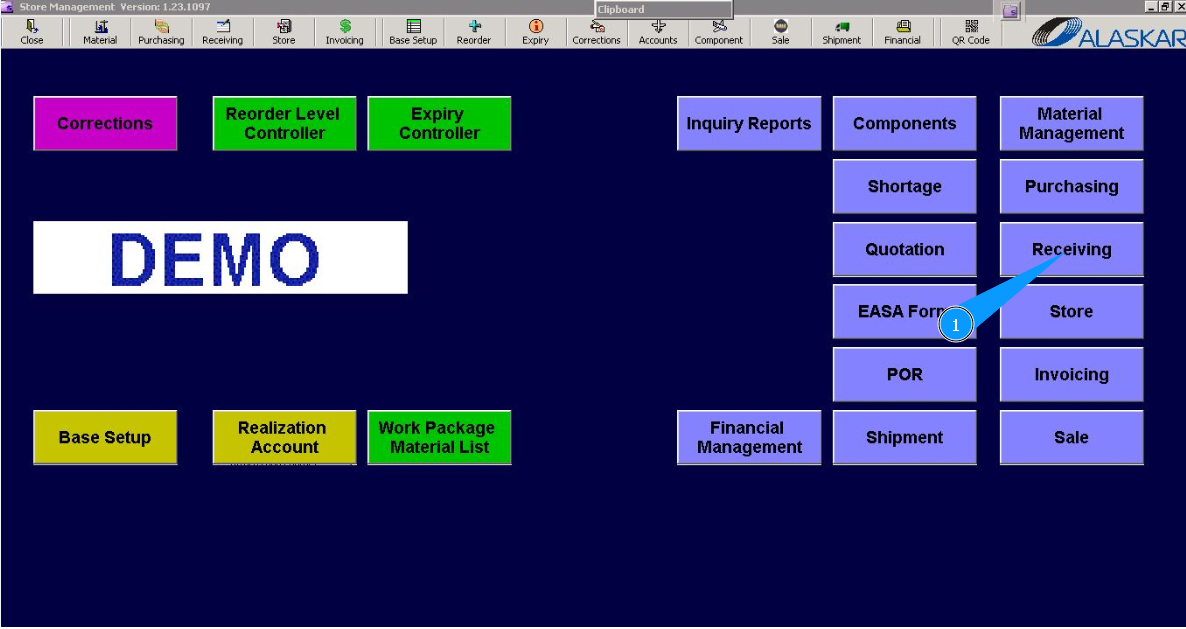
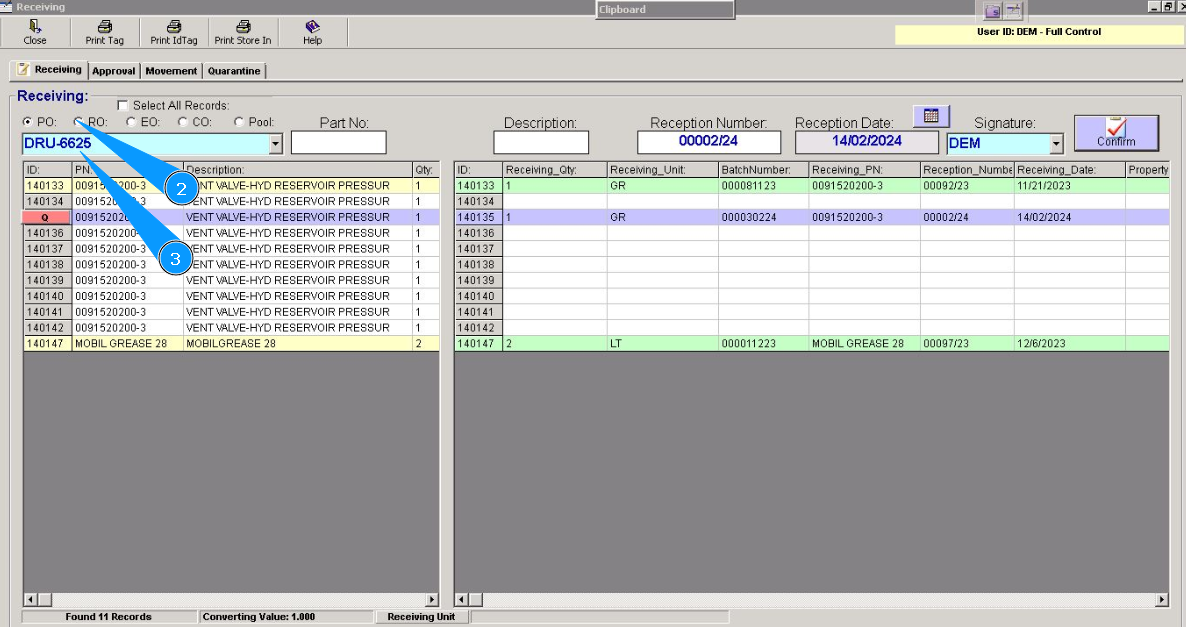
2. Then in the tab "Receiving", select one of the ordered type: PO, RO, EO, CO, Pool. Note: Receiving component is available if you know the nimber of order from list: PO,RO,EO,CO,Pool.
3. Enter its number in the search field and press on knob "Enter" of your keyboard or select from dropdown list.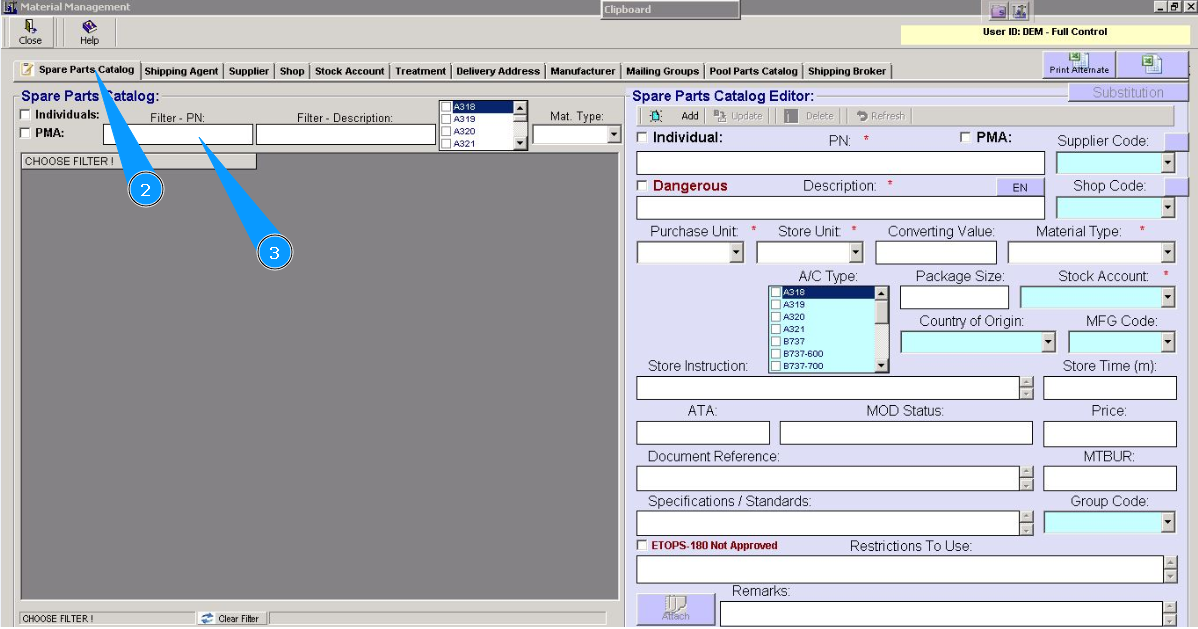
4. Visually check that required unit is found.
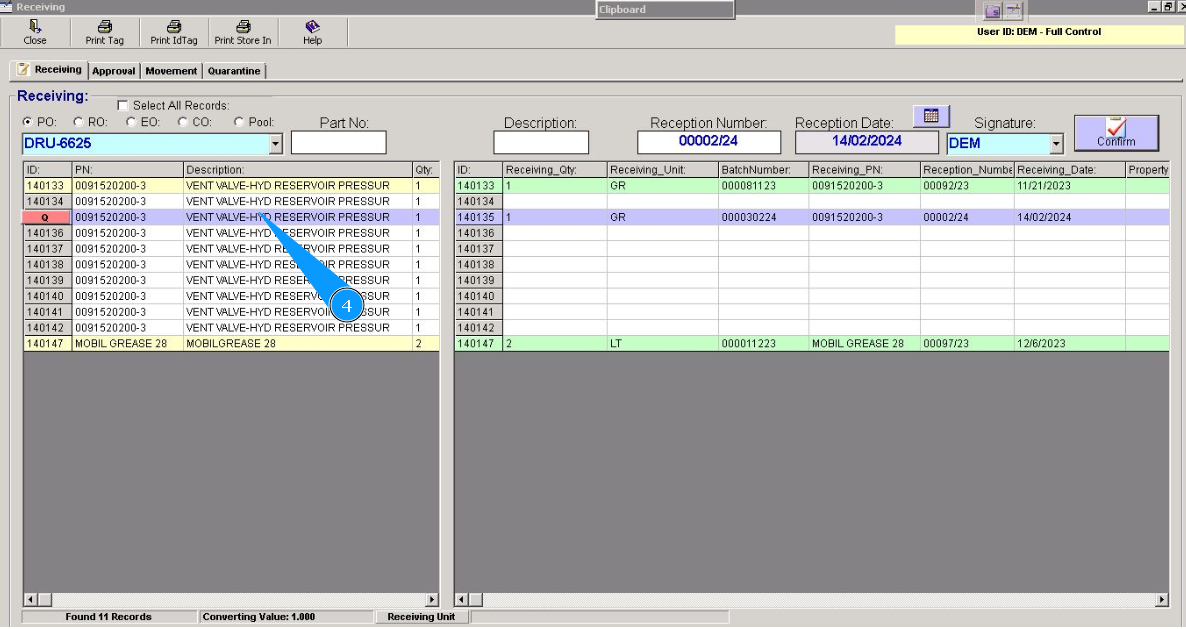
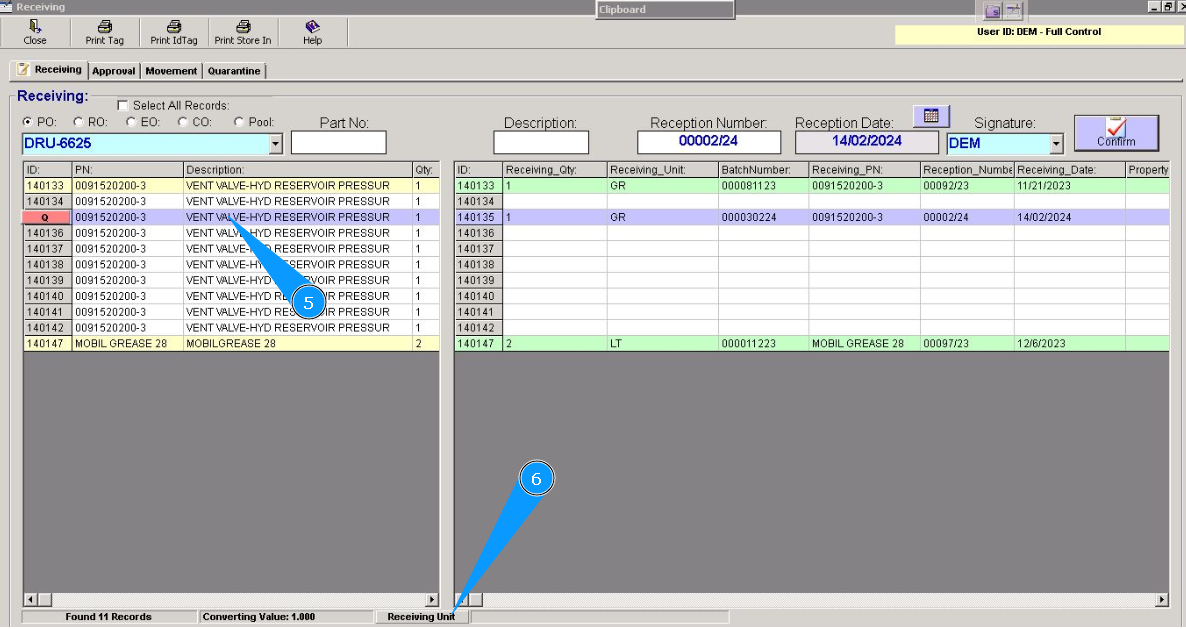
5. Highlight required line, click on the line with unit by left knob of your mouse.
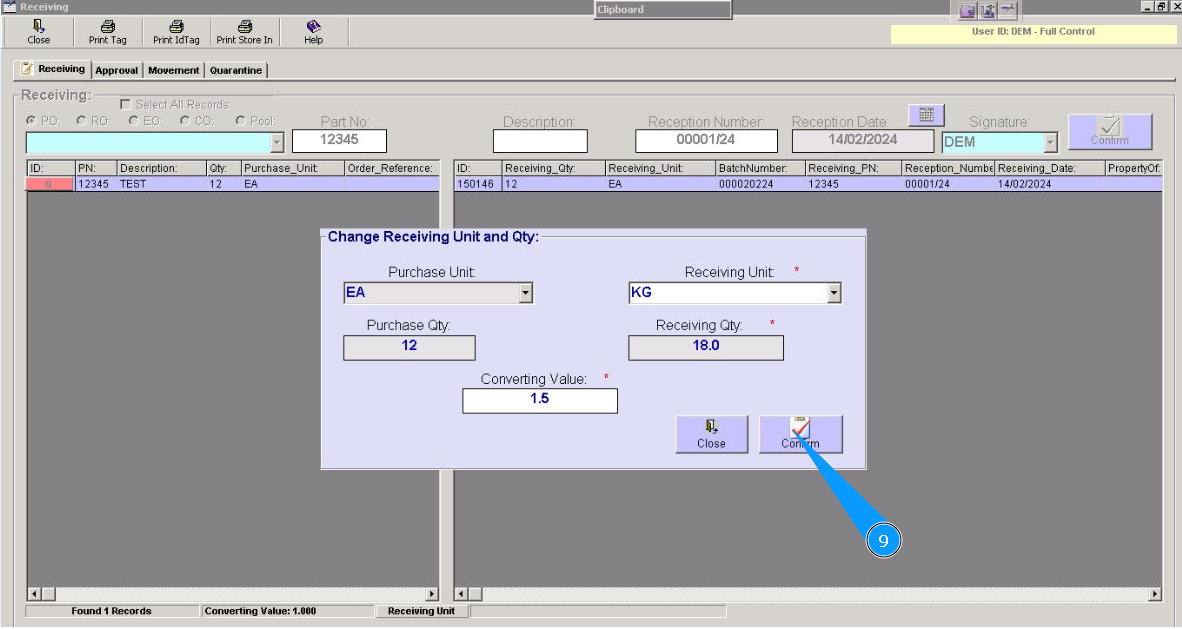
6. Click on the button "Receiving Unit".
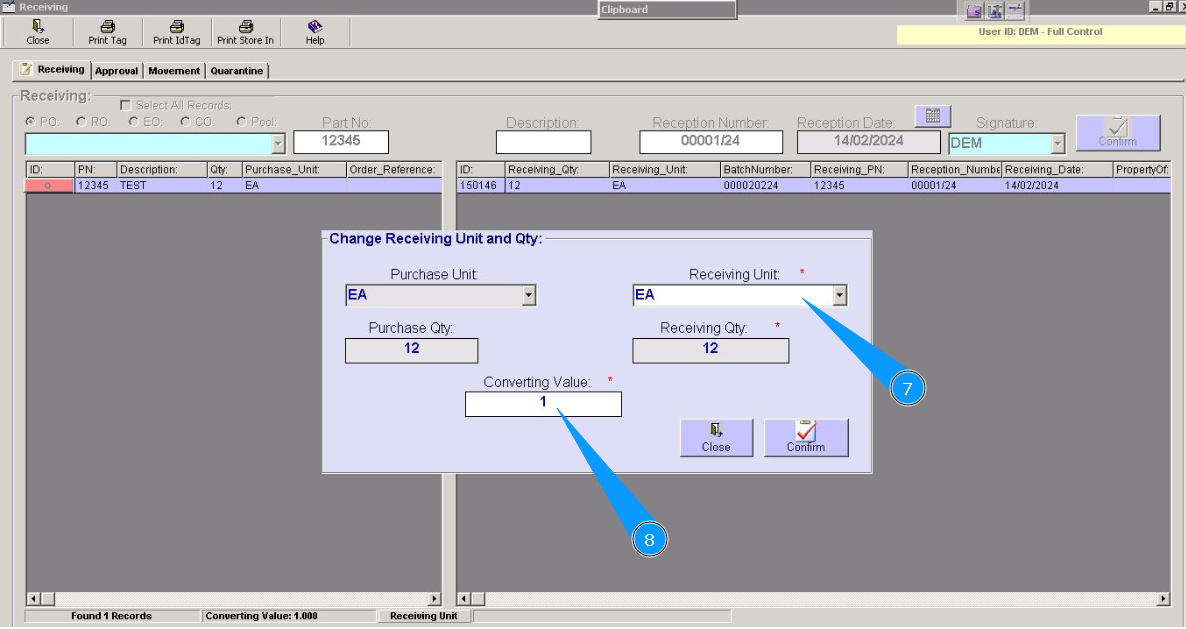
7. Select from dropdown list required store unit (E.A., KG, etc.) in the window "Receiving Unit".
8. Enter value of applicable coefficient in the field "Converting Value". Based on example above you schould enter coefficient 3.5 (three-dot-five).
9. Click on the button "Confirm", to add changes to the program.
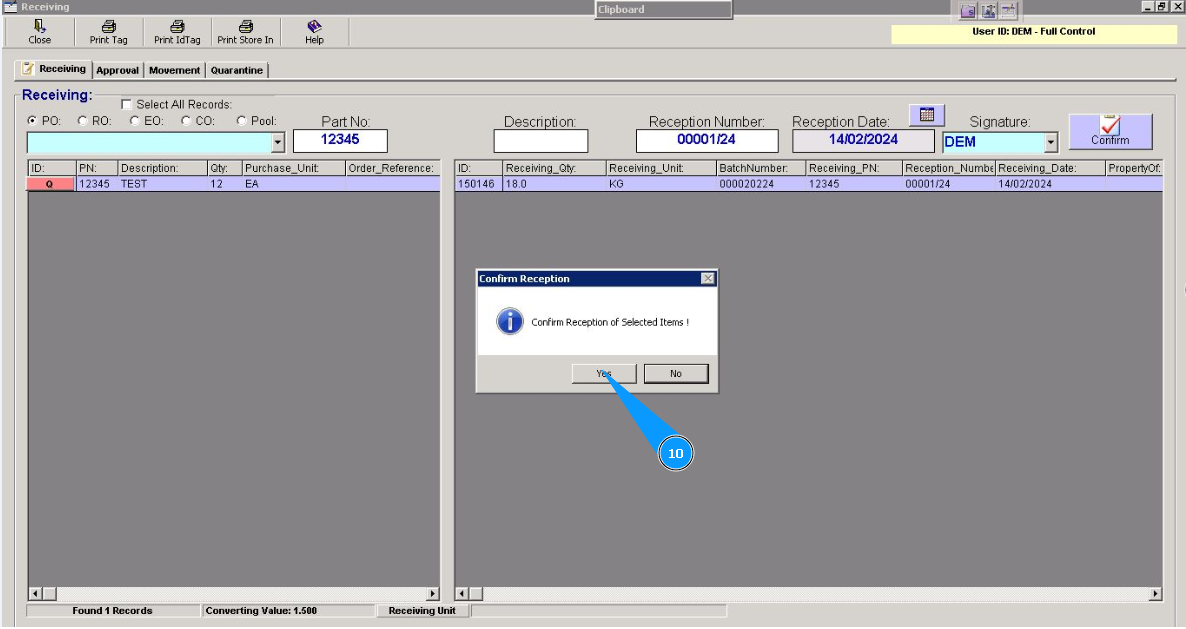
10. Click on the button "Yes", to confirm adding changes to the program.
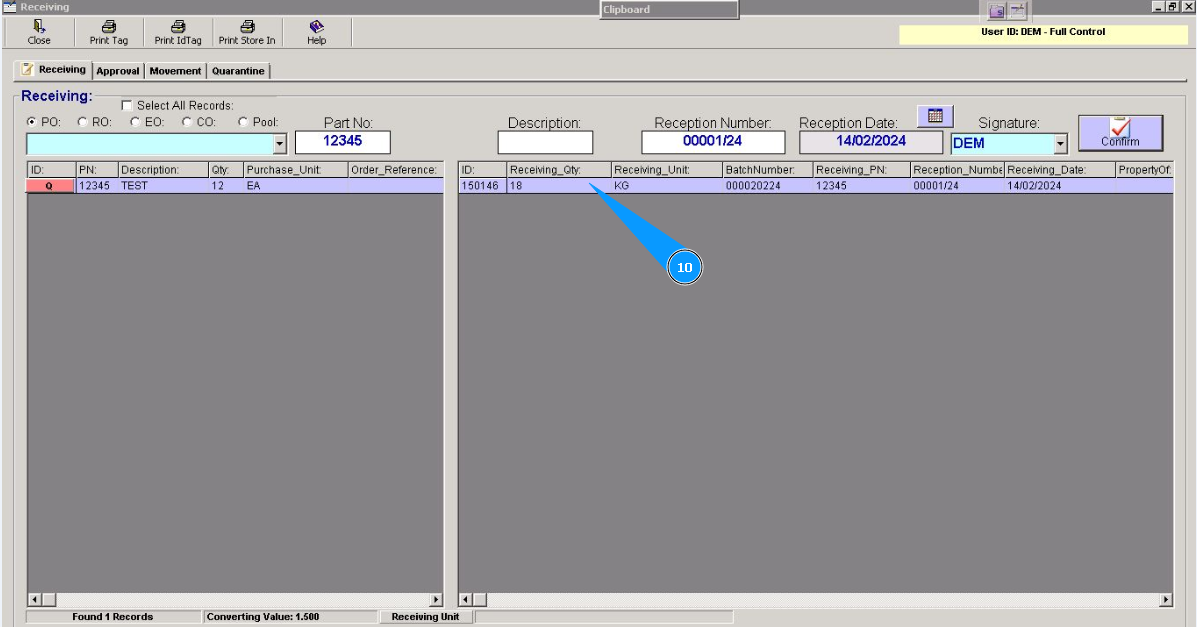
11. Check that unit was successfully received on store in the right part of window "Receiving".