How to change the store of component
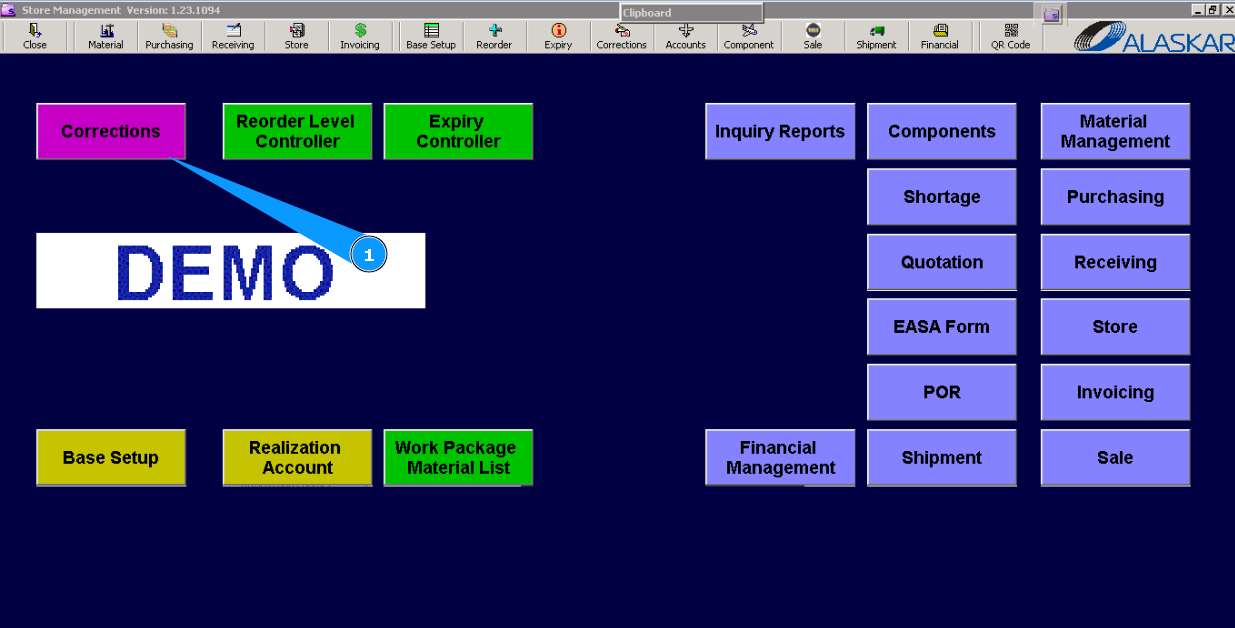
1. For changing the store of components, go to submodule "Corrections".
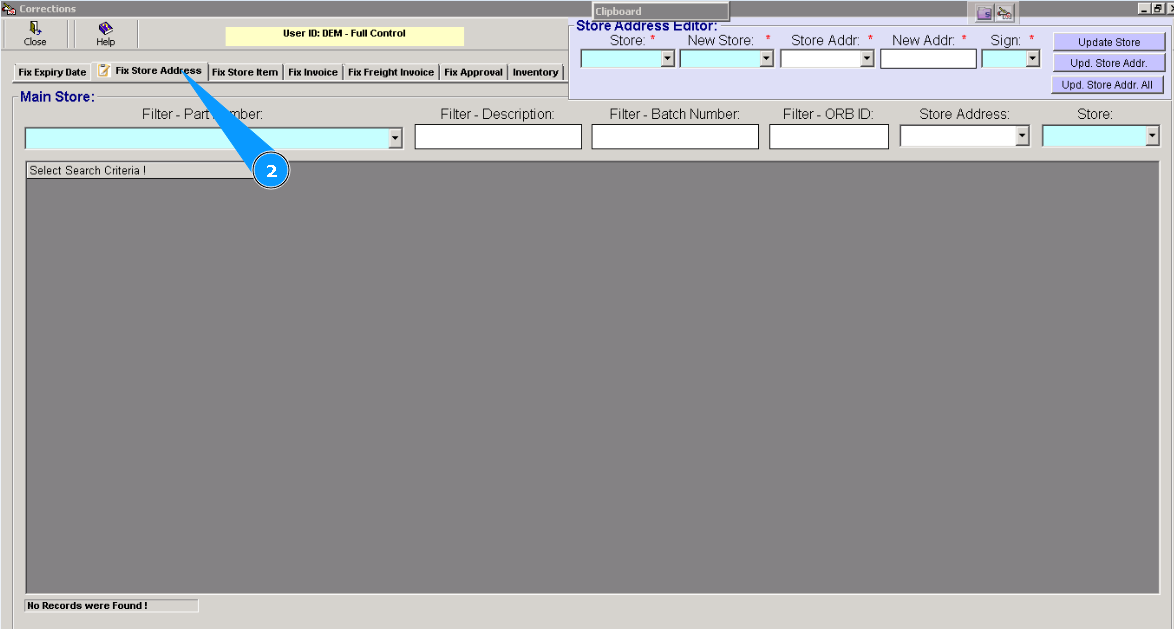
2. Then, go to the tab "Fix Store Address".
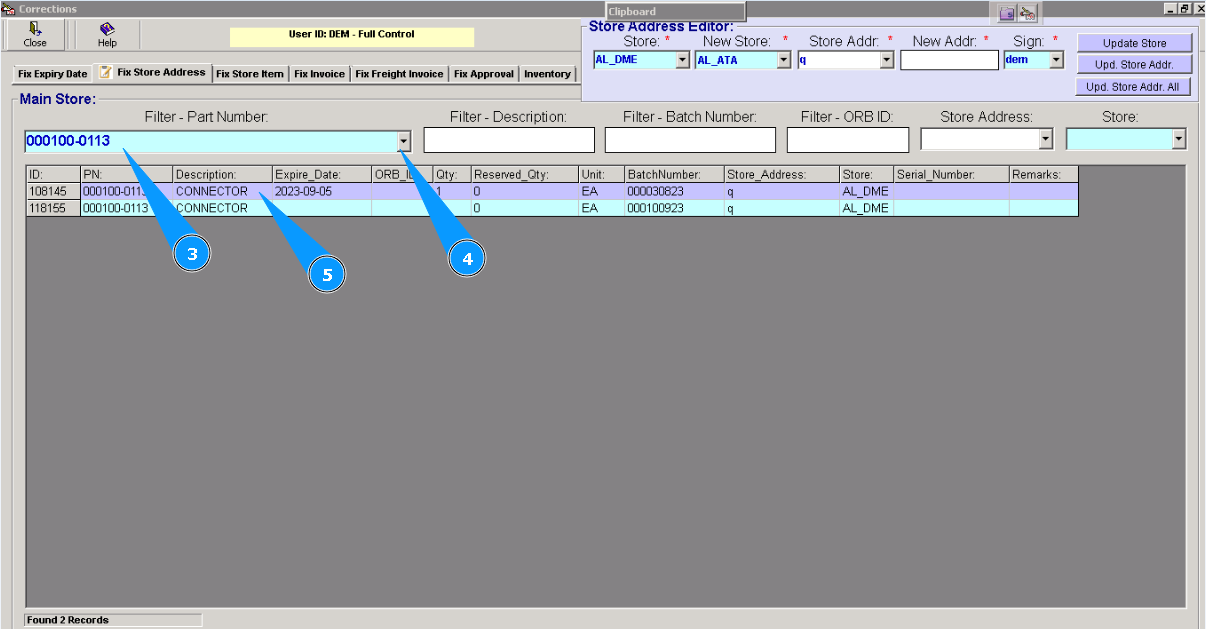
Note: If necessary, you can use other criteria for searching, fields: "Filter-Description", "Filter-Batch number", "Filter-ORB ID" etc.
4. Or select from dropdown list.
5. Highlight the necessary line with the component whose store name should be changed.
6. Enter the new store name for the component in the field "New Store" and press the knob "Enter" on your keyboard.
7. Or select from dropdown list.
8. Enter your Alaskar login in the field "Sign."
9. Or select from dropdown list.
10. Click on the button "Update Store".
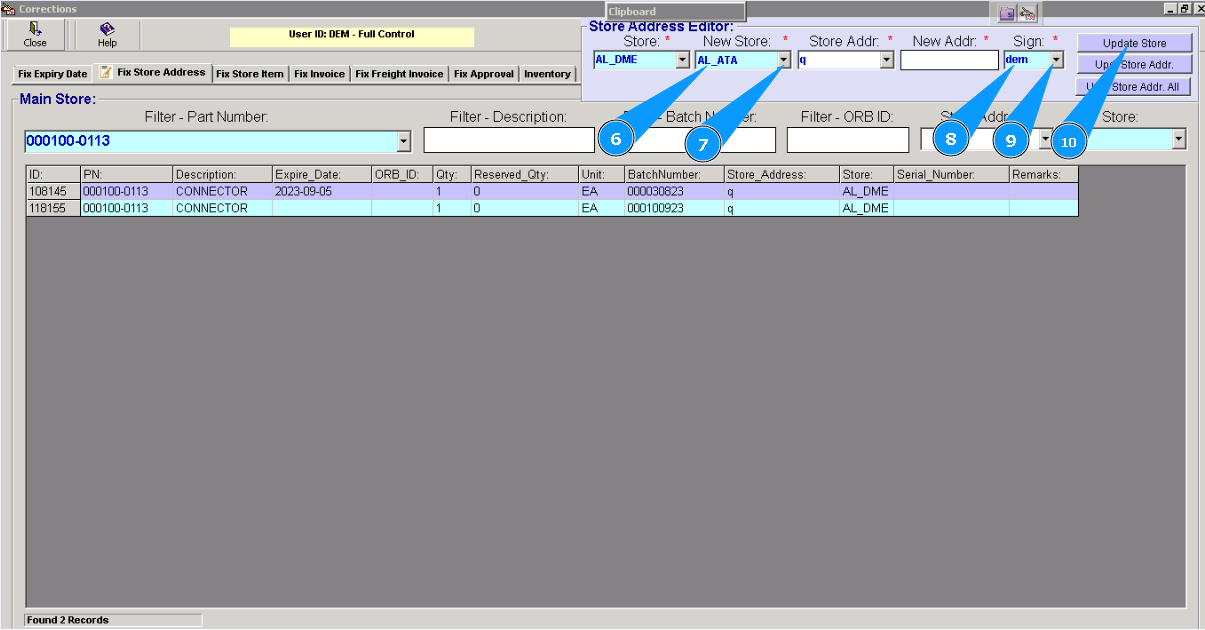
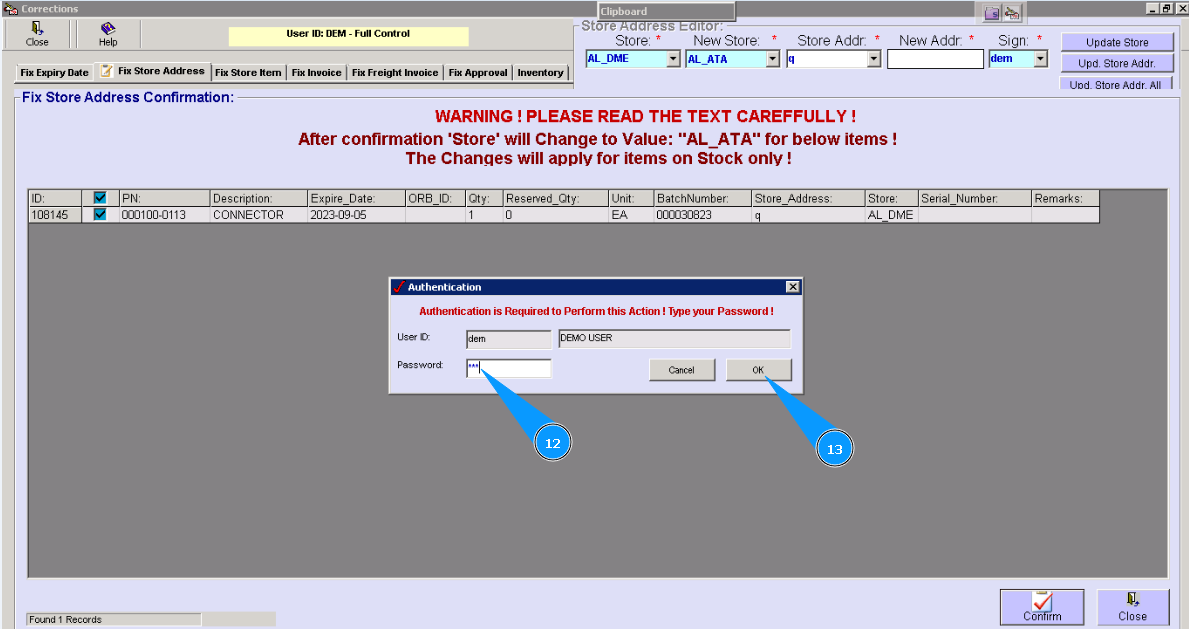
11. Click on the button "Confirm", to confirm adding changes to the program.

12. Enter your Alaskar password.
13. Click on the button "OK".
14. Click on the button "OK".
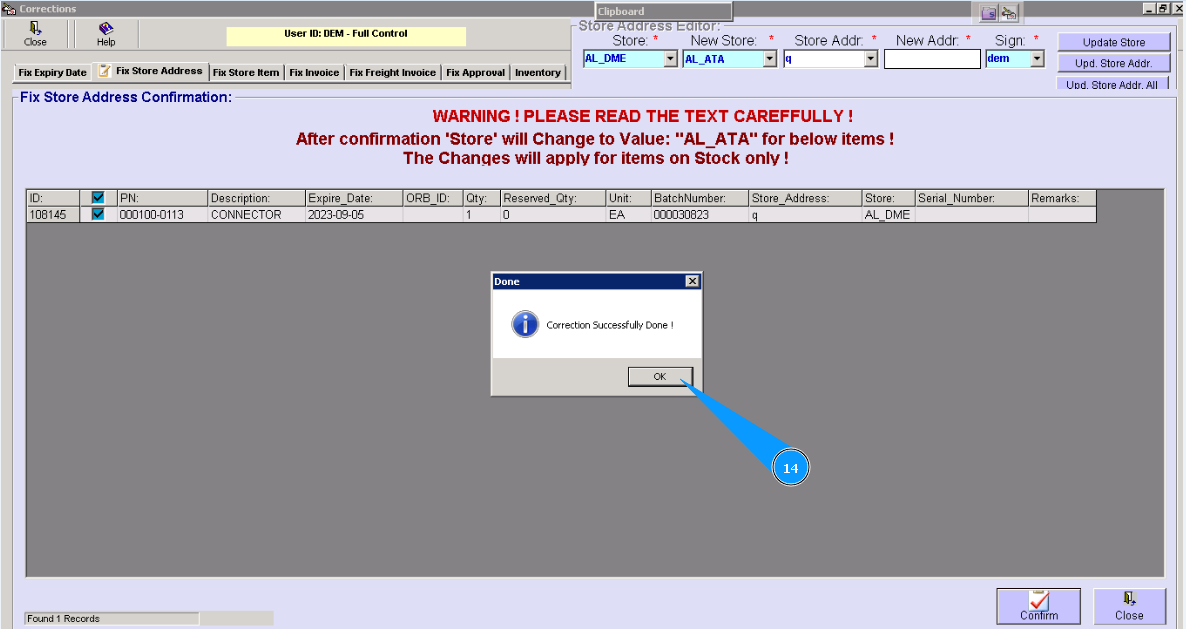
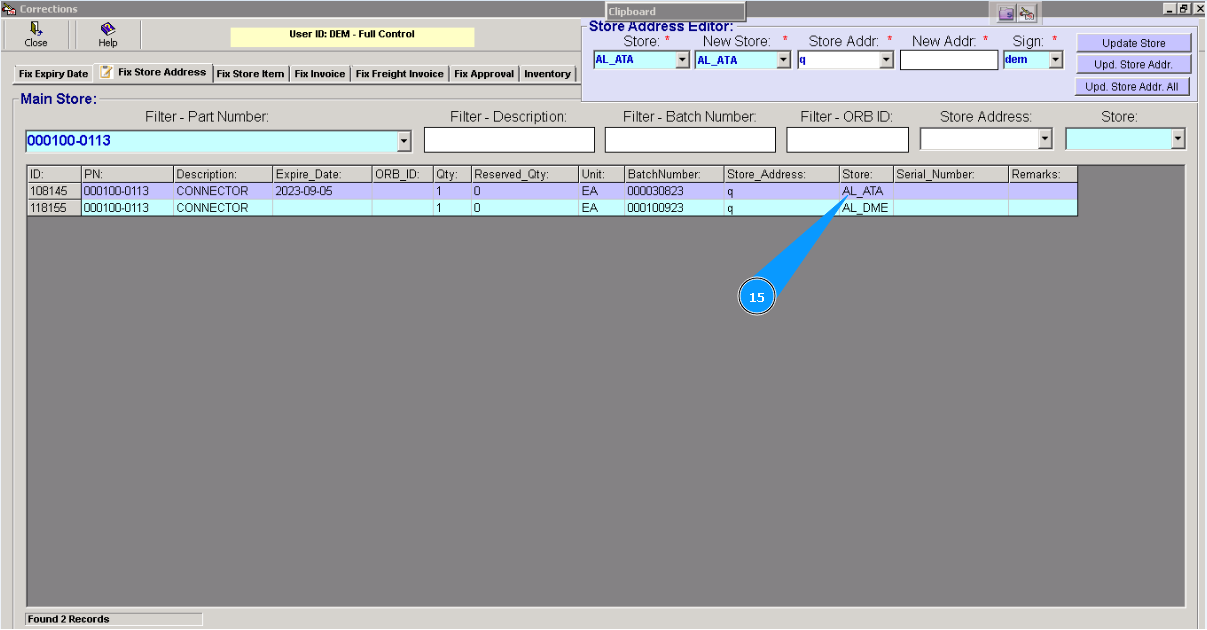
15. Check that the new store name has been replaced in the column "Store".