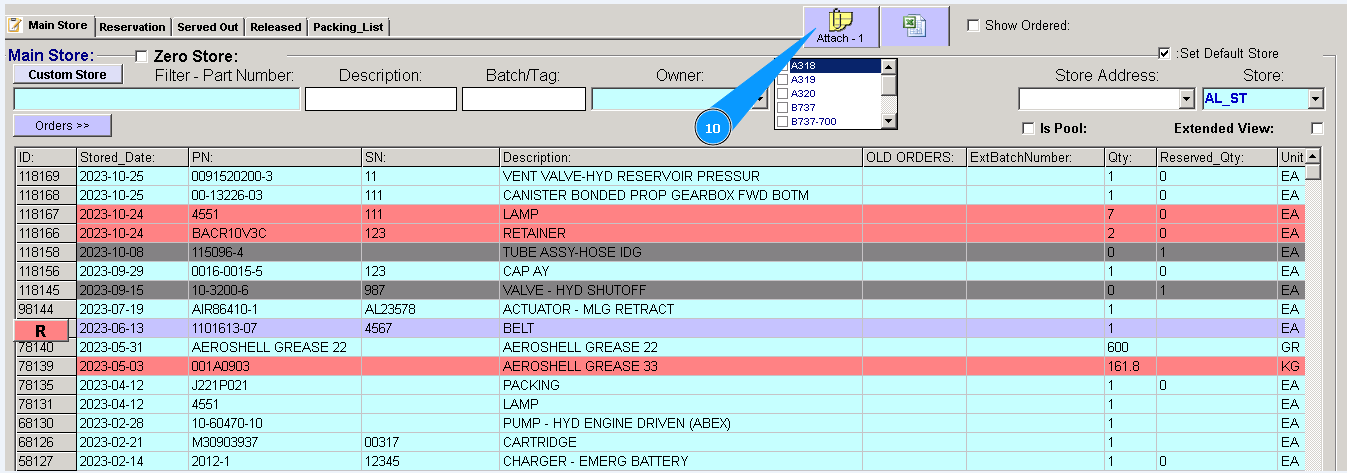
How to attach document
Note: It is possible to attach any documents to the various tabs in Alaskar. For example, you can attach certificates, identification tags, serviceability reports and any other document to virtual data.
1. To attach documents it is necessary to click on the "Attach" button.

2. Select the type of document from dropdown list: certificate, invoice, Repair Order, Exchange Order etc.
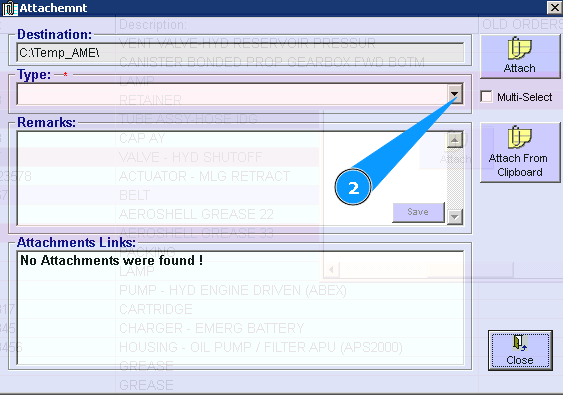
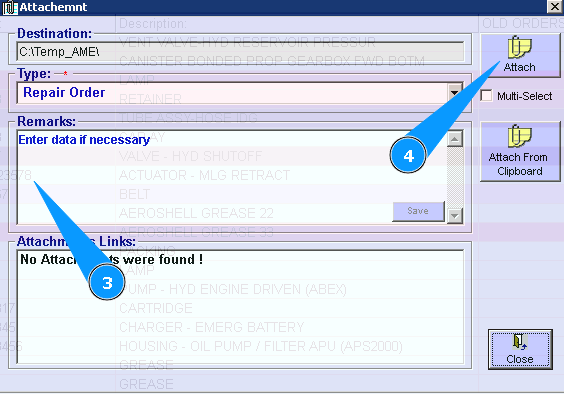
3. Enter additional comments in the field "Remarks", if necessary.
4. Сlick on the button "Attach"
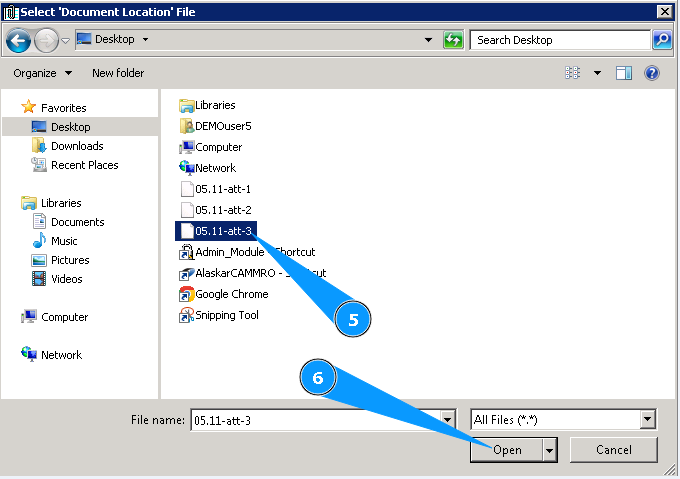
5. Select your file for attaching.
6. Сlick on the button "Open"
Note: If you would like to attach some documents please repeat Items 1-7.
7. Visually check that a new line is created in the "Attachment Links" window .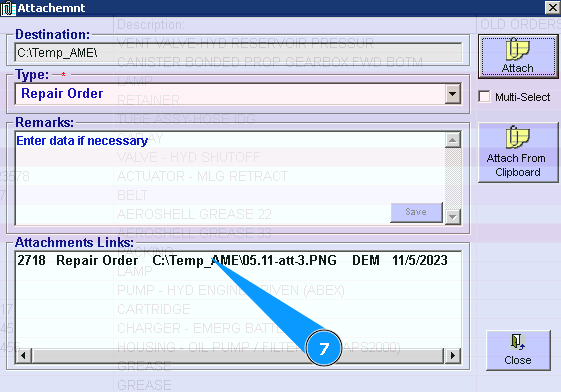
Note: Also you can use the convenient feature "to attach from the virtual memory of your computer".
8. For attaching from memory, you can copy your file to memory and then click on the button "Attach from Clipboard".
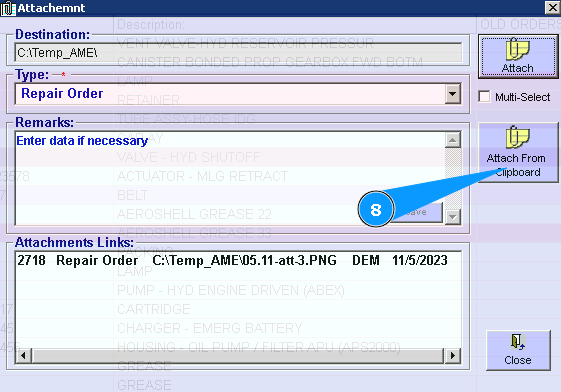
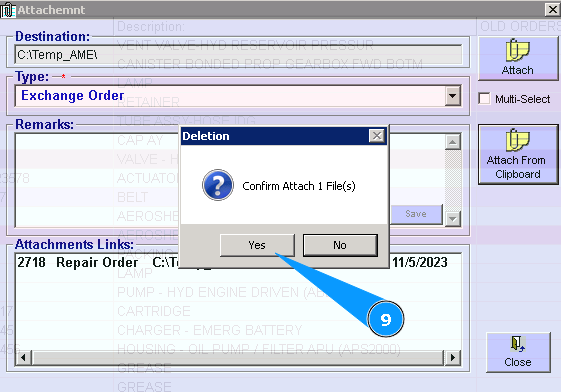
9. Сlick on the button "Yes", to confirm your selection.
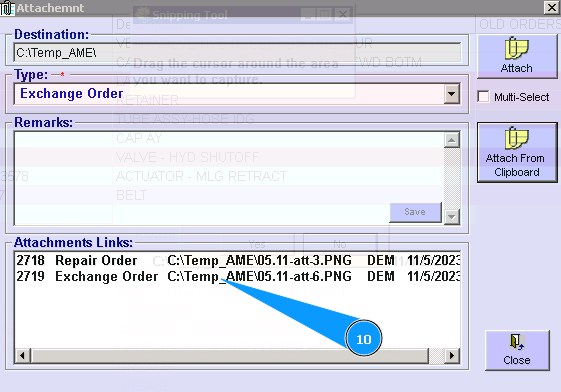
10. Visually check that a new line is created in the window "Attachment Links".
11. For identification data line in Alaskar, which has an attachmnet, on the button "Attach" are presented quantity of attached documnets.