How to replace hardtime component
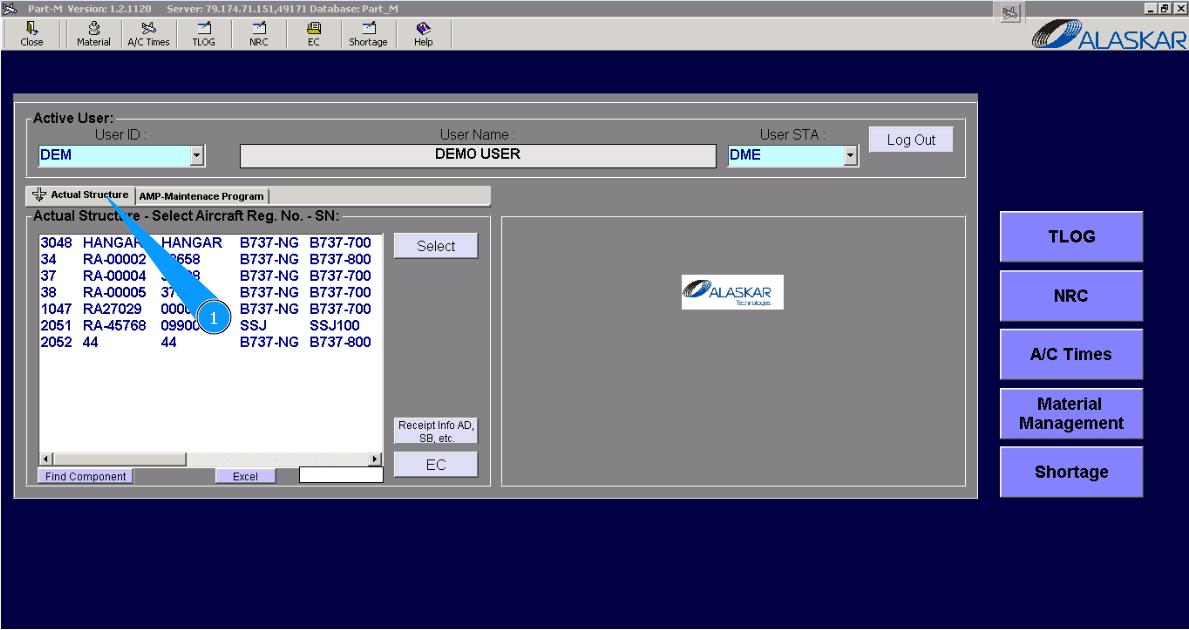
1. For hardtime component replacement, please go to submodule "Actual Structure".
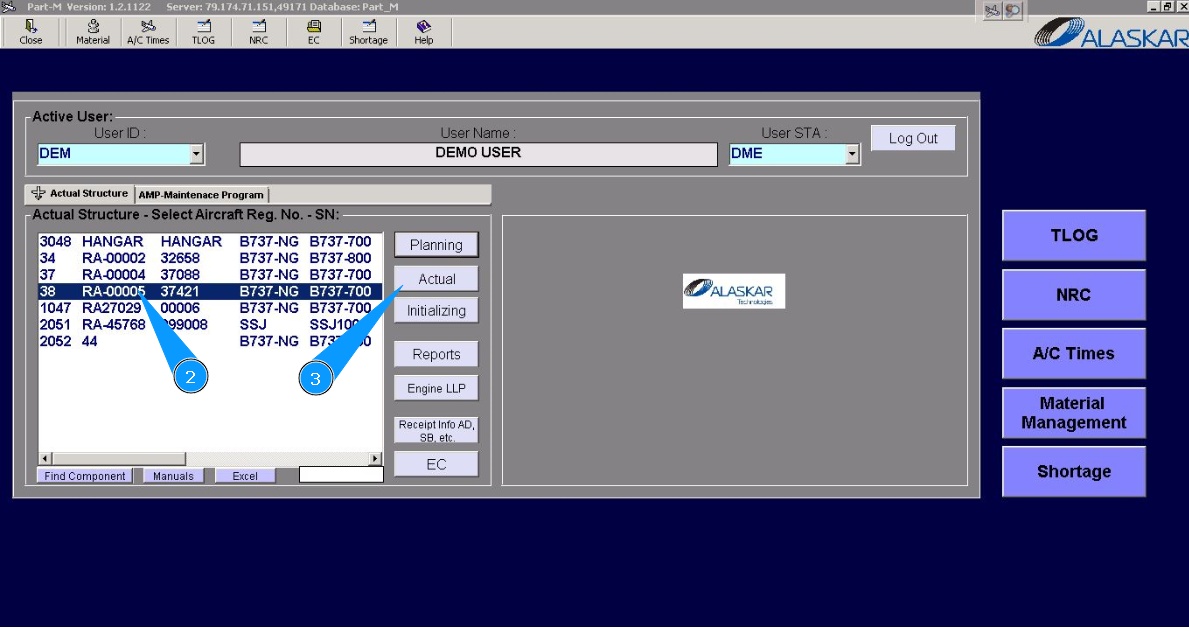
2. Select the aircraft registration number from the list on the window "Actual Structure-Select Aircraft Reg.-SN".
3. Click on the button "Actual", to open submodule.
4. Then go to the tab "Components".
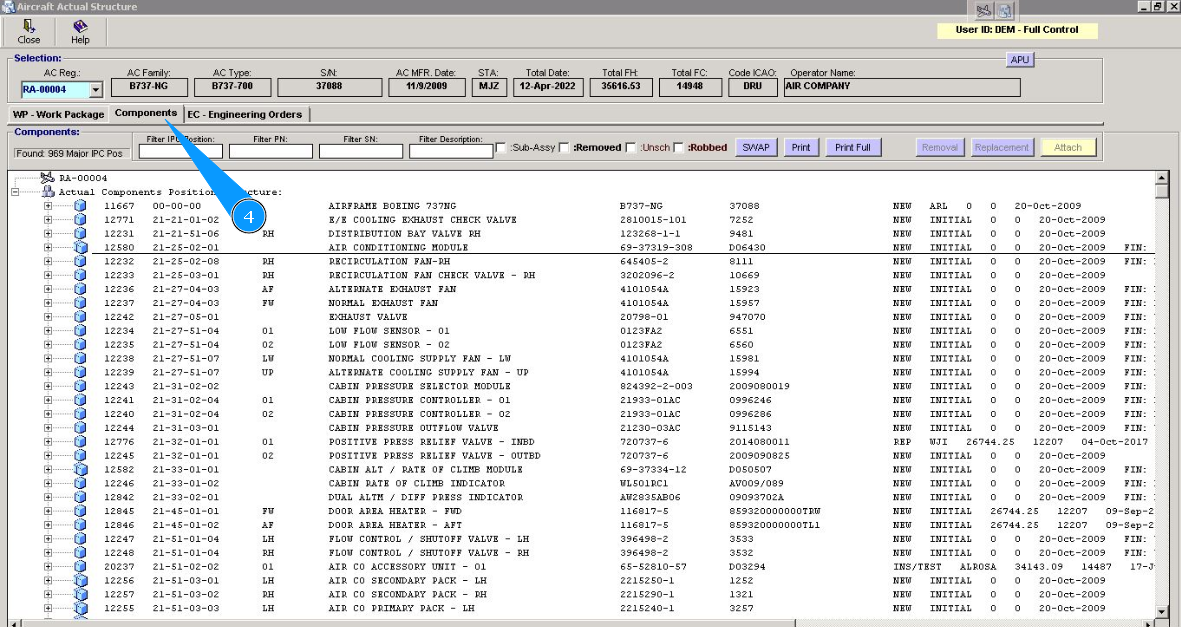
5. Select the line with necessary component. Click on the plus to open all information. Note: If necessary, you can use the available searching filters: "Filter IPC Position", "Filter PN" etc.
6. Click on the corresponding line.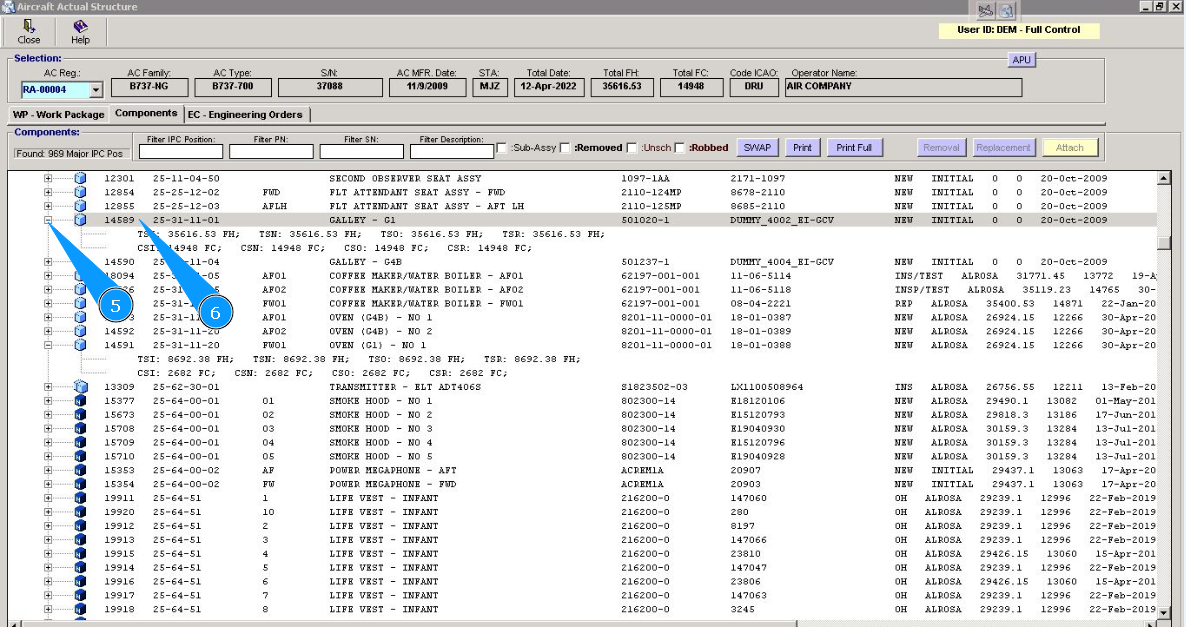
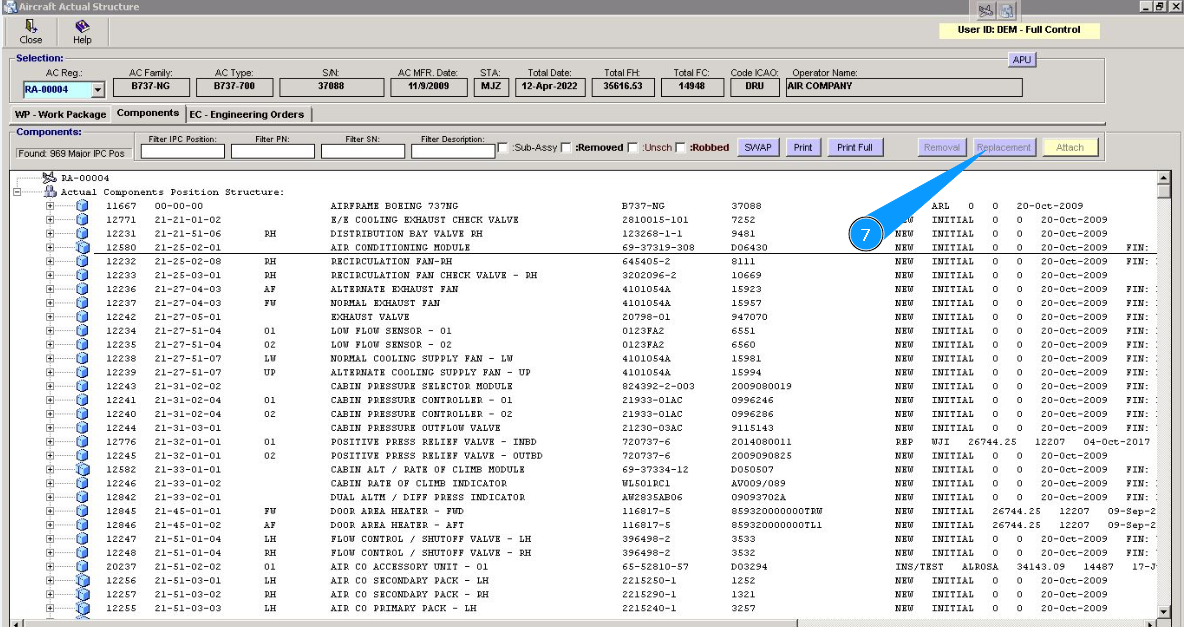
7. Click on the button "Replacement".
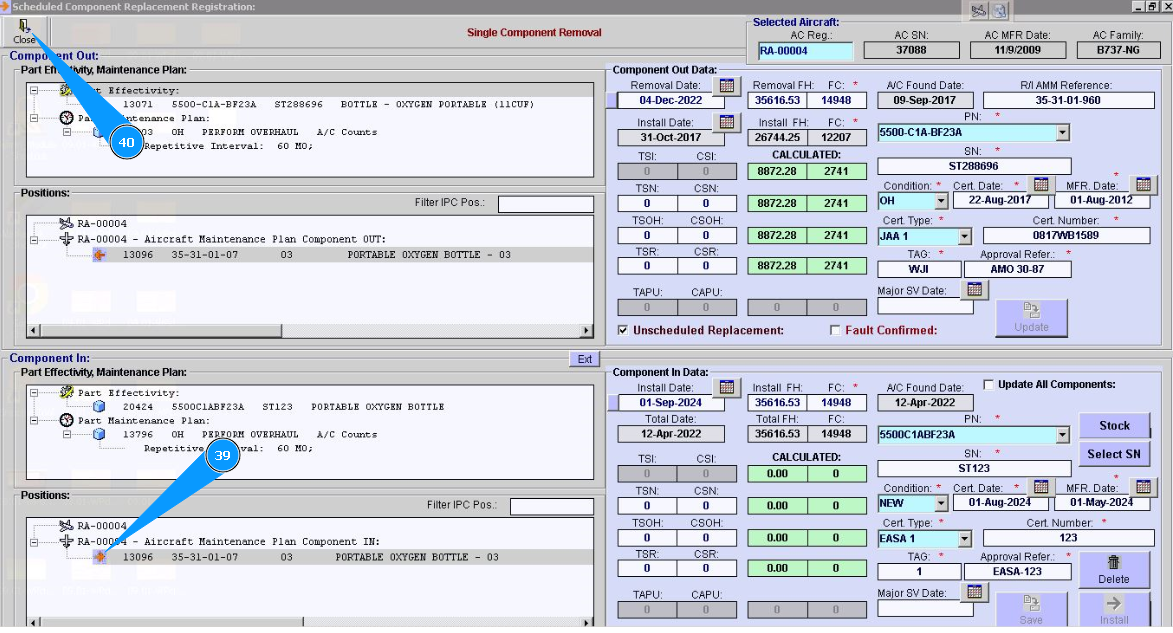
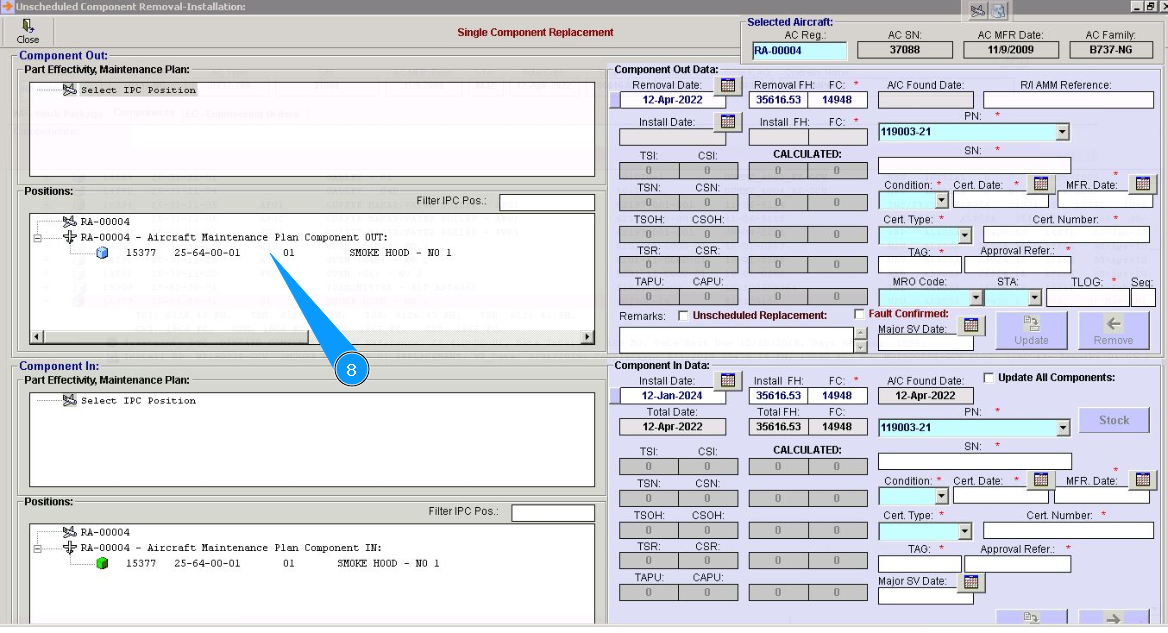
8. Click on the line with the component in the field "Positions" of the window "Component Out".
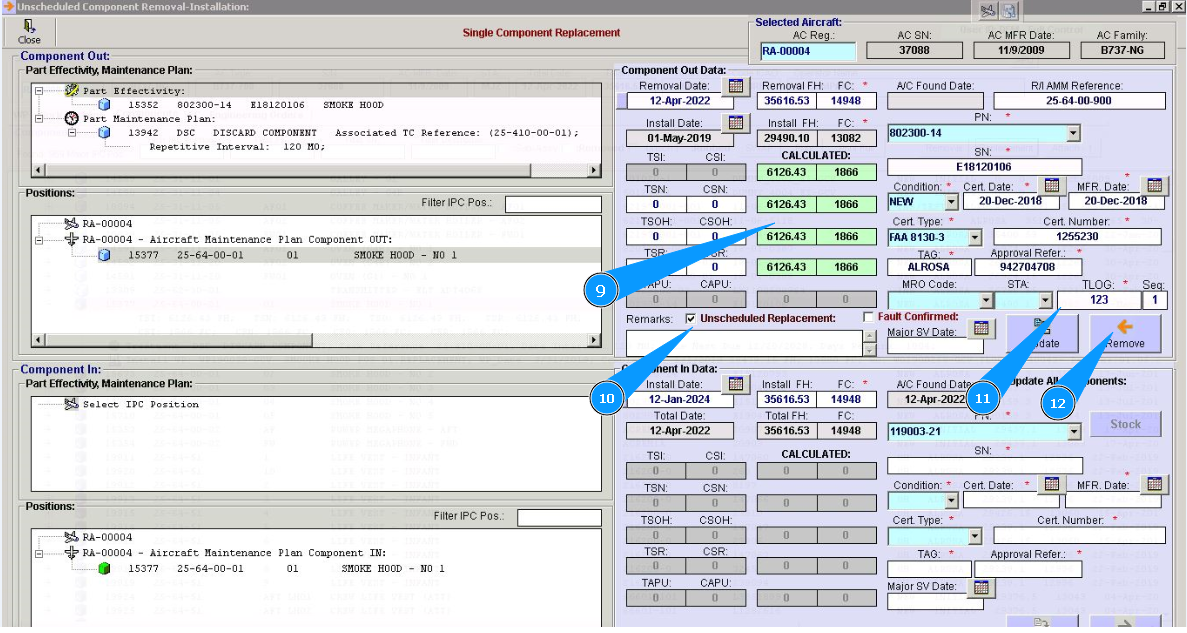
9. Check that the data for the selected position of the component is presented in the window "Component Out Data".
10. Click in the window "Unscheduled Replacement", if replacement is performed after component failure.
11. Enter the aircraft logbook number and page in fields "TLOG:" and "Seq:".
12. Click on the button "Remove".
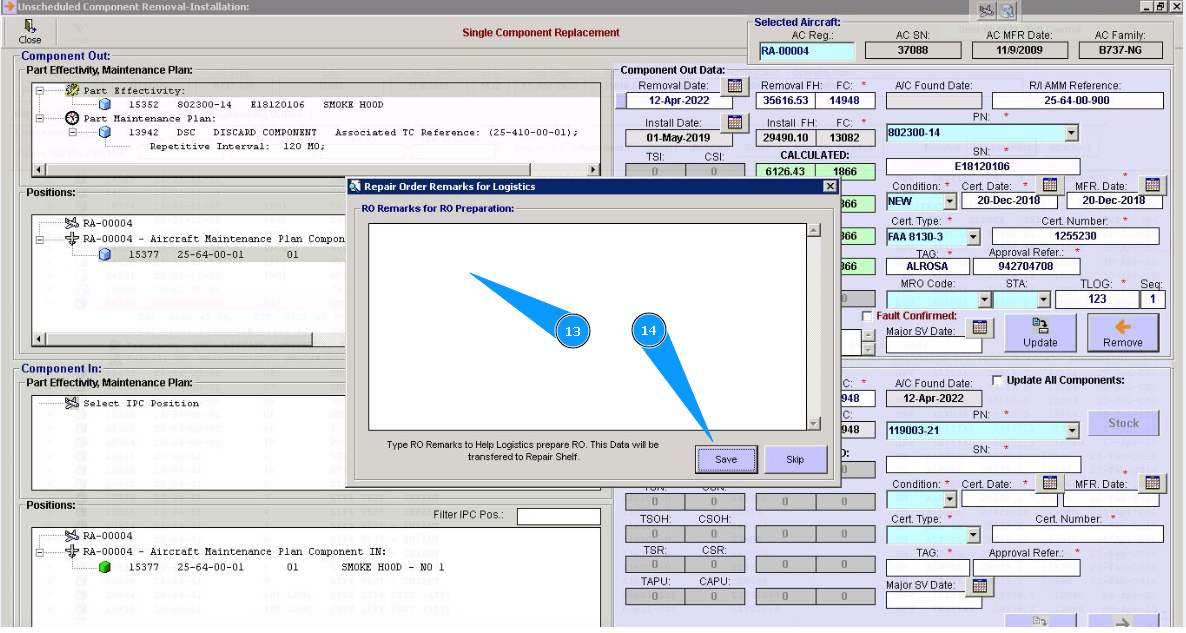
13. If necessary, enter the data for removal. There are some comments about removing or repairing order preparation in the window, "Repair Remarks for RO preparation".
14. Click on the button "Save".
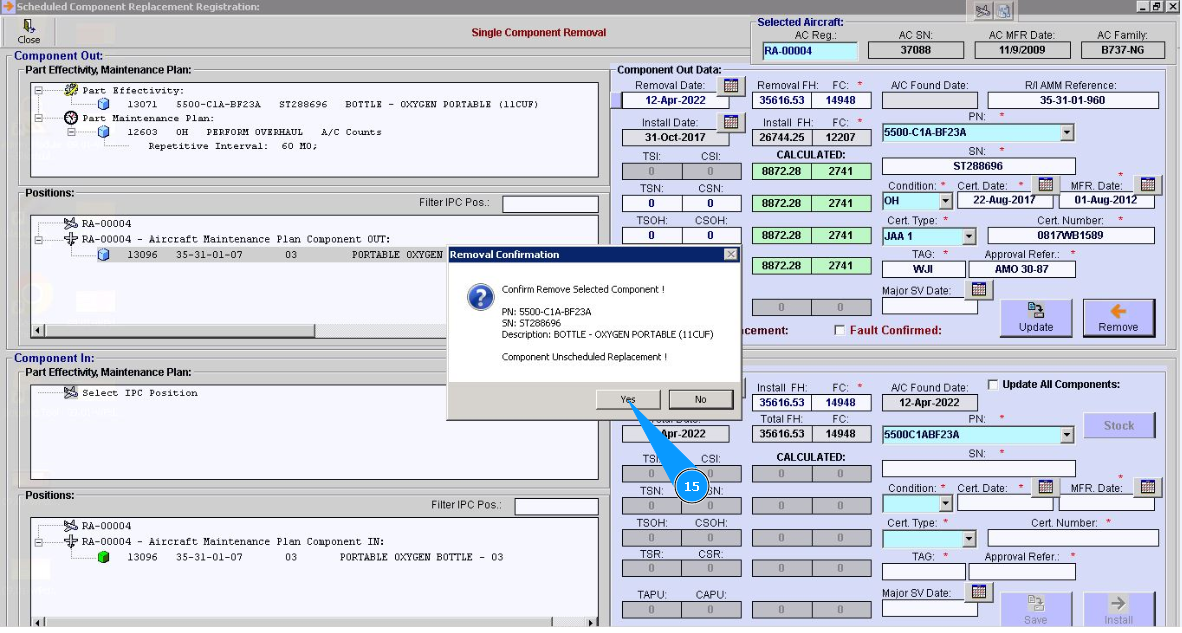
15. Click on the button "Yes", to confirm the removal of the component from its position.
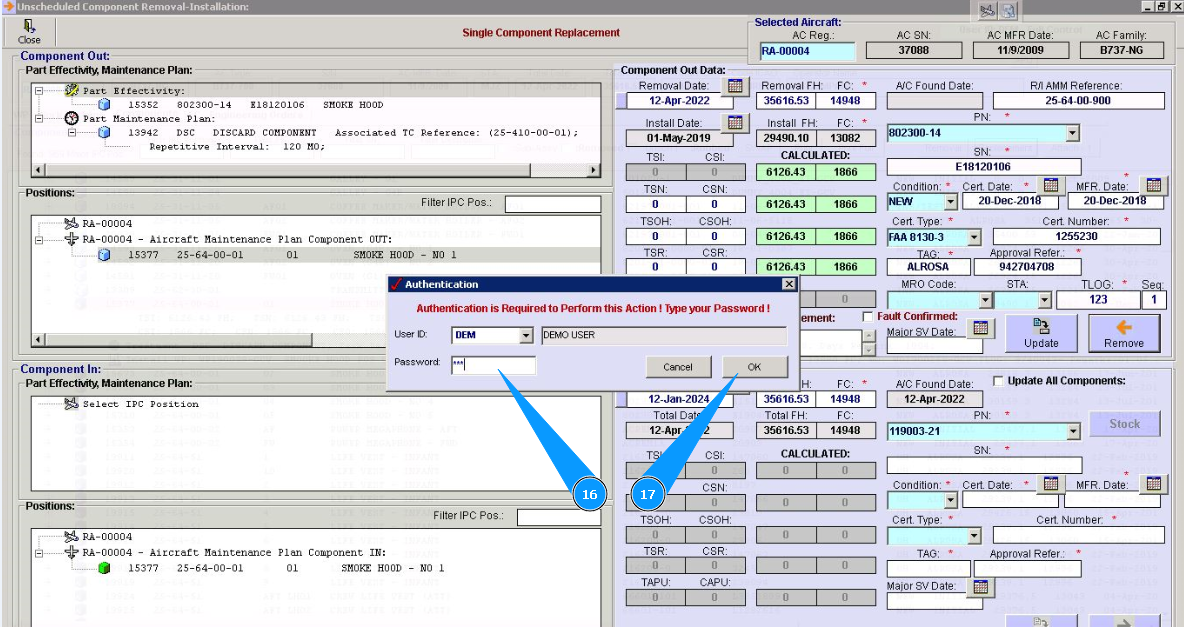
16. Enter Alaskar password in the field "Password".
17. Click on the button "Ok", to save removing a component from the program.
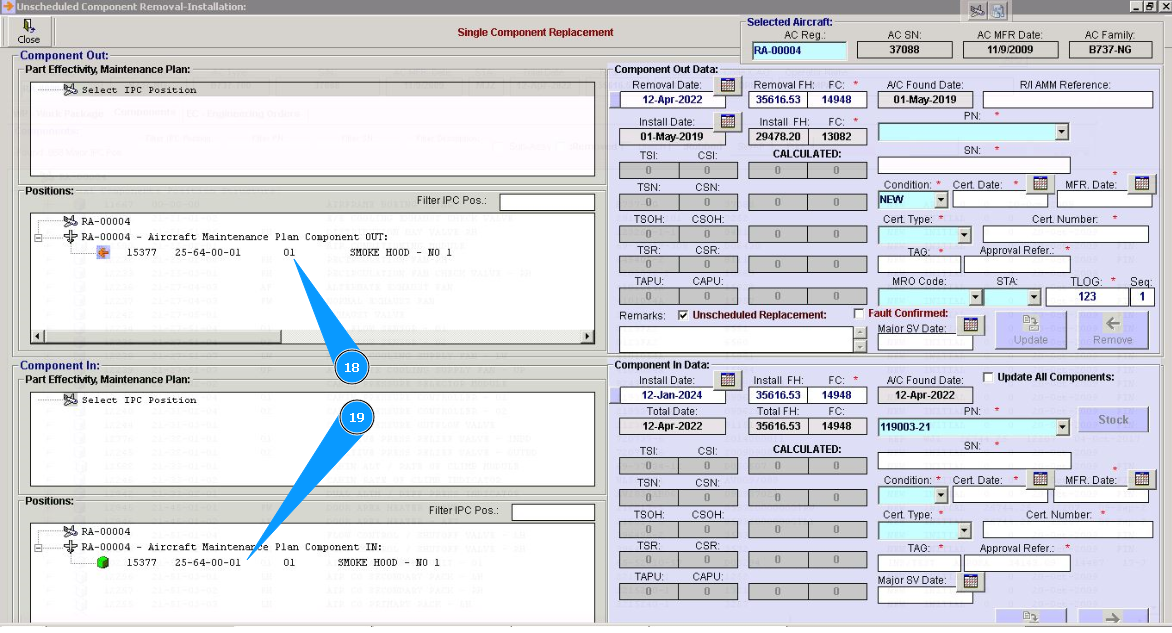
18. Check that the symbol for the selected position of the component is changed in the window "Component Out" on the red arrow.
19. Click on the line of component in the field "Positions" of the window "Component In".
20. Enter the serial number of installed component in the field "SN". Note: Check the installation date, this date is current by default. If necessary, you can correct it.
21. Or select an existing serial number in the fields "Stock" or "Select SN".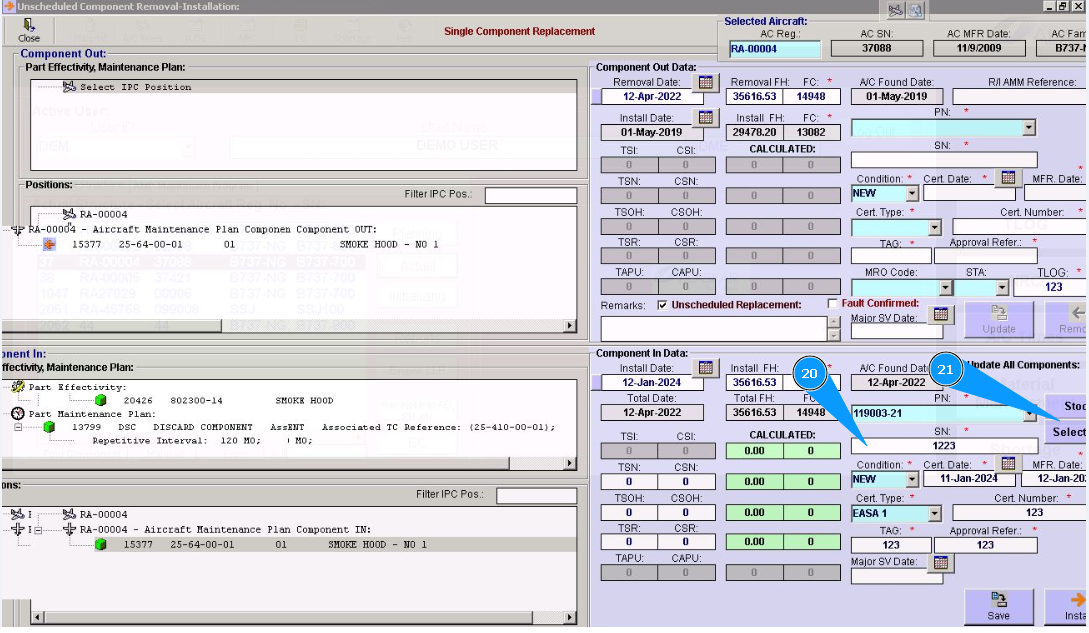
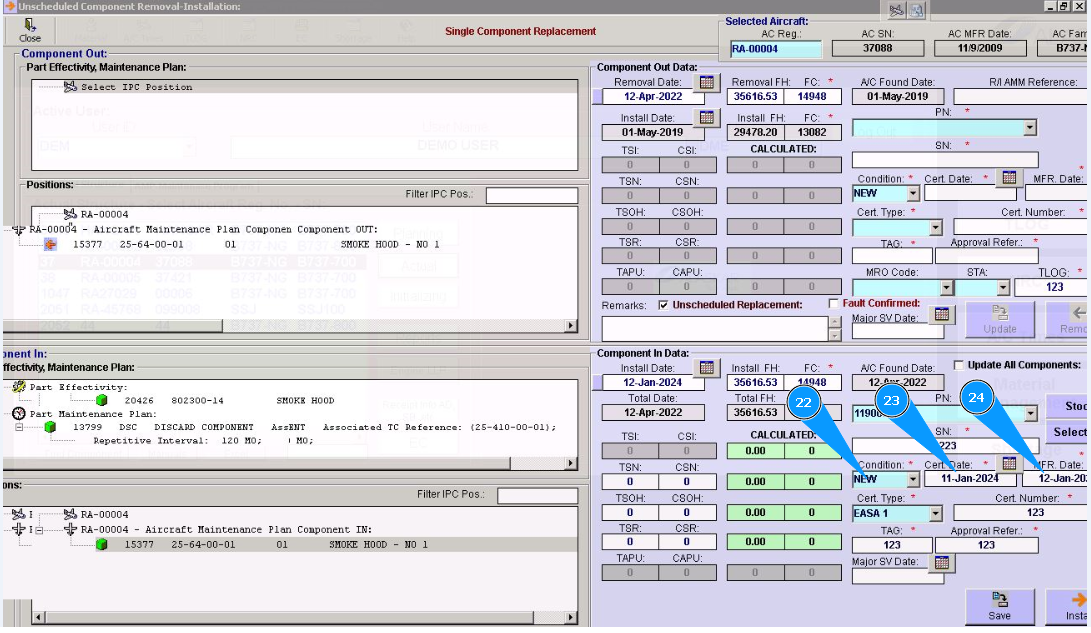
22. Select the condition of the component from dropdown list in the field "Condition".
23. Enter the certification date of the component or select the calendar in the field "Cert.Date".
24. Enter the manufacture date of the component or select on calendar in the field "Mfr.Date".
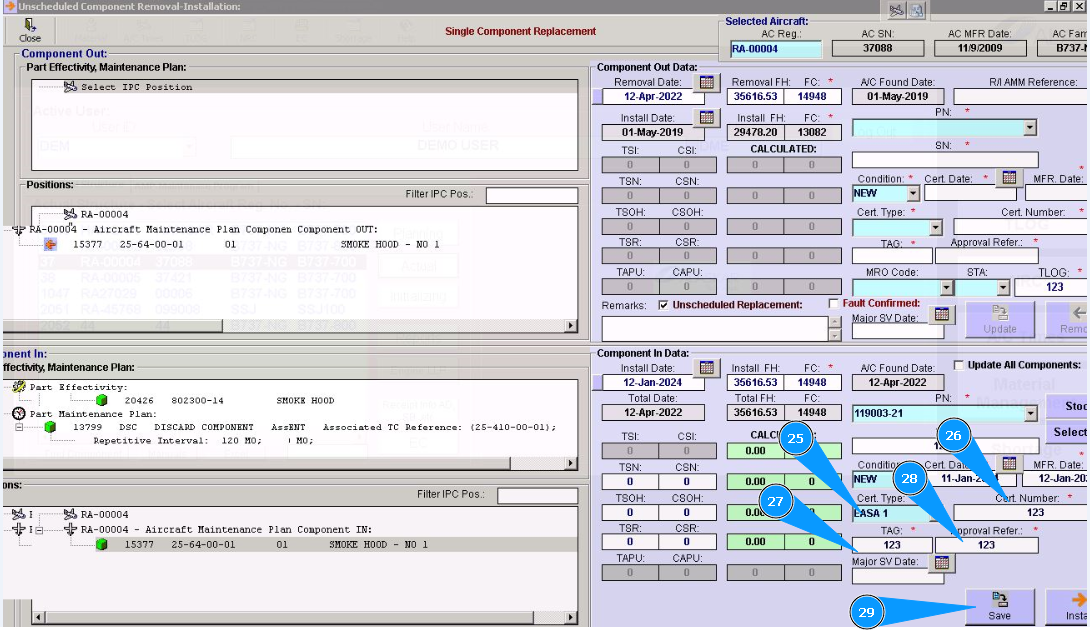
25. Select the certificate type from the dropdown list in the field "Cert.Type".
26. Enter the certificate number in the field "Cert.Number".
27. Enter a tag number in the field "Tag".
28. Enter the approval number in the field "Approval Refer".
29. Click on the button "Save".
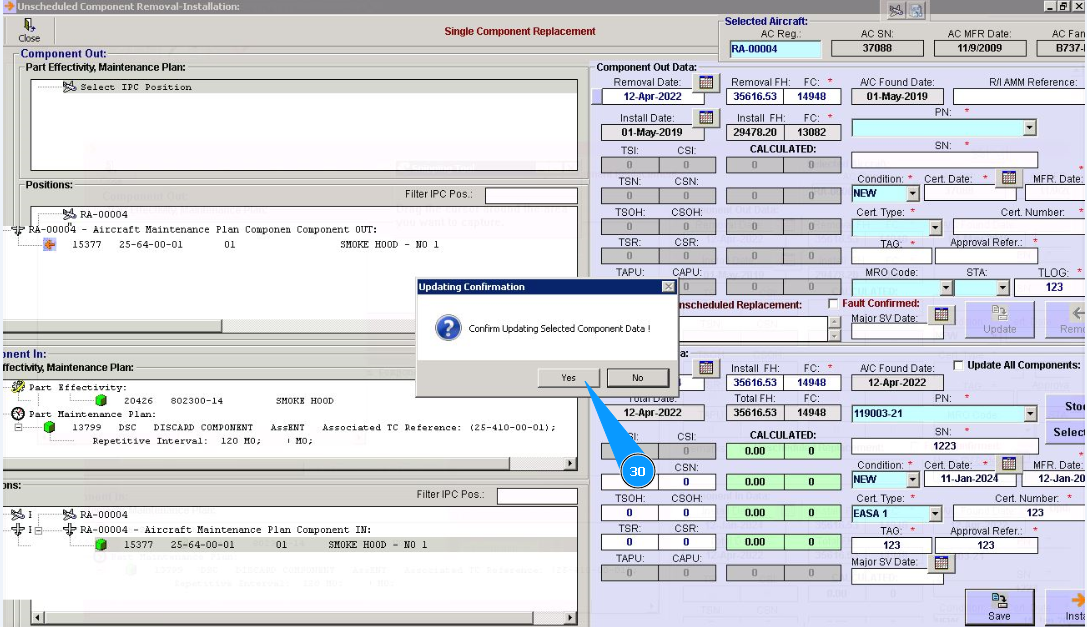
30. Click on the button "Yes", to load the data of the installed component to program.
31. Click on the line of treatment in the window "Component In" and chapter "Part Maintenance plan". Note: Treatment lines for components are presented of hard time components only.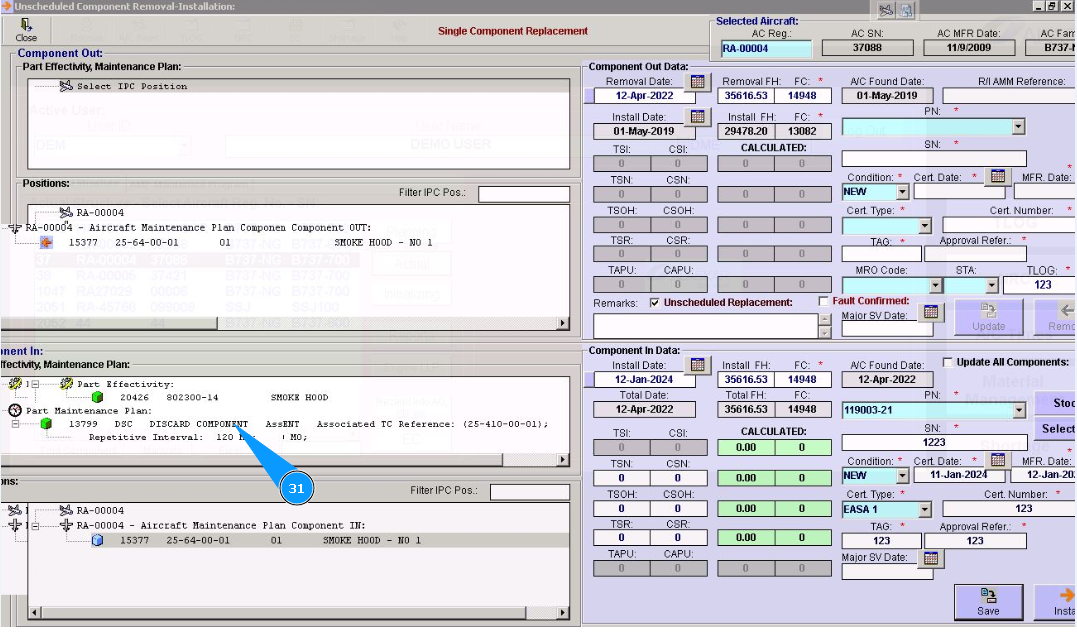
32. Enter the necessary data for treatment in the window "Treatment Data". Note: Repeat items from 31 to 34 for all treatment lines.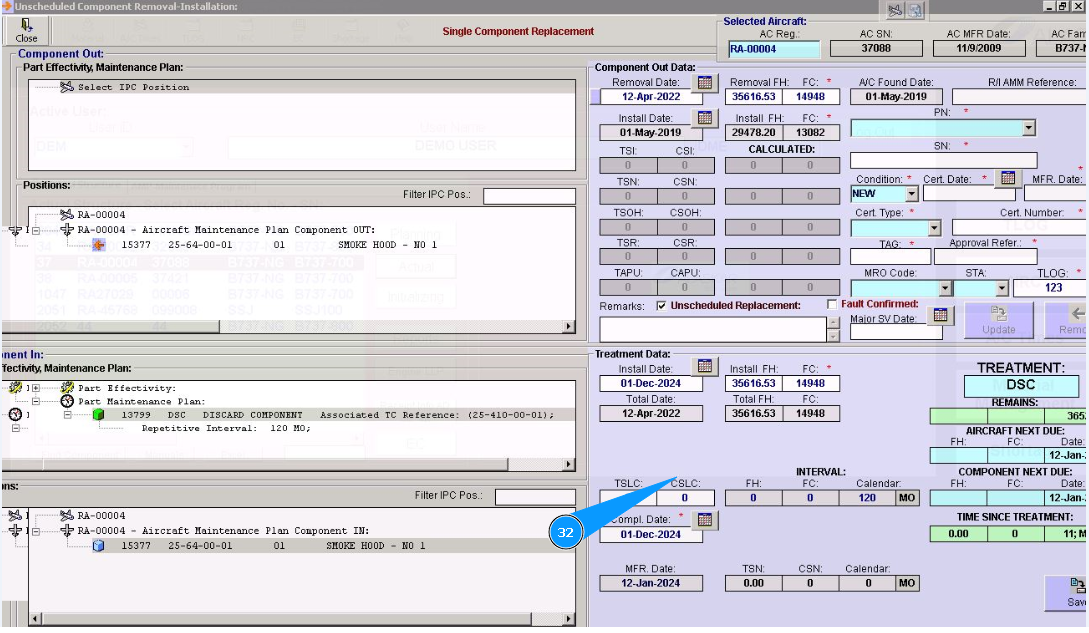
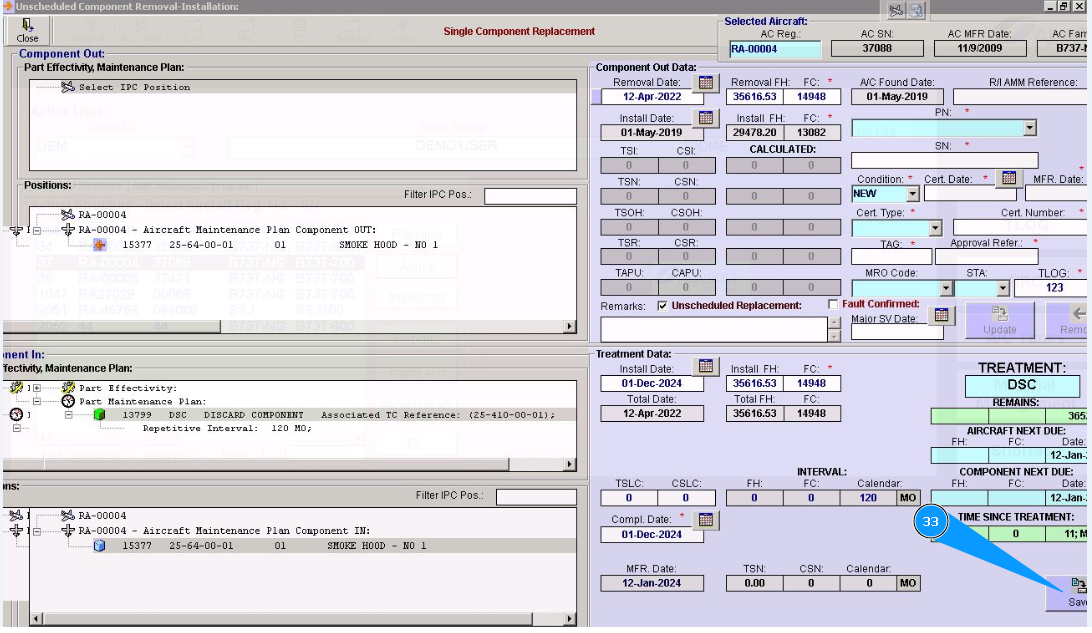
33. Click on the button "Save".
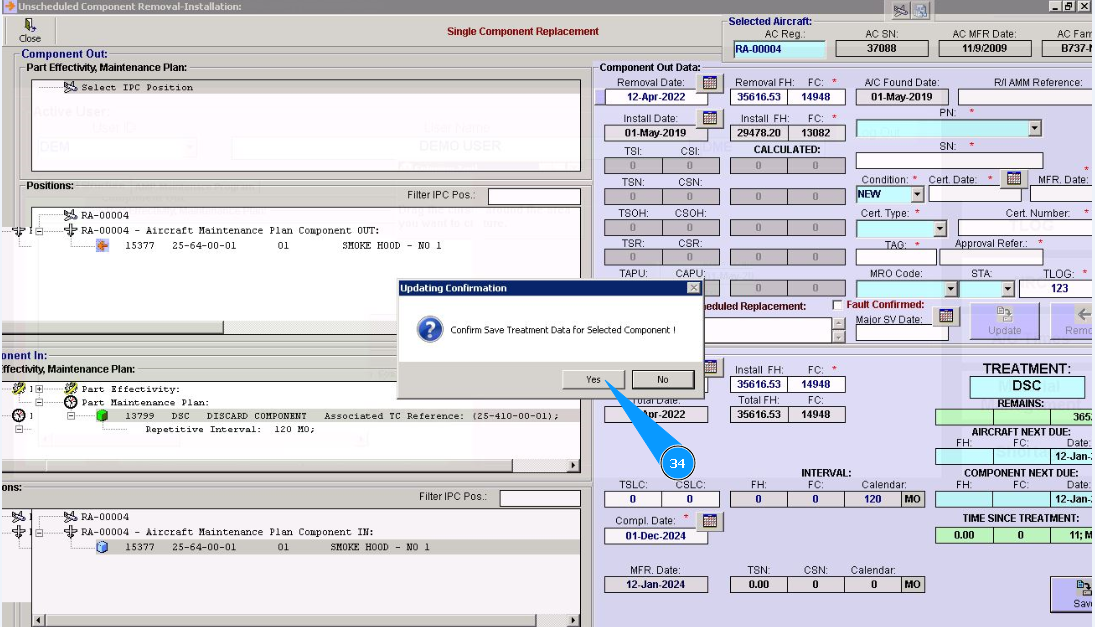
34. Click on the button "Yes", to save treatment data of component to program.
35. Click on the button "Install", to install the component on board.
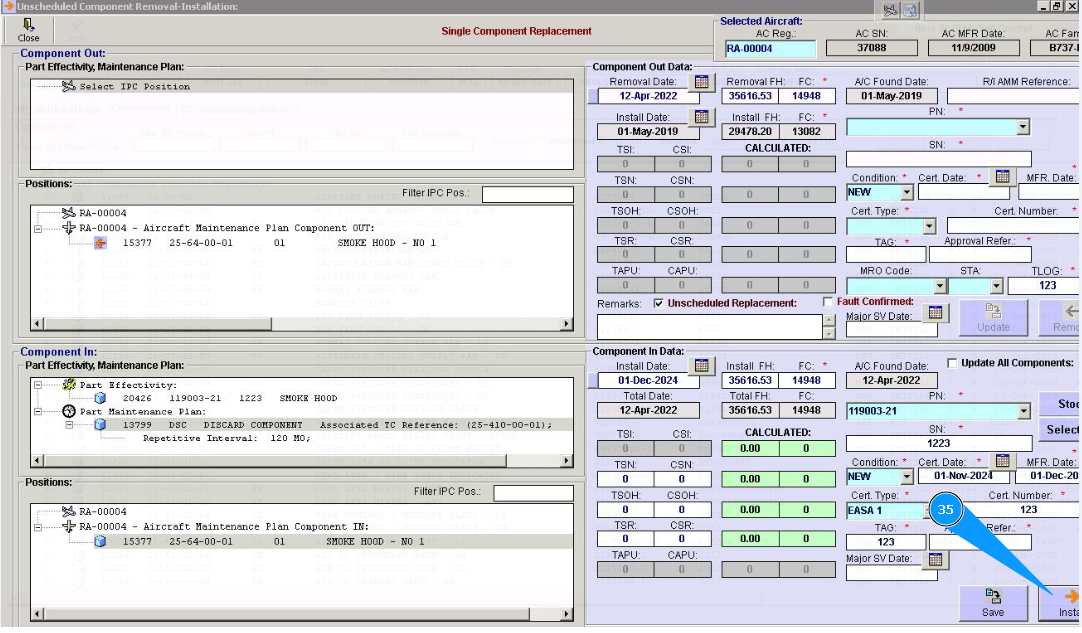
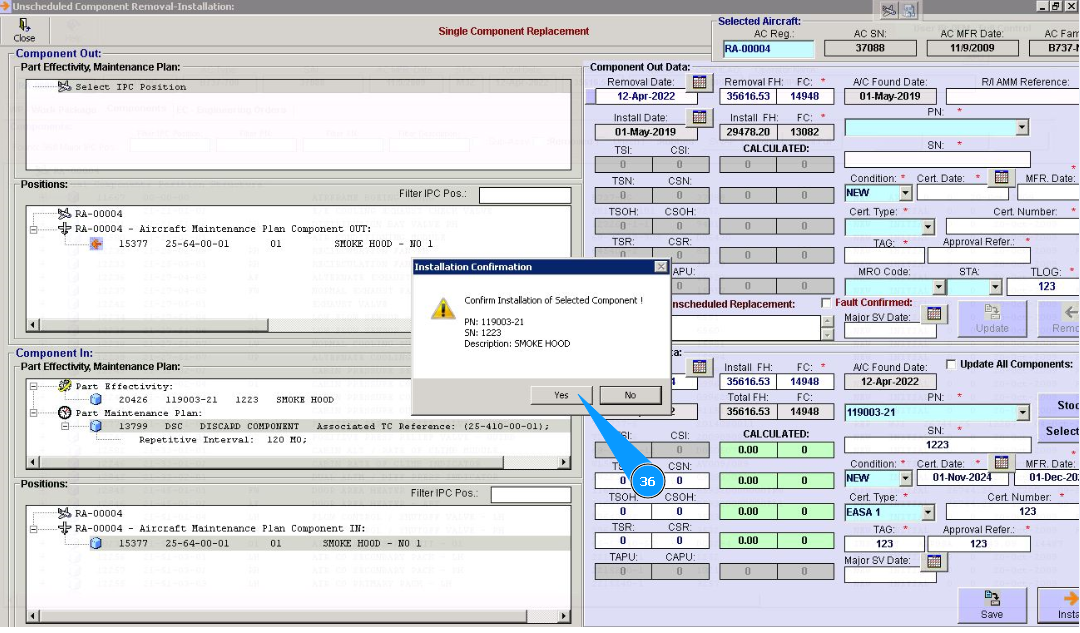
36. Click on the button "Yes", to confirm component installation on board.
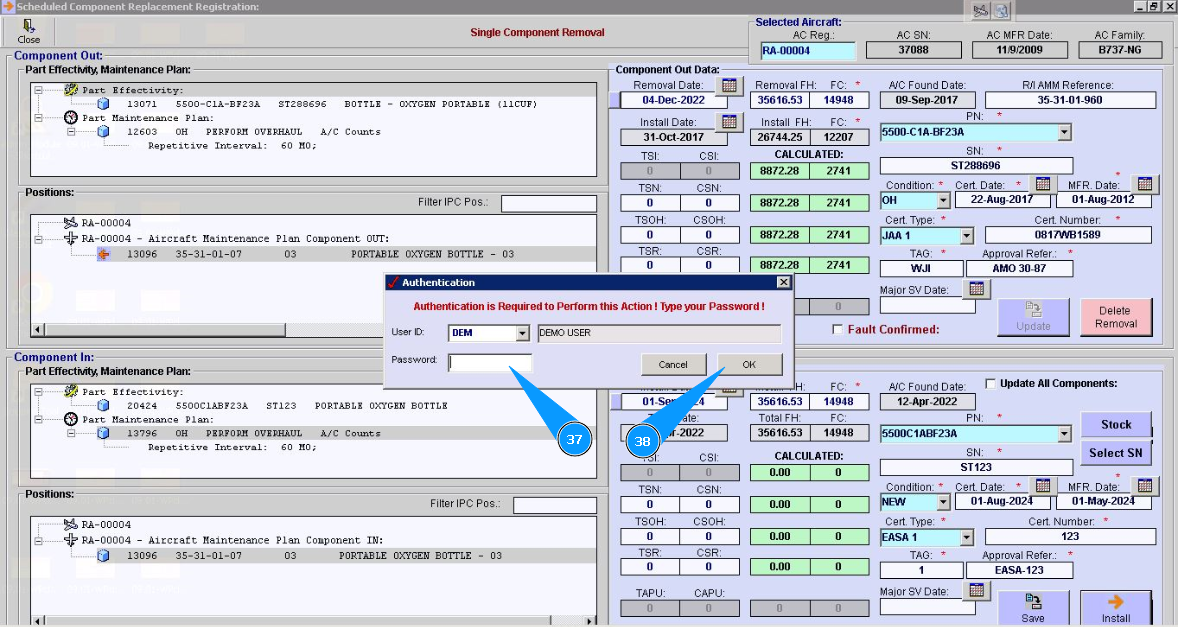
37. Enter Alaskar password in the field "Password".
38. Click on the button "Ok", to save the component installation to the program.
39. Check that the symbol for the selected position is changed in the window "Component In" on the red arrow.
40. Click on the button "Close", to go out from component replacement editor.