How to initialize Engineering Control
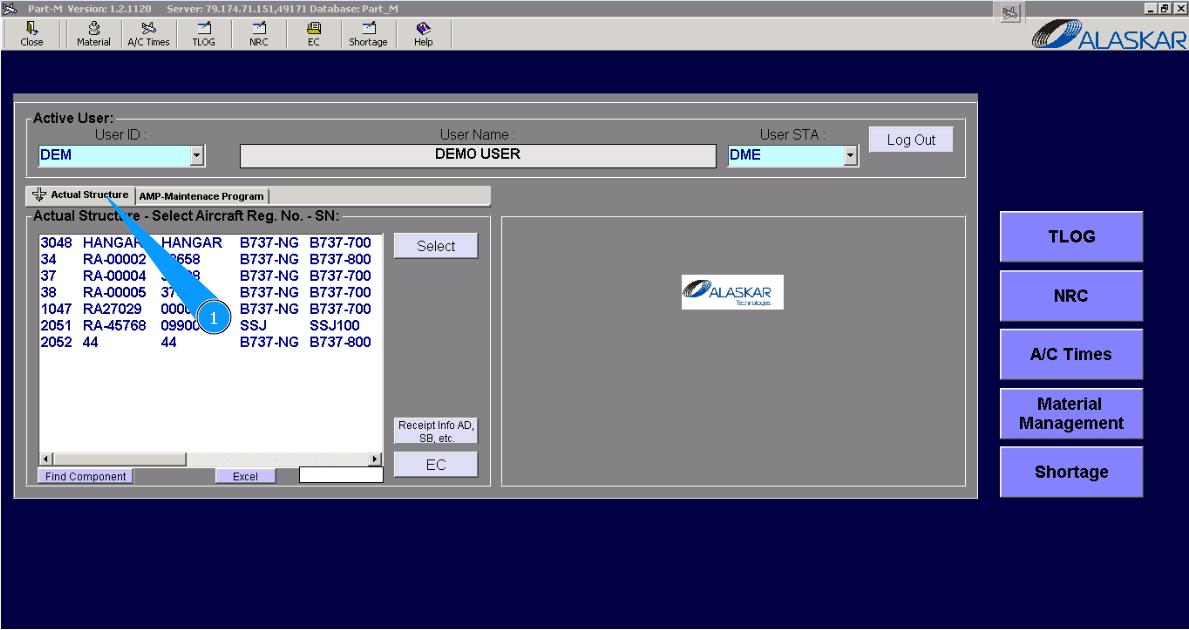
1. For initializing Engineering Control, go to the tab "Actual Structure".
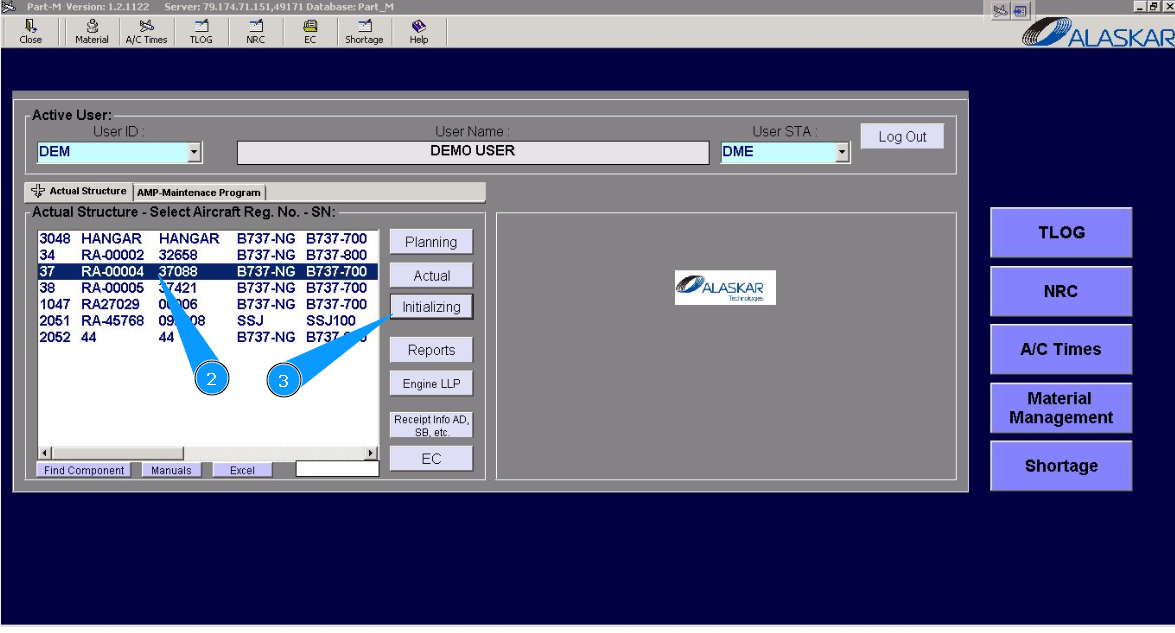
2. Select aircraft registration in the list of window "Actual Structure-Select Aircraft Reg.-SN".
3. Click on the button "Initializing", to open the submodule.
4. Then please go to the tab "EC Initializing".
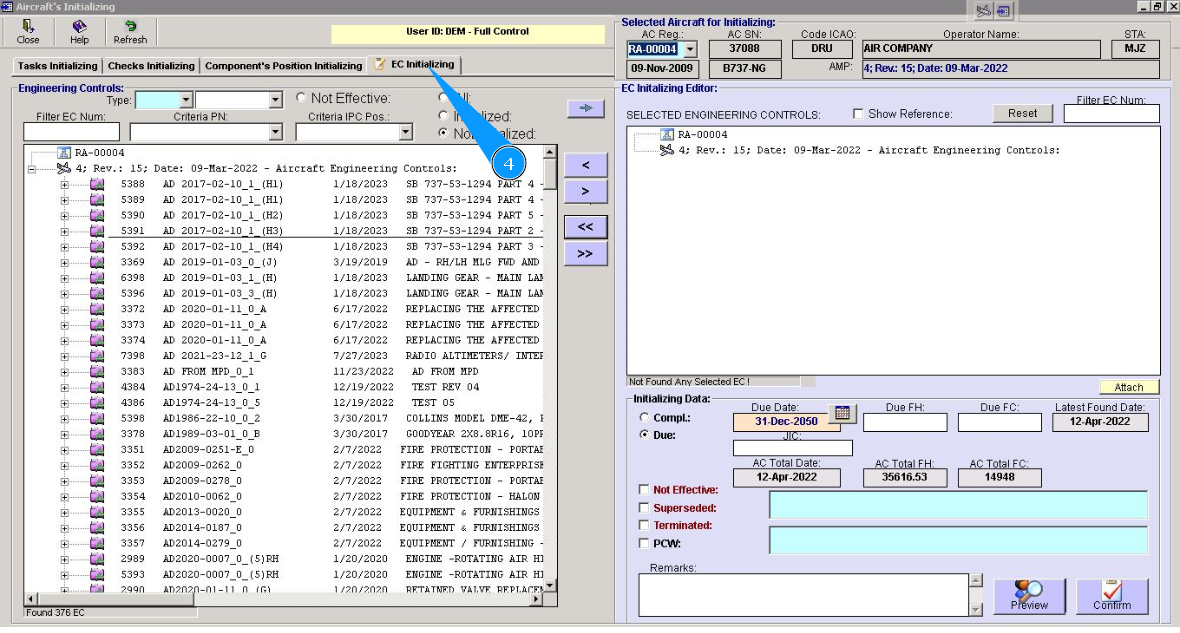
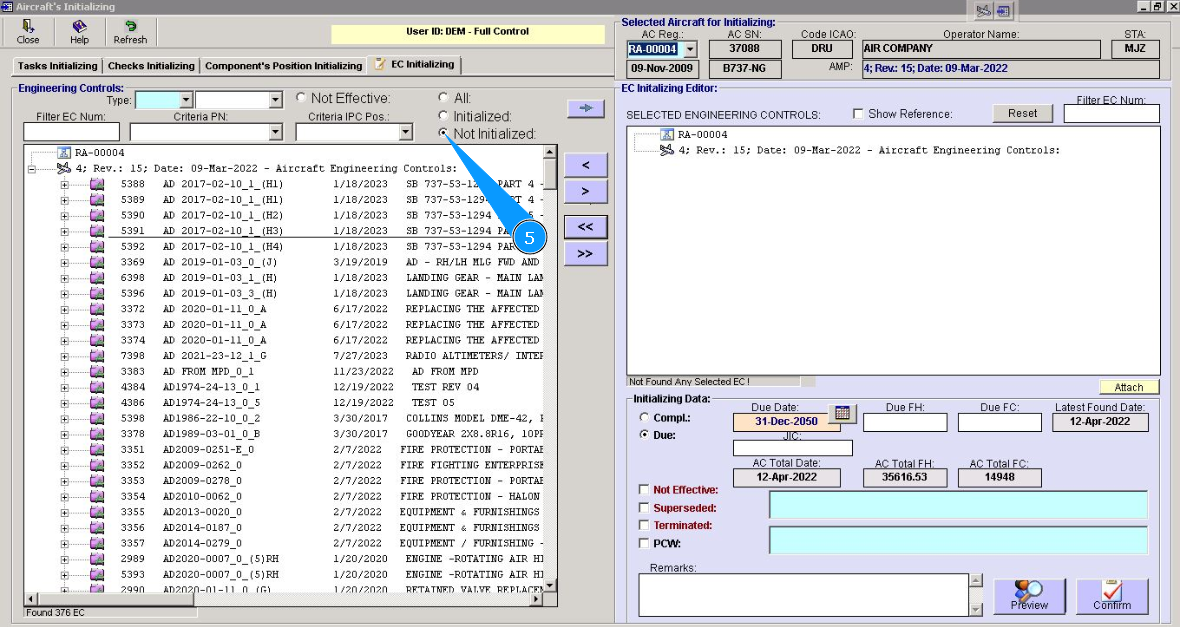
5. Check that the filter "Not Initialized" is set.
6. Select the necessary position of the component for initialization. For this purpose, please click on the corresponding line in the window "Engineering Controls". Note: If necessary, you can use the available searching filters in the fields: "Filter EC Num.", "Type", "Criteria PN" etc.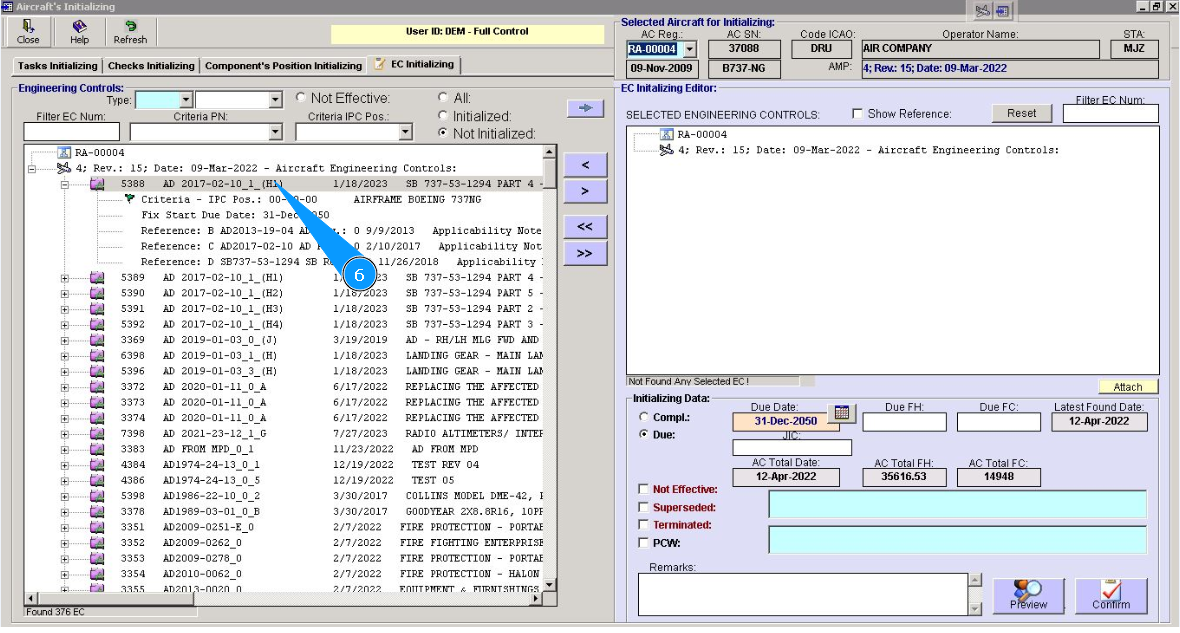
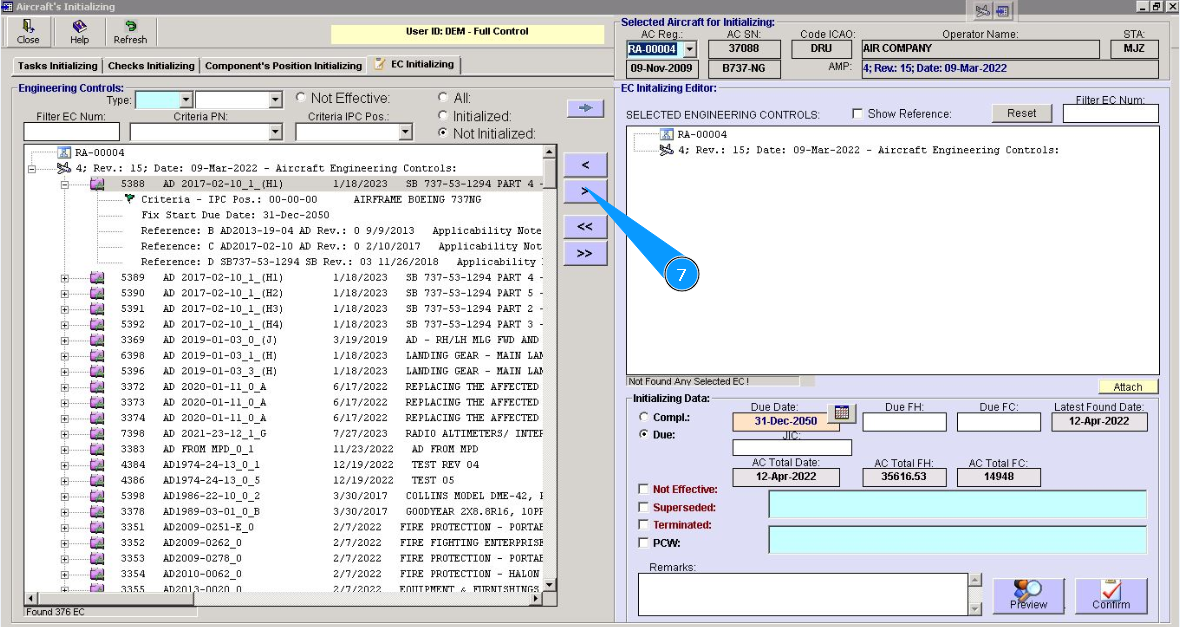
7. Click on the button with an arrow to move to the window "EC Initializing Editor".
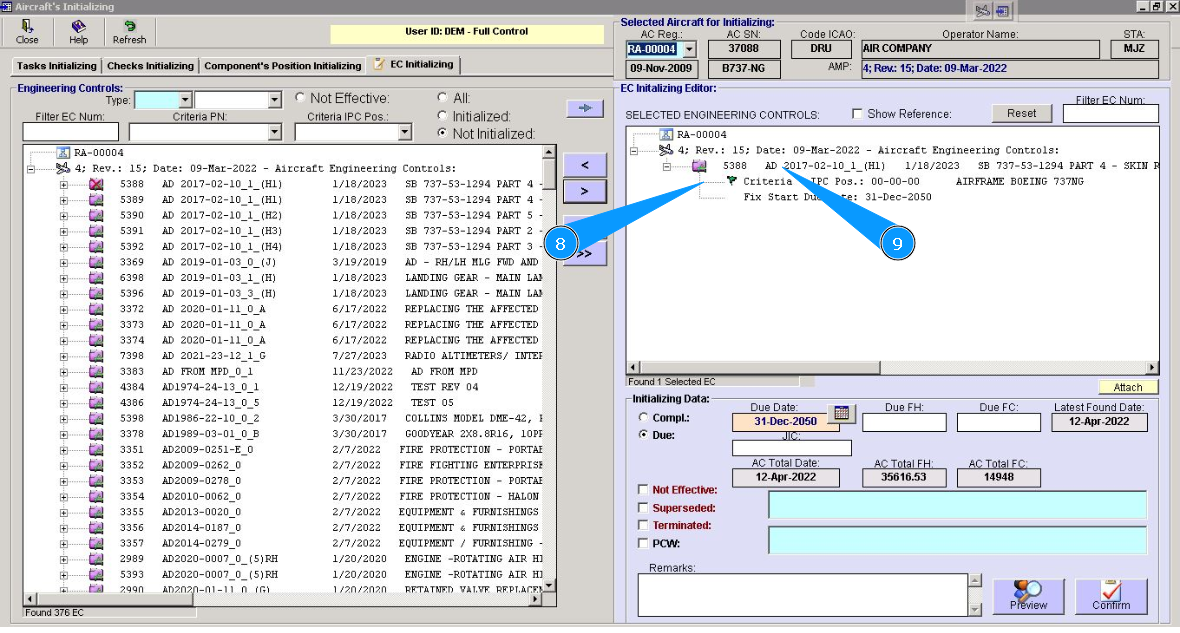
8. Check that the selected line with EC is presented in the window "EC Initializing Editor".
9. Click on the corresponding line with EC in this window.
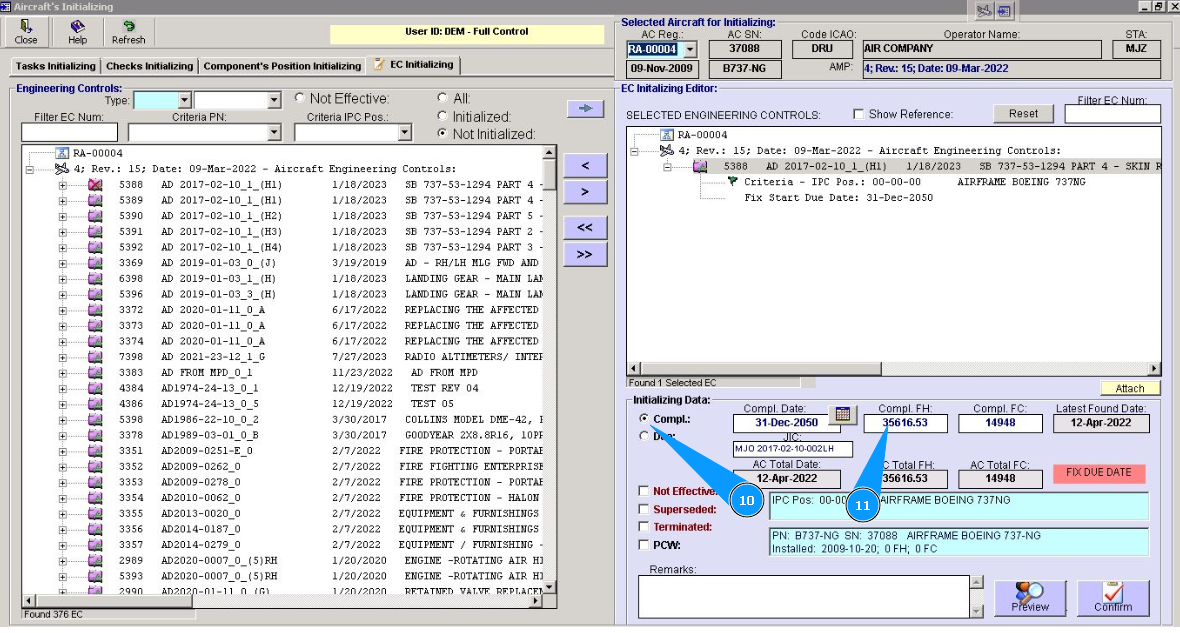
10. Check that filter "Compl. is set in the window "Initializing Data".
11. Enter information about the last performing of EC, if it is applicable, in the fields "Compl.Date, "Compl.FH, "Compl.FC.
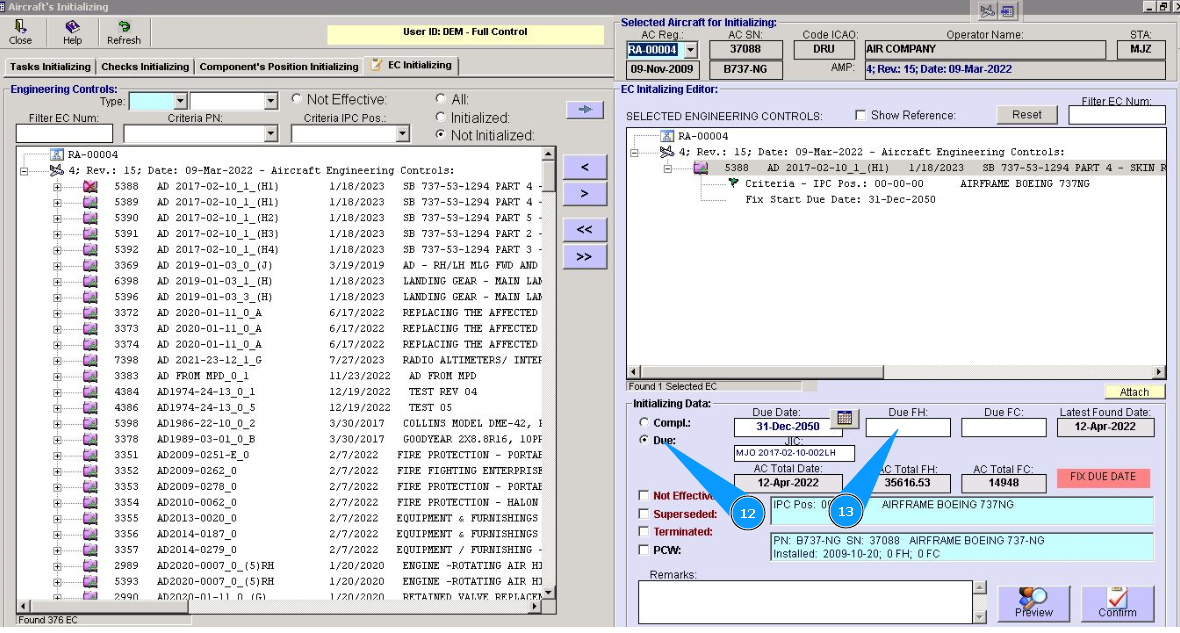
12. Check that the filter "Due" is set in the field "Due" of the window "Initializing Data".
13. Enter information about the next task performing EC in the fields "Due Date, "Due FH, "Due FC.
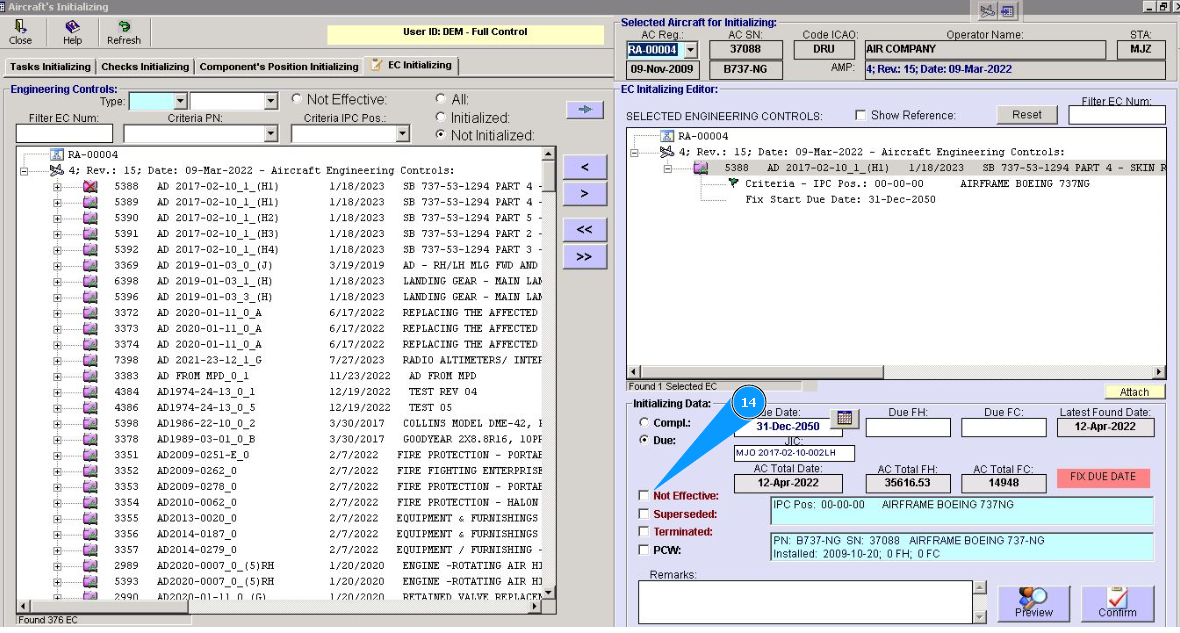
14. Identify the applicability of this EC to aircraft registration. If it is not effective, click in on the window "Not effective.
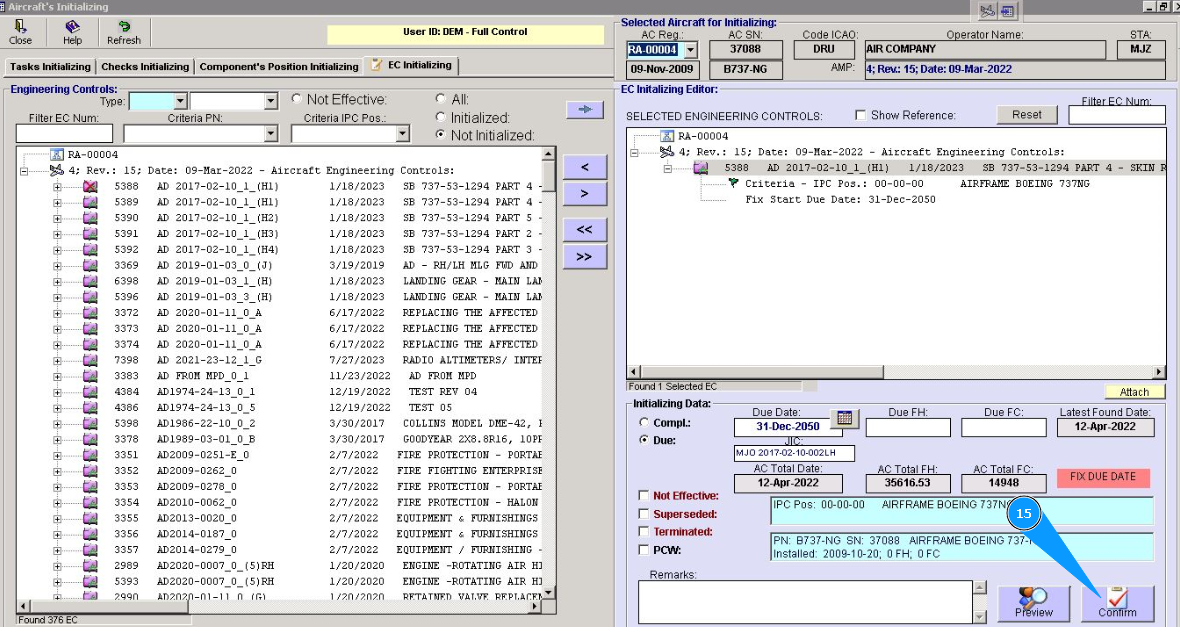
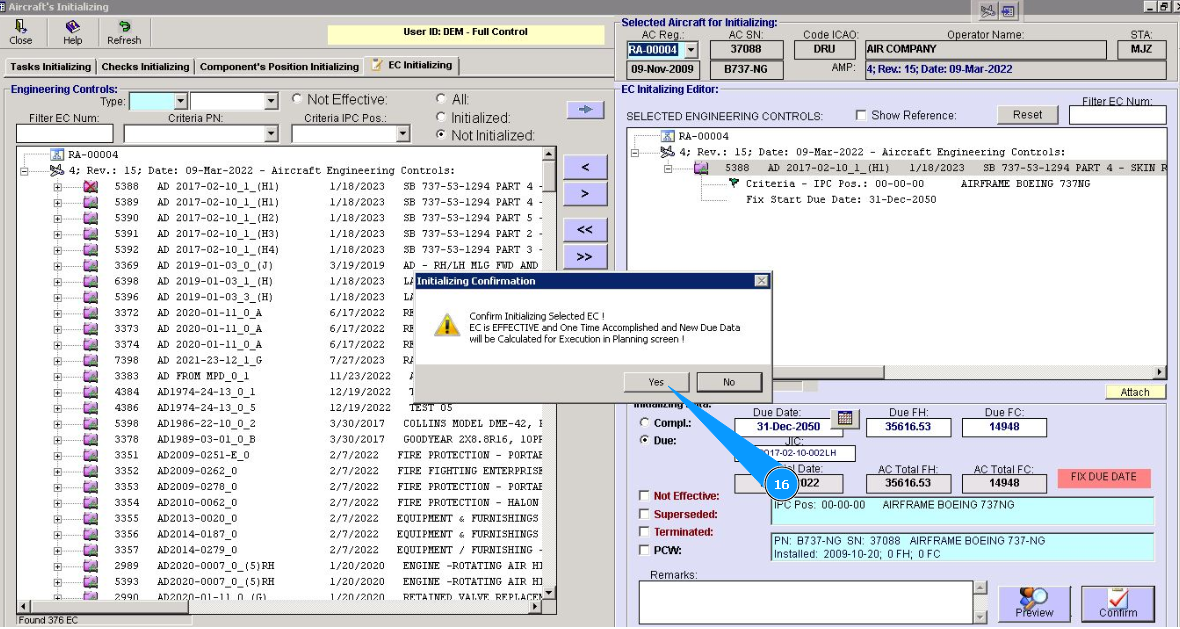
15. Click on the button "Confirm", to add data to the program.
16. Click on the button "Yes", to confirm adding data to the program.
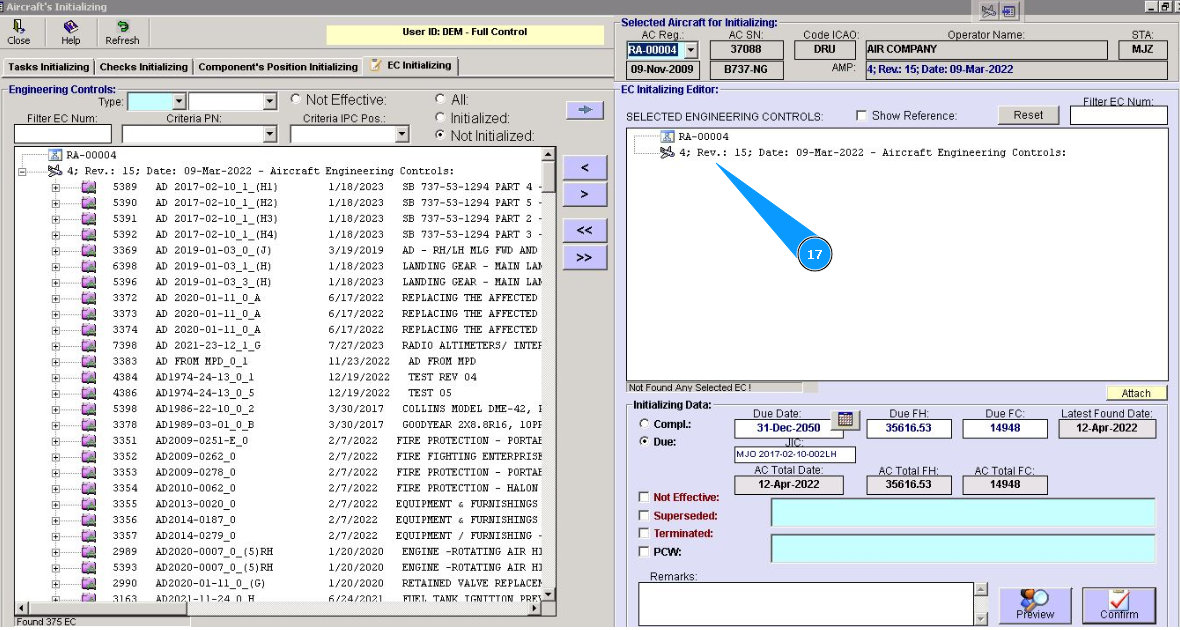
17. Check that the selected EC is disappeared from window "EC Initializing Editor".
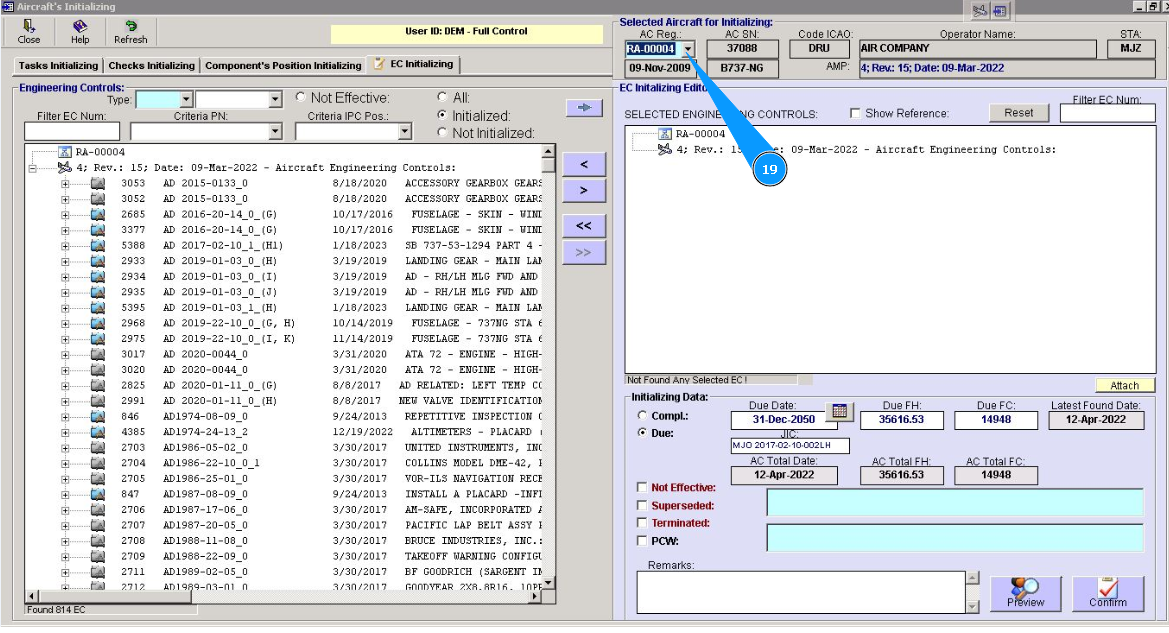
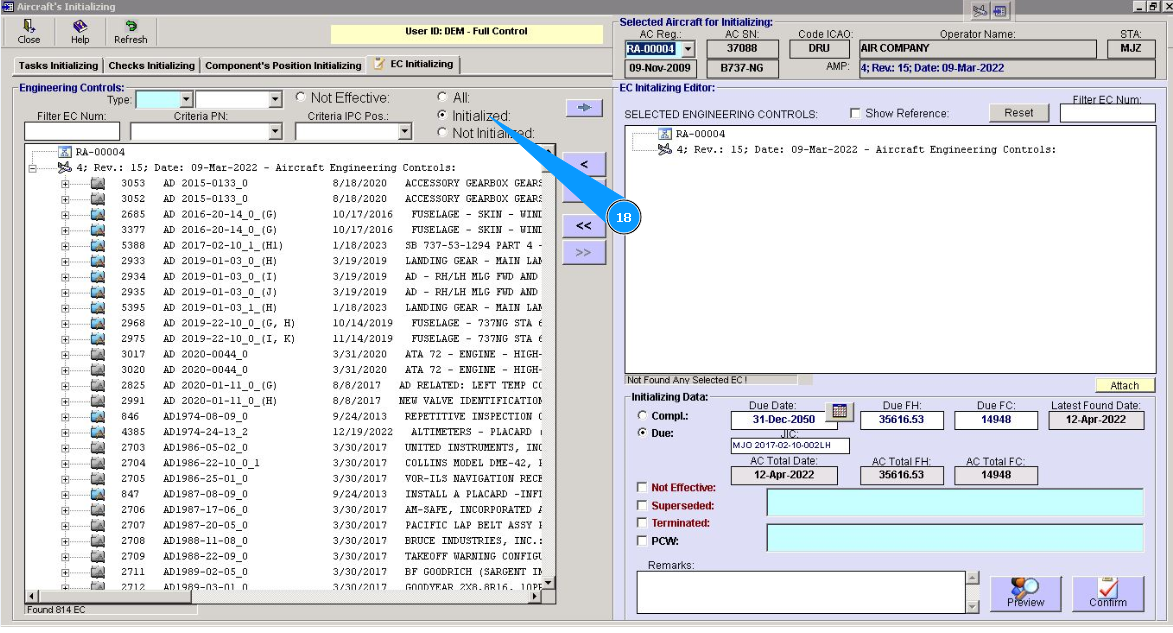
18. Check that the selected EC is presented in the window of the initialized EC of window "Engineering Controls". In this case, set a filter in the field "Initialized".
19. Perform EC initializing for all aircraft in your company fleet. Select the next registration number from dropdown list in the field "AC Reg.". Repeat items from 5 to 18 of this instruction.