How to initialize component to position
1. For initializing components to position, go to the tab "Actual Structure".
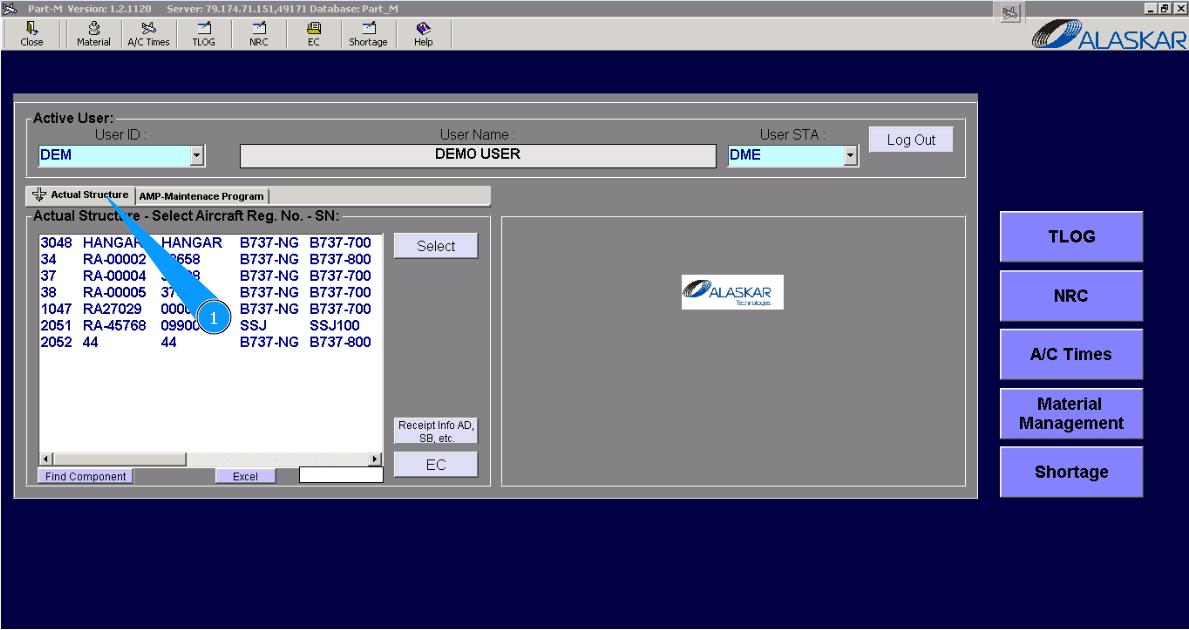
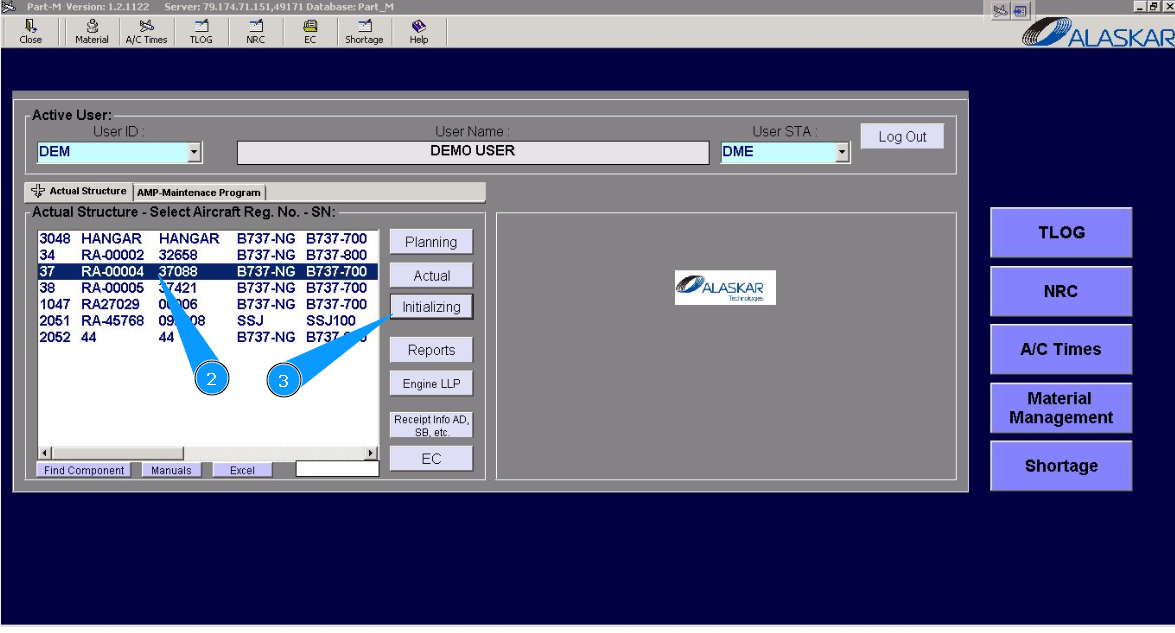
2. Select aircraft registration in the list of window "Actual Structure-Select Aircraft Reg.-SN".
3. Click on the button "Initializing", to open the submodule.
4. Then go to the tab "Component's Position Initializing".
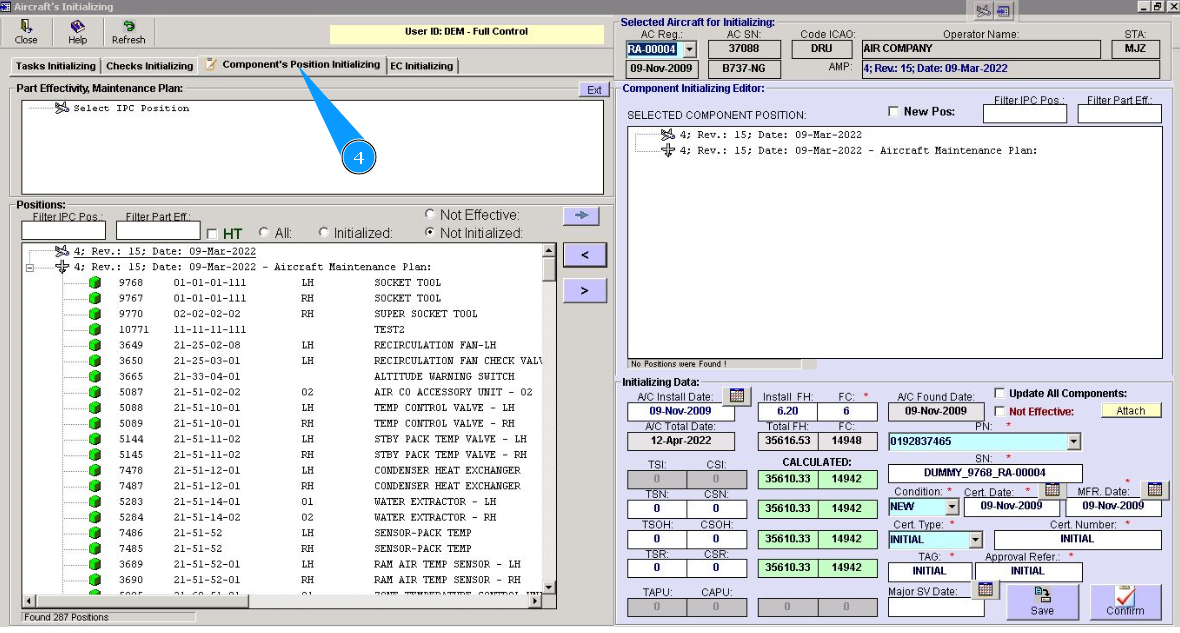
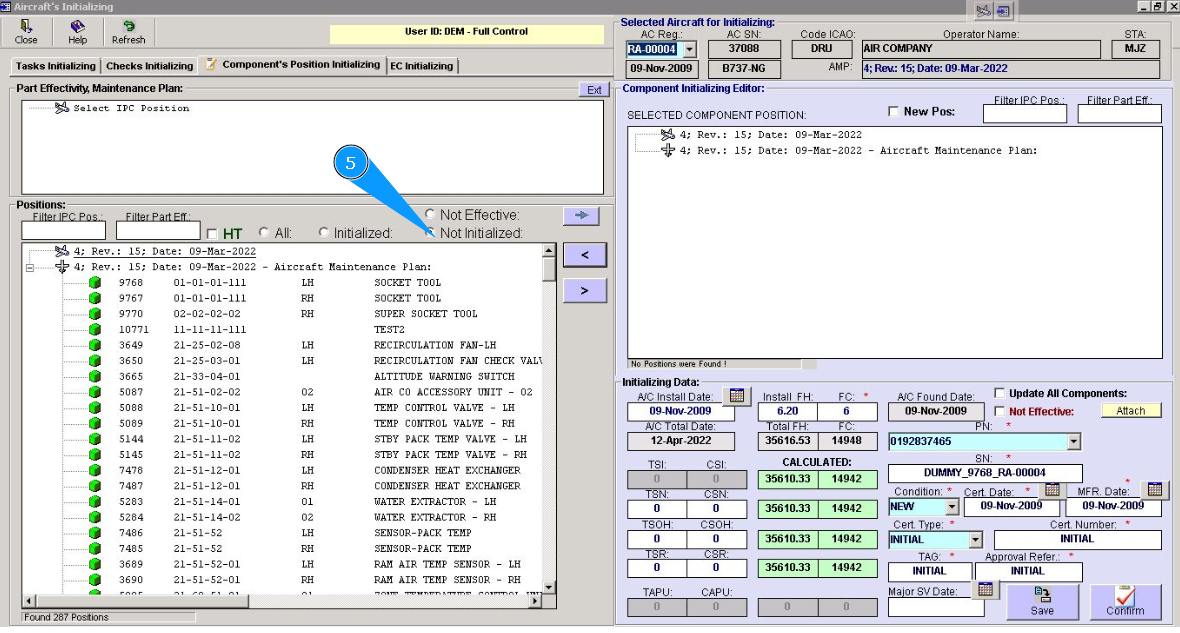
5. Check that the filter "Not Initialized" is set.
6. Select the necessary position of the component for initializing and click on the corresponding line in the window "Positions". Note: If necessary, you can use the available searching filters in the fields: "Filter IPC Pos.", "Filter Part Eff.".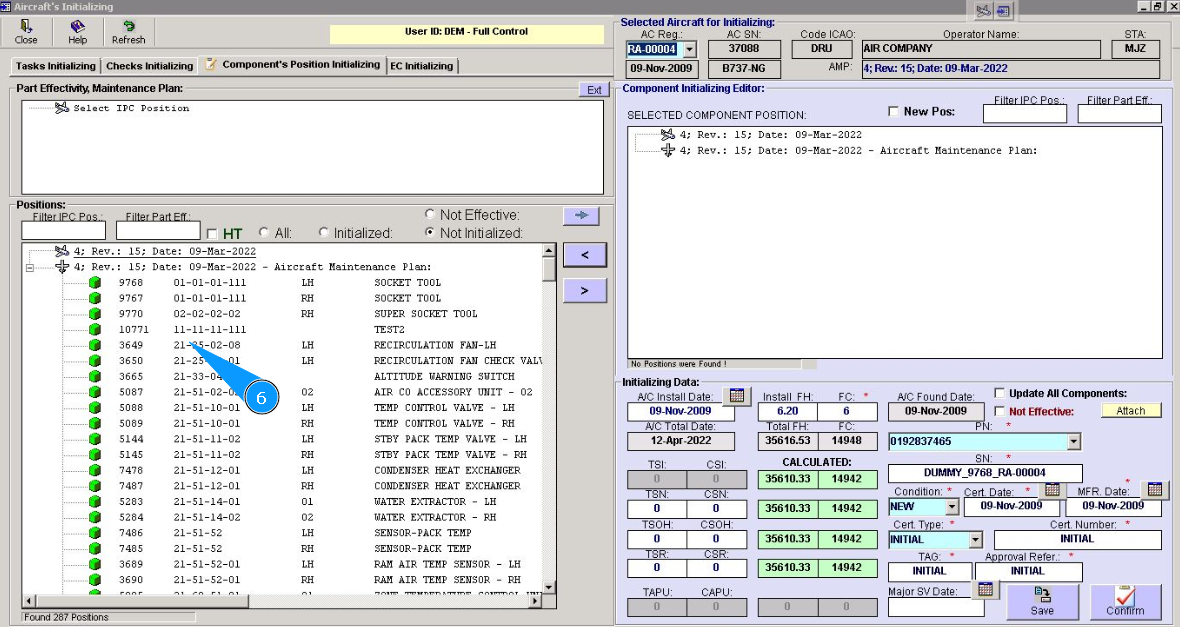
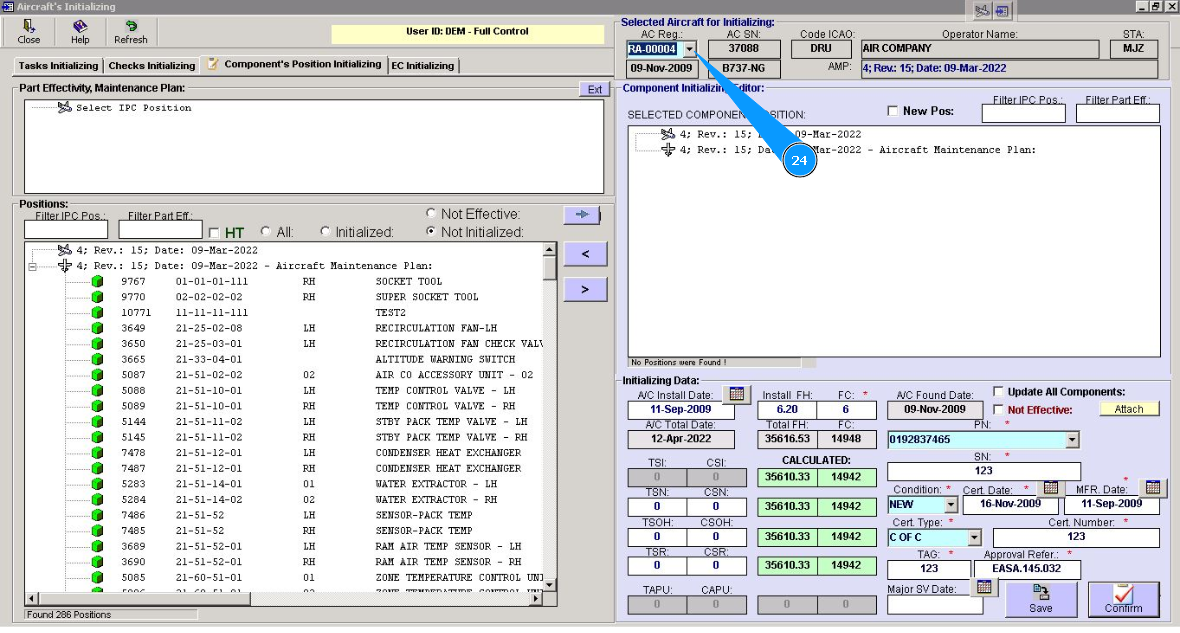
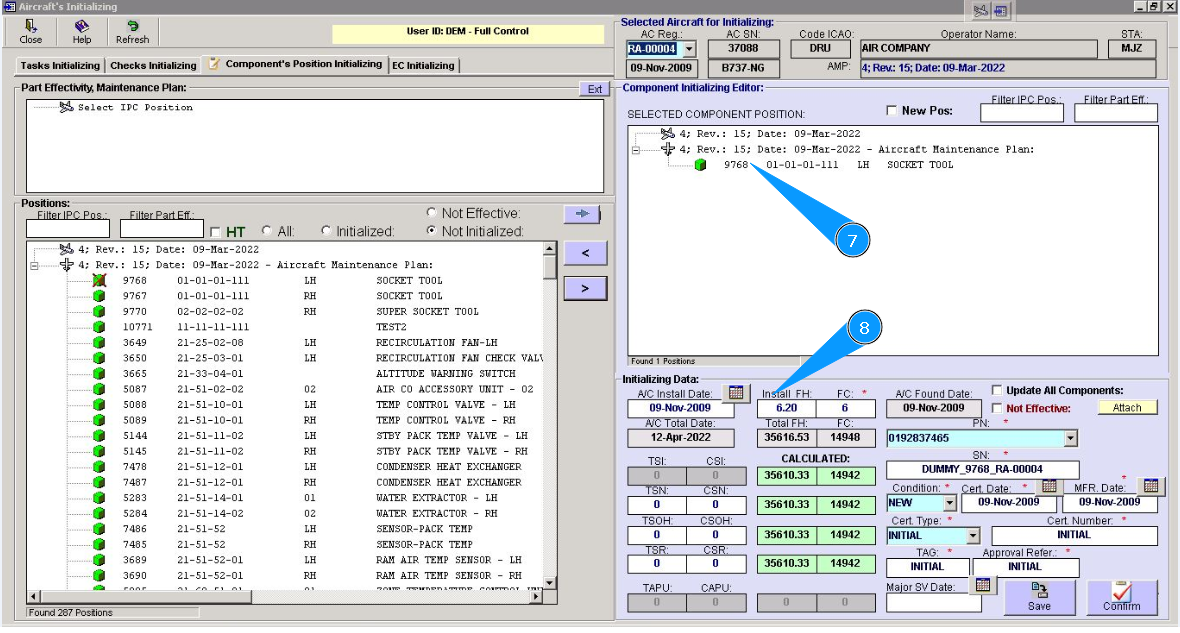
7. Check that the selected line with the component's position is presented in the window "Component Initializing Editor".
8. Enter information about component installation (date and flight hours/cycles) in the fields "A/C Install Date", "Install FH", "Install FC".
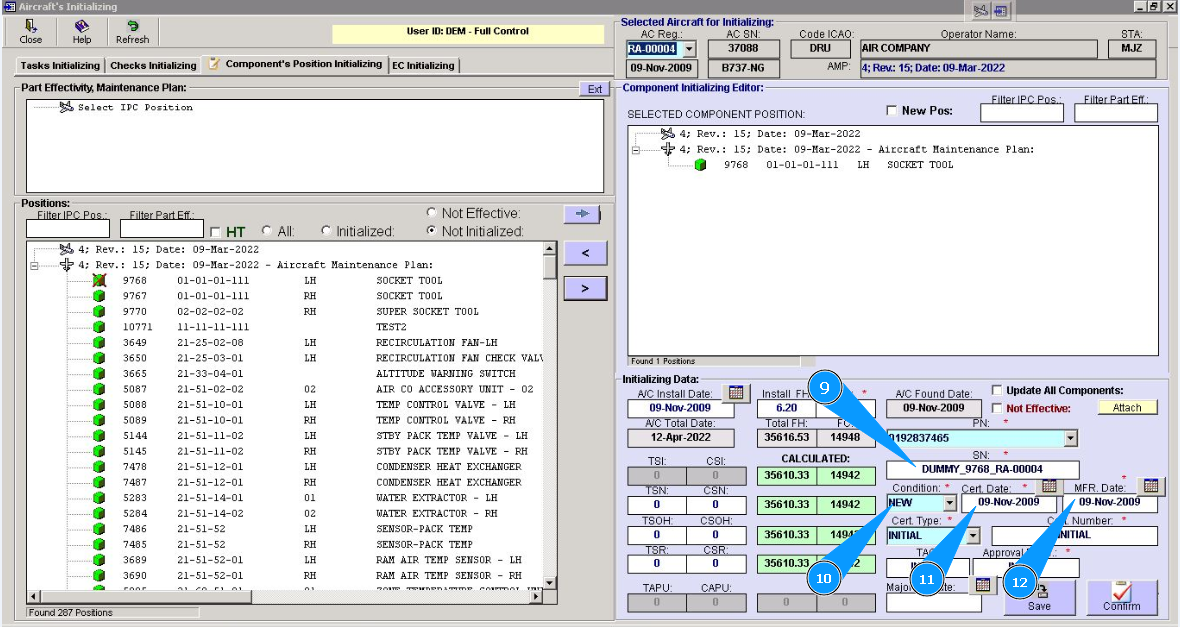
9. Delete the set information and enter the serial number of the component in the field "SN".
10. Select the component condition from dropdown list in the field "Condition".
11. Enter information about the certification date or select it in the calendar in the field "Cert.Date".
12. Enter information about the manufacture date or select in the calendar in the field "MFR.Date".
13. Identify the applicability of this component to aircraft MSN. If it is not effective, click in on the window "Not effective.
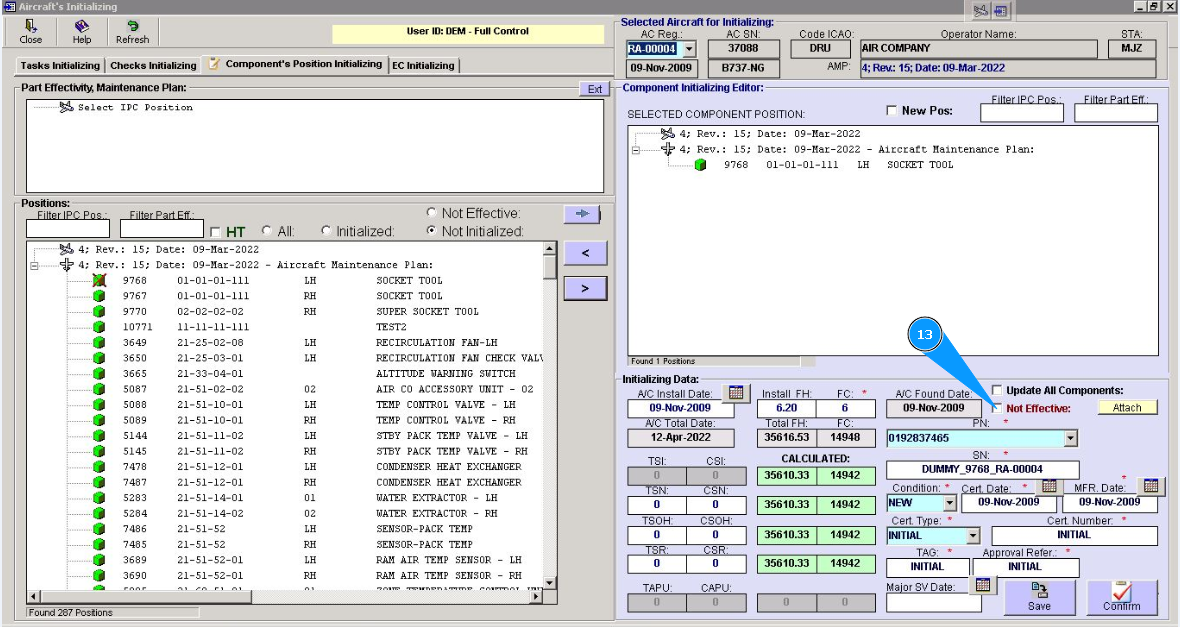
14. Select the certificate type of the component from dropdown list in the field "Cert.Type".
15. Enter the certificate number of the component in the field "Cert. Number".
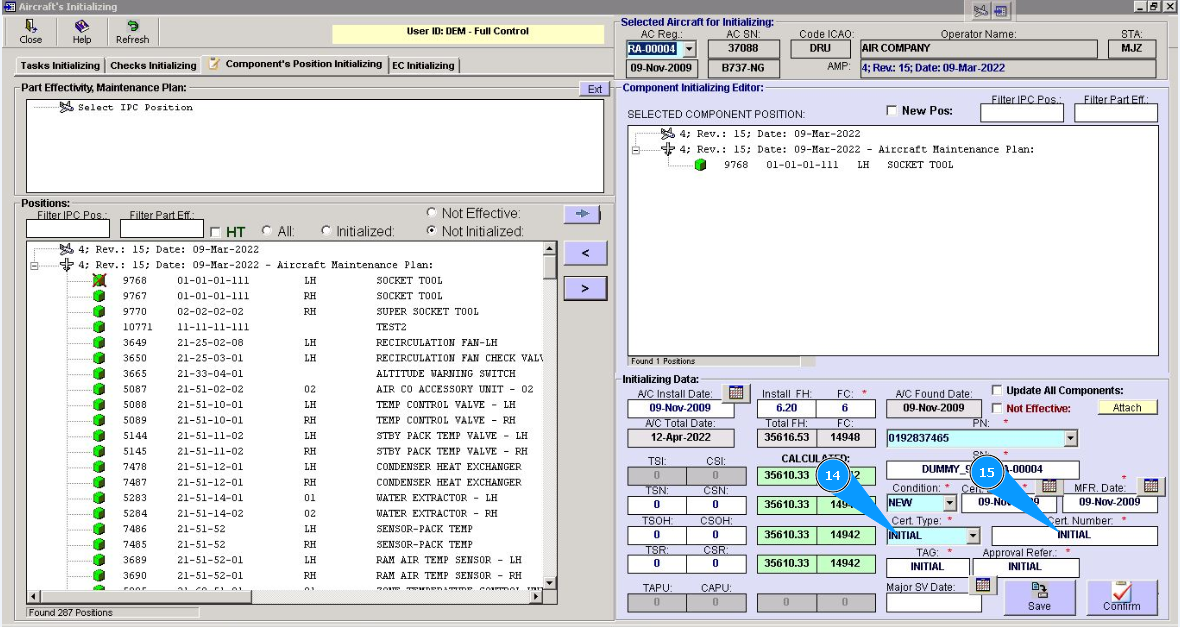
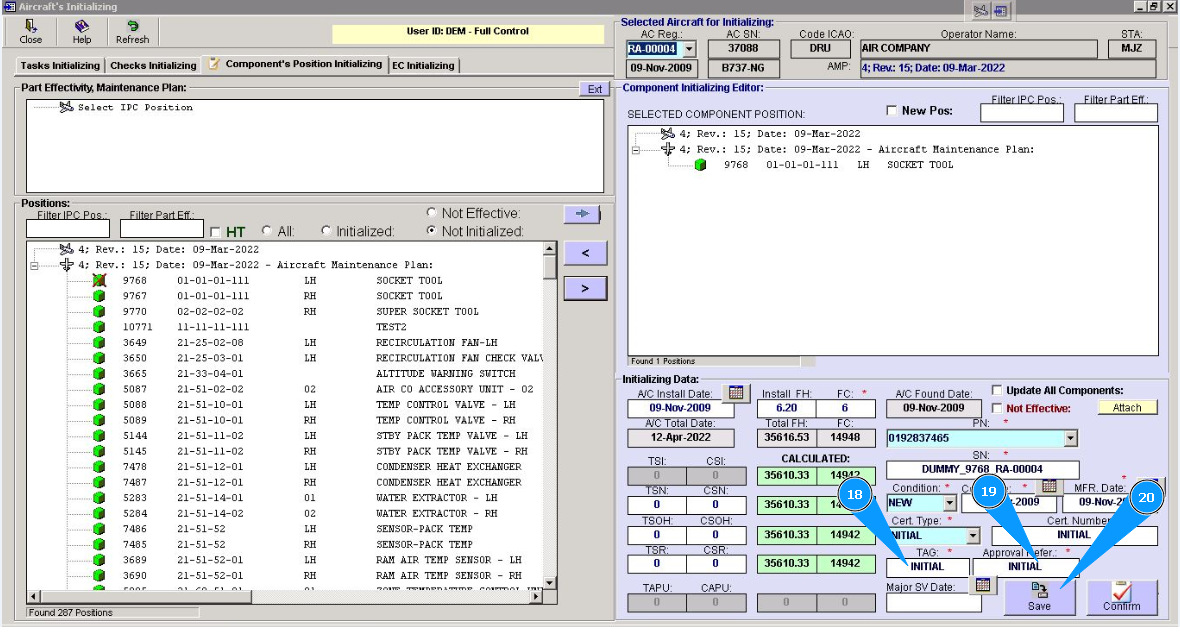
16. Enter the tag number in the field "Tag".
17. Enter the approval reference number of MRO issued certificate number in the field "Approval Refer.".
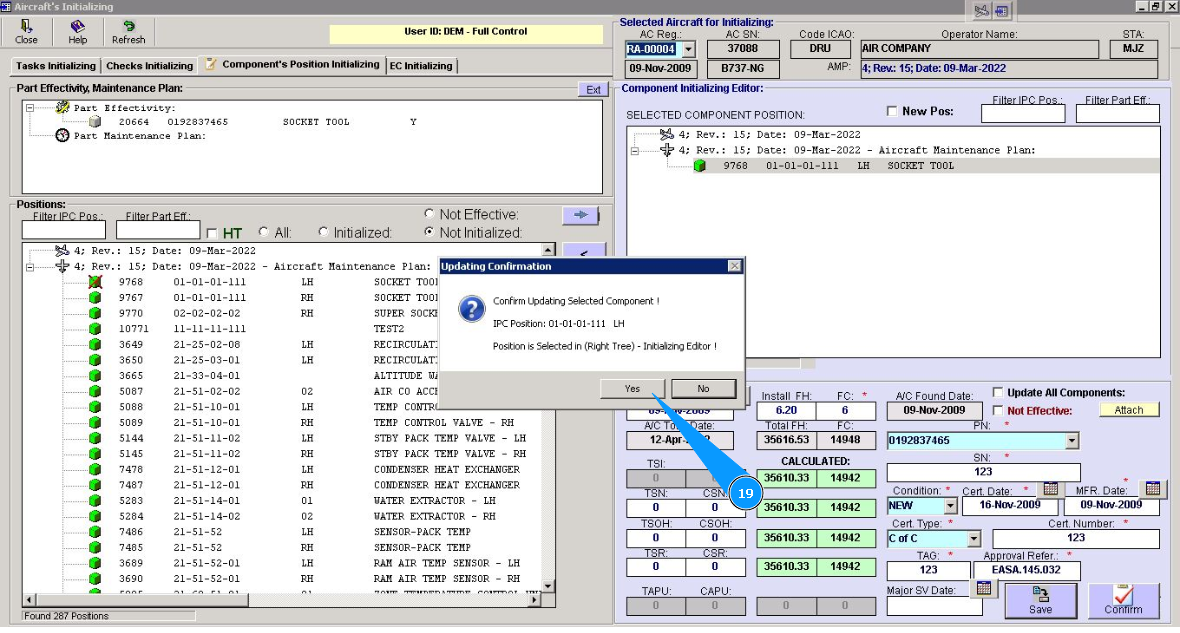
18. Click on the button "Save", to add data to the program.
19. Click on the button "Yes", to confirm adding data to the program.
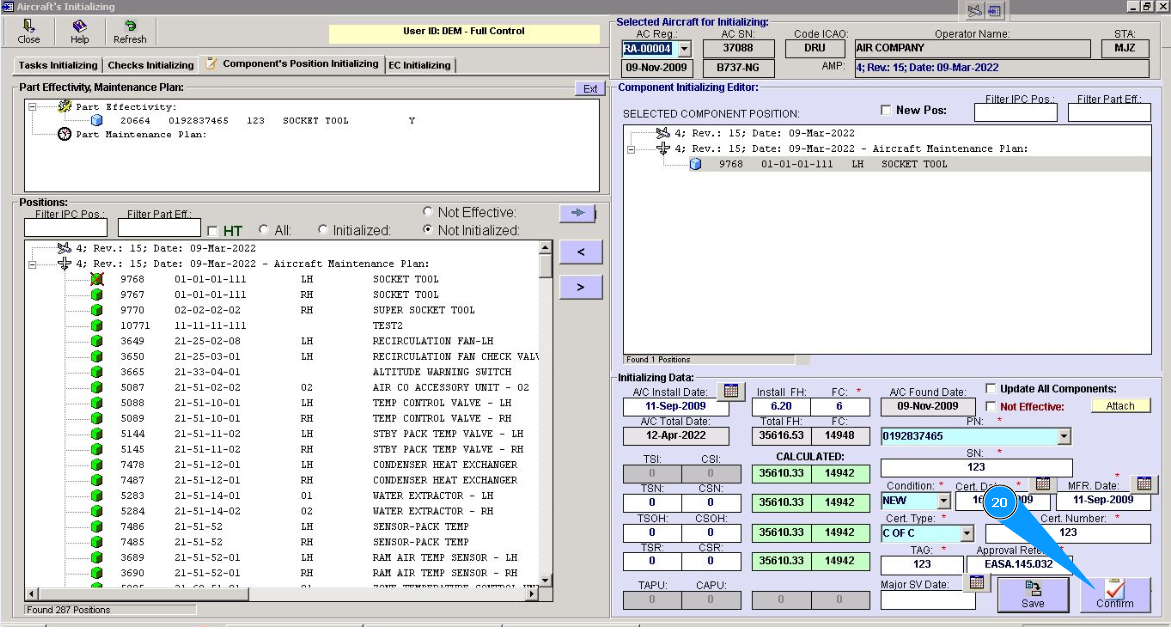
20. Click on the button "Confirm", to add data to the program.
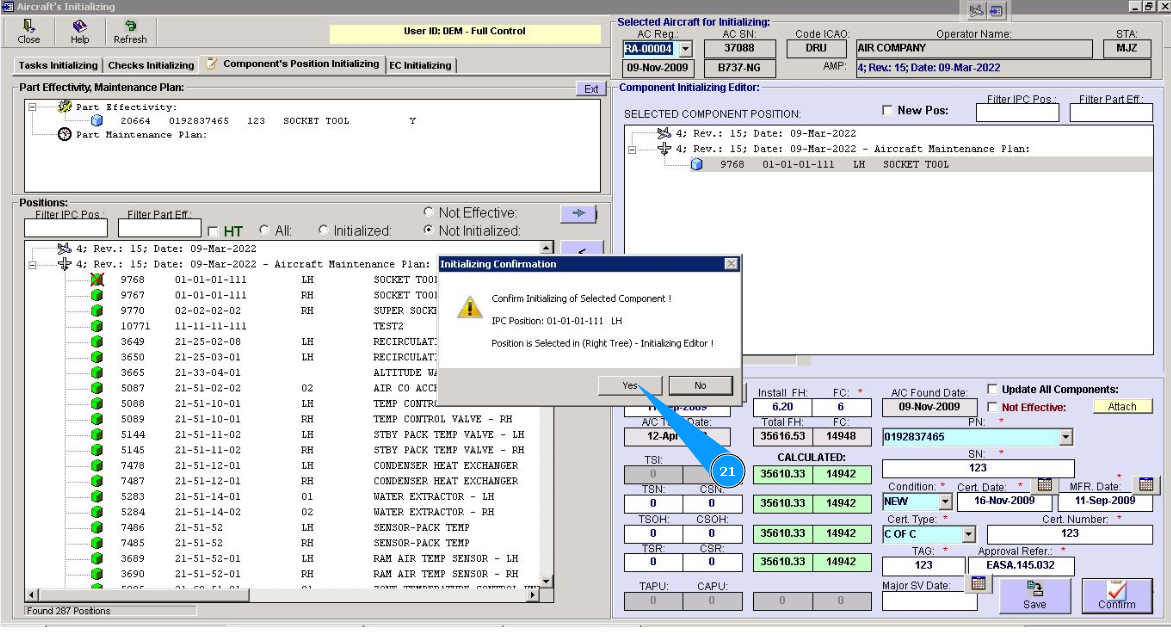
21. Click on the button "Yes", to confirm adding data to the program.
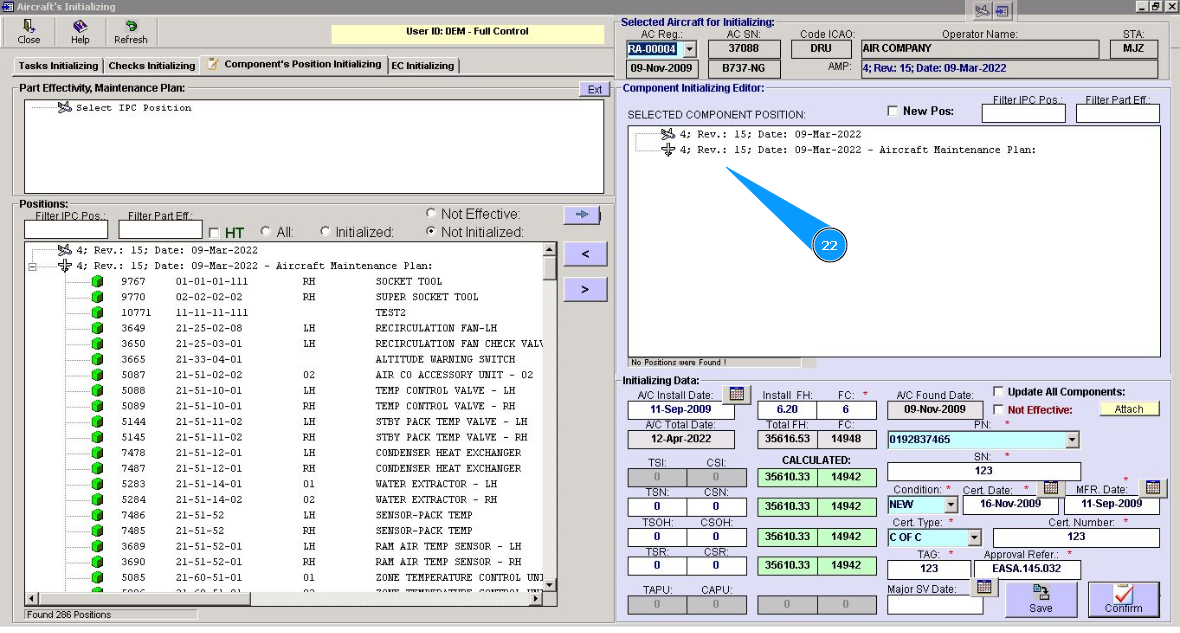
22. Check that the selected position has disappeared from the window "Component Initializing Editor".
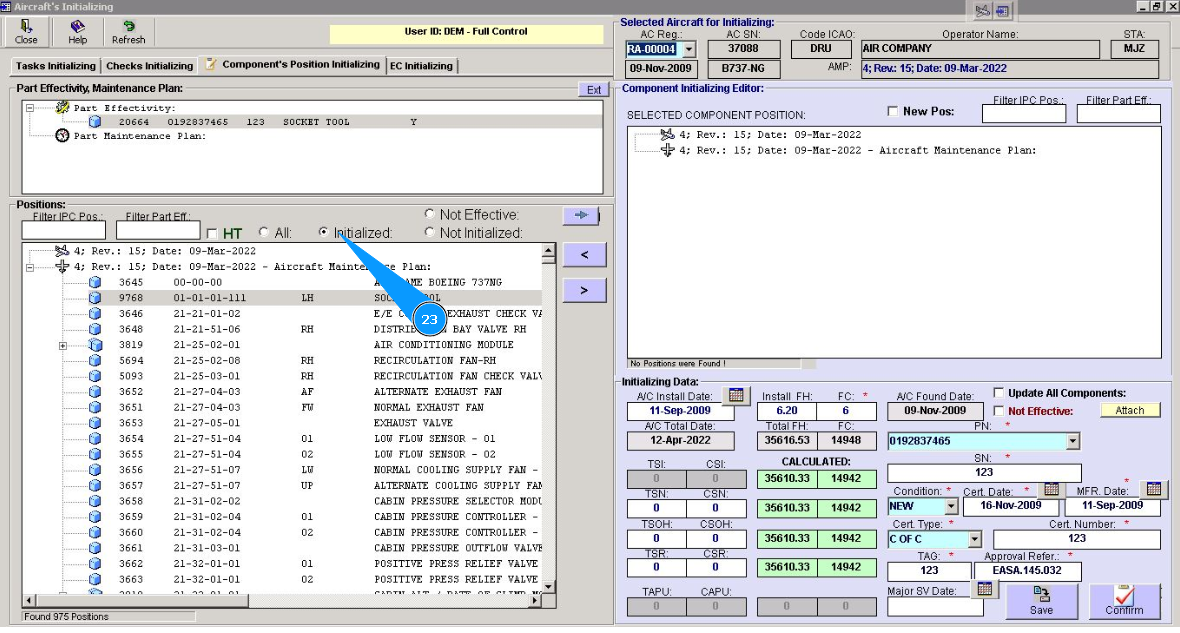
23. Check that the selected position is presented in the list of initialized positions in the window "Positions". For this purpose, set a filter in the window "Initialized".
24. Perform component initializing to position all aircraft in your company fleet. Select the next registration number from dropdown list in the field "AC Reg.".