How to enter materials for the AMP task
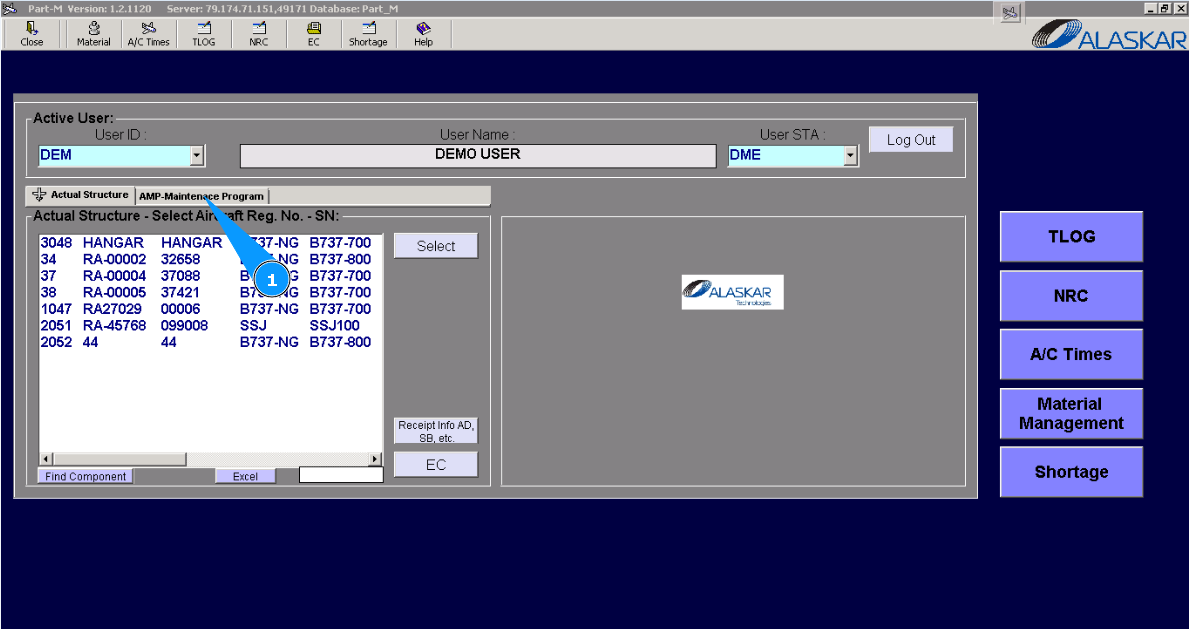
1. For adding materials to the AMP task, please go to submodule "AMP- Maintenance Program".
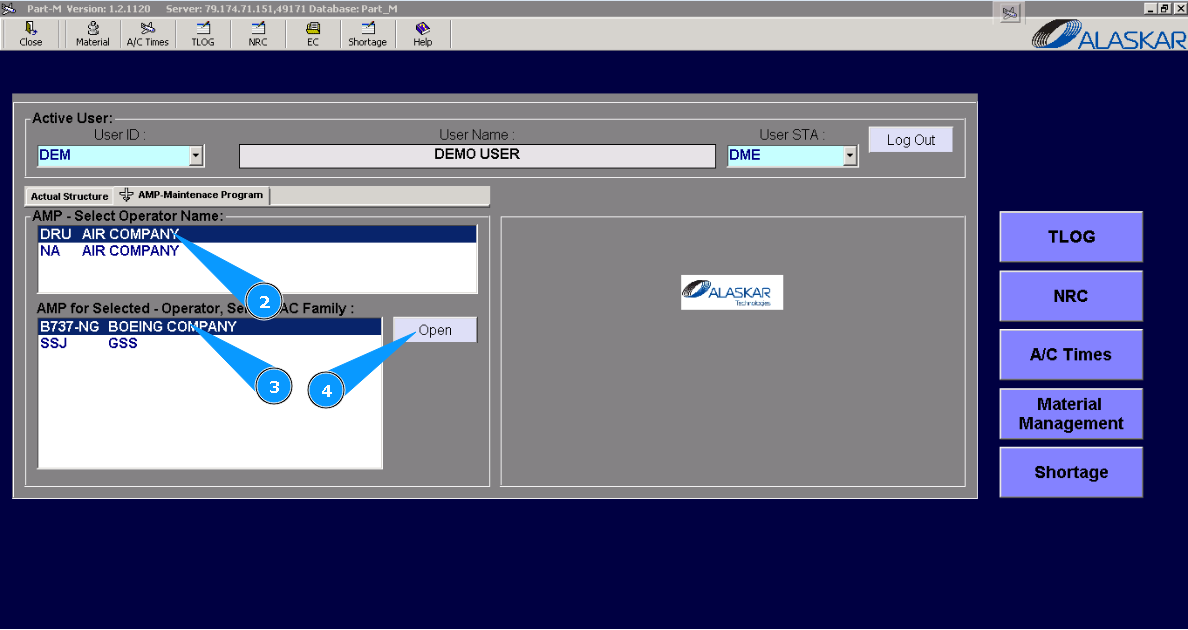
2. Select the company name in the list of window "AMP- Select Operator Name".
3. Select aircraft type in the list of window "AMP for Selected- Operator".
4. Click on the button "Open", for opening AMP menu.
5. Then go to tab "AMP MR".
6. Find and highlight the necessary task in the AMP list, for adding materials.
7. Then go to the tab "Materials" in the window "Aircraft Maintenance Requirements Editor".
8. Click on the button "Edit".

9. Enter the part number of material in the window "Material Editor" in the searching field, and press the button "Enter" on your keyboard.
10. Check that the necessary material is found in the list. To add materials, please click on the line twice.
11. If necessary, you can correct the quantity of materials in the field "Qty".
12. Click on the button **"Add" to add data to the program.

13. Click on the button "Yes", to confirm adding data to the program.

14. Click on the button "Close", to go out of edit mode.

15. Check that a new line with materials is created in the window "Materials".

Note: If, during searching, the material has not been found, it is necessary to add it. To add new material to the program, as you can find in the other instruction, please use the following: