How to create duplicate task in the planing
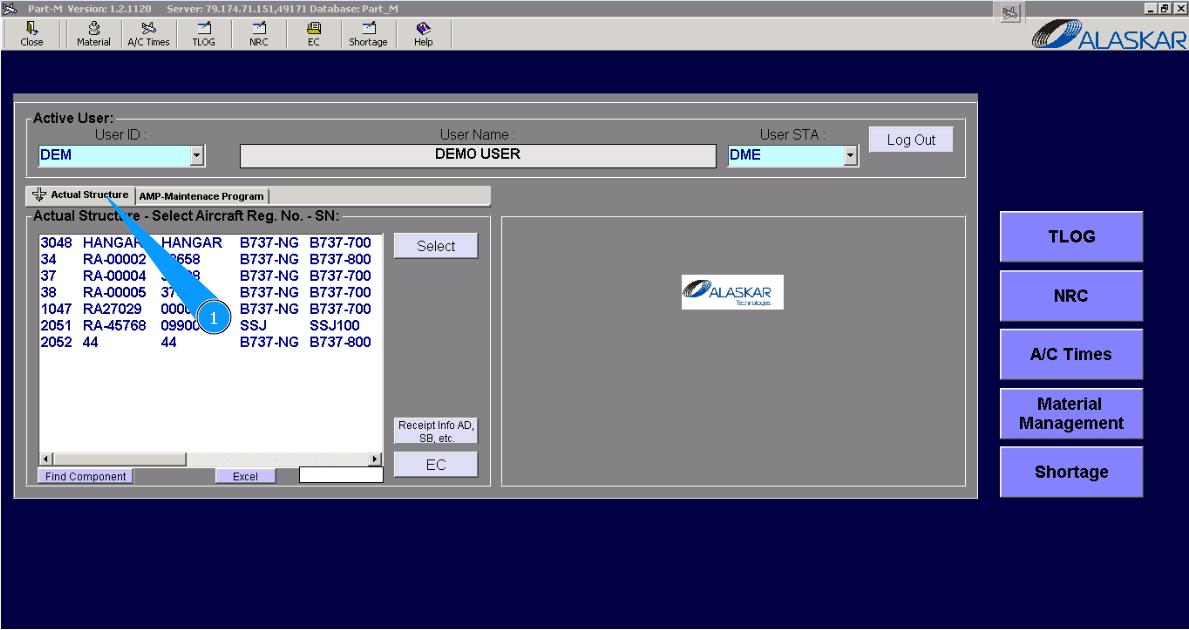
1. To create a duplicate task in the planing, go to the tab "Actual Structure".
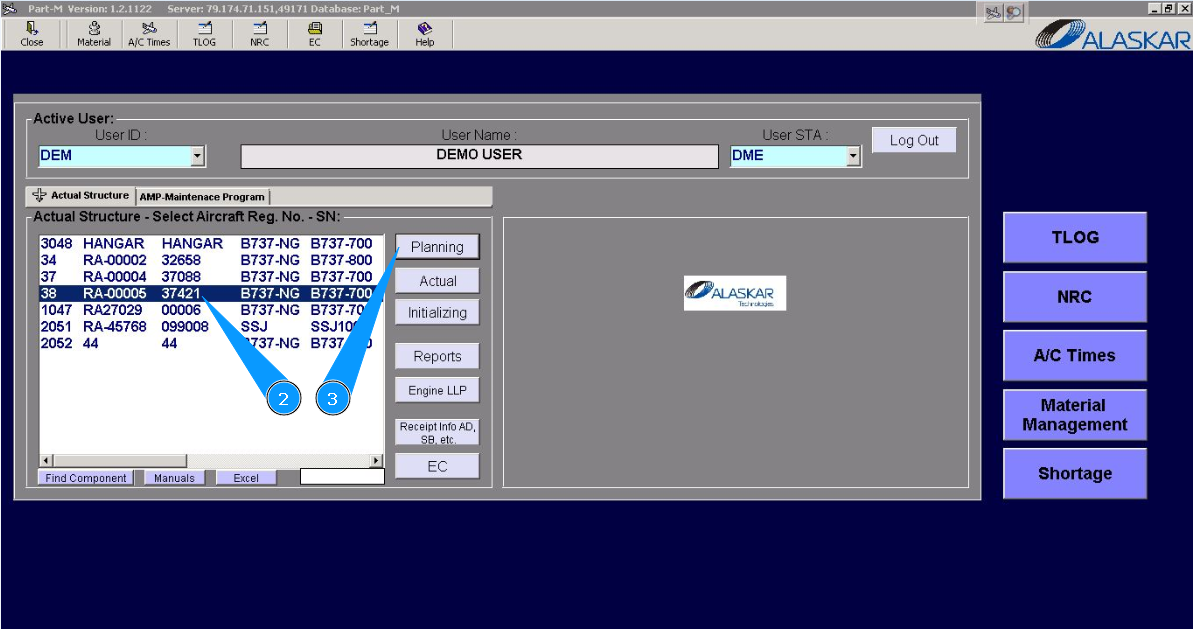
2. Select aircraft registration in the list of window "Actual Structure-Select Aircraft Reg.-SN".
3. Click on the button "Planing", to open submodule planning.
4. Enter the task number in the search field "Filter ID-Number" and click on the button "Enter" on your keyboard. Note: Use available filters for a more comfortable search of task.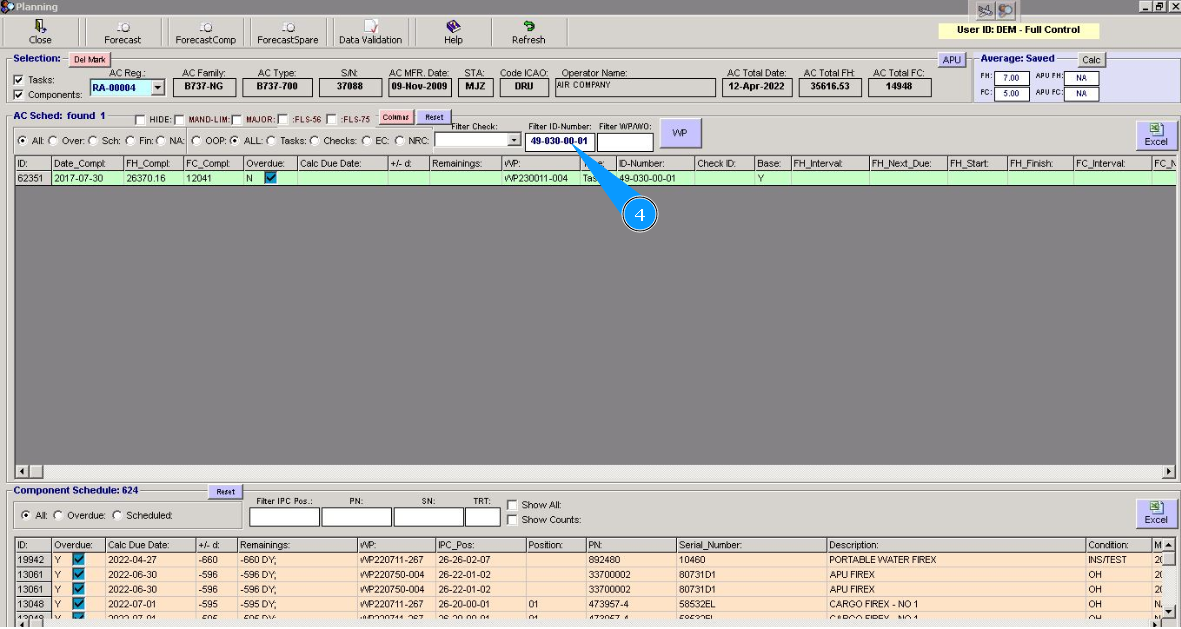
5. Highlight the line with the task, click on it and press on the right knob of your mouse.
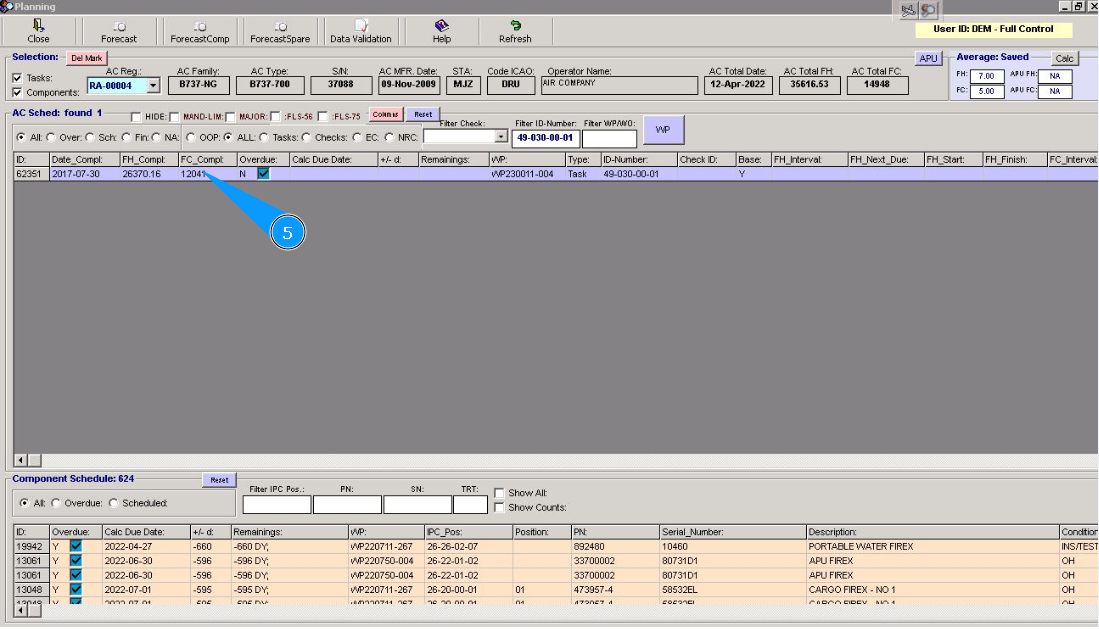
6. To duplicate a task, click on the button "Duplicate Task" in the window "Actual Task Editor".
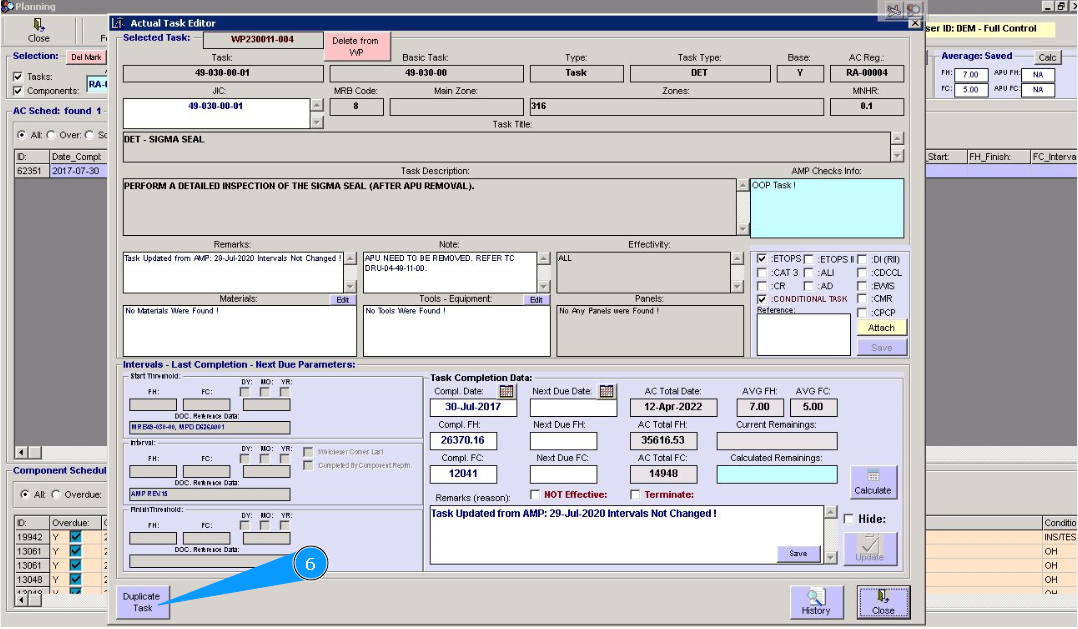
7. Click on the button "Yes", to confirm adding data to the program.
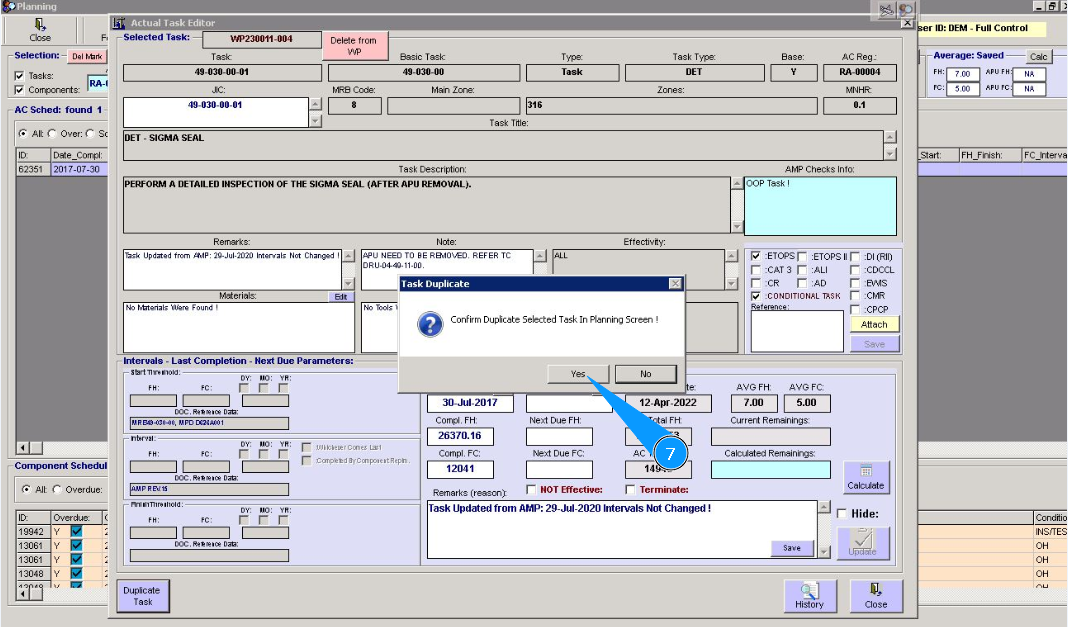
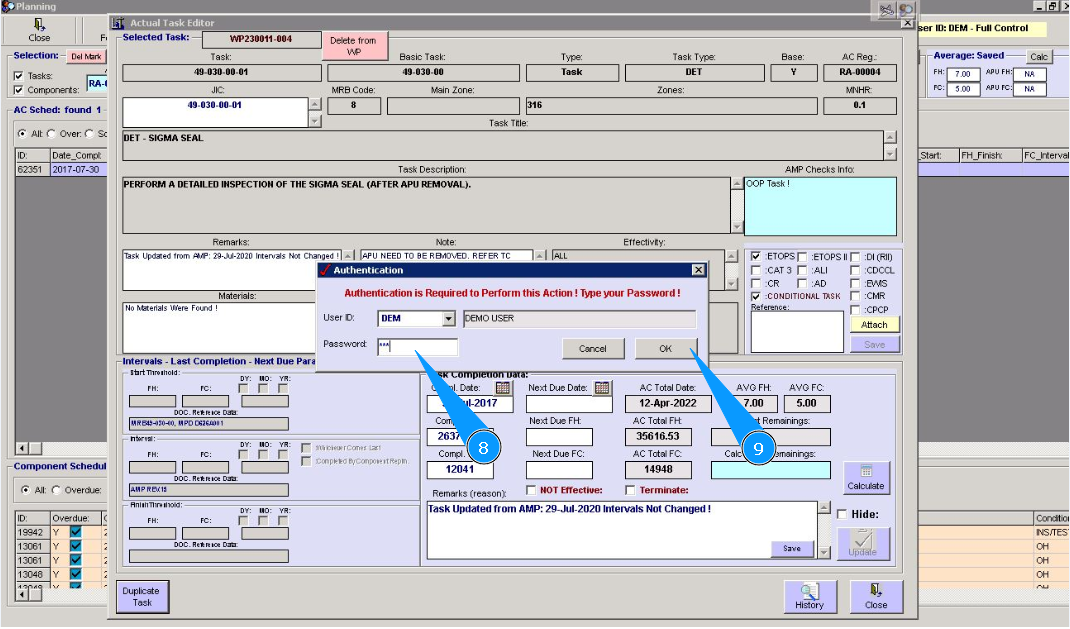
8. Enter your password in the field "Password".
9. Click on the button "OK", to confirm loading data into the program.
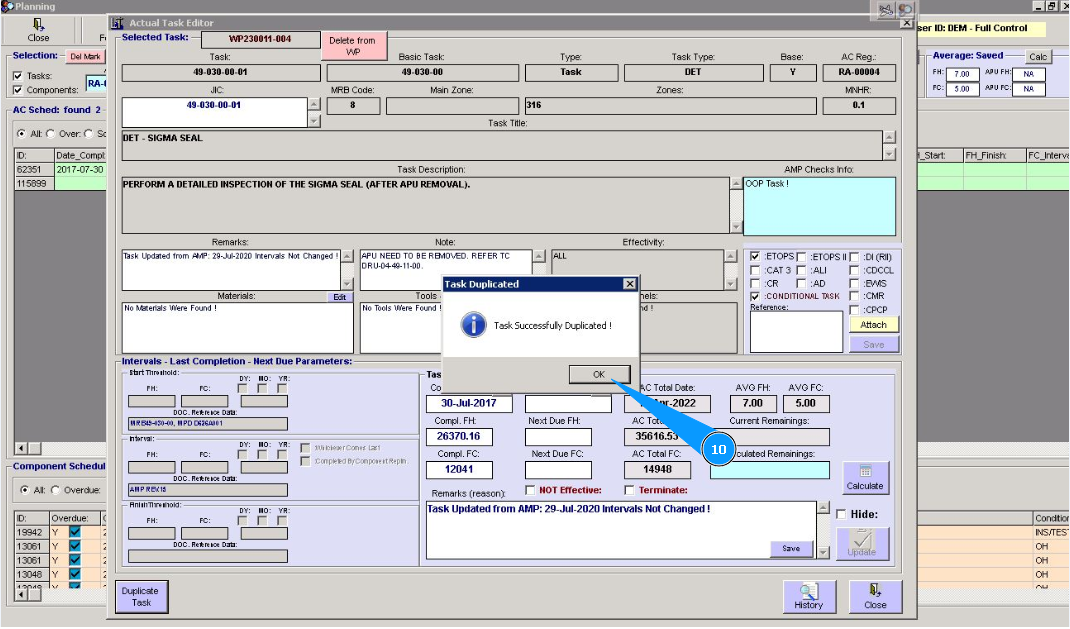
10. Click on the button "Ok", duplicated process is successfully performed.
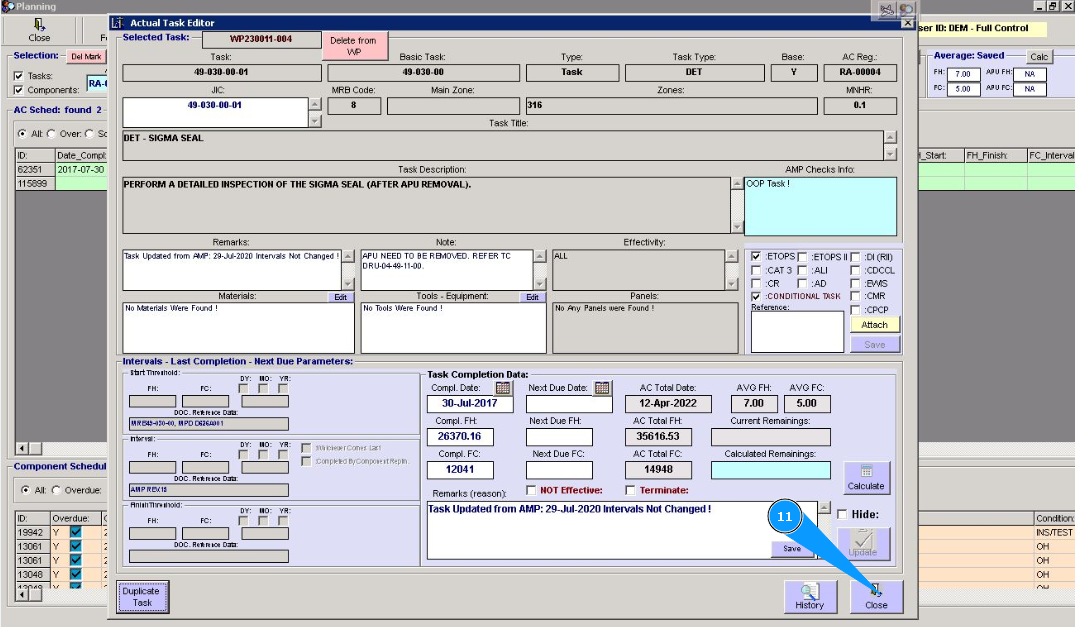
11. Click on the button "Close, to exit the editor.
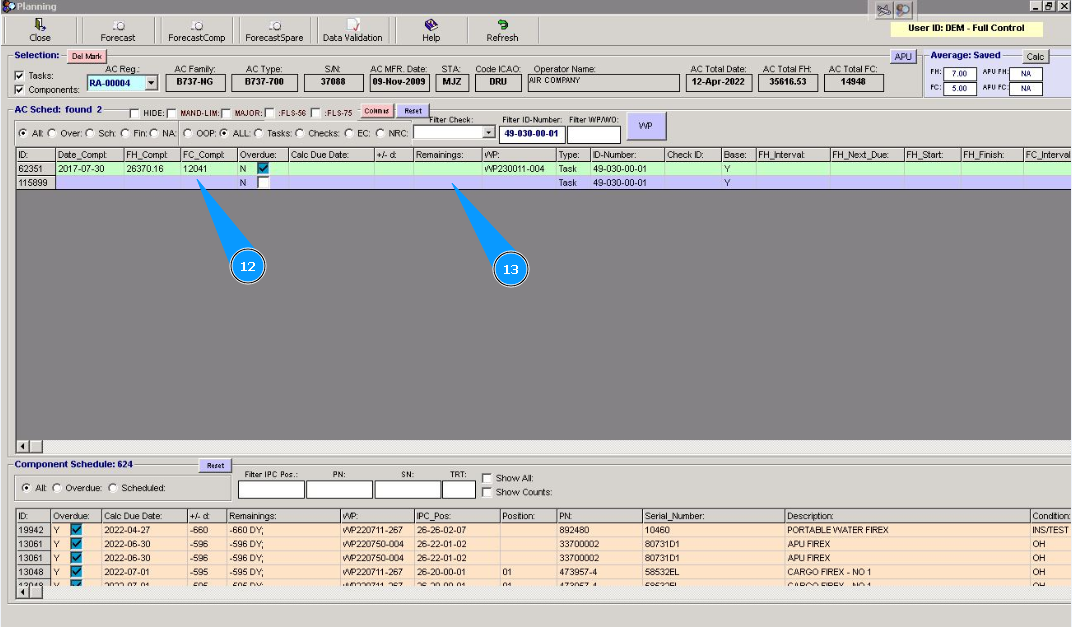
12. Check that a new task is created and is presented in the window of the planning submodule.
13. Highlight the line with the new task, click on it and press the right knob of your mouse.
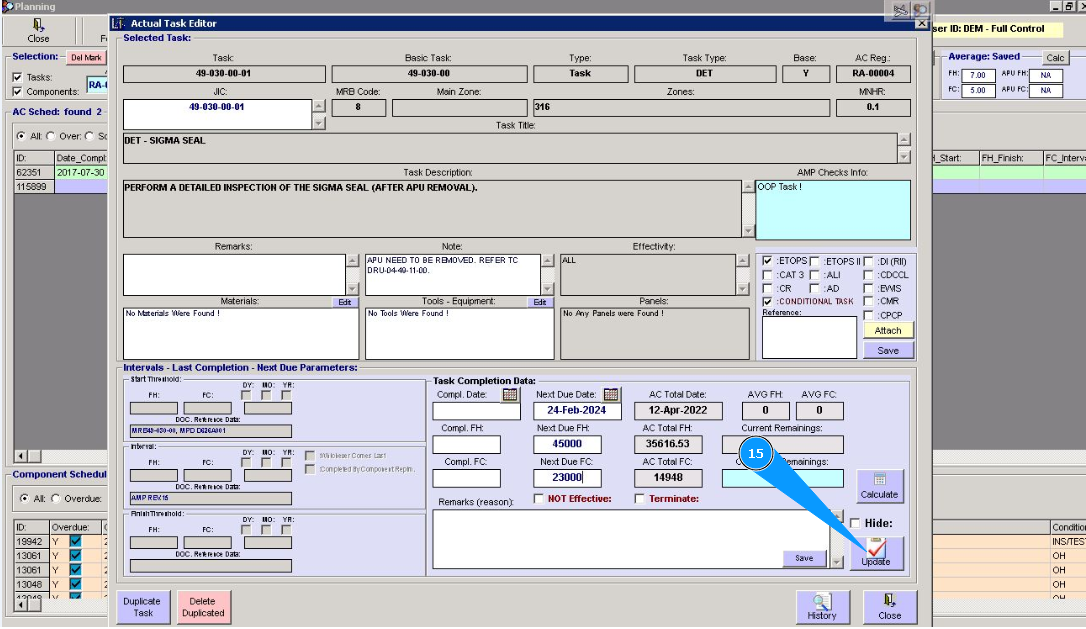
14. Enter the required information about task planing: performed date, intervals, deadline, etc.
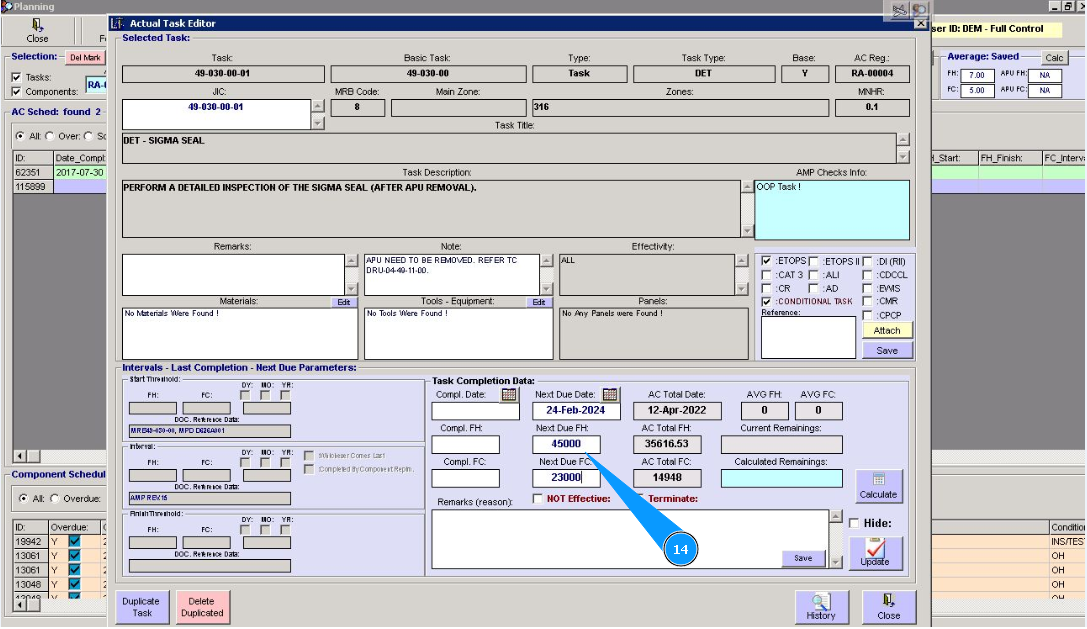
15. Click on the button "Update, to confirm adding data to the program.
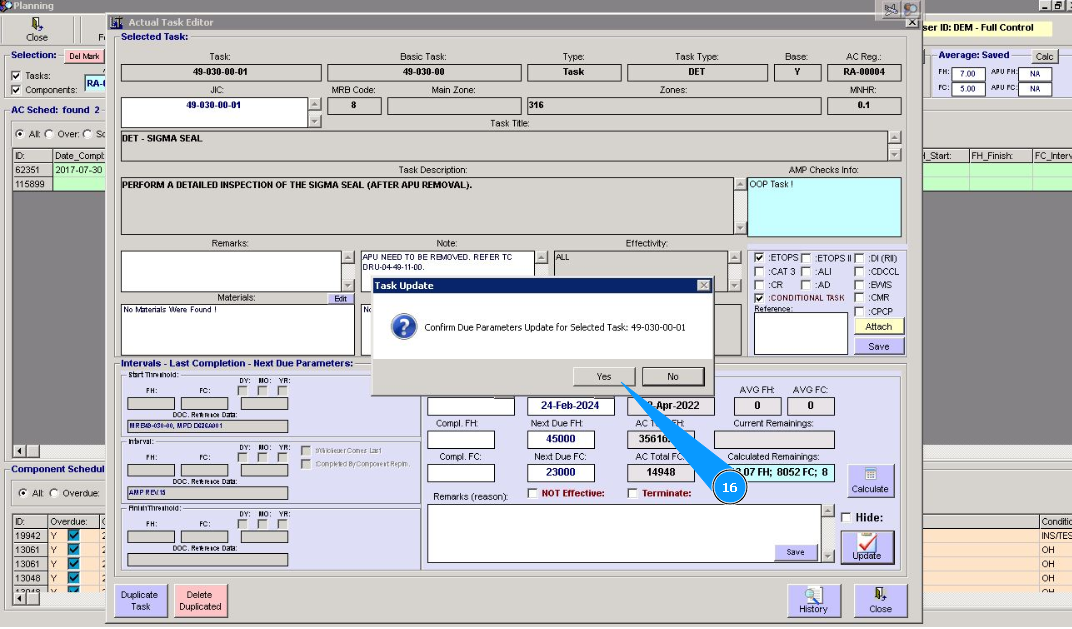
16. Click on the button "Yes", to confirm adding data to the program.
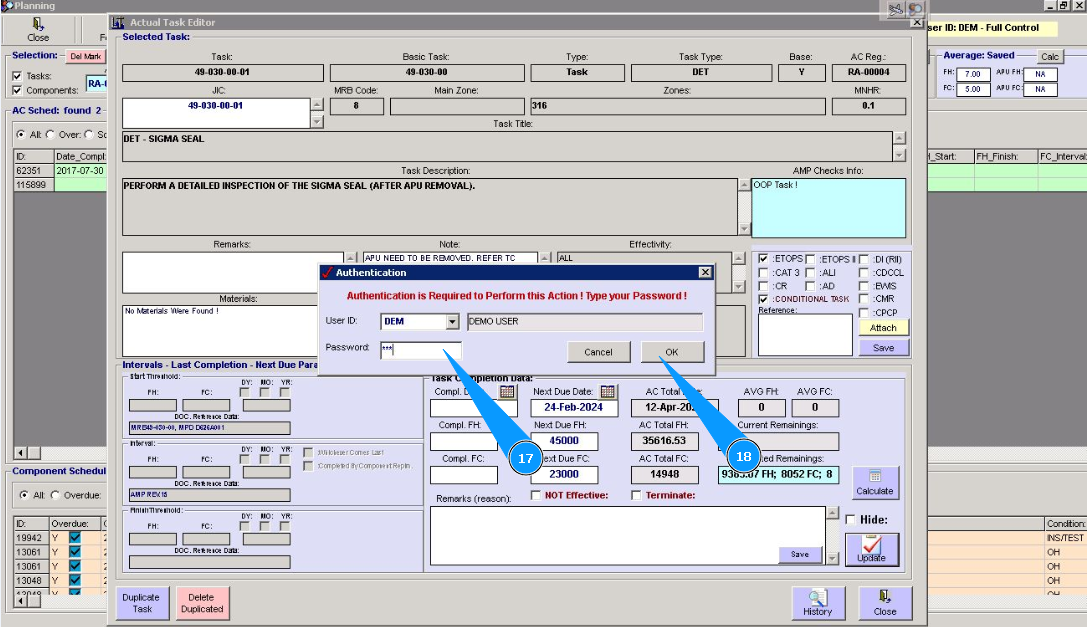
17. Enter your password in the field "Password".
18. Click on the button "OK", to confirm loading data into the program.
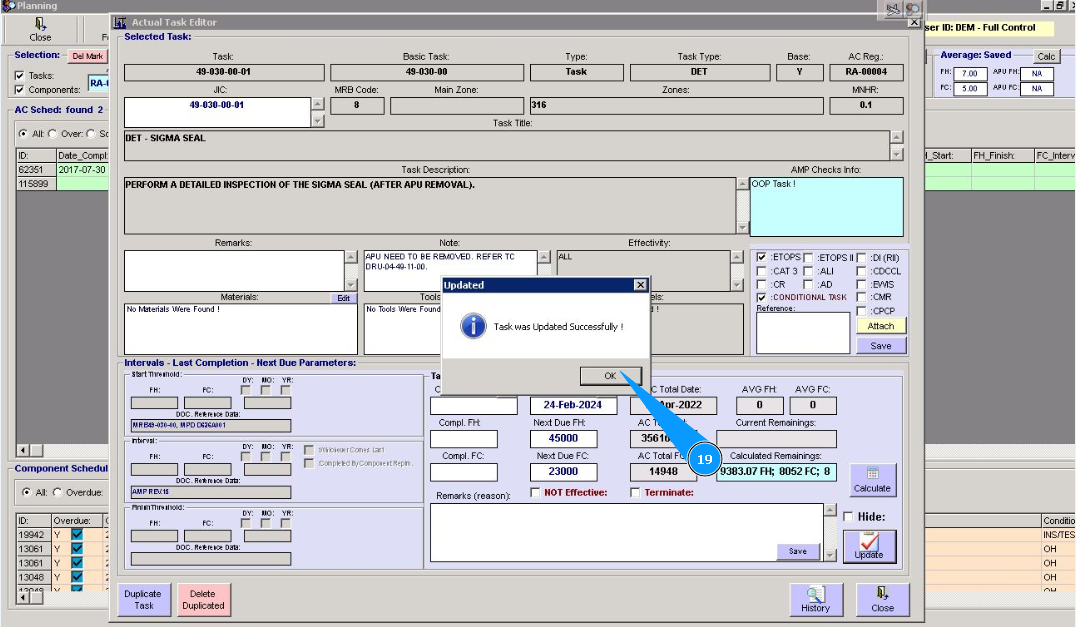
19. Click on the button "Ok", duplicating of task is well done.