How to create Work Package
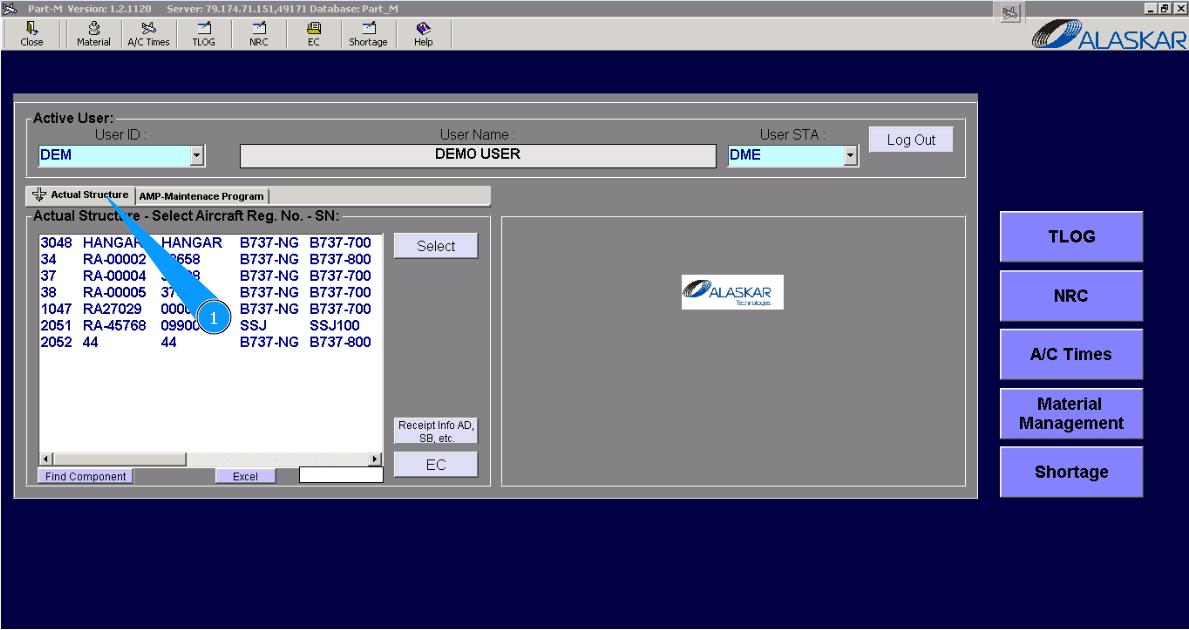
1. For creating Work Package, please go to the submodule "Actual Structure".
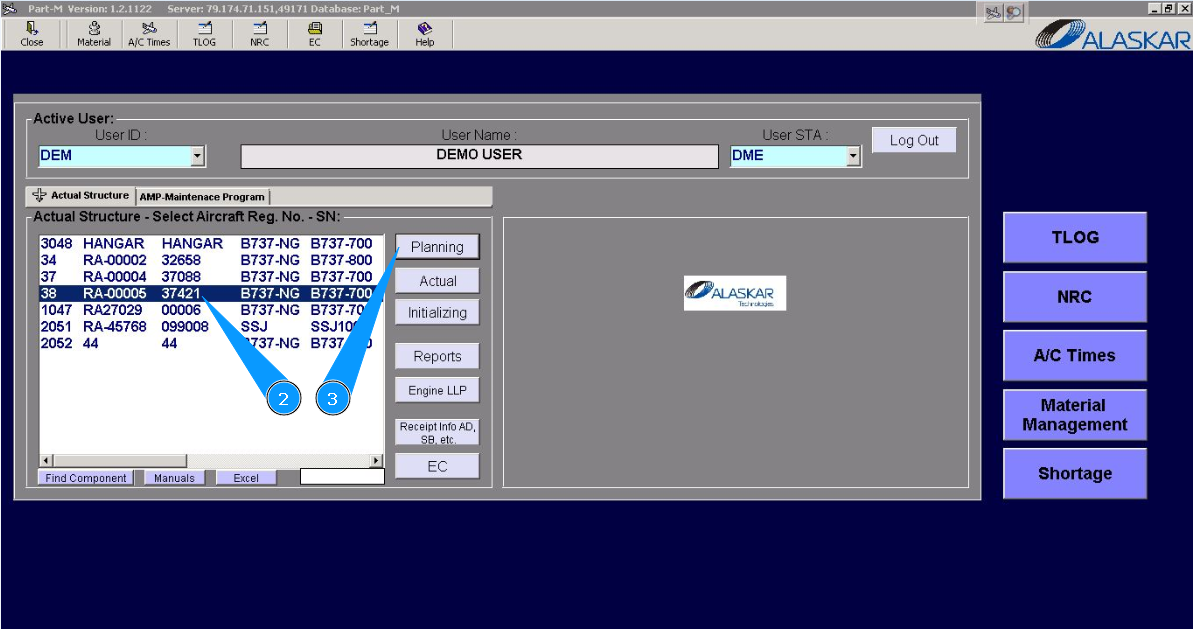
2. Select aircraft registration in the list of window "Actual Structure-Select Aircraft Reg.-SN".
3. Click on the button "Planing", to open submodule planing.
4. Select the corresponding tasks, or checks for adding them to WP, in the searching field. Note: Please use the available filters for comfortable searching of tasks,checks or EC.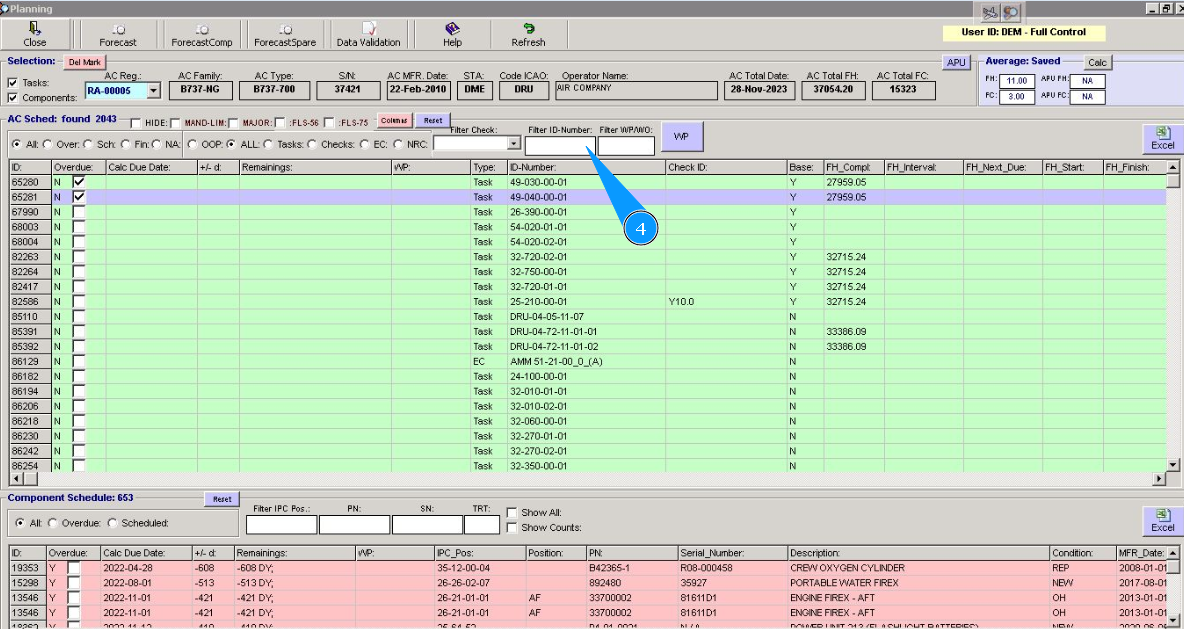
5. Select the corresponding task and click on the window for the corresponding line. Note: Repeat the selection of all necessary tasks, checks or Engineering Controls for adding to WP.
6. Click on the button "WP", to open the WP editor.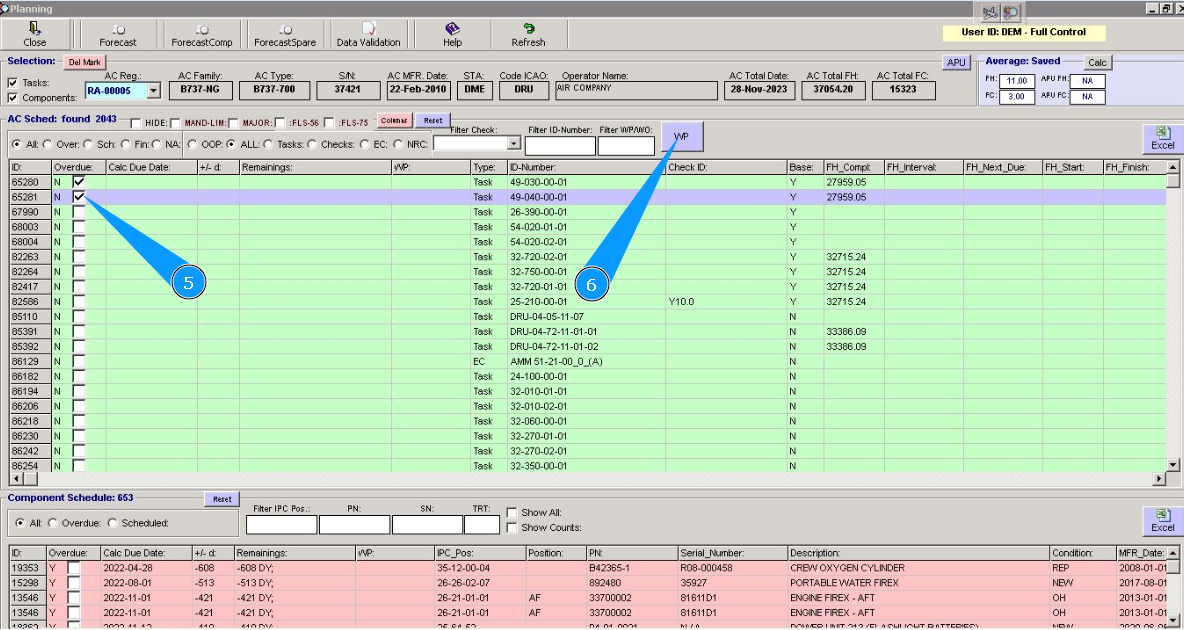
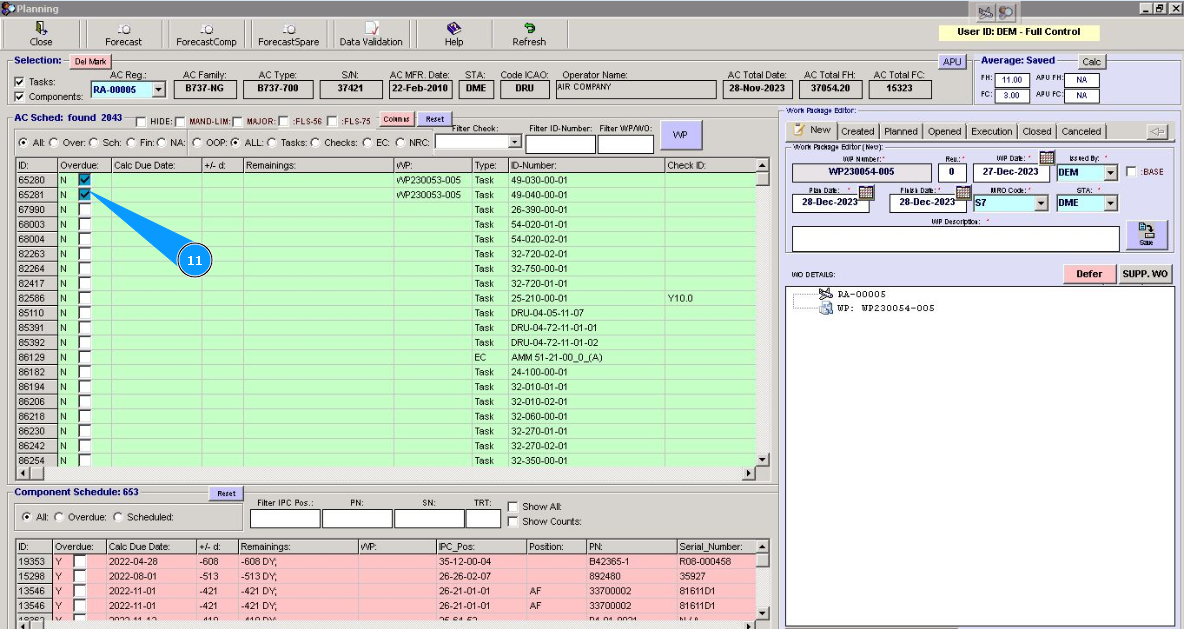
7. Check that all necessary tasks are in the WP in the window "WO Details". Note: Repeat the selection lines of tasks or checks for all necessary for adding to WP.
8. Enter the WP description in the field "WP Description".
9. Click on the button **"Save" to add data to the program.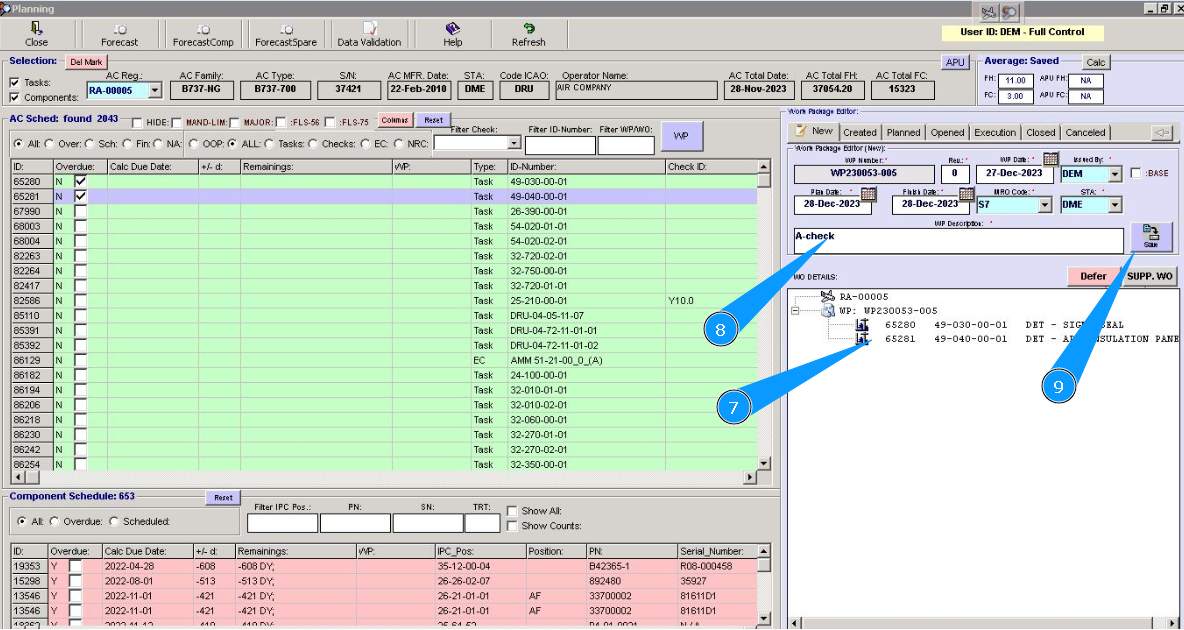
10. Click on the button "Yes", to confirm adding data to the program.
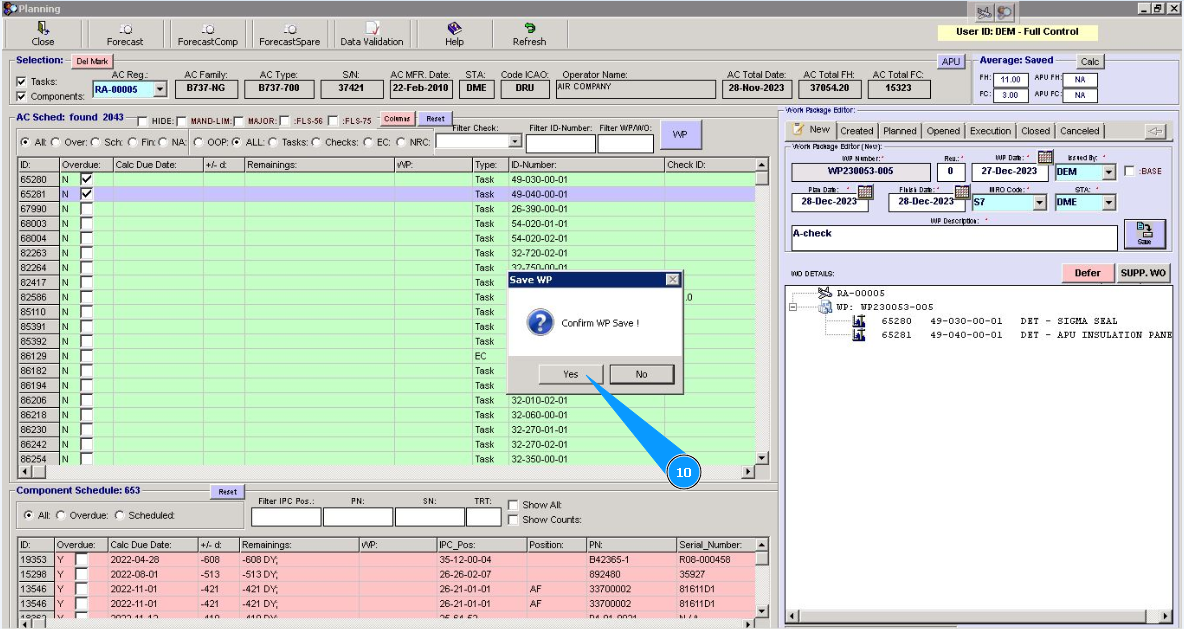
11. Check that all necessary tasks and checks are marked with ticks and the window color is changed. WP creation is fully completed.