How to create AMP task effectivity
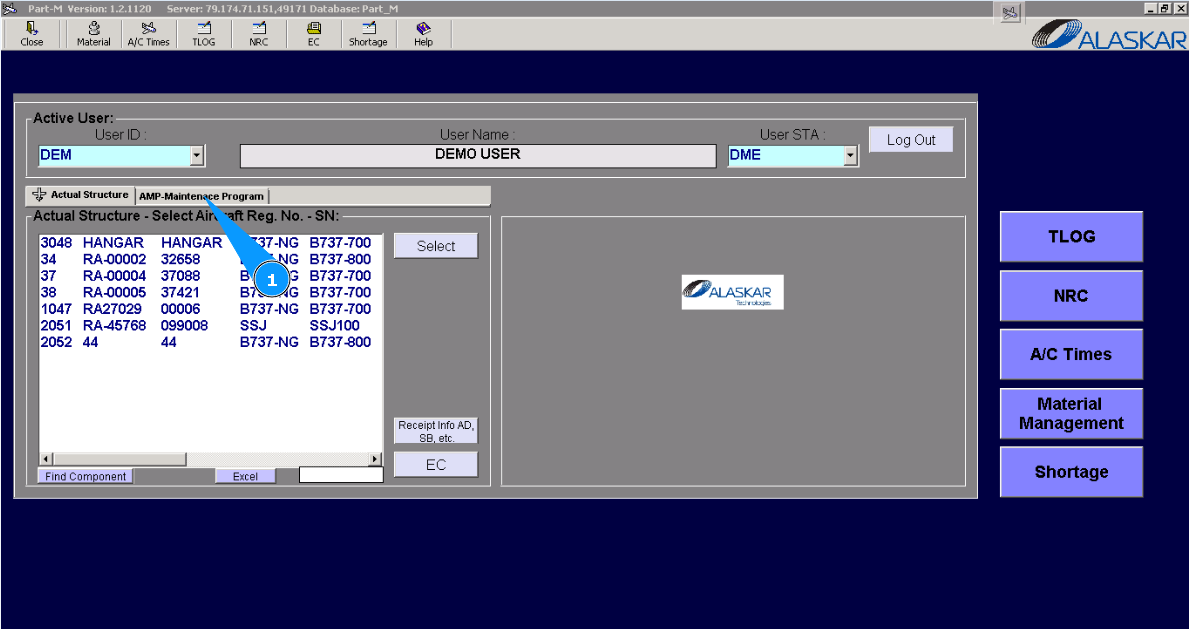
1. For adding AMP task to out phase, please go to submodule "AMP- Maintenance Program".
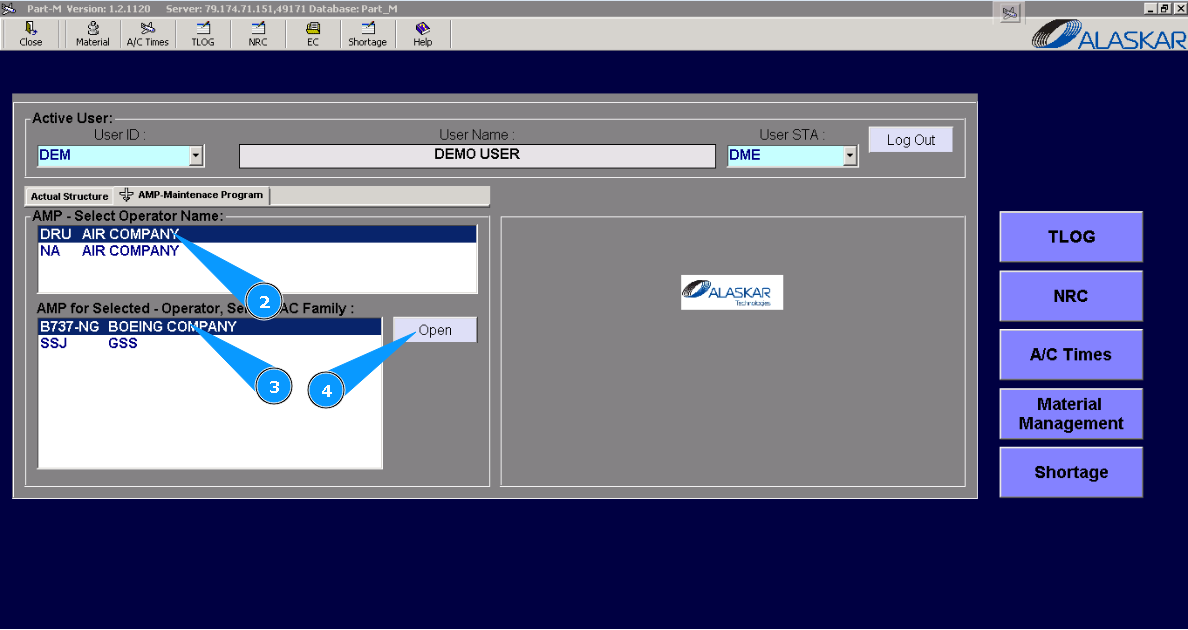
2. Select the company name in the list of window "AMP- Select Operator Name".
3. Select aircraft type in the list of window "AMP for Selected- Operator".
4. Click on the button "Open", for opening AMP menu.
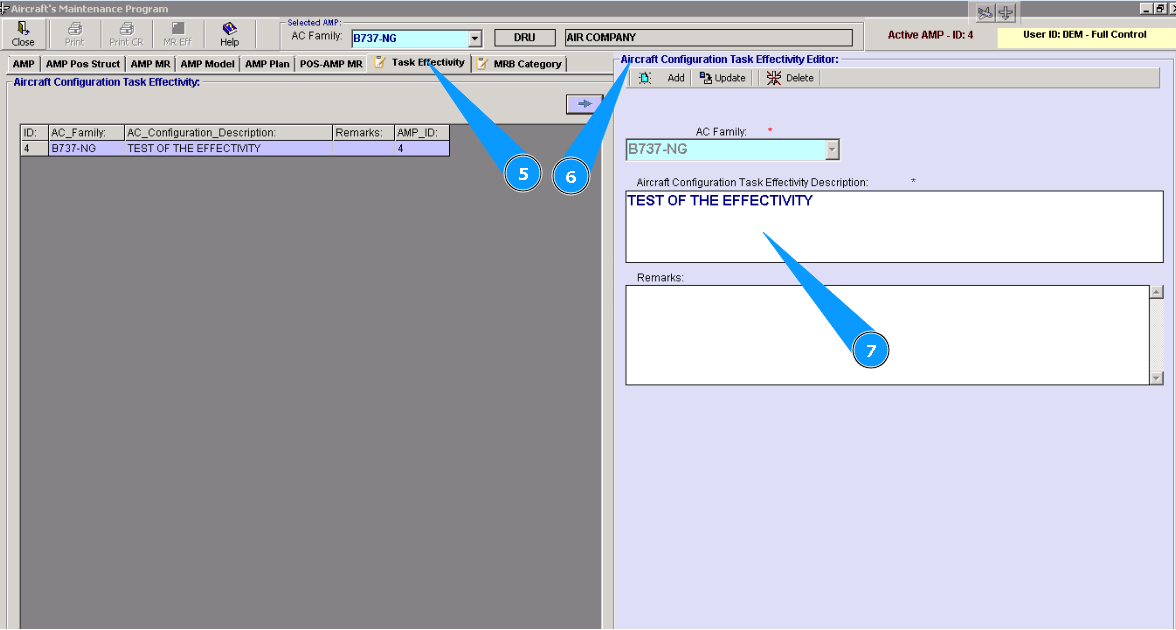
Note: Aircraft type is automatically selected depending on which AMP was opened for editing.
6. Fill in the corresponding fields in the window "Aircraft Configuration Task Effectivity Editor".
7. Enter the description of the effectivity type in the field "Aircraft Configuration Task Effectivity Description".
Note: If necessary, you can add any information of effectivity in the field "Remarks".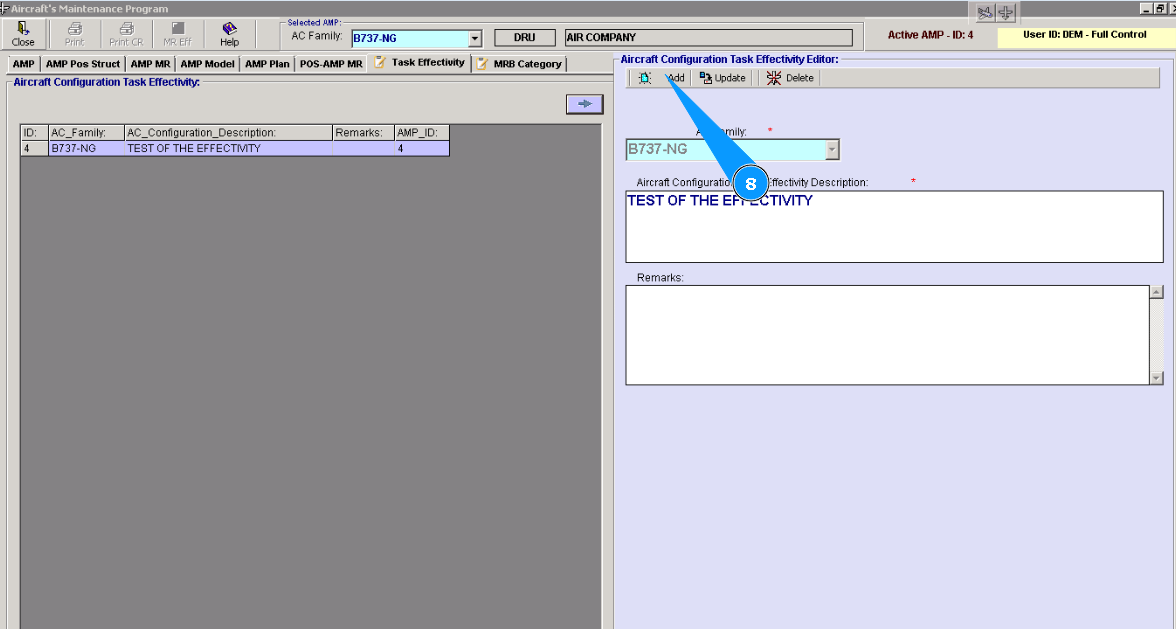
9. Click on the button "Yes", to confirm adding data to the program.
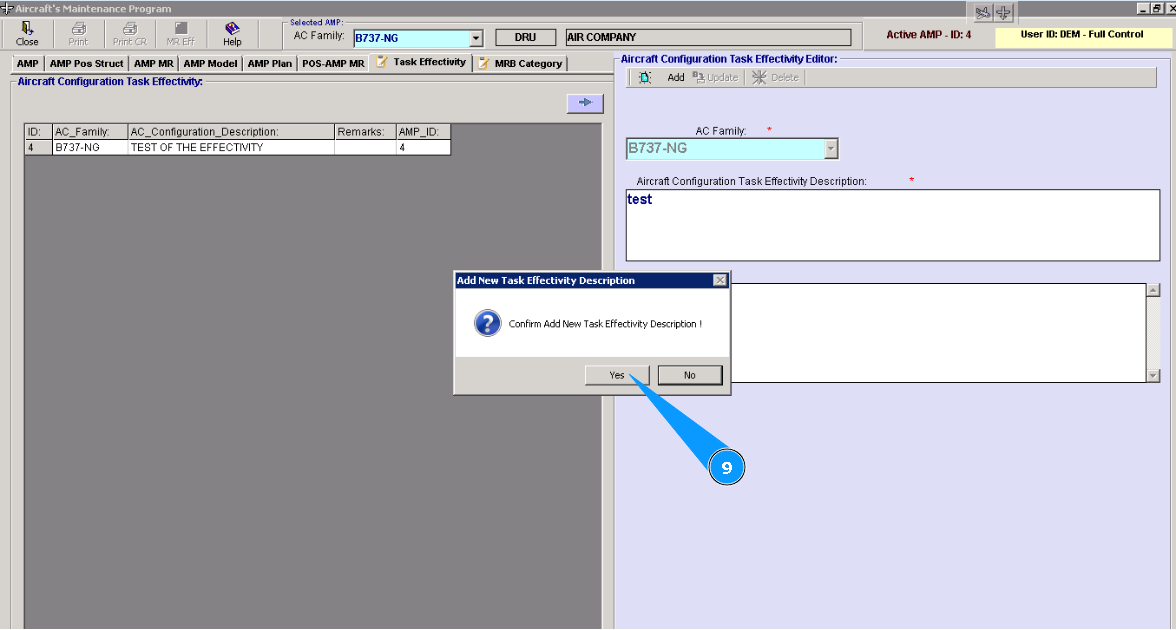
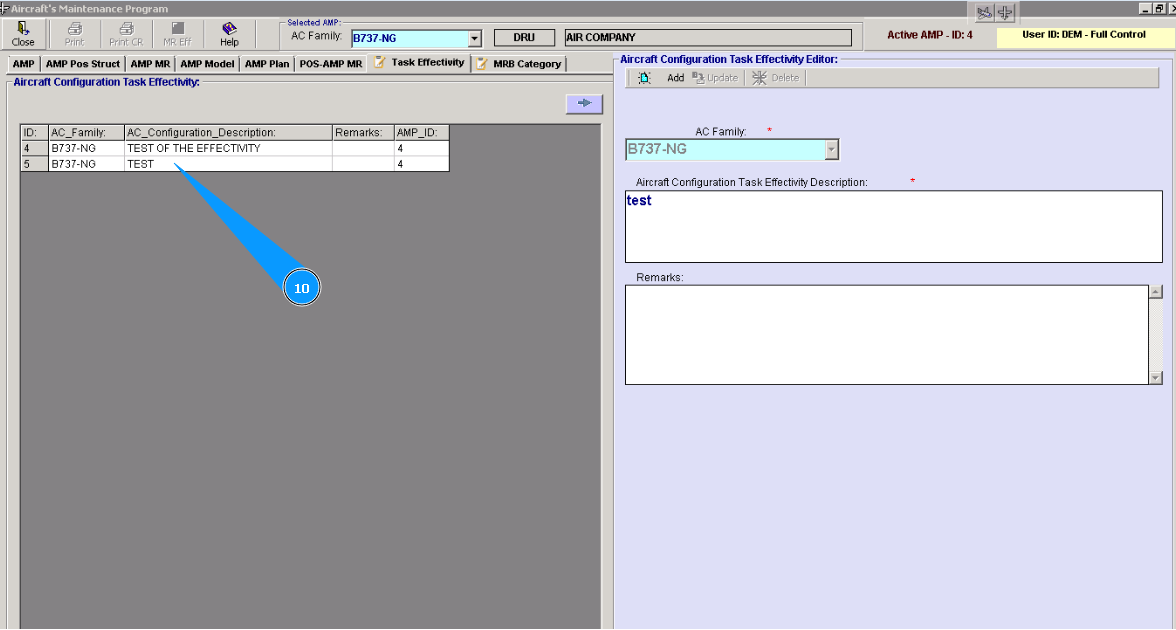
10. Check that a new line with corresponding effectivity is created in the window "Aircraft Configuration Task Effectivity ".