How to create supplementary WO template
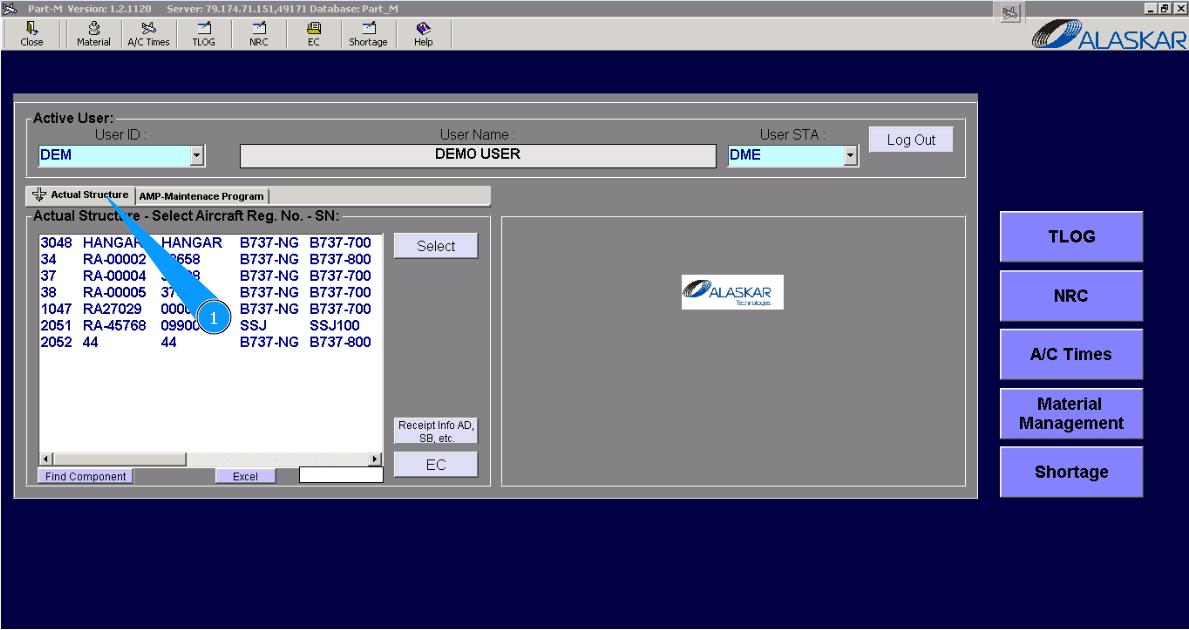
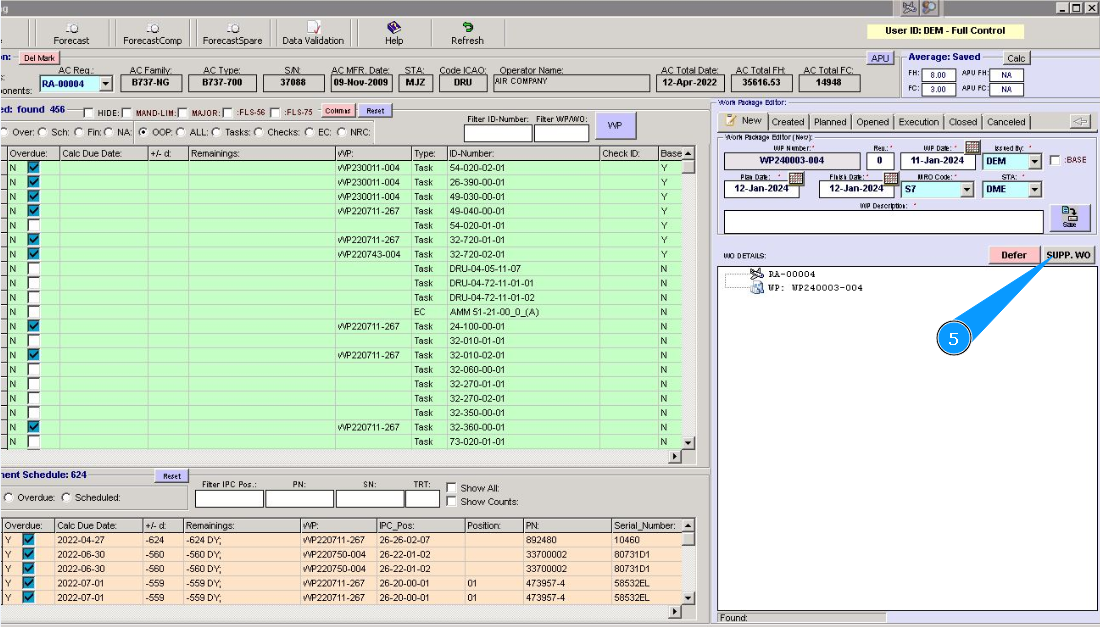
1. For creating supplementary WO template, please go to submodule "Actual Structure".
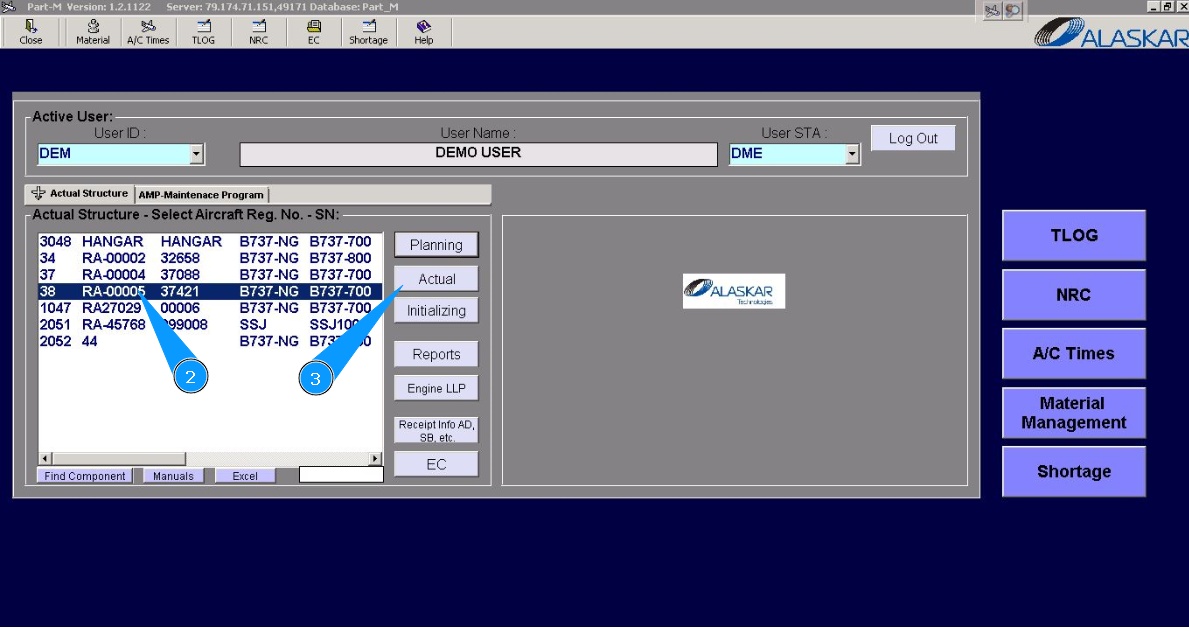
2. Enter the aircraft registration number in the list of window "Actual Structure-Select Aircraft Reg.-SN".
3. Click on the button "Actual", to open the submodule.
4. Click on the button "WP", to open the WP editor.
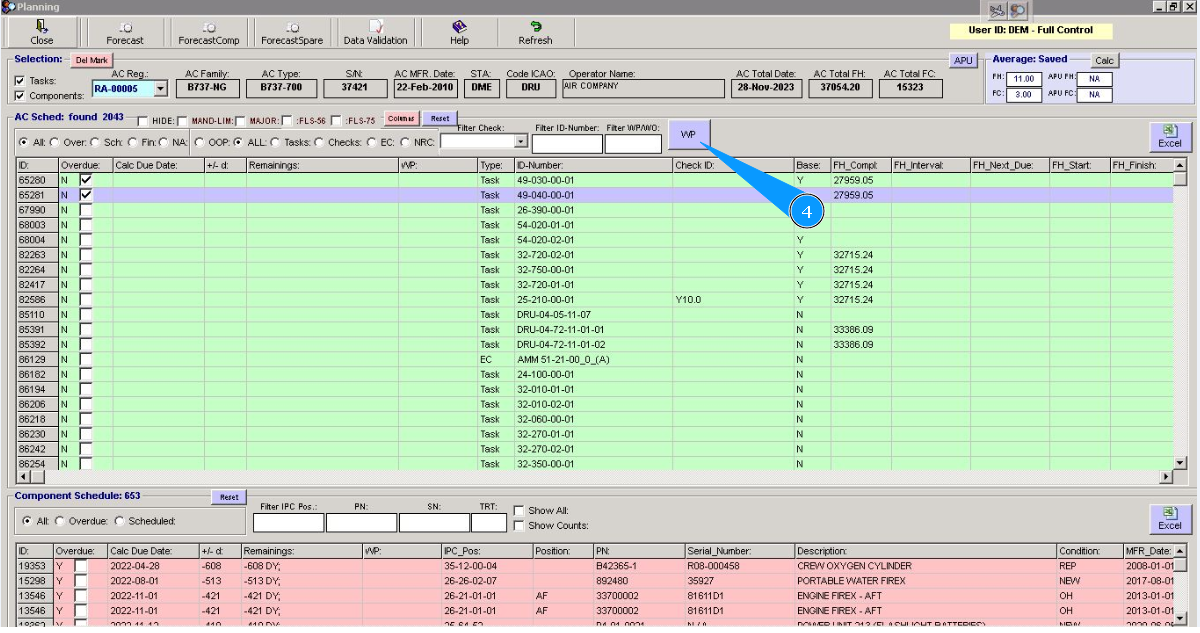
5. Click on the button "SUPP.WO", to open the supplementary WO editor.
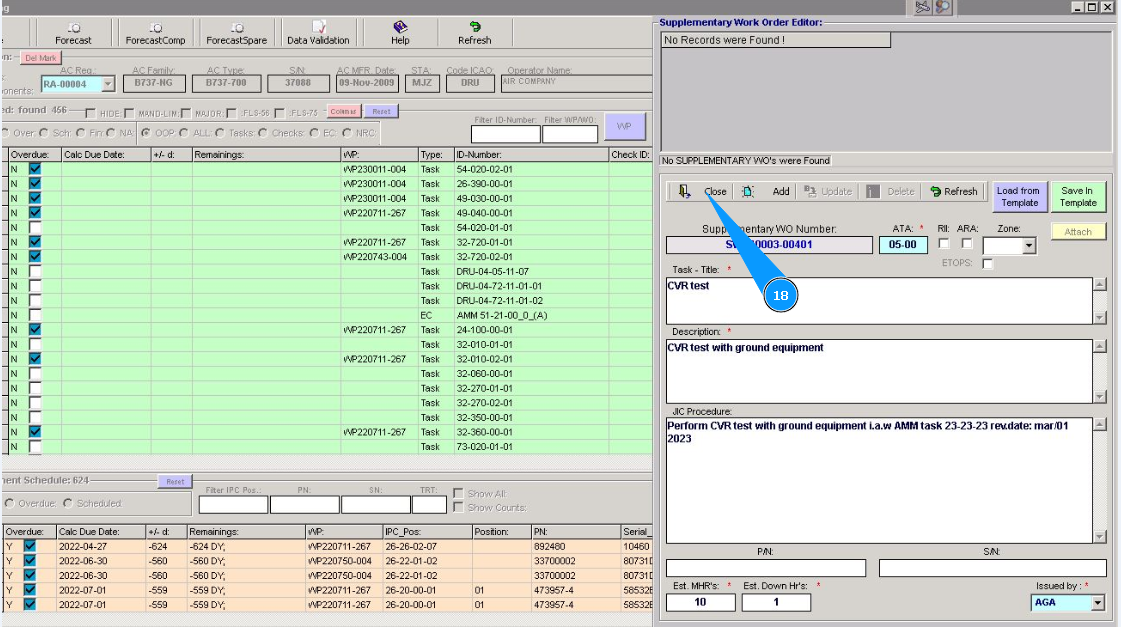
6. Click in the field "ATA", to select the corresponding chapter. Note: Number of supplementary WO is automatically generated, without the possibility of editing, in the field "Supplementary WO Number"
7. Select the corresponding chapter from the list, move the slider up or down, and click on the necessary line with ATA.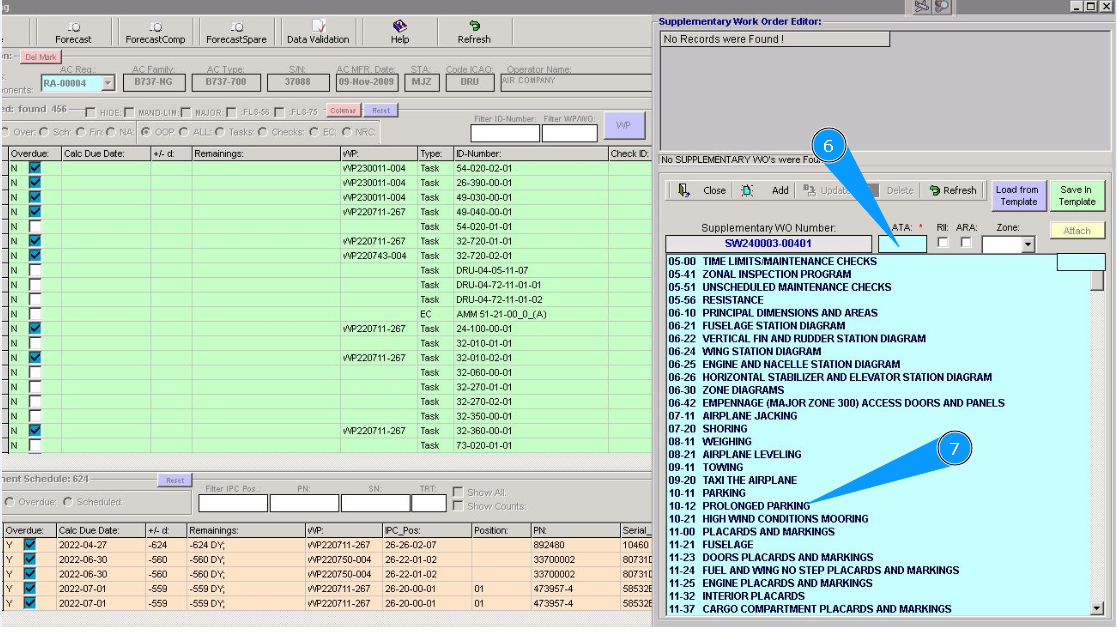
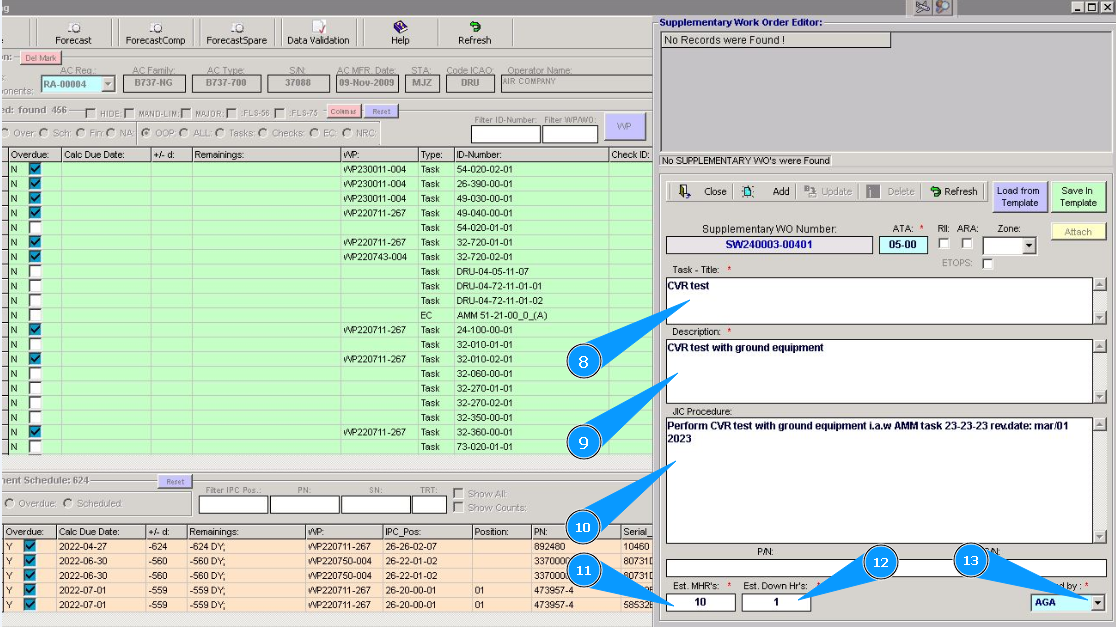
8. Enter the name of the supplementary WO in the window "Task Title".
9. Enter the description of the supplementary WO in the window "Task Description".
10. Enter short performing procedure of supplementary WO in the window "Jic procedure".
11. Enter estimated man-hours for WO in the field "Est.MHR's".
12. Enter the estimated time of downtime of aircraft during WO performing in the field "Est.Dowm HR's".
13. Enter the login of the creator of the supplementary WO in the field "Issued by" or select the form dropdown list.
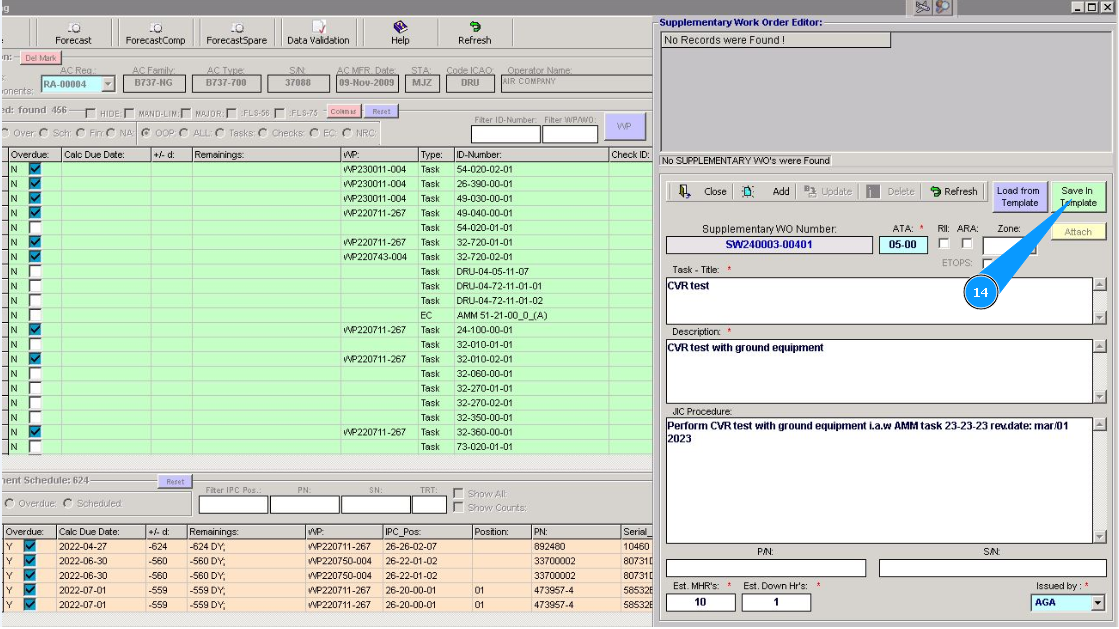
14. For adding supplementary WO to template, click on the button "Save in Template".
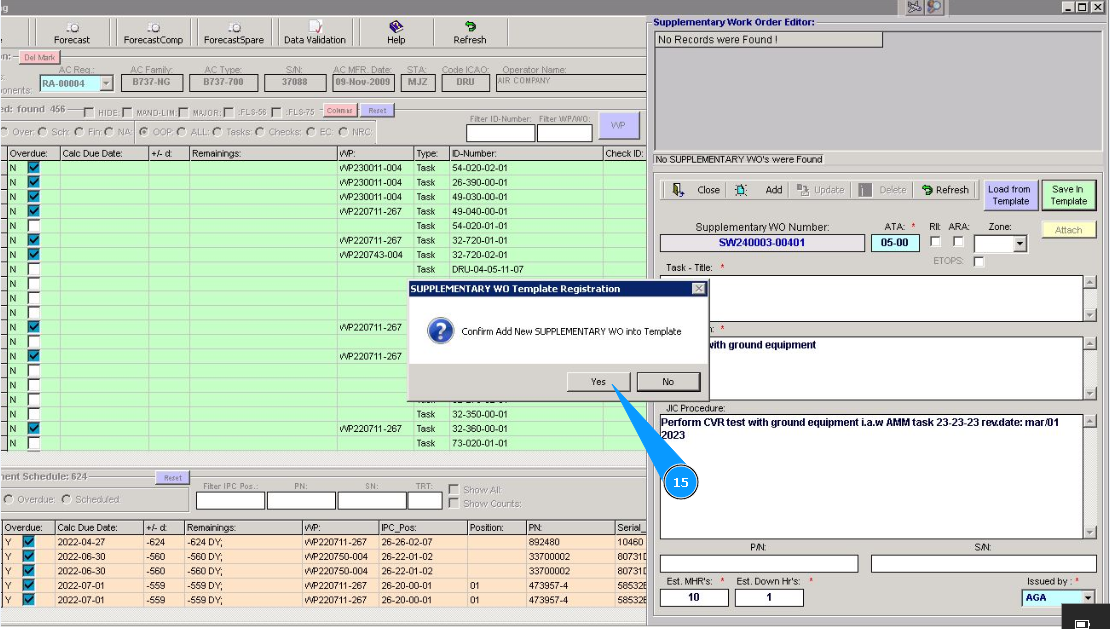
15. Click on the button "Yes", for confirming loading supplementary WO into the program.
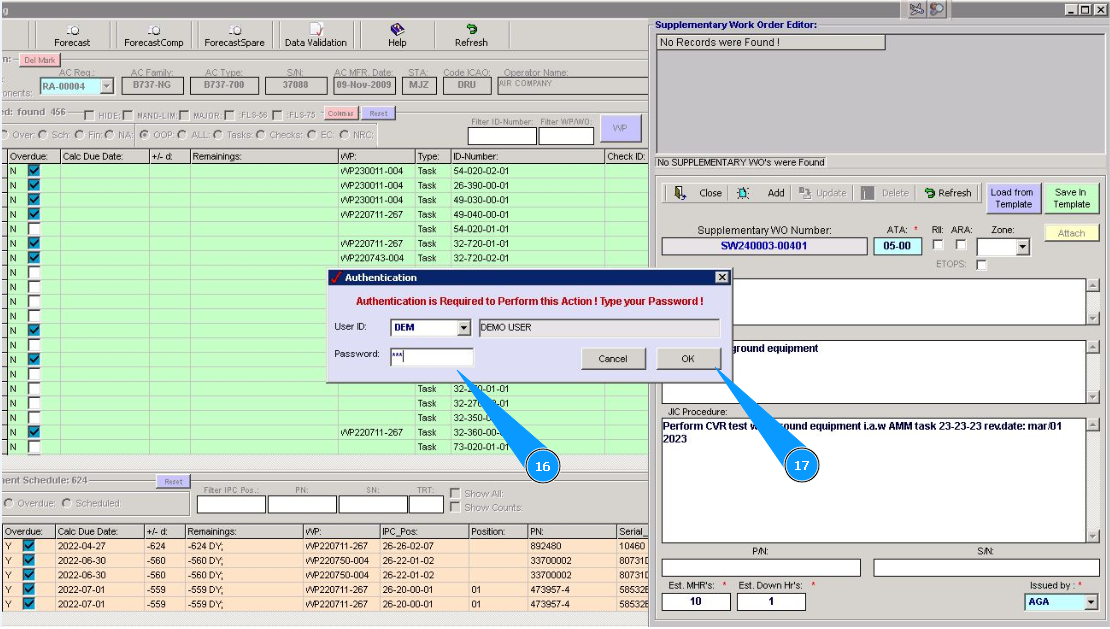
16. Enter a password from Alaskar in the field "Password".
17. Click on the button "Ok", to save SWO to Templates.
18. Click on the button "Close", to exit from editor mode. Supplementary WO was successfully added to template.