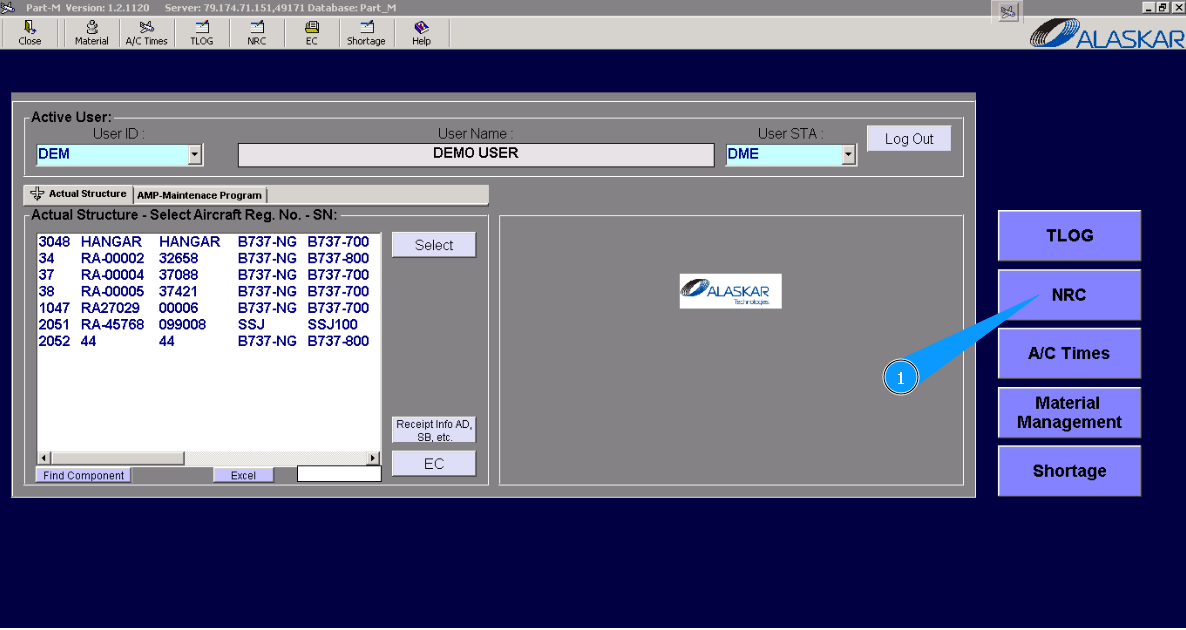
How to create NRC
1. For creating record about fault or deviation, please go to submodule "NRC".
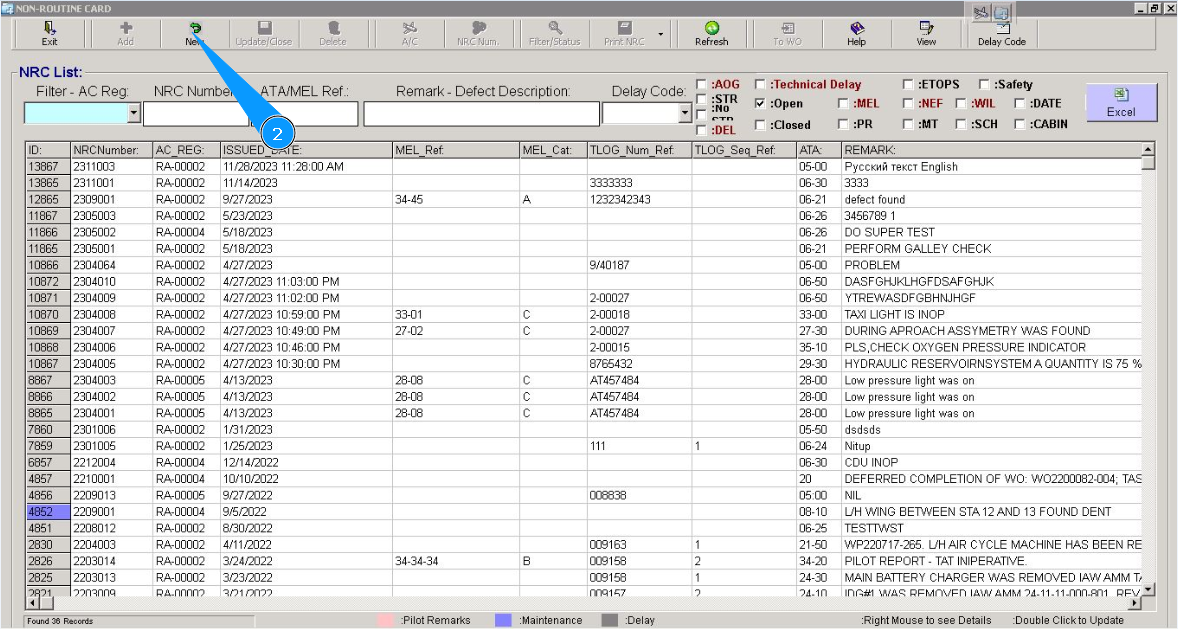
2. Click on the button "New".
3. Enter aircraft registration in the field "A/C Reg." or select from dropdown list. Note: NRC number of the fault or deviation record is automatically created by Alaskar "Non-Routine Card №". The first two digits mean the current year and months, the other is creation number one by one.
4. Enter login of certifying staff or NRC creator(in accordance with your company policy) in the field "Issued by" or select from dropdown list.
5. Enter aircraft type in the field "A/C Type".
6. Enter NRC's creation date in the field "Issue Date" or select from the calendar.
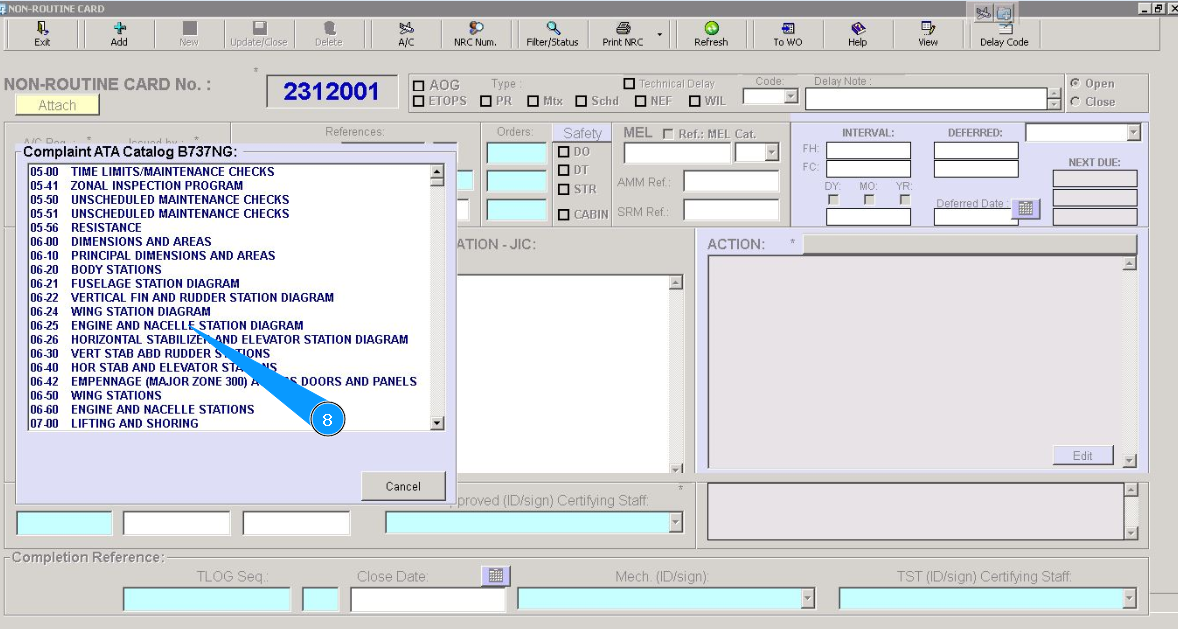
7. For entering ATA number, click on the corresponding field "ATA".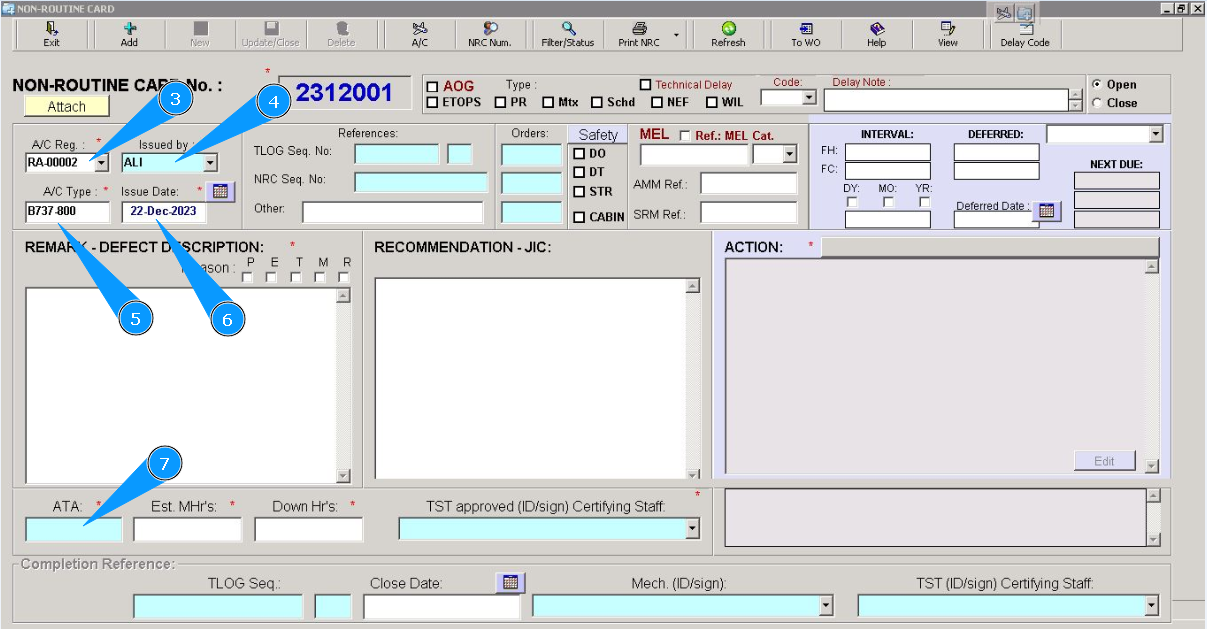
8. Select from dropdown list corresponding line with ATA by scrolling, and twice click on this line.
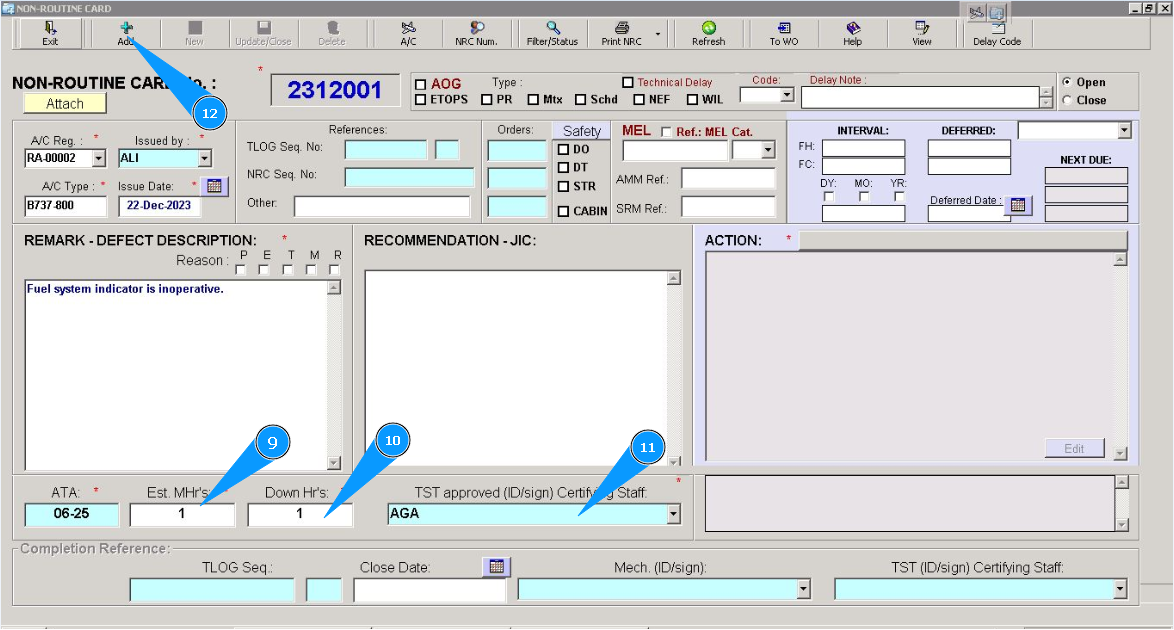
9. Enter estimated man-hours in the field "Est.MHr's".
10. Enter the estimated downtime of aircraft in the field "Down Hr's".
11. Enter login of certifying staff or NRC creator(in accordance with your company policy) in the field "TST approved (ID/Sign) Certifying Staff" or select from dropdown list.
12. Click on the button "Add", for adding data to the program.
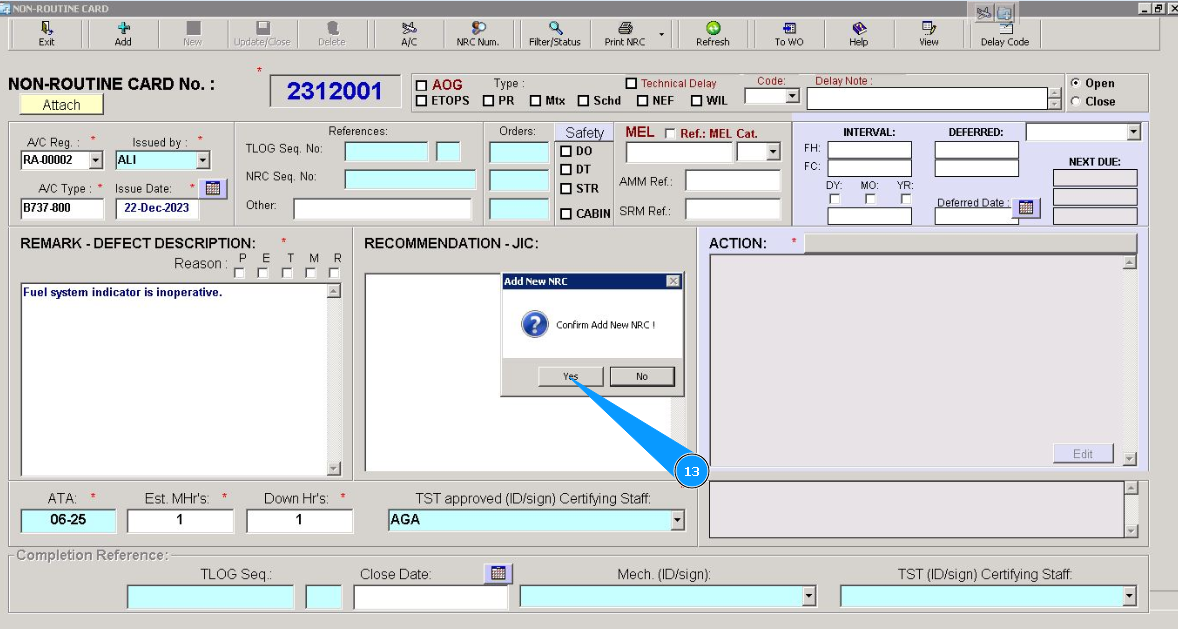
13. Click on the button "Yes", to confirm adding data to the program.
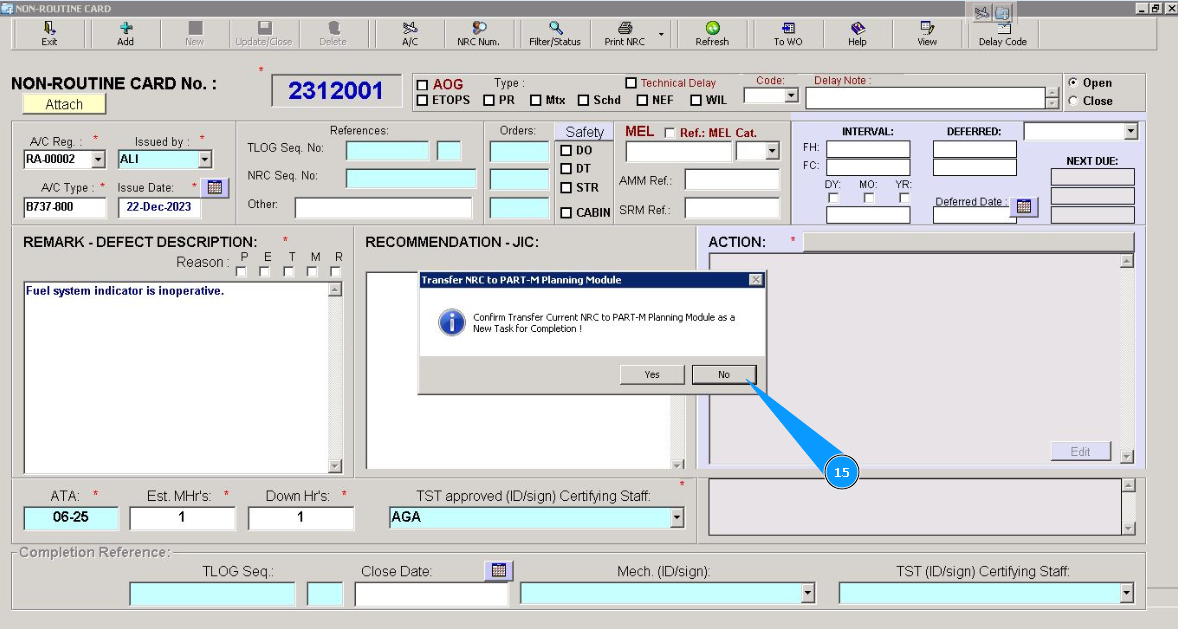
14. Click on the button "Yes", if your created NRC should be planned in the "Planing submodule" for deadline control.
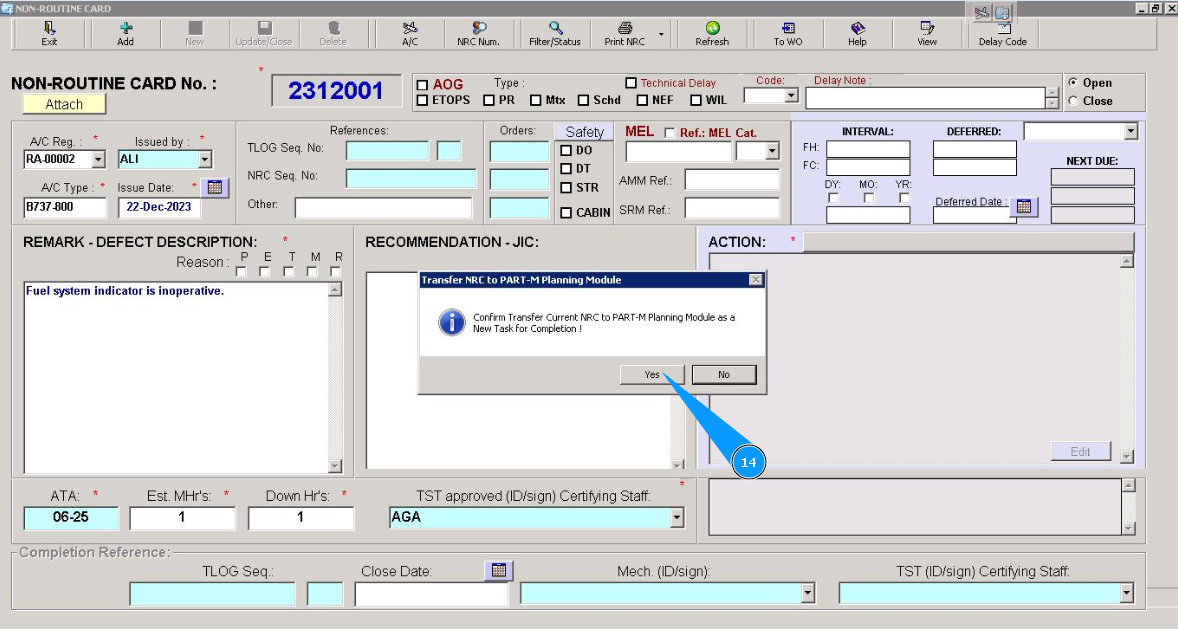
15. Click on the button "No", if your created NRC should not be planned in the "Planing submodule" and it is not necessary to control deadline.
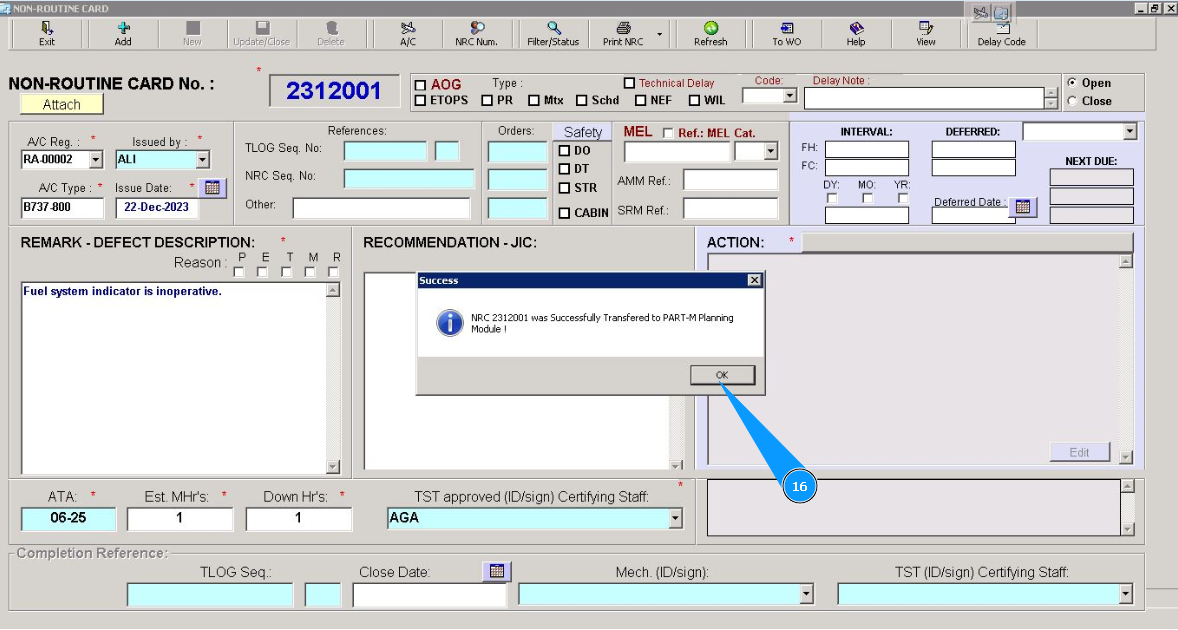
16. Click on the button "OK", NRC creation is successfully finished.
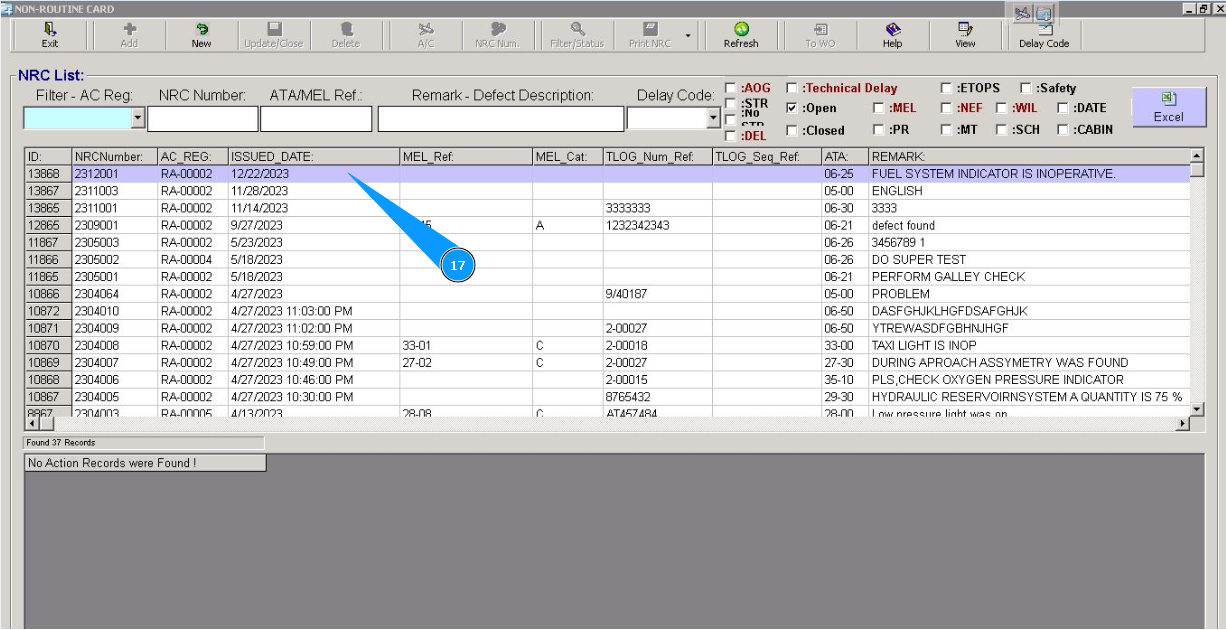
17. Check that new line with NRC is appeared in the window "NRC List".