How to create Engineering Control
Note Engineering Control: It is an account card in Alaskar for creating and controlling aviation directives, aircraft manufacture service bulletins, or other continuing airworthiness objects.
Note : This instruction can be used with personnel who do not have access to edit the submodule "EC-Engineering Control".
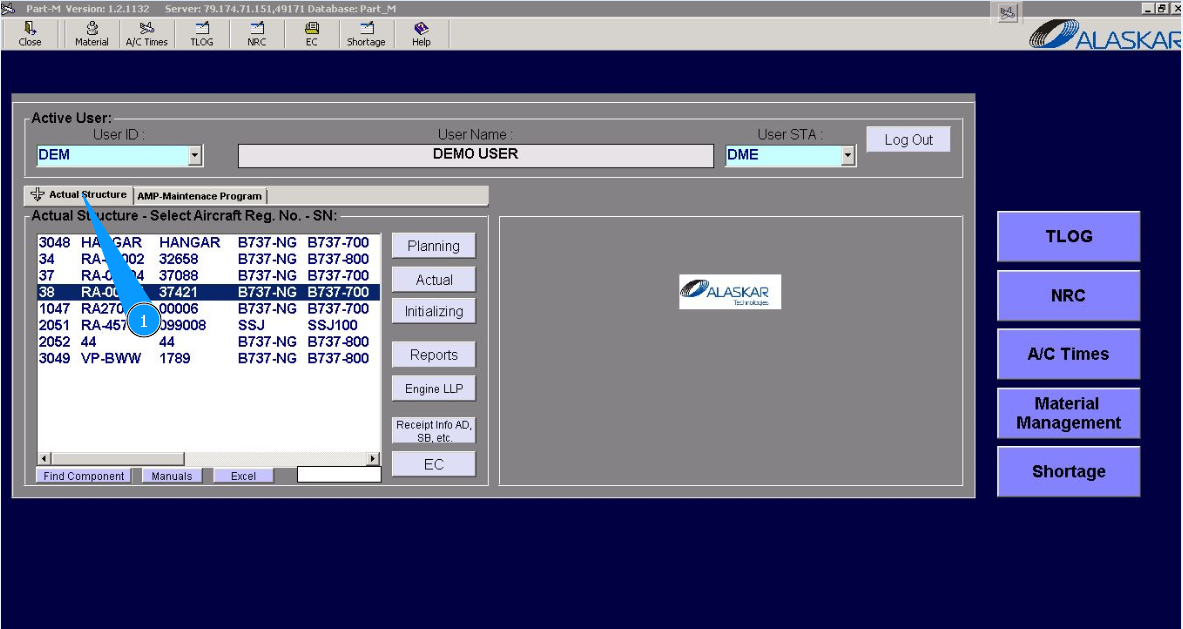
1. For adding or editing Engineering Control, go to the tab "Actual Structure".
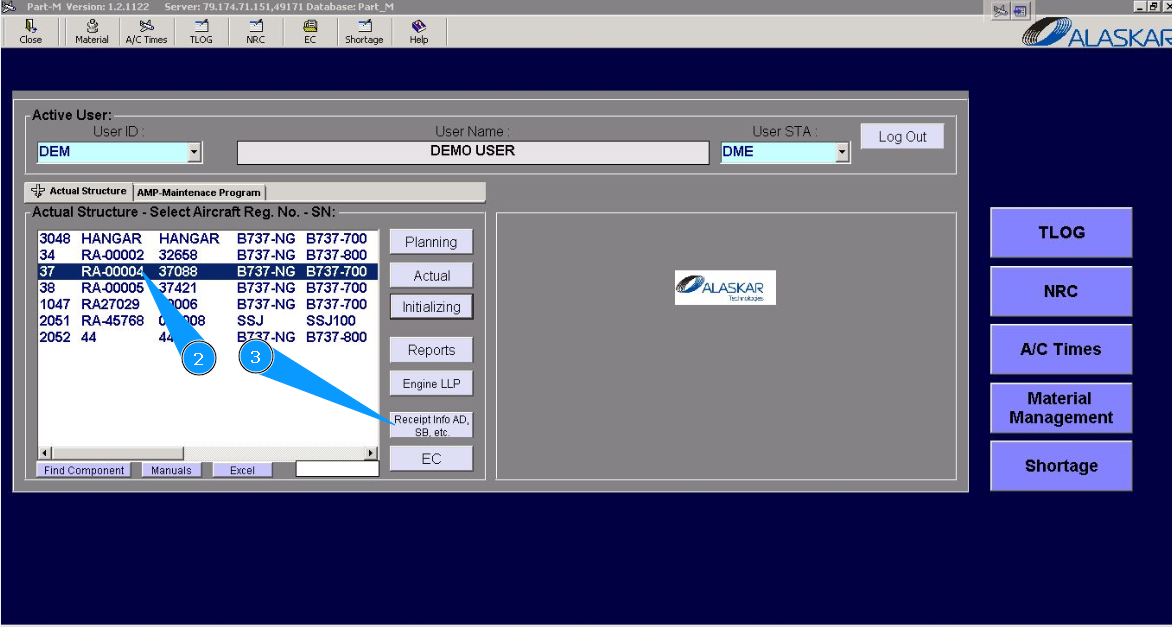
2. Select the aircraft registration number in the list of window "Actual Structure-Select Aircraft Reg.-SN".
3. Click on the button __"Receipt Info AD, SB, etc." to open the submodule.
4. Then go to the tab "Receipt Engineering Info".
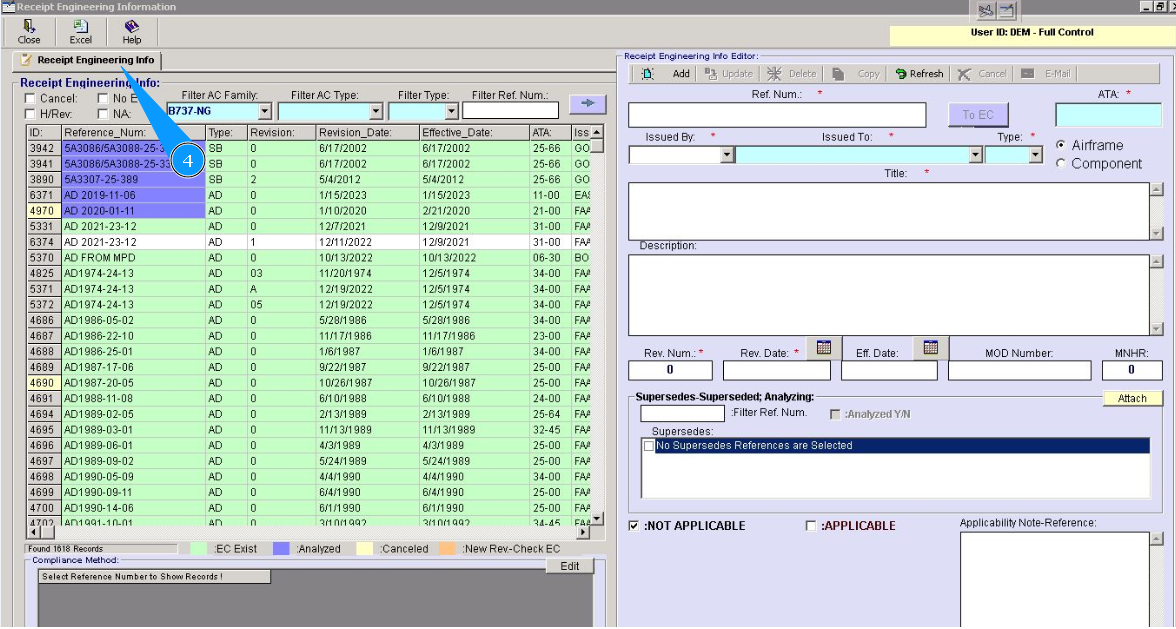
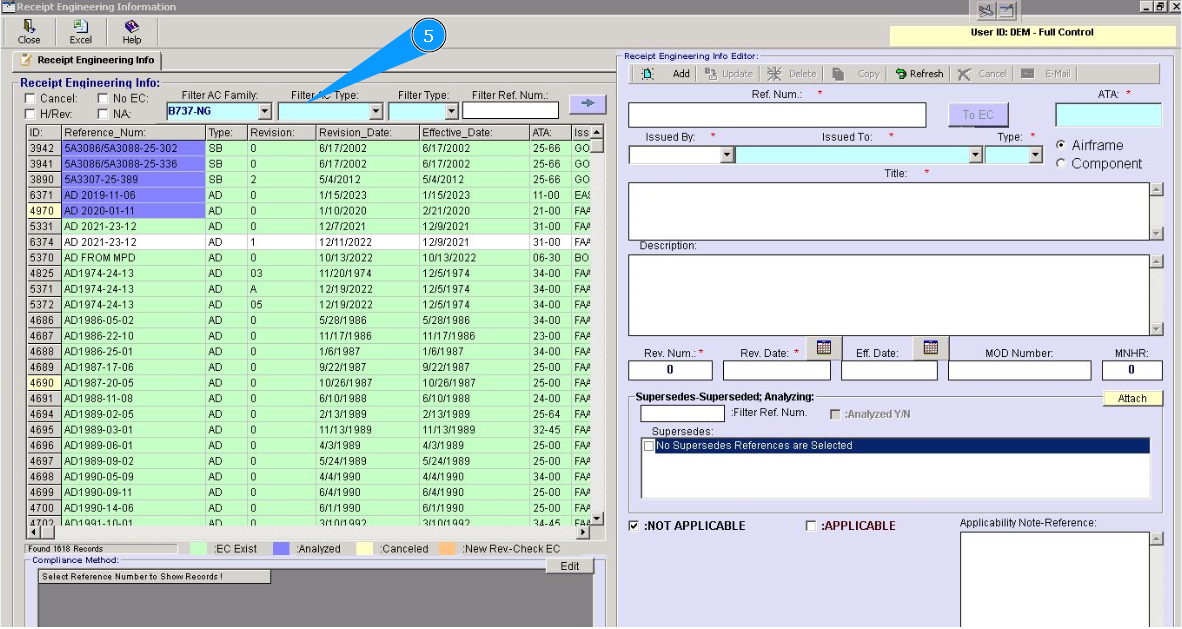
5.
Note: The search filter's fields are to search for the necessary object (accounting card) in the list "Engineering Control".
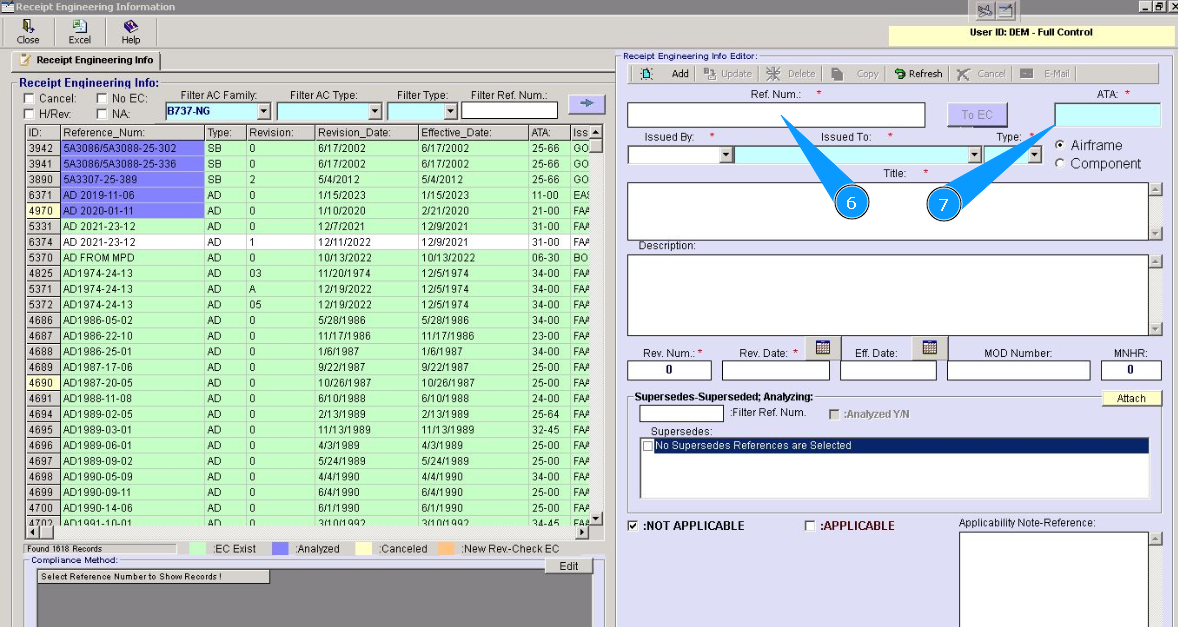
6. Enter the number AD or SB in the field "Ref.Num.:".
7. Click in the field "ATA", to select to which АТА chapter entered Engineering Control is related.
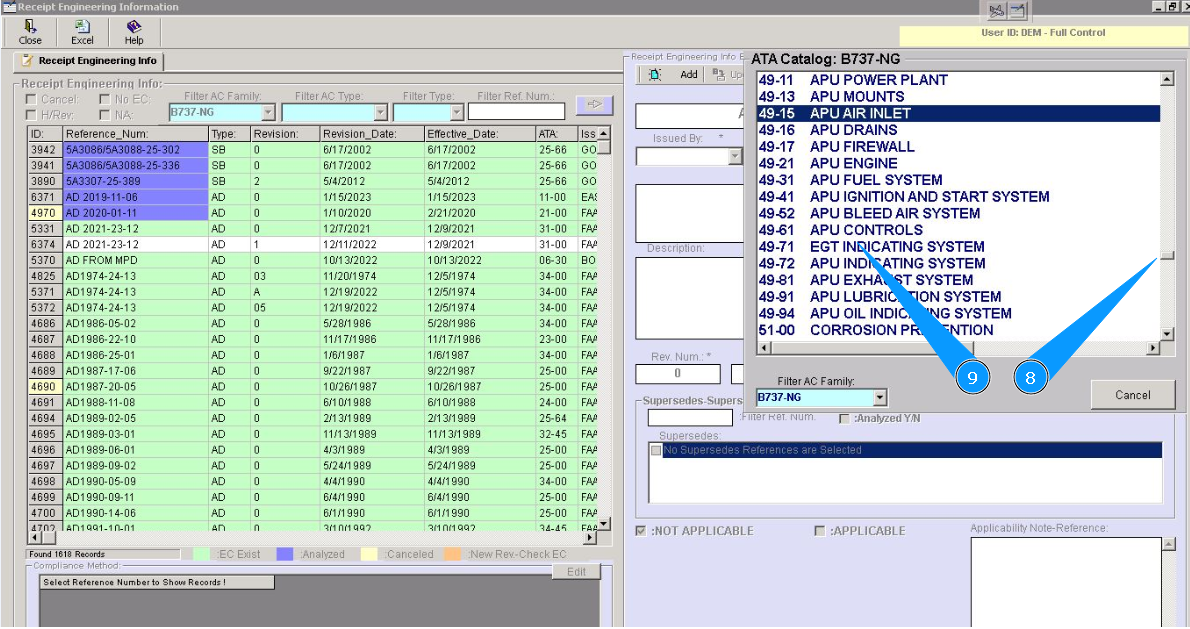
8. Select the corresponding АТА in the list of window "ATA Catalog".
9. Click on the corresponding line of "ATA".
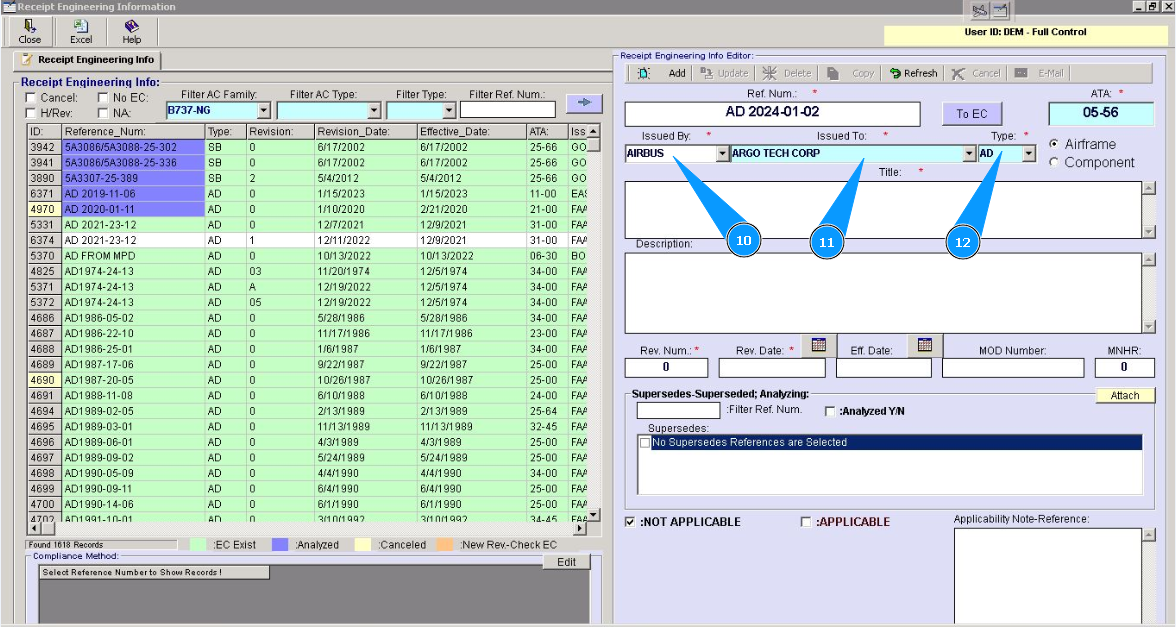
10. From dropdown list, select the name of the aviation authority (for AD) or SB of aircraft manufacture in the field "Issued by".
11. From dropdown list, select the name of the organization to whom EC is applicable in the field "Issued to".
12. From the dropdown list, select the type of Engineering Control, for example, AD or SB, in the field "Type".
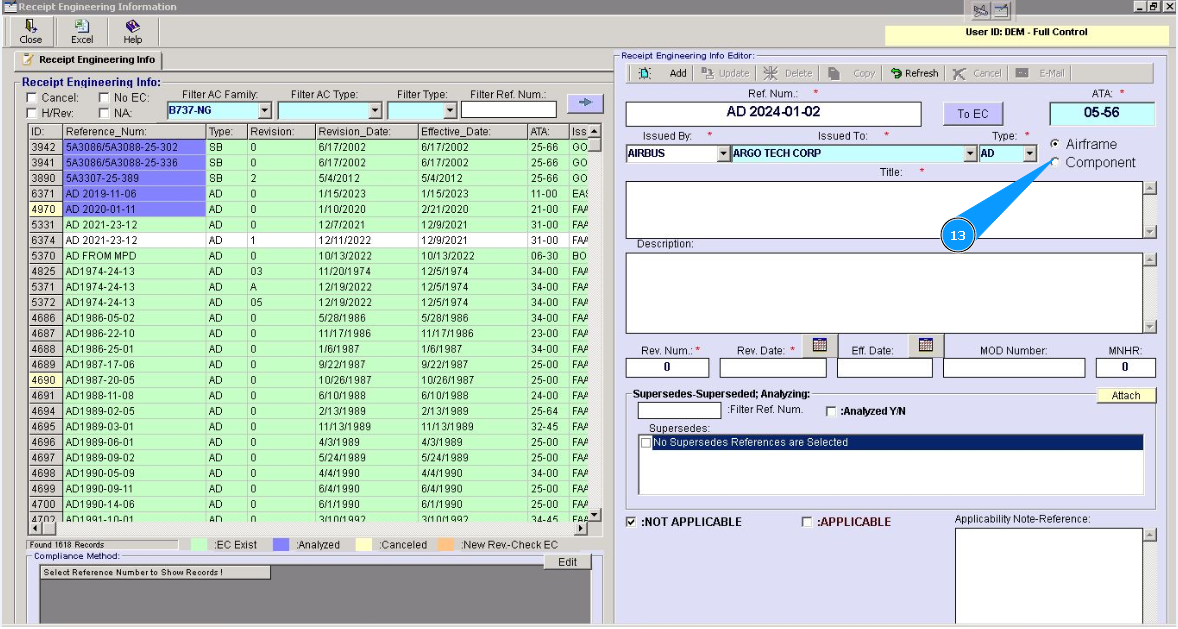
13. Set a filter for what AD or SB is applied to the aircraft or component in the fields "Airframe" or "Component".
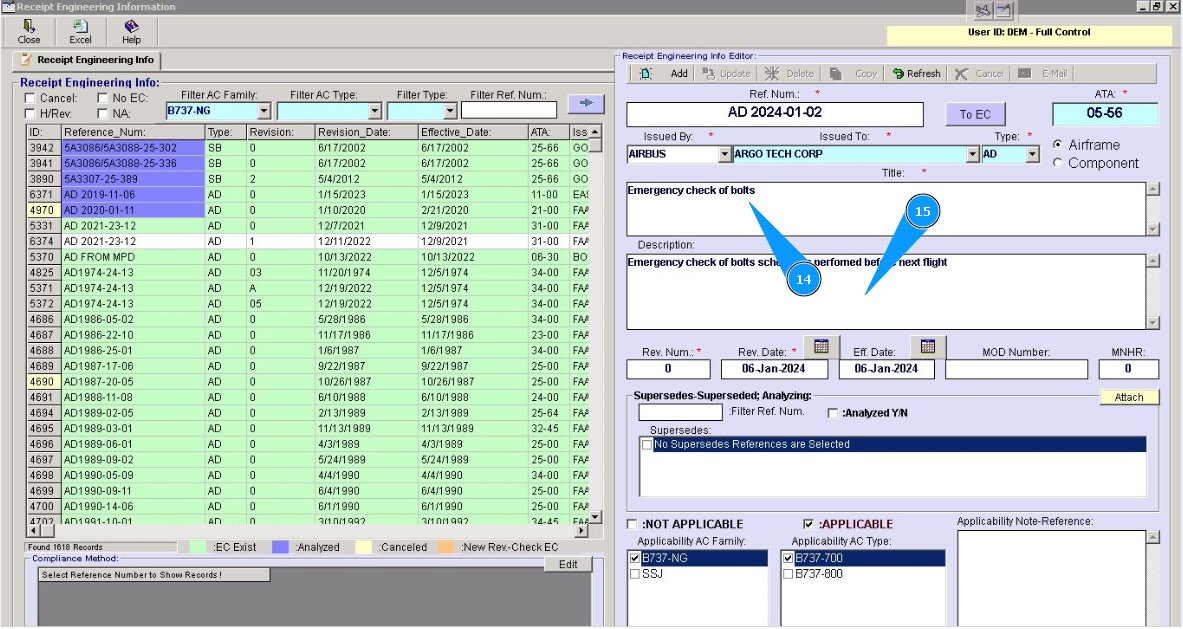
14. Enter the name AD or SB in the field "Title".
15. Enter the name AD or SB in the field "Description".
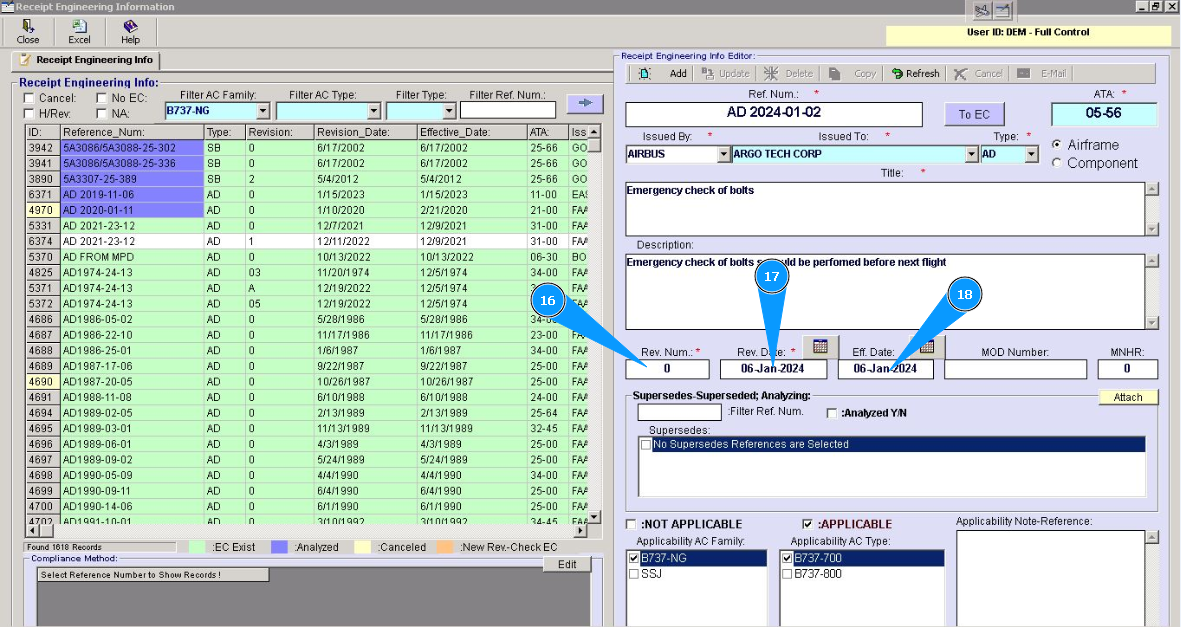
16. Enter the number of revisions of AD or SB in the field "Rev.Num.
17. Enter the revision issue date of AD or SB in the field "Rev.Date.
18. If necessary, enter the effective date of revision AD or SB in the field "Rev.Date.
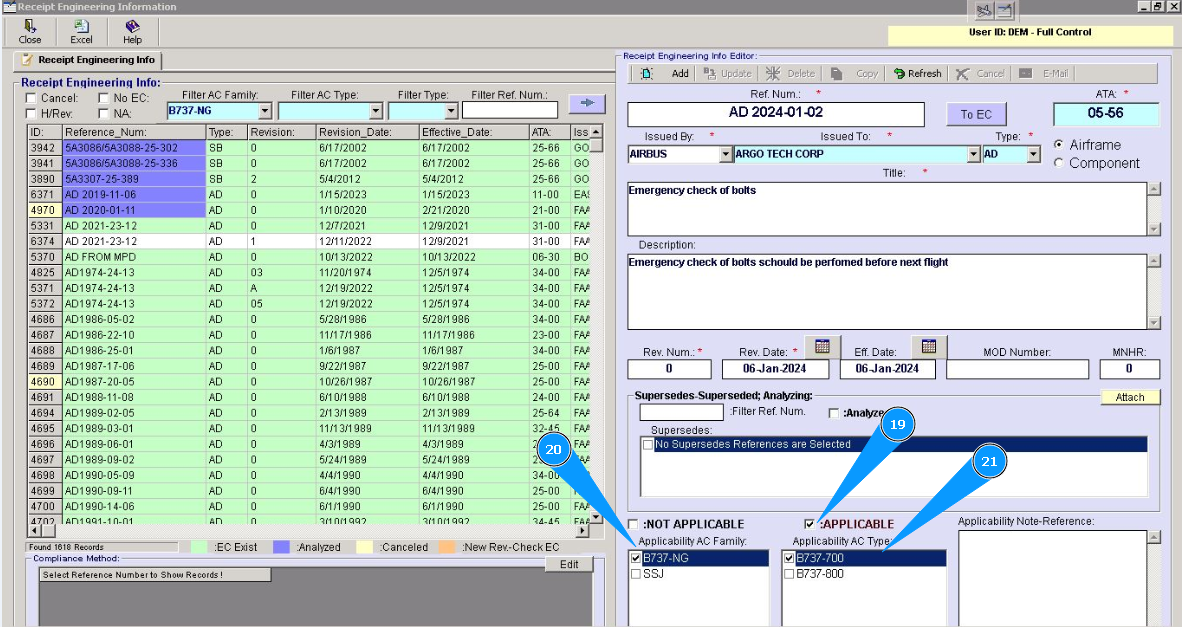
19. Enter the applicability of AD or SB in the field "Applicable.
20. Enter the applicability of AD or SB to the aircraft family in the field, "Applicability AC Family.
21. Enter the applicability of AD or SB to the aircraft type in the field "Applicability AC Family.
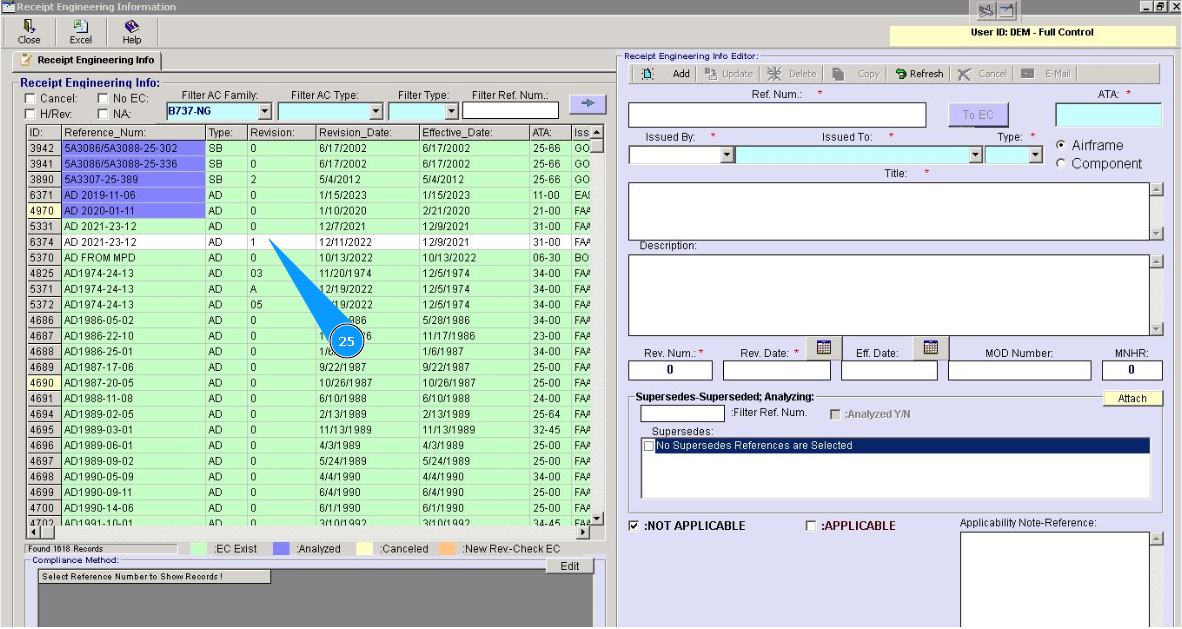
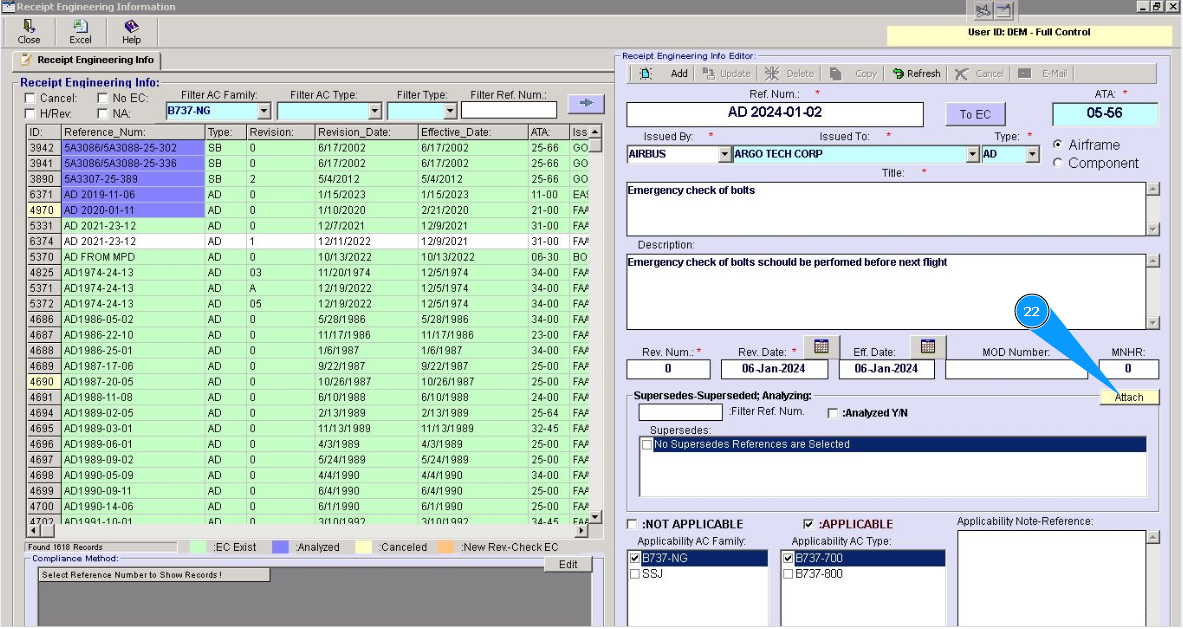
22.
Note: If necessary, attach an AD or SB document to the account card "Engineering Control". Click on the button "Attach".
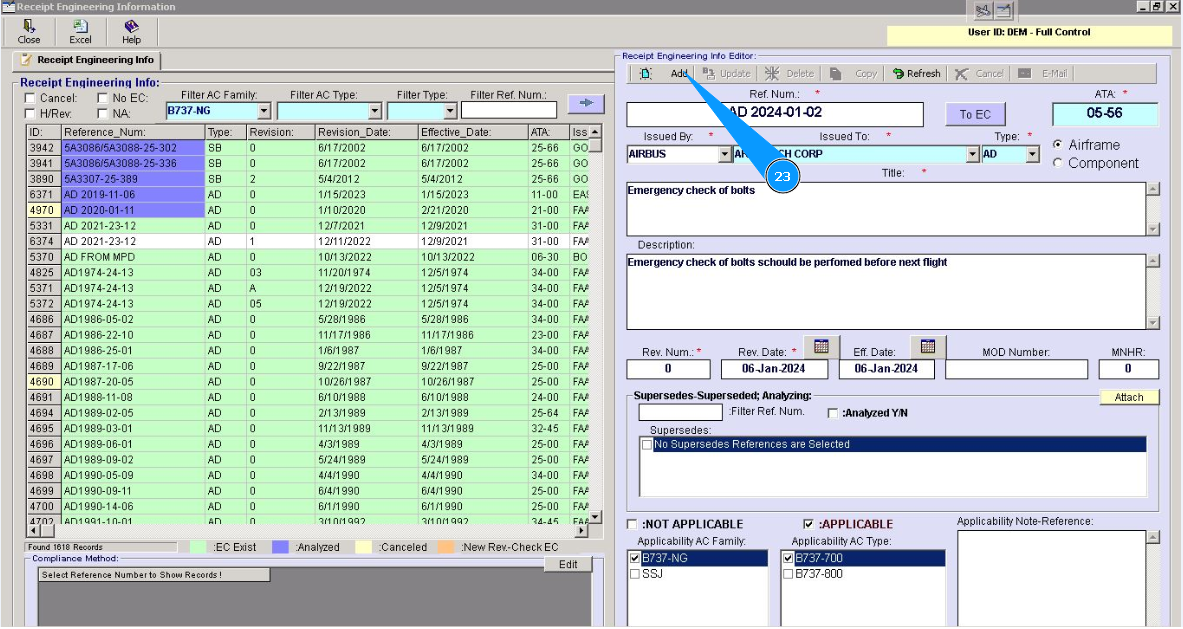
23. Click on the button "Add", for adding data to the program and creating account card of Engineering Control.
24. Click on the button "Yes", to confirm adding data to the program.
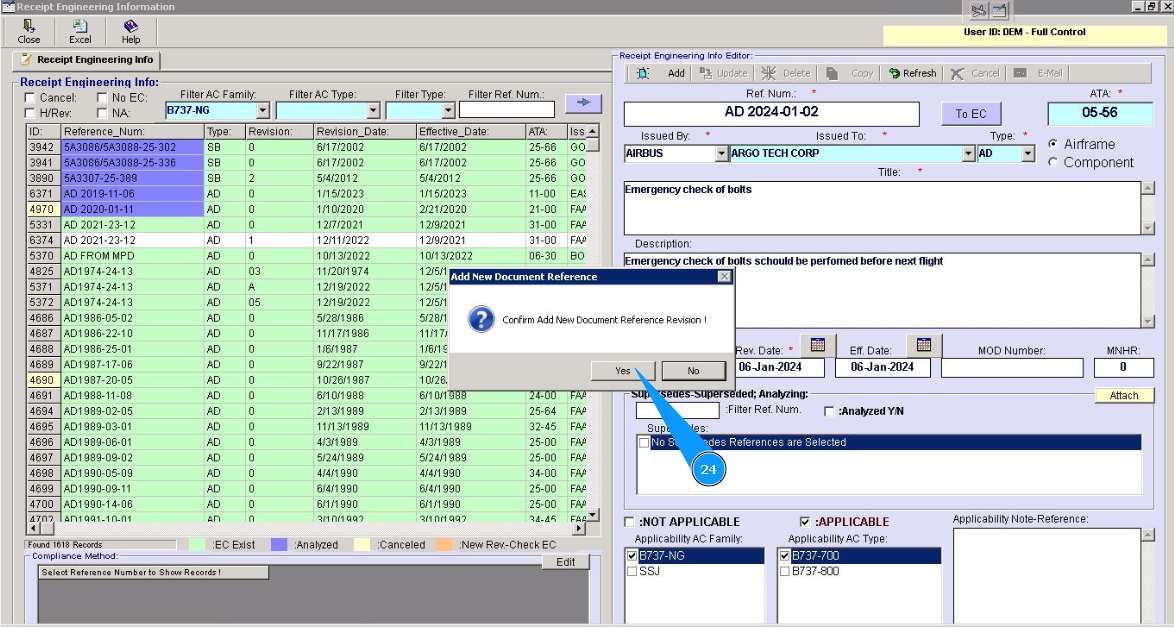
25. Check that the new line with the created account card of Engineering Control is presented in the list of window "Receipt Engineering Info". Creation of Engineering Control is fully completed.