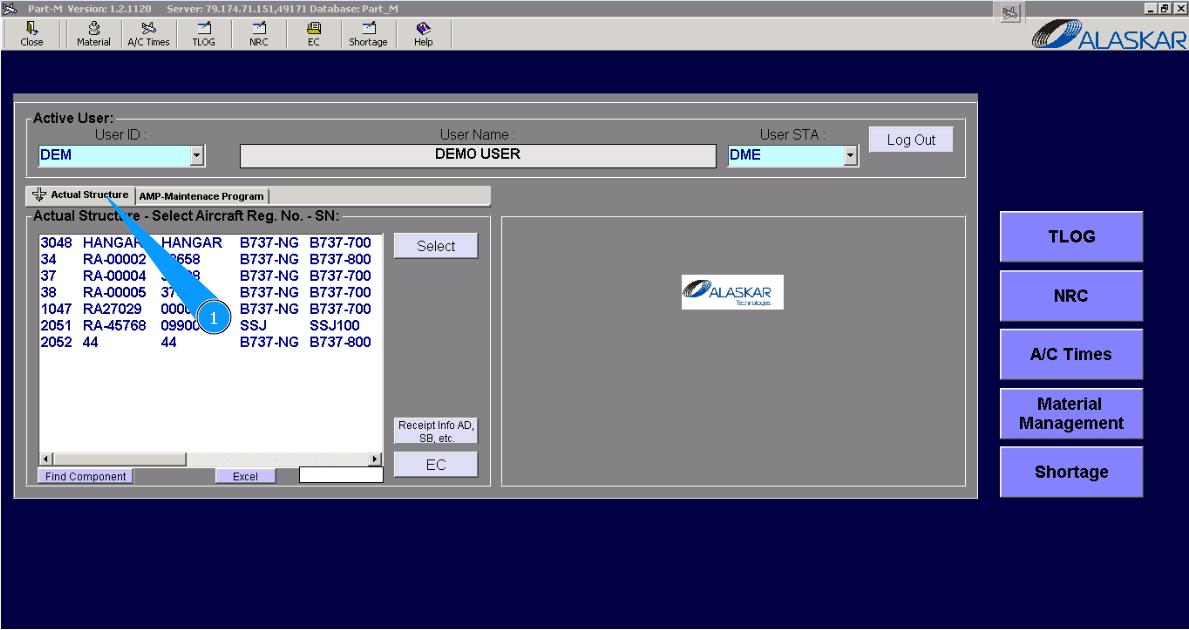
How to correct component data
1. For correction component data, please go to the tab "Actual Structure".
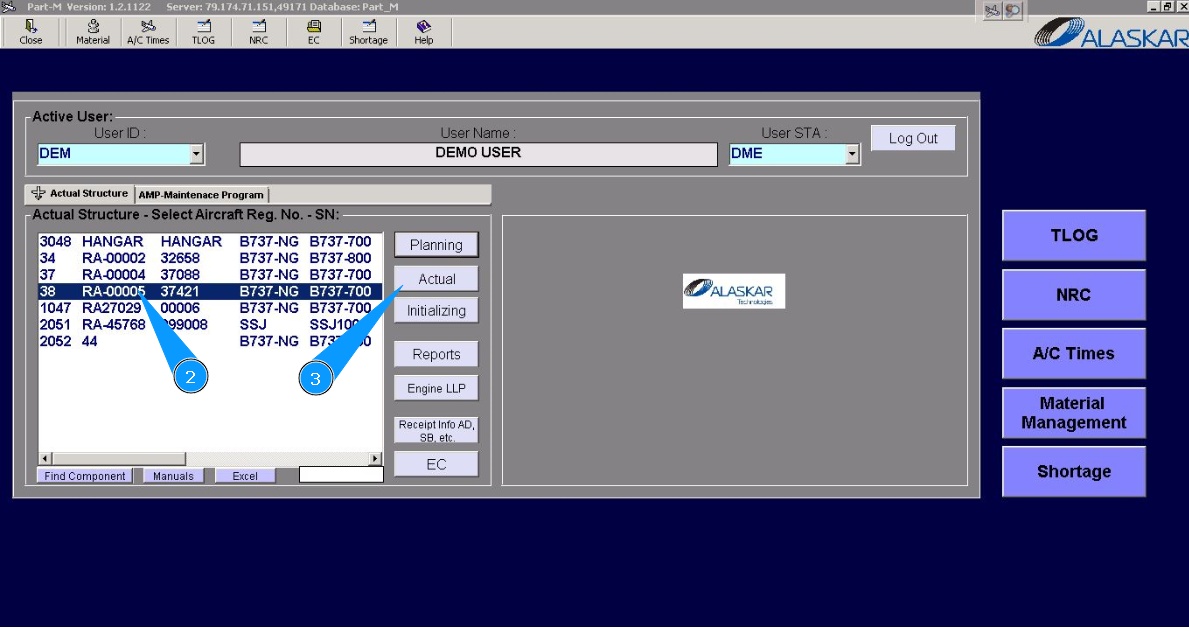
2. Enter the aircraft registration number in the list of window "Actual Structure-Select Aircraft Reg.-SN".
3. Click on the button "Actual", to open the submodule.
4. Then go to tab "Components".
Note: For a more accurate search, you can use the available searching filters: "Filter IPC position", "Filter PN", "Filter SN" etc.
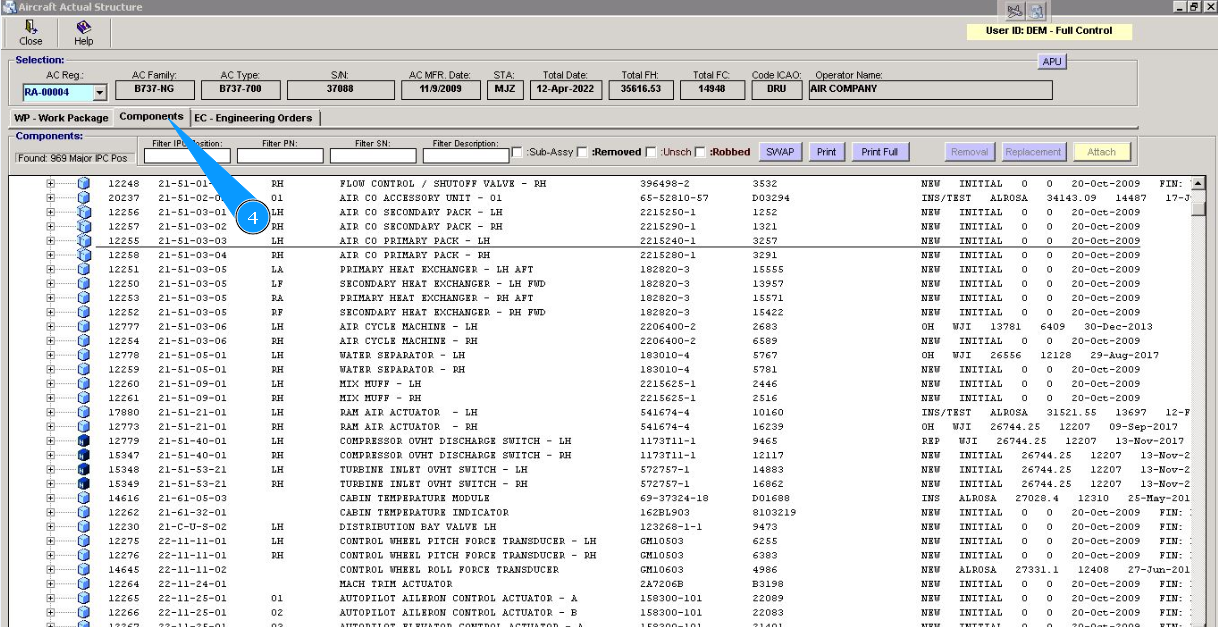
5. Click on the plus of component in the window "Components", to open all components' information.
Note: Hardtime components, or LLP, are indicated by a dark blue cubic symbol with the letter "H"(Hardtime).
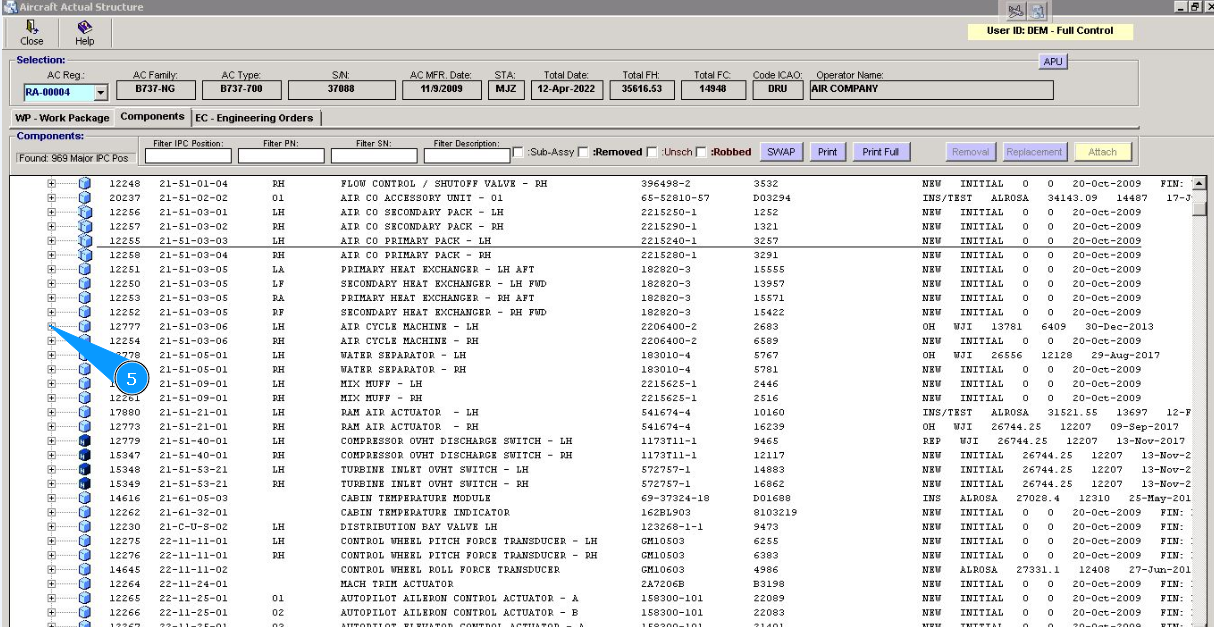
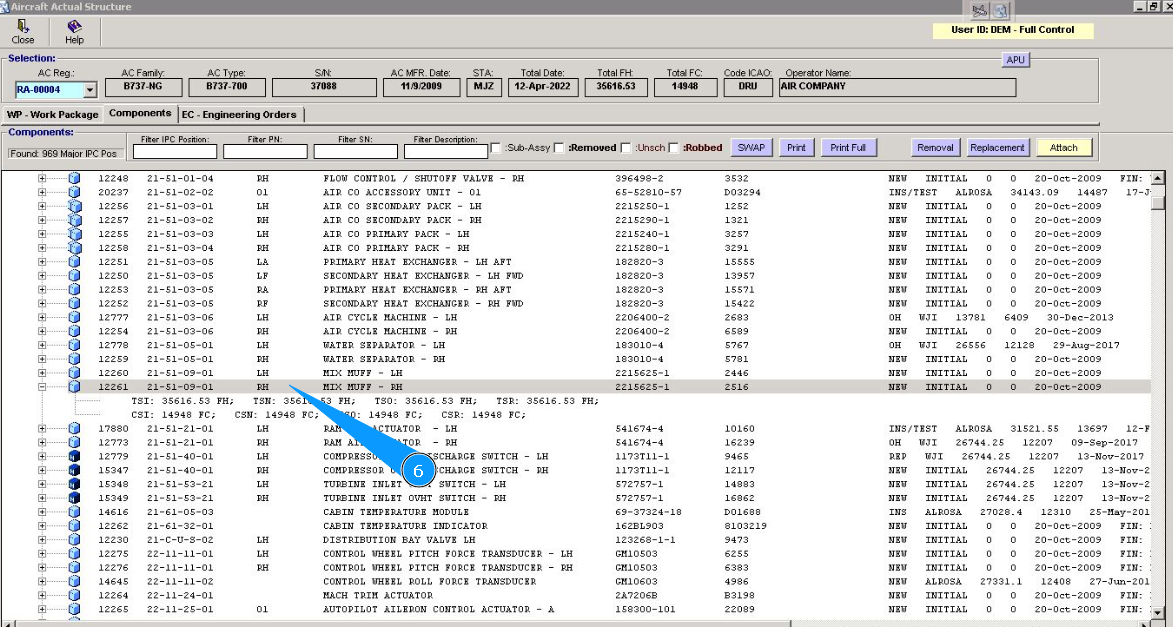
6. Push by the right button of your mouse on the corresponding line, to open component data for correction.
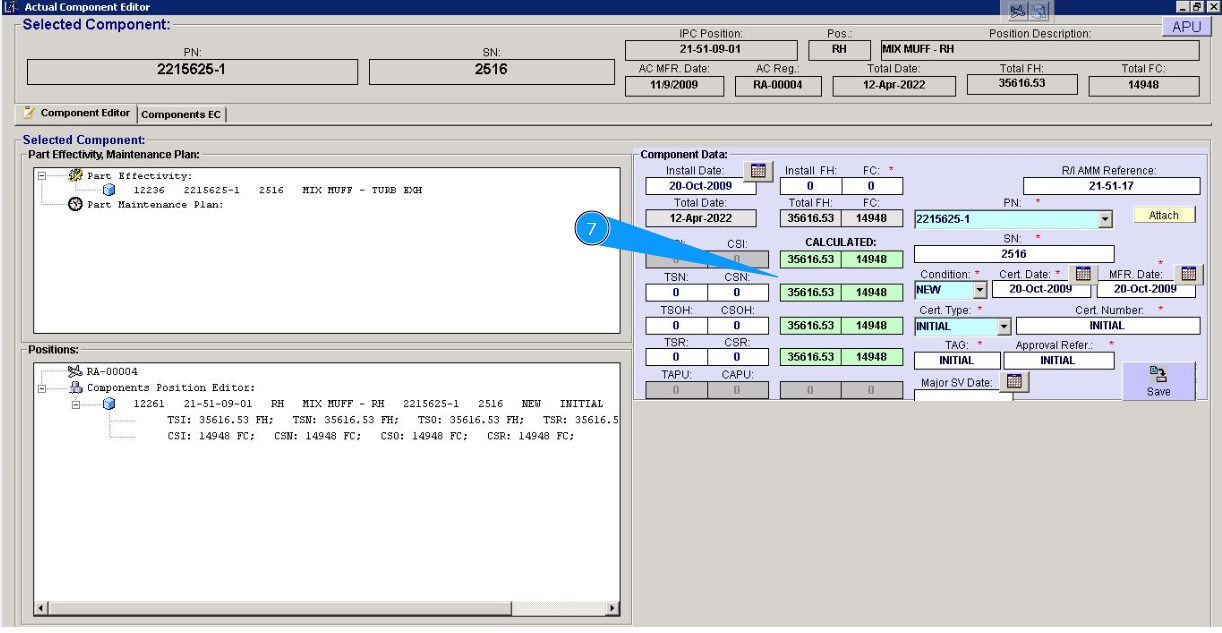
7. If necessary, correct component data in the window Component Data".
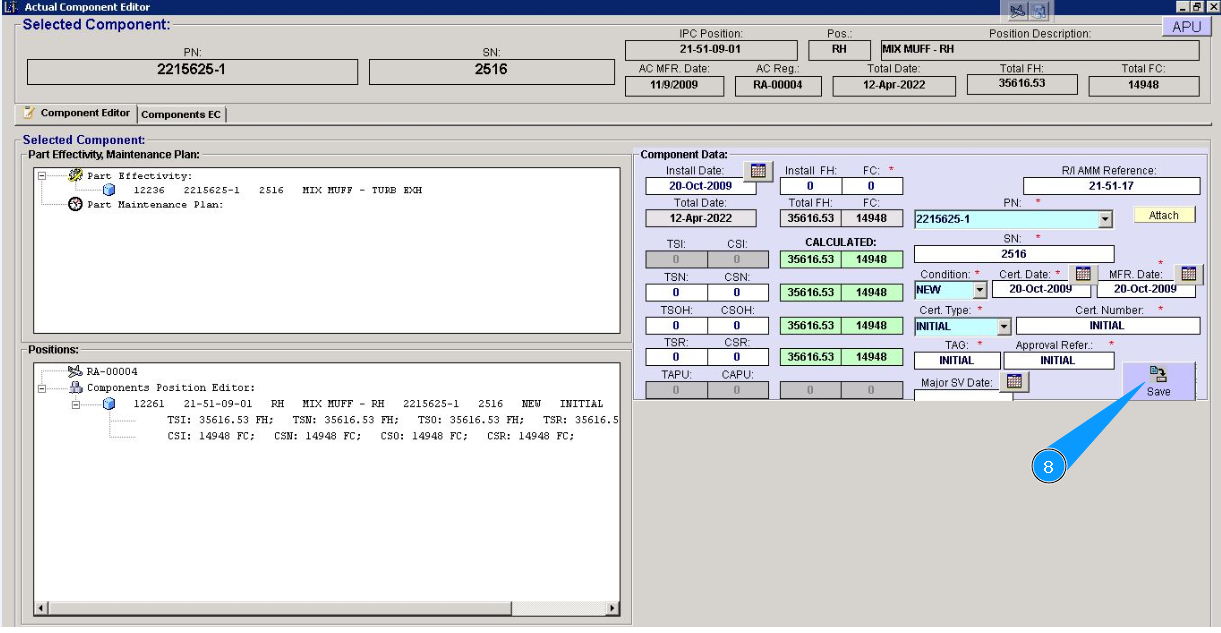
8. For saving correction data into the program, click on the button "Save".
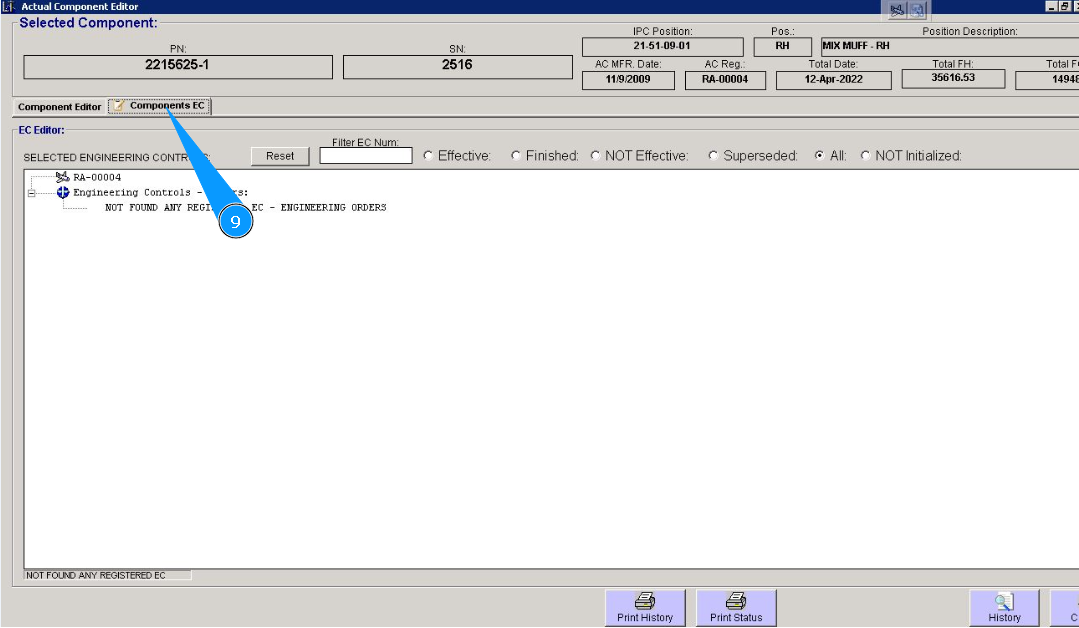
9. For correction, "Engineering Control" is chained with component, go to the tab "Components EC".
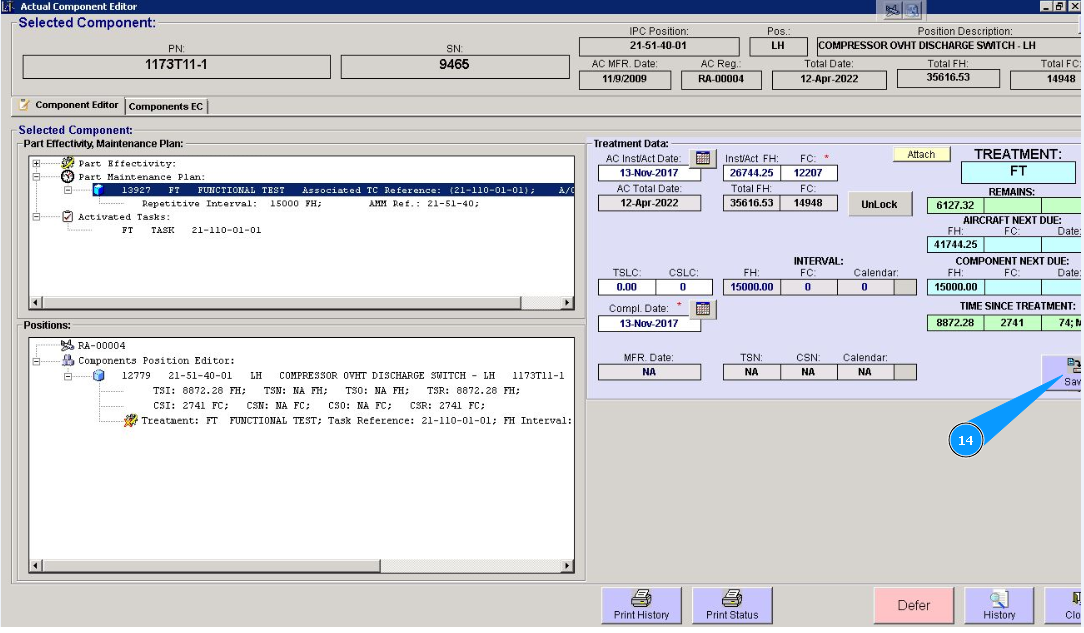
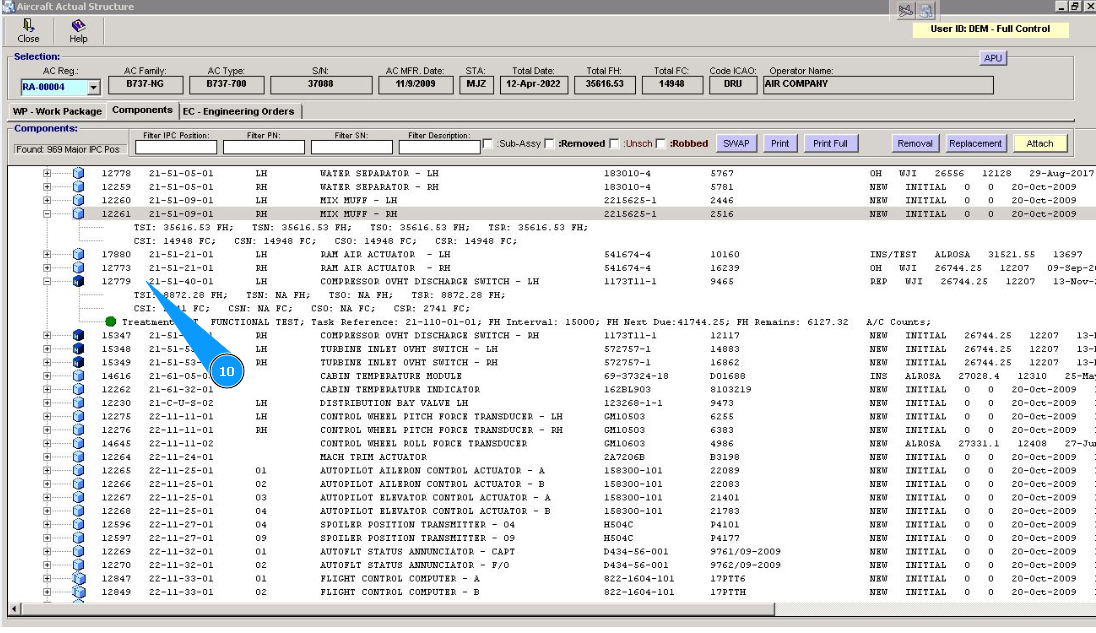
10. For the correction of hardtime components, push by the right button of your mouse on the corresponding line, to open hardtime component data.
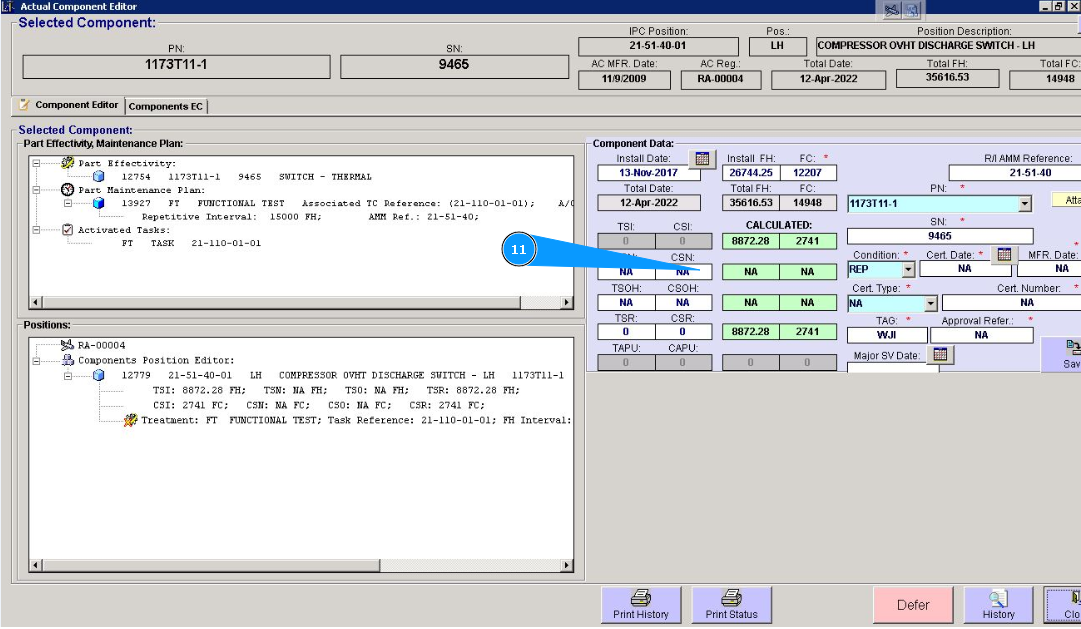
11. If necessary, correct the data of the hardtime component in the window Component Data".
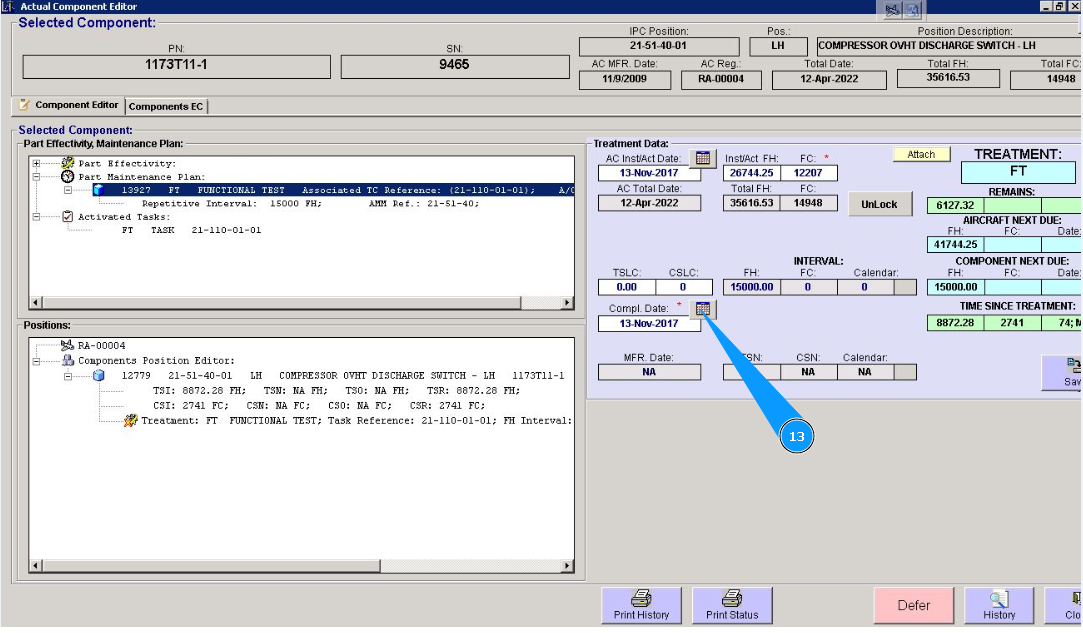
12. If necessary, correct treatment data, in this case, click on the line with treatment in the window Part Effectivity, Maintenance Plan".
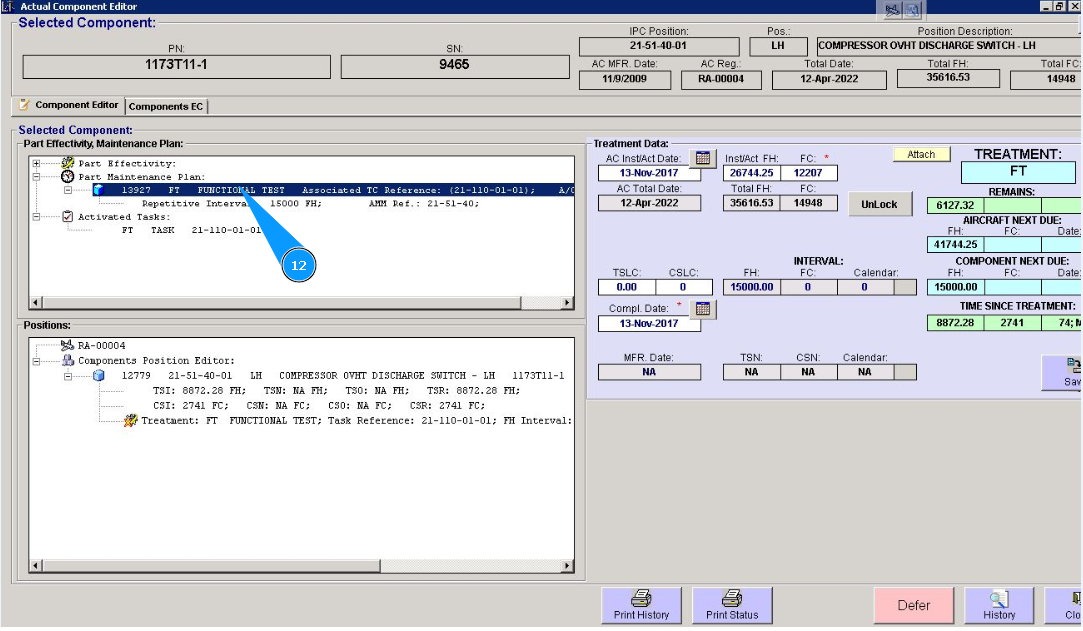
13. Correct treatment data in the window Treatment Data".
Note: If necessary, repeat items from 12 to 14 for all corresponding treatment lines.
14. To save correction data about treatment into the program, click on the button "Save".