How to control Work package
1. For control Work package conditions, please go to submodule "Actual Structure".
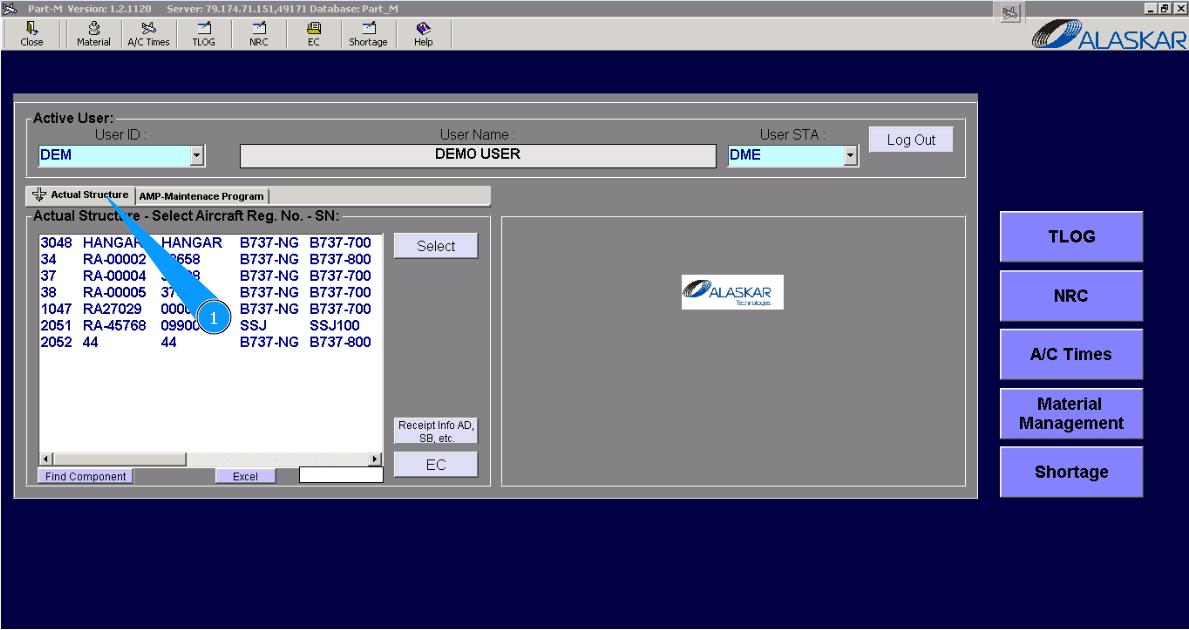
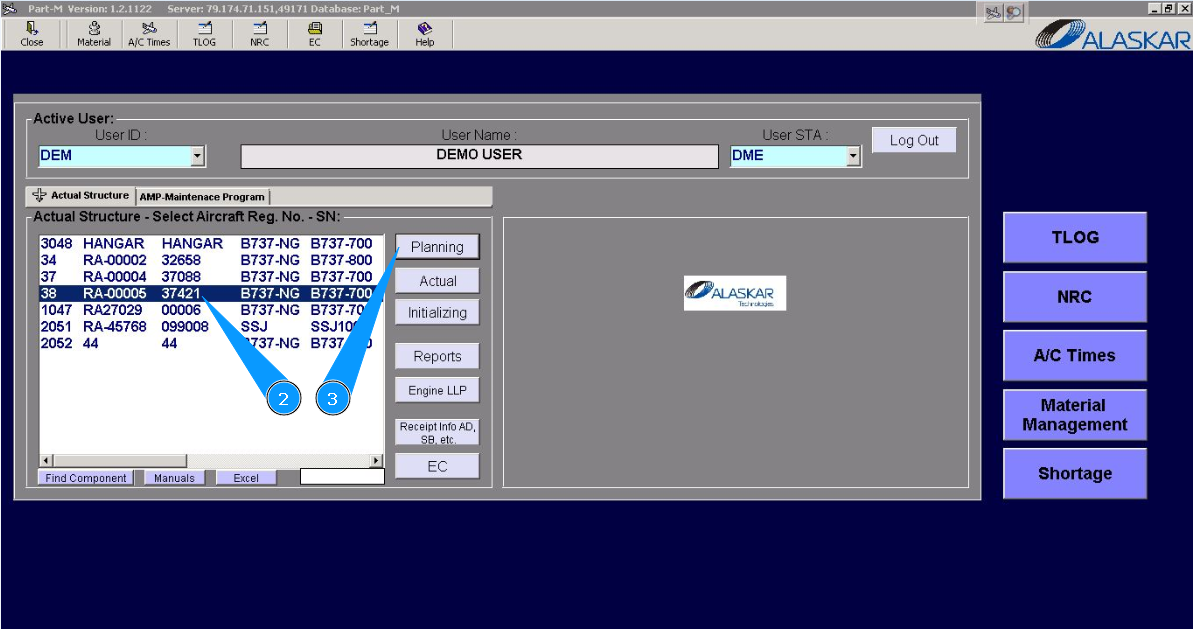
2. Select aircraft registration in the list of window "Actual Structure-Select Aircraft Reg.-SN".
3. Click on the button "Planing", to open submodule planning.
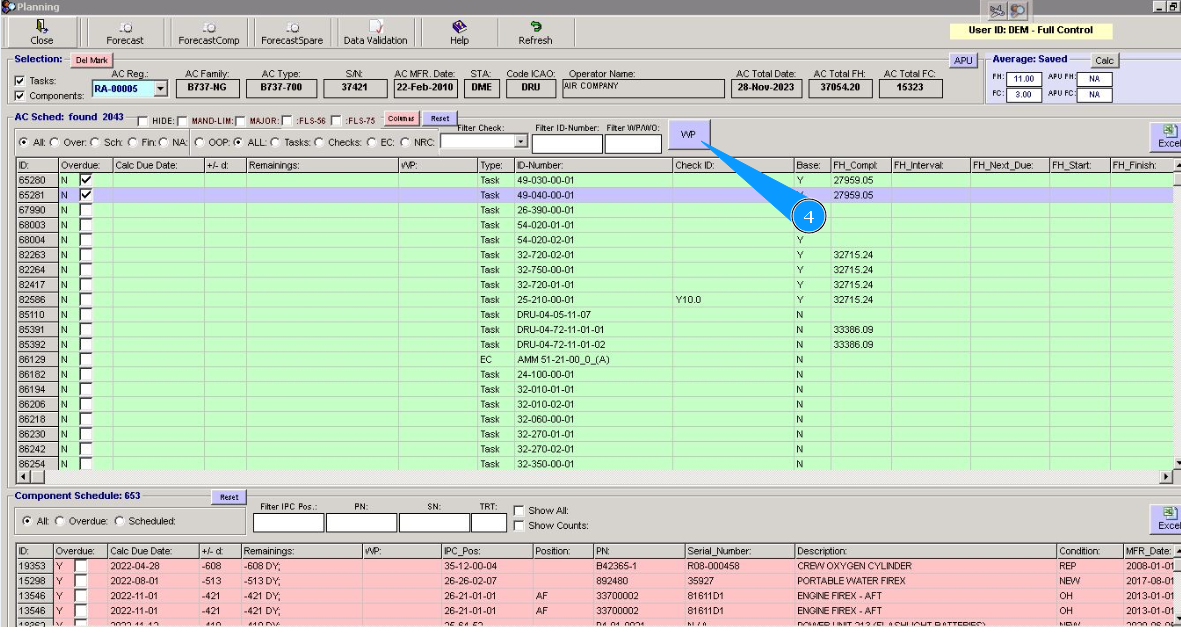
4. Click on the button "WP", to open the WP editor.
5. For the next control Work package, please go to tab "Created".
6. Find the necessary WP for control by scrolling through the window "Work Package Editor".
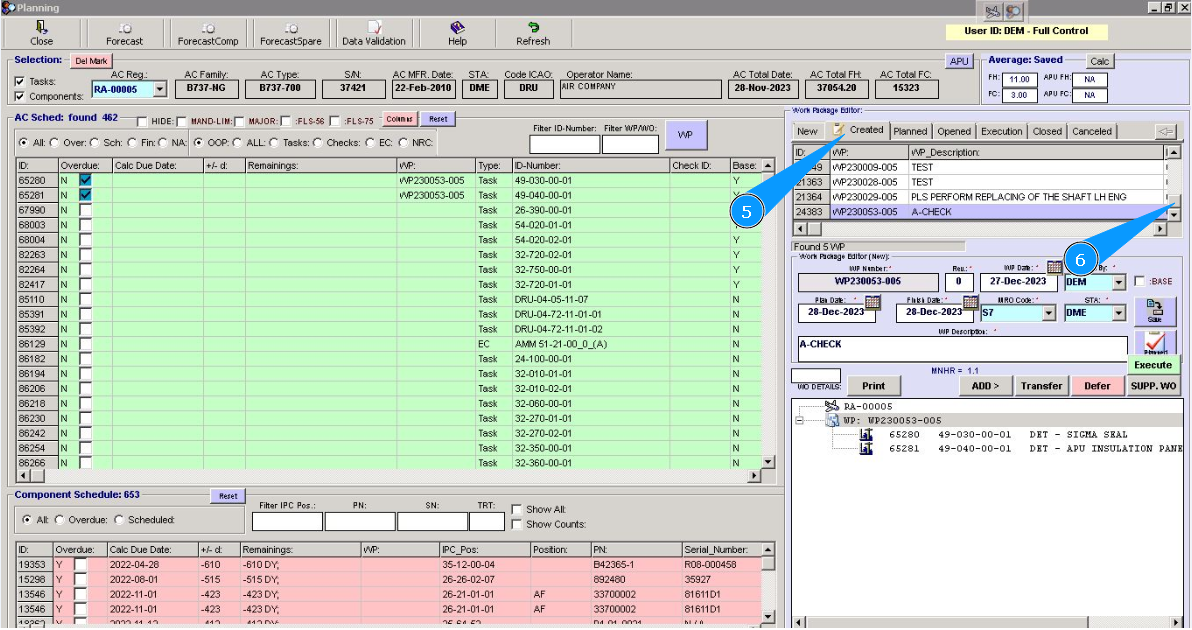
7. Highlight the corresponding line with WP.
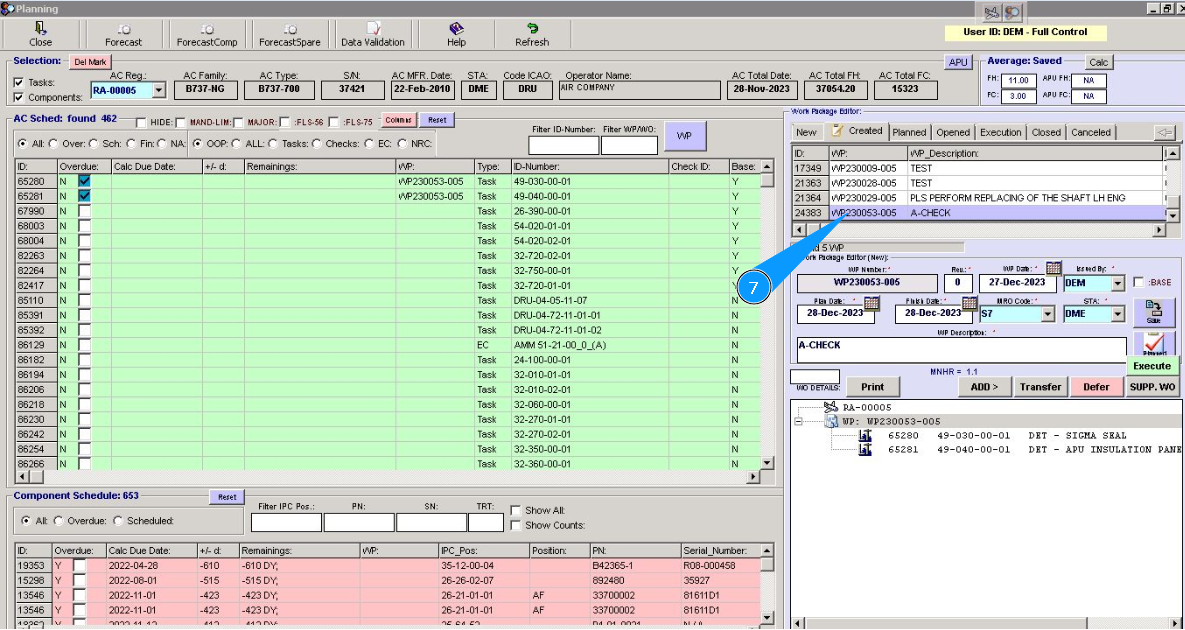
Note: The next steps of this instruction depend on your company policy.
Items 8–19 describe how to transfer Work package to conditions: "Planned", "Opened", "Execute".
If necessary, you can transfer to Work package condition "Execute" without intermediate; in this case, click on the button "Execute".
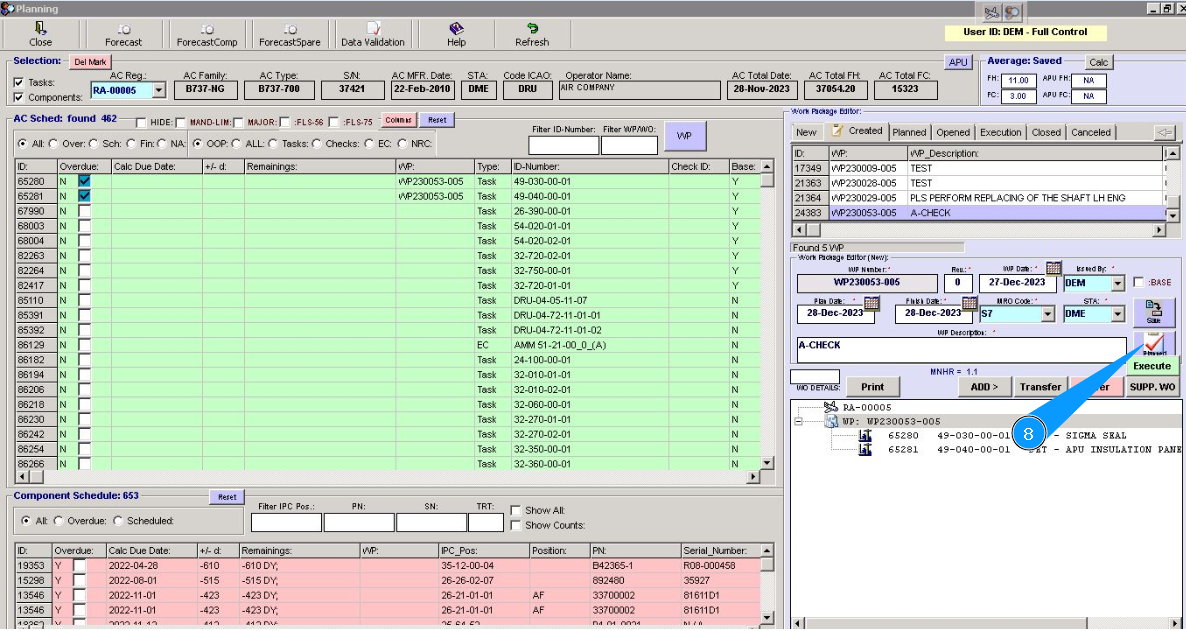
8. To transfer Work package to the condition "Planned", click on the button "Planned".
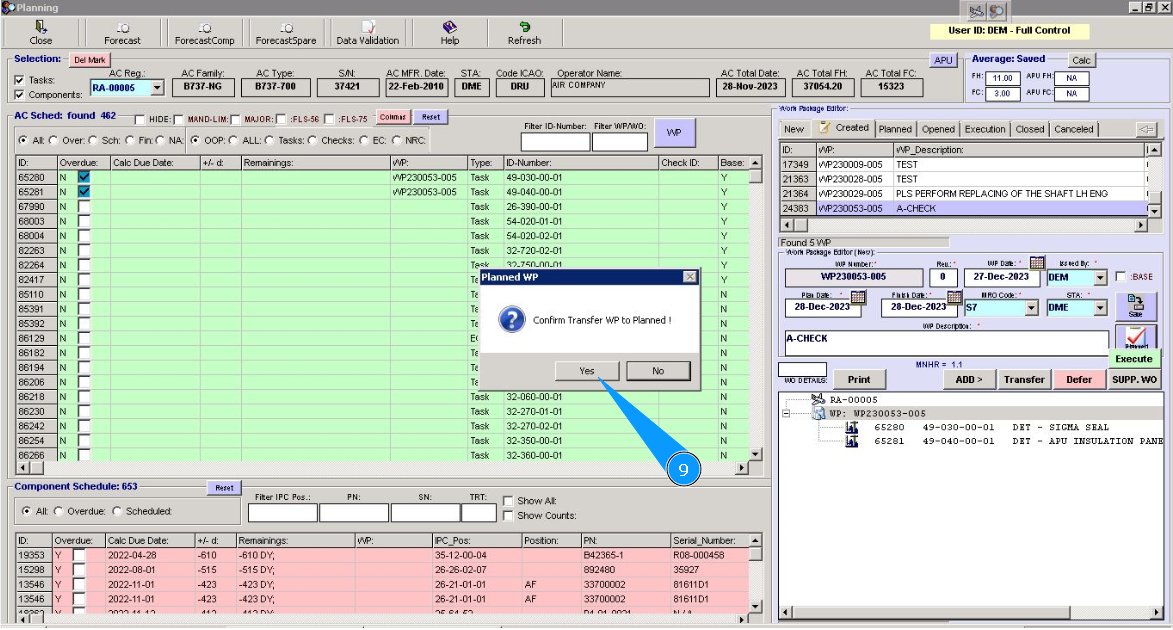
9. Click on the button "Yes", to confirm transferring Work package to the "planned" condition.
10. For the next action, go to the tab "Planned".
11. Find the necessary WP for transferring by scrolling through the window "Work Package Editor".
12. Highlight the corresponding line with WP.
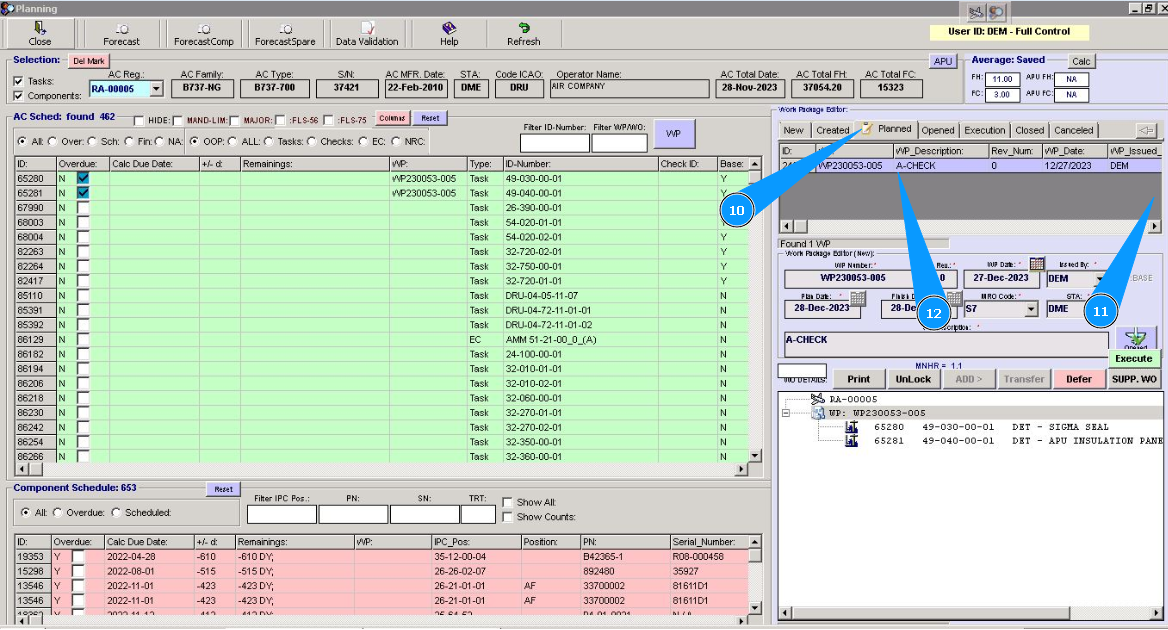
13. To transfer Work package to the condition "Opened", click on the button "Opened".
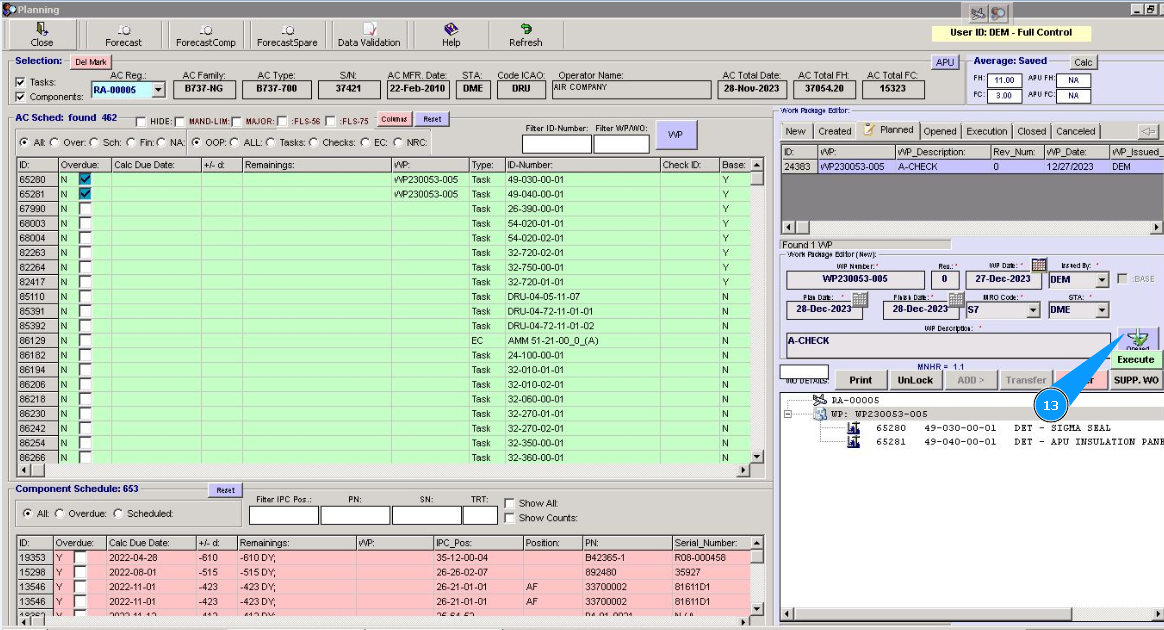
14. Click on the button "Yes", to confirm transferring Work package to the condition "Opened".
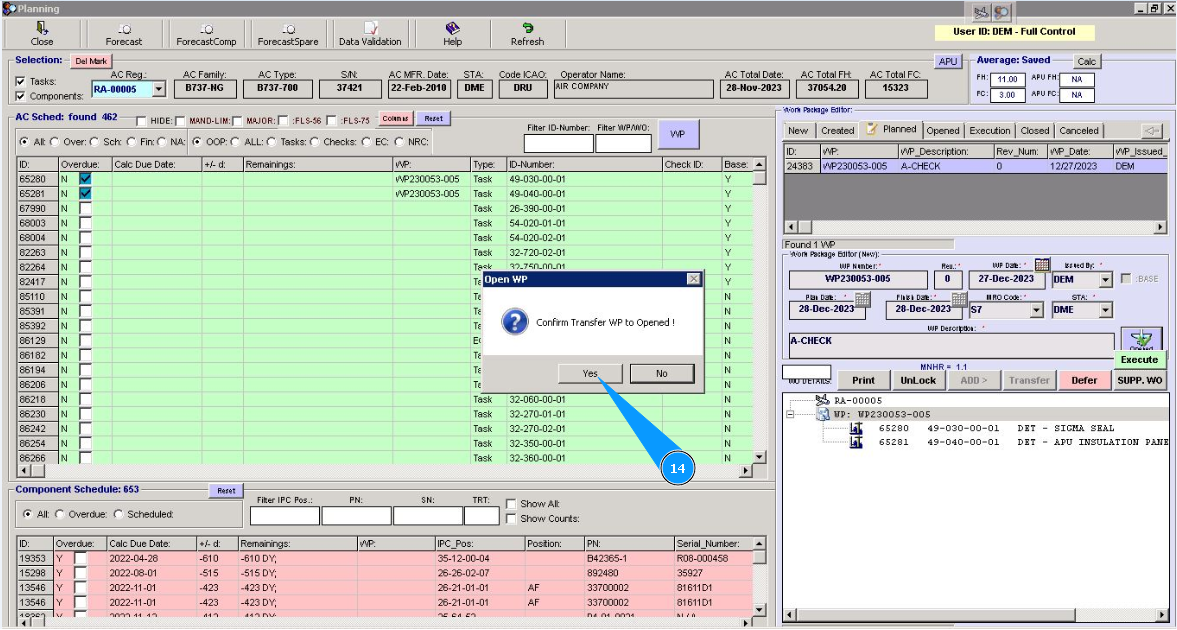
15. For the next action and transferring Work package to the condition "Execution", go to the tab Opened".
16. Find the necessary Work package by scrolling through the window "Work Package Editor".
17. Highlight the corresponding line with WP.
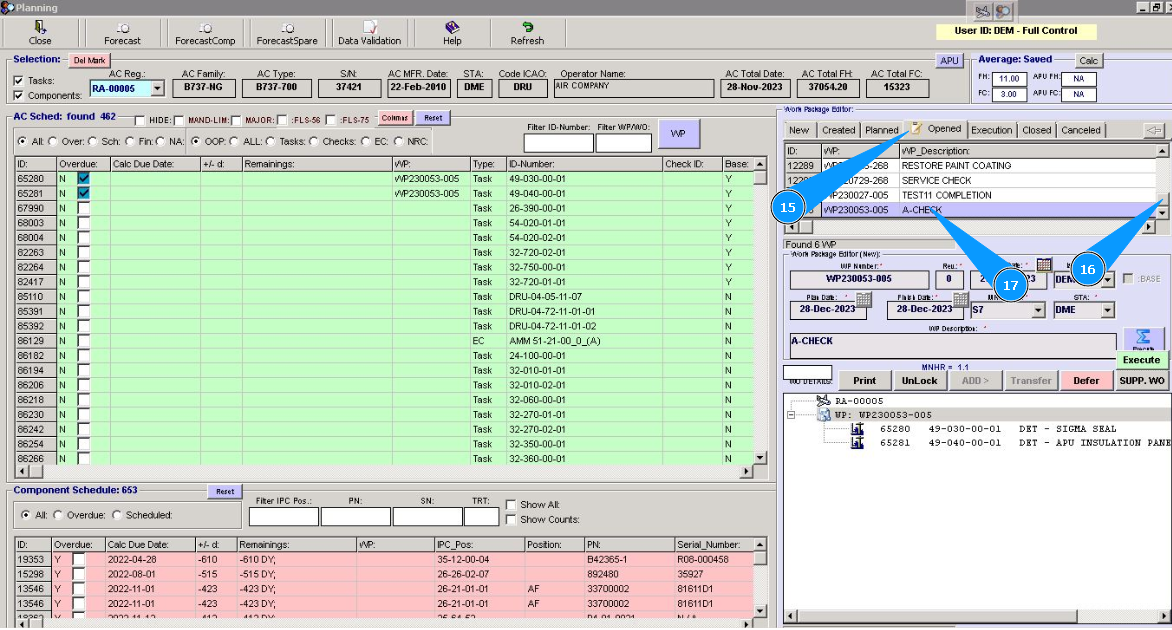
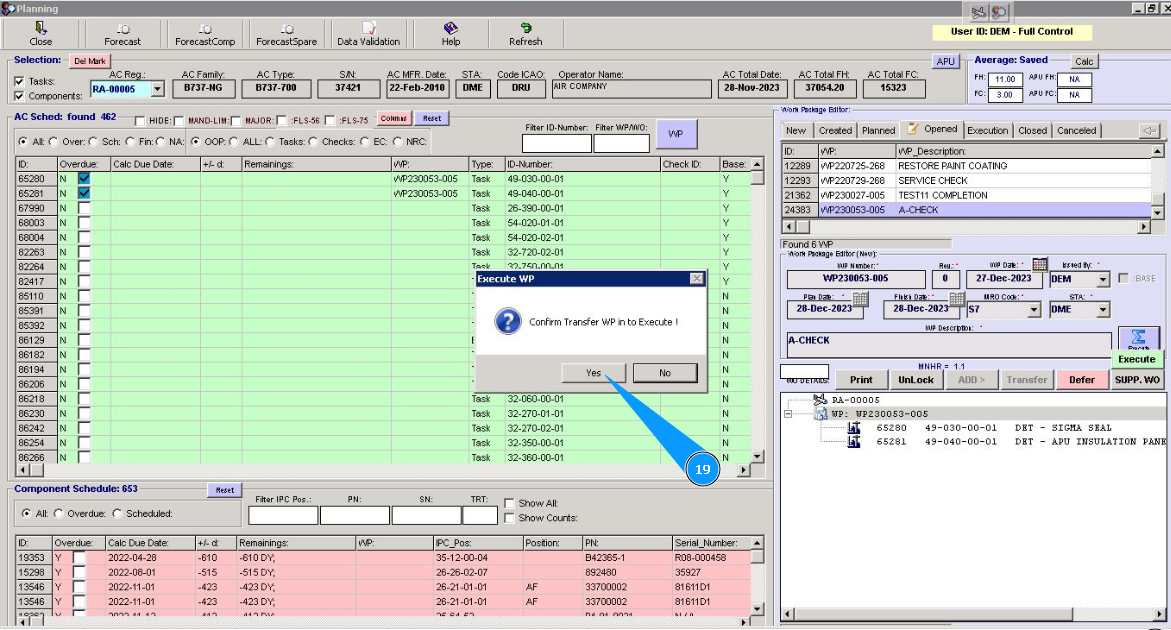
18. To transfer Work package to the condition "Execution", click on the button "Execute".
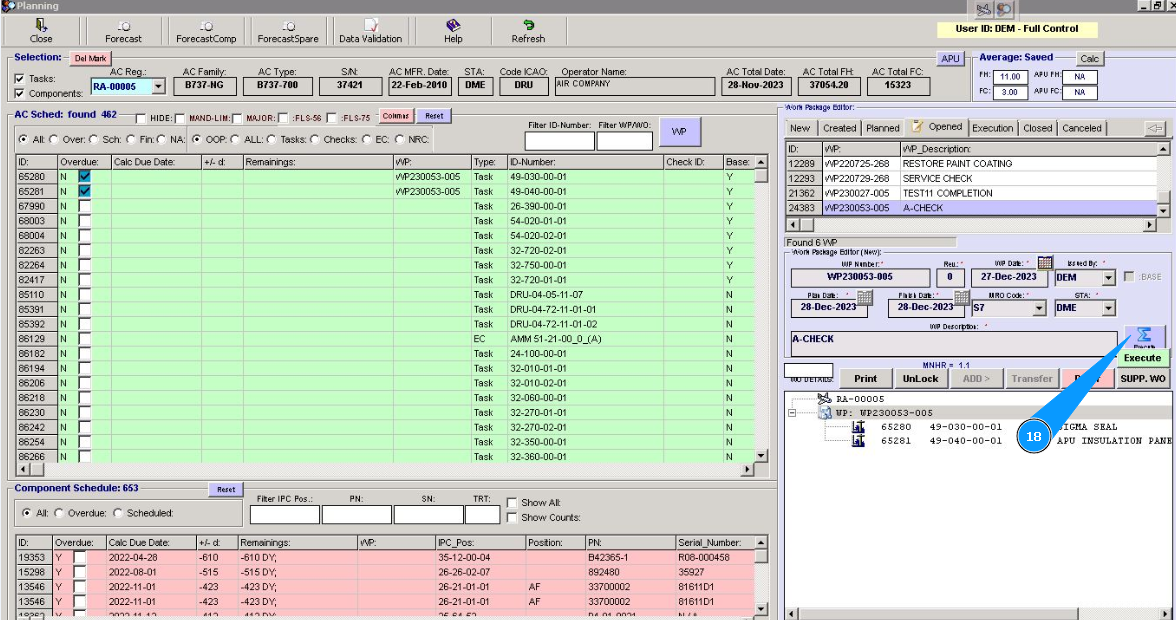
19. Click on the button "Yes", to confirm transferring Work package to the condition "Execution".
Note: If necessary, it is possible to return Work package from the executed condition to the opened condition, where editing is allowed. There are ways to change the content of WP or its description, in this case, click on the button "Back Open".