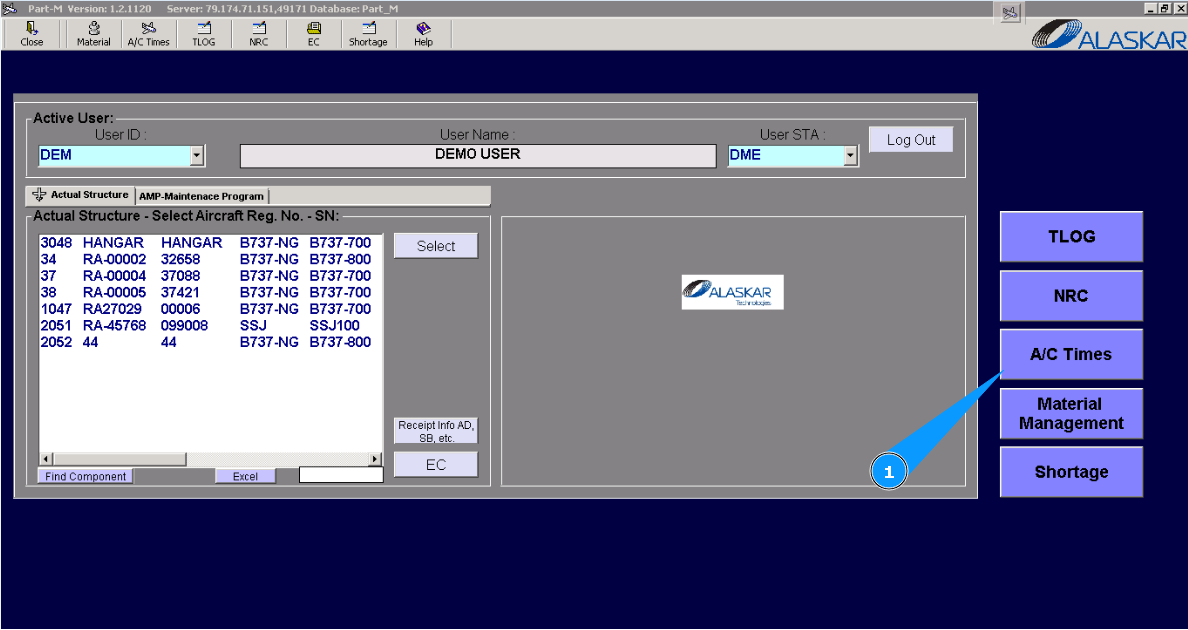
How to control flights under ETOPS condition
1. For control of flights under ETOPS conditions, go to submodule "AC Times/Время ВС".
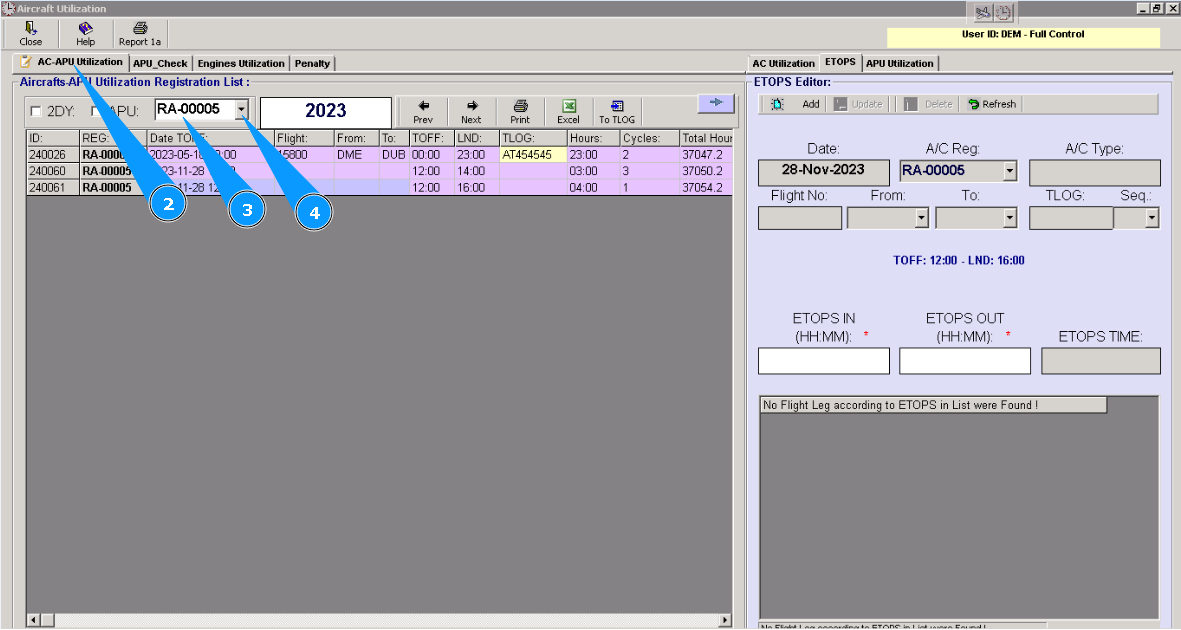
2. Then go to the tab "Aircraft-APU Utilization".
3. Enter the aircraft registration number and click on the button "Enter" on your keyboard.
4. Or select from dropdown list.
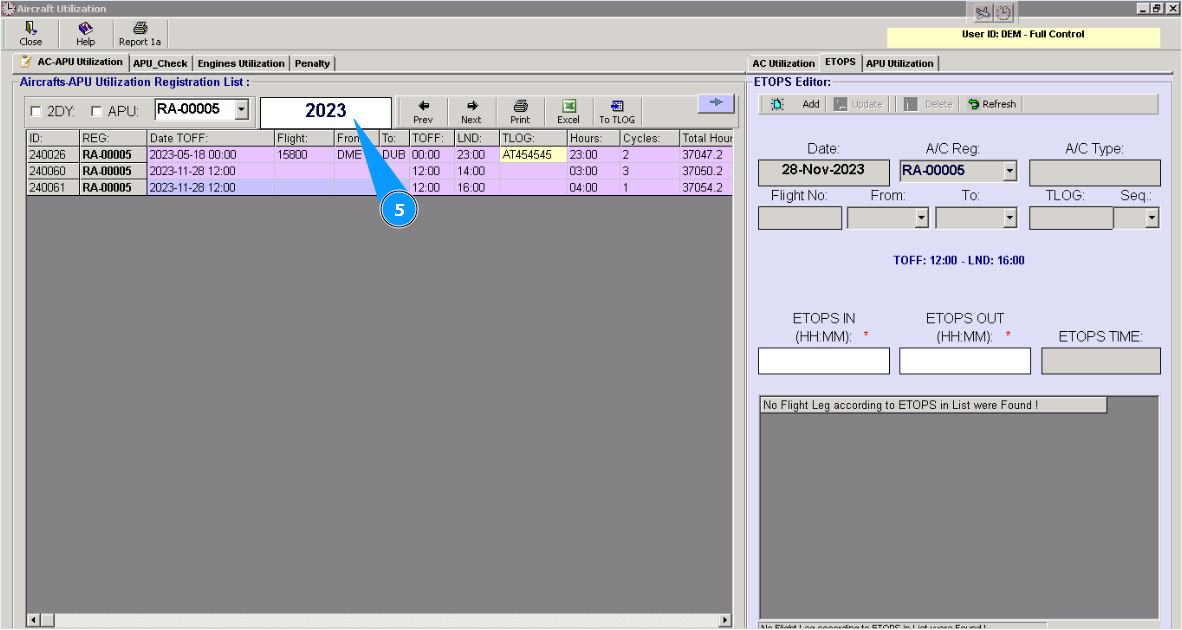
5. Enter the necessary data for adding flight time by ETOPS condition in the ETOPS editor and click on the button "Enter" on your keyboard.<br
Note: If a line with the necessary flight has not been found, please try to change your search criteria in the field of date. Change the date or select the list of all flights for the whole month. In this case, delete the date from this field and leave the month name and year only. For example, "Nov-2023". After that, using the scrolling method, find the necessary line.
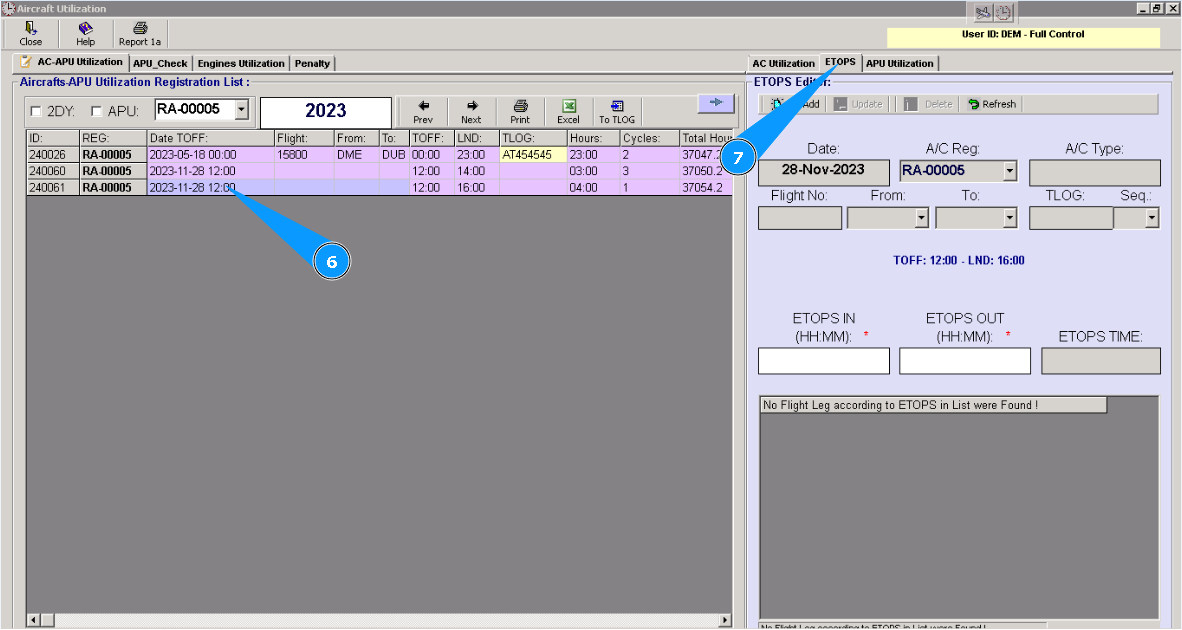
6. Select the flight number and necessary line in the window "Aircraft-APU Utilization Registration List", for adding data on flight time under ETOPS condition.
7. Then go to the tab "ETOPS", where data should be added in the editor "ETOPS Editor".
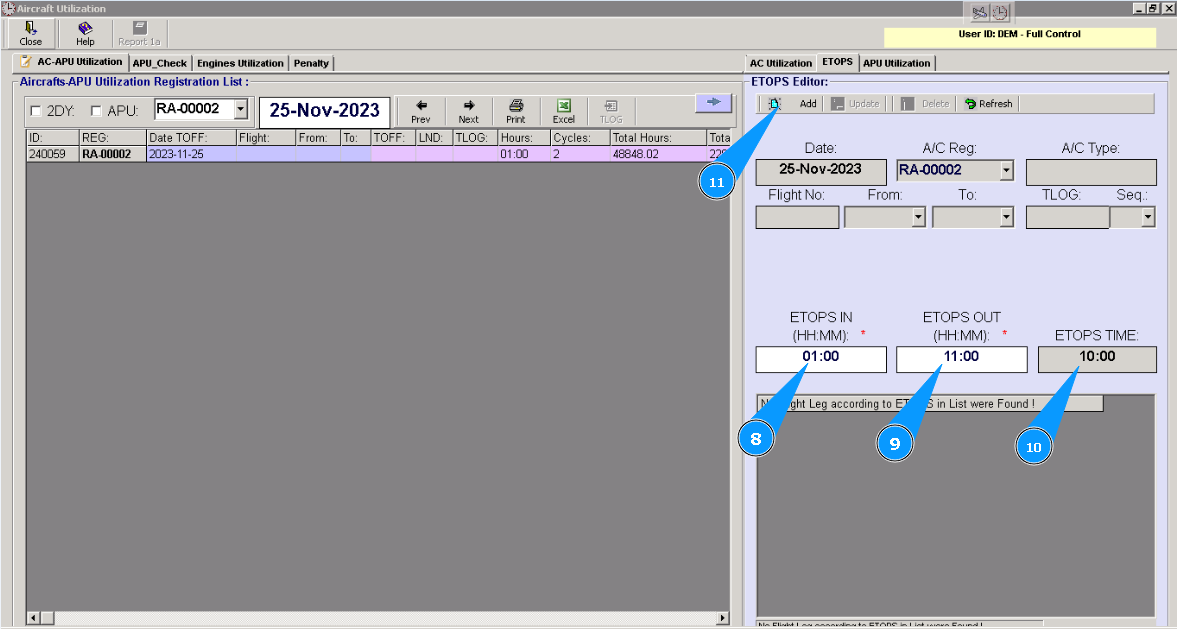
8. Enter the time when aircraft is in ETOPS area in the field "ETOPS In".
9. Enter the time when the aircraft is out of the ETOPS area in the field, "ETOPS Out".
10. Check the calculated time of spent in ETOPS area in the field "ETOPS Time".
11. Click on the button **"Add" to add data to the program.
12. Click on the button "Yes", to confirm adding data to the program.
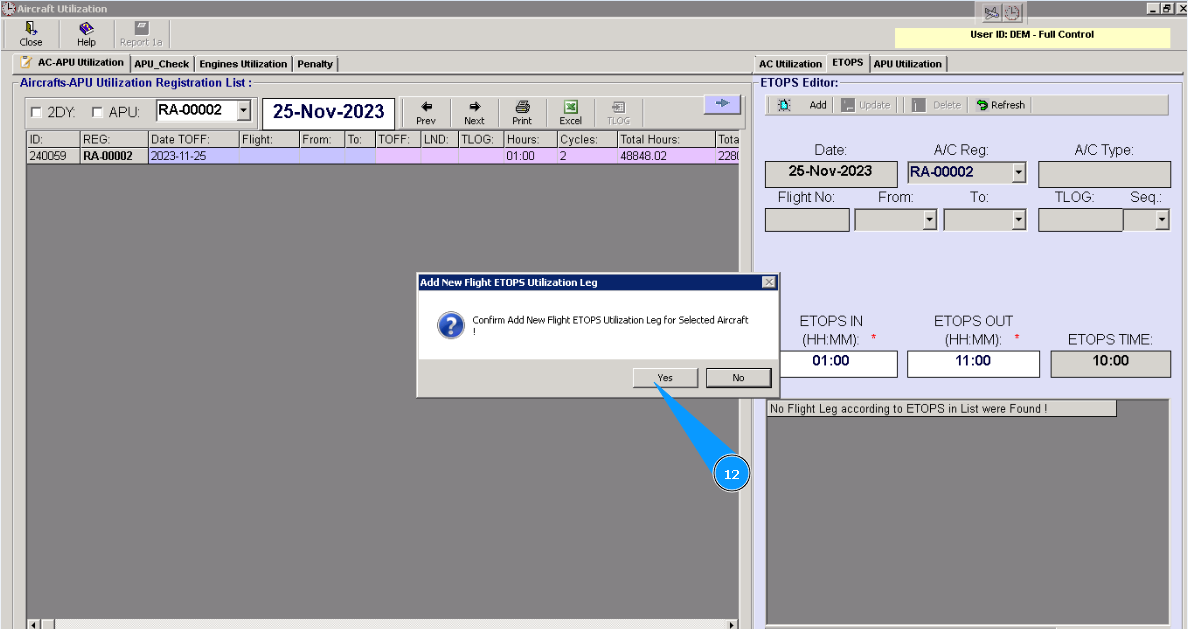
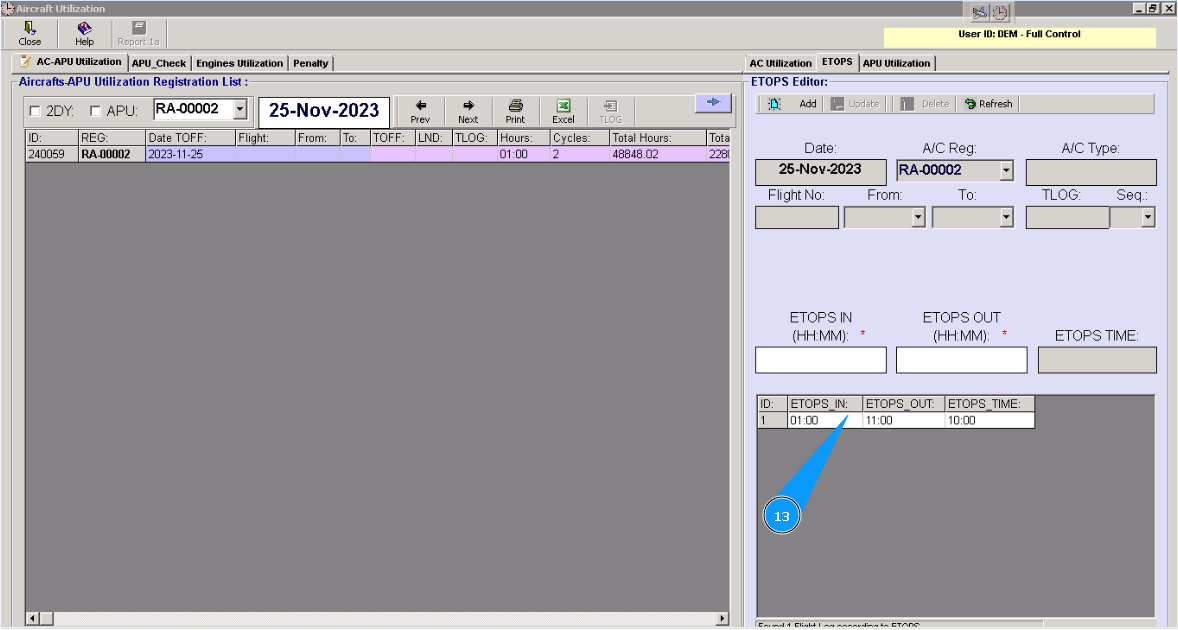
13. Check that a new line with ETOPS parameters appears in the window "ETOPS Editor".