How to control Engineering Control
Note: Engineering Control is an account card in Alaskar for creating and monitoring aviation directives, aircraft manufacture service bulletins, or other continuing airworthiness objects.
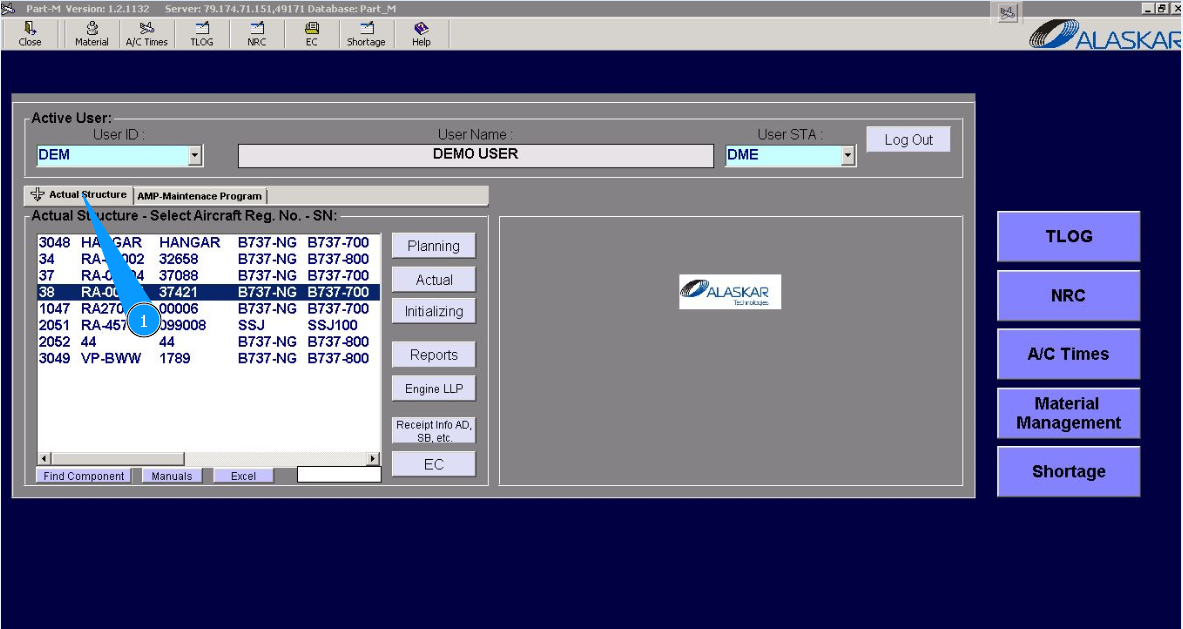
1. To control "Engineering Control", go to the tab "Actual Structure".
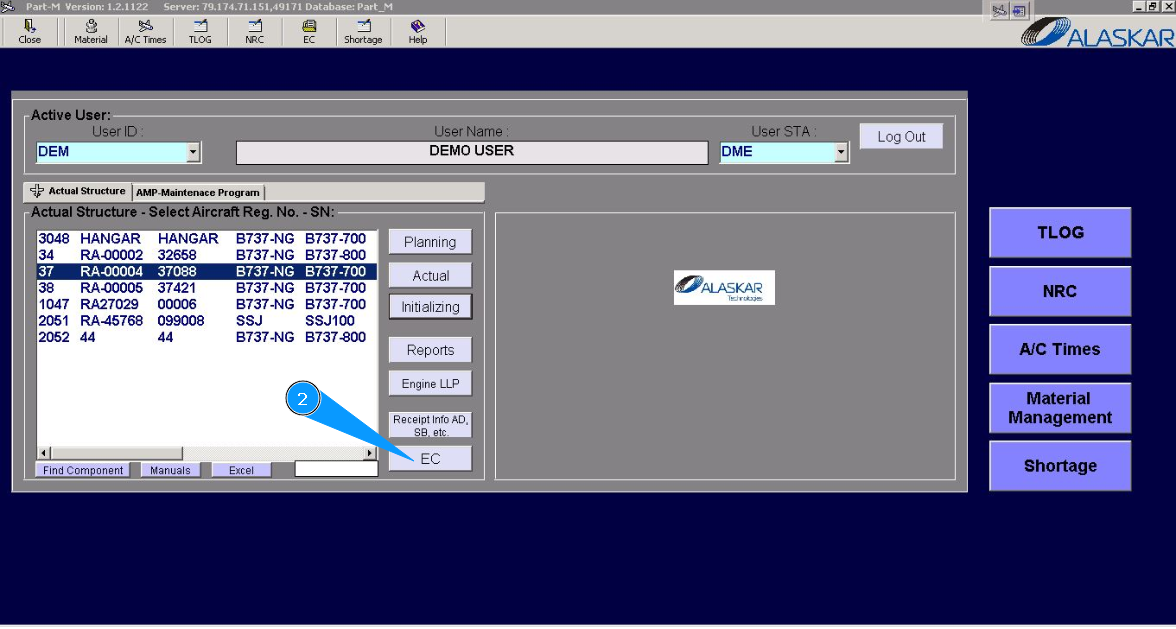
2. Then go to the submodule " EC".
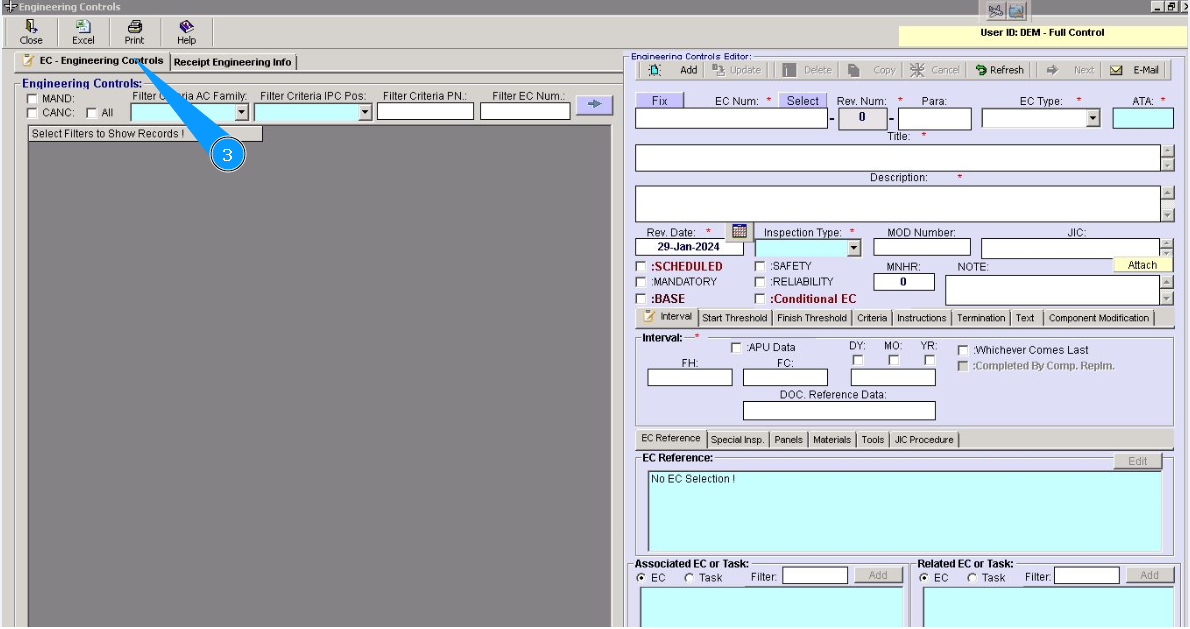
3. Then go to the tab "R EC- Engineering Controls".
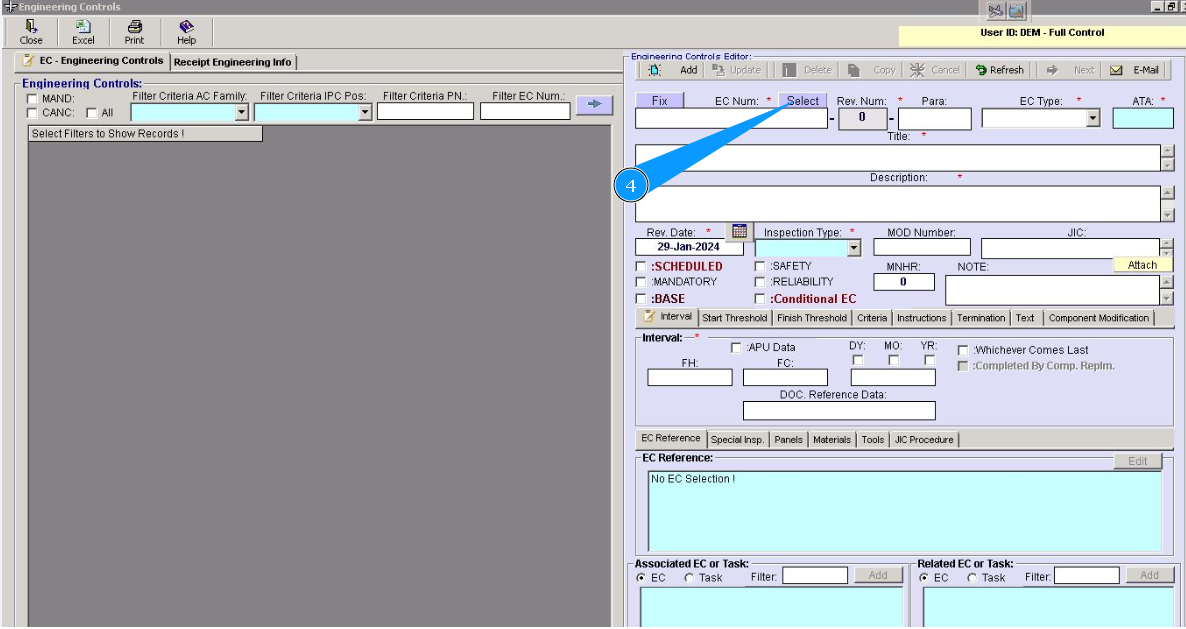
4. Click on the button "Select ", to select the corresponding document of EC.
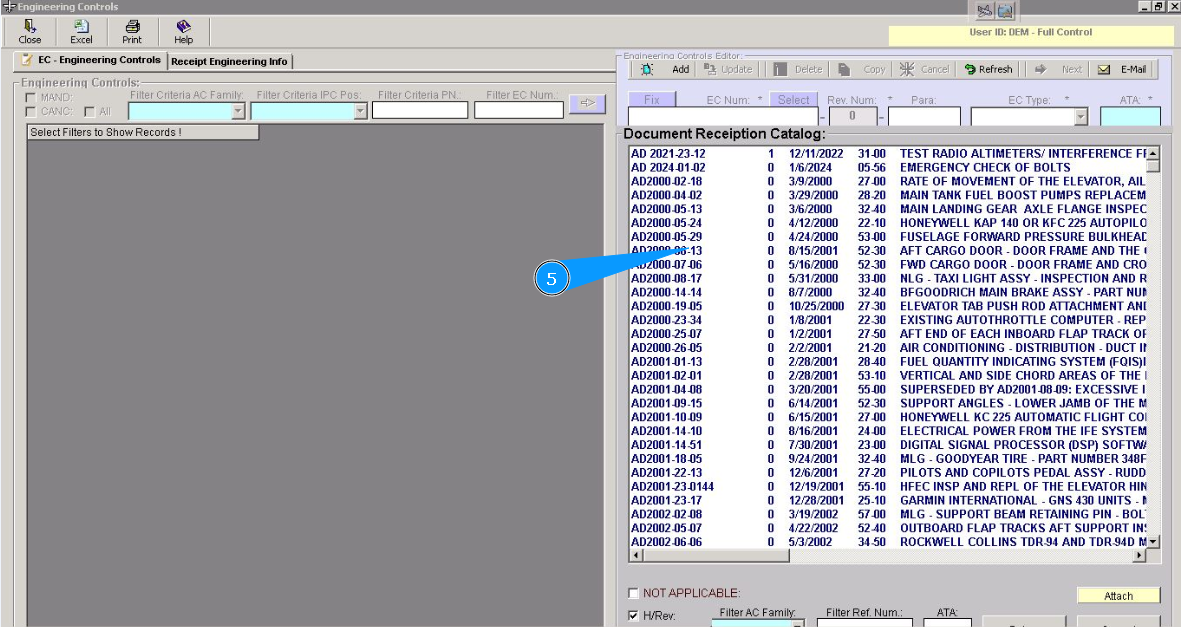
5. Select the corresponding EC from previously loaded EC documents by the scrolling method and click on the line with EC.
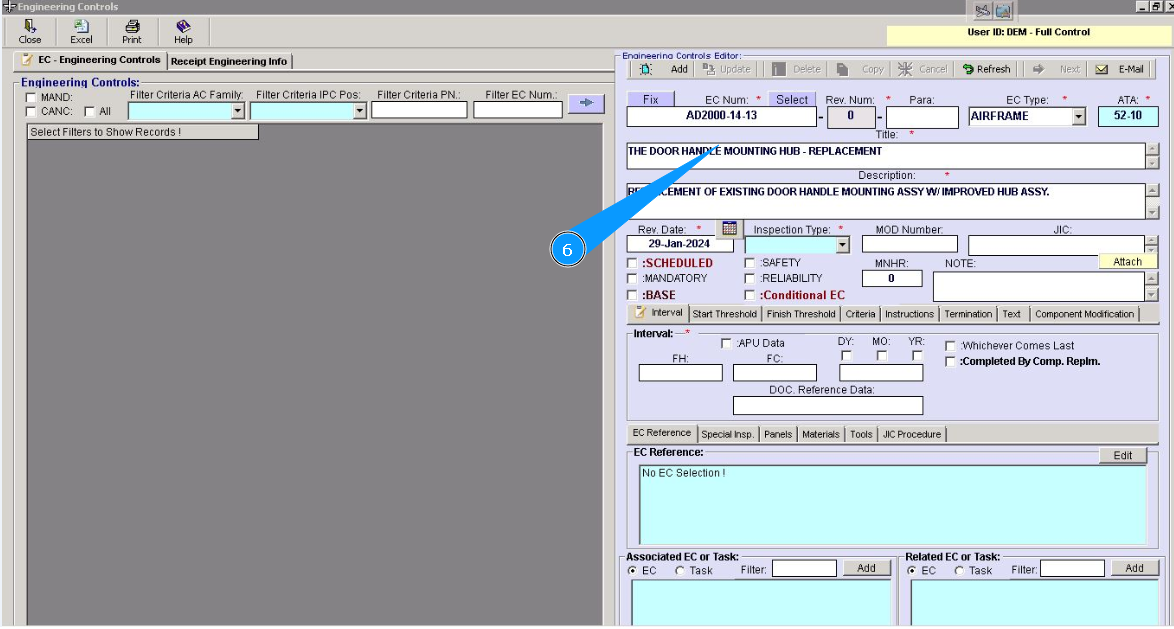
6. Check that preliminary information about EC is presented on the screen and that it is corrected in the fields: "EC Num", "Rev. Num", "EC Type", "ATA", "Title","Description", "Rev.Date.".
7. Select the inspection type from the dropdown list in the field "Inspection Type".
8. Enter a reference for a job card or etc. for performing EC, which was put on the Alaskat server in the field "JIC".
9. Enter the quantity of man-hours for carrying out EC in the field "MNHR".
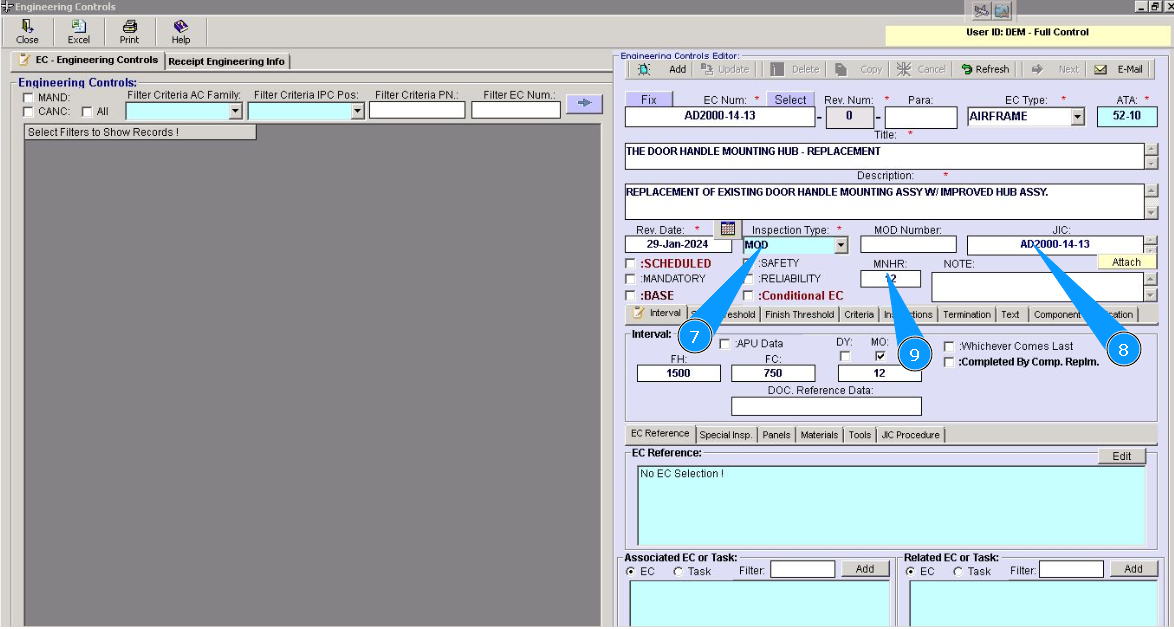
10. Enter data about applicable intervals for the performance of EC in the tab "Interval".
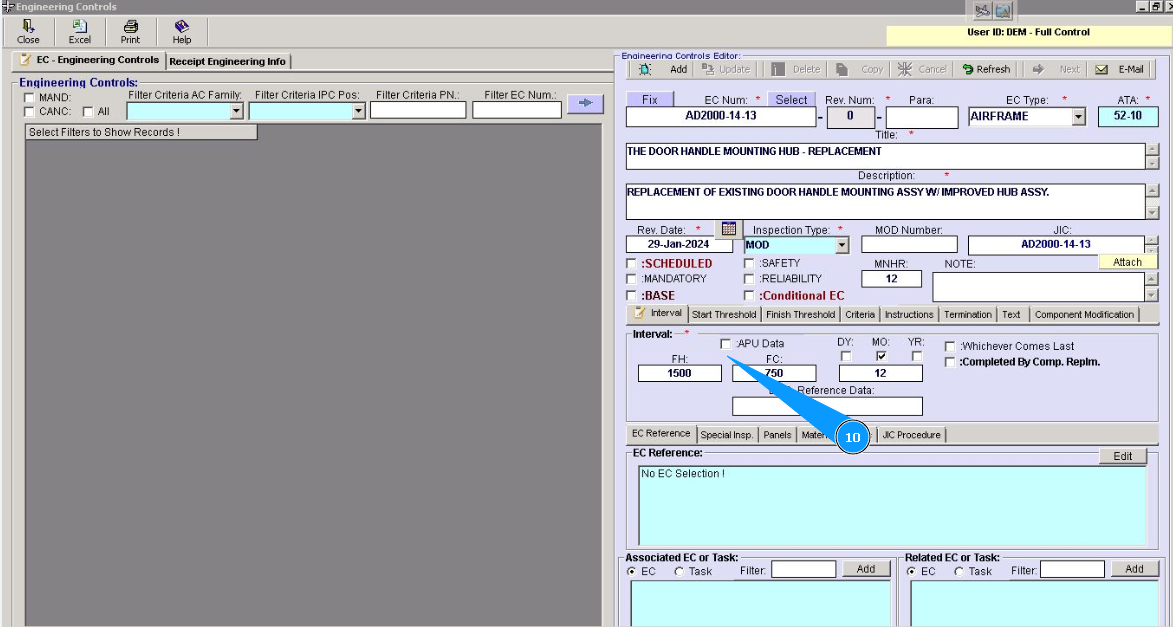
11. Enter the data FH/FC of start threshold EC in the tab "Start Threshold".
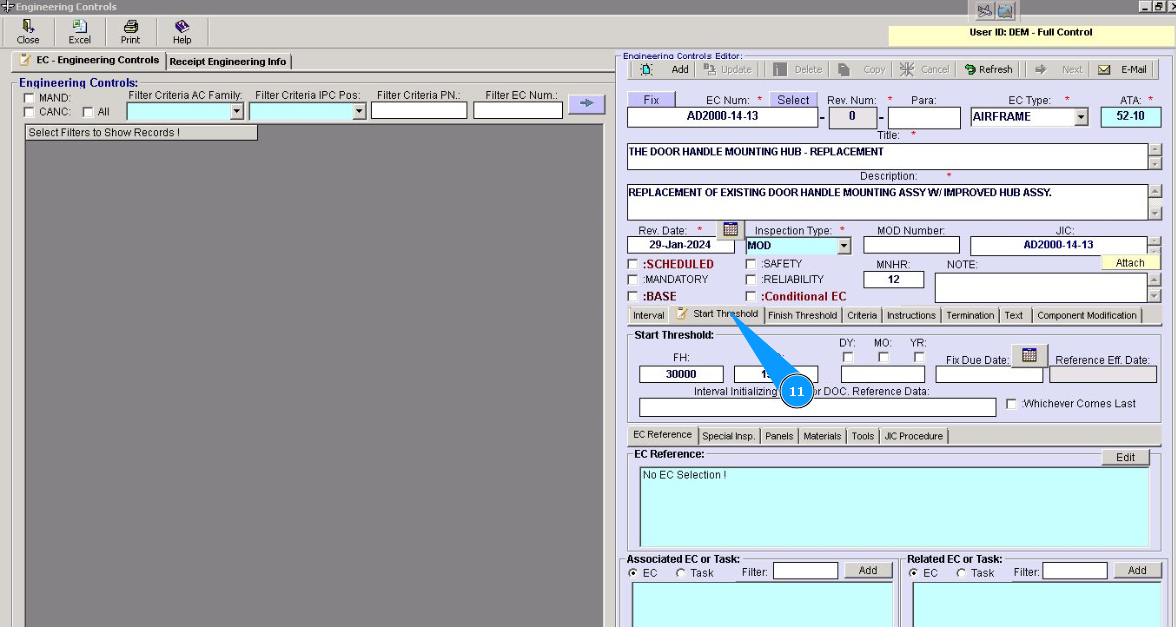
12. Enter the data FH/FC of the finish threshold for performing EC in the tab "Finish Threshold".
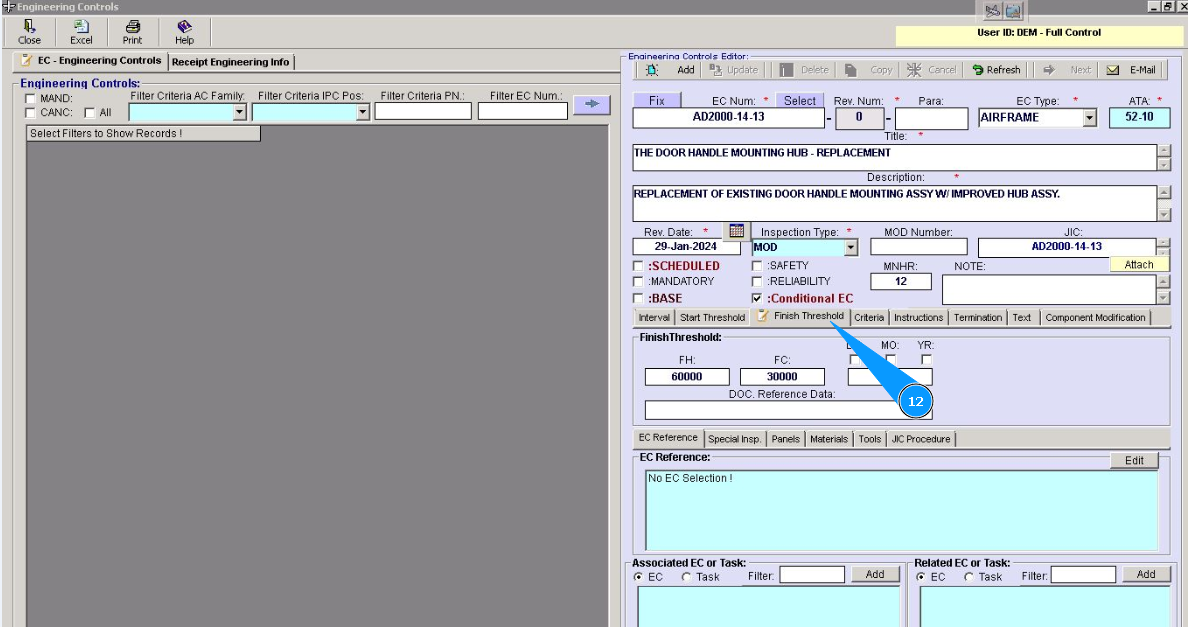
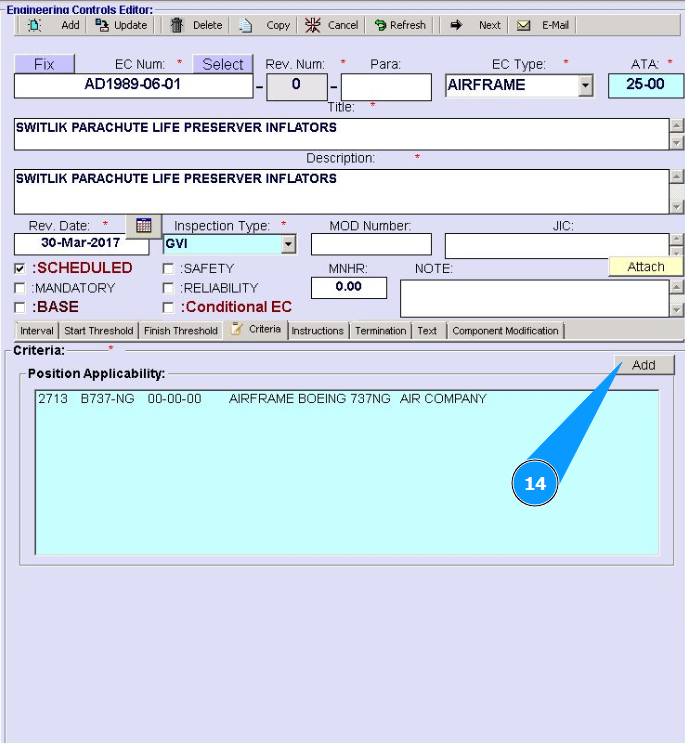
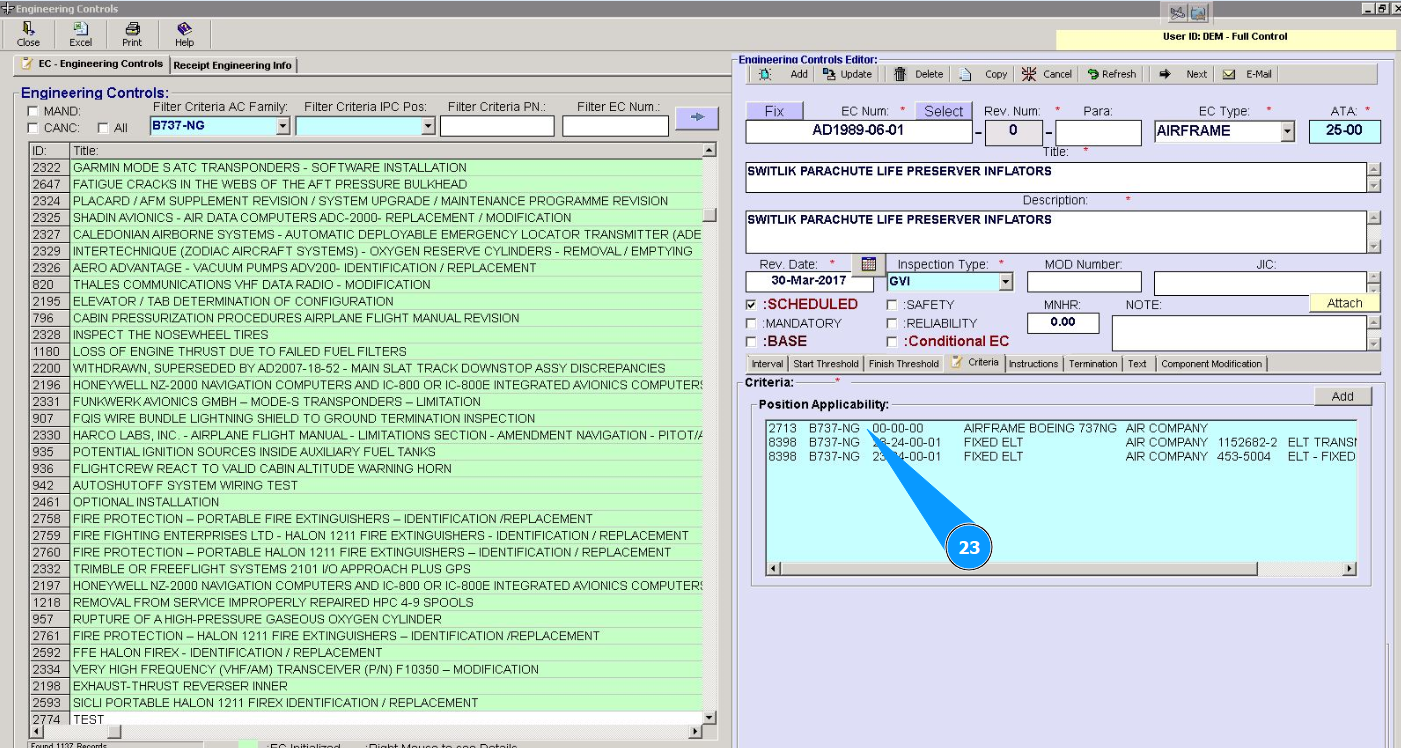
13. Enter data on the relation of this EC to the component position or part number, go to the tab "Criteria".
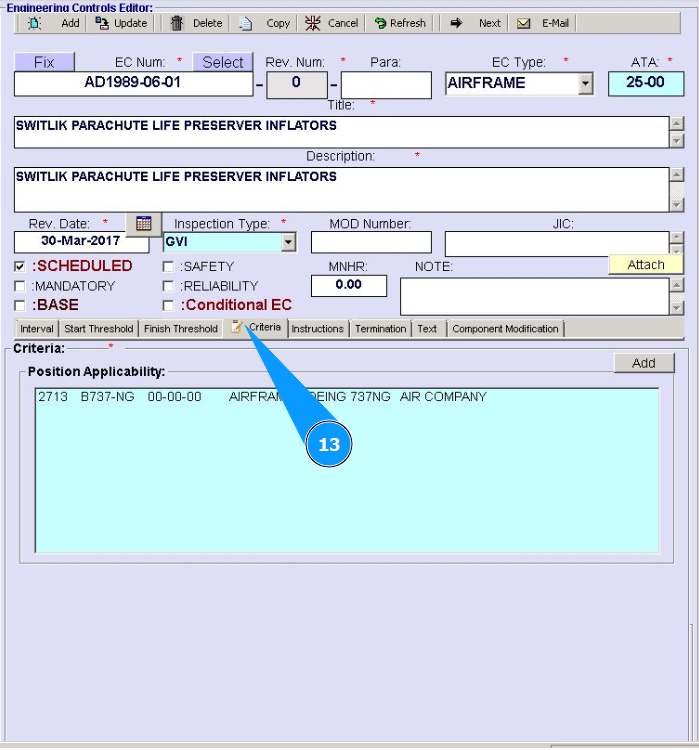
14. Click on the button "Add" to start entering data.
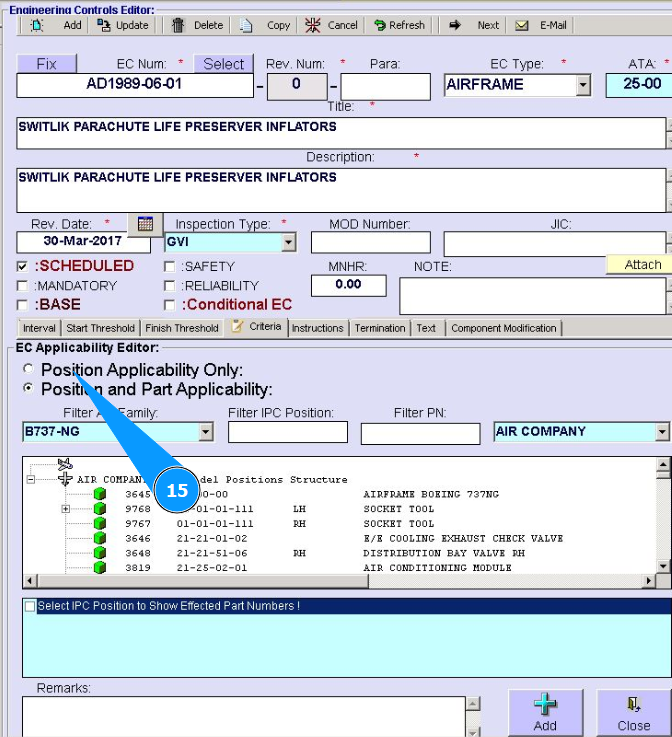
15. Select whether the EC corresponds to only the component position or also to batch numbers "Possition Applicability Only" or "Possition and Part Applicability", tick the appropriate box.
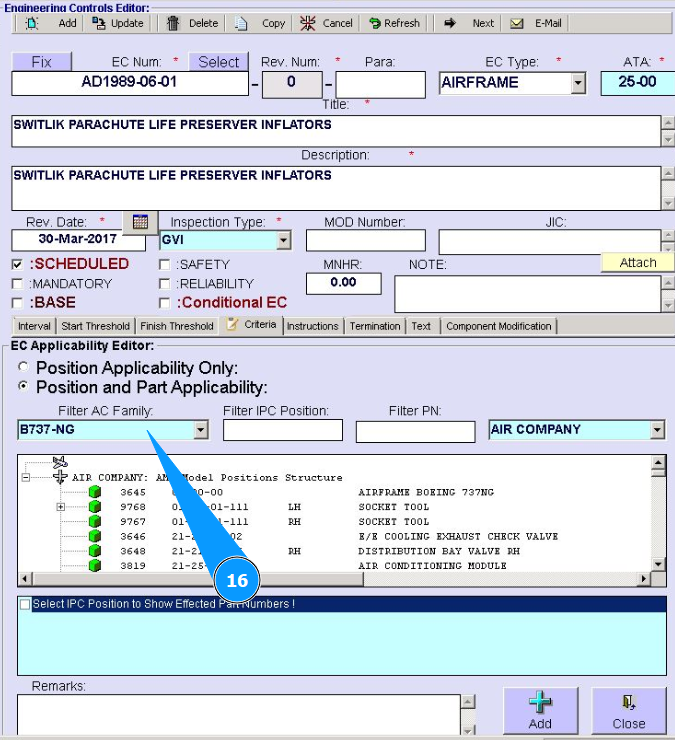
16. Select the A/C type from the dropdown list to select the item in the field "Filter AC Family".
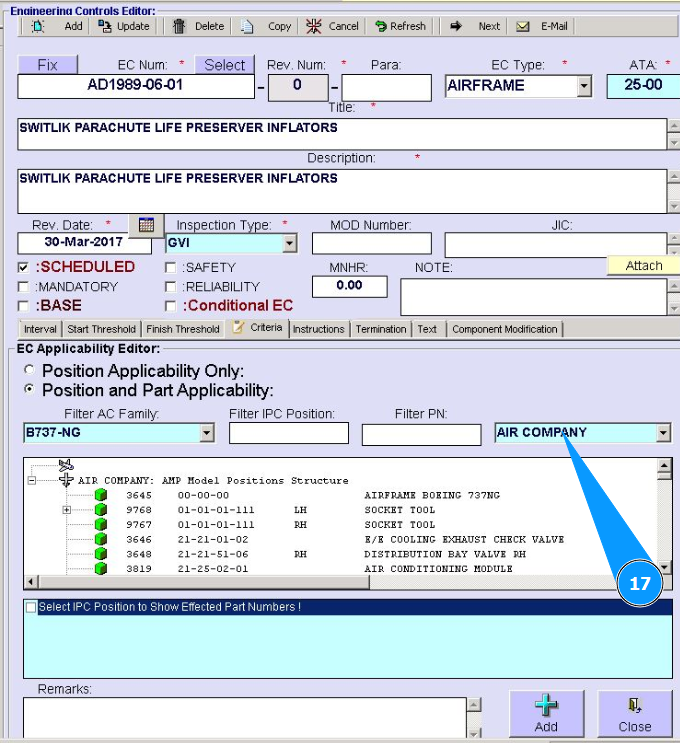
17. Select the company from the dropdown list.
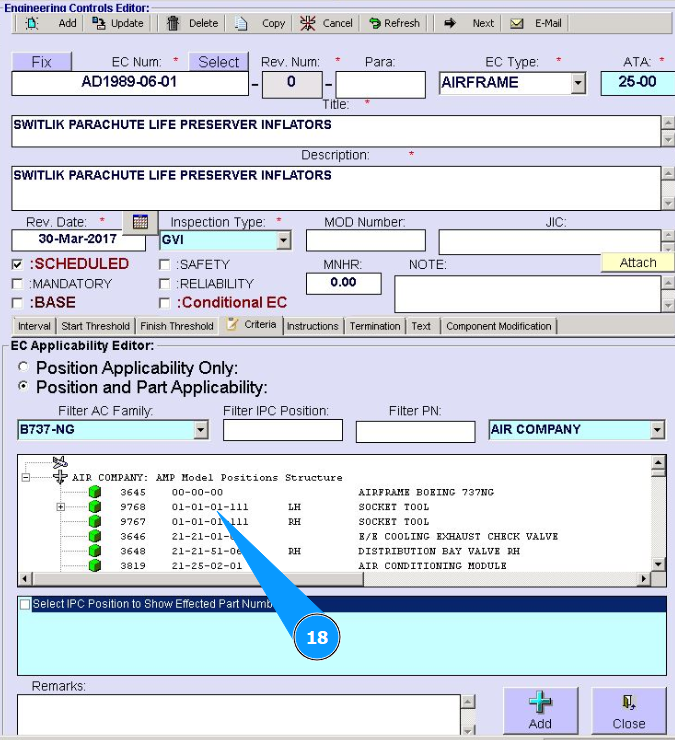
18. Select the component position for which the EC data corresponds, click on the corresponding line. If necessary, use the search bar.
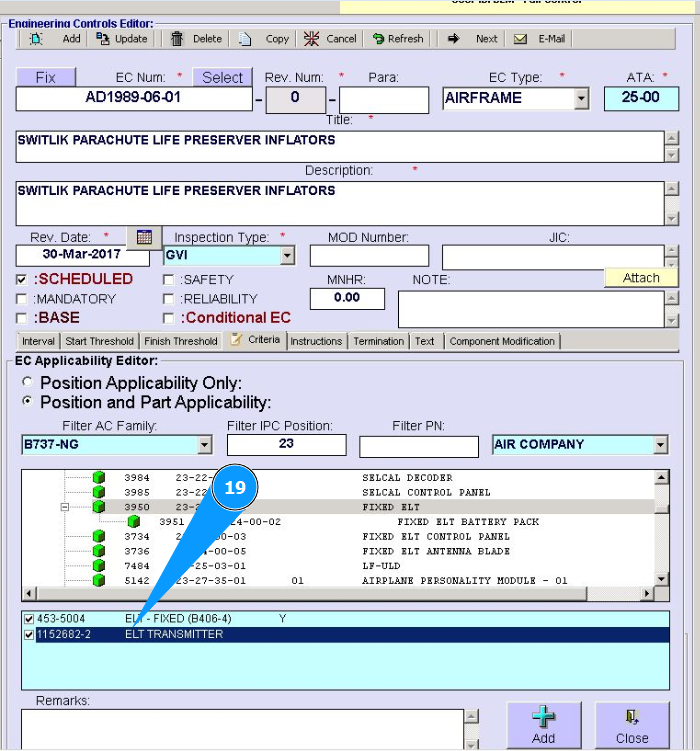
19. If necessary, select the component part numbers for which this EC corresponds, click in the corresponding window.
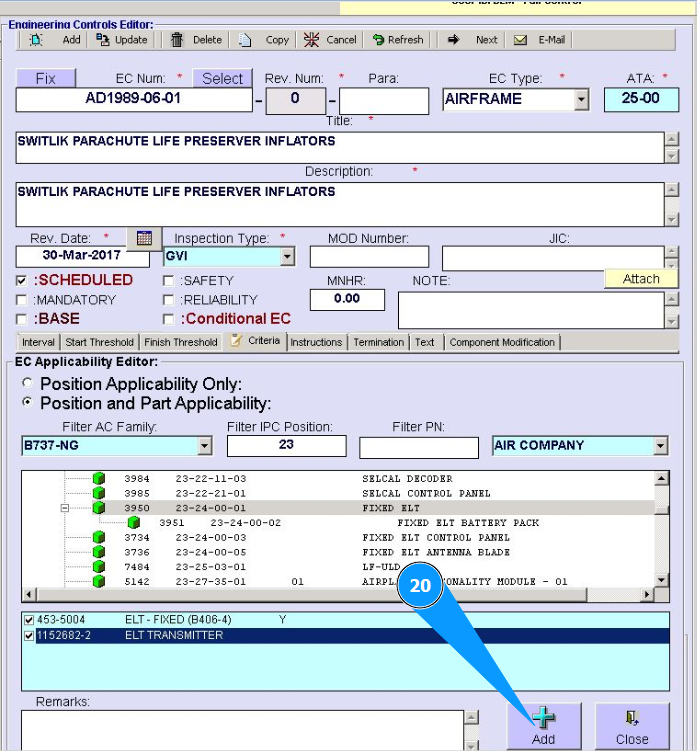
20. Click on the button "Add" to add the data to the program.
21. Click on the button "Yes" to confirm that the data has been added to the program.

22. Click on the button "Ok" to complete the data entry.
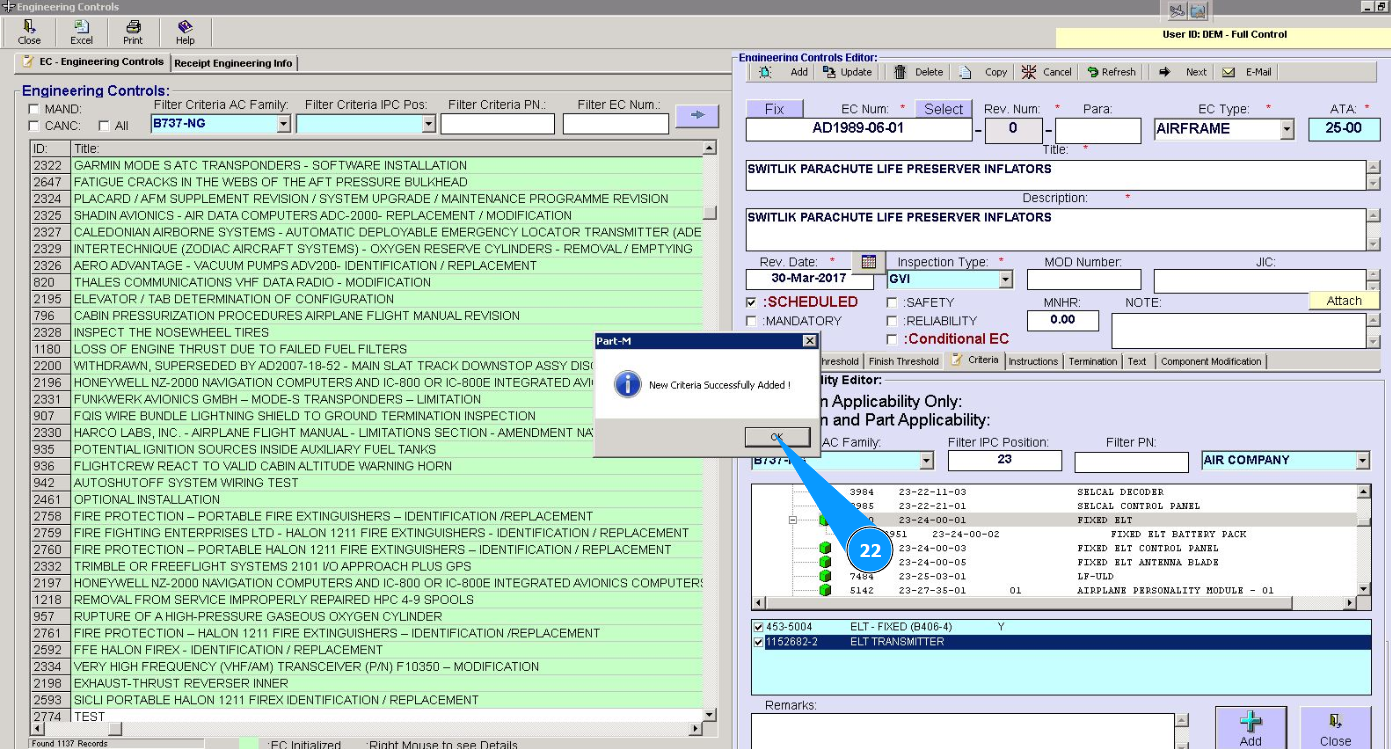
23. Check that the compliance criteria are entered in the window "Possition Applicability".
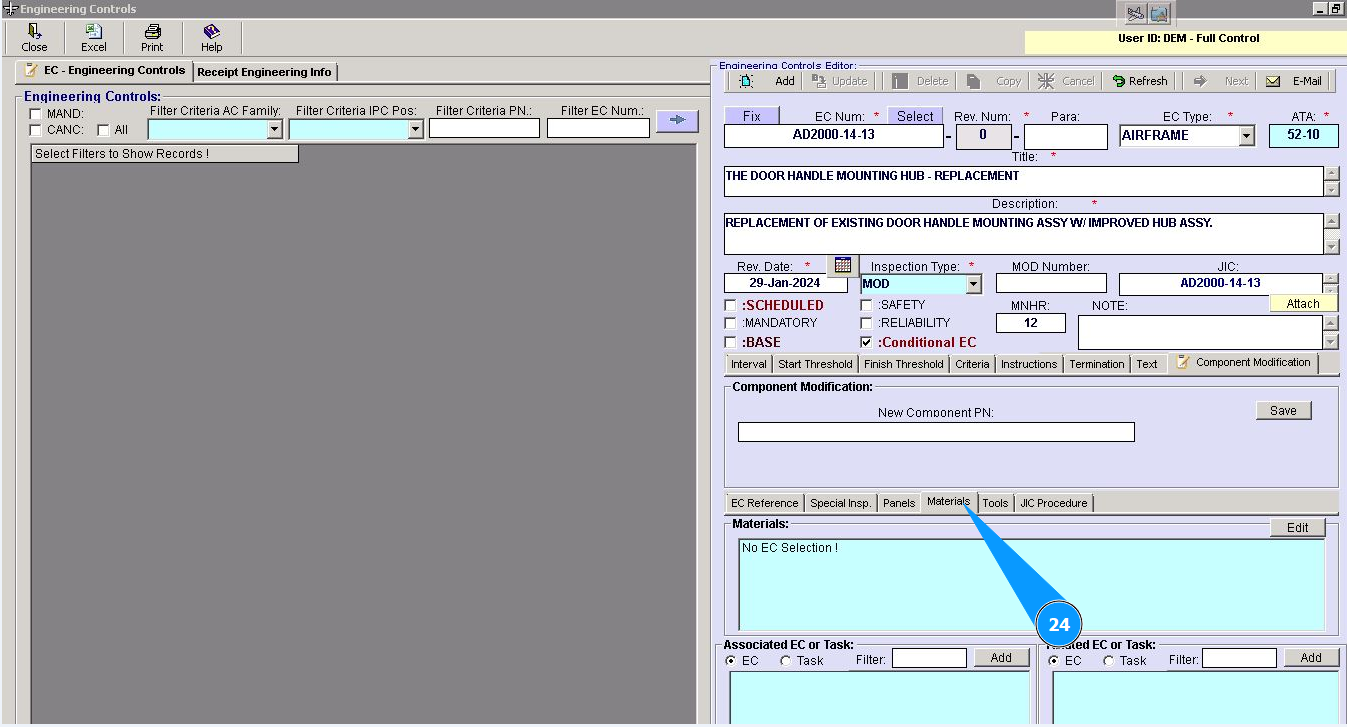
24. Enter data about the required materials for performing EC in the tab "Materials".
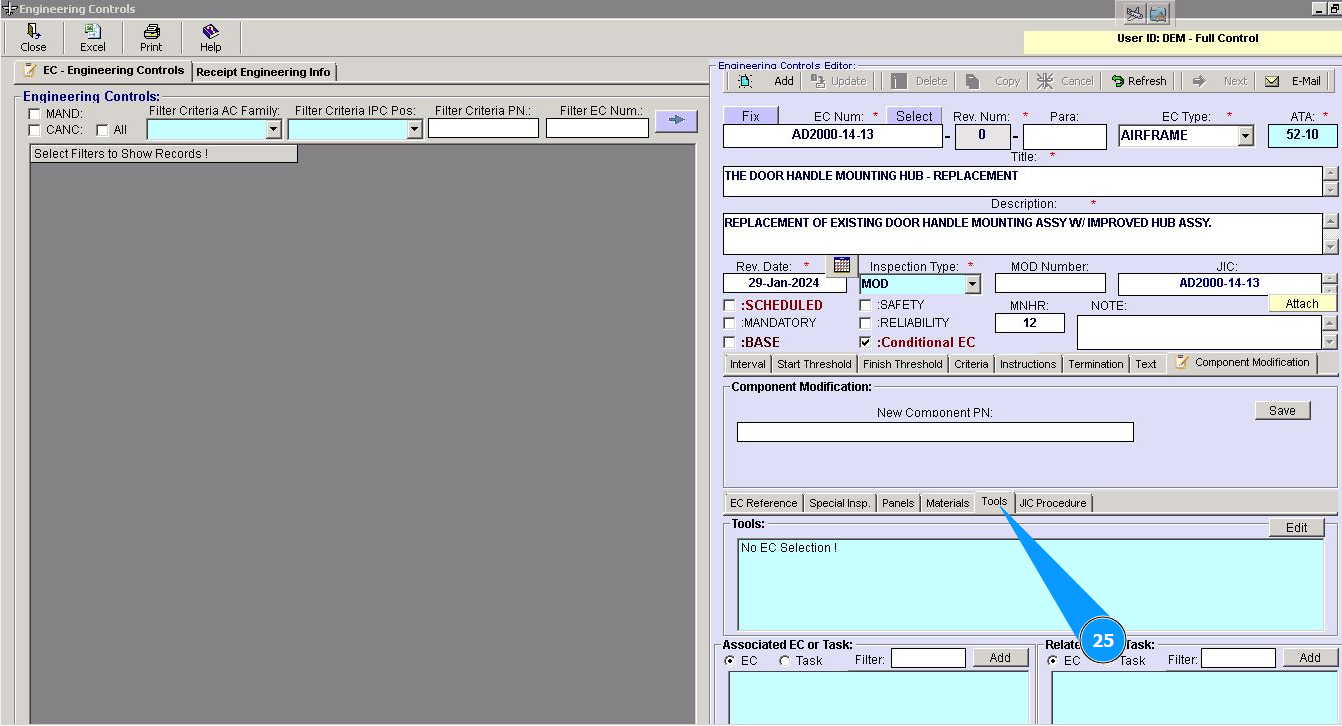
25. Enter data about the required tools for performing EC in the tab "Tools".
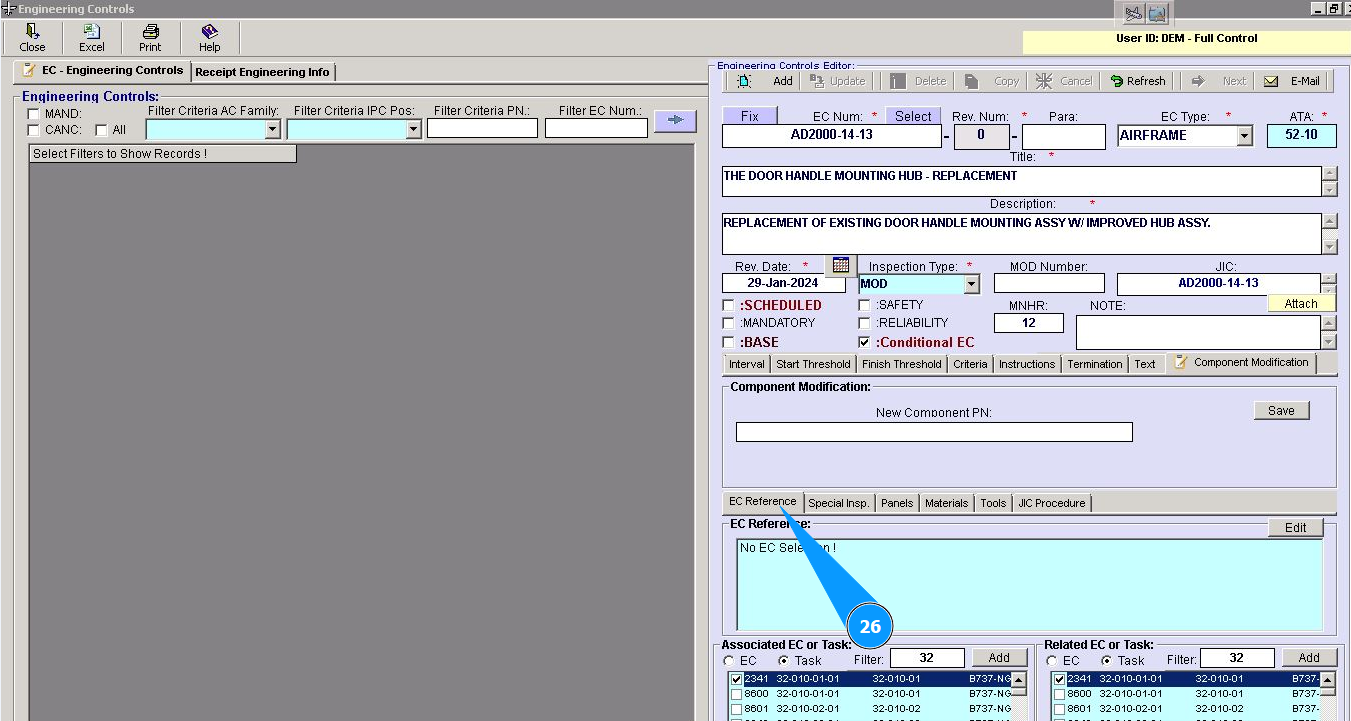
26. If required, enter data about cross reference related EC and other EC or MM tasks in the fields: "Associated EC or Task " or "Related EC or Task ".
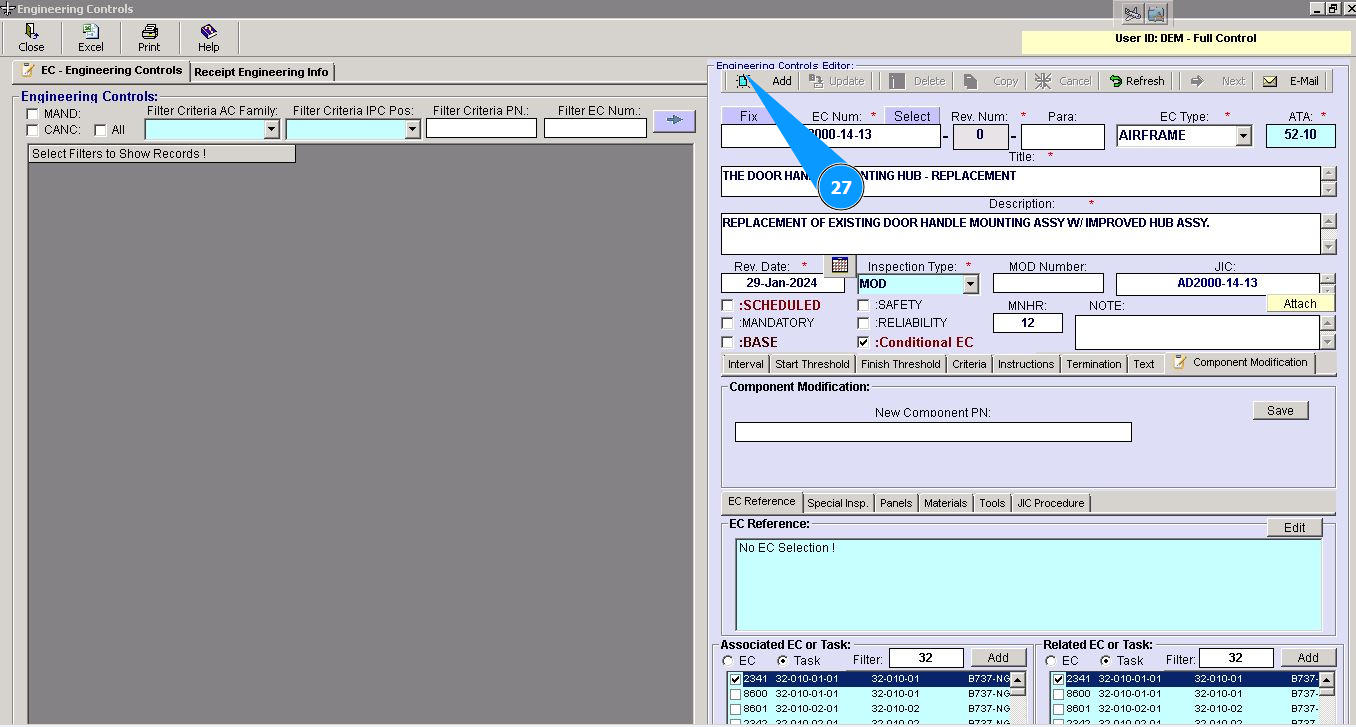
27. Click on the button **"Add" to add data to the program.
28. Click on the button "Yes", to confirm adding data to the program.
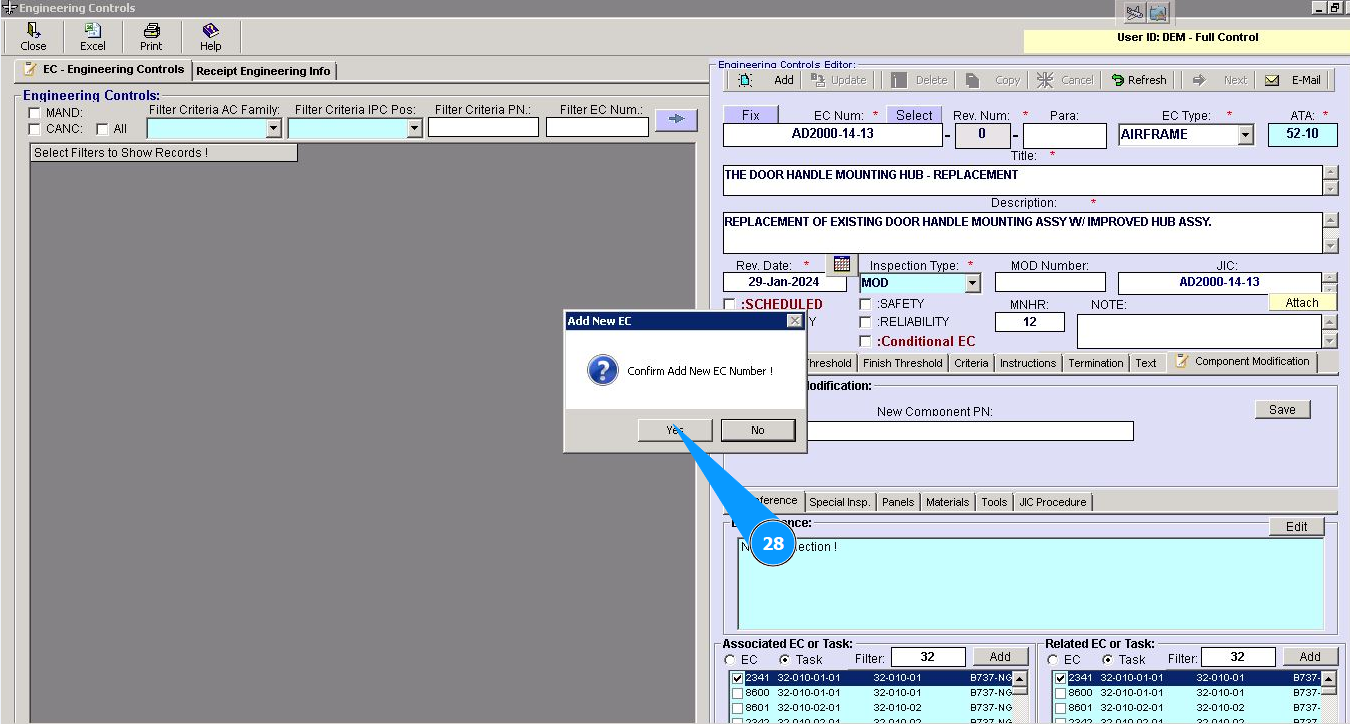
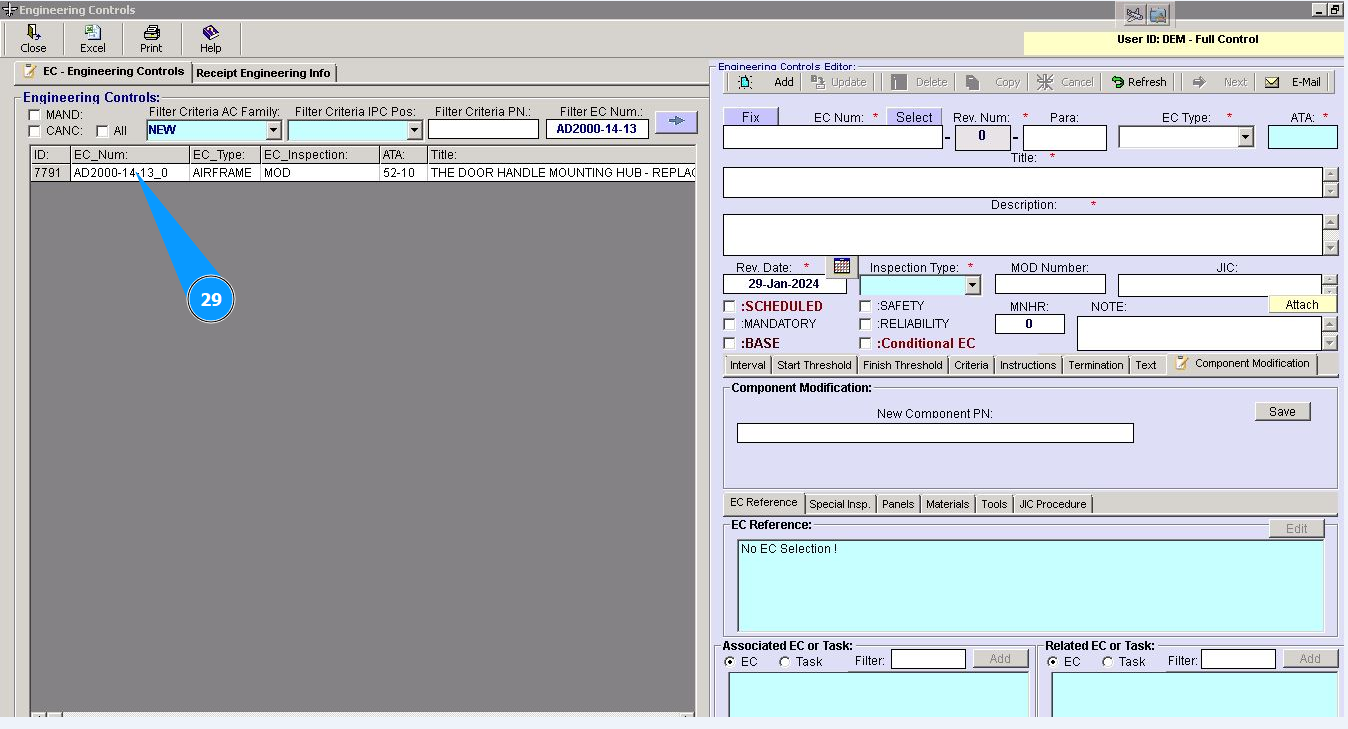
29. Check that EC is successfully created in the window "Engineering Controls".