How to close Work package
Note: For closing Work package, it should be in the condition "Executed.
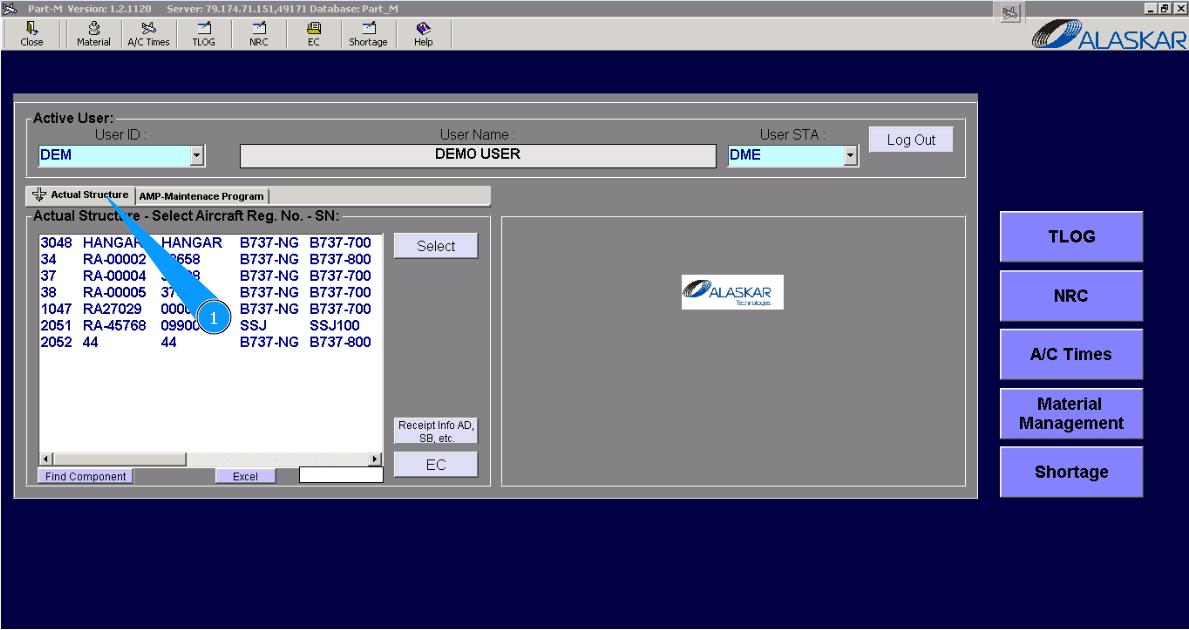
1. For the closing Work package, please go to submodule "Actual Structure".
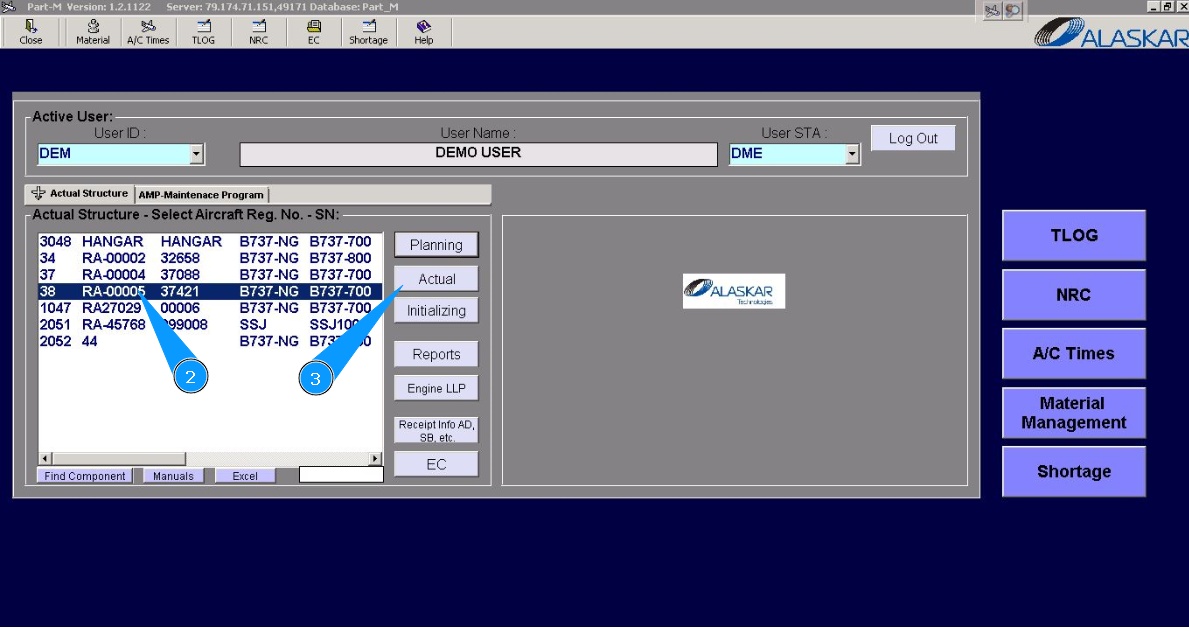
2. Enter the aircraft registration number in the list of window "Actual Structure-Select Aircraft Reg.-SN".
3. Click on the button **"Actual to open the submodule.
4. Then, go to the tab "WP-Work package".
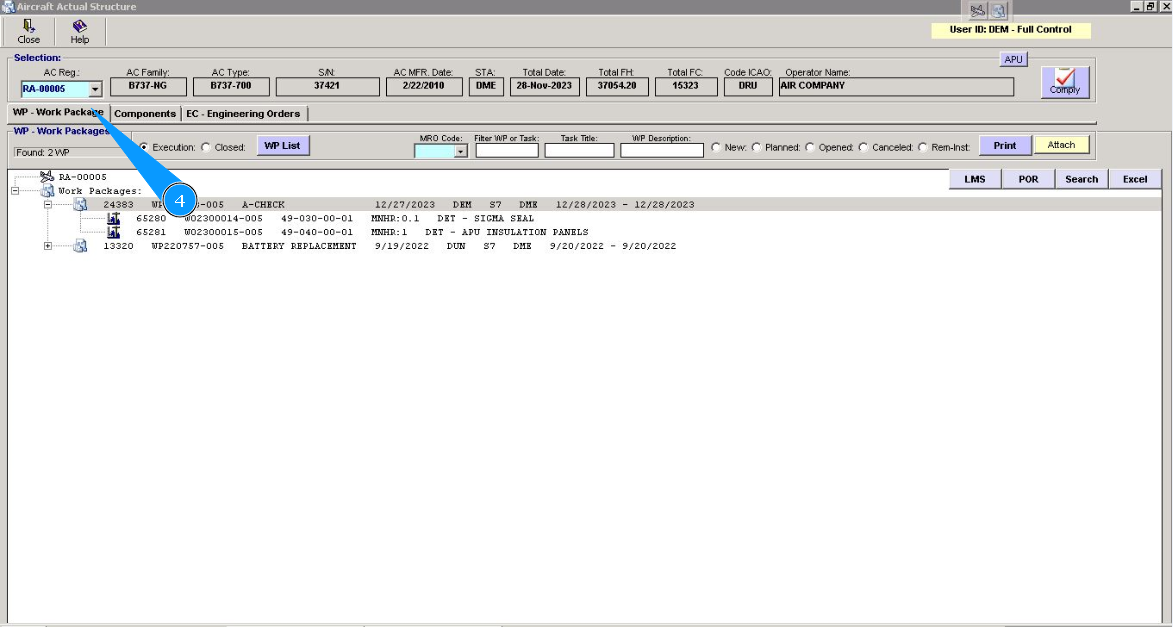
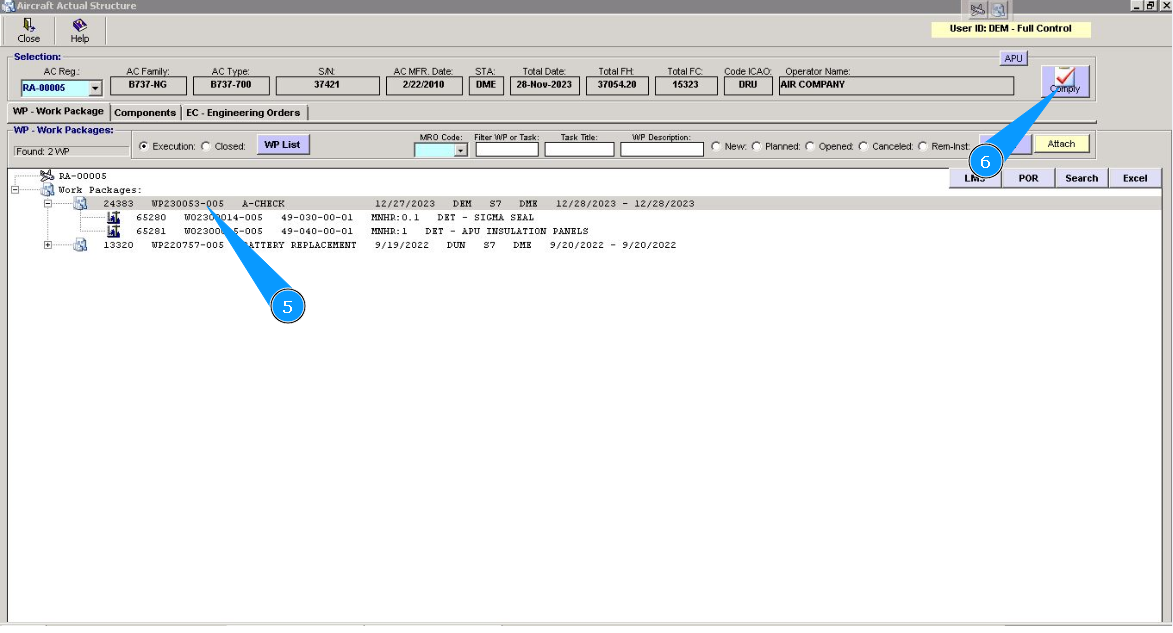
5. Select the necessary WP and highlight it on the corresponding line.
6. Click on the button "Comply", to start the process of WP closing.
7. Select all tasks that should be closed and click on the corresponding line. Note: If it is necessary to close the planning of all tasks in the WP, click on the button "Select all WOs".
8. Click on the button "Comply".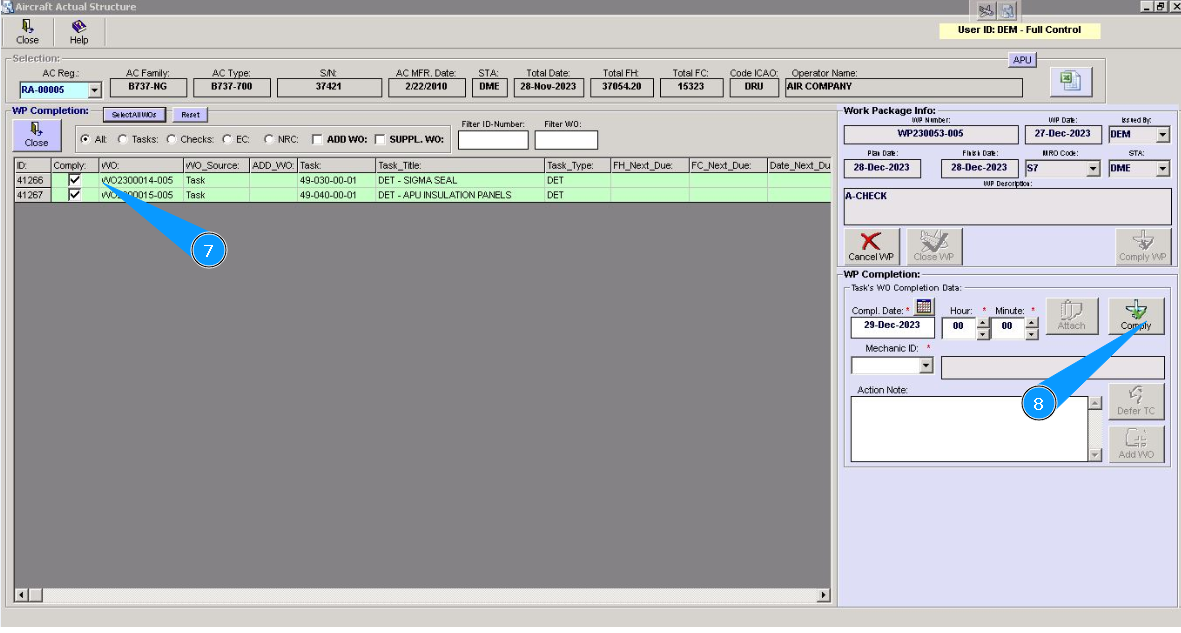
9. Click on the button "Yes", to confirm the closure of planning.
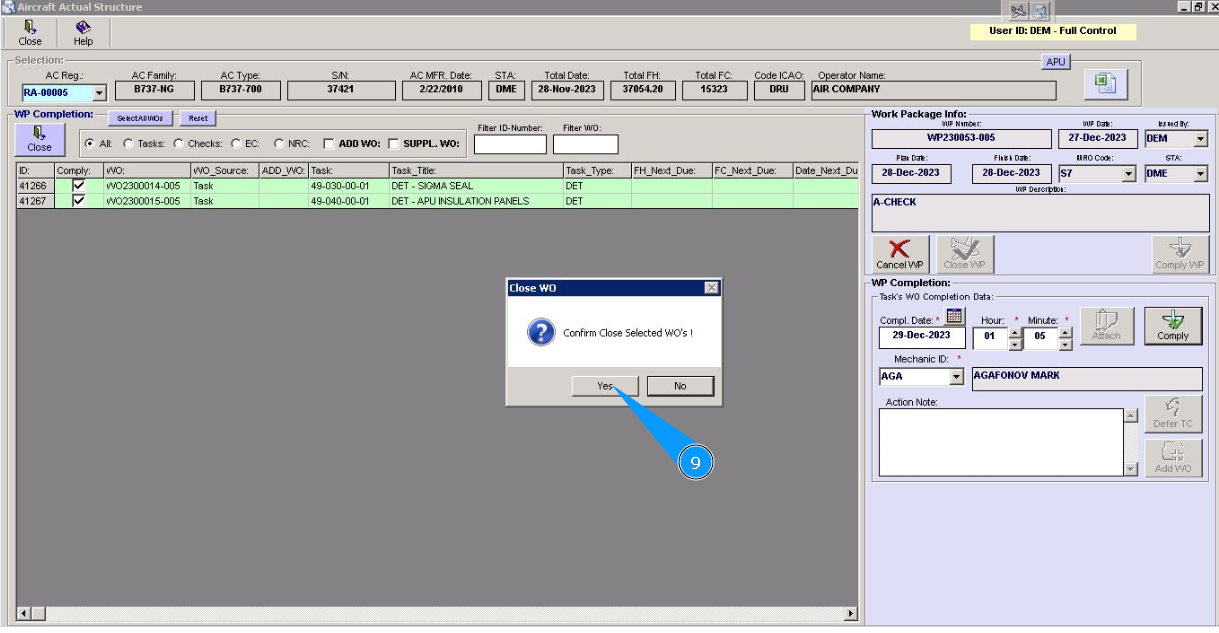
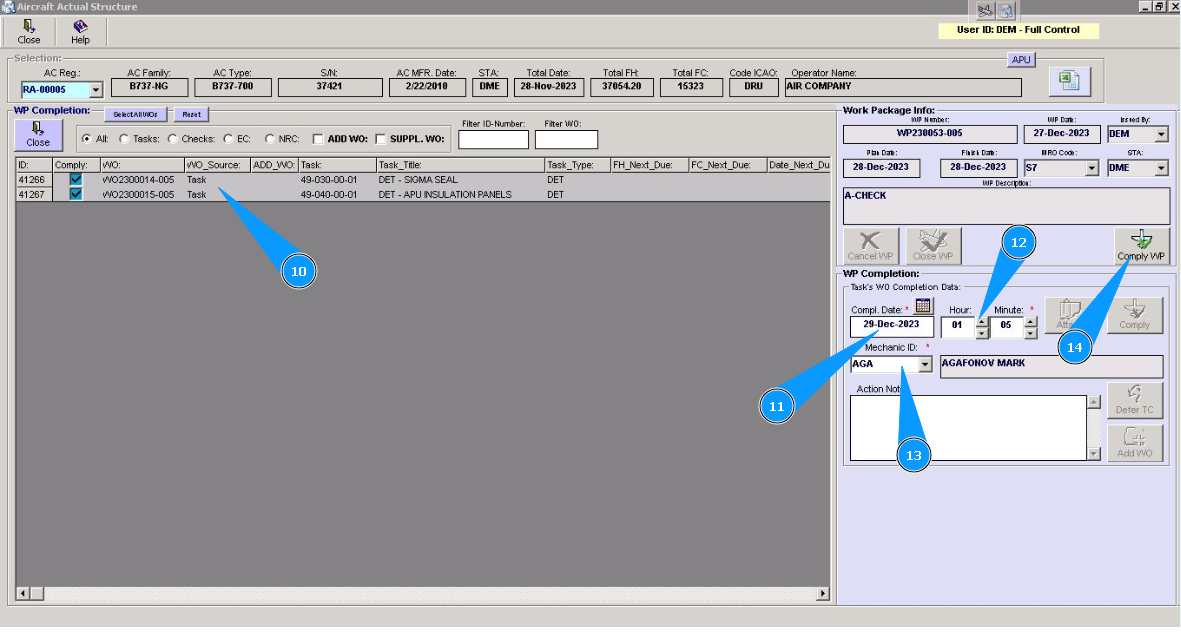
10. Check that all tasks in WP are closed and that the color of lines is changed to gray color.
11. Enter the performance date of WP or select it in the calendar.
12. Enter spent man-hours in the fields "Hour" and "Minute.
13. Enter the login of the certifying staff in the field "Mechanic ID".
14. Click on the button "Comply WP", to close WP planning.
15. Enter the performance date of WP or select it in the calendar. Note: utilization in the fields "AC Coml. FH" and "AC Coml. FC" will be automatically presented, depending on the selected date of WP closing.
16. Enter the Tech Log number and page in the fields "T/Log Number" and **"Sec.
17. Click on the button "Confirm", to close WP.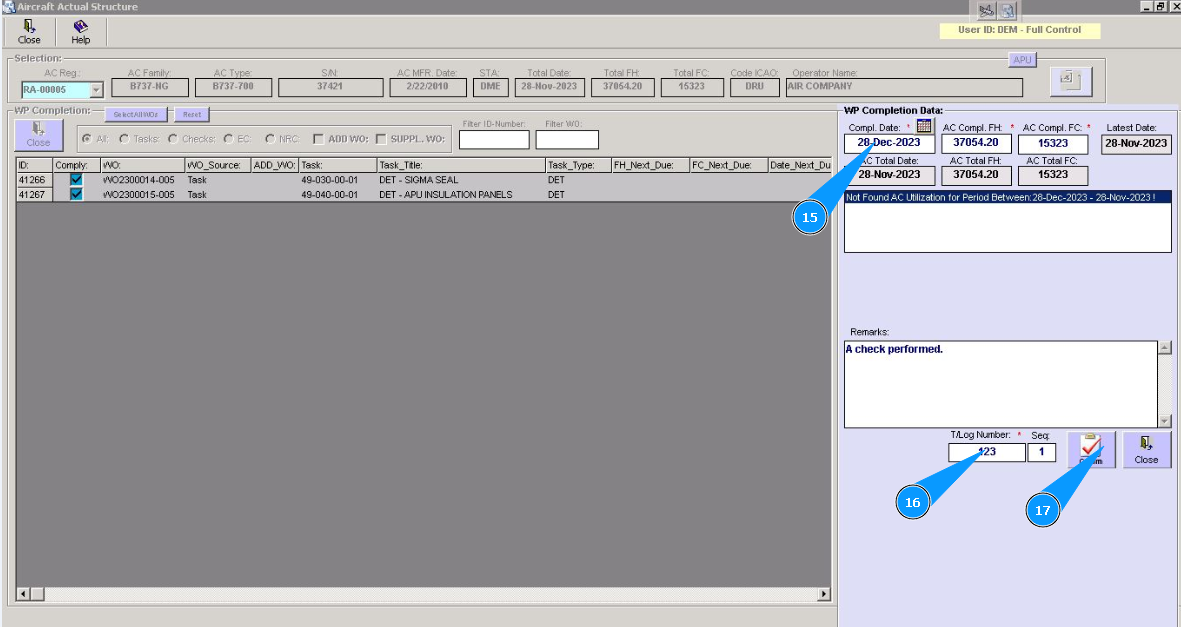
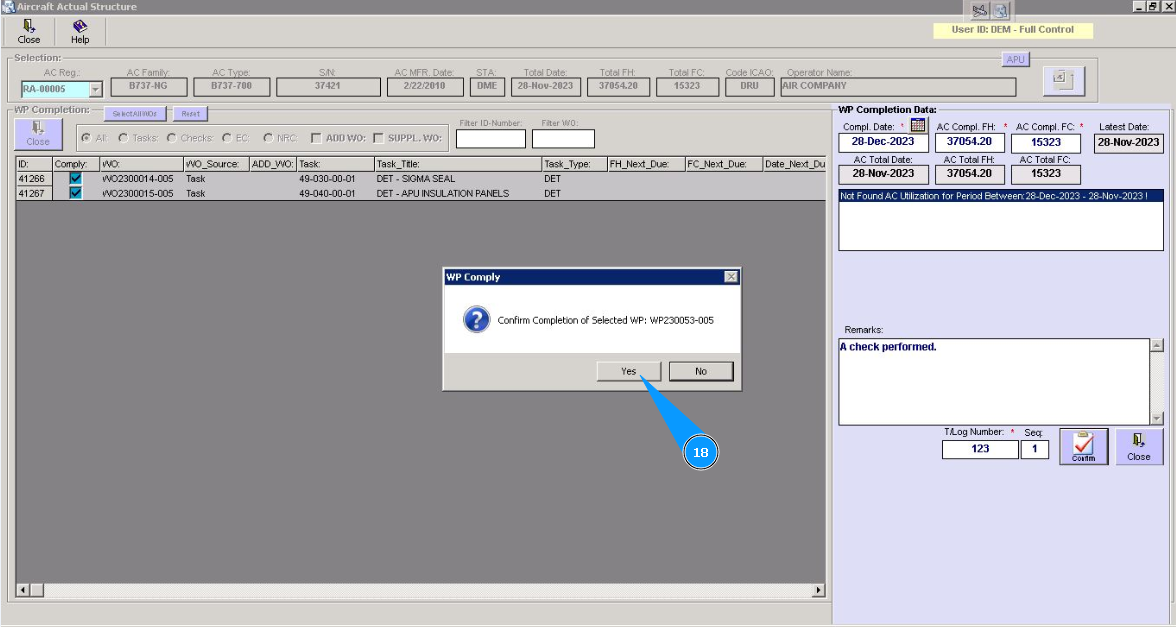
18. Click on the button "Yes", to confirm the WP performance date.
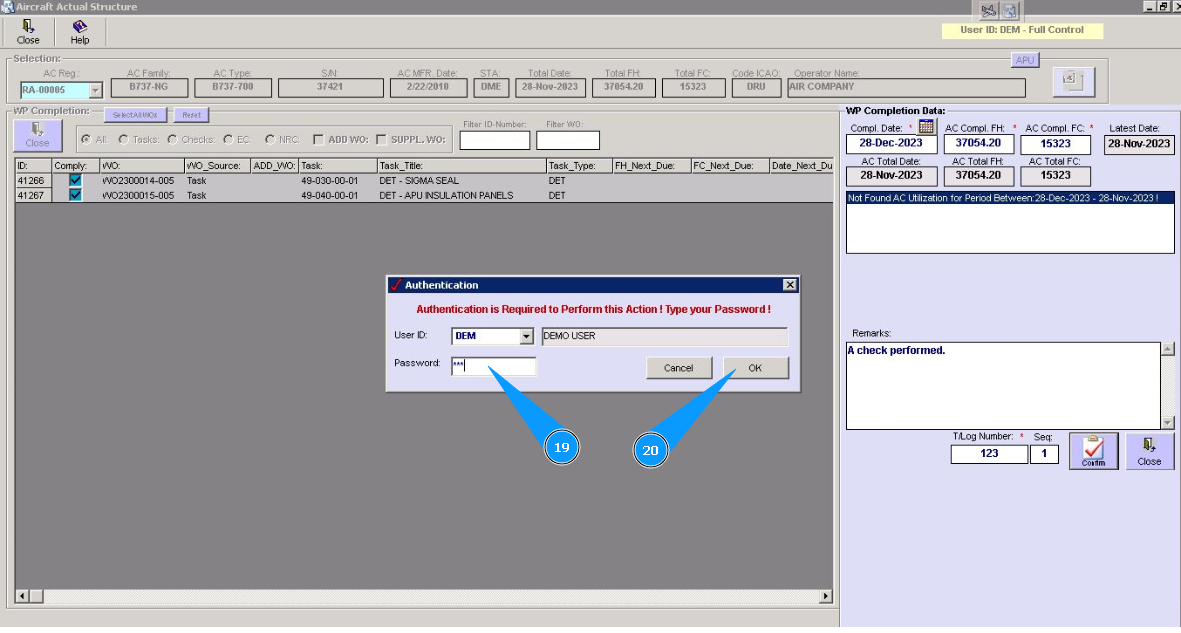
19. Enter the password from Alaskar in the field "Password".
20. Click on the button **"Ok" to save data to the program.
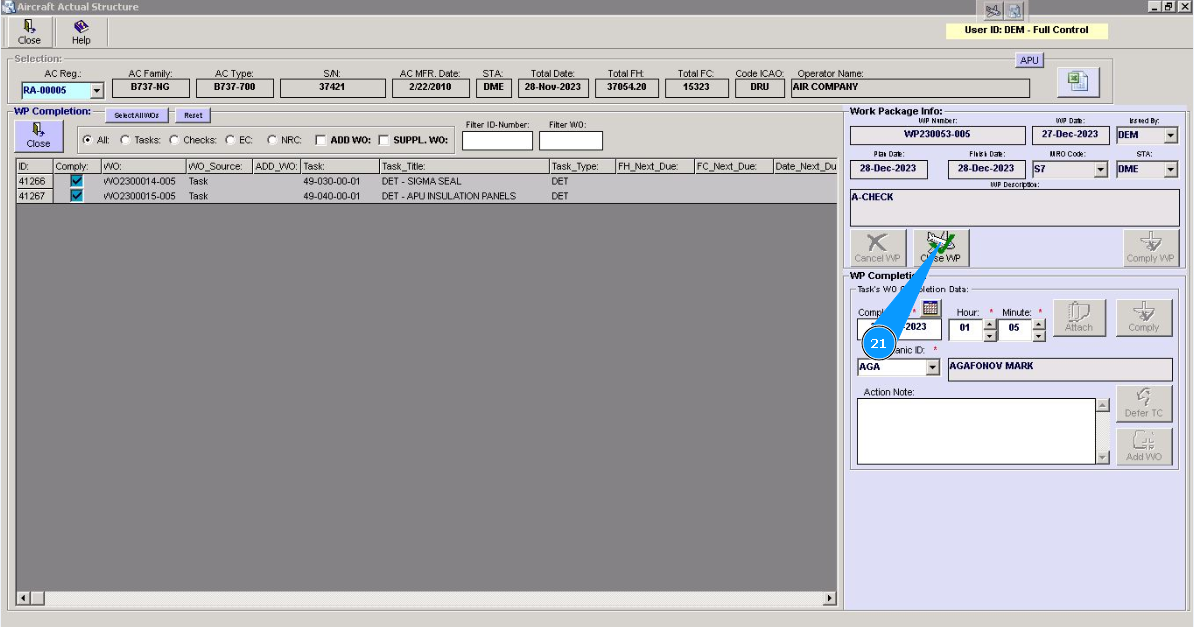
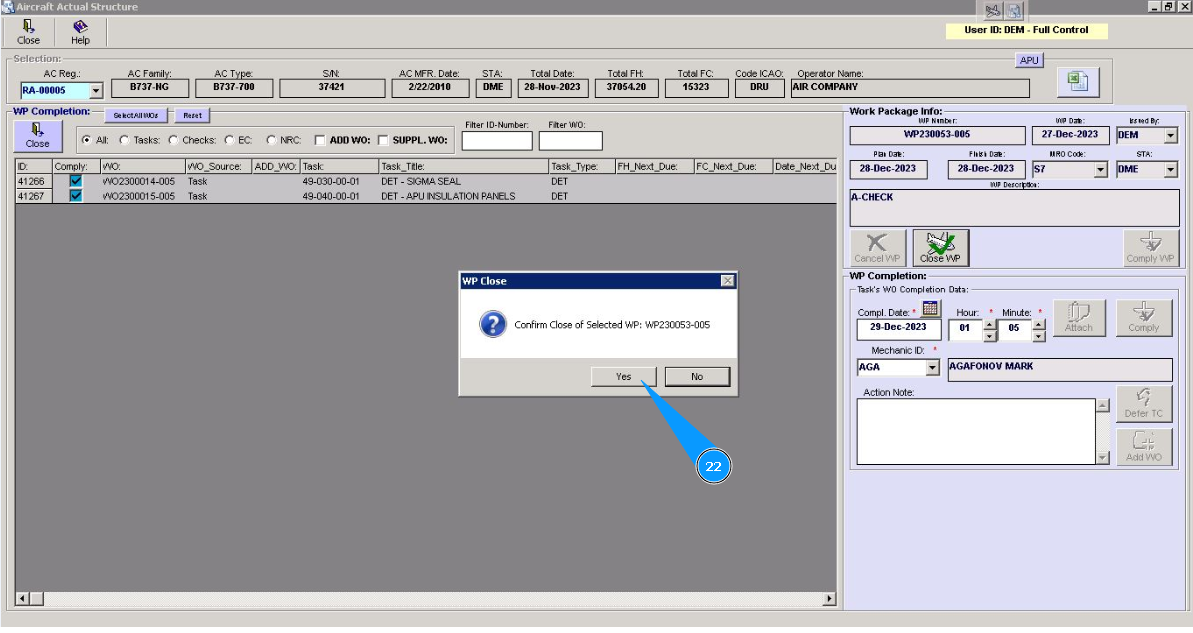
21. Click on the button "Close WP", to close WP in the program.
22. Click on the button "Yes", to confirm WP closings.
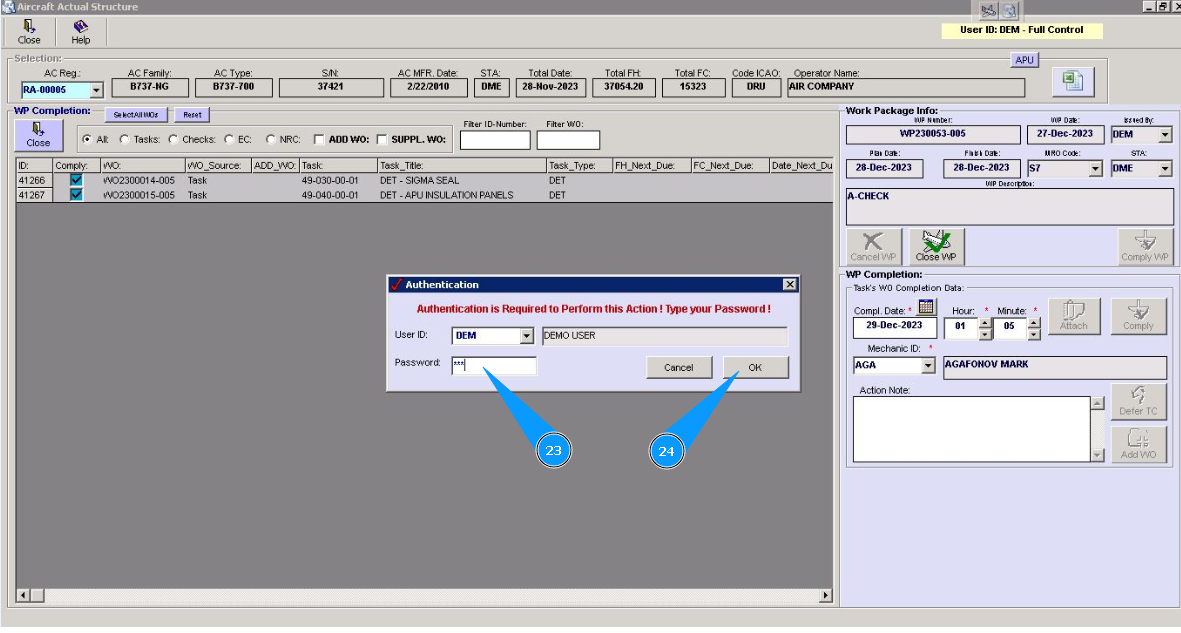
23. Enter a password from Alaskar in the field "Password".
24. Click on the button **"Ok" to save data to the program.
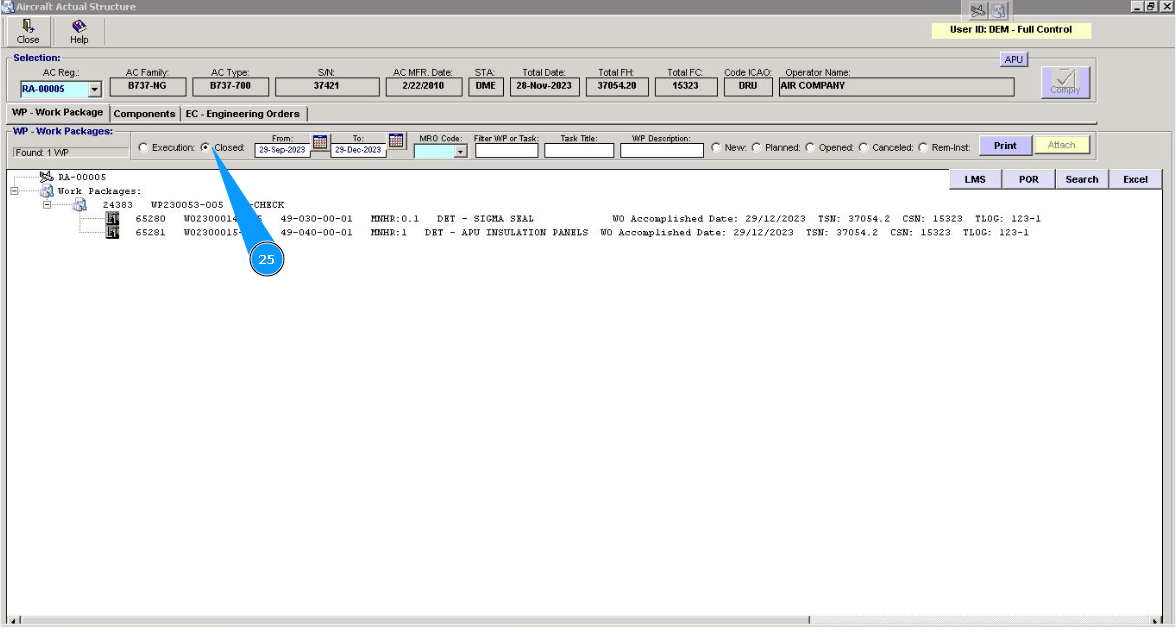
25. Check that WP is closed. Return to the tab "WP-Work package" and set filter "closed ".