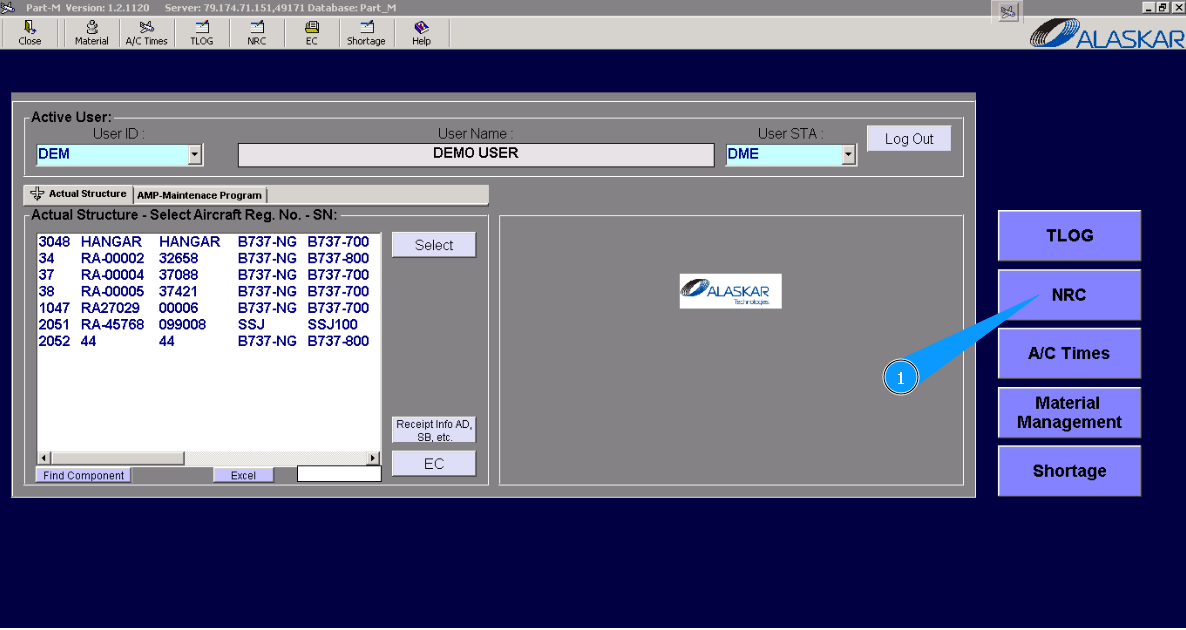
How to close NRC
1. For closing NRC, please go to submodule "NRC".
2. Enter an NRC number in the field "NRC Number", for the corresponding NRC. Note: If you do not know the NRC number, please use the following searching fields: "Filter-AC Reg.", "ATA/MEL Ref." or others available in this submodule.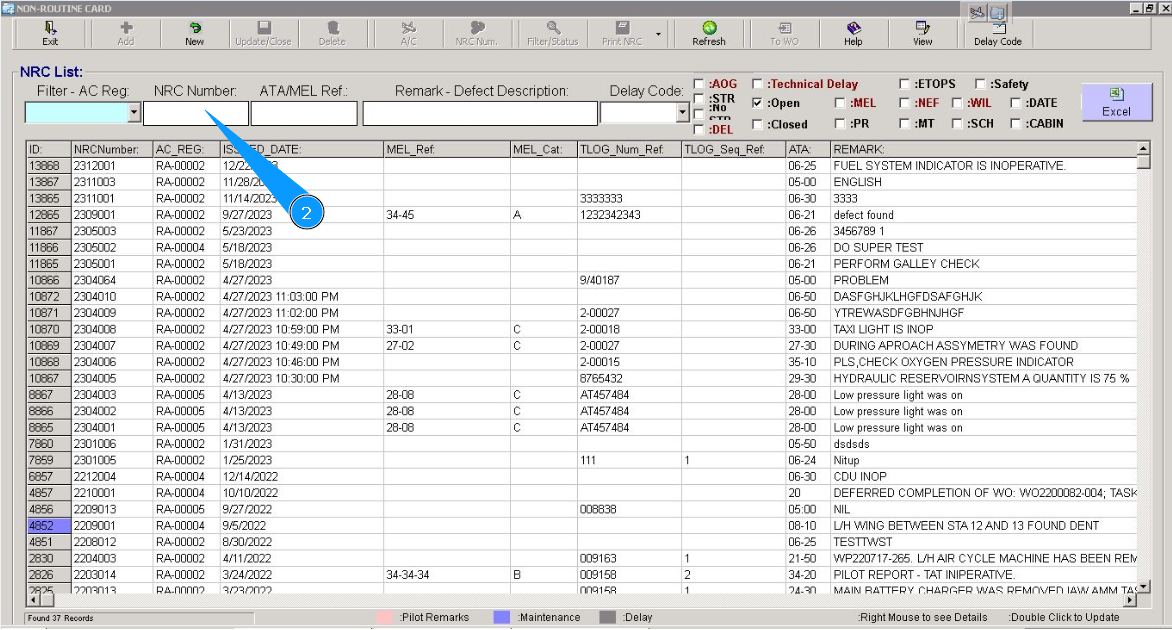
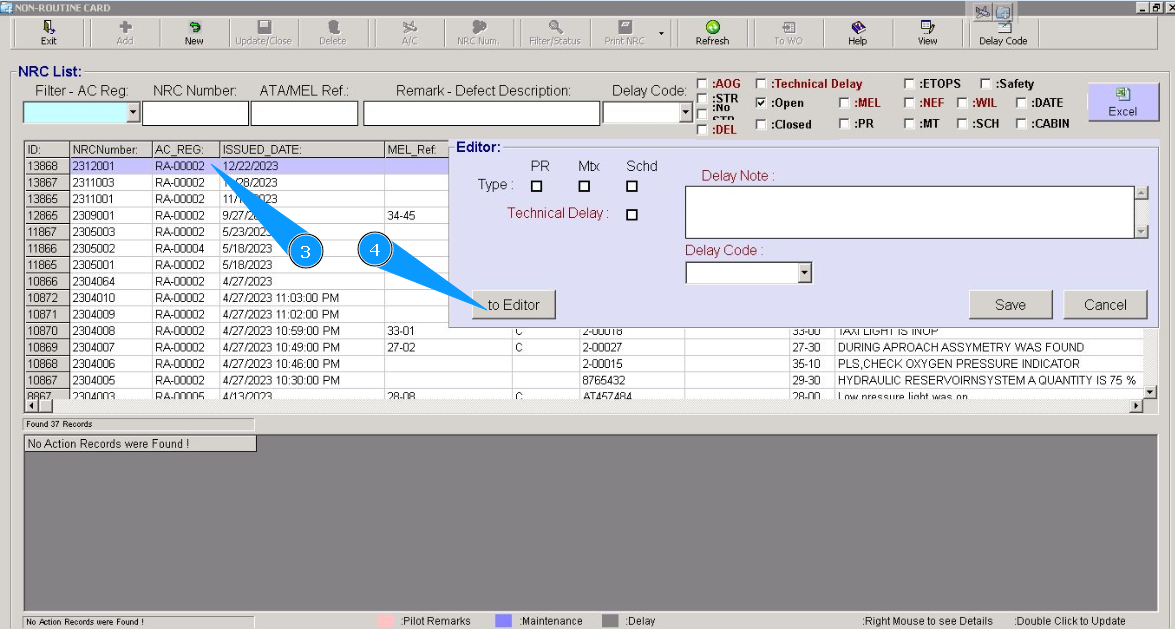
3. Click on the corresponding line with the NRC number twice.
4. Click on the button "To Editor", for going to edit mode of NRC.
Note:
If field "Action" of NRC has some information into steps, you should use Method № 1 and items from 5 to 14.
If the field "Action" of NRC has not any information into steps, you should use Method № 2 and items from 15 till 22.
Method № 1.
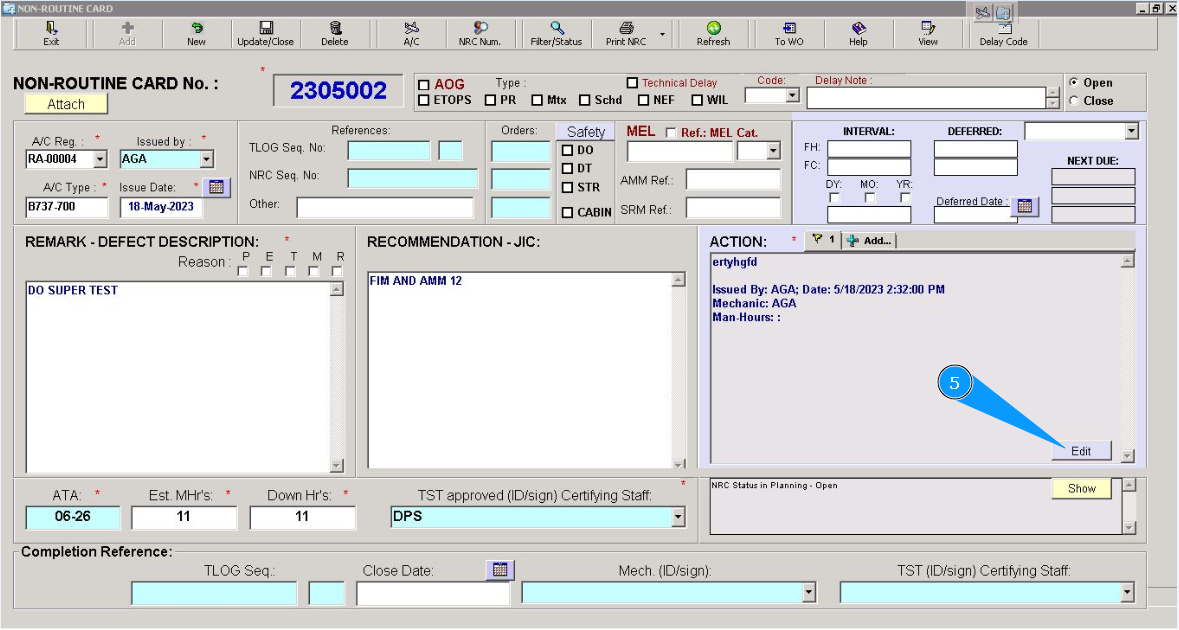
5. Click on the button "Edit", to open the edit mode of window "Action".
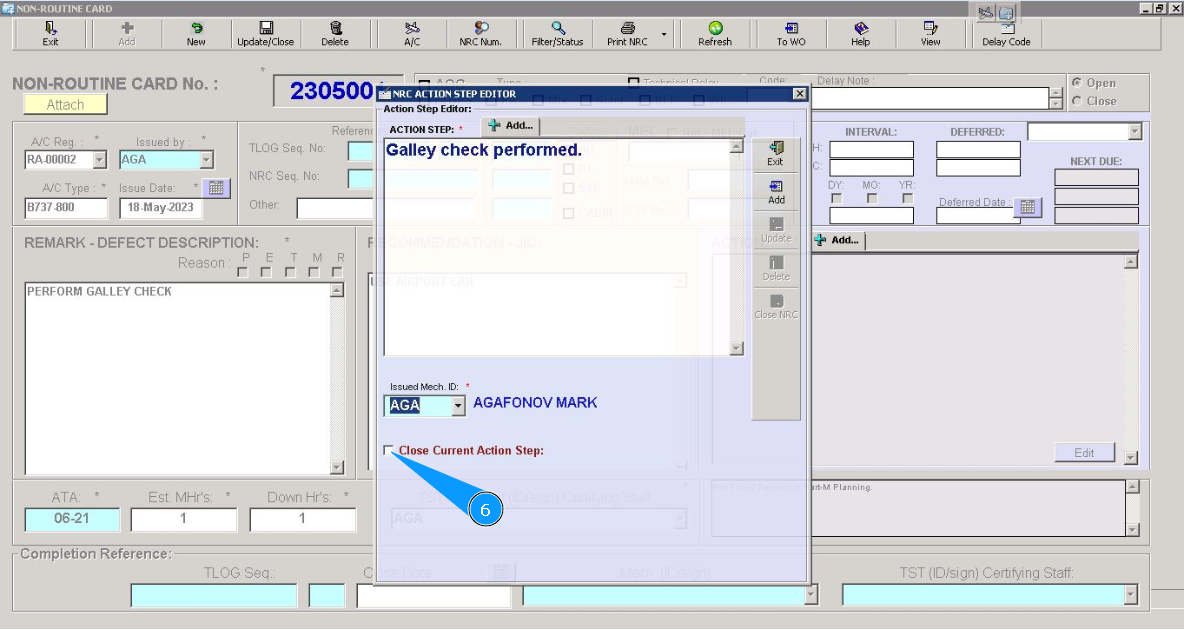
6. Click on the window "Close current action step".
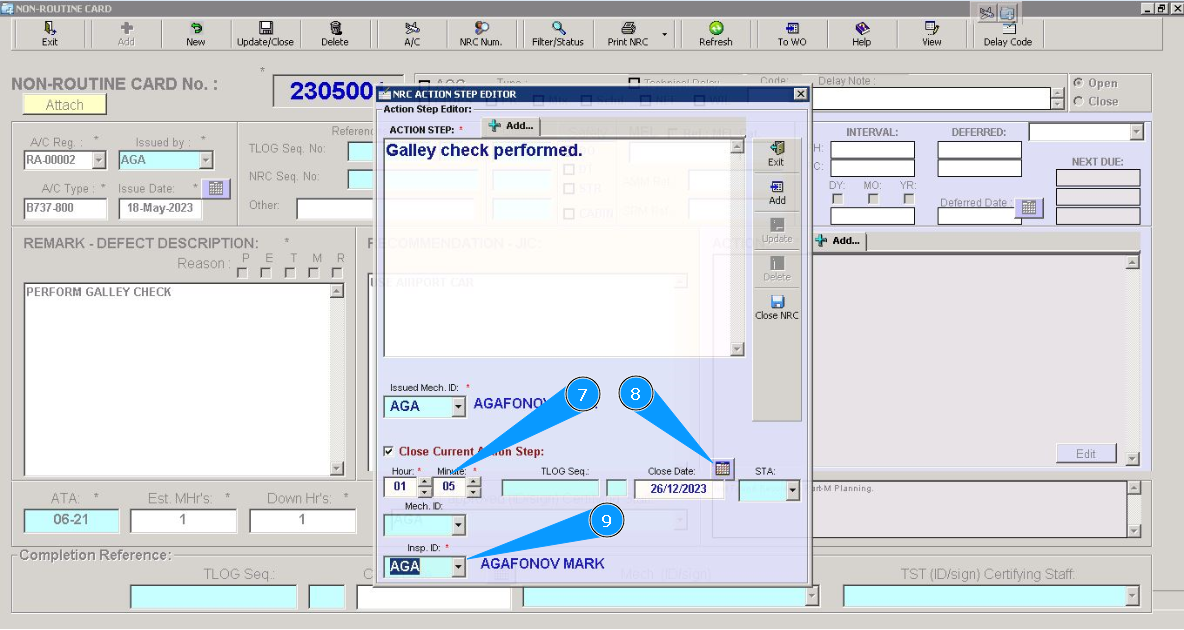
7. Enter data about spent man-hours in the fields "Hour" or "Minute".
8. Enter data about the closing date in the field "Close Date" or select from the calendar.
9. Enter the login of certifying staff or NRC creator(in accordance with your company policy) in the field "Insp.ID" or select from dropdown list.
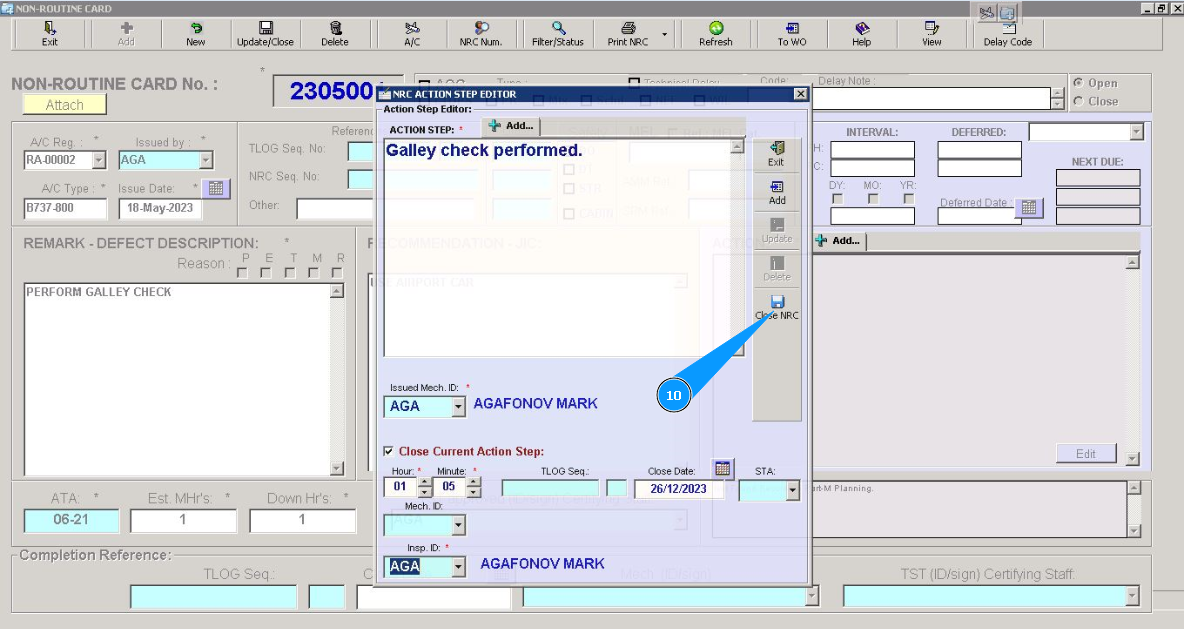
10. Click on the button "Close NRC", to close simultaneously step and whole NRC.
11. Click on the button "Yes", to confirm the closing step and NRC.
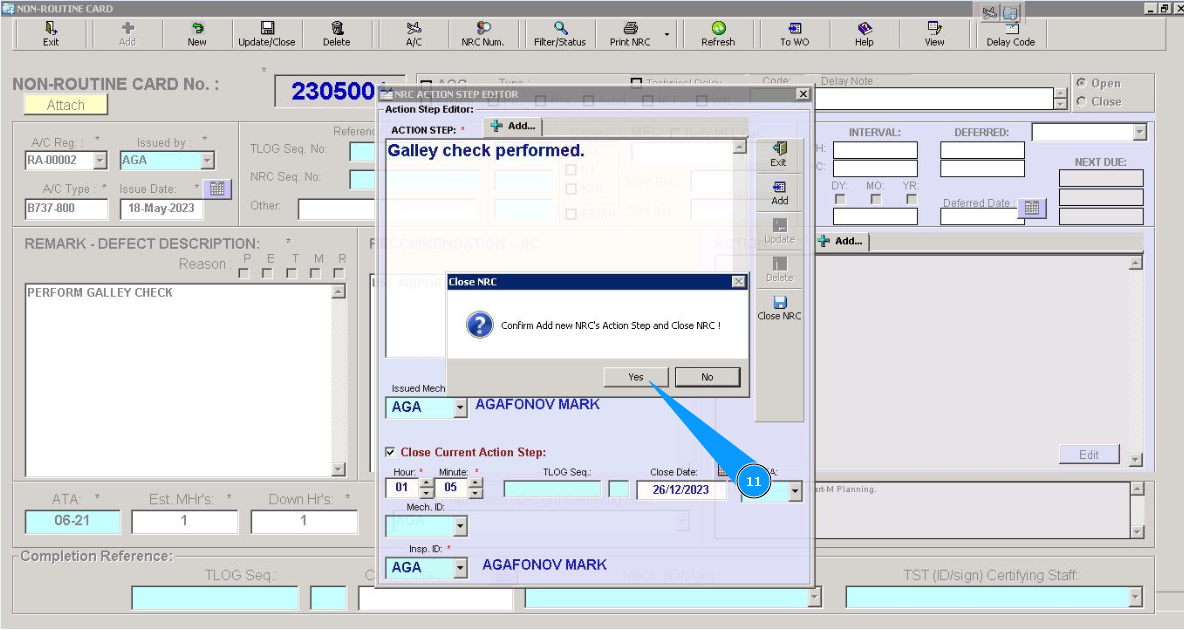
12. Click on the button "Exit", to close the edit mode of the window "Action".
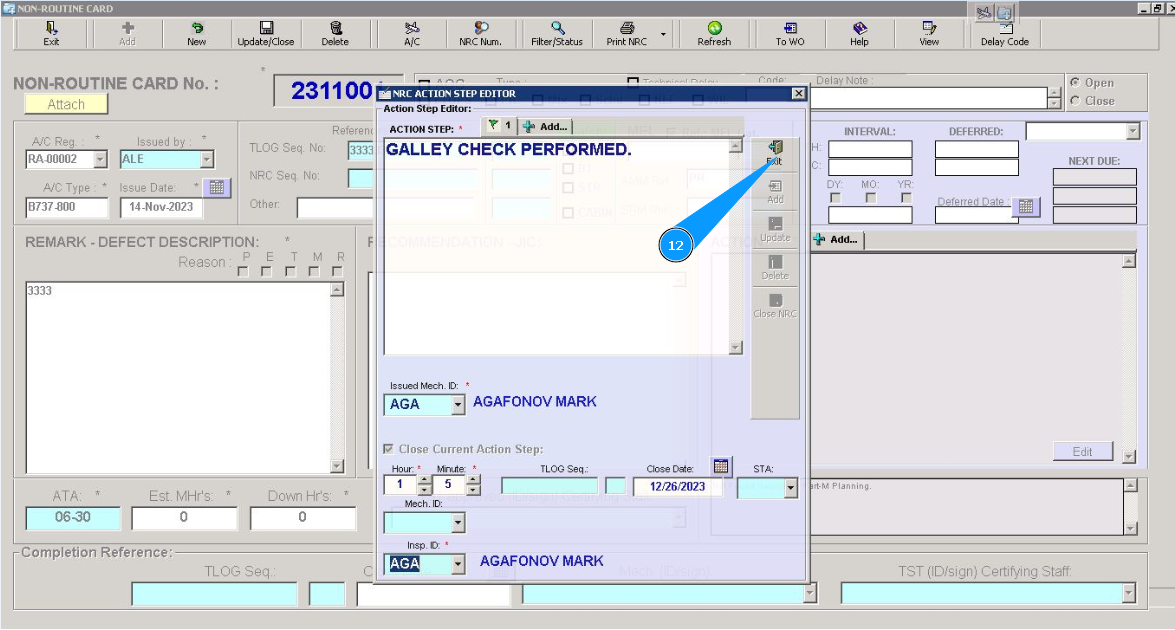
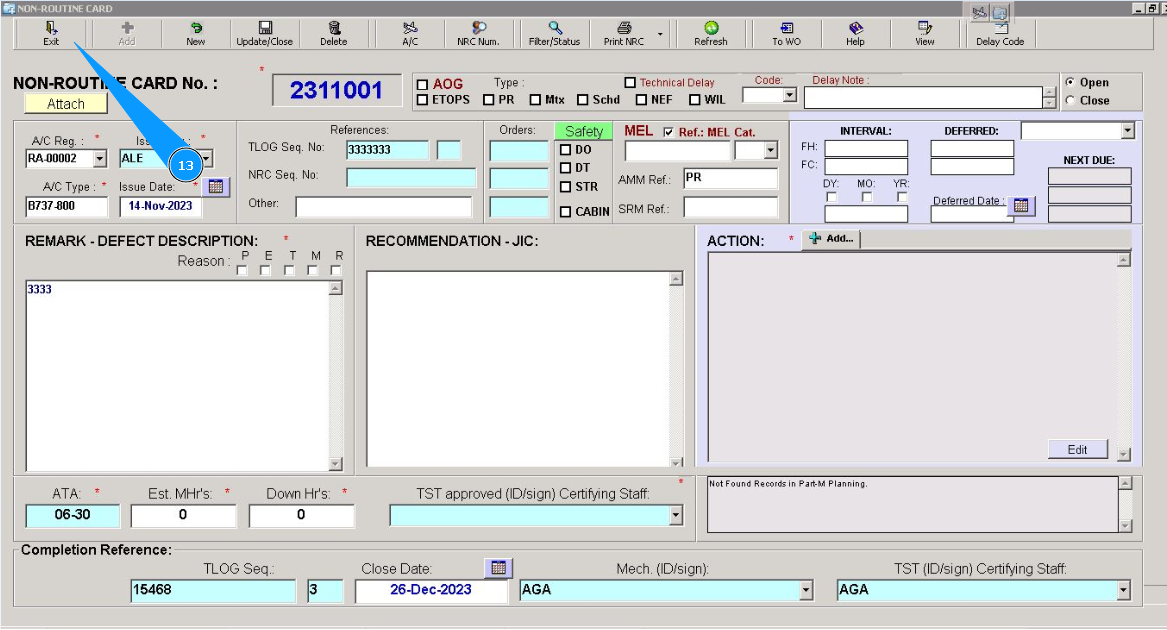
13. Click on the button "Exit", to close the edit mode of the window "Non-Routine Card".
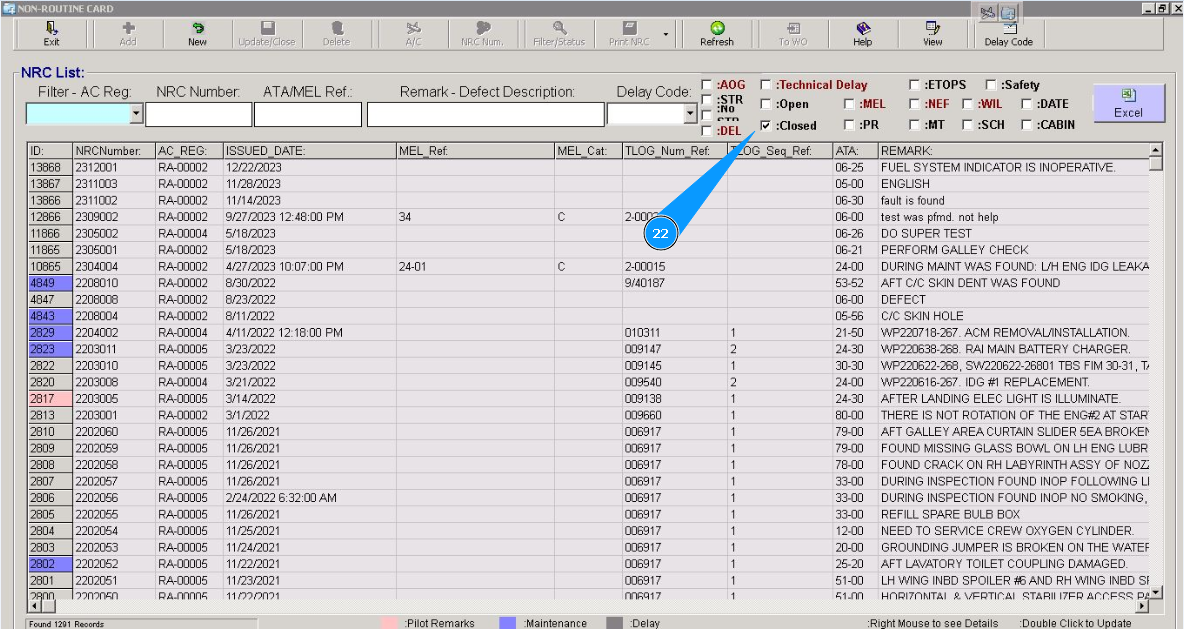
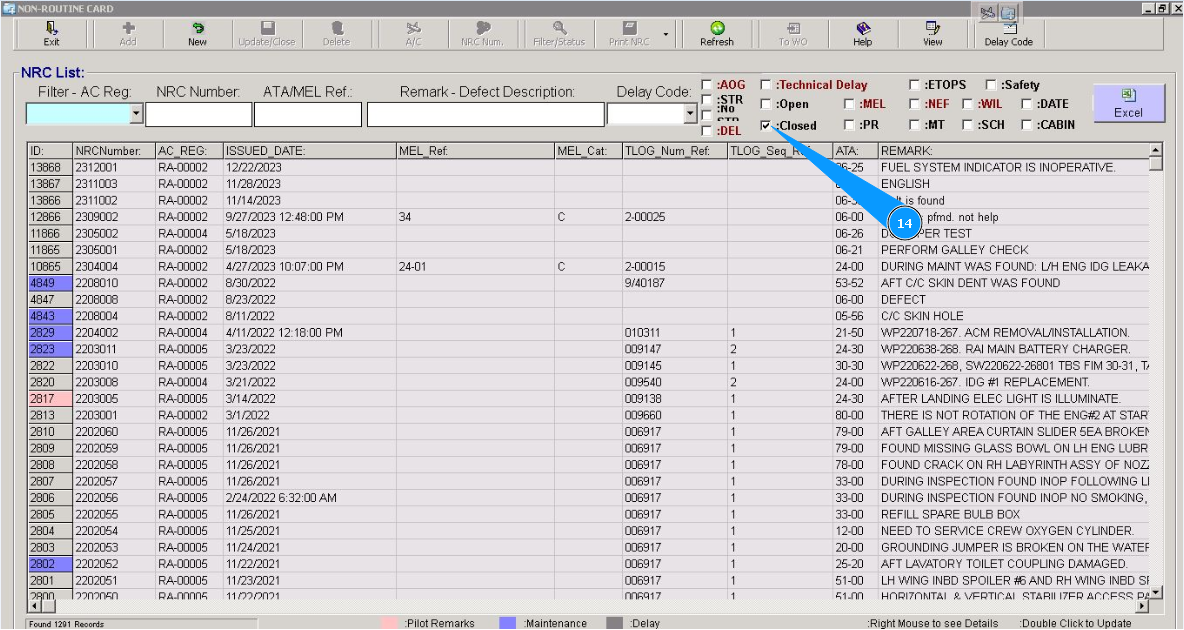
14. Check that a closed NRC is presented in the window "NRC List", apply filter "Closed", tick in the window "Closed".
Method № 2.
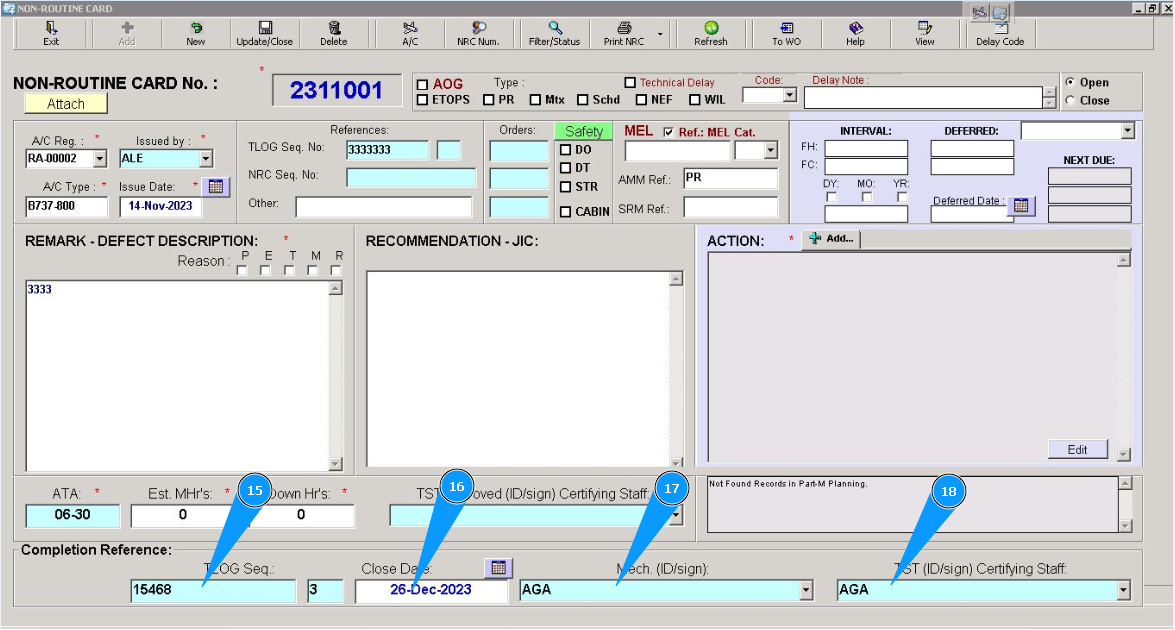
15. Enter the TLB page number in the field "TLOG Seq" or select from dropdown list.
16. Enter data about the NRC closing date in the field "Close Date" or select from the calendar.
17. Enter the login of the certifying staff or NRC creator(in accordance with your company policy) in the field "Mech.(ID/sign)" or select from dropdown list.
18. Enter the login of the certifying staff or NRC creator (in accordance with your company policy) in the field "TST.(ID/sign) Certifying Staff" or select from dropdown list.
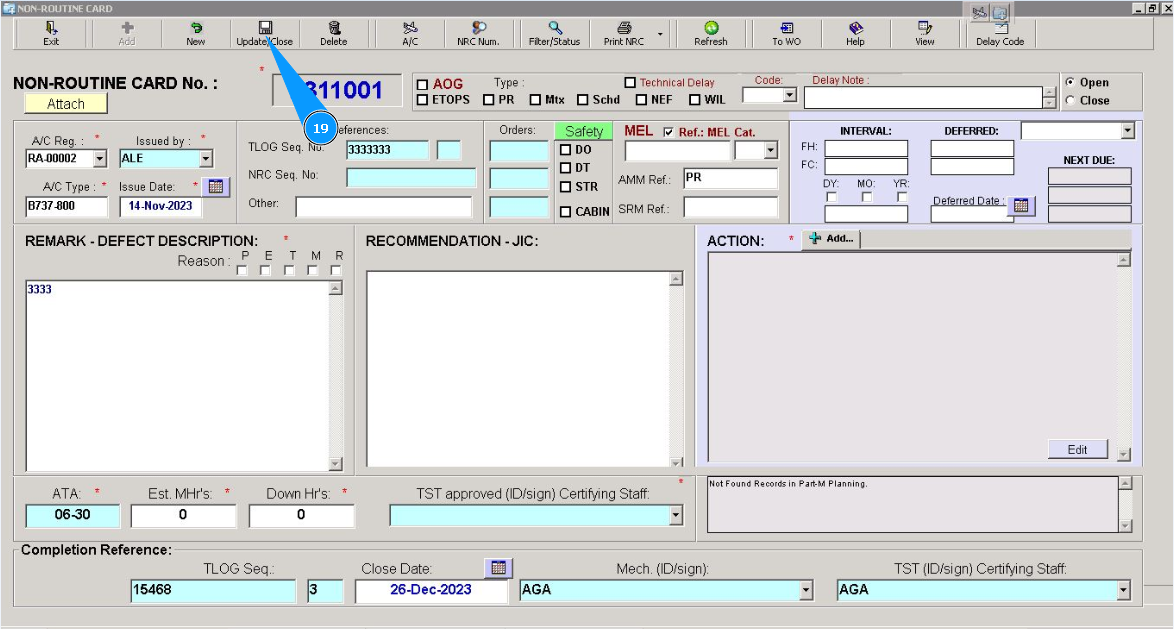
19. Click on the button "Update/Close", to close NRC.
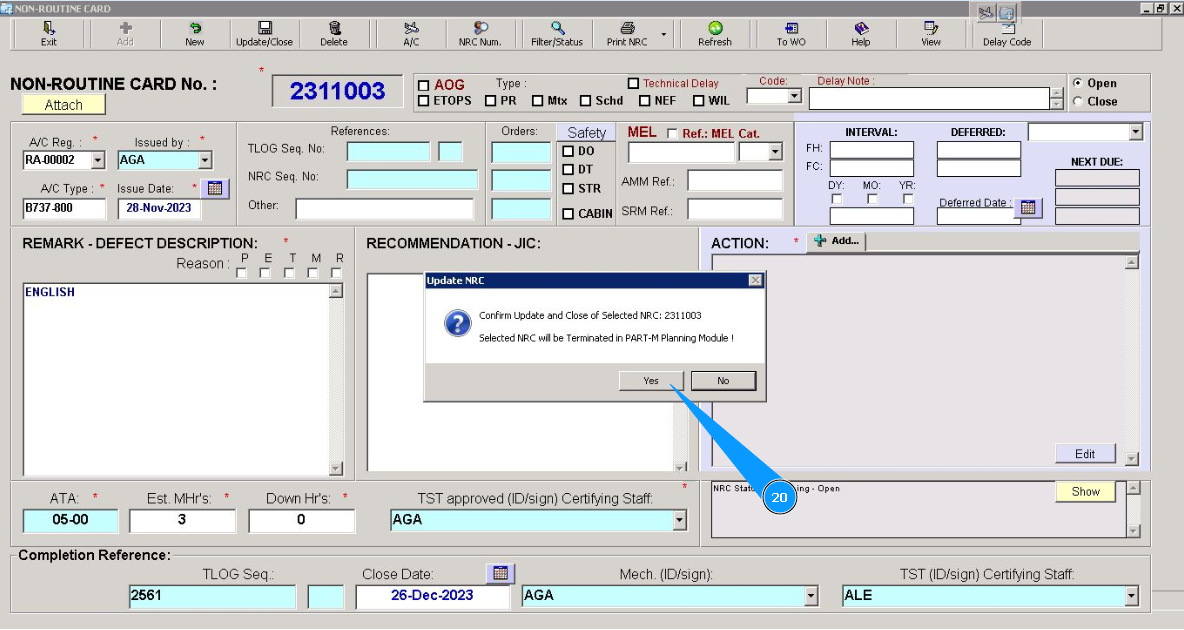
20. Click on the button "Yes", to confirm closing the NRC.
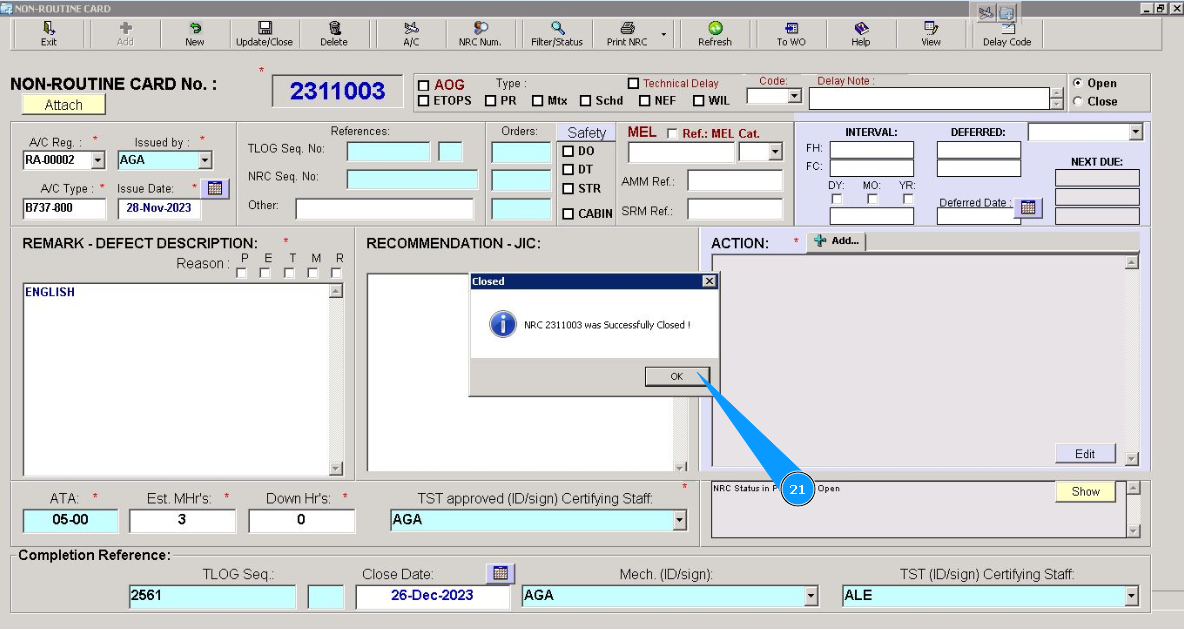
21. Click on the button "Ok", closing process is fully completed.
22. Check that a closed NRC is presented in the window "NRC List", apply filter "Closed", tick in the window "Closed".