How to check WP materials and tools
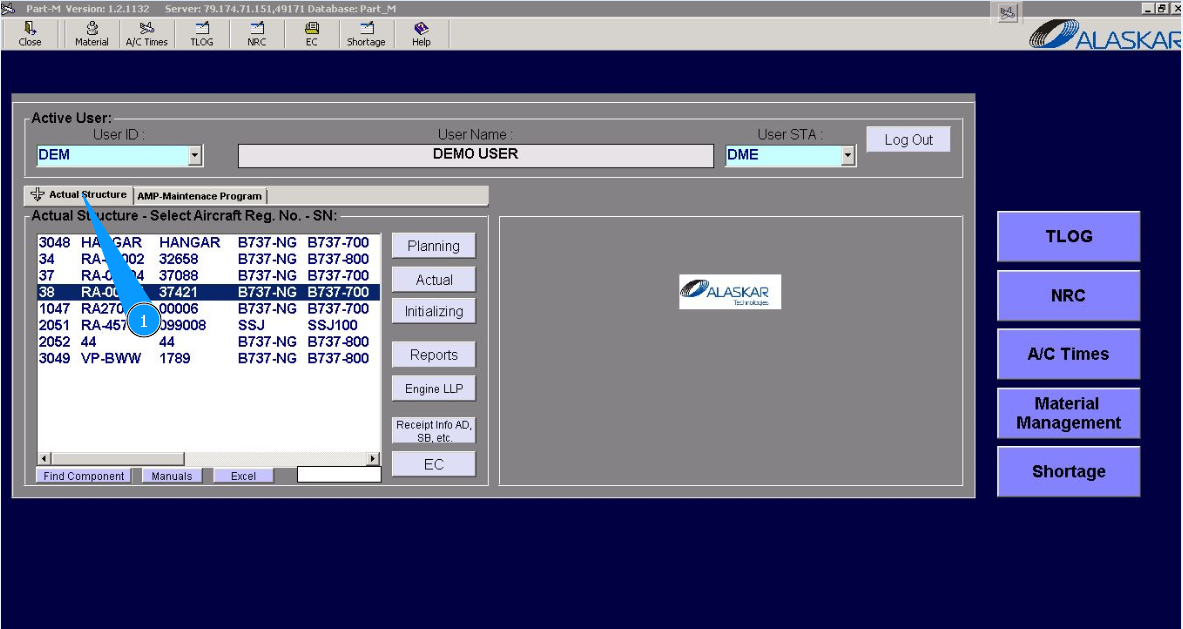
1. To check WP materials and tools, go to the tab "Actual Structure".
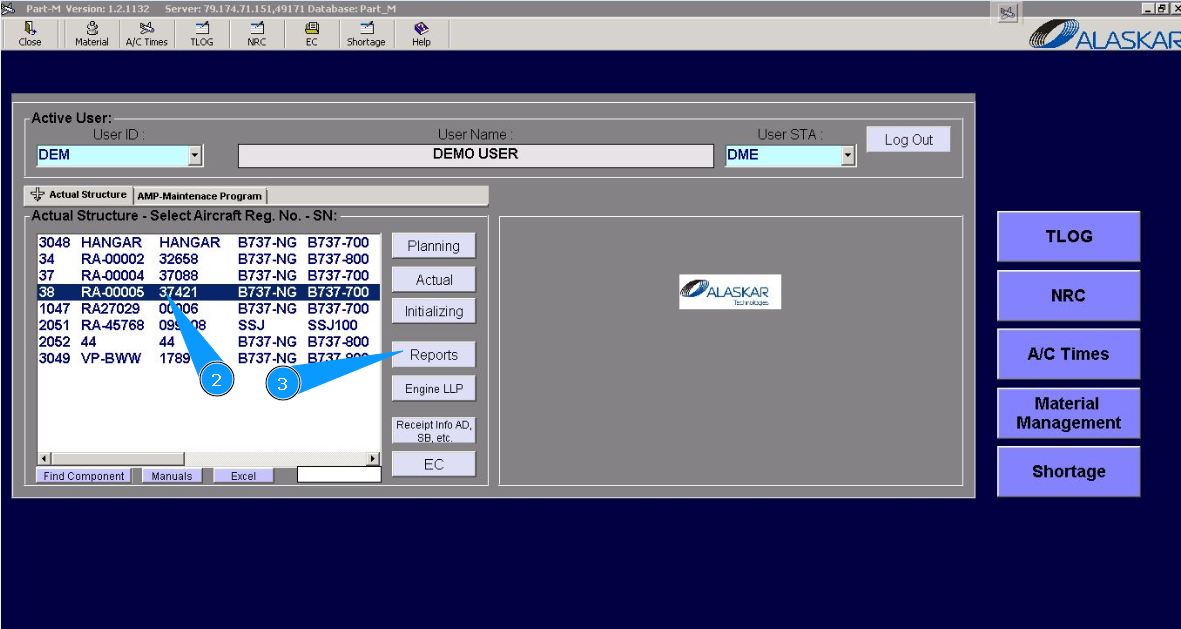
2. Select aircraft registration in the list of window "Actual Structure-Select Aircraft Reg.-SN".
3. Click on the button "Reports", to open the submodule.
4. Then go to the tab "Materials-Tools".
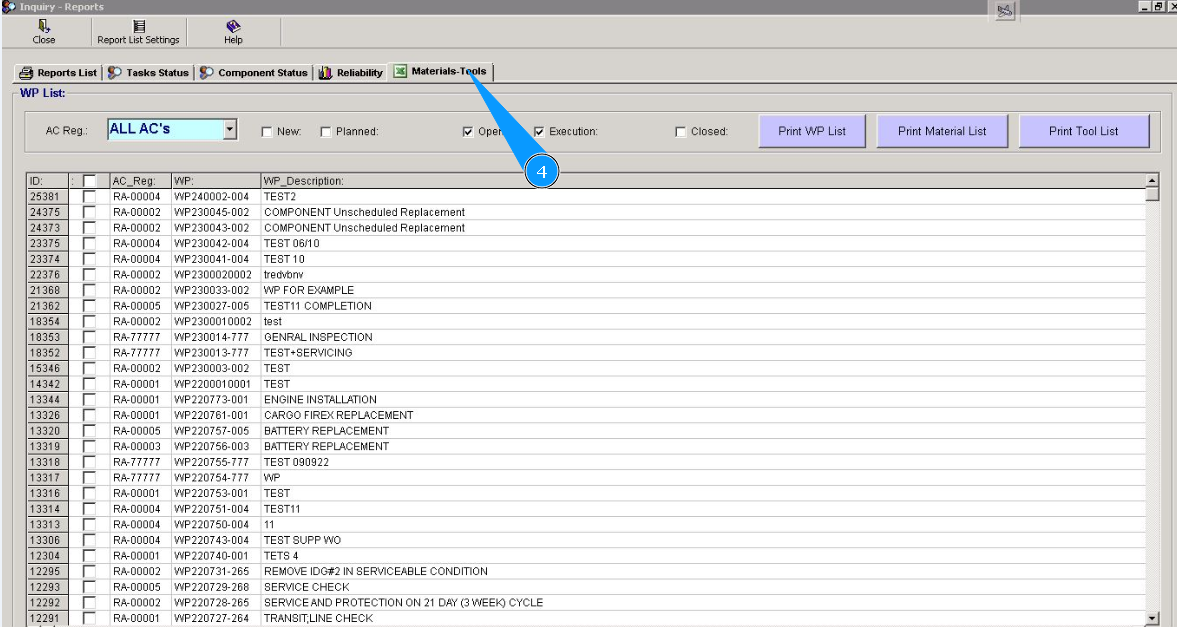
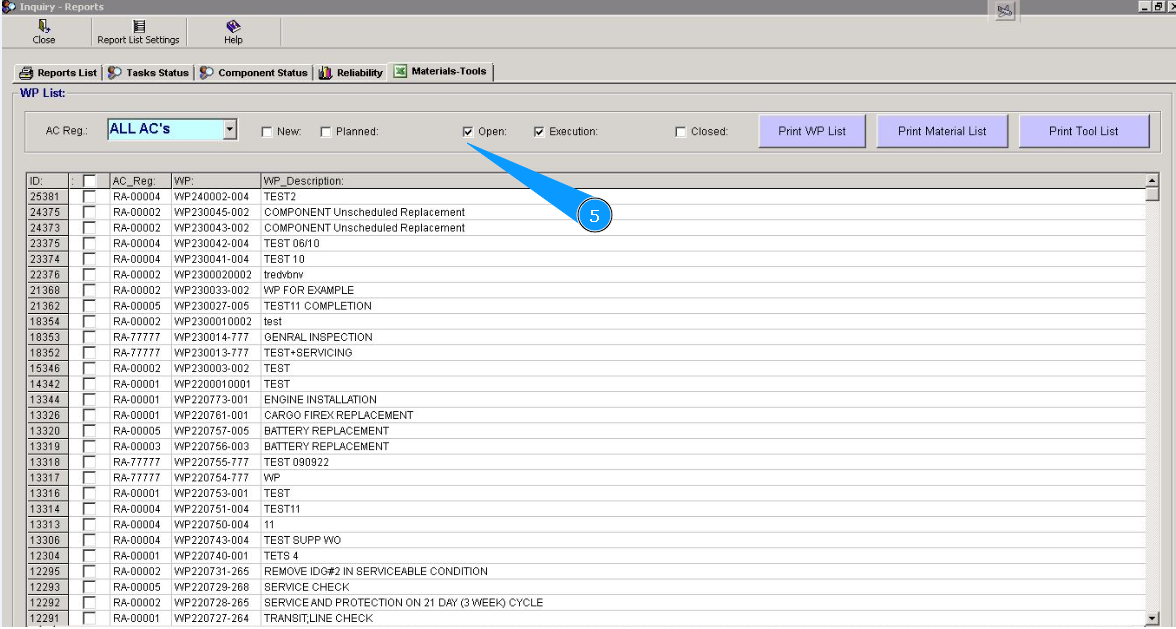
5. Select the WP condition with available filters in the fields: "New", "Planned" etc.
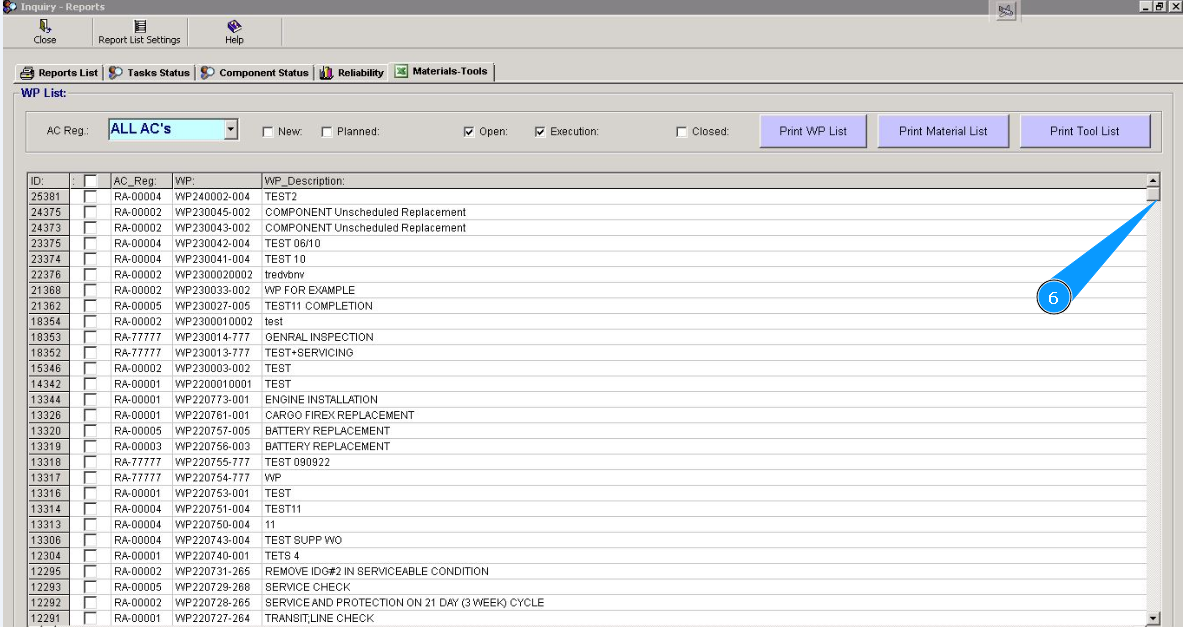
6. Select the necessary WP by scrolling through the list in the window "WP List".
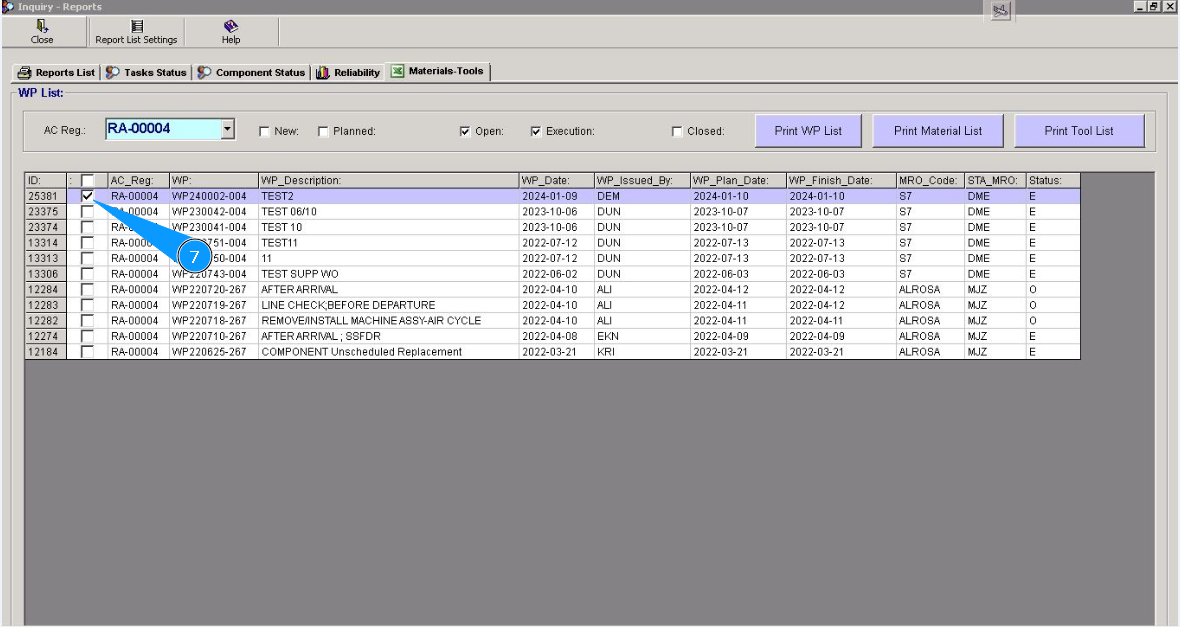
7. Click on the corresponding line.
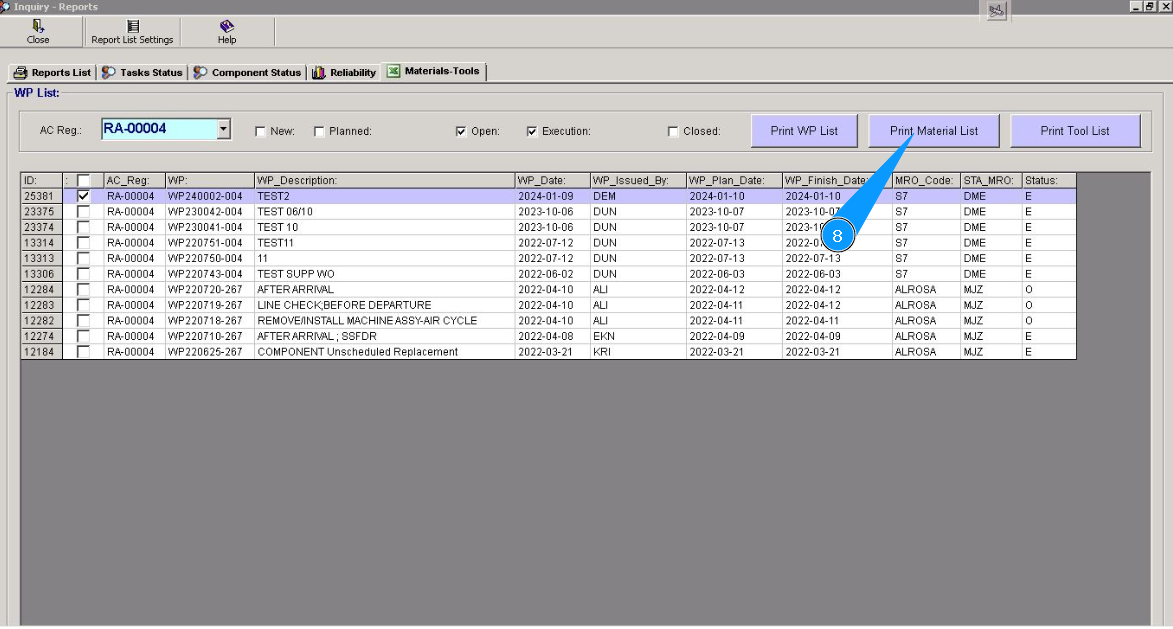
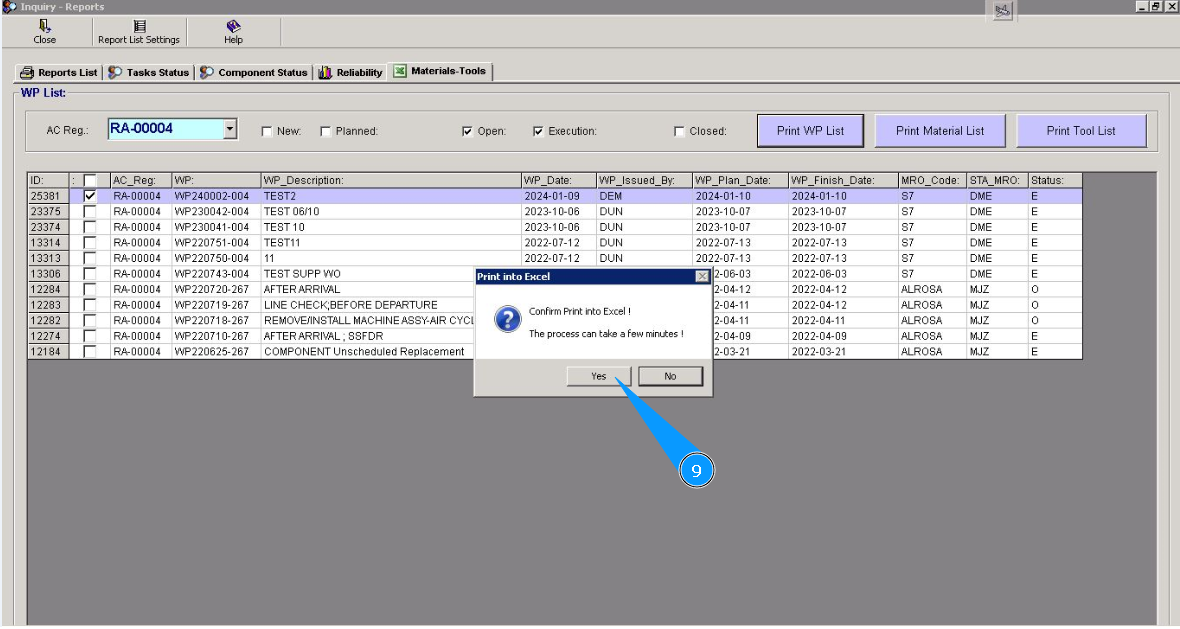
8. Click on the button "Print Material List", to create WP material report.
9. Click on the button "Yes", to confirm the creation of the report.
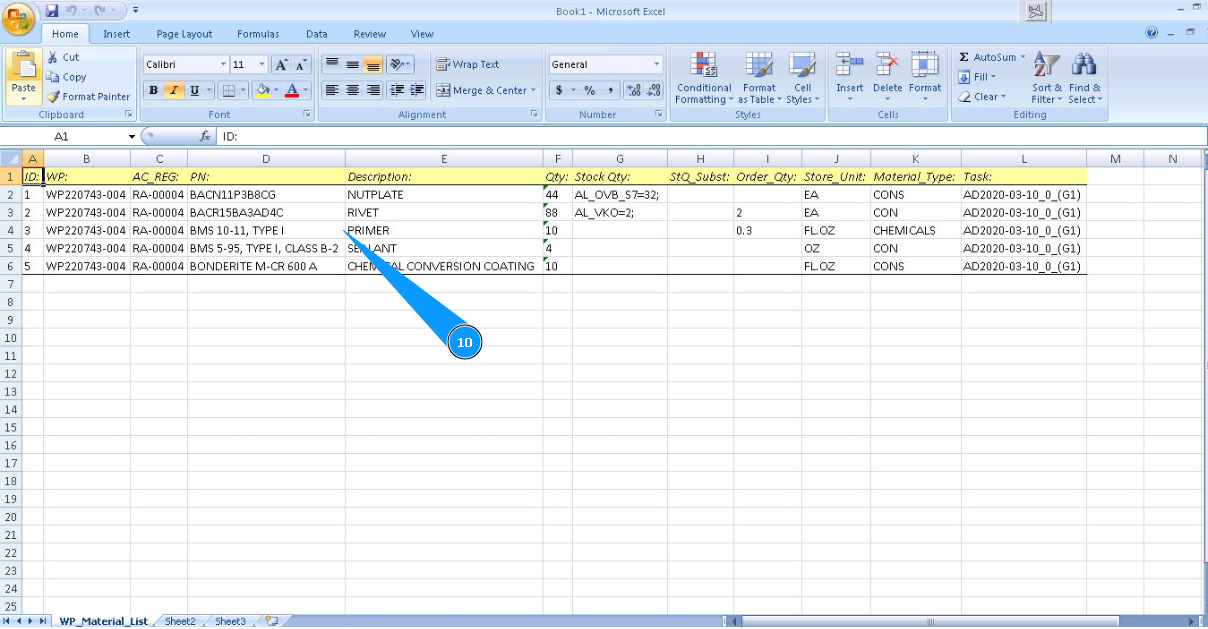
10. Check that the WP material report is successfully created. Perform all next necessary actions with file.
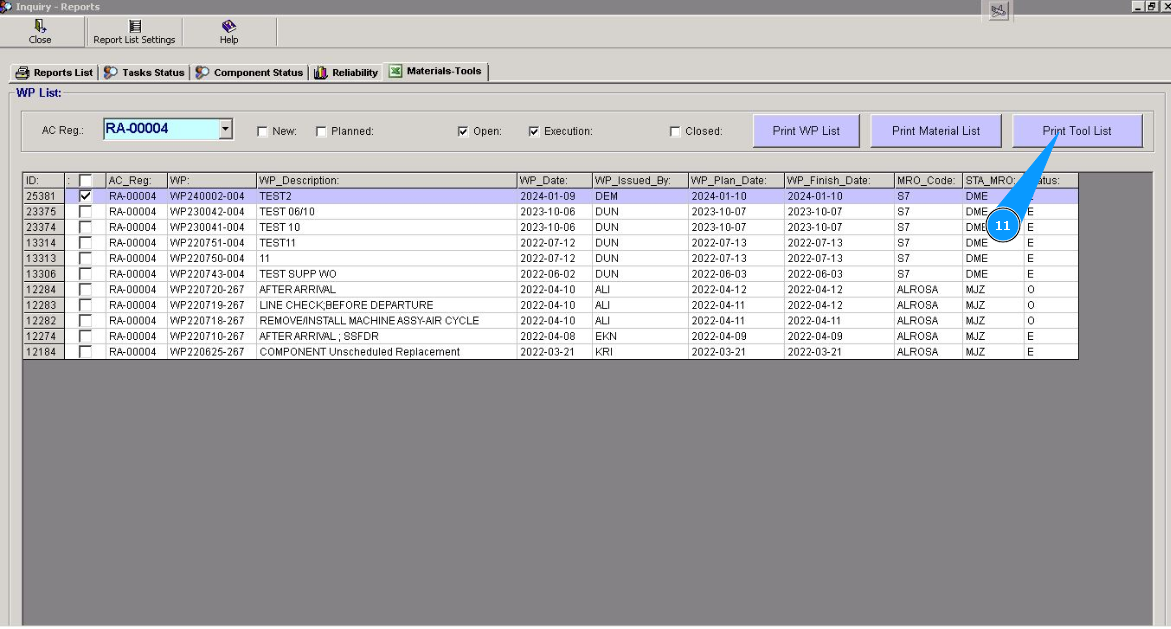
11. Click on the button "Print Tool List", to create a WP tool report.
12. Click on the button "Yes", to confirm the creation of the report.
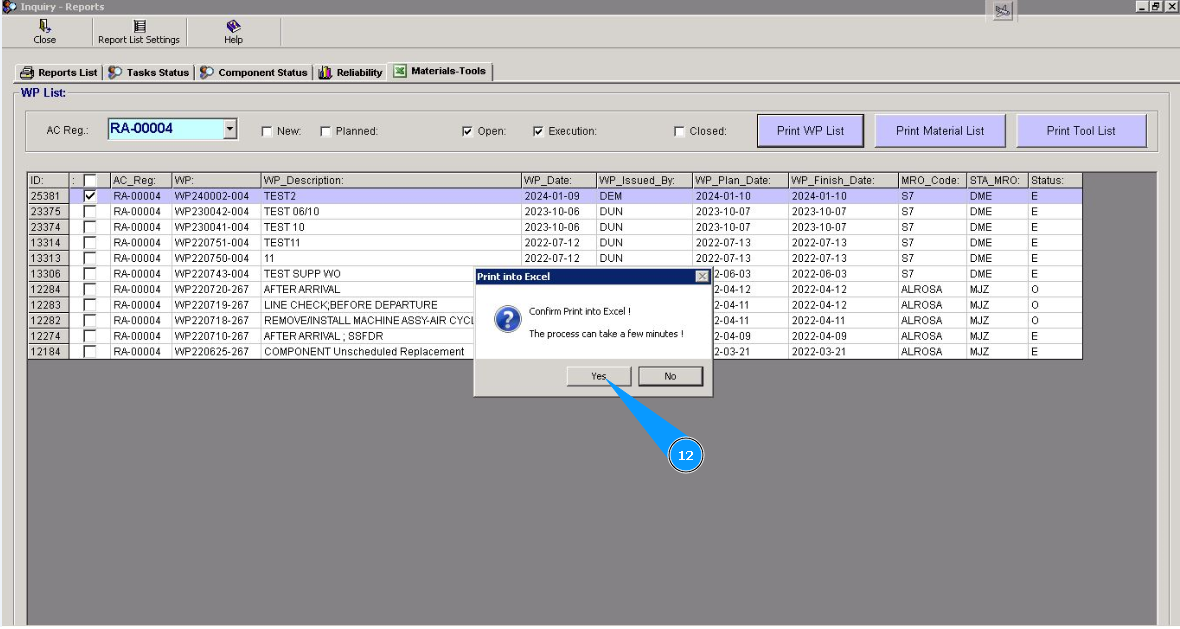
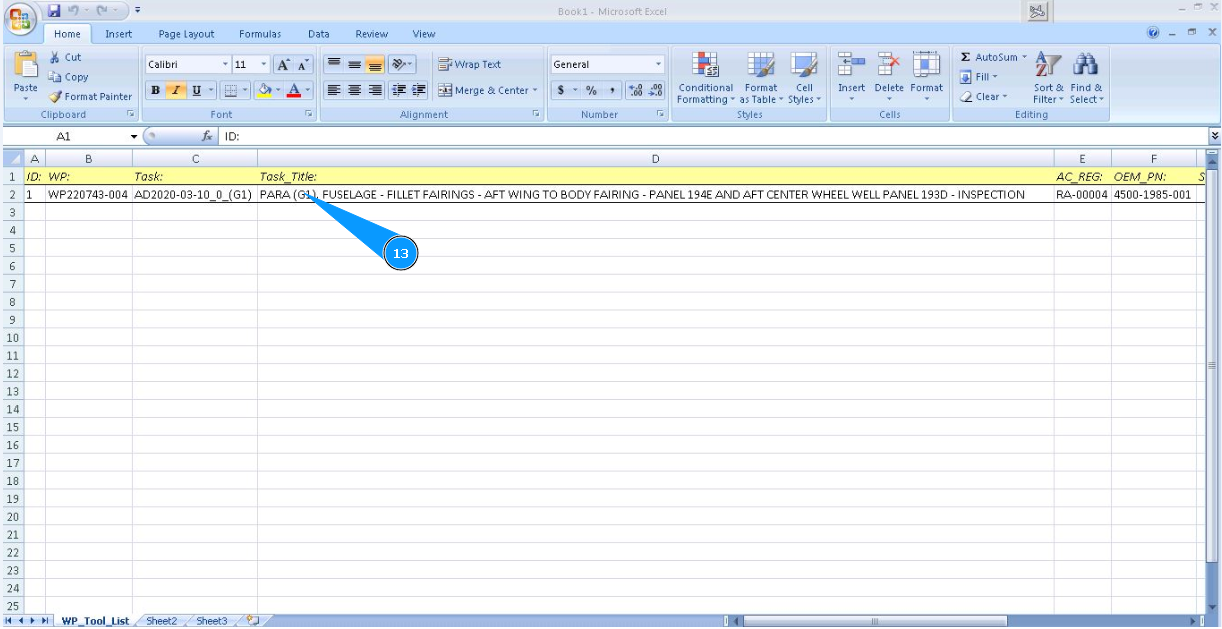
13. Check that the WP tool report is successfully created. Perform all the next necessary actions with the file.