How to check task history
1. To check task history performing, please go to the submodule "Actual Structure".
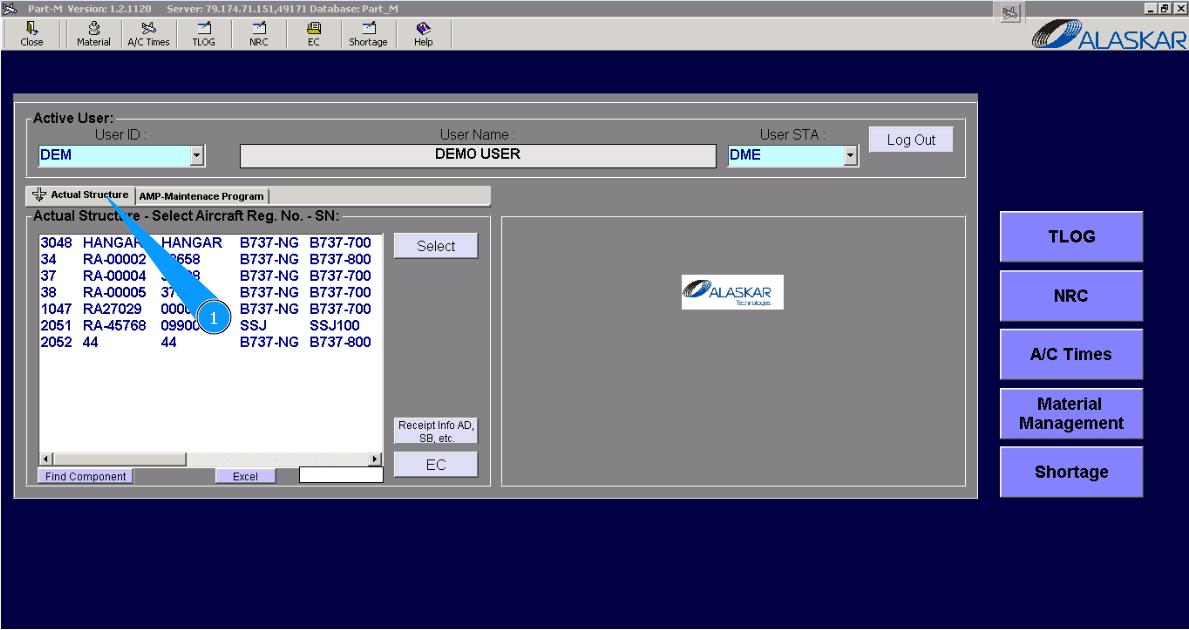
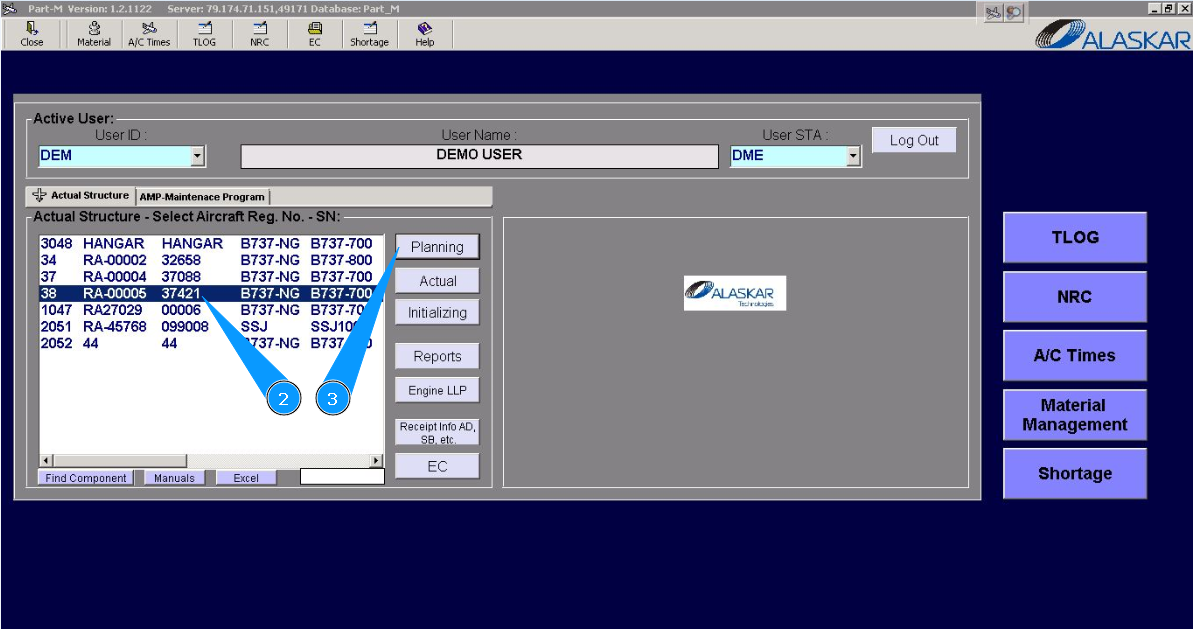
2. Select aircraft registration in the list of window "Actual Structure-Select Aircraft Reg.-SN".
3. Click on the button "Planing", to open submodule planing.
4. Enter required task number in the searching field and press on the knob "Enter" of your keyboard. Note: Please use the available filters for comfortable searching of task.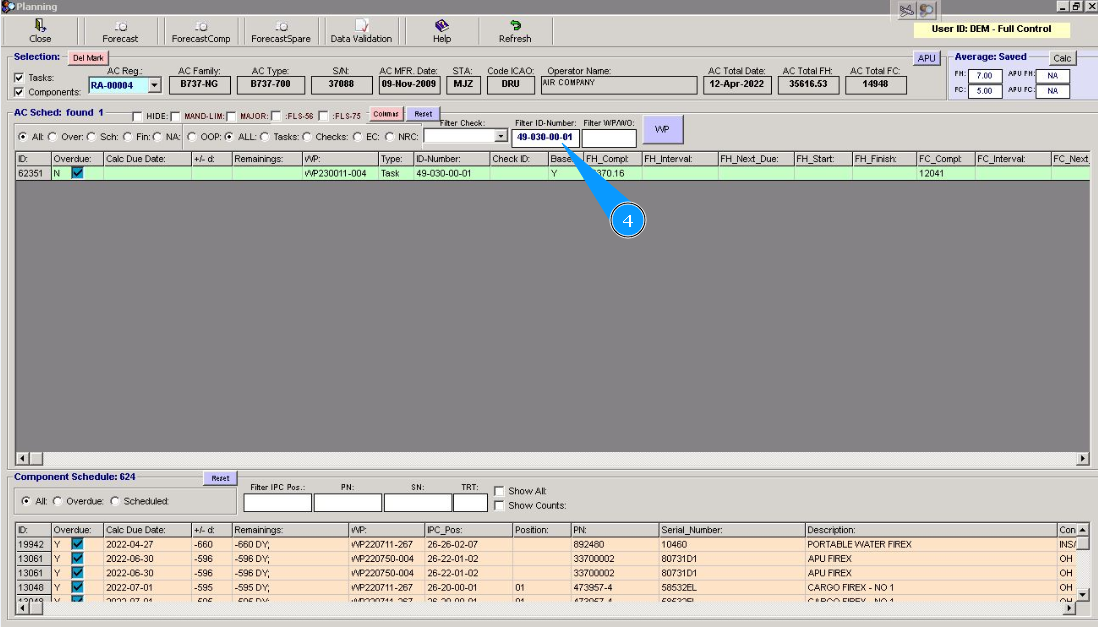
5. Select the required task, click on the corresponding line and press the right knob of your mouse.

6. Click on the button "History" in the window "Actual Task Editor".

7. Check that list of performed task is available and displayed in the window "TC History Information".

8. Receive the required information in the corresponding columns.
