How to check MP task or EC
Note: This instruction is for use by personnel who do not have access to submodule "Planing".
1. For checking the condition and status of MP tasks or Engineering Control, go to the tab "Actual Structure".
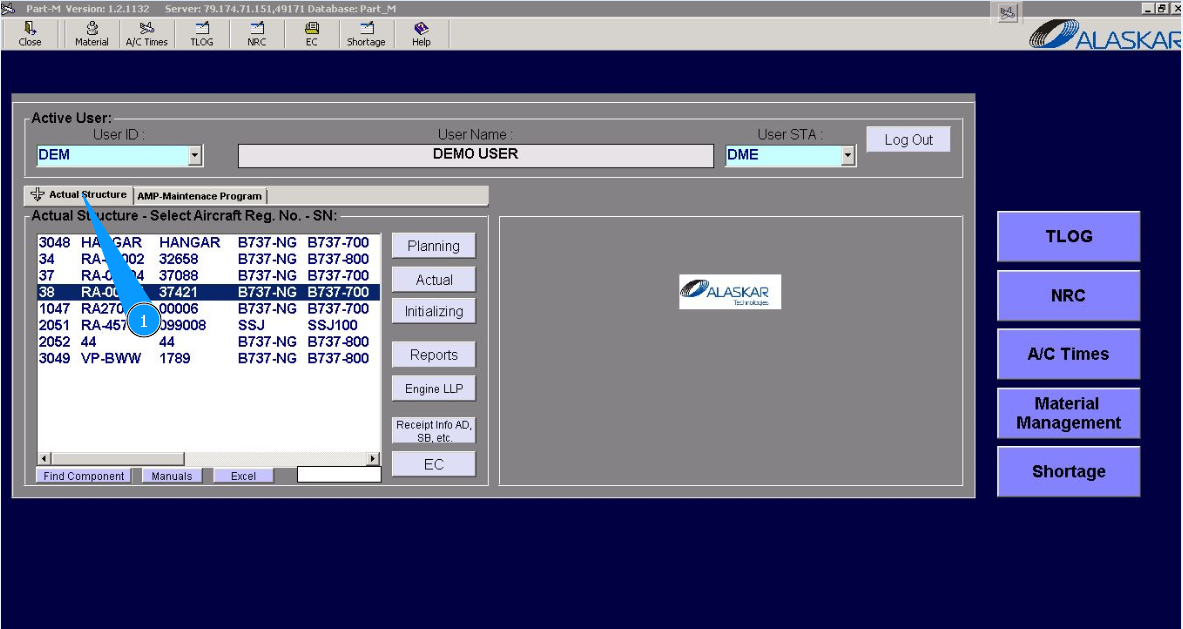
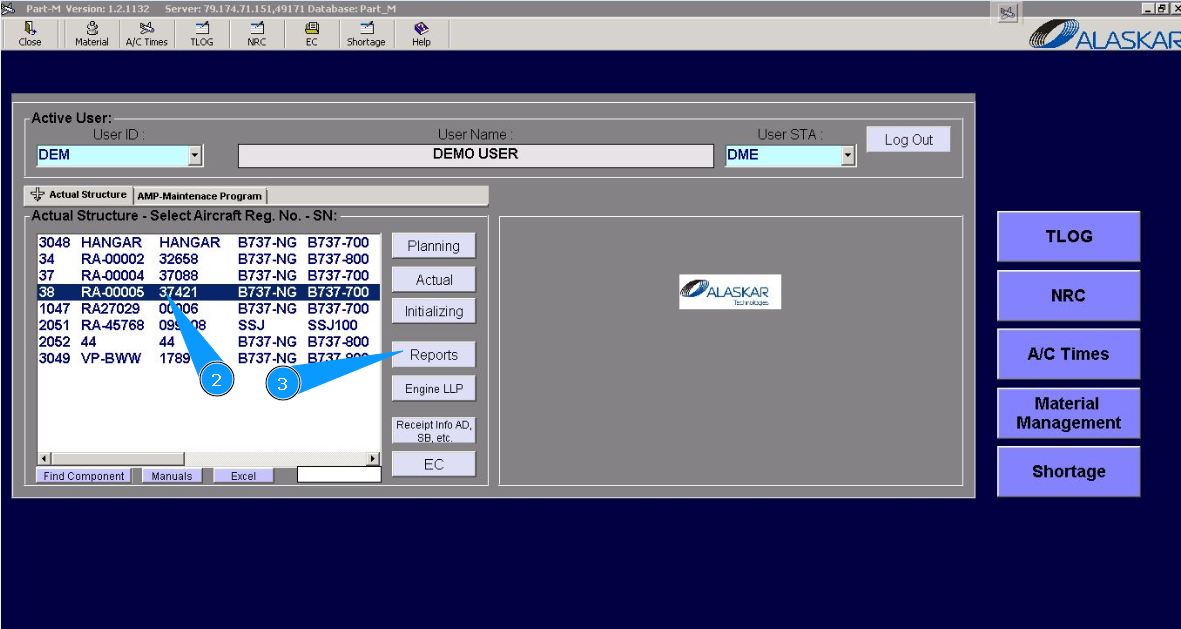
2. Select the aircraft registration number in the list of window "Actual Structure-Select Aircraft Reg.-SN".
3. Click on the button "Reports", to open the submodule.
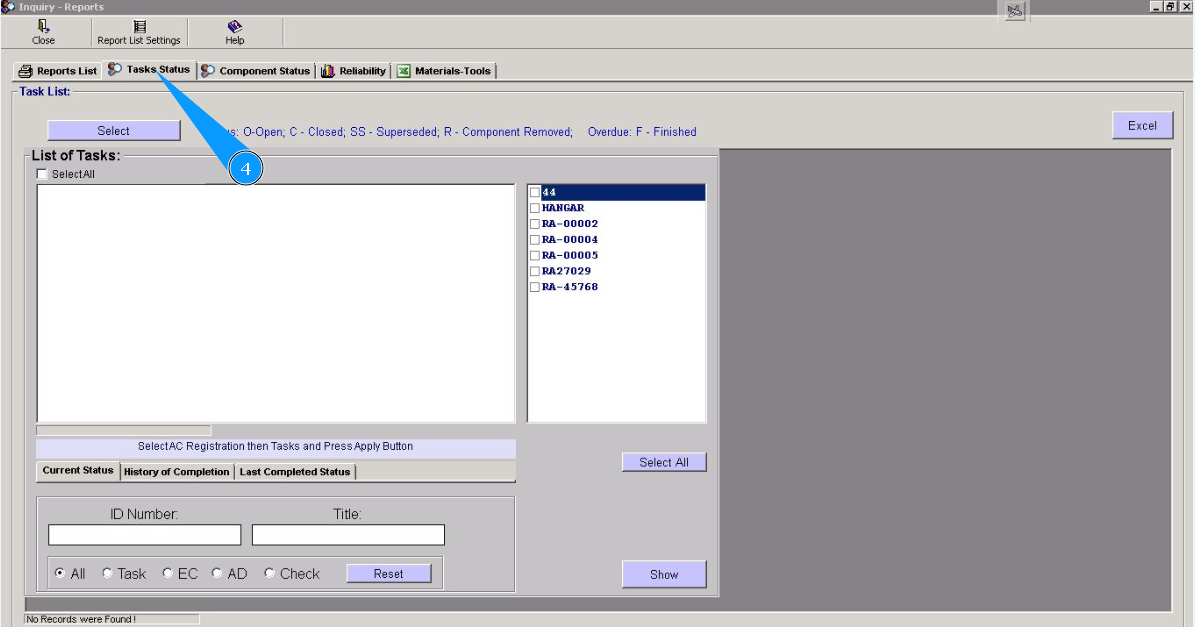
4. Then go to the tab "Tasks Status".
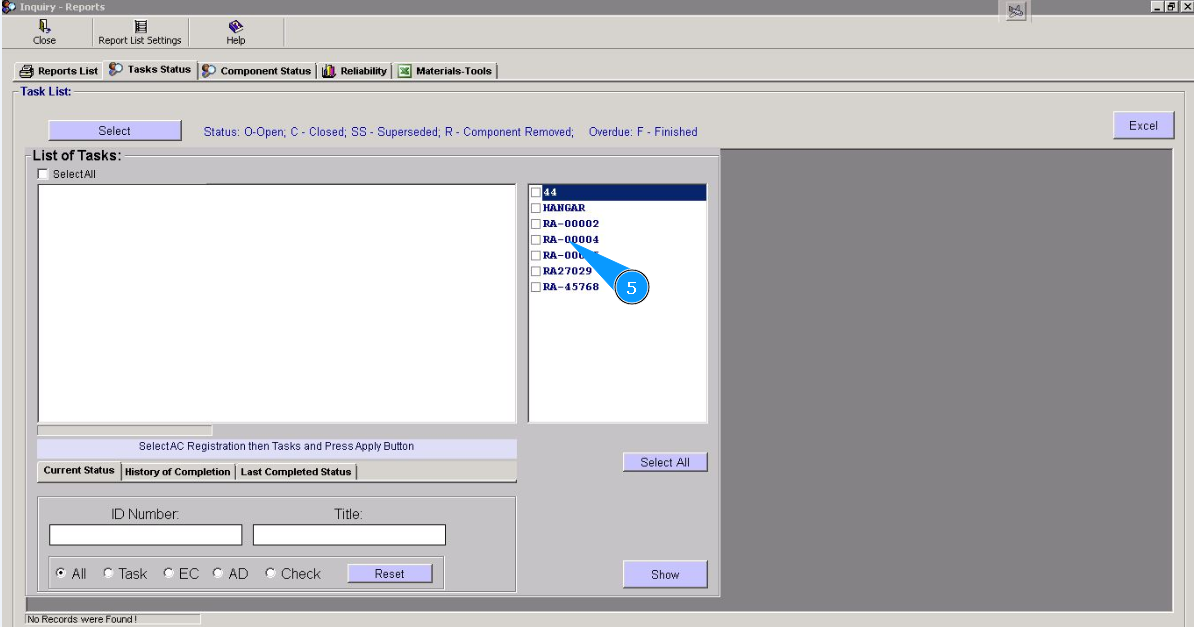
5. Select the aircraft registration number in the list of tasks in the window "List of Tasks".
6. Select the necessary tasks or EC for checking in the list of window "Reports List". Click on the corresponding line. Note: If you don't know a task or EC number, please use the following searching filters: "Task", "AD","EC", "Check". After that, press the "Enter" of your keyboard and find the corresponding line by scrolling.
7. If necessary, enter a searching number or title in the fields "ID Number" and "Title".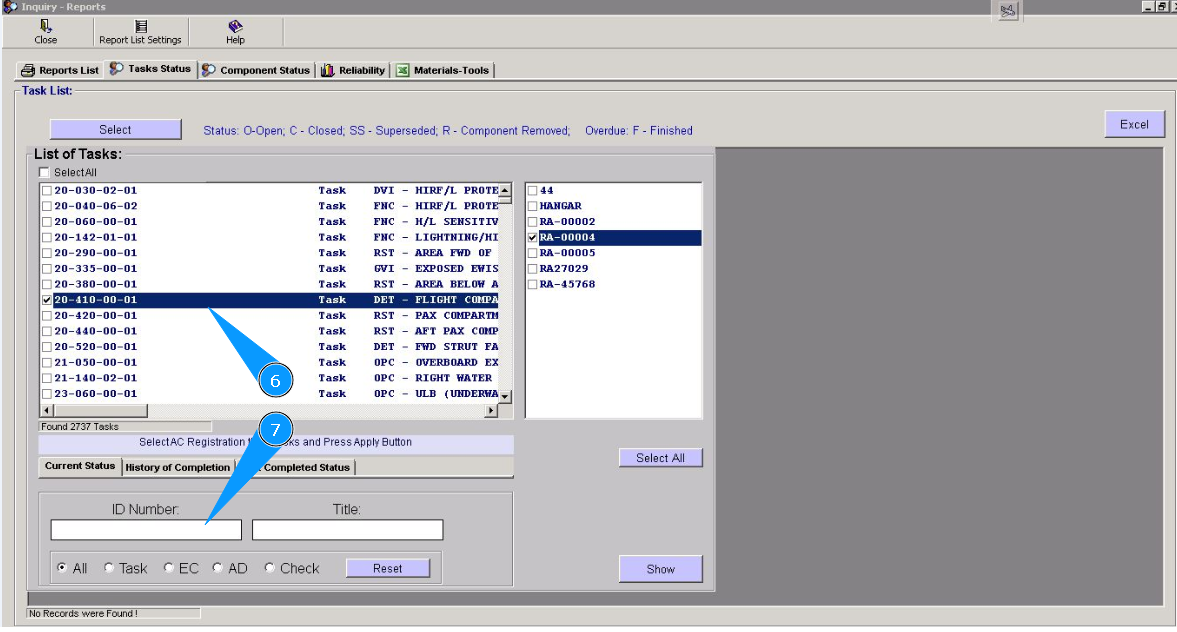
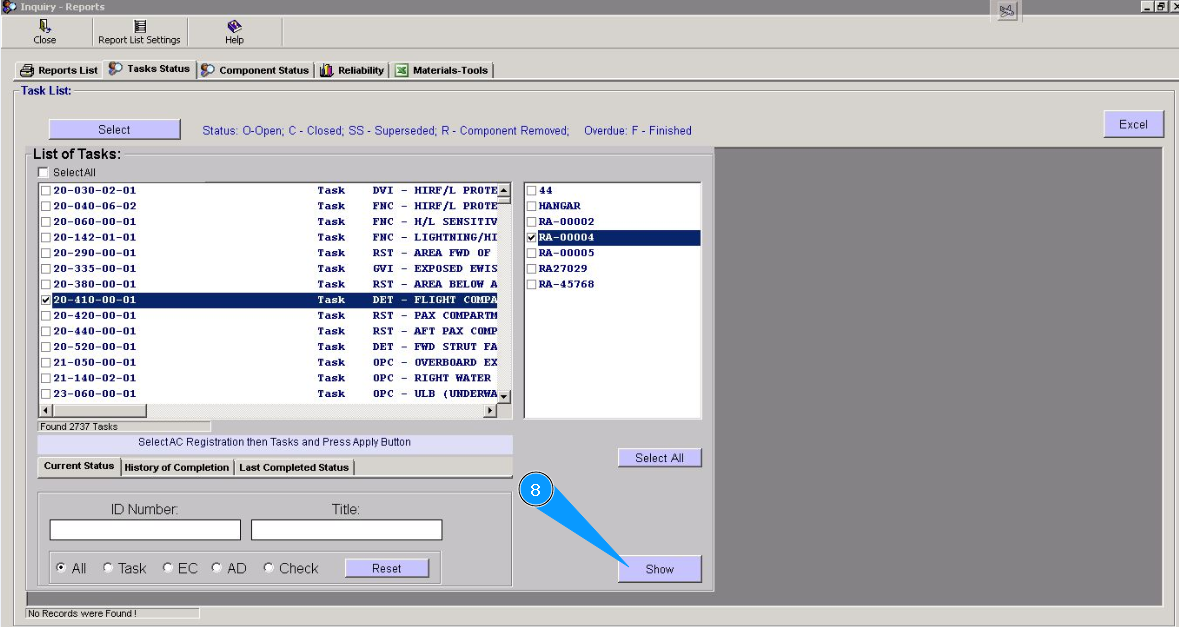
8. Click on the button "Show", to open list for status checking.
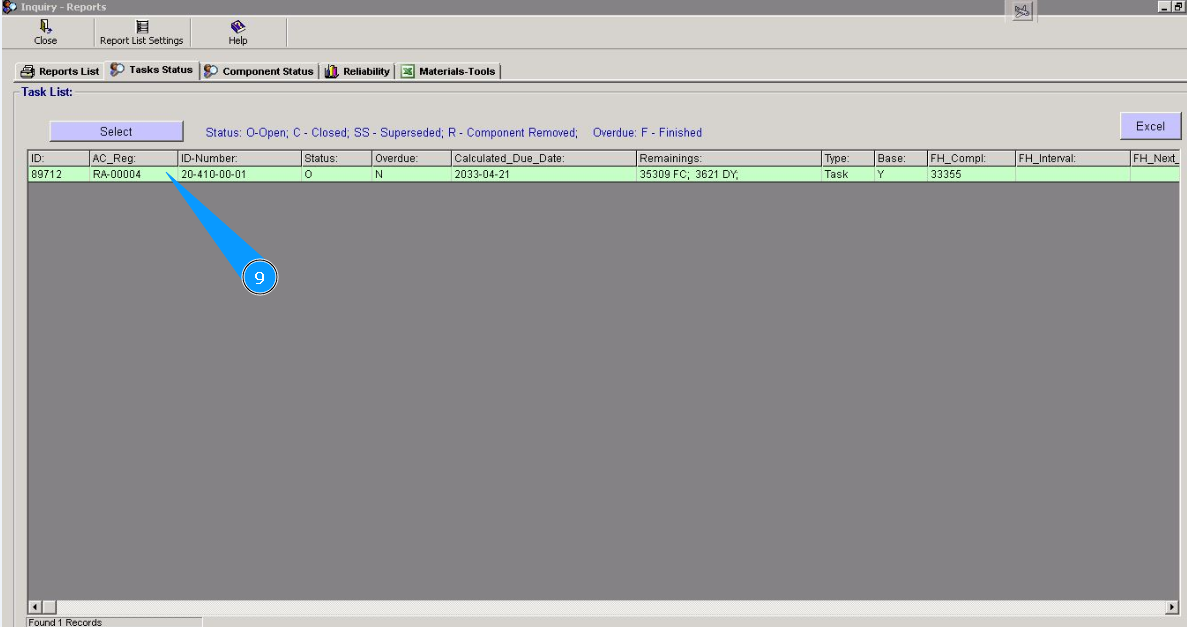
9. Information about the current status and condition of the selected task, or EC, is available in the opened window "Tasks List".
10. If necessary, to check information about the last task or EC performance, go to the tab "History of Completion".
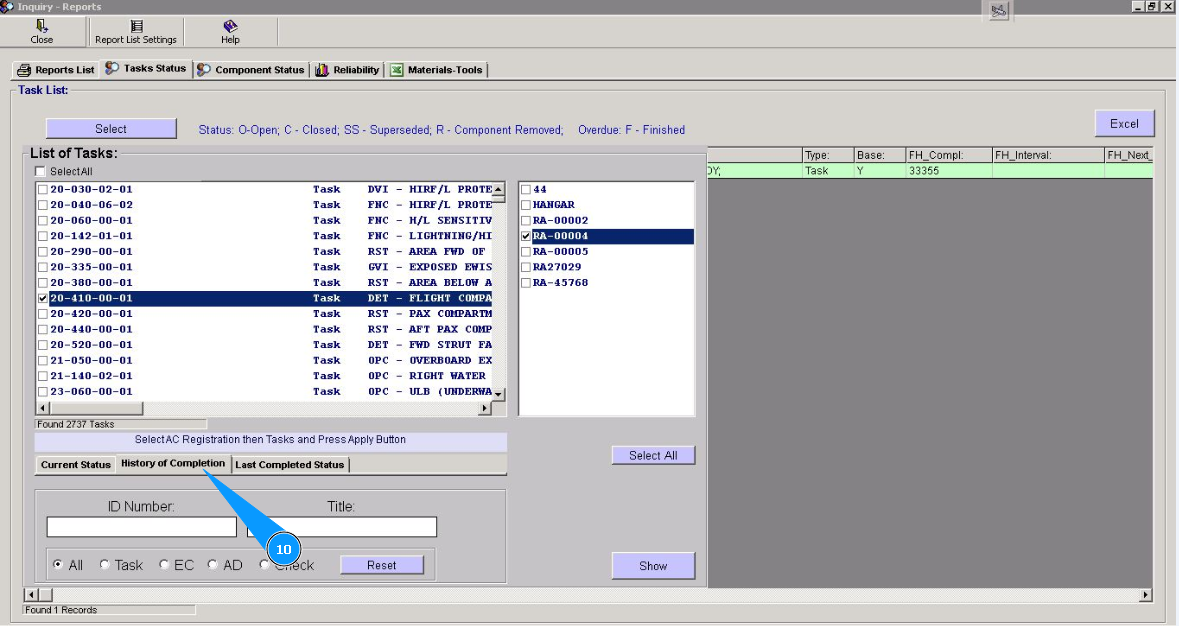
11. If necessary, enter a searching number or title in the fields "ID Number" and "Title".
12. Click on the button "Show", to open the list for checking.
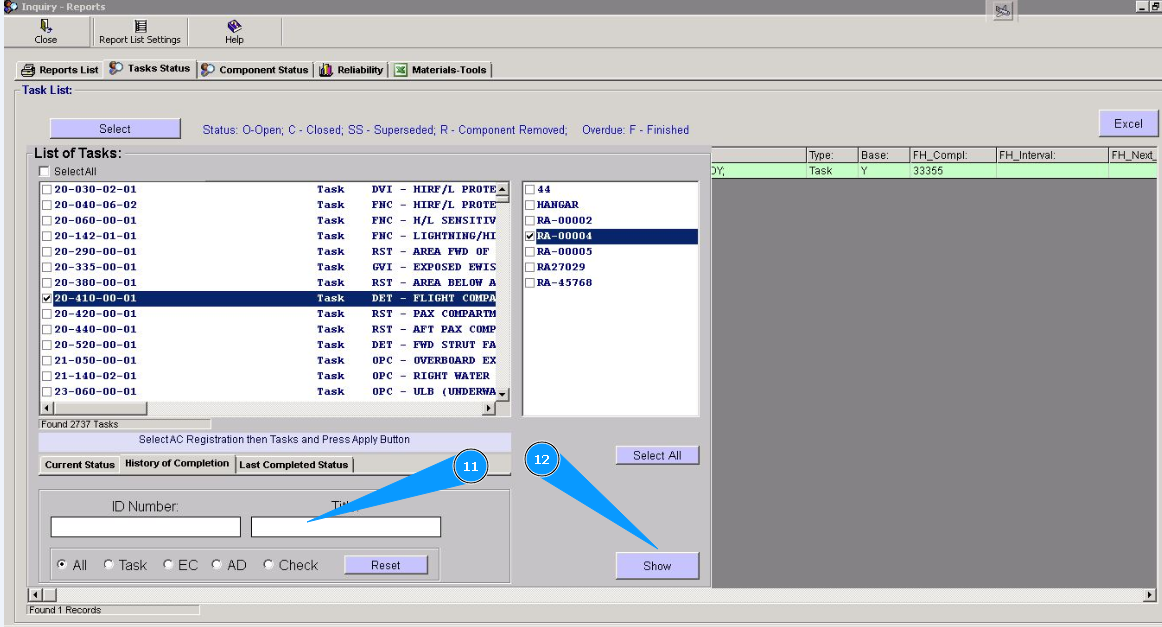
13. Information about the last performance selected task, or EC, is available in the opened window "Tasks List".
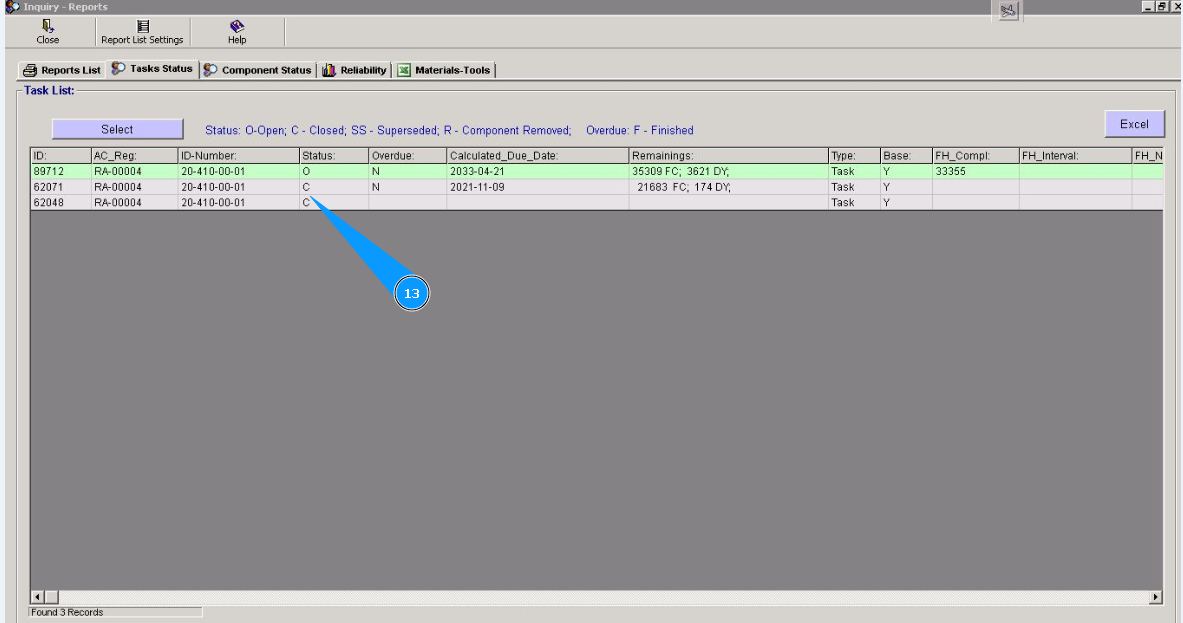
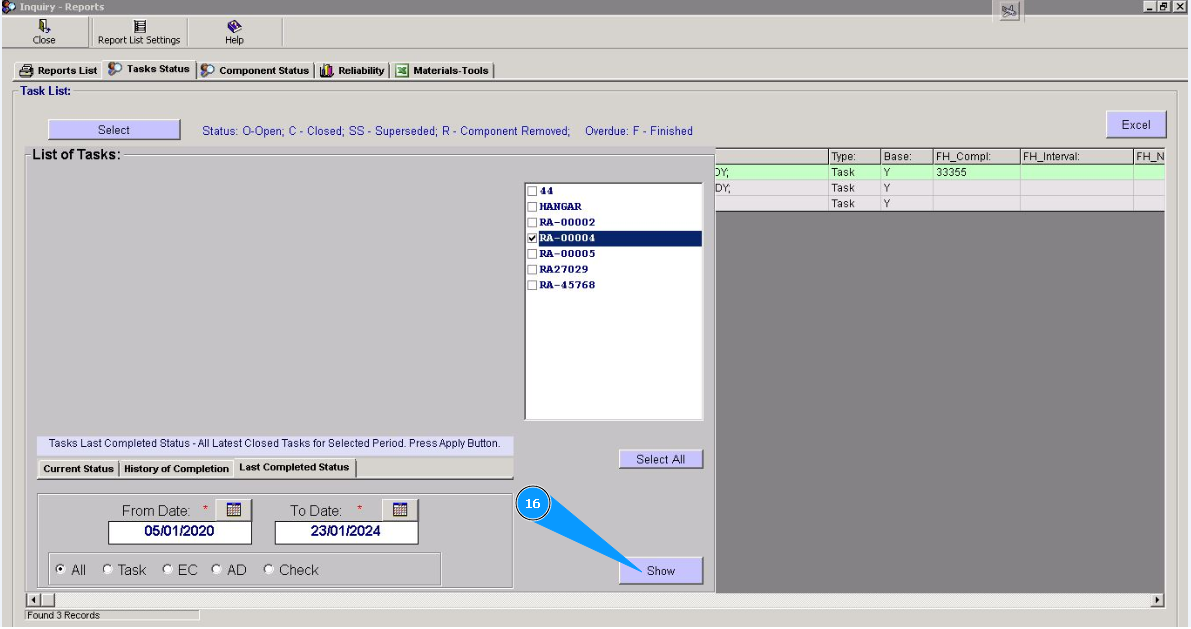
14. If necessary, to check information about previous performance for a time period, go to the tab "Last Completion Status".
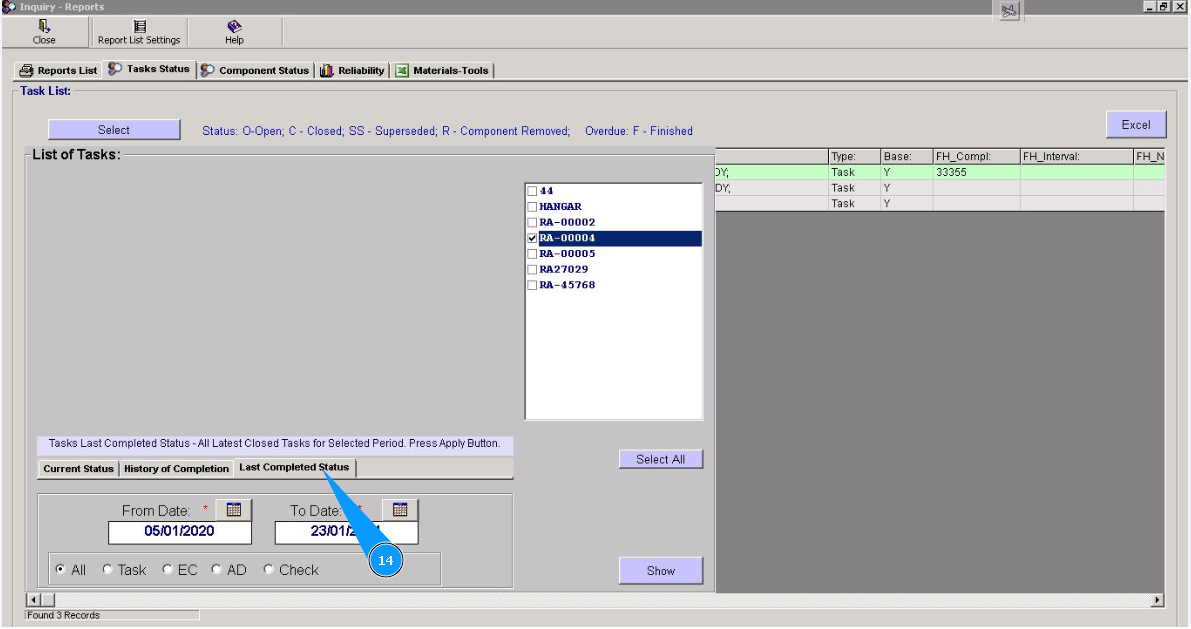
15. Enter the time period of the report, from one date to the next.
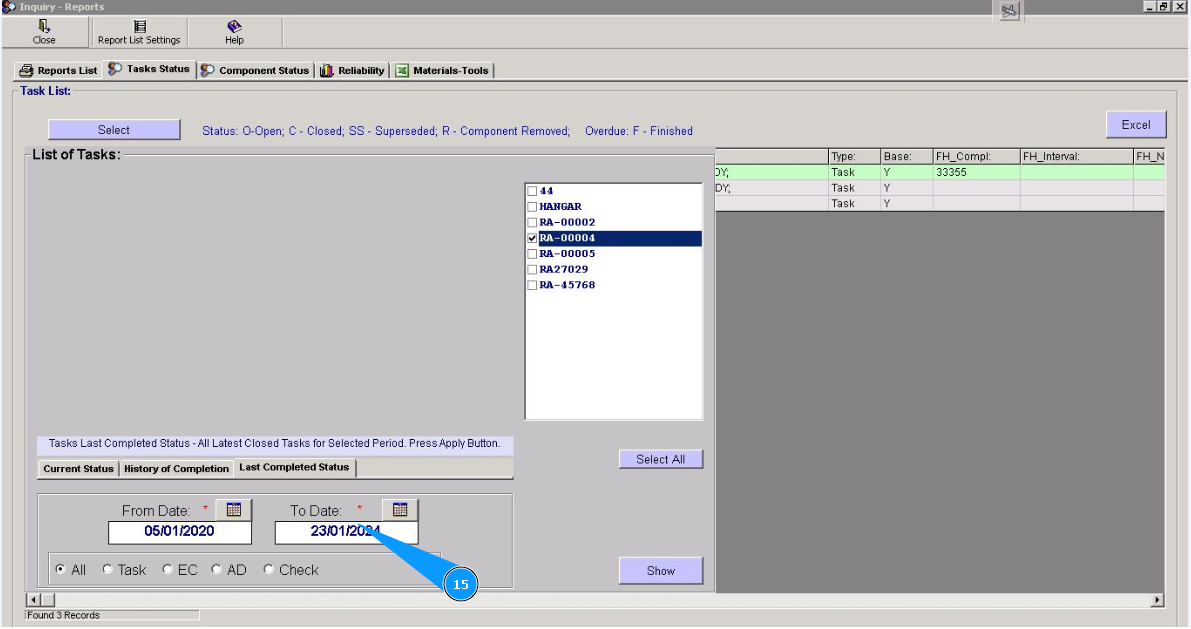
16. Click on the button "Show", to open the list for checking.
17. Information about the last performed selected task or EC for a time period is available in the opened window "Tasks List".
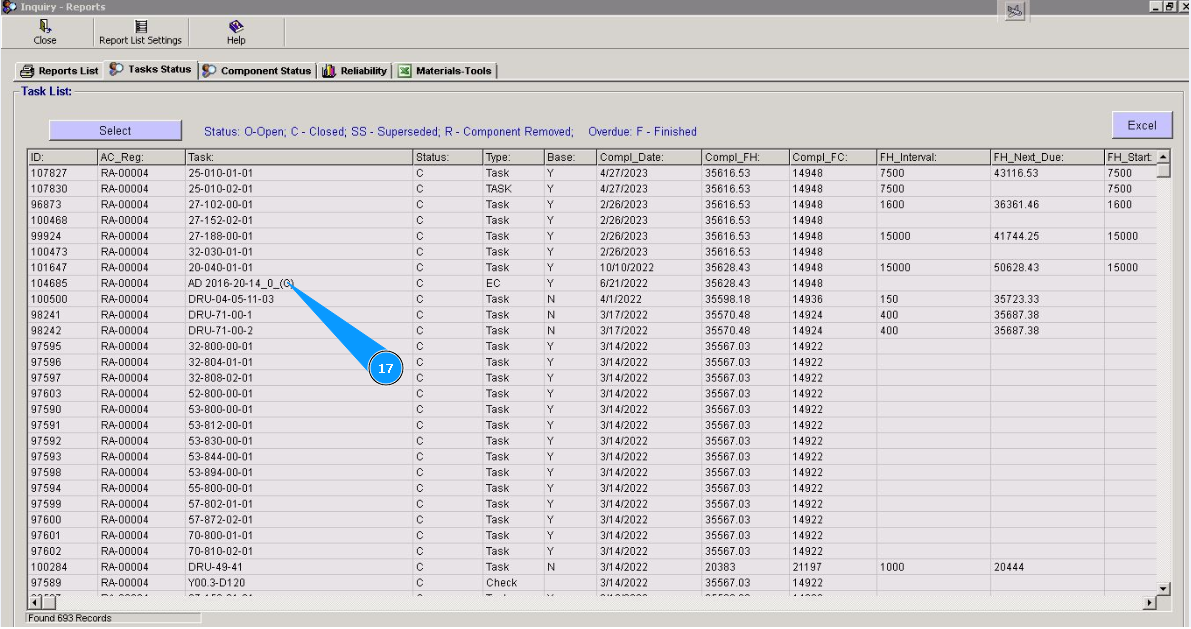
Note: If necessary, you can download a list of all performed tasks in this report to Excel by clicking on the symbol Excel in the top right corner of the screen.
Note: To return to select mode, click on the button "Select".