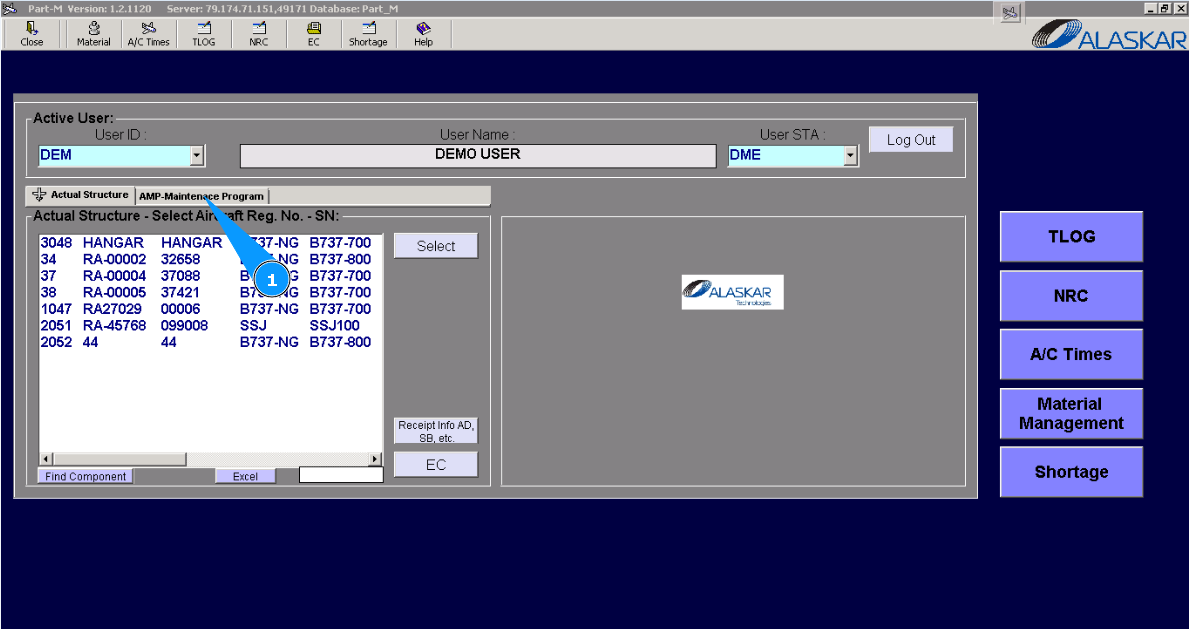
How to add treatment to component
1. To add treatment to component go to the tab "AMP- Maintenance Program".
2. Then go to the tab "AMP Pos Struct". Note: If necessary, use other search filters in the fields:"Filter Position", "Filter Description".
3. Enter the position of a component for which it is necessary to add treatment in the field "Filter IPC Position" of the window "Positions" and press the button "Enter" on your keyboard.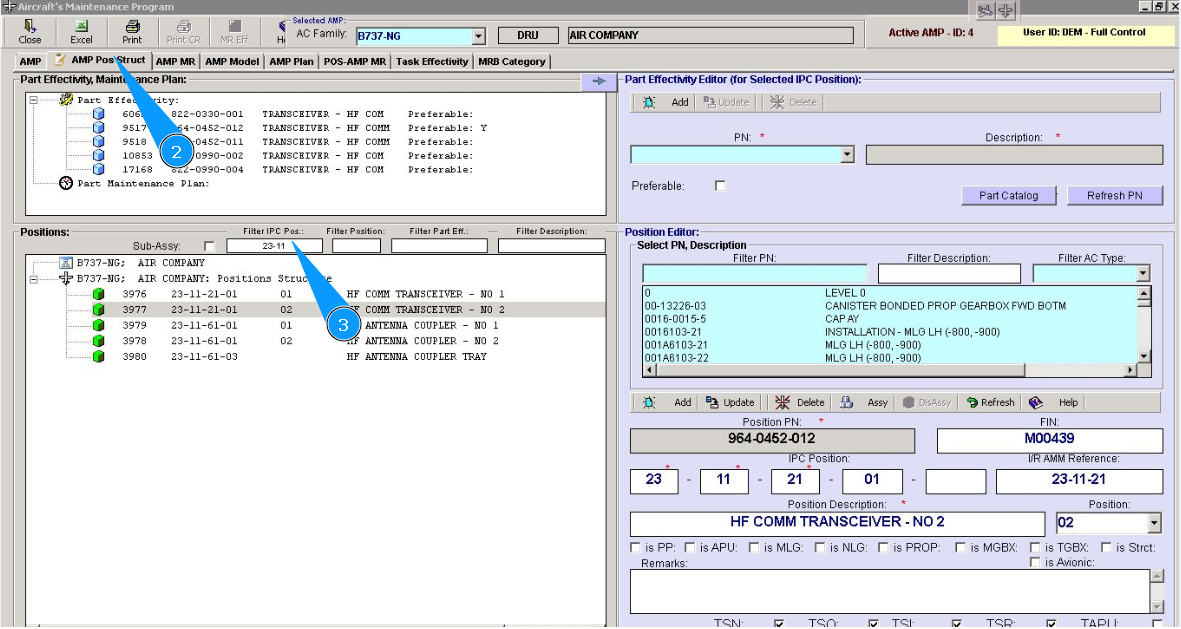
4. Select the required item from the list and double-click on the selected line in the window "Select PN, Description".
5. Check that the selected position data is displayed in the window "Positions".
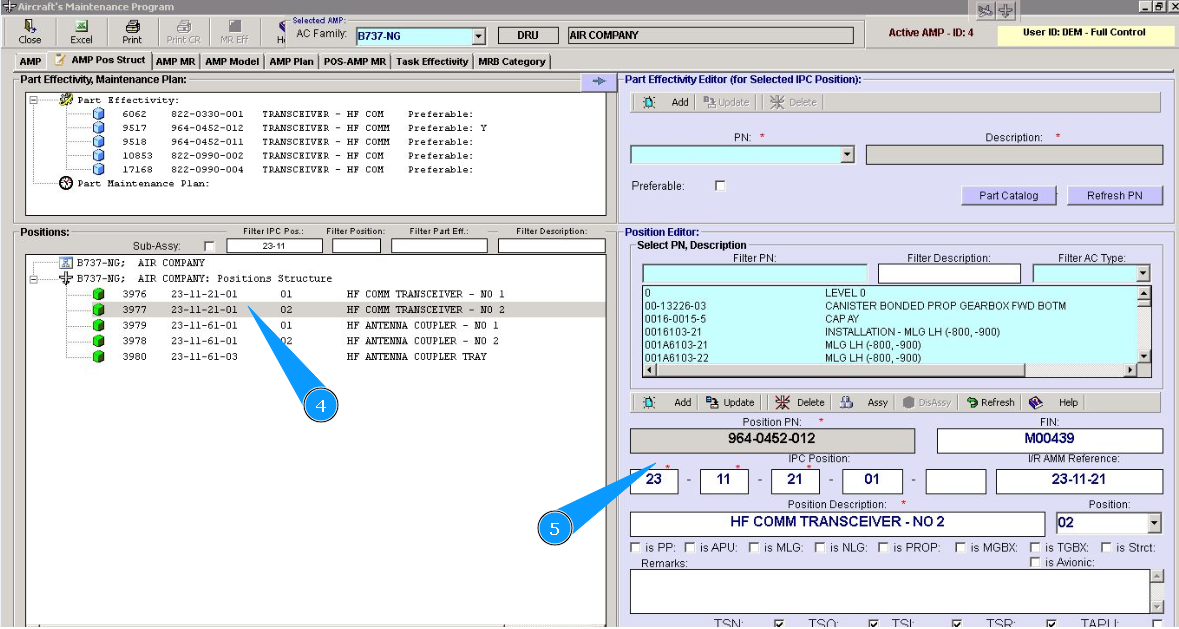
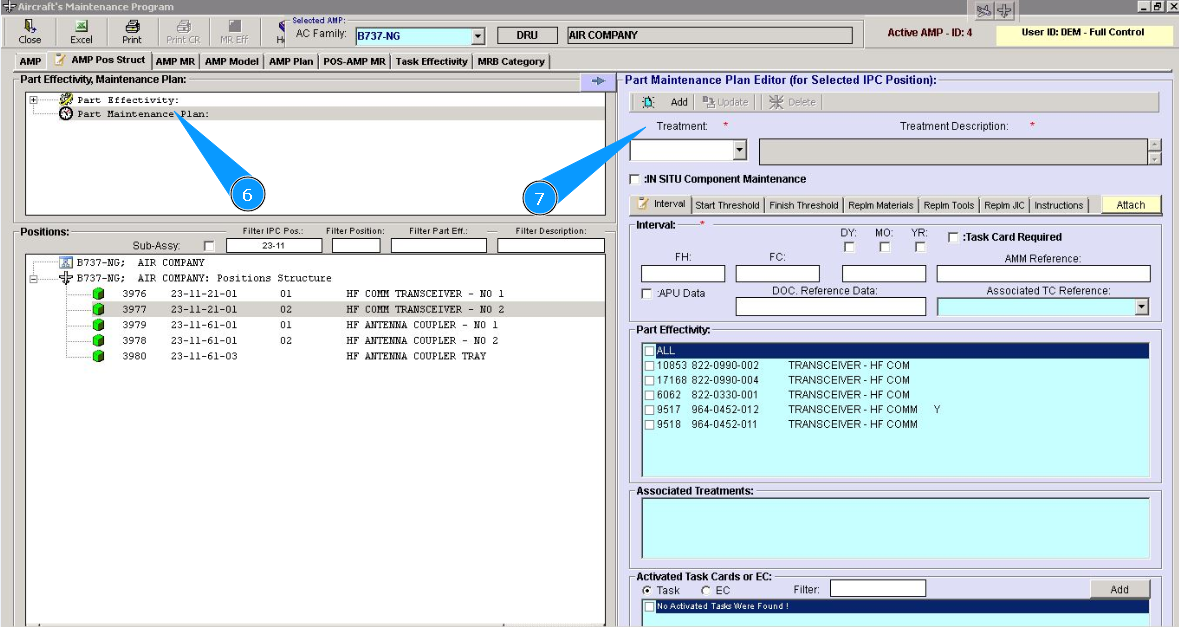
6. Click on the line "Part Maintenance Plan" in the window "Part Effectivity, Maintenance plan".
7. Check that the treatment editor has been opened in the window "Part Maintenance Plan Editor".
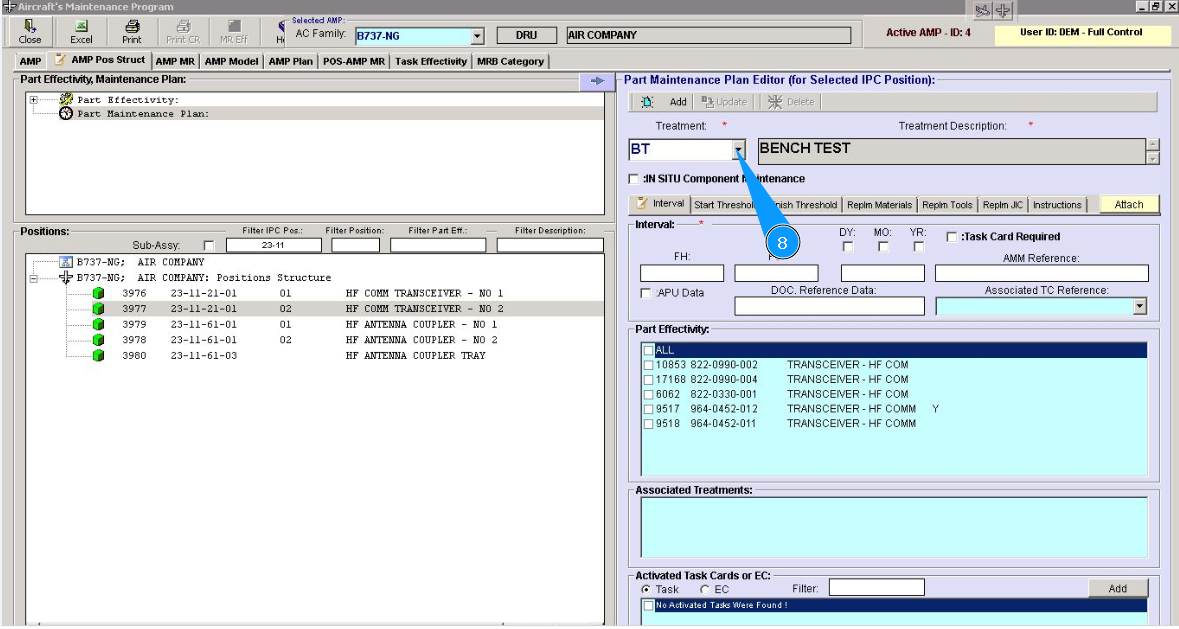
8. Select the required treatment from the dropdown list in the window "Treatment".
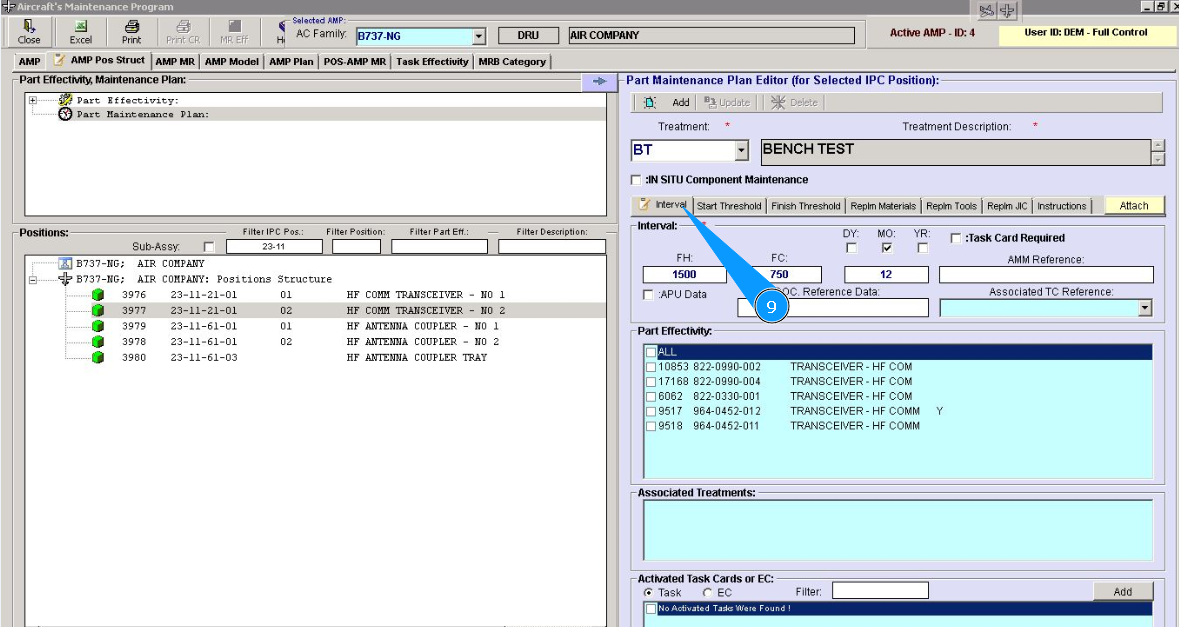
9. Enter the required tracking data in the tab "Interval".
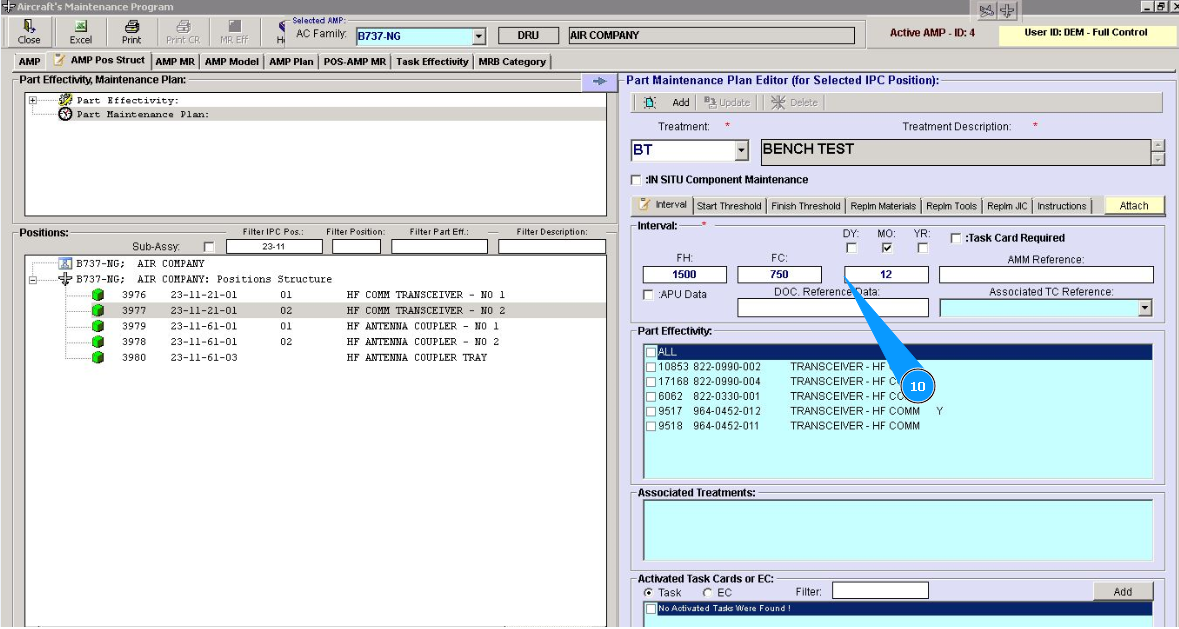
10. Set the interval in flight hours, flight cycles or calendar, as applicable, in the fields: "FH", "FC", "DY", "MO", "YR".
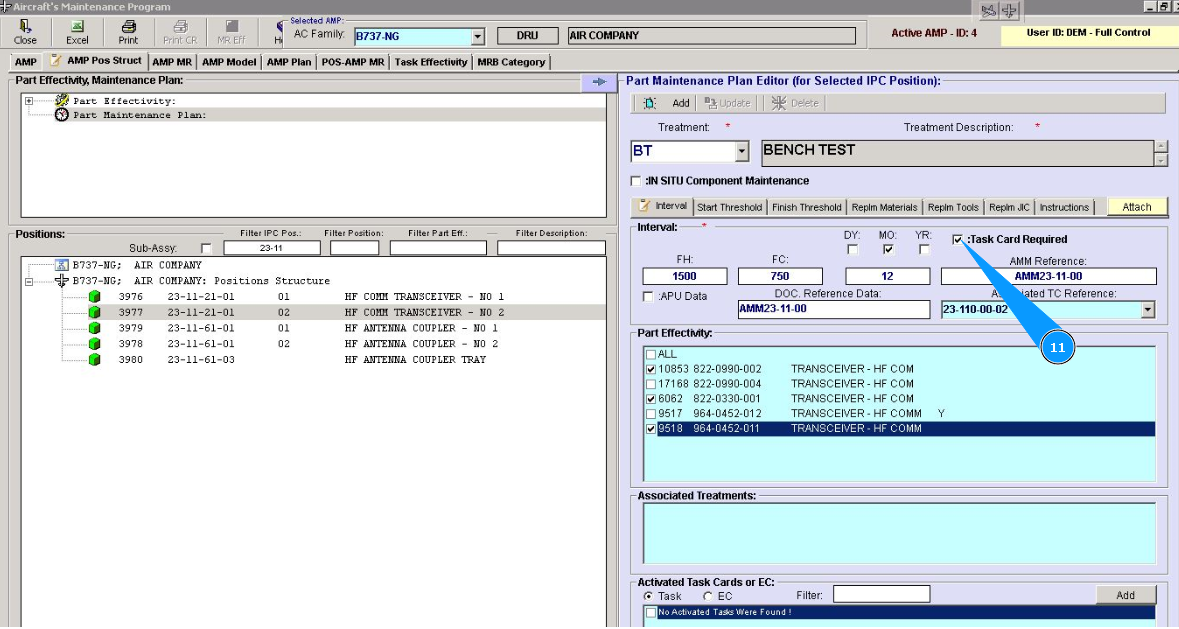
11. If a replacement Job Card is required, tick in the field "Task Card Required".
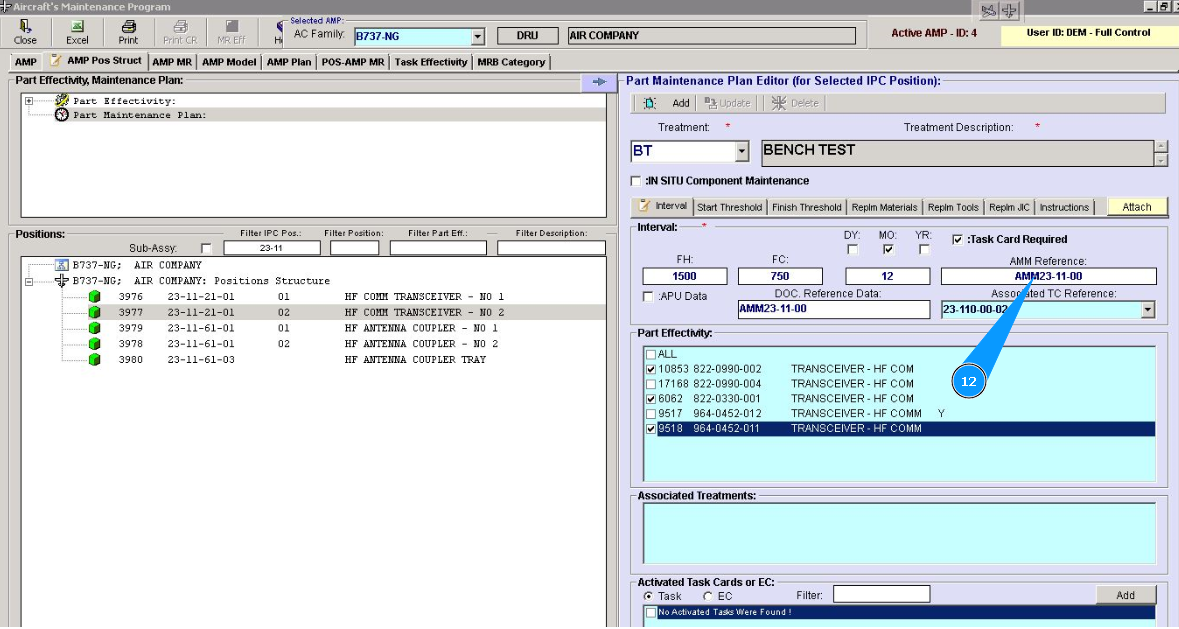
12. Enter AMM Reference for performing maintenance in the field "AMM Reference".
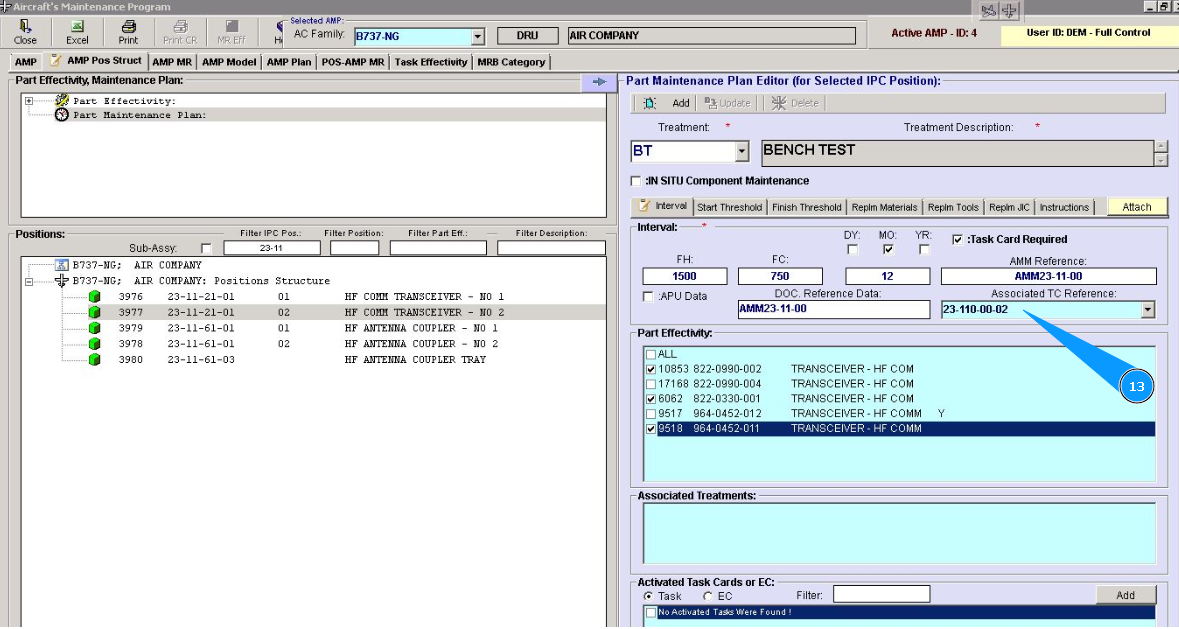
13. If the treatment that belongs to a component is related to an MP task, enter such a task in the field "Associated TC Reference".
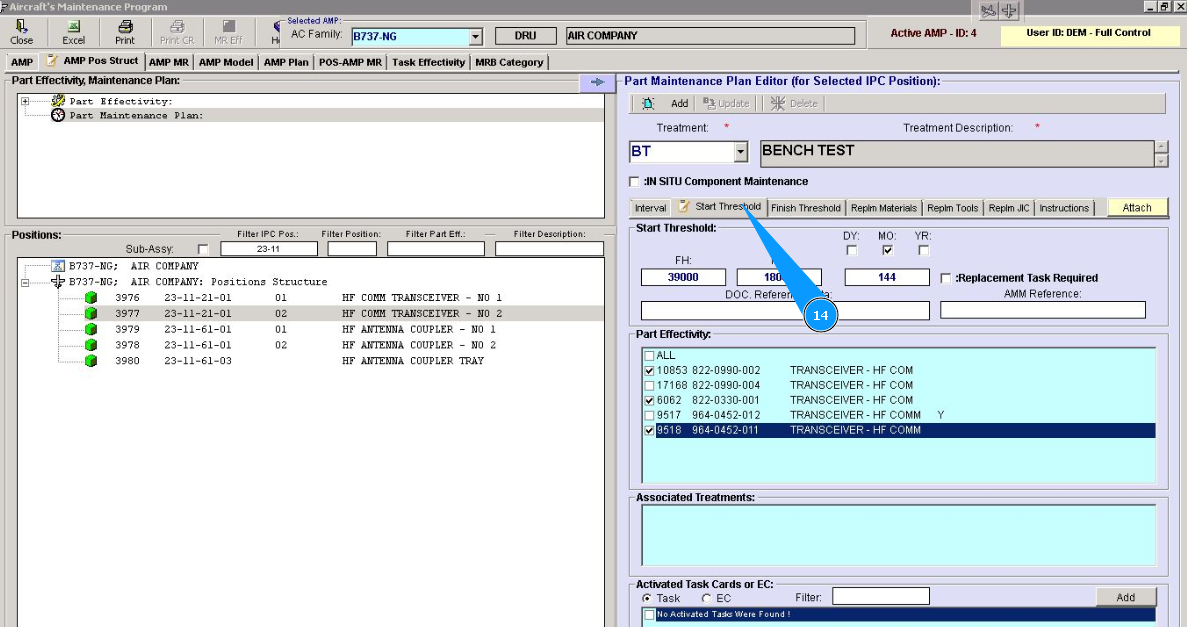
14. Enter the required thresholds of the given limit beginning in flight hours, flight cycles or calendar, as applicable, in the fields: "FH", "FC", "DY", "MO", "YR" of tab "Start Threshold".
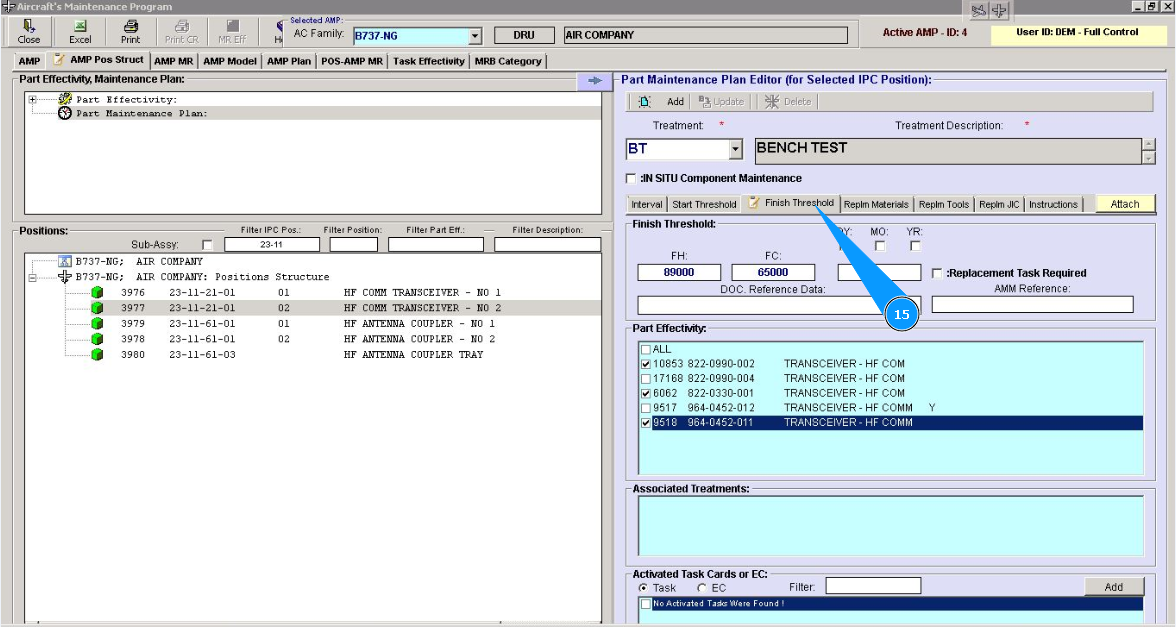
15. Enter the required finished thresholds of the given limit in flight hours, flight cycles or calendar, as applicable, in the fields: "FH", "FC", "DY", "MO", "YR" of tab "Finish Threshold".
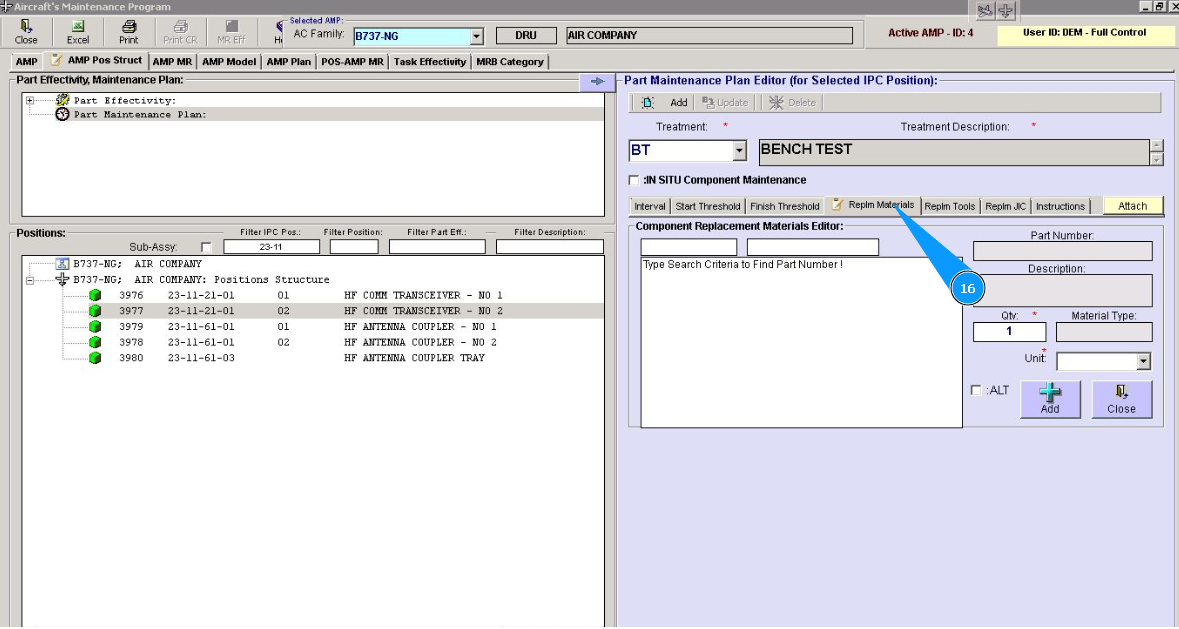
16. Enter the required materials for maintenance of this treatment in the tab "Replm.Materiaals".
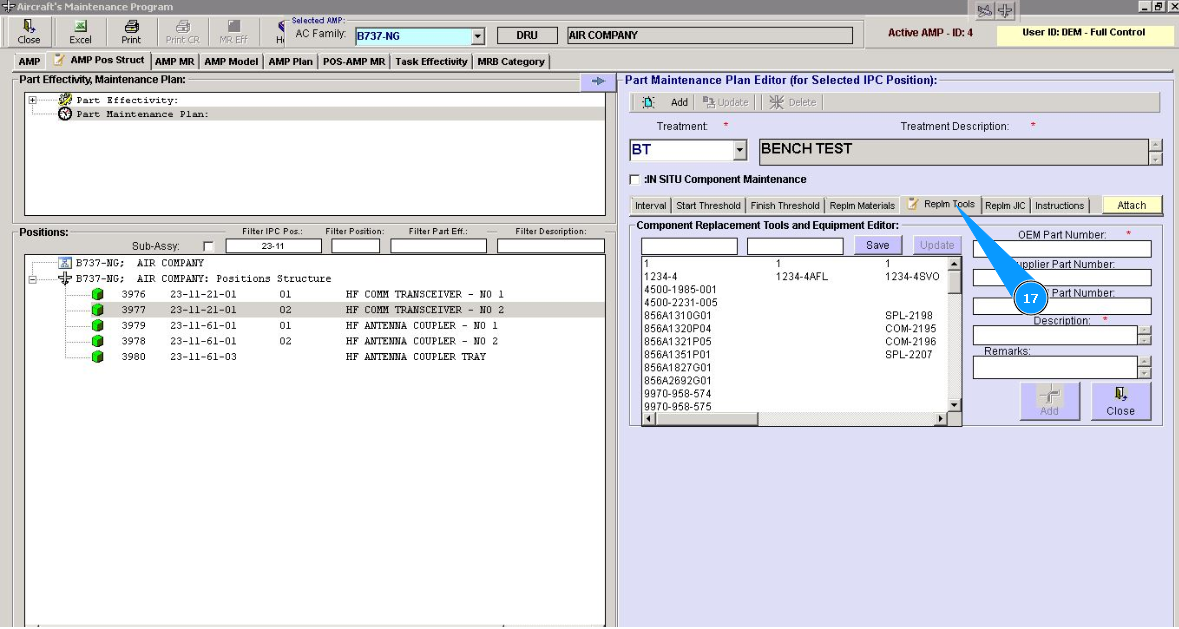
17. Enter the required tools for maintenance of this treatment in the tab "Replm.Tools".
18. Enter a description of the required maintenance in the tab "Replm. JIC".
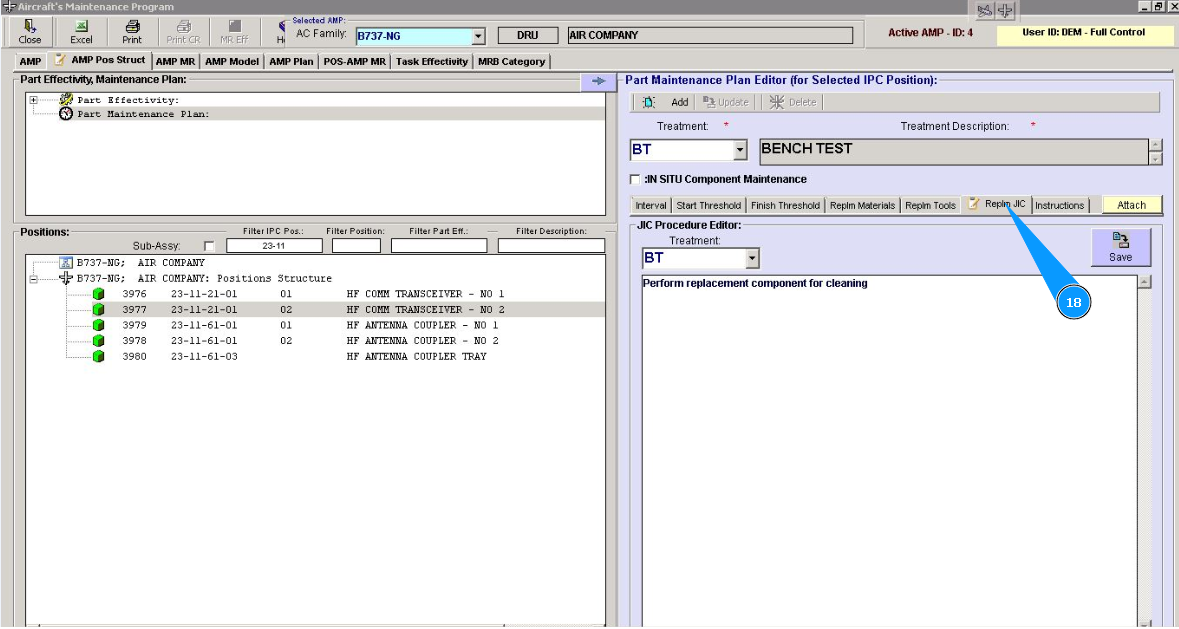
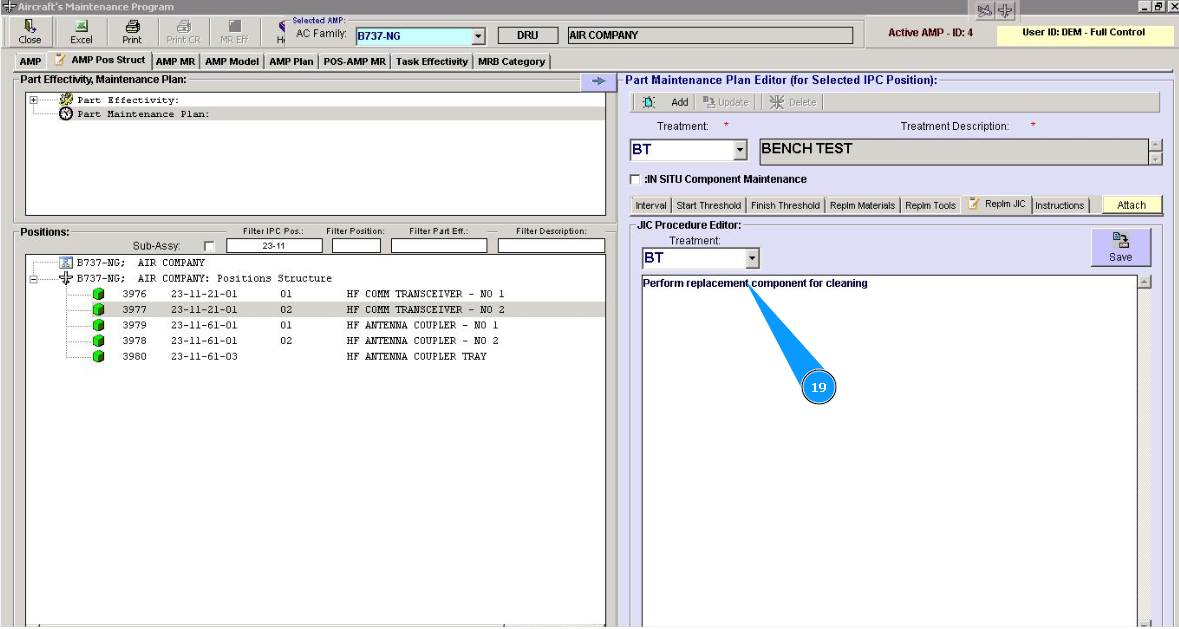
19. Enter a description of the required maintenance in the window "JIC Procedure Editor".
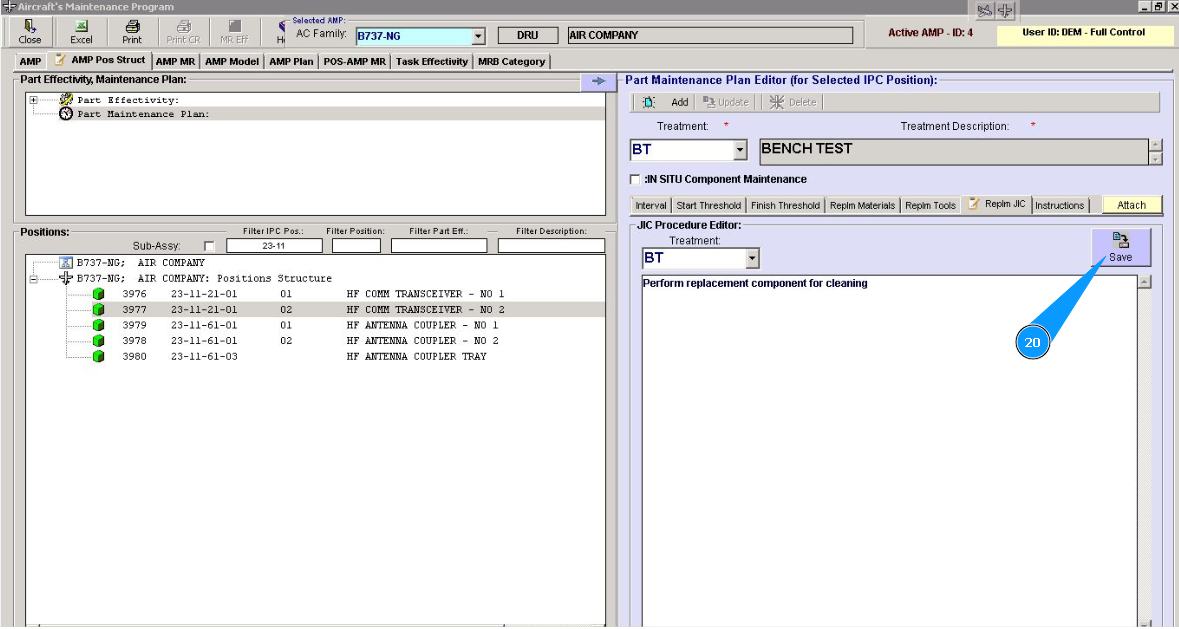
20. Click on the button "Save", to save data to the program.
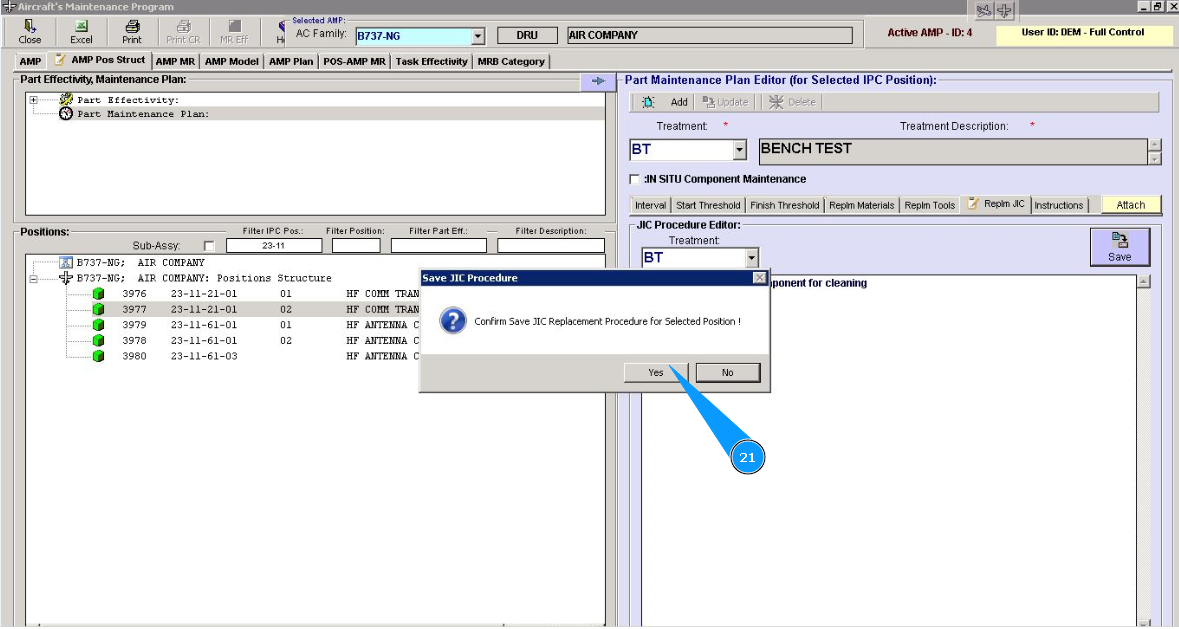
21. Click on the button "Yes", to confirm saving data to the program.
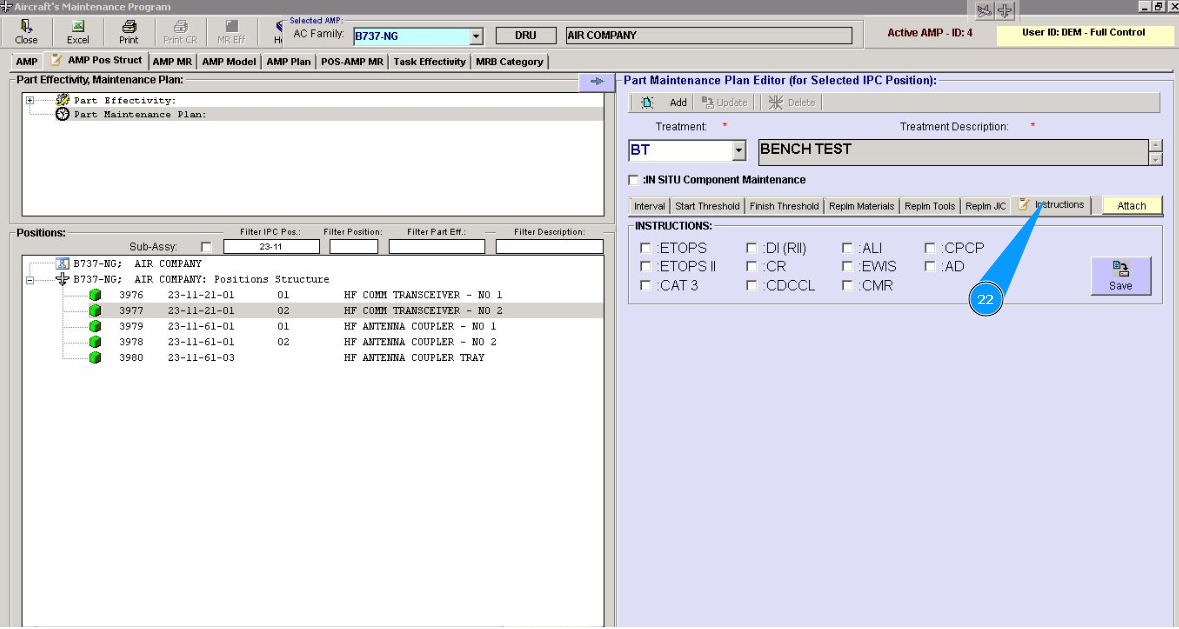
22. Enter the required additional criteria for this treatment in the "Instructions".
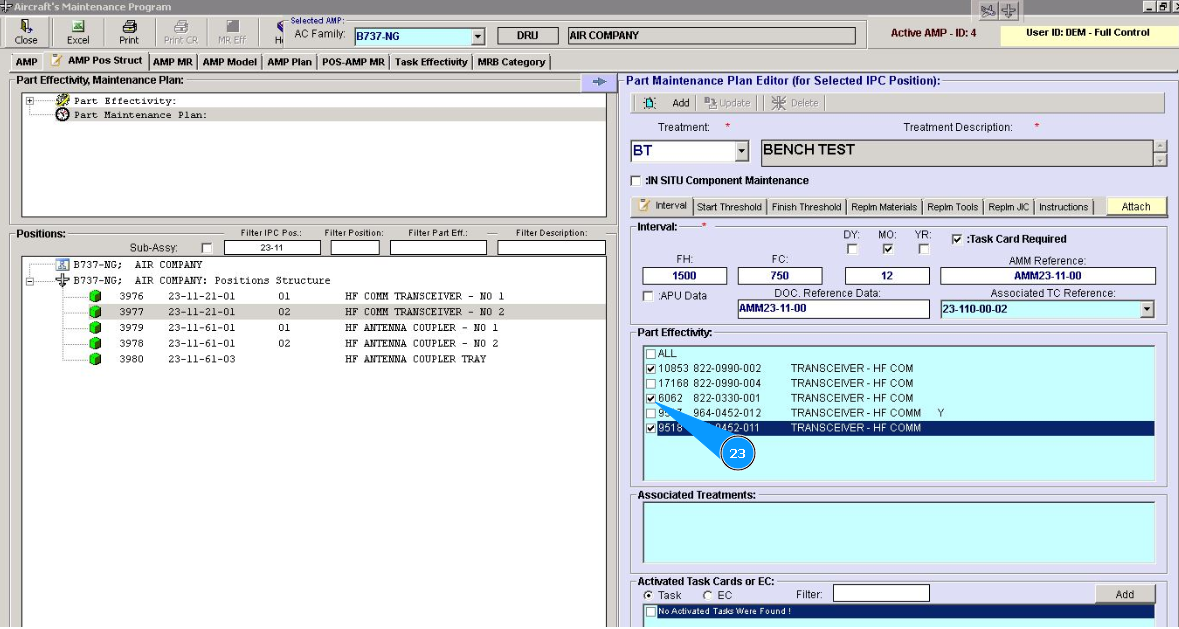
23. Enter the applicability of this treatment to the exact part number in the window "Part Effectivity". Кликните в соответствующих окошках.
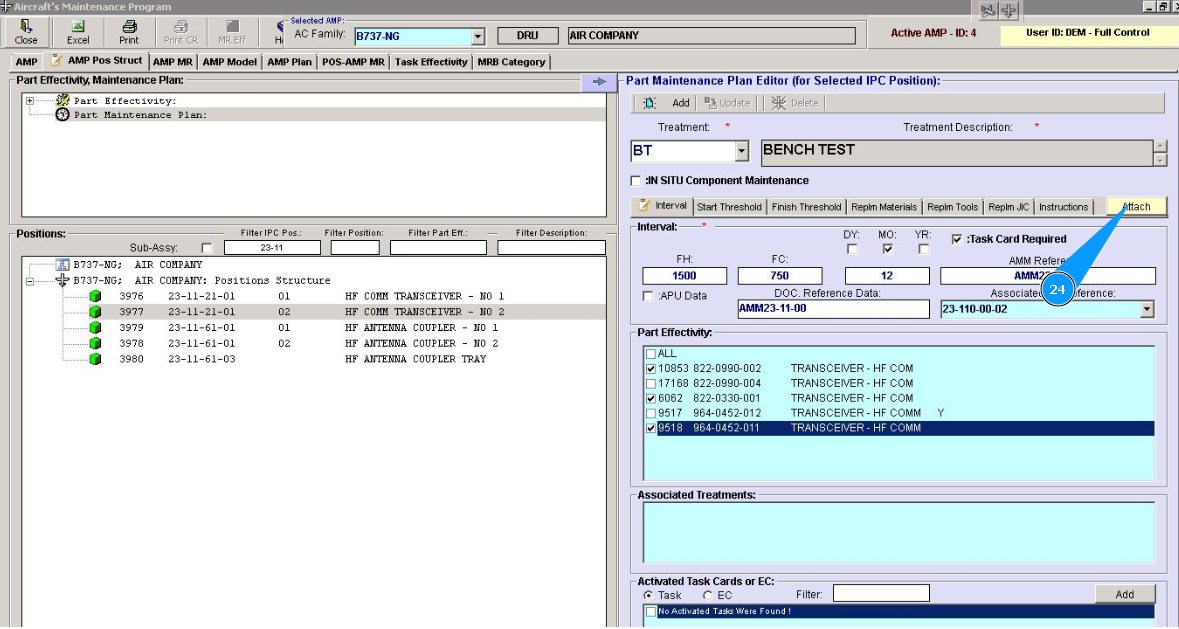
24. Attach the required documents to the treatment, if necessary. Click on the button "Attach".
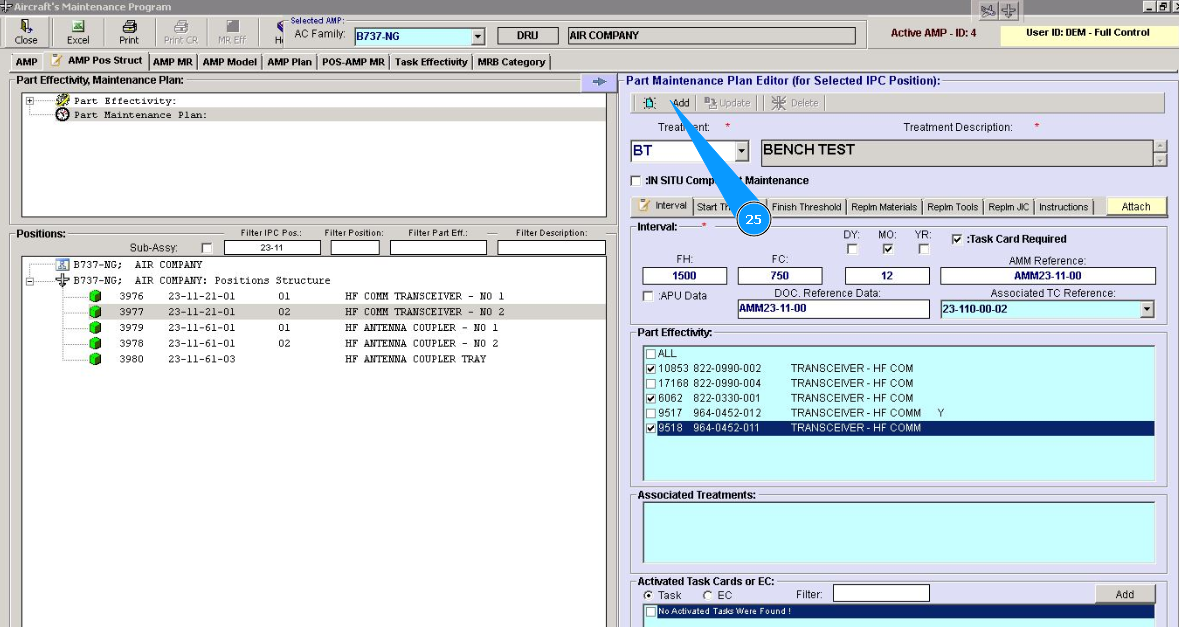
25. Click on the button "Add", to add data to the program.
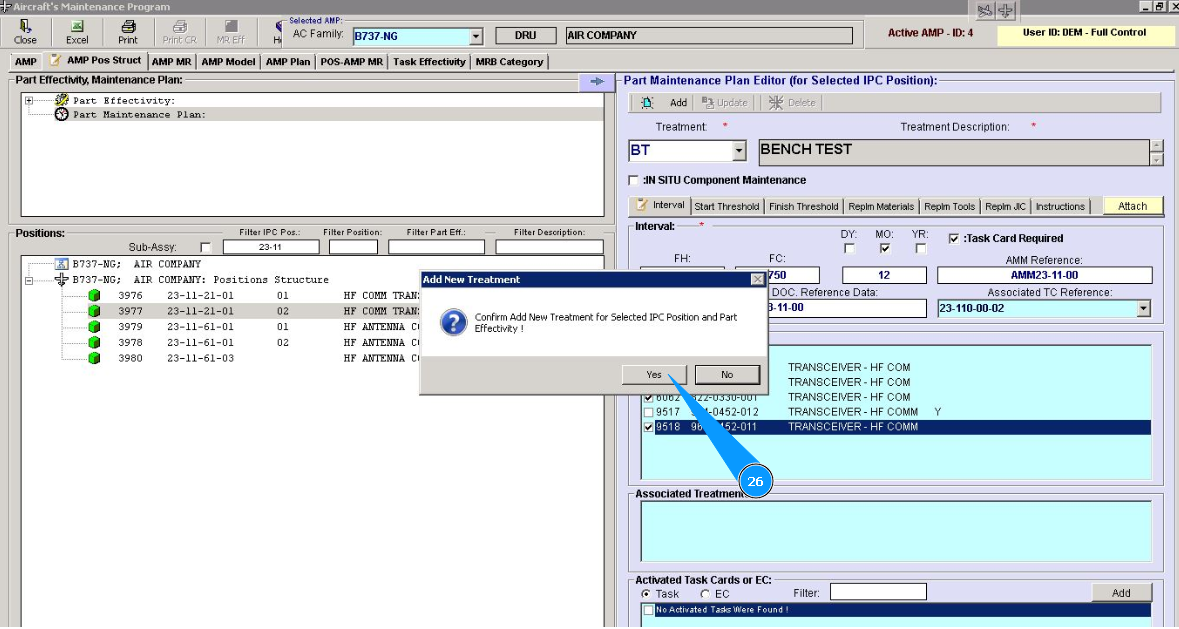
26. Click on the button "Yes", to confirm saving data to the program.
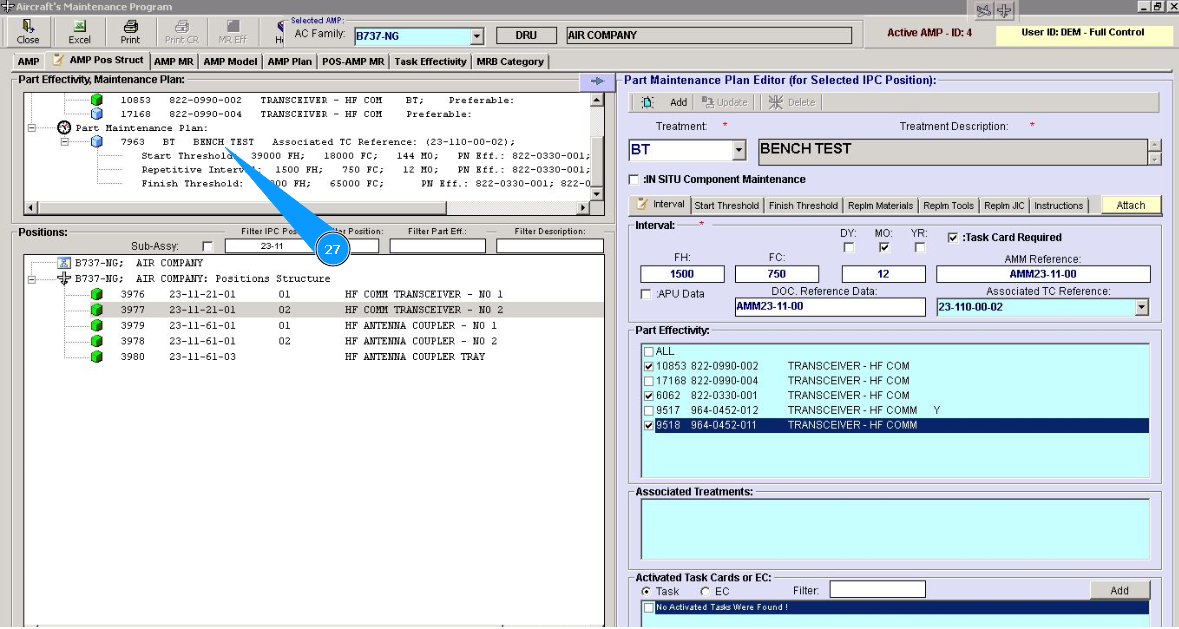
27. Check the appearance of the new record with treatment in the window "Part Effectivity, Maintenance Plan".