How to add Supplementary WO to Work Package
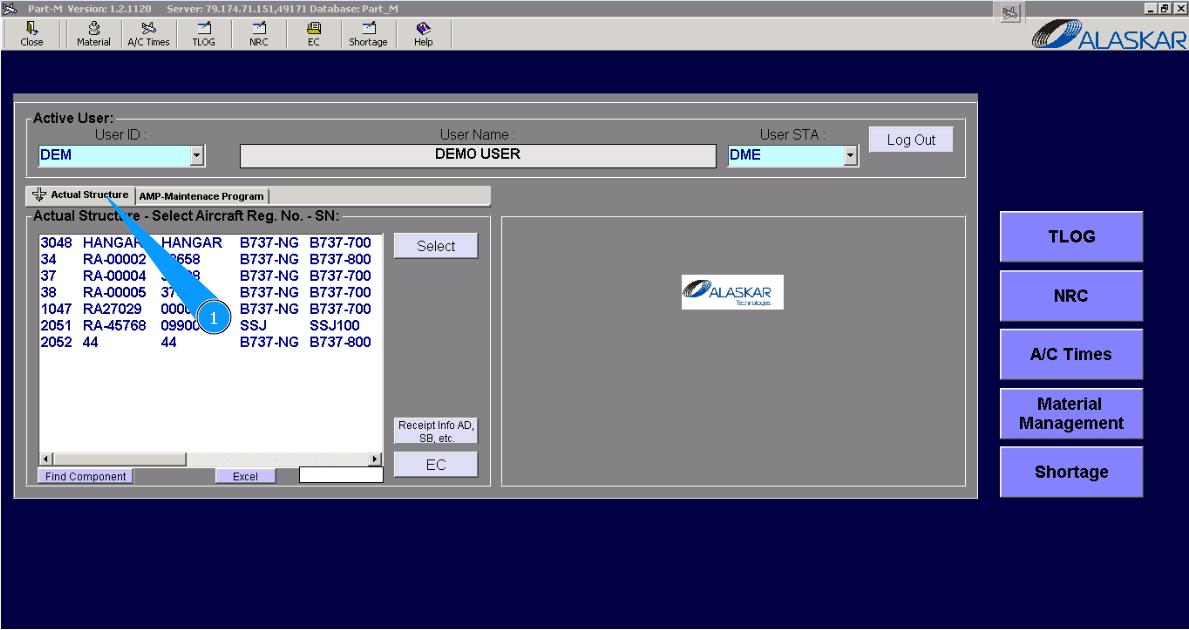
1. For adding supplementary WO to Work Package, please go to submodule "Actual Structure".
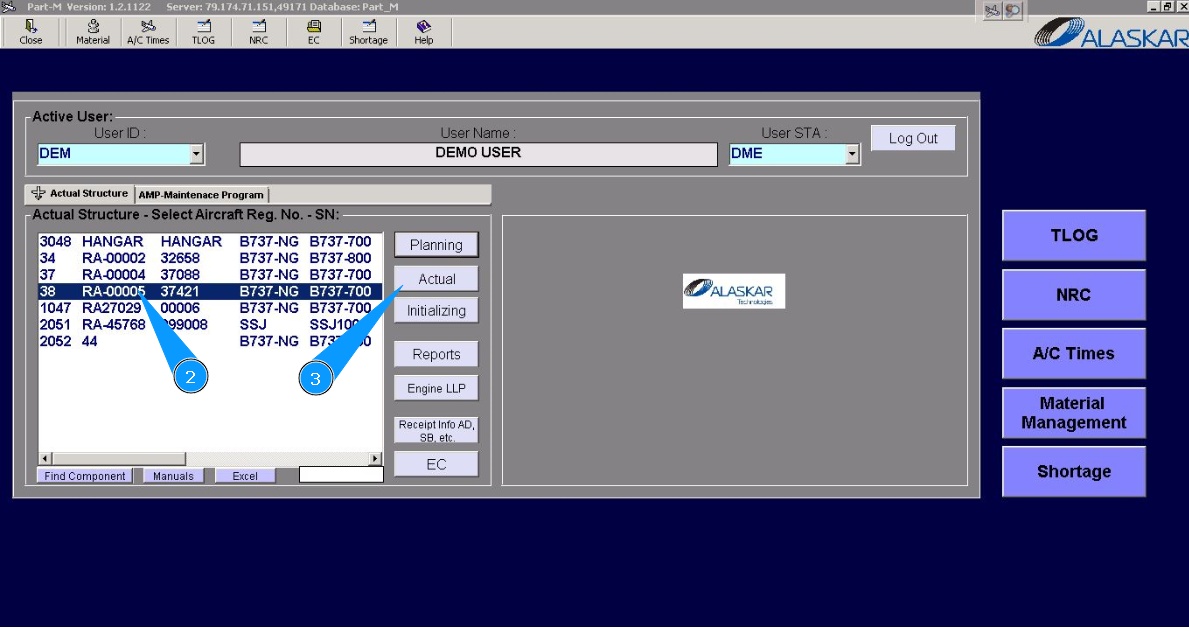
2. Enter the aircraft registration number in the list of window "Actual Structure-Select Aircraft Reg.-SN".
3. Click on the button "Actual", to open the submodule.
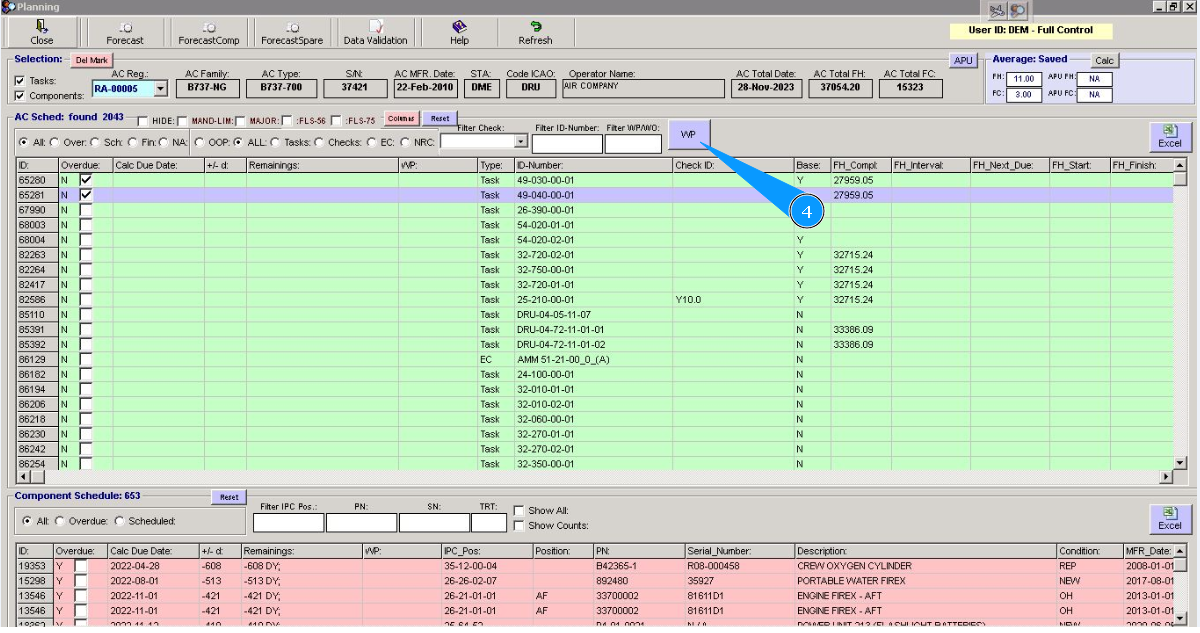
4. Click on the button "WP", to open the WP editor.
5. Select or create the Work package for adding SWO to WP.
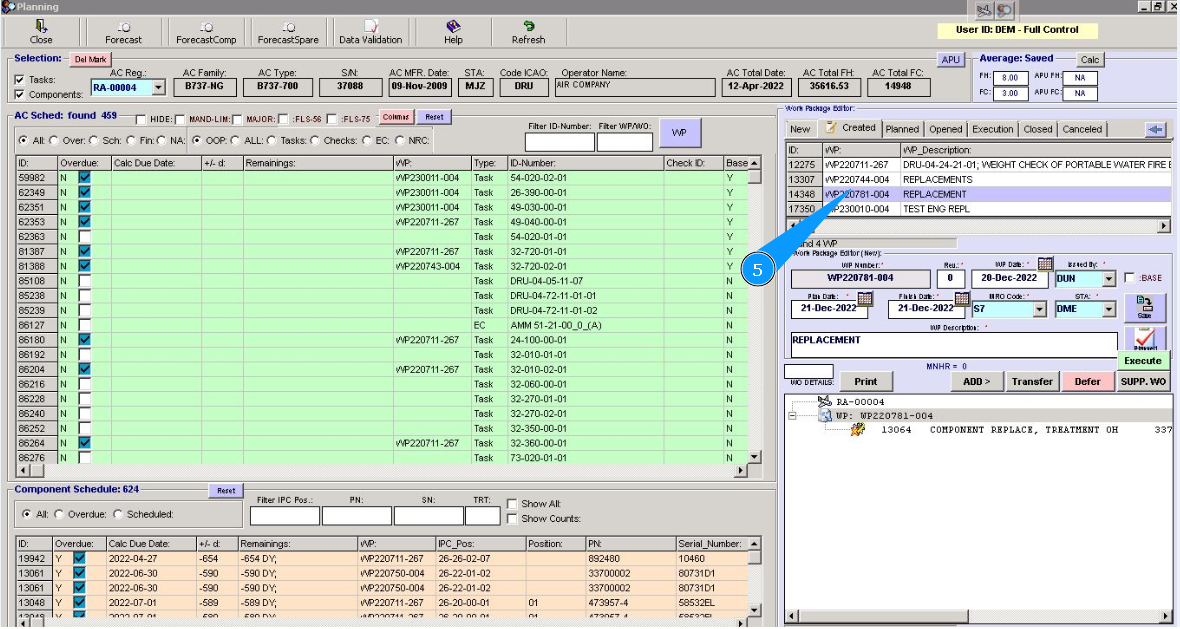
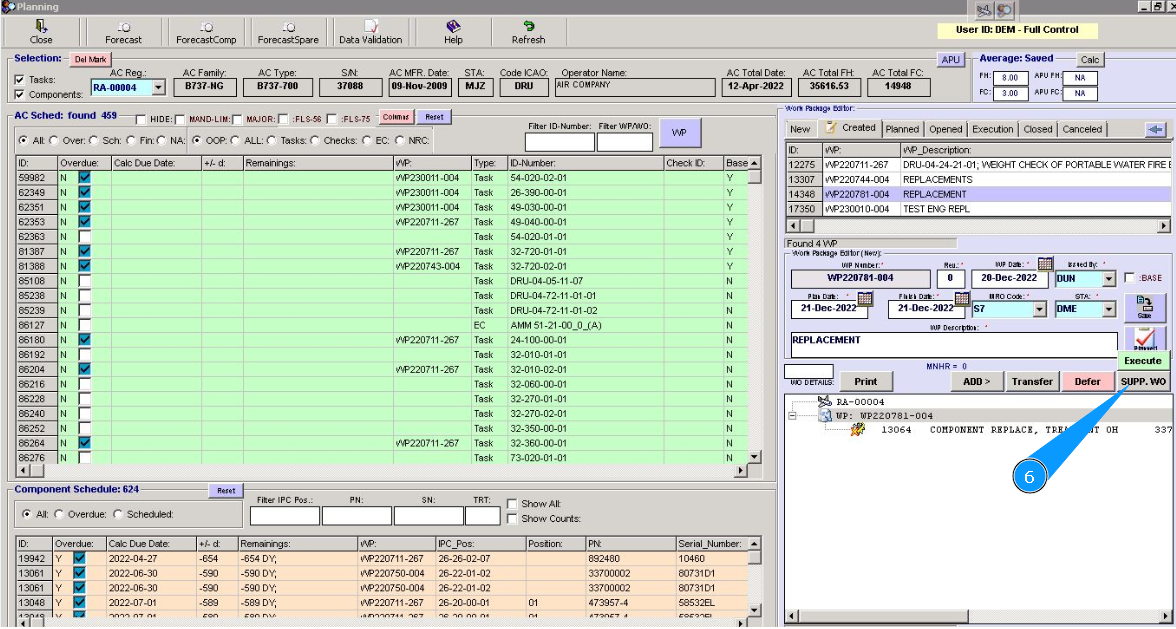
6. Click on the button "SUPP. WO", to open SWO editor.
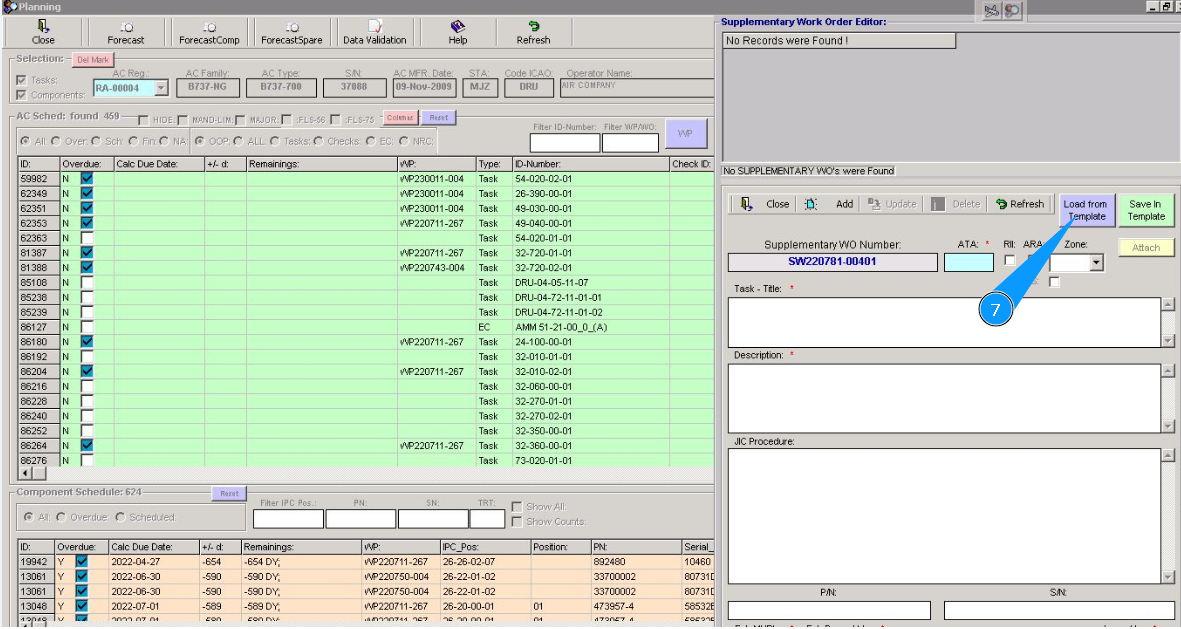
7. Click on the button "Load from Template", to open SWO list.
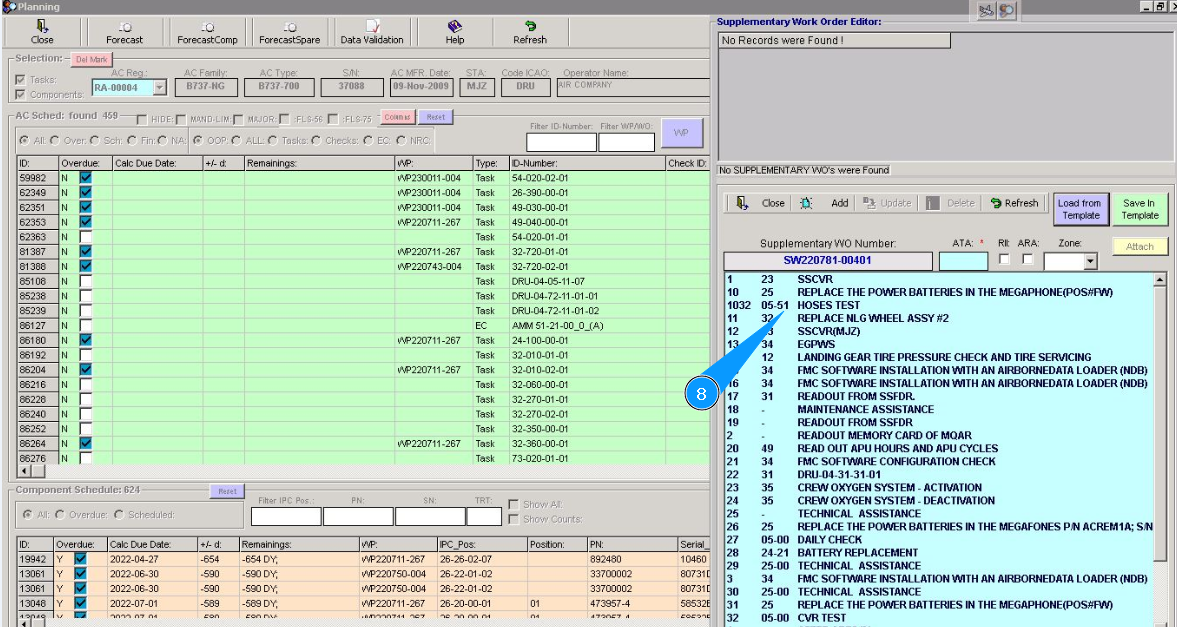
8. Select corresponding WO from list. Click on the line woth WO.
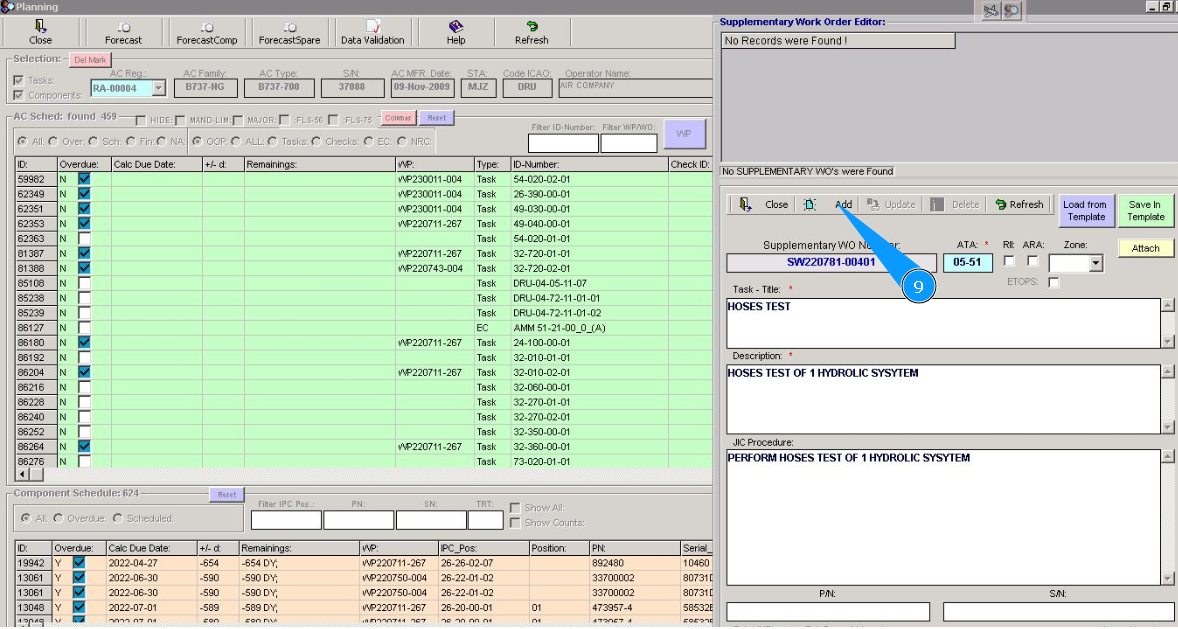
9. Click on the button "Add", to add SWO to WP.
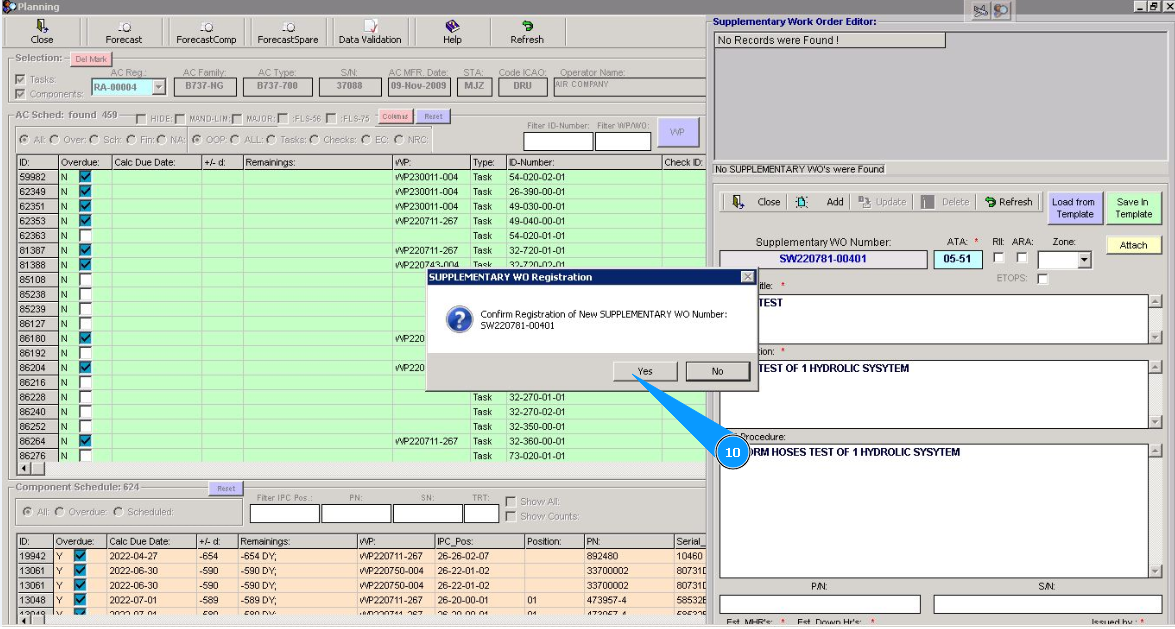
10. Click on the button "Yes", to confirm adding SWO to WP.
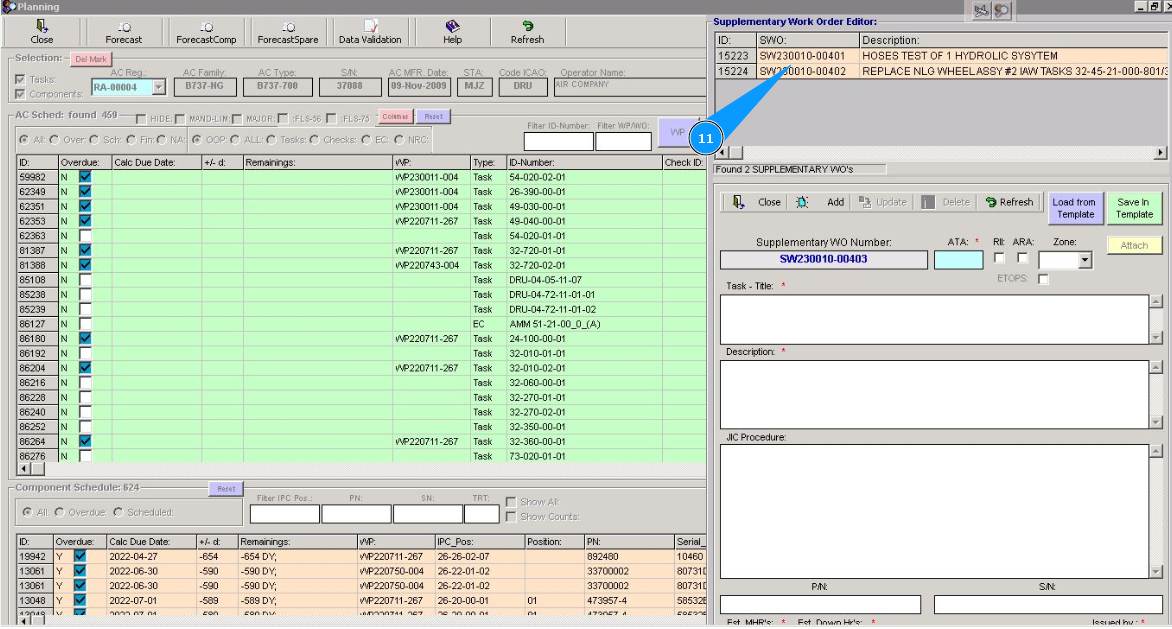
11. Check that new line with SWO added in the window "Supplementary Work Order Edition".