How to reserve materials for a task from an LWO task card or Work Package task card
Note: This instruction is the Option No.2 (Reservation of materials in the submodule "TC Materials").
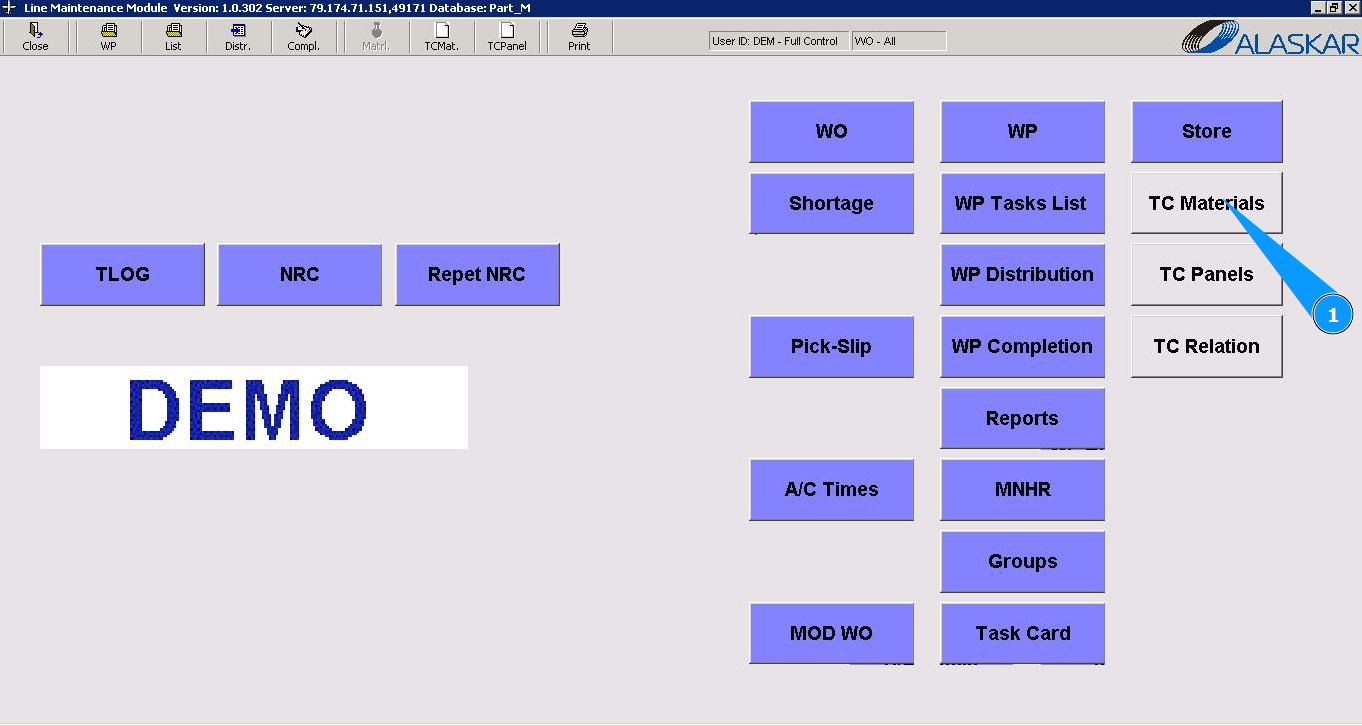
1. In order to reserve materials to complete a task from a LWO task card or from a Work Package task card, go to the submodule "TC Materials".
2. Select the required WO or WP in the list "Select Work Order" and click on the corresponding line. Note: If necessary, use the available WO or WP number filter.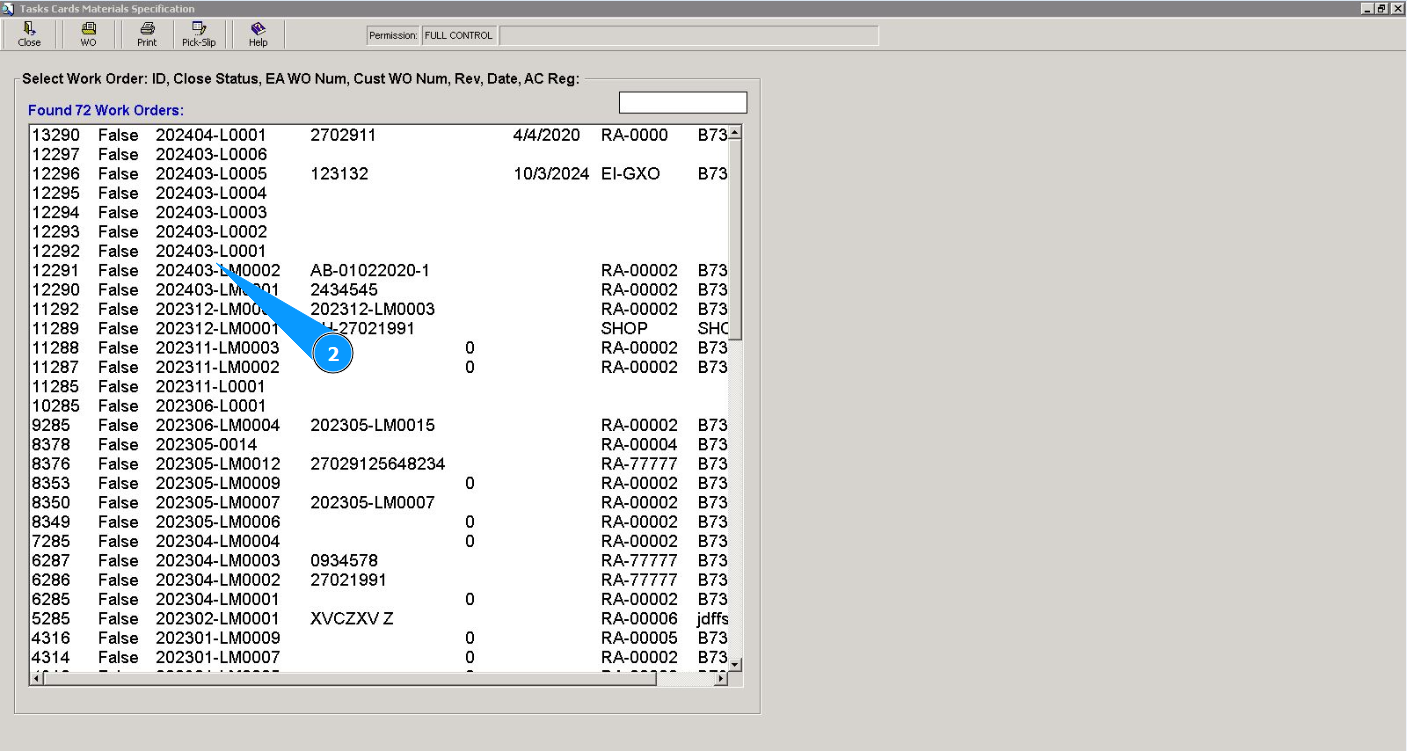
3. Then, go to the tab "Task Card". Note: Use the available filters if necessary.
4. Select the required task card in the list "Task Cards" and click on the corresponding line.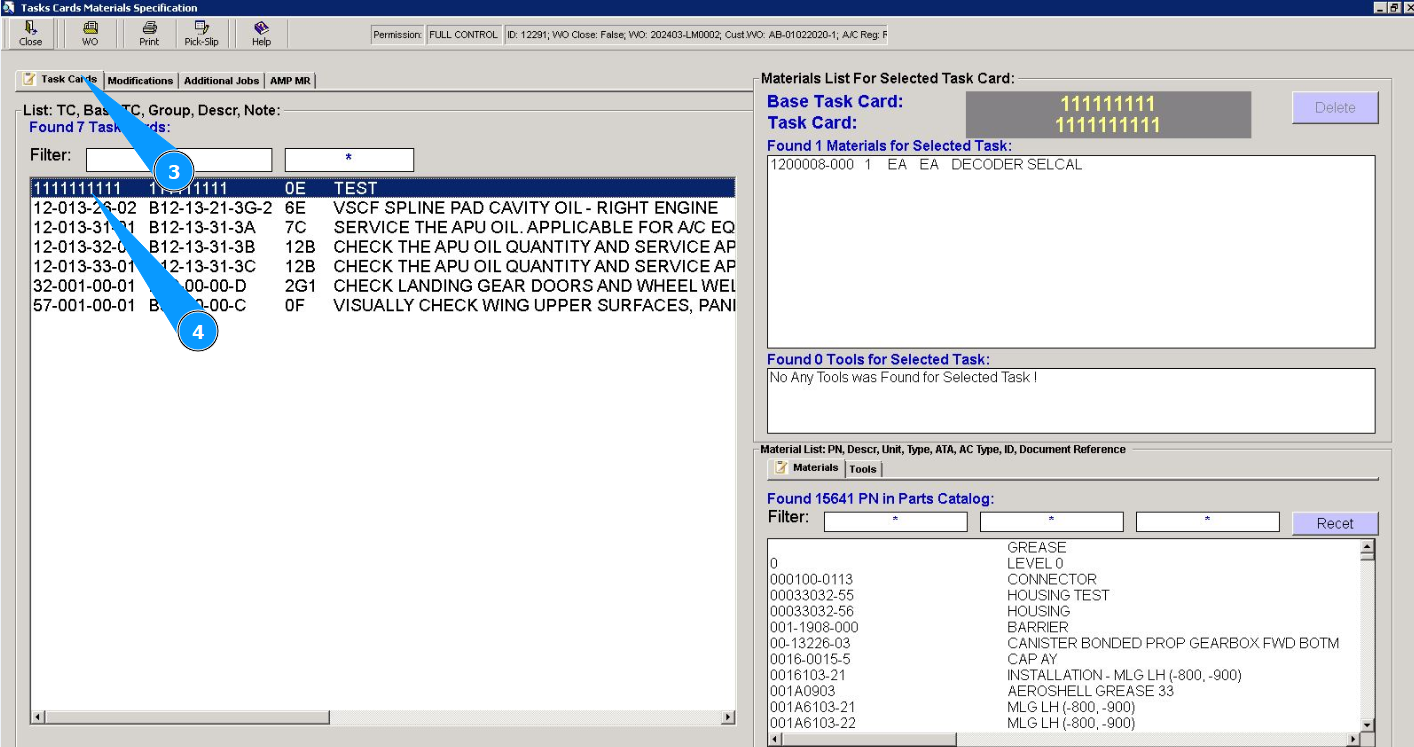
5. Click on the button "Pick-Slip" to reserve materials for the task. Note: Pick-Slip number will be automatically generated by the program.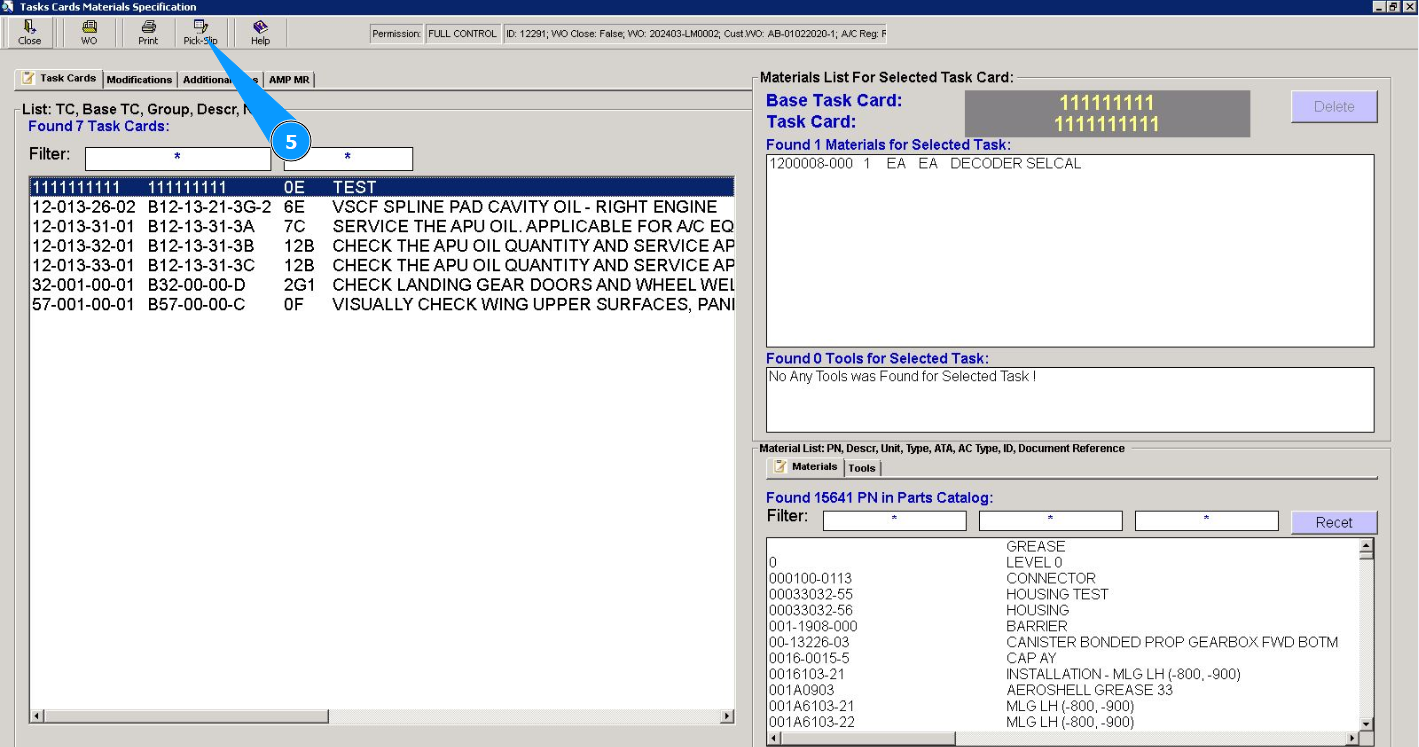
6. Click in the field "Sel." to select lines with materials to reserve. Note: If necessary, transfer all materials to the Pick Slip at once, click in the field "Transfer All Items".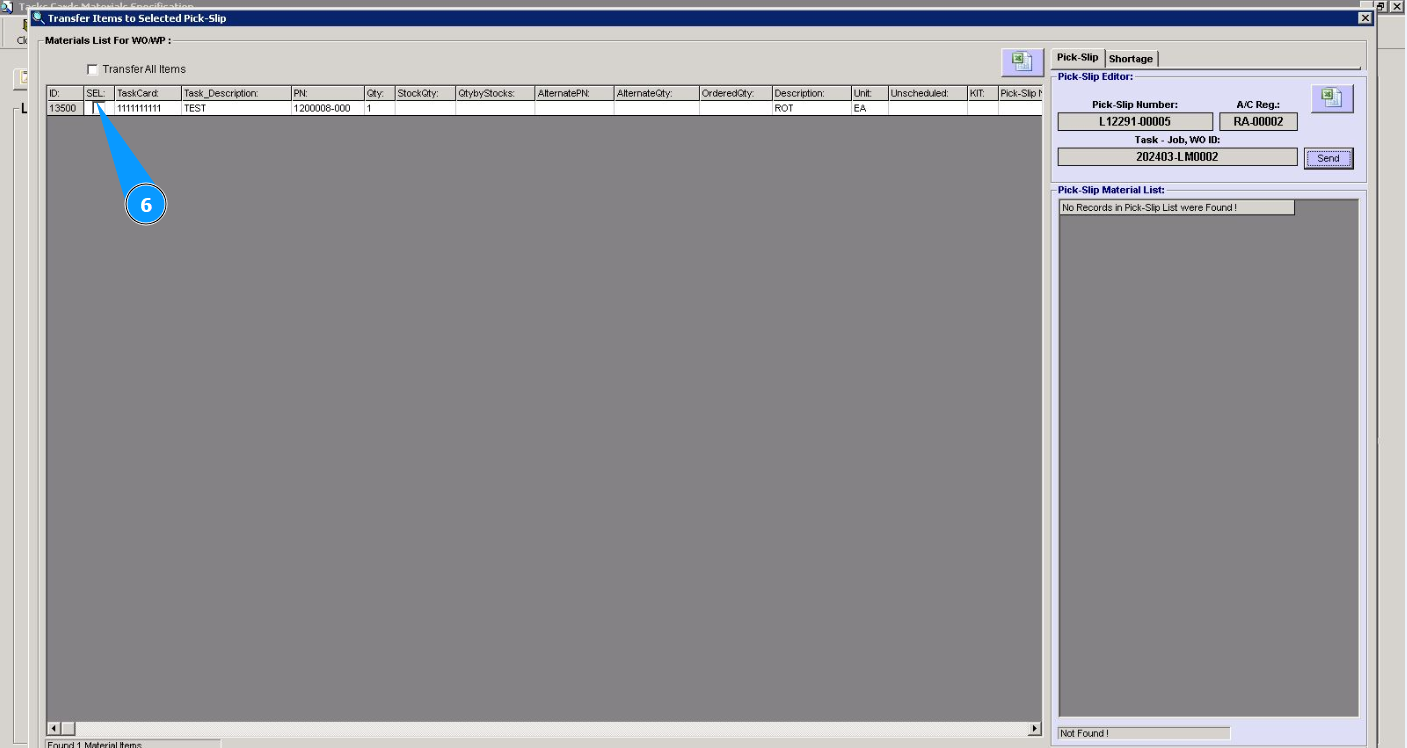
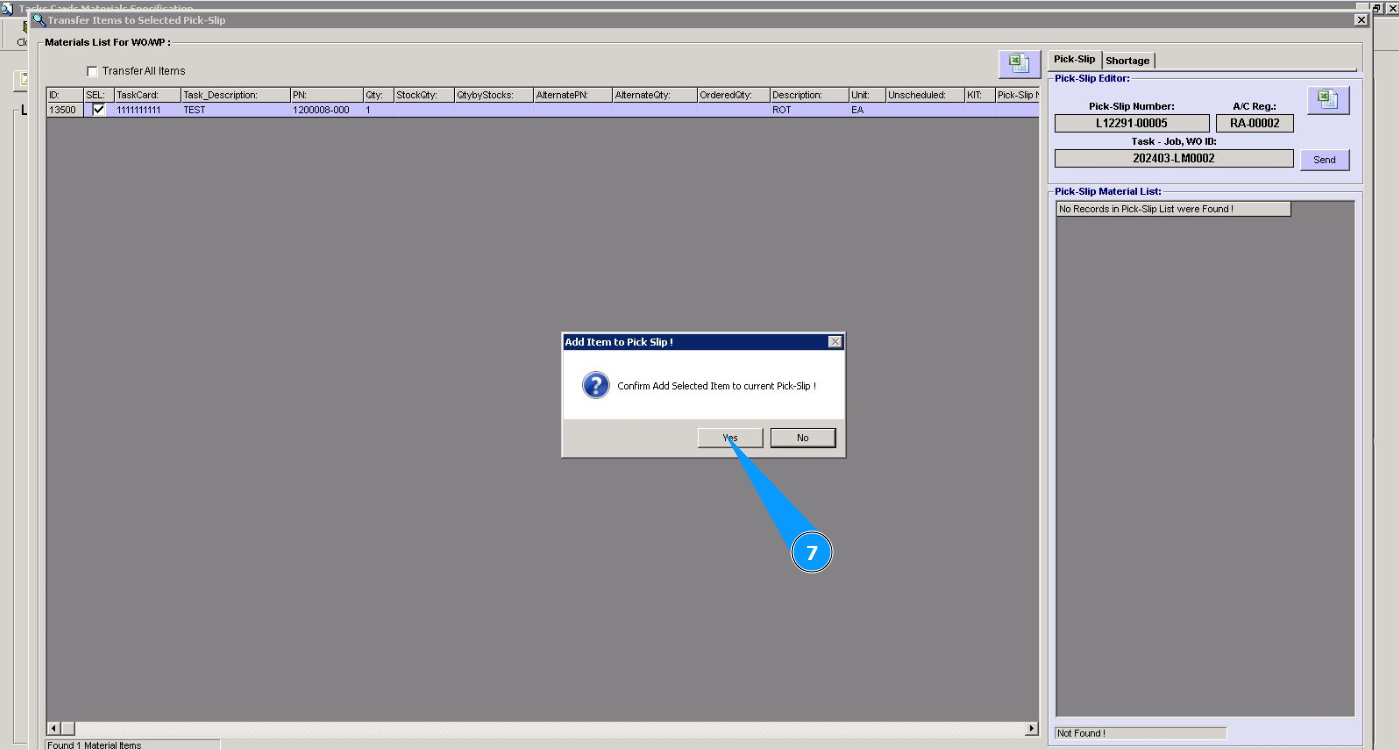
7. Click on the button "Yes" to confirm entering the material into the Pick Slip.
8. Check that the material data is displayed in the window "Pick-Slip Material List".
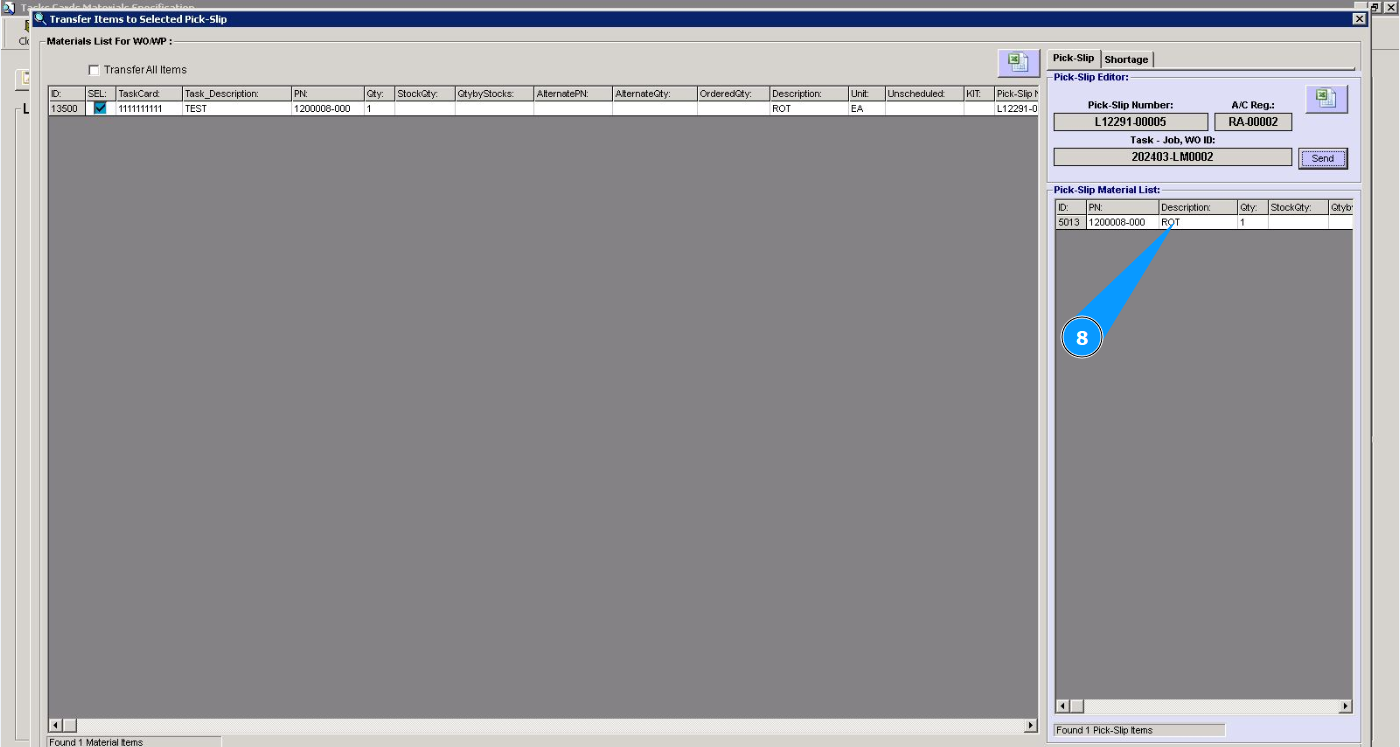
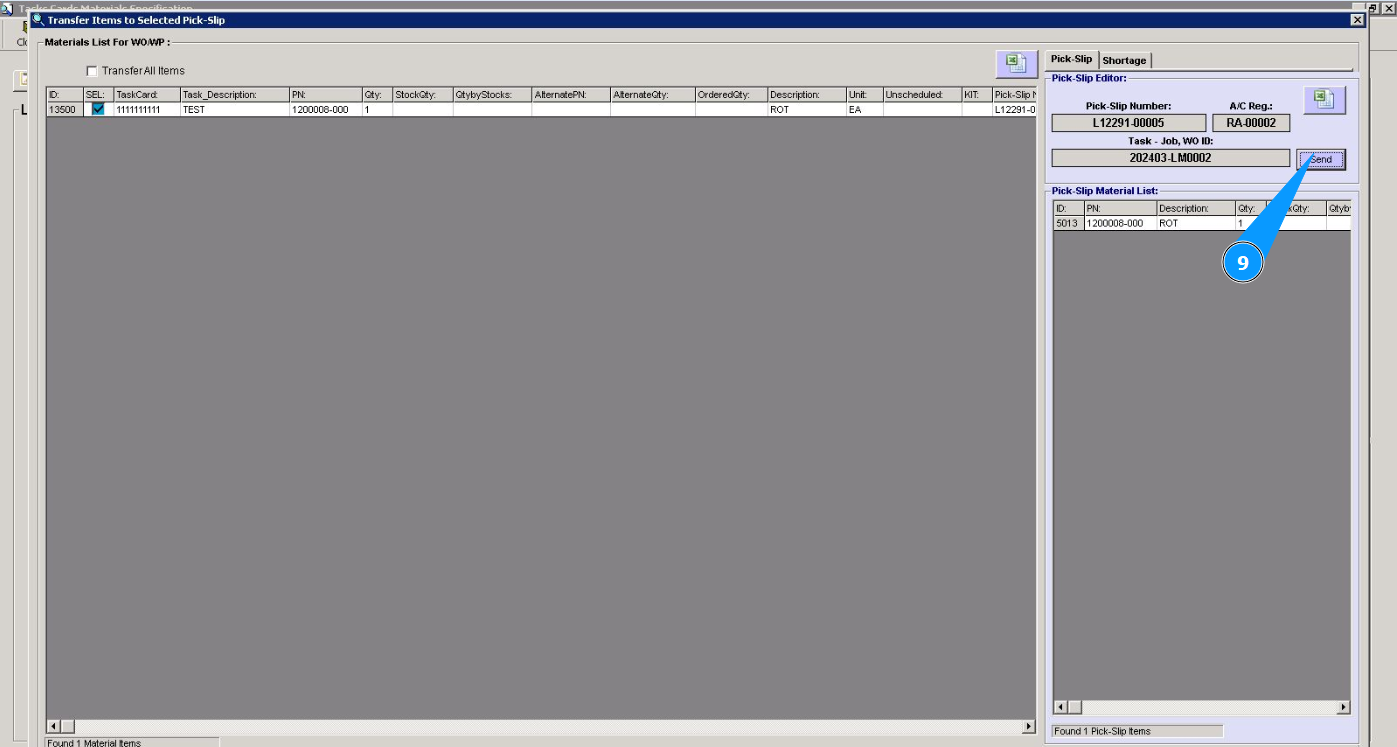
9. If you need to send the Pick Slip list to the collection of materials in the Store, click on the button "Send".
10. Click on the button "Yes" to confirm sending the Pick Slip list to collect materials in the Store. Note: Be careful, once the Pick Slip list is sent to the Store, it will no longer be possible to edit the list.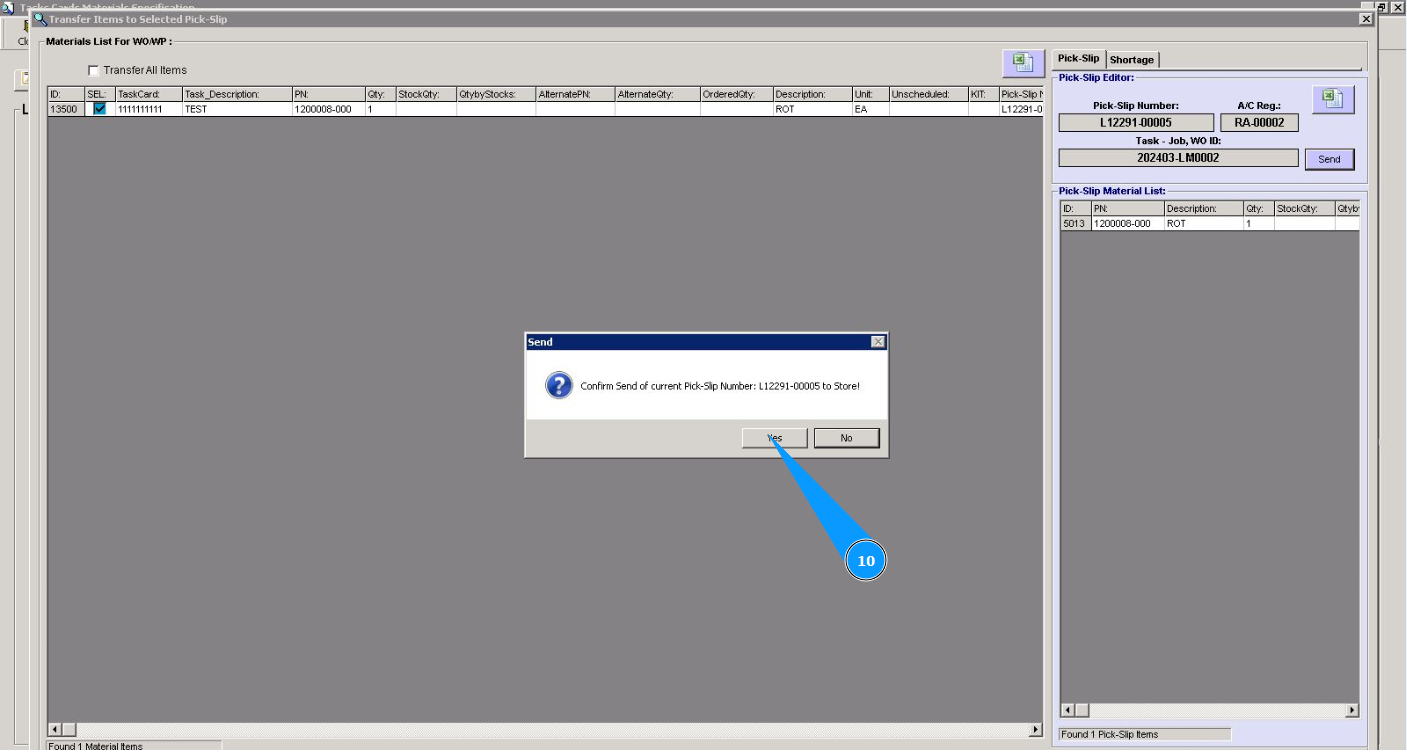
11. Click on the button "OK", the Pick Slip list is sent to the Store.
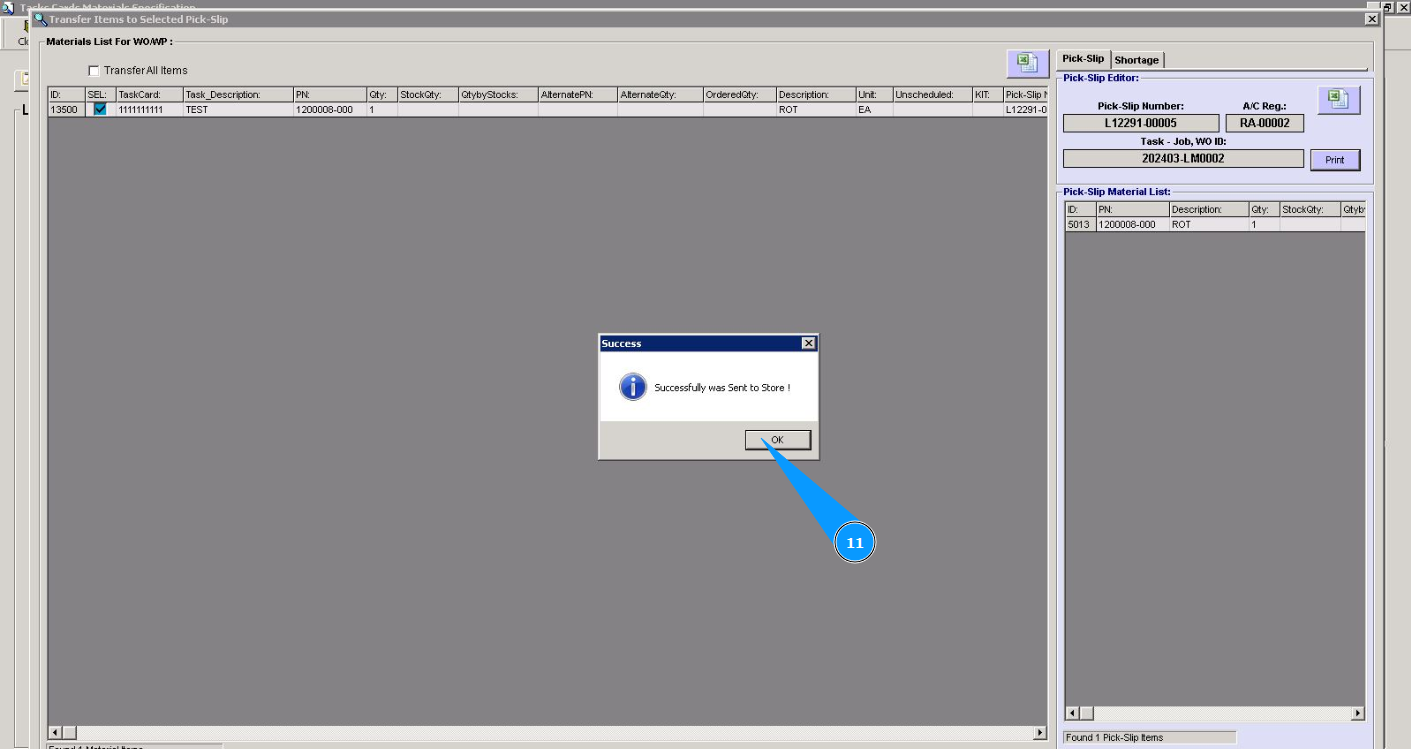
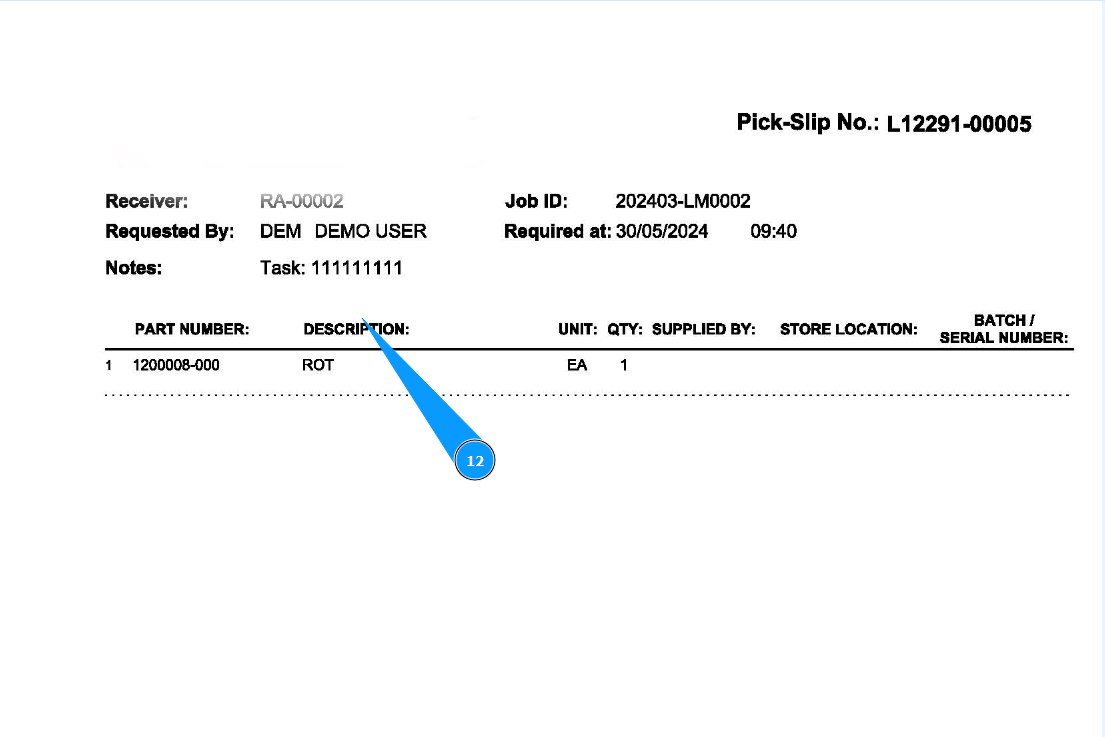
12. Check the generation of the Pick List report. This report can be printed on the selected printer in the Store or sent to the email of the responsible person, depending on your company's policy.