How to reserve materials for the WP task card (Pick-Slip)
Option No. 1 Reservation of materials in the "WP Distribution" submodule.
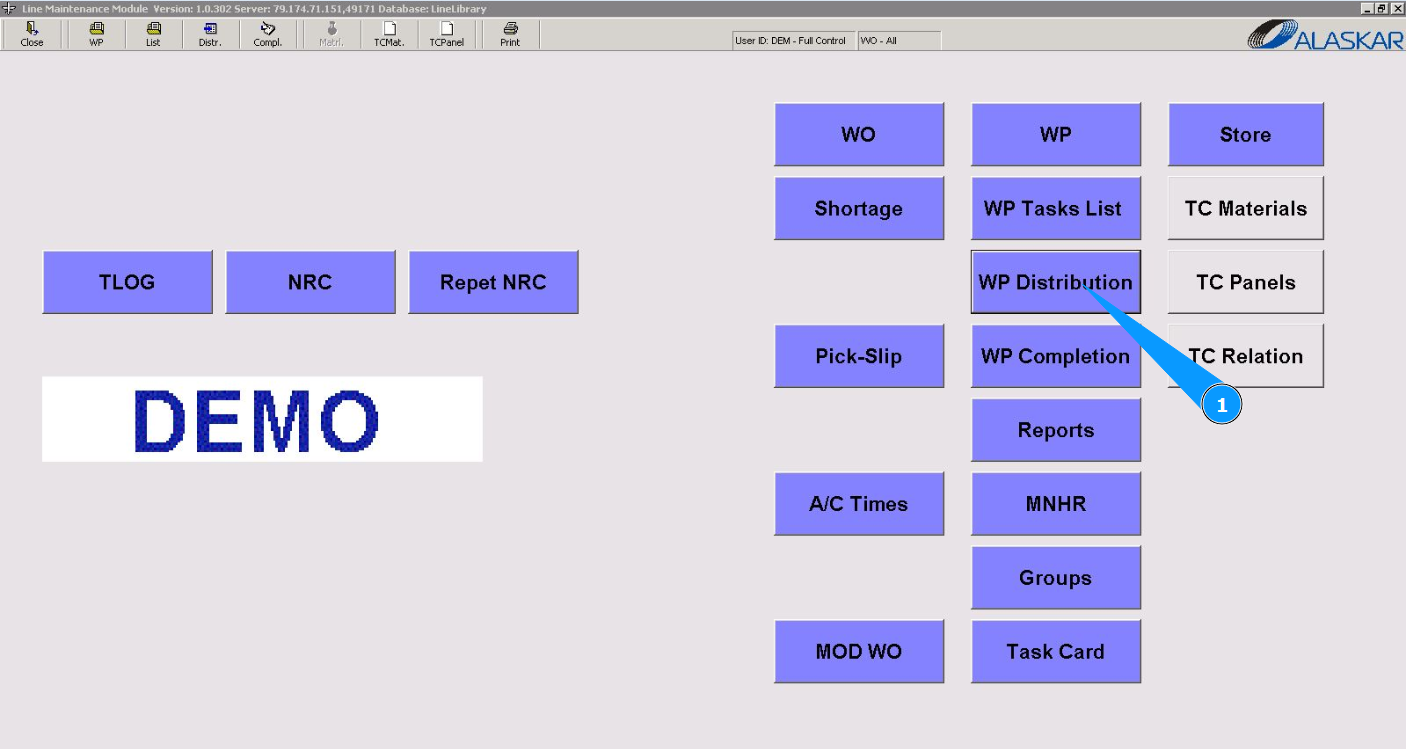
1. In order to reserve materials for completing a task from a Work package (WP task card), go to the submodule "WP Distribution".
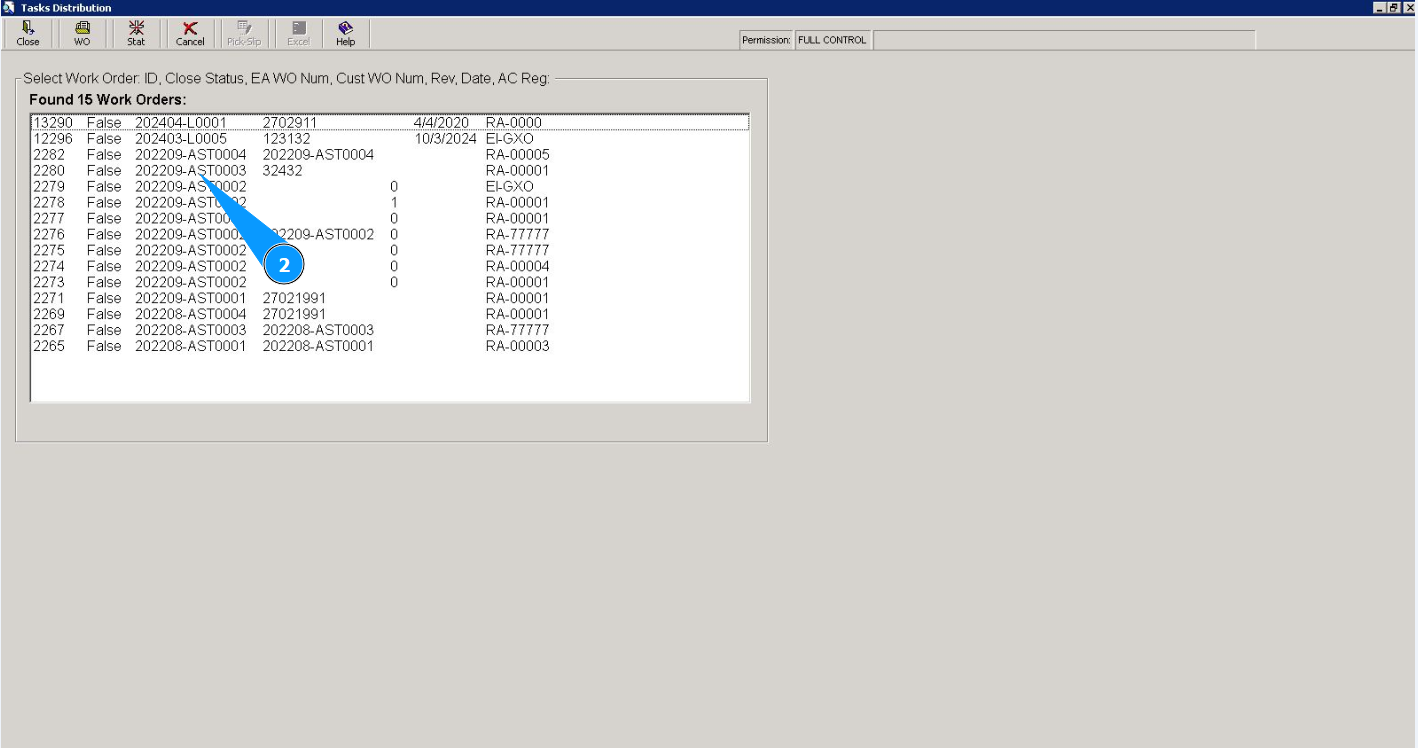
2. Select the required WP in the list "Select Work Order" and click on the corresponding line.
3. Then go to the tab "Task Card". Note: Use the available filters if necessary.
4. Select the required task in the list "List TC" and click on the corresponding line.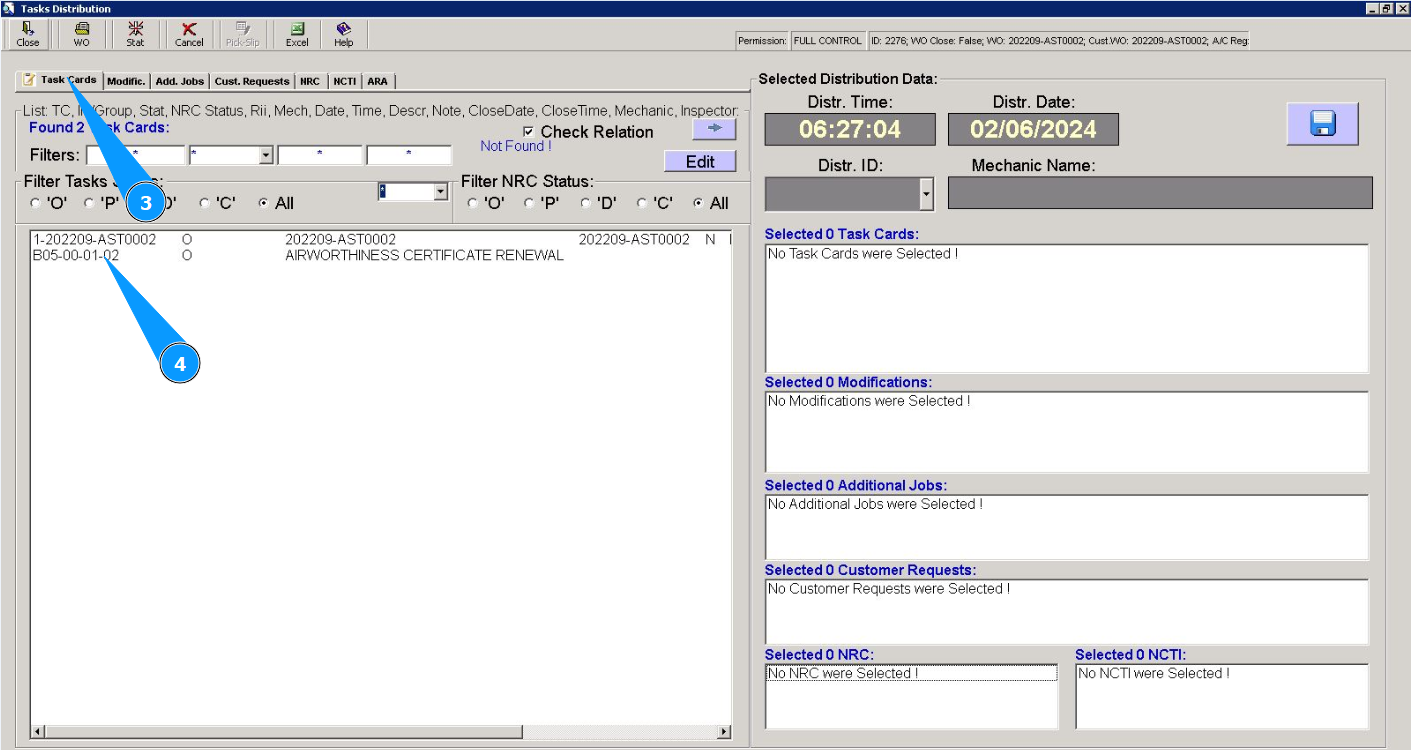
5. Click on the button "Pick-Slip" to reserve materials on the WP task card. Note: The program will automatically generate the Pick-Slip number.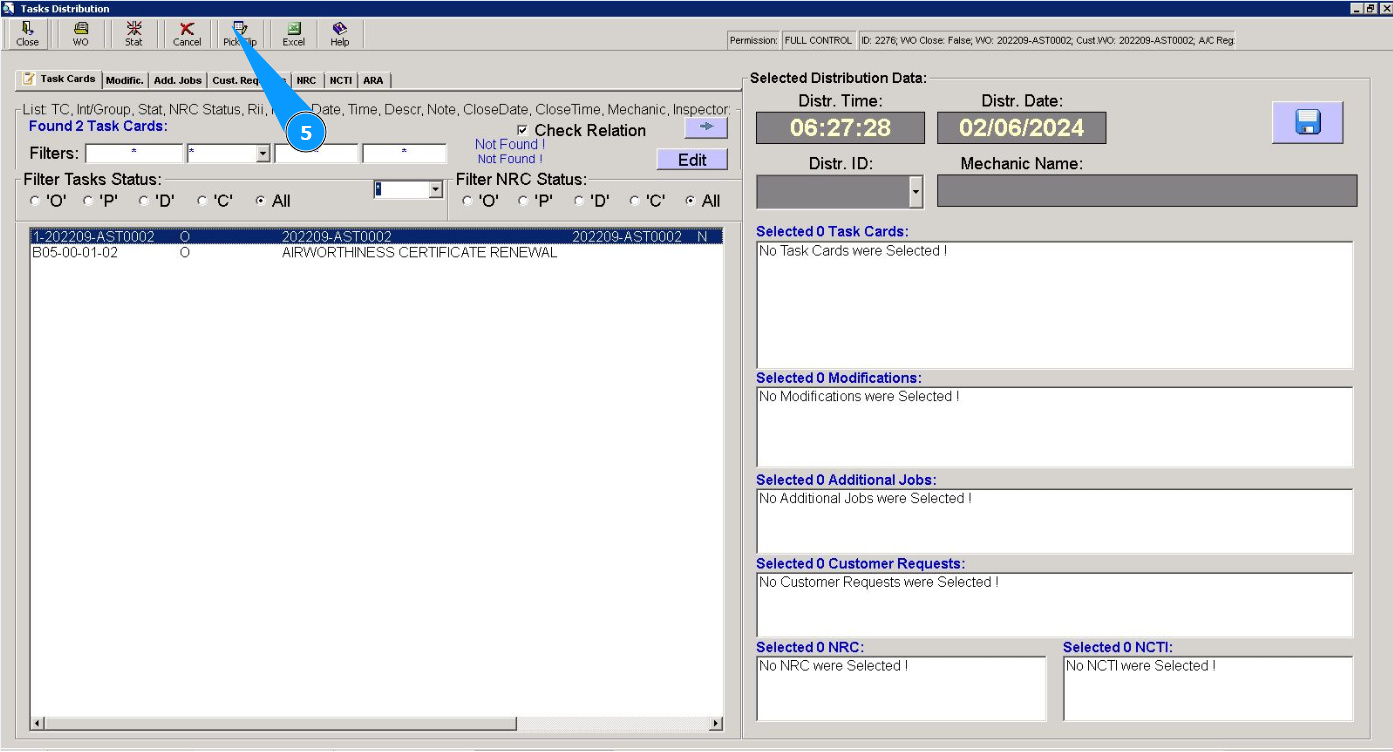
6. Enter the part number of the material you are looking for in the search field "Filter-PN" and press the button "Enter" on your keyboard. Note: If necessary, use other available filters: "Description", "SN", and so on.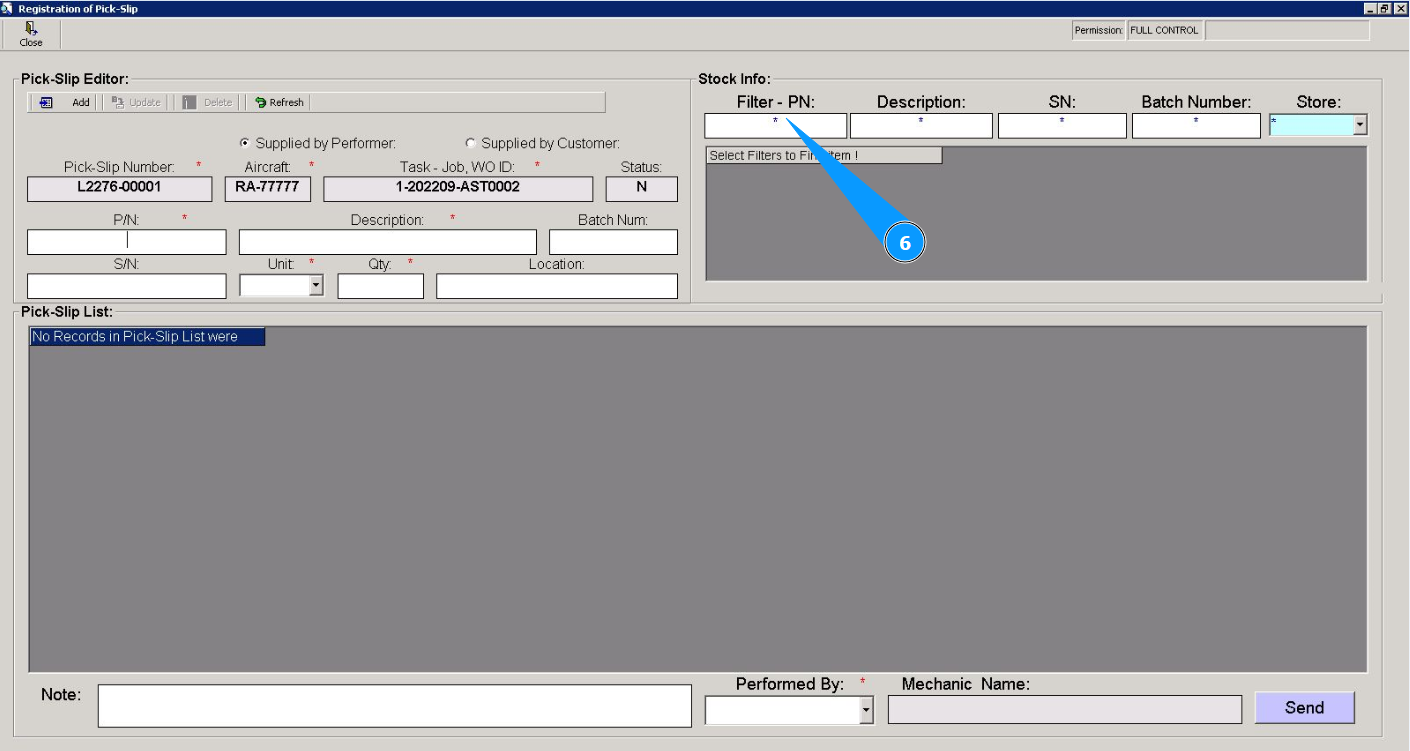
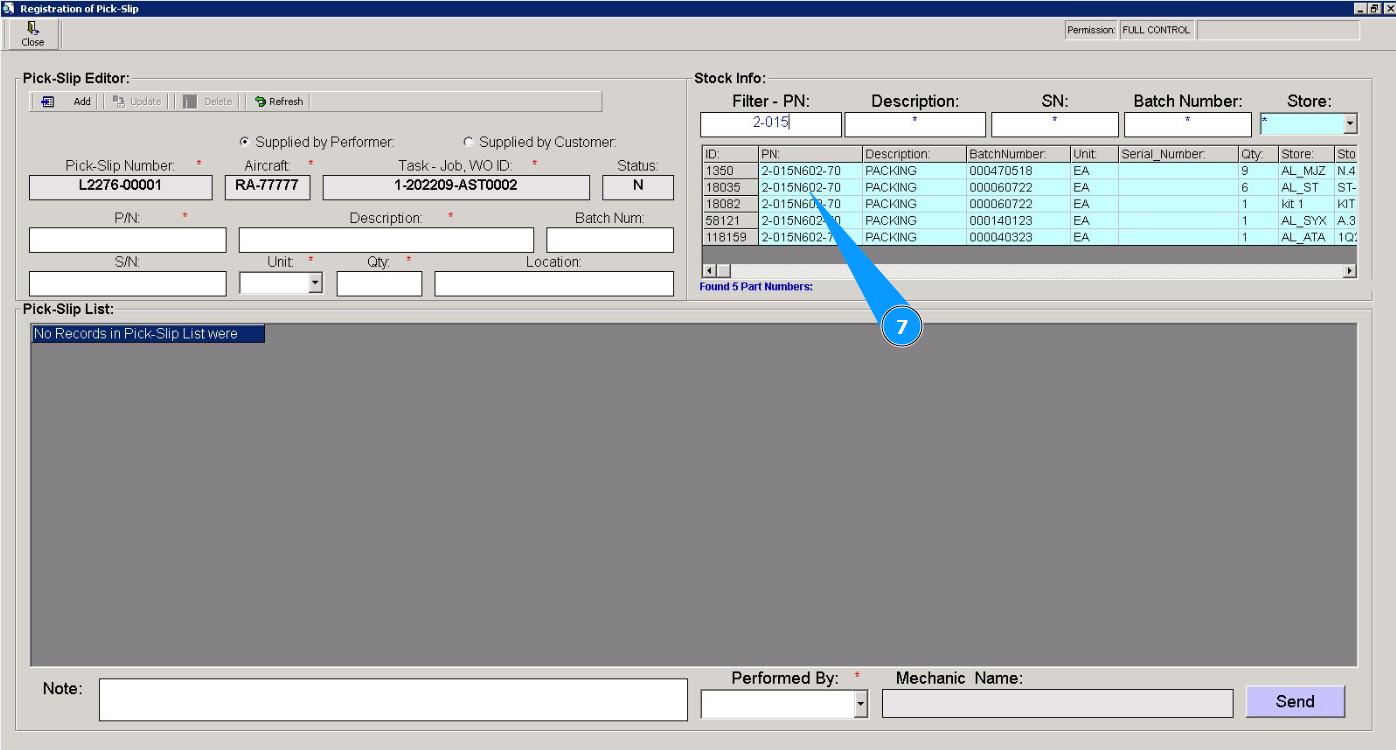
7. Select the material you are looking for in the list and click on the corresponding line.
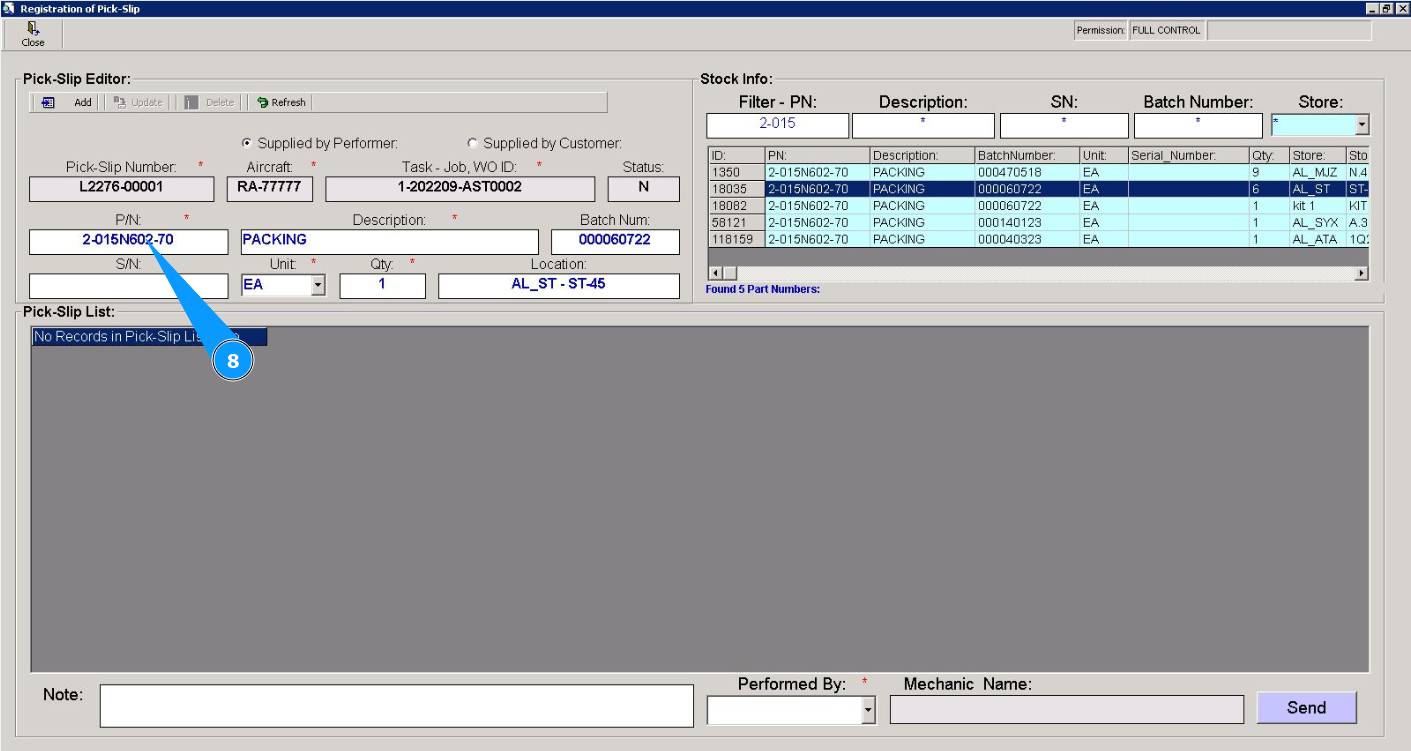
8. Check that the material data is displayed in the editor of window "Pick-Slip Editor".
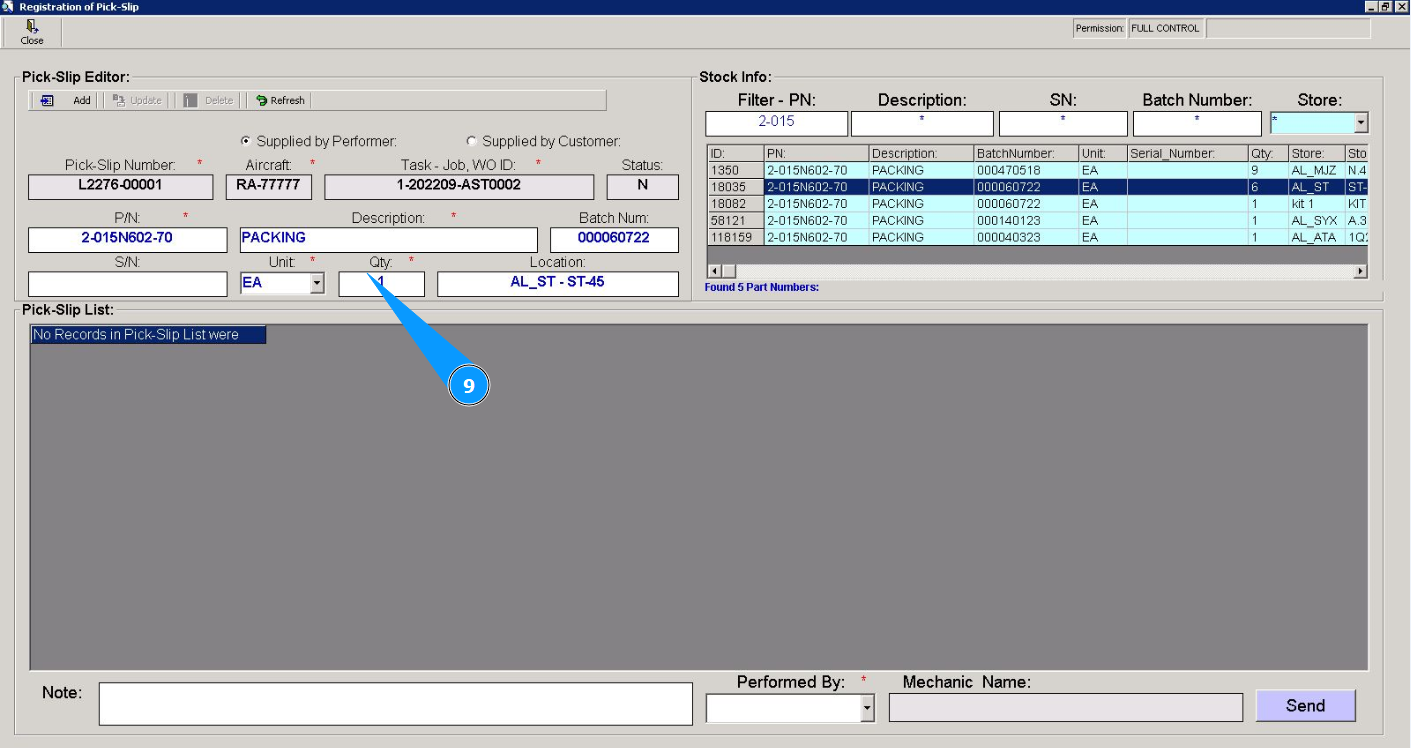
9. Enter information about the required quantity of material in the field "Qty".
10. Click on the button "Add" to add material to the program.
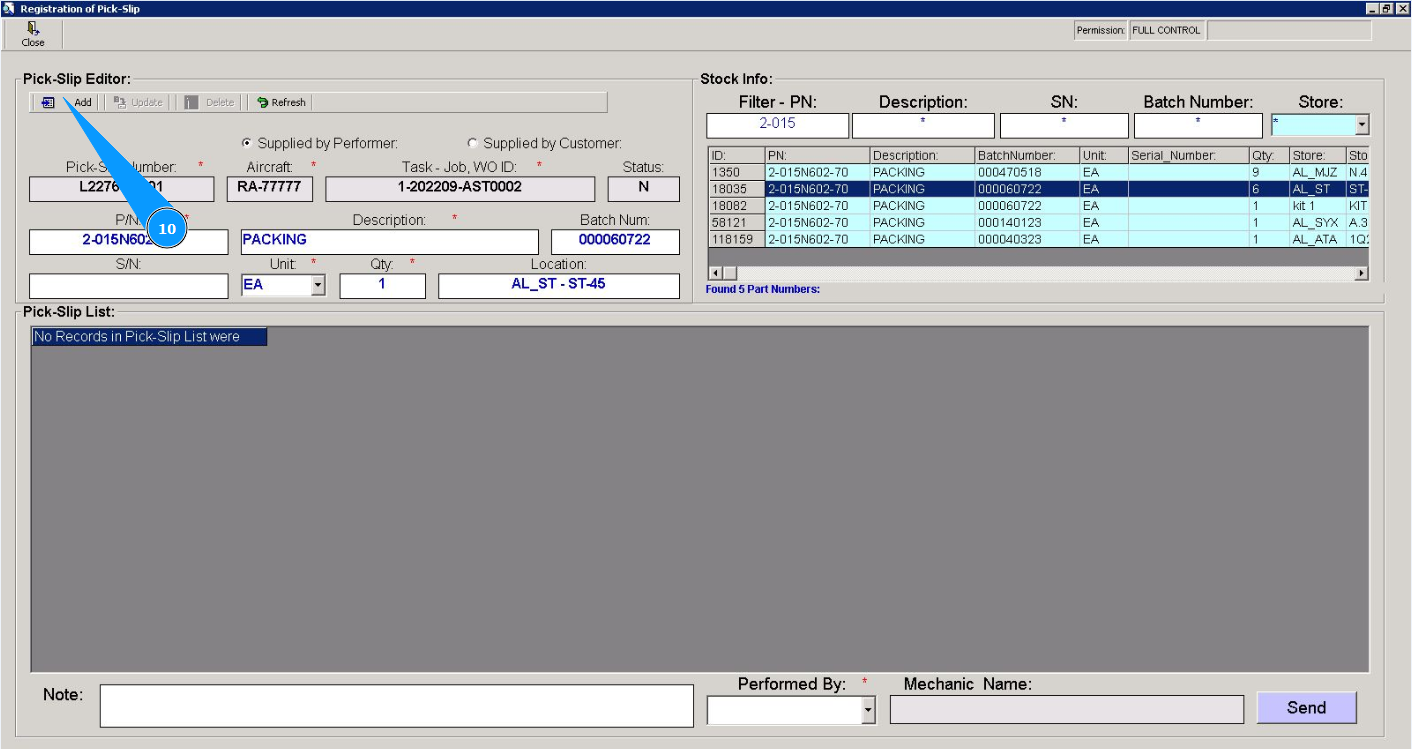
11. Click on the button "Yes" and confirm entering the material into the program.
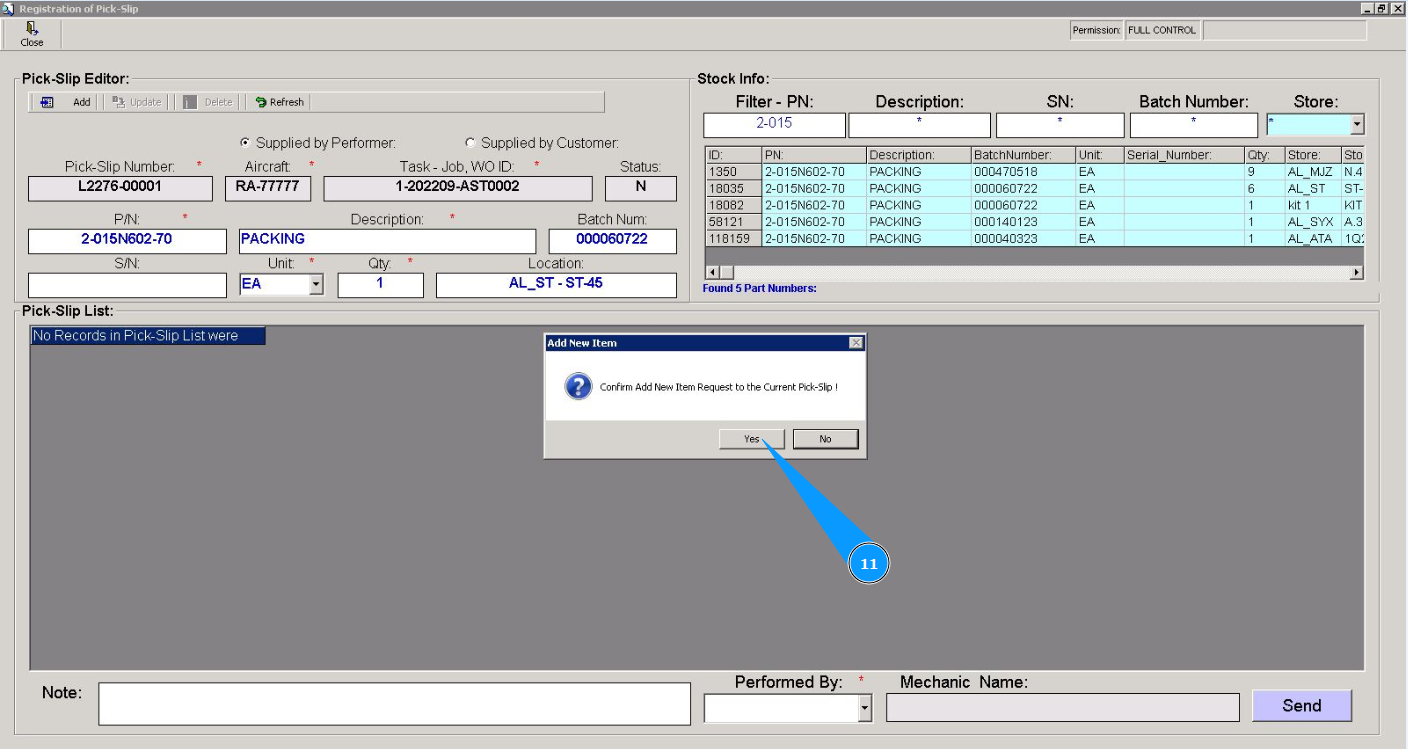
12. Check that the record of the added material is displayed in the window "Pick-Slip List".
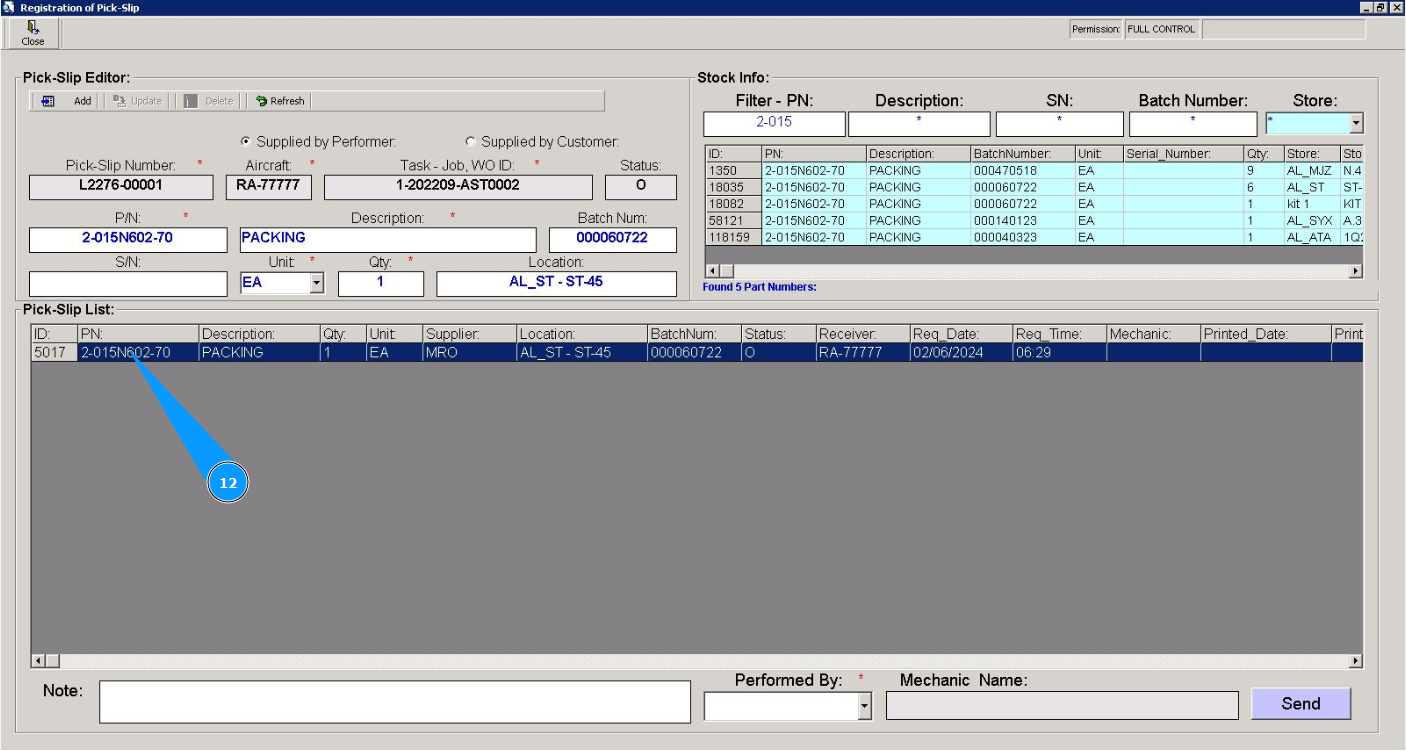
13. Repeat steps 6-12 of this instruction to reserve all the required materials.
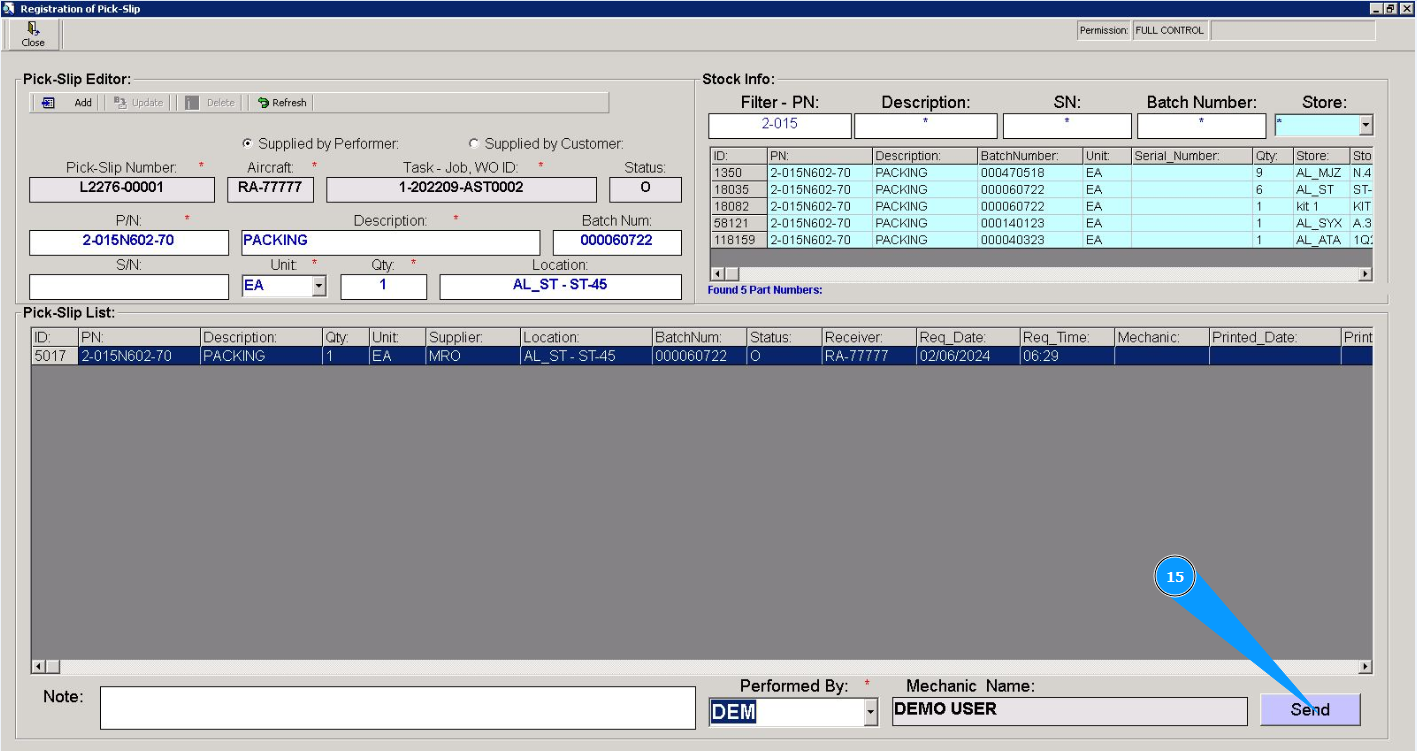
14. Select the login of the specialist who reserved the material for task card from the dropdown list in the field "Performed By".
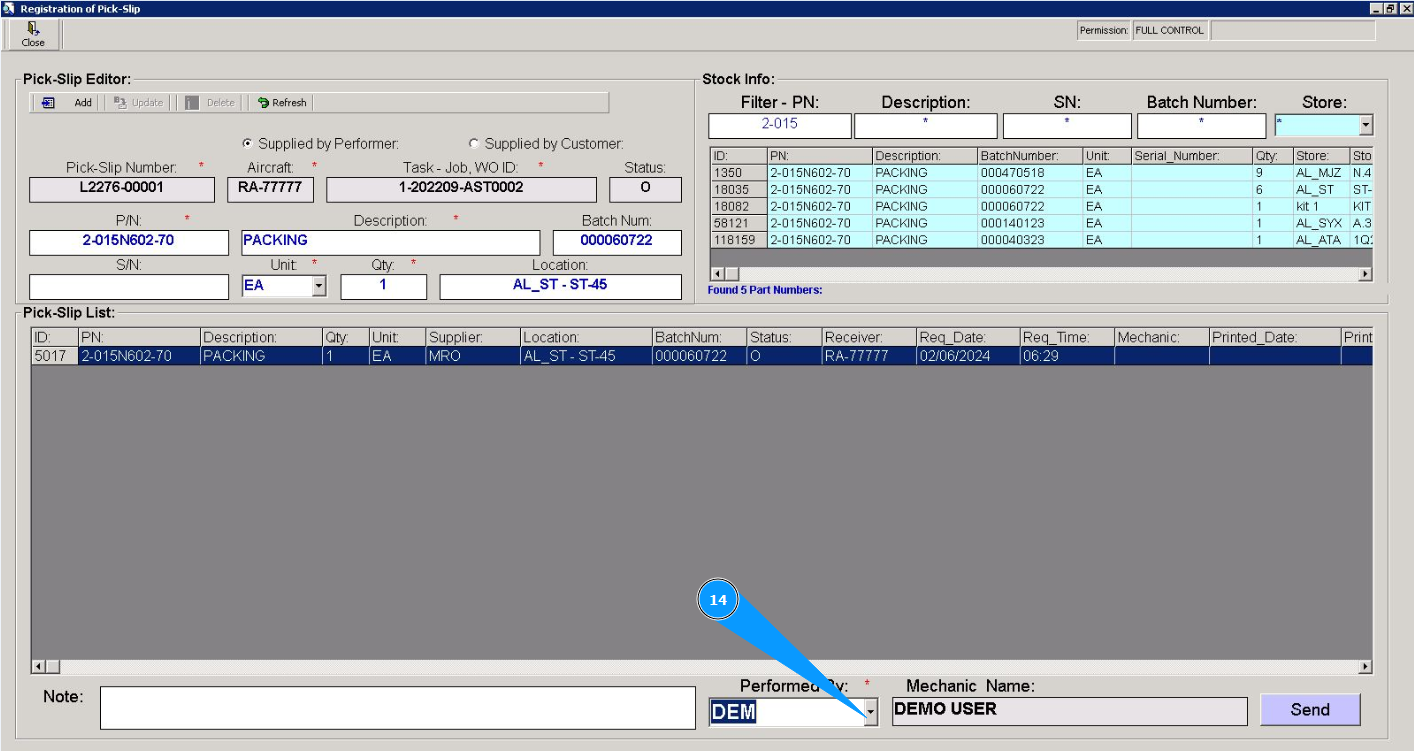
15. Click on the button "Send" to send the completed "Pick-Slip" form to the Store.
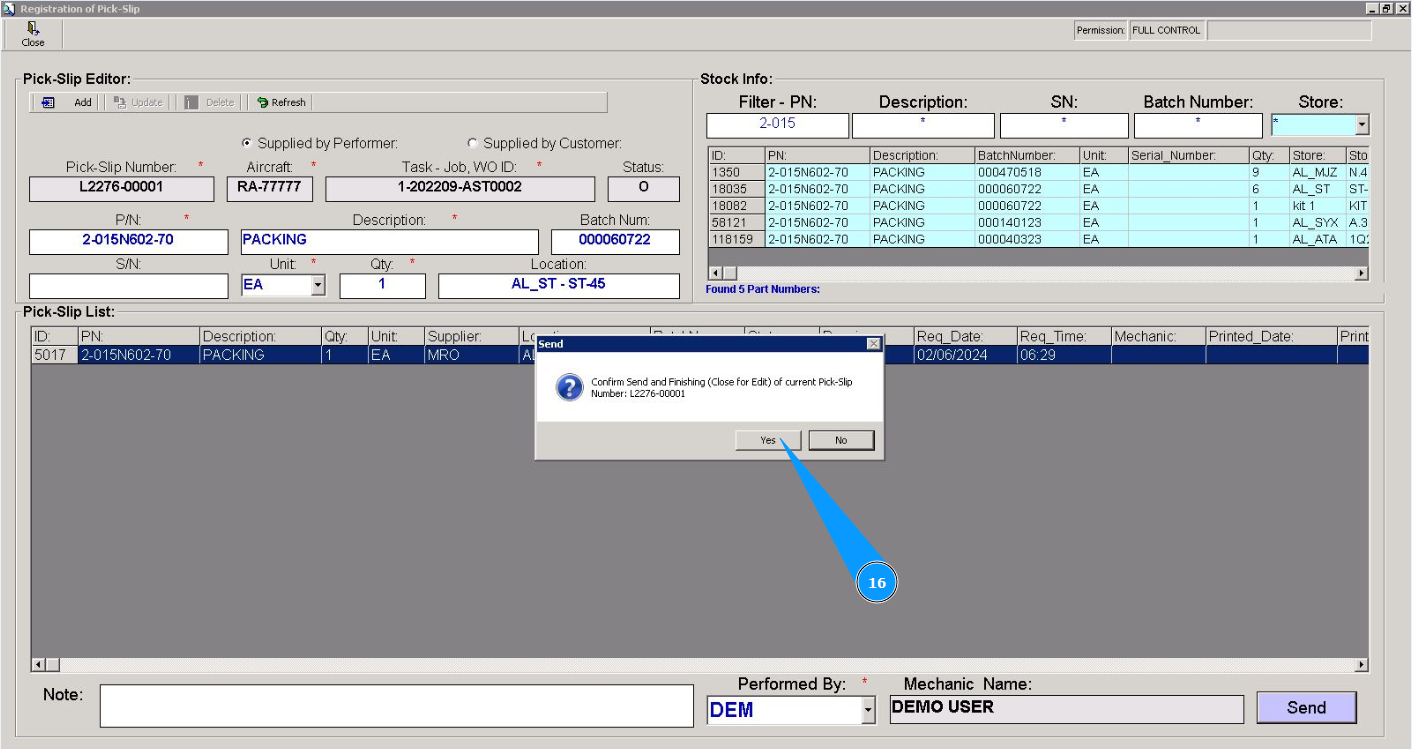
16. Click on the button "Yes", confirm sending the "Pick-Slip" form to the Store.
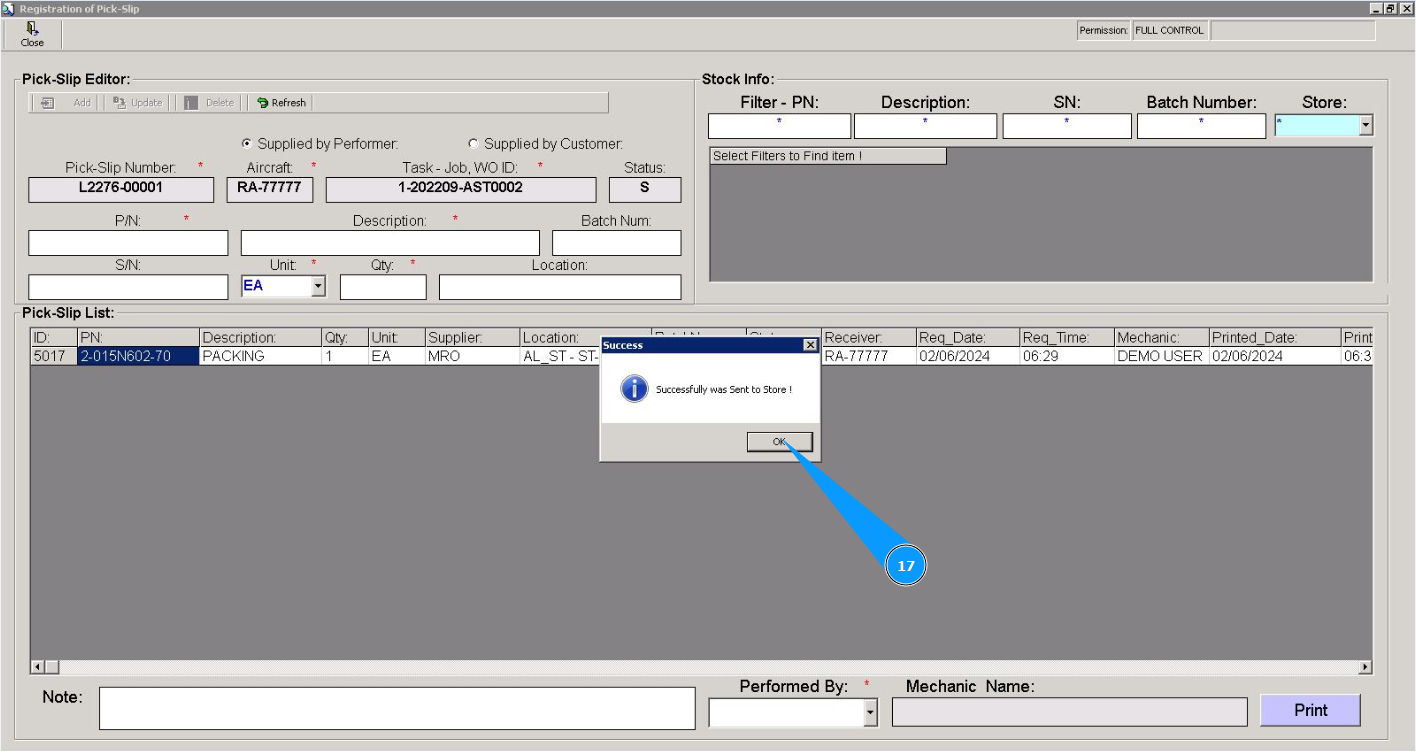
17. Click on the button "Ok", "Pick-Slip" is completely reserved.
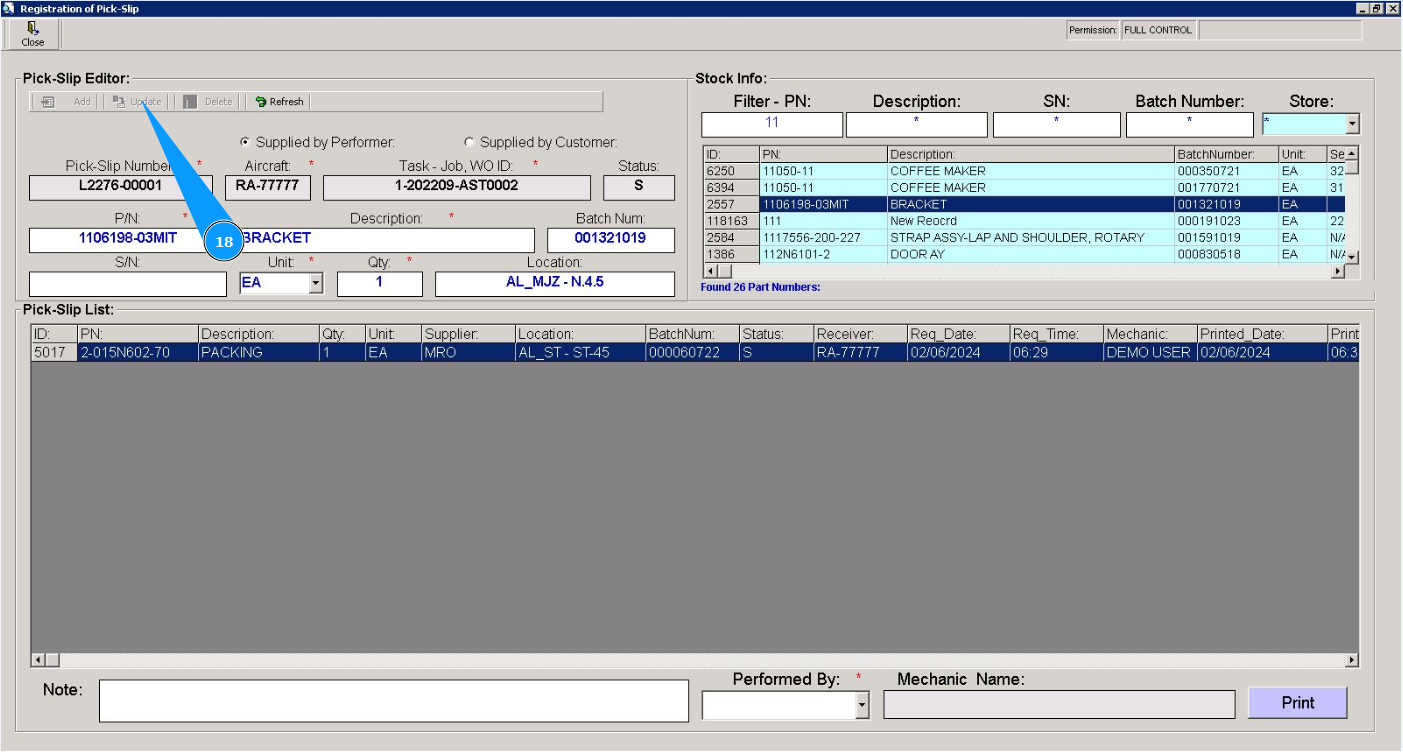
18. Once the Pick-Slip form has been sent to the Store, changing the Pick-Slip list is not possible. The toolbar is highlighted in gray color.
Option No. 2 Reserving materials in the submodule "TC Materials".
In order to reserve materials in the submodule "TC Materials", use the instructions at the link below:
"How to reserve materials to complete a task from a LWO task card or from a Work Package task card"