How to reserve materials for WO task card (Pick-Slip)
Option No. 1 Reservation of materials in the "WO" submodule.
1. In order to reserve materials for WO task card (Pick-Slip), go to the submodule "WO".
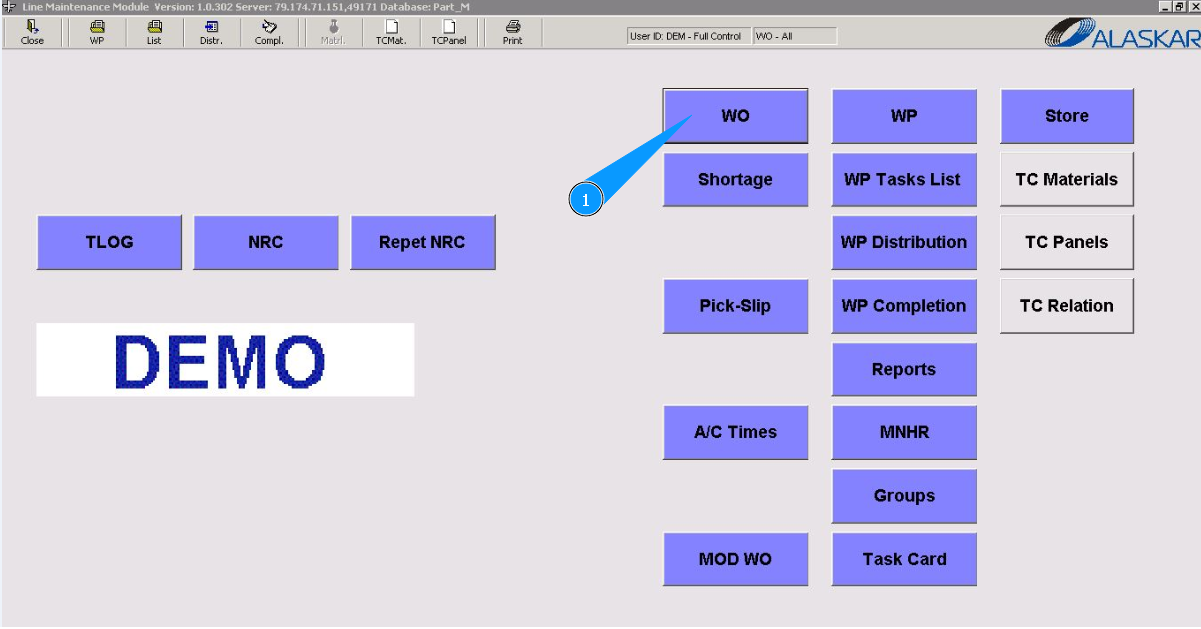
2. Then go to the tab "Distribution". Note: If necessary use availible filters: "A/C Reg.", "WO".
3. Select required WO in the list "Line Work Orders" and click on the corresponding line.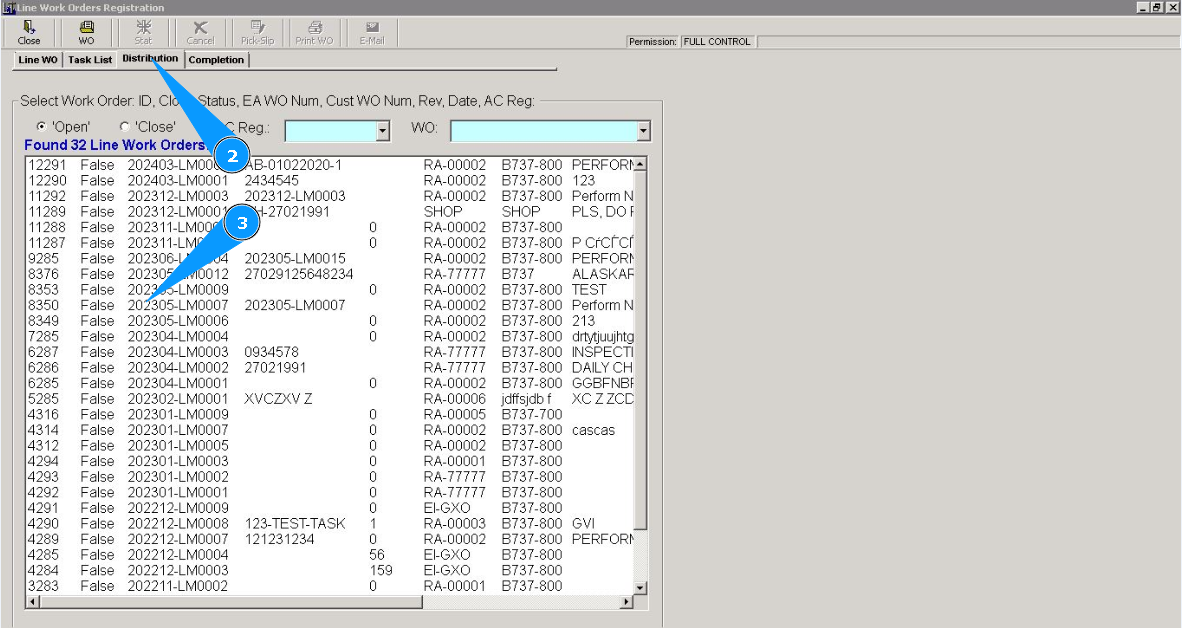
4. Then go to the tab "Task Card". Note: If necessary, use the available filters.
5. Select required task card in the list "Task Cards" and click on the corresponding line.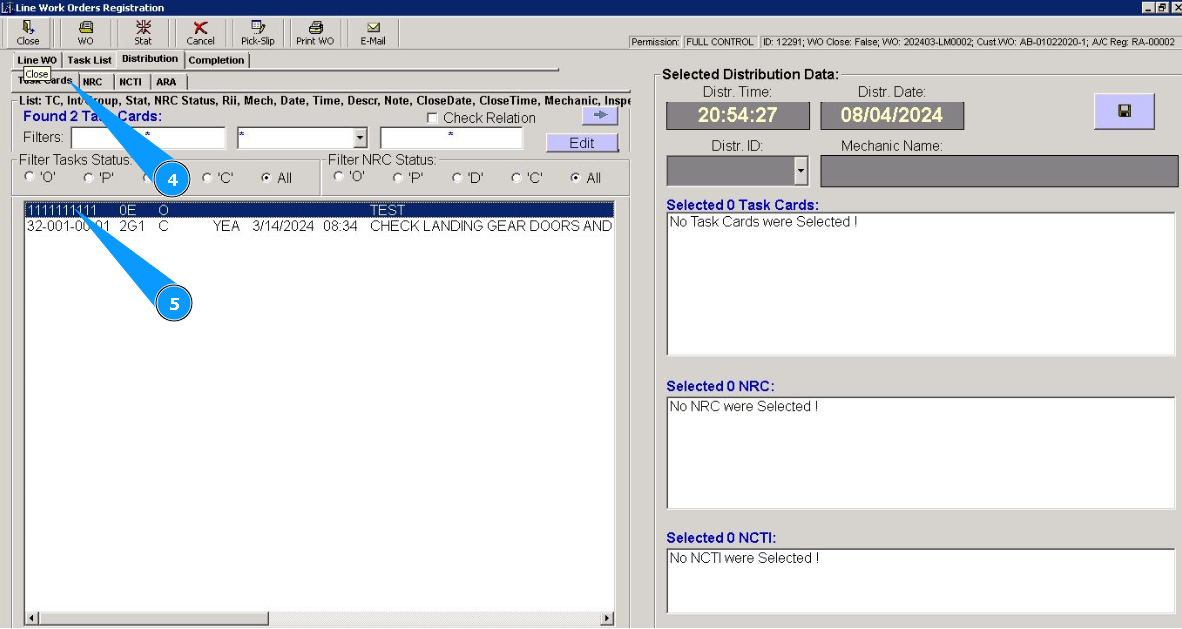
6. Click on the button "Pick-Slip", to reserve materials to WO task card. Примечание: Pick‐Slip number will be automtically generated by Alaskar.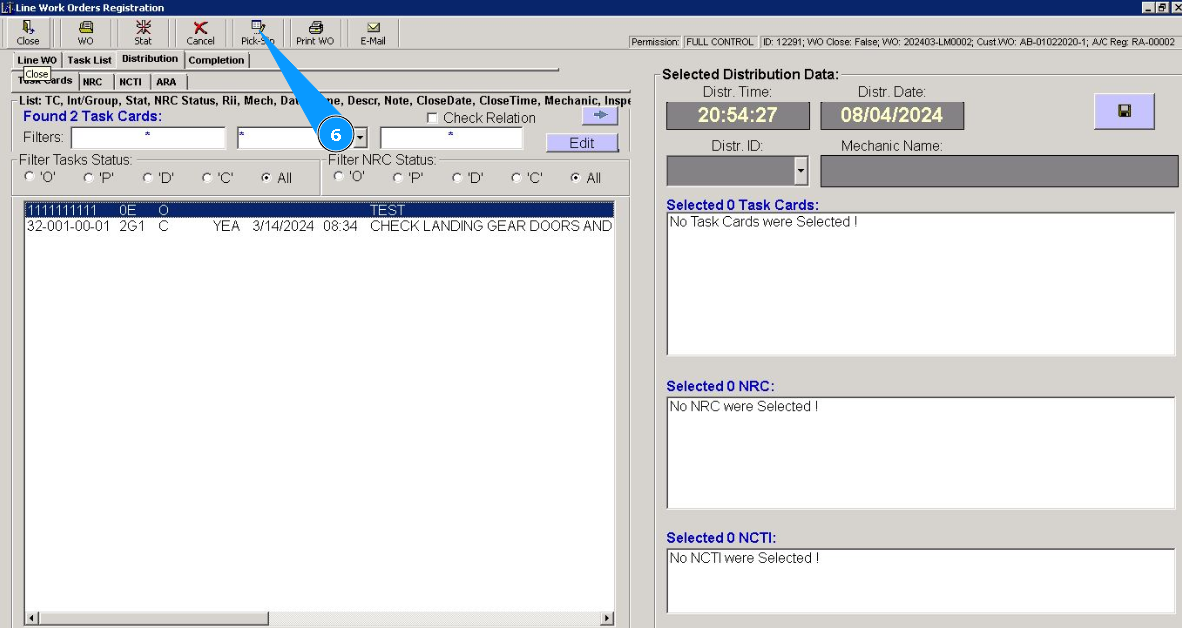
7. Enter the part number of the required materials in the searching field "Filter-PN" and click on the button "Enter" on your keyboard. Note: If necessary use other availible filters: "Description", "SN", etc.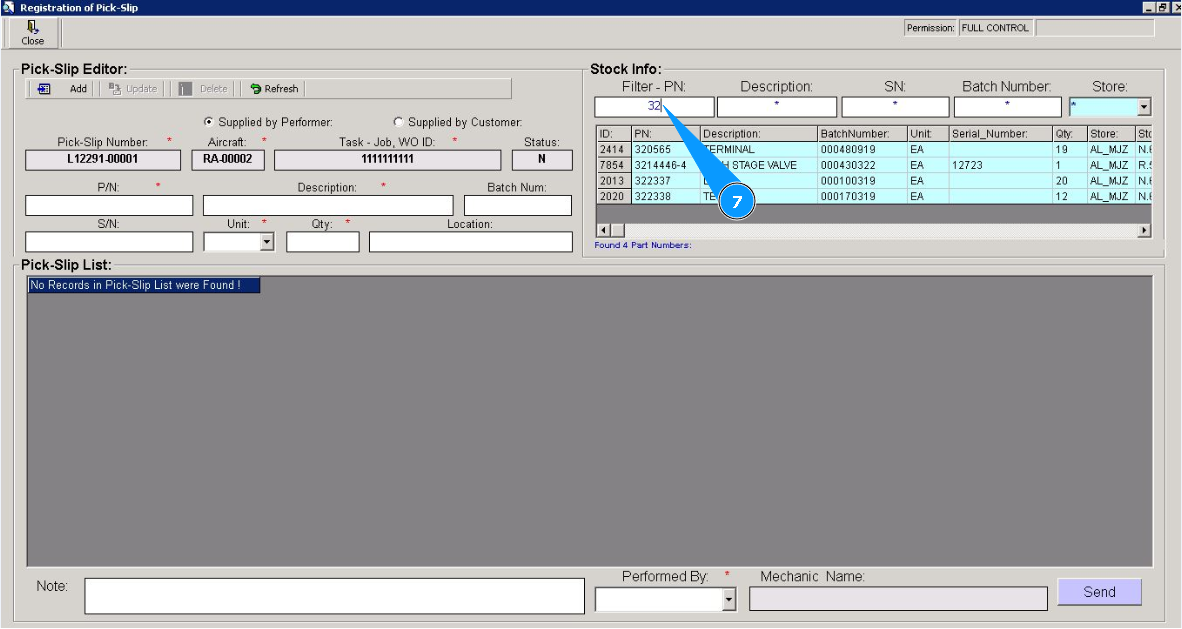
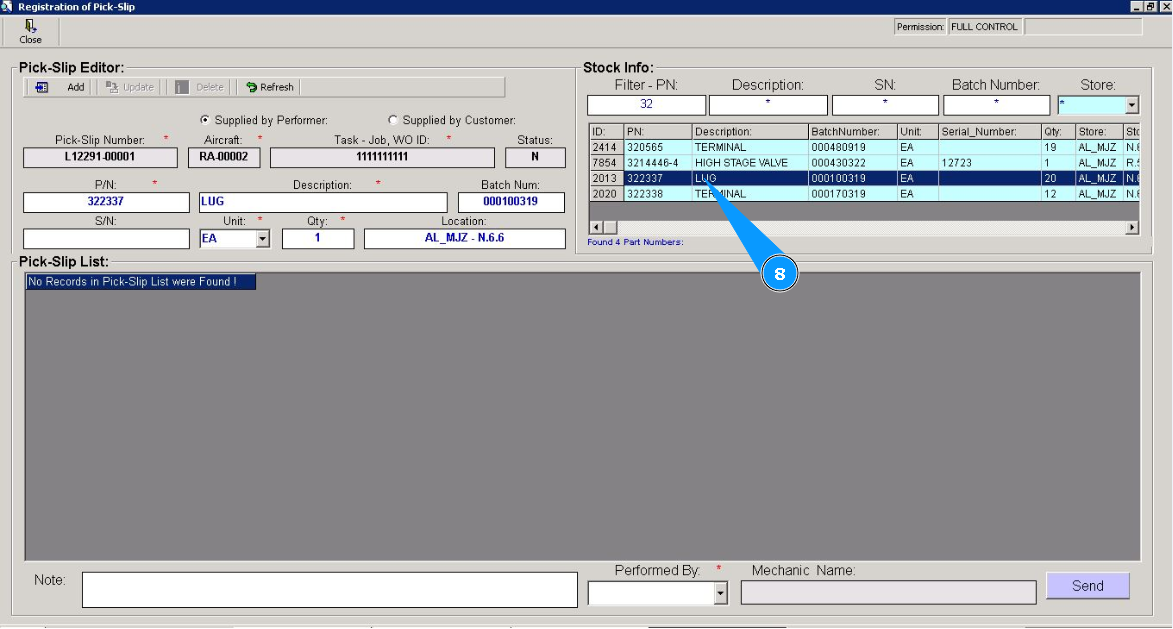
8. Select the required materials in the list and click on the corresponding line.
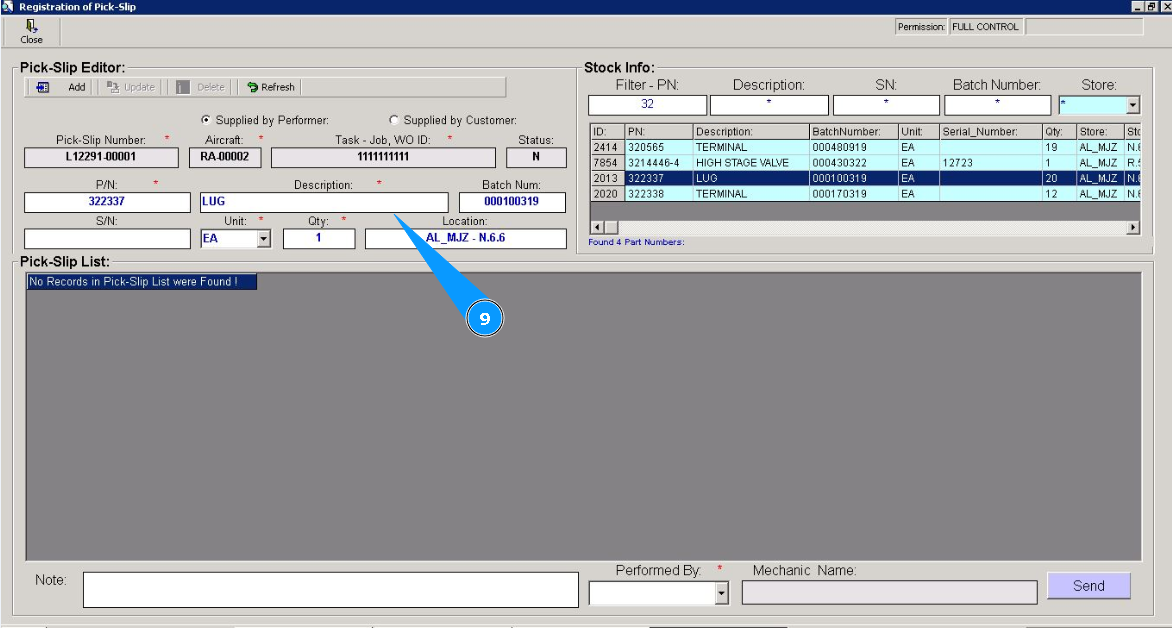
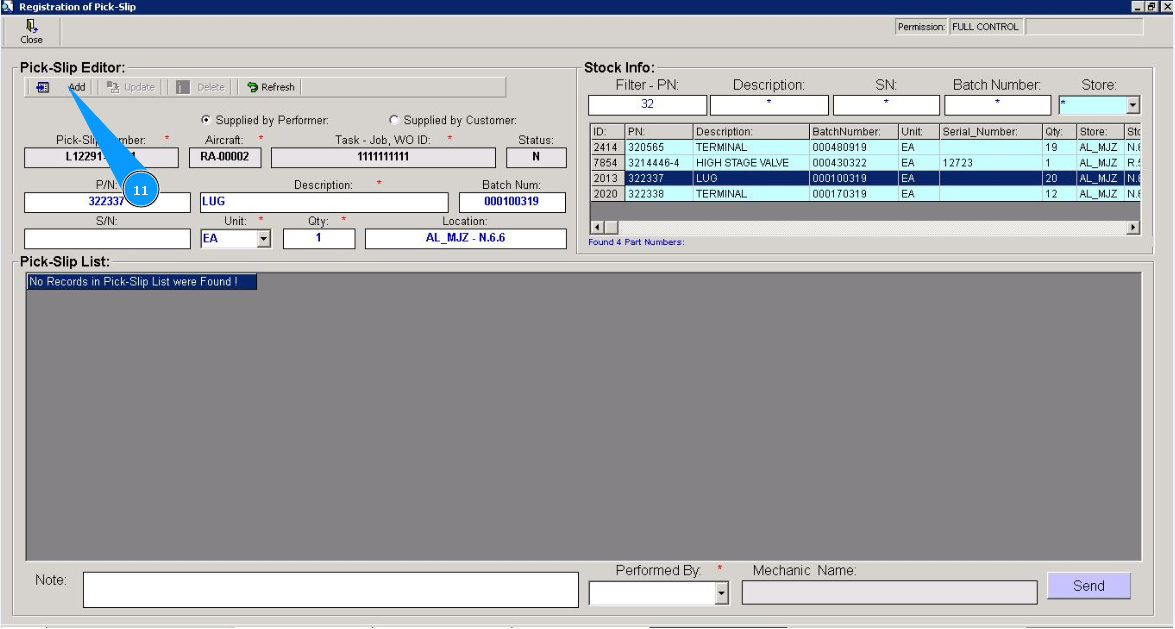
9. Check that material data is displayed in the editor window "Pick-Slip Editor".
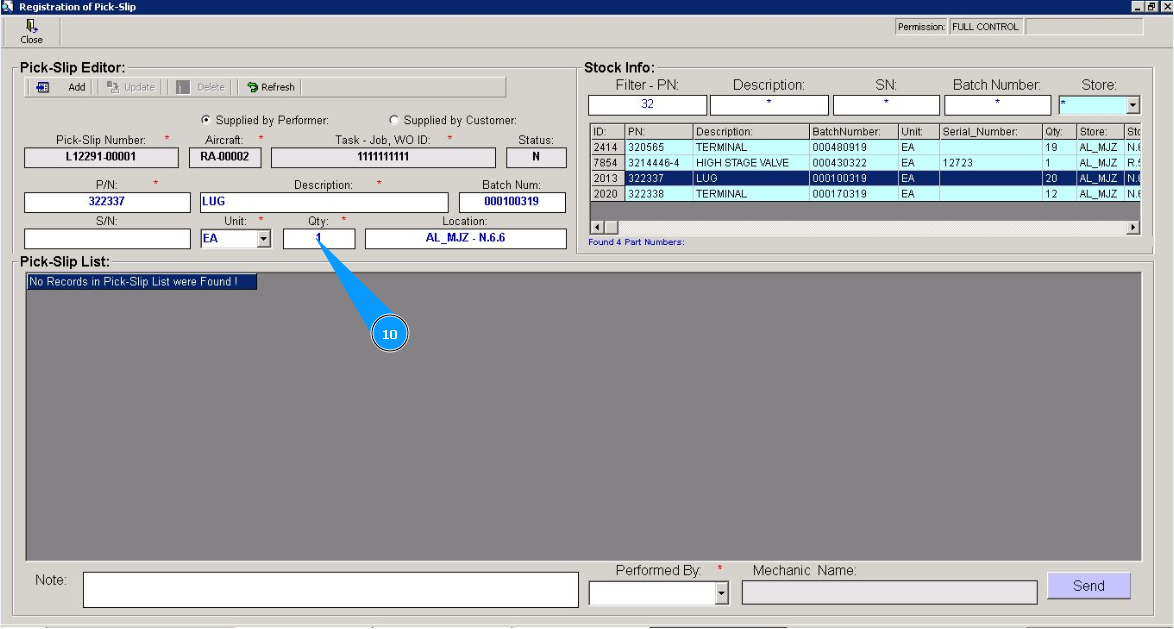
10. Enter information about required quantity of materials in the field "Qty".
11. Click on the button "Add", to add materials to program.
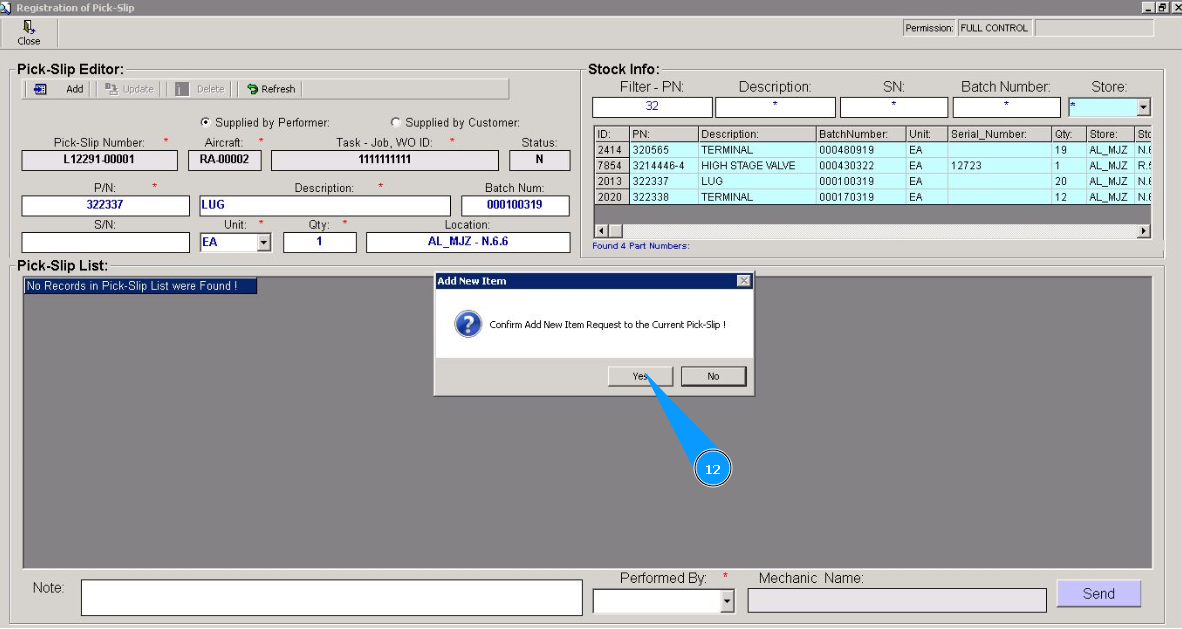
12. Click on the button "Yes", to confirm adding materials to program.
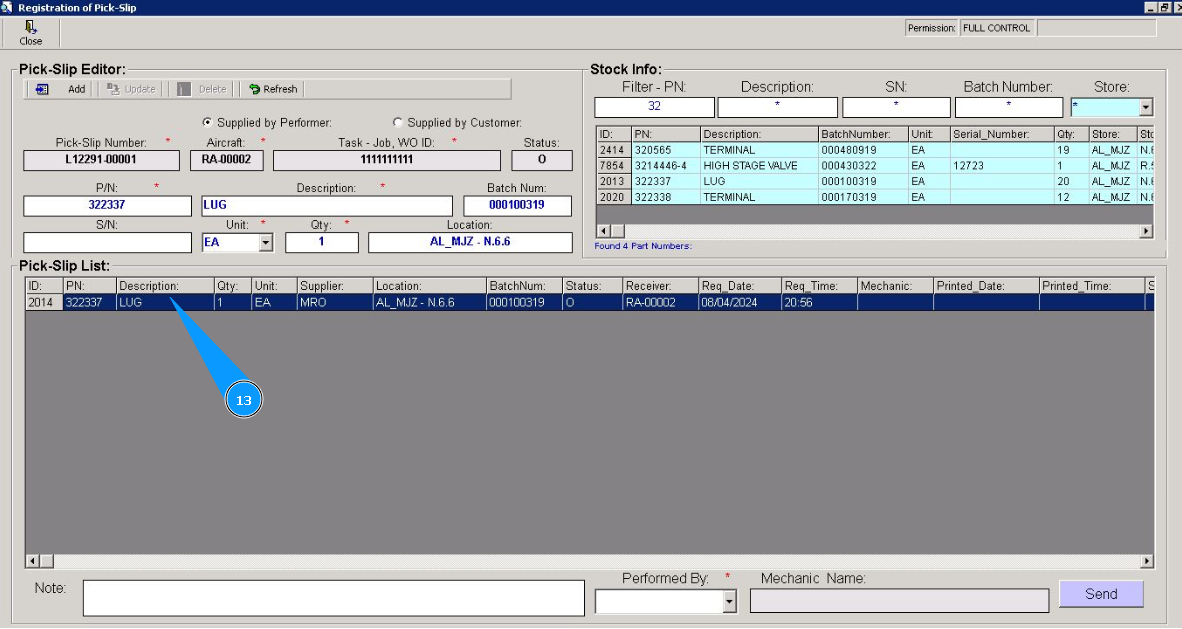
13. Check that the record of entered material is displayed in the window "Pick-Slip List".
14. Follow steps 7–13 of this procedure to reserve all the required materials.
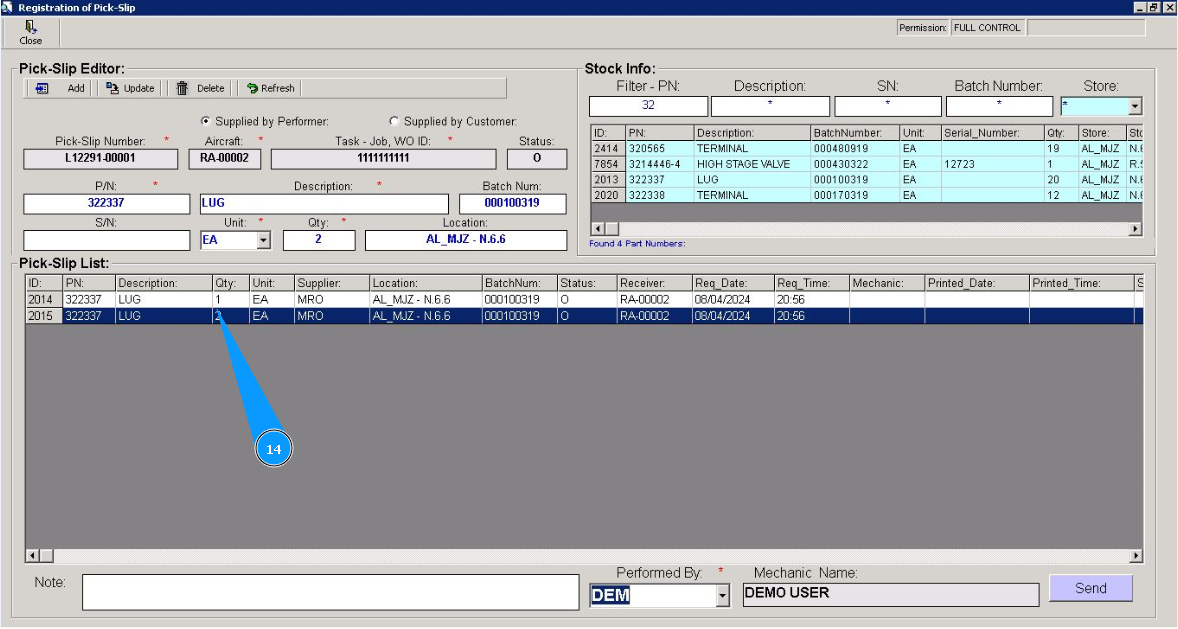
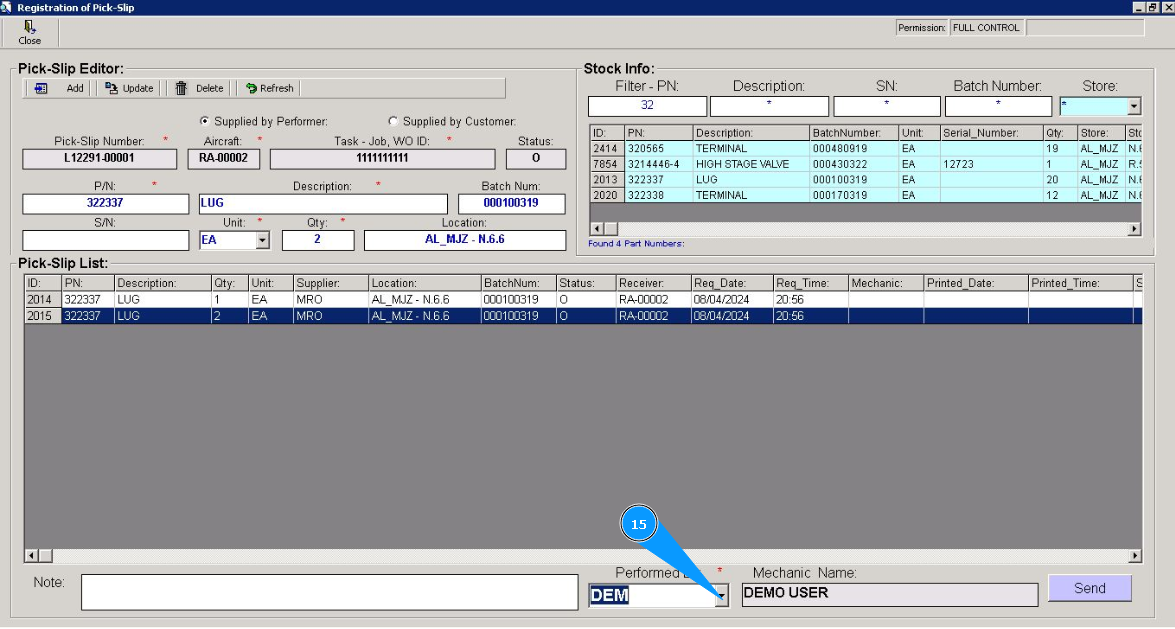
15. Select the login of staff who have issued "Pick-Slip" from dropdown list in the field "Performed By".
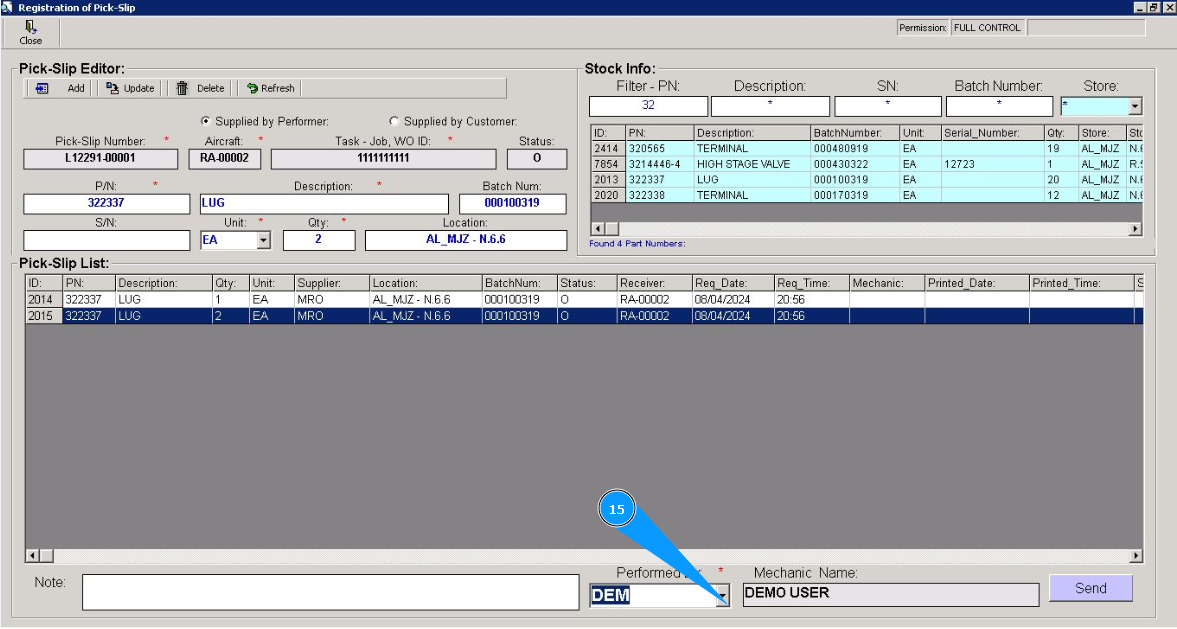
16. Click on the button "Send", to send created "Pick-Slip" to store.
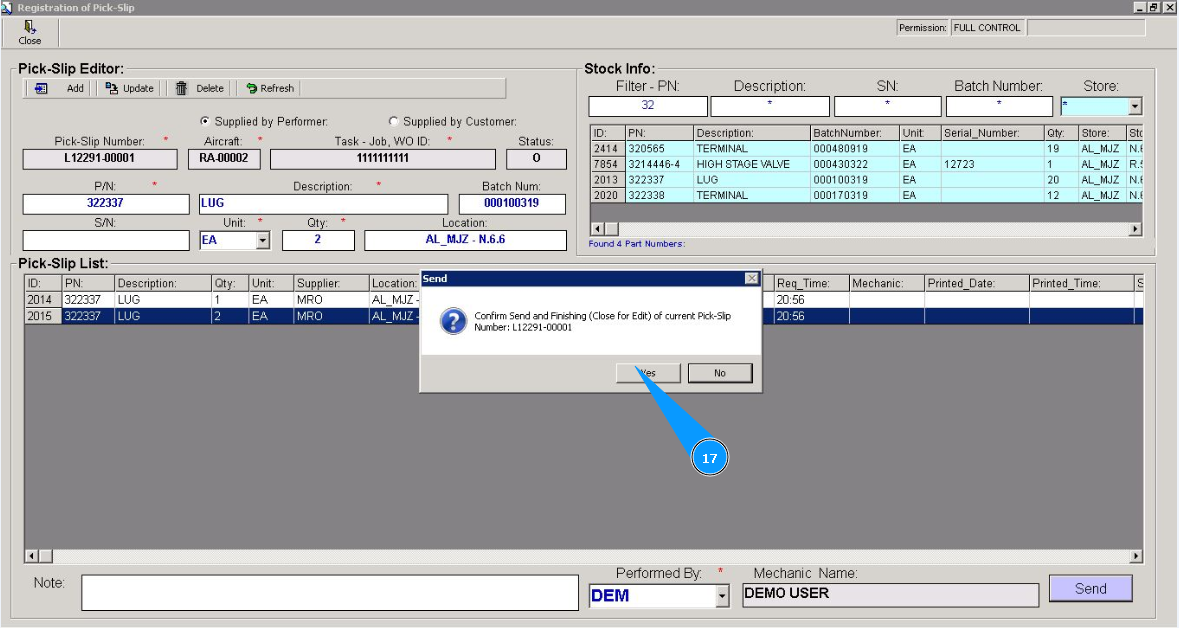
17. Click on the button "Yes", to confirm sending "Pick-Slip" to store.
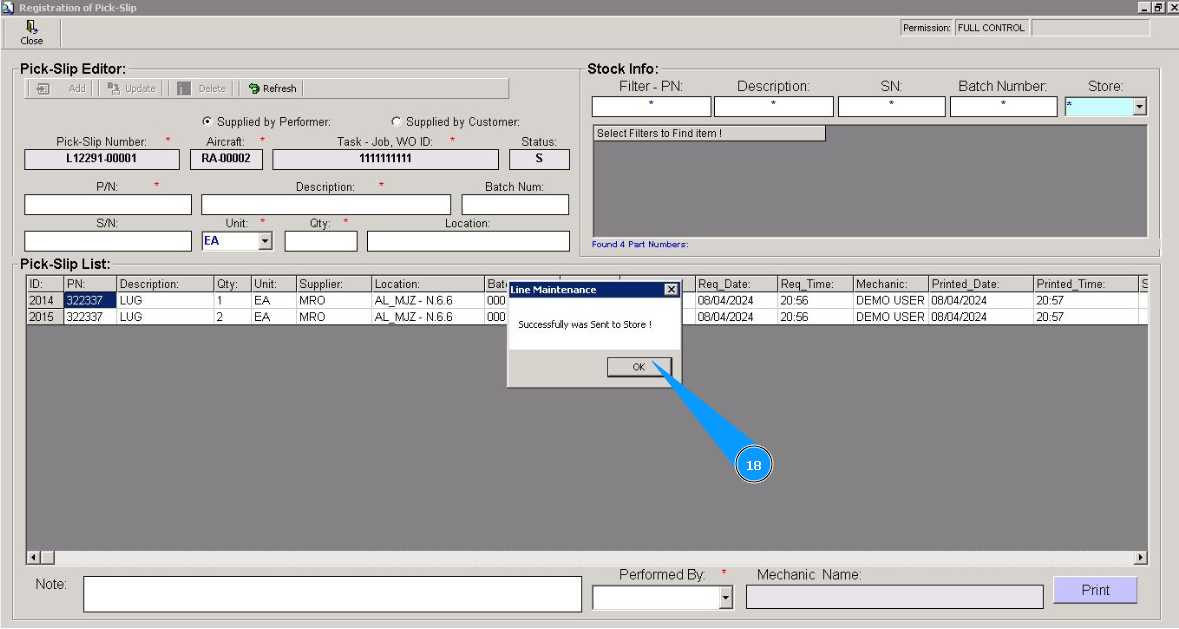
18. Click on the button "Ok", "Pick-Slip" is successfully completed.
Option No.2 Reservation of materials in the submodule "TC Materials".
In order to reserve materials in the submodule "TC Materials", use the instruction by link below:
"How to reserve materials for a task from an LWO task card or Work Package task card"